---
title: "How to start using the Requiply MCP server"
description: "Connect Claude or ChatGPT to your Requiply data through the MCP server at https://api.requiply.com/api/mcp, signing in to Requiply with OAuth as an Admin."
canonical_url: "https://requiply.com/docs/en/ai/how-to-start-using-mcp"
---
# How to start using the Requiply MCP server
> Connect Claude or ChatGPT to your Requiply data through the MCP server at https://api.requiply.com/api/mcp, signing in to Requiply with OAuth as an Admin.
In Claude, open [claude.ai/directory/requiply](https://claude.ai/directory/requiply) and click **Connect**. In ChatGPT or any other MCP client, add a custom MCP server with the URL `https://api.requiply.com/api/mcp` and OAuth. Then sign in to Requiply as an Admin, choose the organization, and click **Allow access**. No API key is needed.
MCP (Model Context Protocol) lets an AI assistant use Requiply as a set of tools. Once connected, you can ask Claude or ChatGPT *"Which bookings start tomorrow?"* or *"Is the Canon C50 free next weekend?"* and it answers from your live data. Changes, such as a new booking, are shown as a preview first and saved only after you confirm.
## Before you start
- You need the **Admin** role in the Requiply organization you connect. Other roles are refused with *Admin role required*.
- Claude works on every plan. ChatGPT needs a paid plan that allows custom MCP servers.
## 1. Open the AI setup page
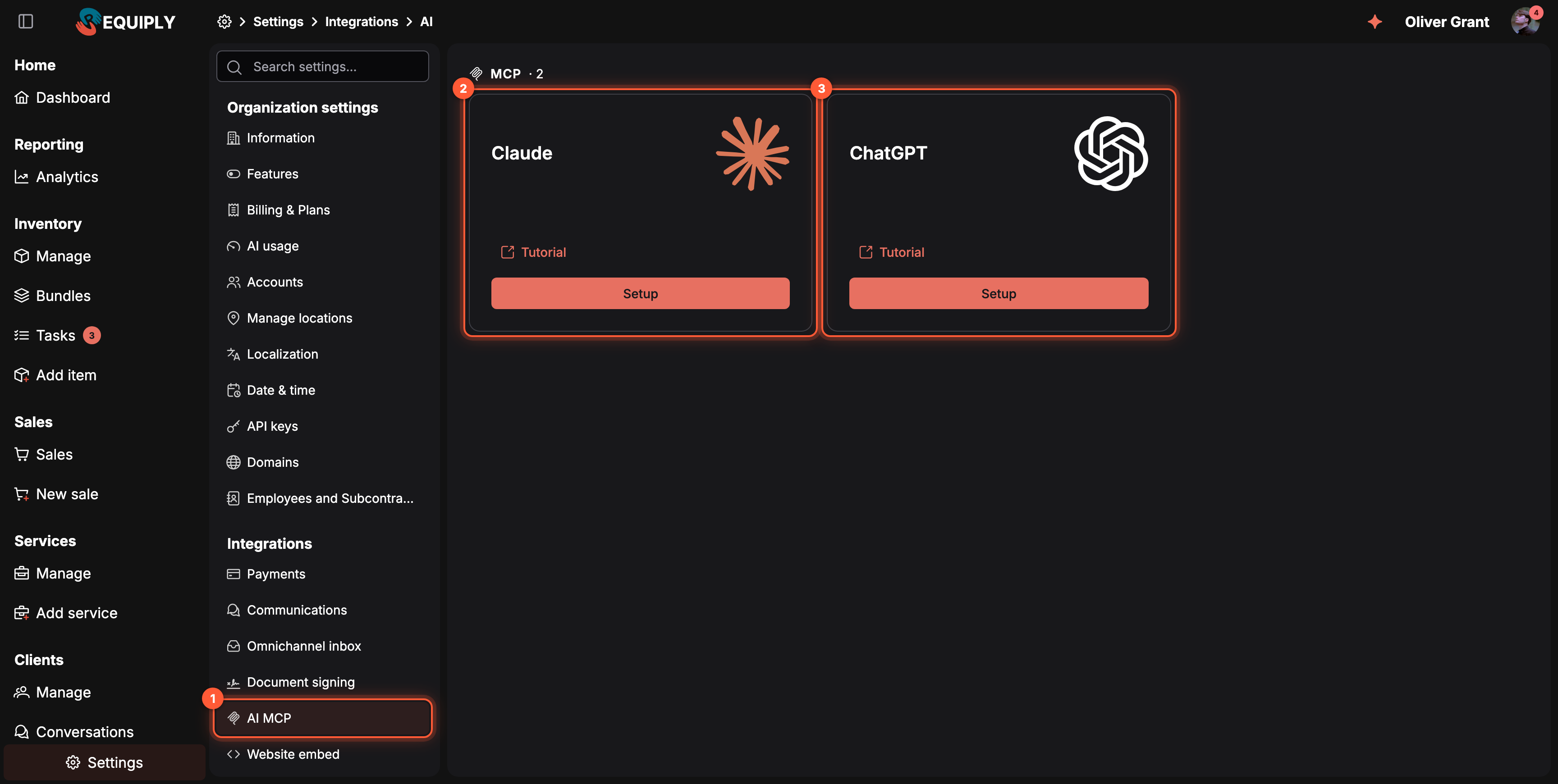
**Settings → Integrations → AI MCP**.
1. **AI MCP** in the settings menu.
2. **Claude**: click **Setup** for the steps and the URL.
3. **ChatGPT**: the same for ChatGPT.
**Tutorial** on each card opens a step-by-step guide with screenshots of that assistant.
## 2. Add Requiply to your assistant
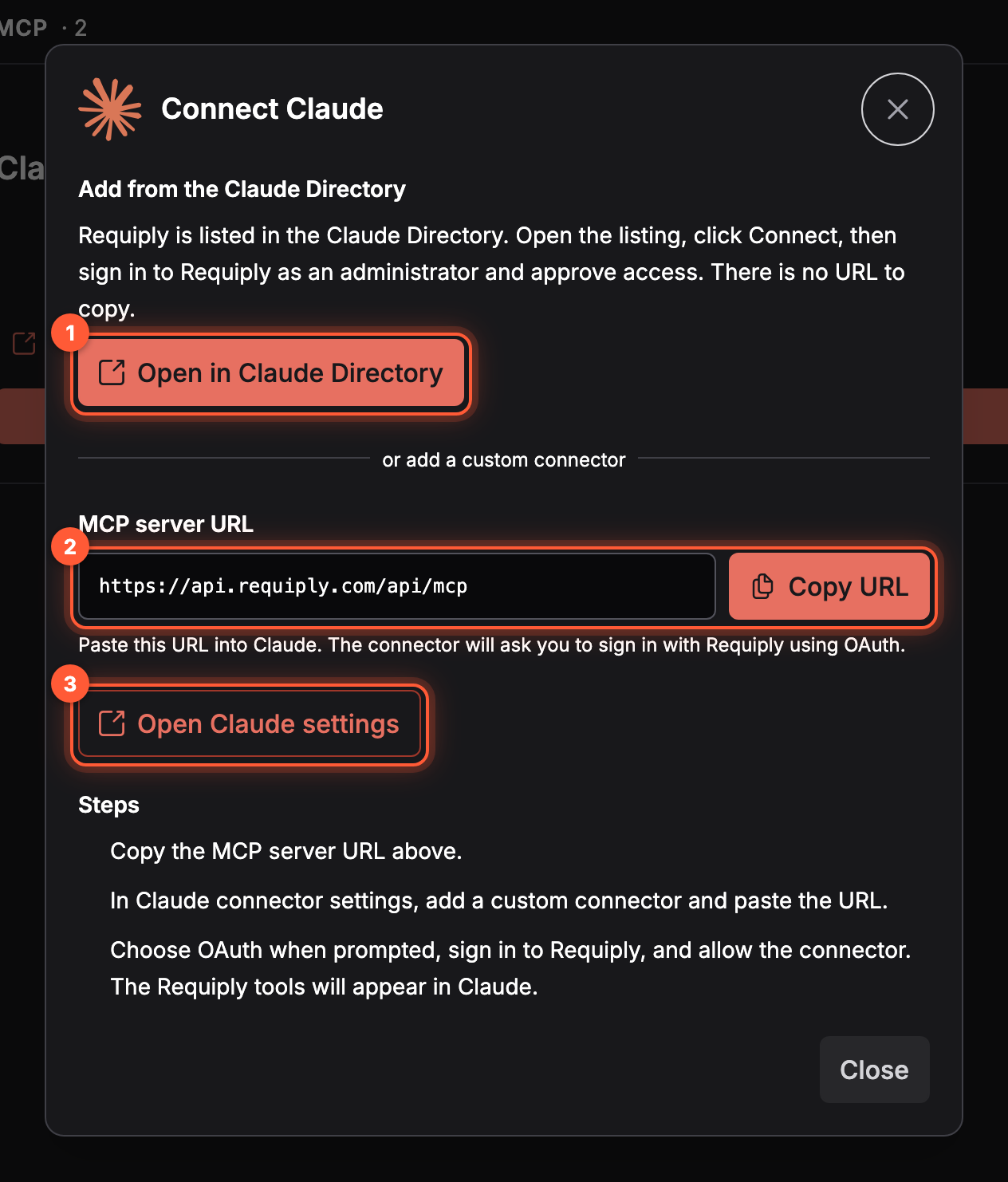
The **Connect Claude** dialog.
1. **Open in Claude Directory** opens the Requiply listing in Claude. Click **Connect** there. This is the quickest way.
2. **MCP server URL** and **Copy URL**, for a custom connector instead.
3. **Open Claude settings** opens Claude's connector settings, where you add the custom connector and paste the URL.
**In ChatGPT**: open [chatgpt.com/plugins](https://chatgpt.com/plugins), click **Add**, choose **Create custom MCP server**, name it `Requiply`, paste `https://api.requiply.com/api/mcp` as **Server URL**, set **Authentication** to **OAuth**, and click **Create as a plugin**. Full steps: [Connecting](https://requiply.com/docs/en/ai/mcp/connecting).
## 3. Sign in and allow access
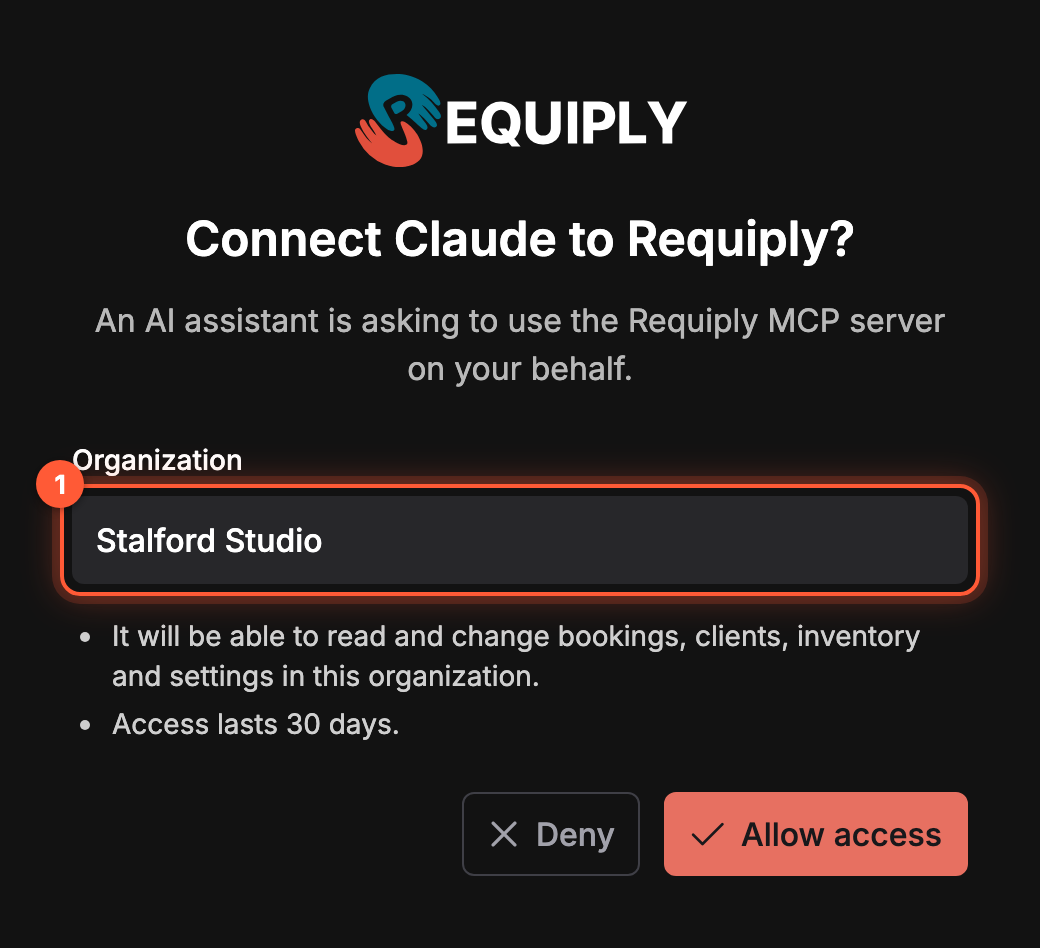
The page Requiply shows when an assistant asks for access.
The assistant sends you to Requiply. Log in if asked, then:
1. **Organization**: the one the assistant will work with. If you are an Admin in several, pick one.
2. **Allow access**. The assistant can now read and change bookings, clients, inventory, and settings in that organization. **Deny** cancels the connection.
You are sent back to the assistant, and the Requiply tools appear in it.
## 4. Ask your first question
Start a new chat and try:
- *"What are today's pickups and returns in Requiply?"*
- *"Which clients still owe money?"*
- *"Create a booking for Rode PSA1 from Friday 10:00 to Sunday 18:00 for Emma Crawford."*
In ChatGPT, turn on the **Requiply** plugin in the tools picker first. More prompts: [MCP use cases](https://requiply.com/docs/en/ai/mcp/use-cases).
## Common questions
### Do I need an API key?
No. Claude and ChatGPT connect with OAuth. A secret API key is only for an agent you build yourself, see [AI agents and MCP](https://requiply.com/docs/en/developers/authentication-and-api-keys#ai-agents-and-mcp).
### Can team members who are not Admins use it?
Not yet. Connecting needs the **Admin** role. Inside Requiply, everyone can use the built-in [Requiply Assistant](https://requiply.com/docs/en/ai/requiply-assistant) instead.
### Does the assistant change data without asking?
No. Every write tool returns a preview first and saves only when it is called again with your confirmation. See [MCP tools](https://requiply.com/docs/en/ai/mcp/tools).
### The tools stopped working. What now?
Reconnect from your assistant's connector or plugin settings and sign in again. See [Troubleshooting](https://requiply.com/docs/en/ai/mcp/troubleshooting).
## Sitemap
See the full [sitemap](https://requiply.com/docs/sitemap.md) for all pages.