---
title: "Client and booking details on a new booking"
description: "Pick or create the client for a new booking, complete a client who is missing required details, and fill in the booking fields your organization asks for at creation."
canonical_url: "https://requiply.com/docs/en/guides/bookings/add-booking/client-and-details"
---
# Client and booking details on a new booking
> Pick or create the client for a new booking, complete a client who is missing required details, and fill in the booking fields your organization asks for at creation.
The lower part of [Add booking](https://requiply.com/docs/en/guides/bookings/add-booking) holds the client and the booking details. Both can stay empty unless your organization made some of their fields required.
## Selecting or creating a client
Type part of a client's name, email, or phone into the **Client** field. Requiply searches your clients on the server as you type and lists up to 20 matches with their email and phone tags, so the field stays fast with thousands of clients. Click the arrow without typing to list the first clients by name. The **Create client** button opens the client create dialog. On save, the new client becomes the selected client automatically and a success toast is shown. On failure, an error toast is shown instead. The client is **optional**: leaving it empty creates an unattached booking.
When client fields are marked **Required** or **Show at creation**, the **Create client** dialog has a **Details** part under the contact fields with those fields, and **Save** checks the required ones before the client is created.
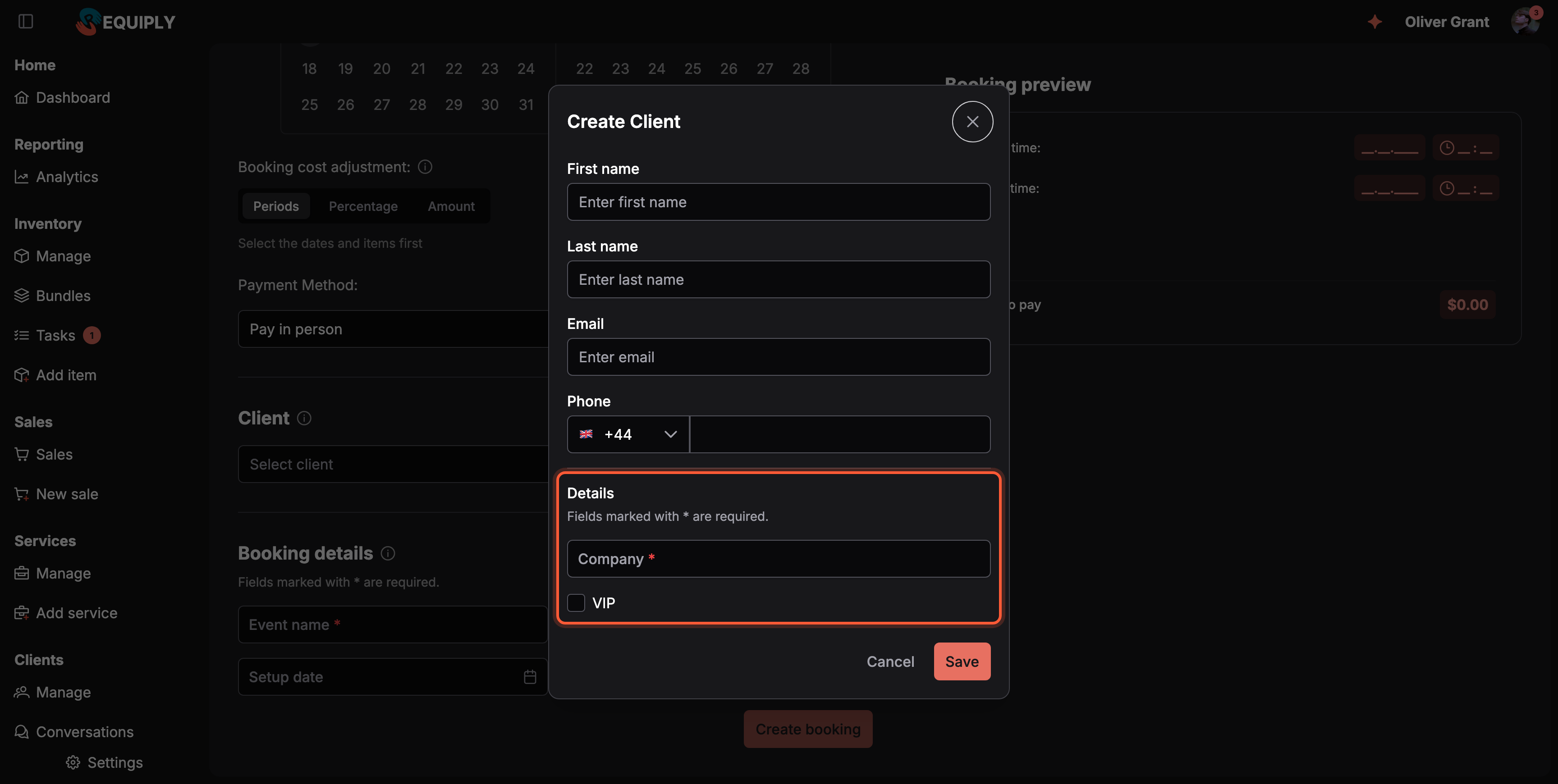
The quick **Create client** dialog asks for the client fields marked **Required** or **Show at creation**.
## Clients missing required details
Picking an existing client runs a quick check of the client's required fields. While it runs, the select shows a spinner. If something is missing, an info toast says *This client is missing required details. Fill them in to use the client.* and the **Complete client details** dialog opens:
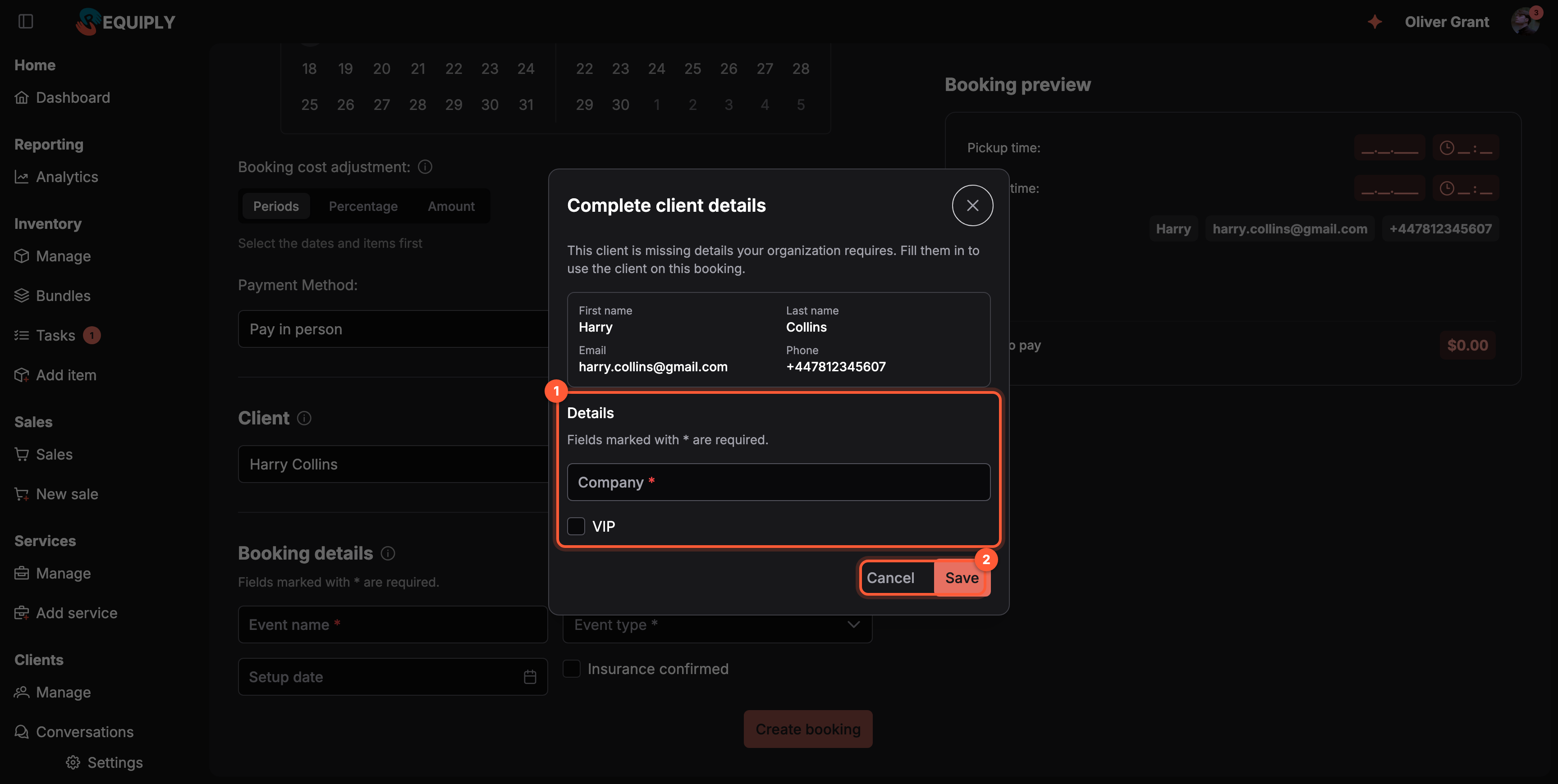
**1** Fill in the missing details. **2** **Save** stores them on the client and keeps the client on the booking; **Cancel** clears the client select.
- The client's name, email and phone are shown read-only for reference.
- **Details** lists the client fields shown at creation, already filled with what the client has, and the empty required ones marked with *****.
- **Save** stores the values on the client record and keeps the client selected. **Cancel** (or the cross) empties the client select, so the booking is never created with an incomplete client.
The check runs on Add booking only. Other client pickers, such as the one on an existing booking, do not ask for missing details yet.
In the mobile app the same check runs when a client is tapped on the **Select Client** step: a toast appears and a sheet asks for the missing details.
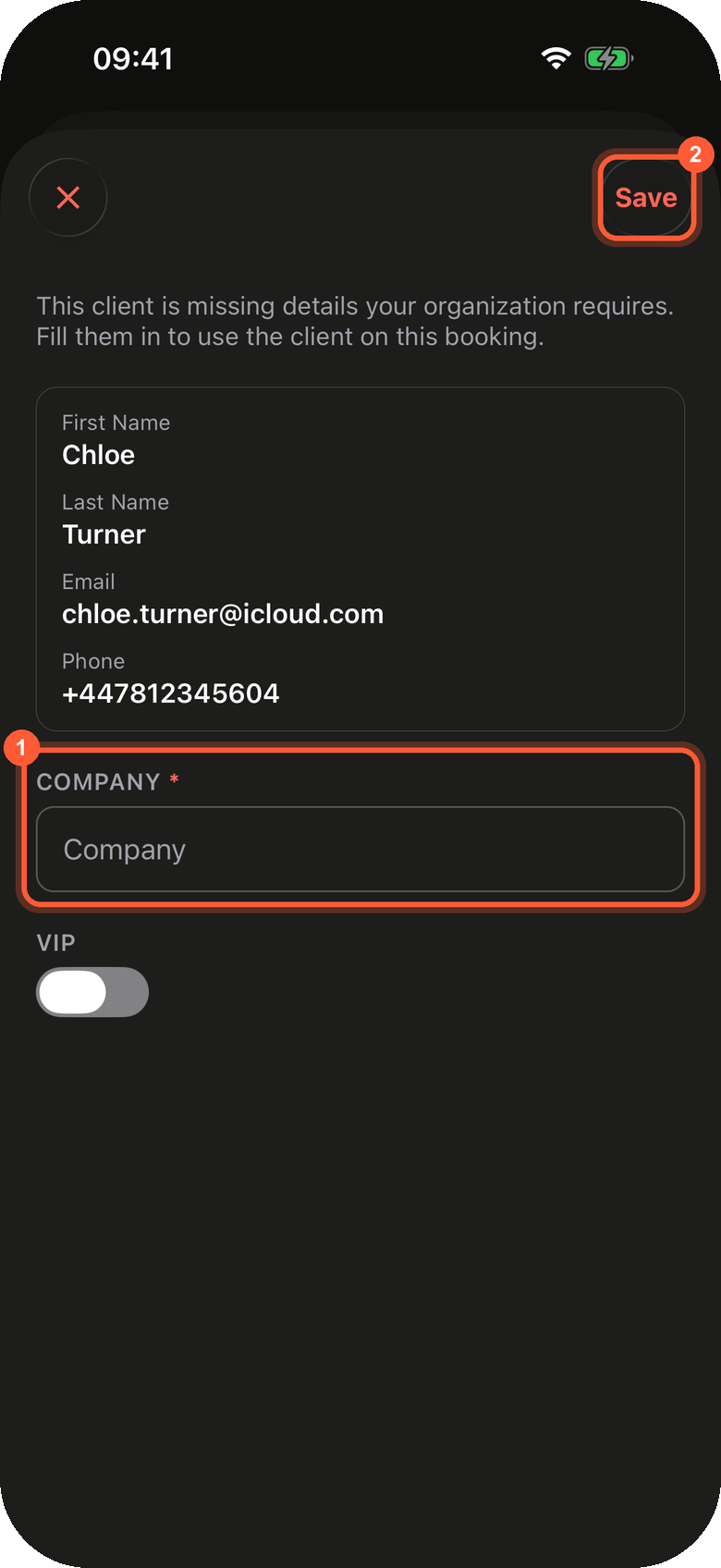
**1** The missing required field. **2** **Save** stores it and keeps the client on the booking; the cross deselects the client.
## Filling in booking details
When booking custom fields are marked **Required** or **Show at creation** on [Level configurations](https://requiply.com/docs/en/guides/settings/fields/level-configurations#required-and-shown-at-creation), the form ends with a **Booking details** section:
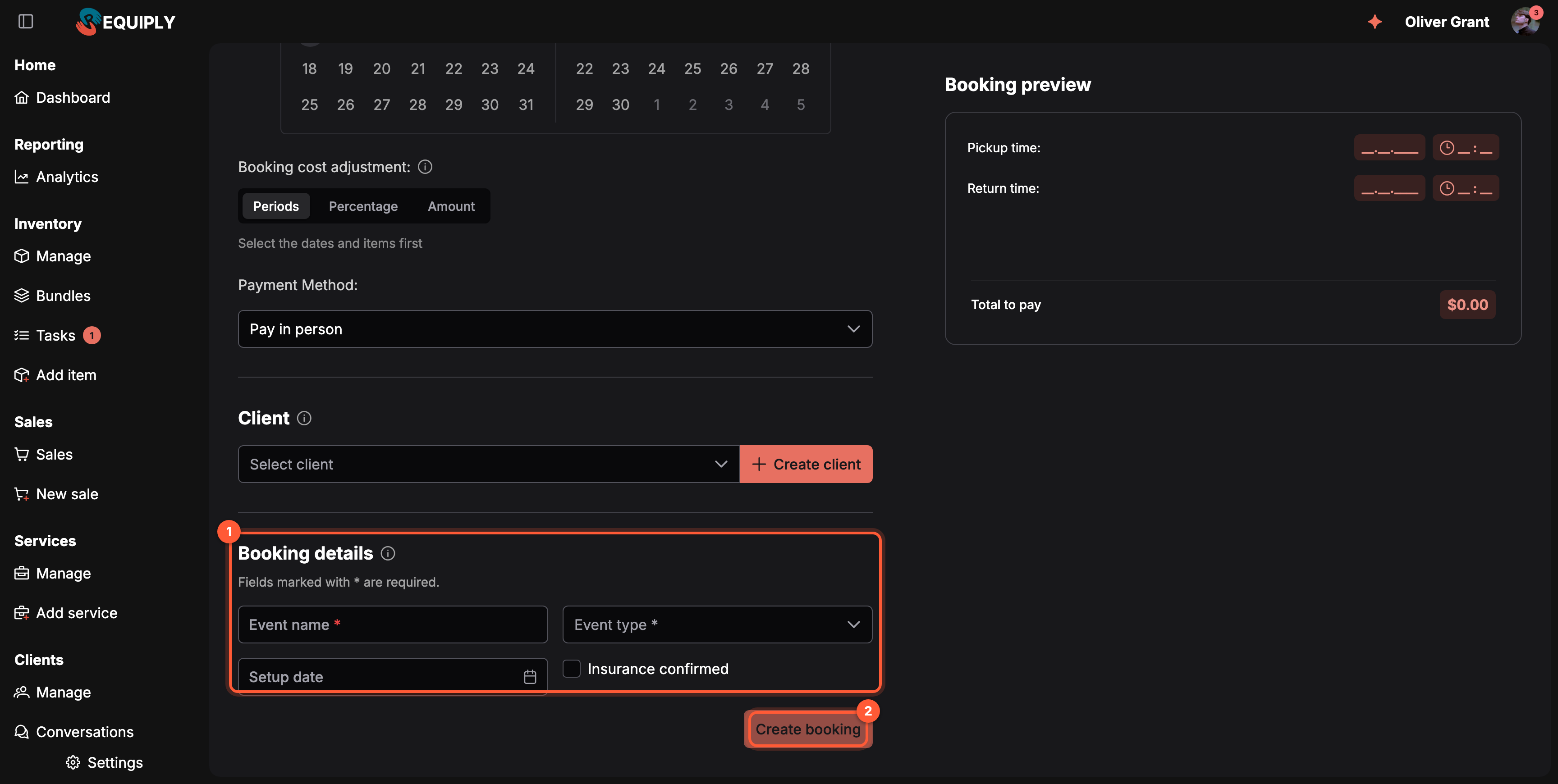
**1** **Booking details** holds the booking fields an admin chose for creation, required ones marked with *. **2** **Create booking** stays disabled until every required field has a value.
- Fields keep the order set on Level configurations and use the same inputs as the booking page: text, number, select, date, checkbox and so on.
- Values are saved on the new booking together with everything else, and are visible right away in the booking's custom fields.
- Optional fields shown here can stay empty and be filled in later on the booking page.
### Booking details in the mobile app
When any booking field is required or shown at creation, the **New Booking** wizard has six steps instead of five: **Details** comes after **Select Client** and before **Confirm**.
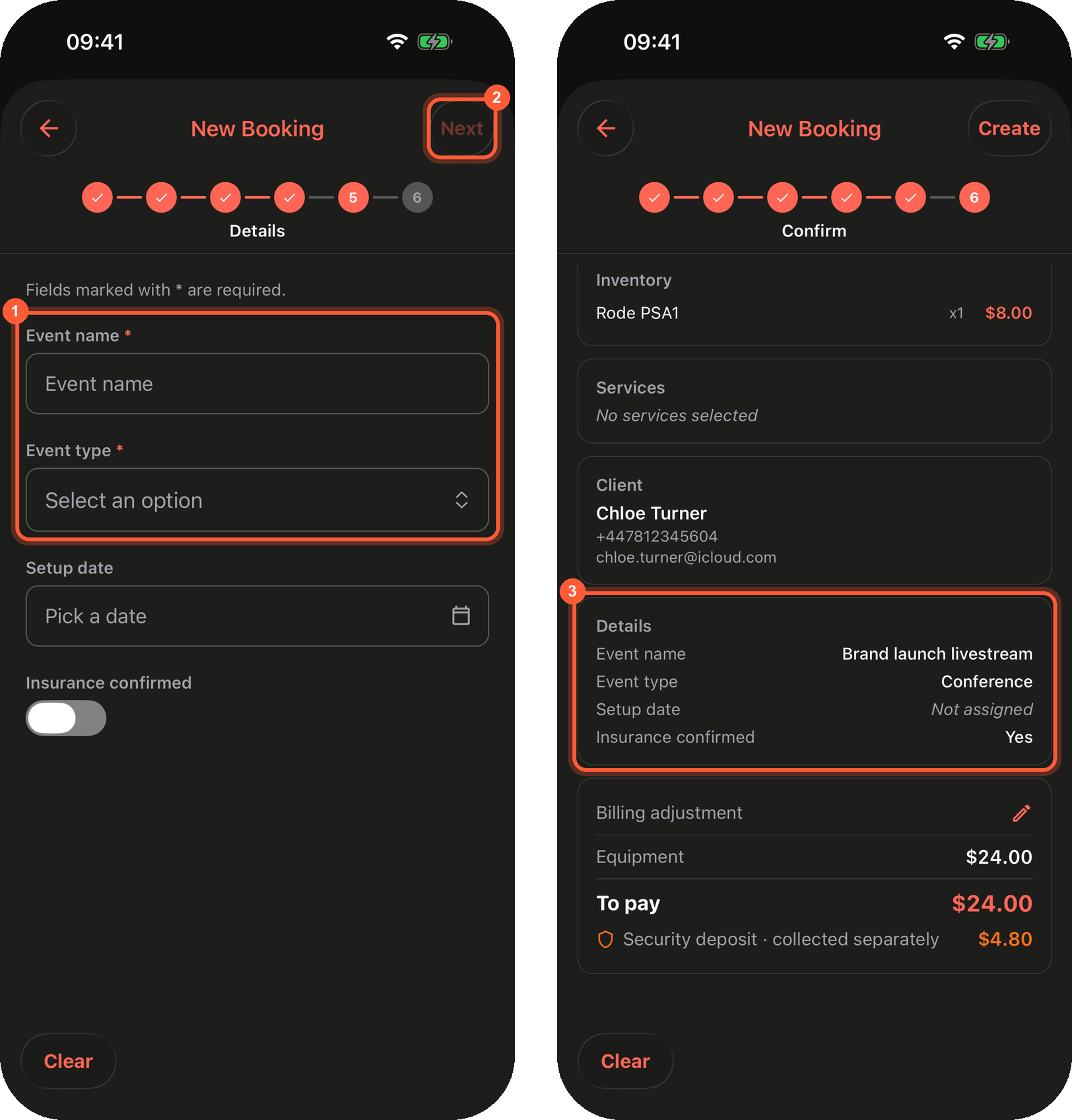
**1** Required fields carry a red *. **2** **Next** stays disabled until they are filled in. **3** The confirmation step repeats the answers in a **Details** card before the booking is created.
- Fields use native controls: a menu for select fields, the system date picker for dates on iPhone (typed date fields on Android), a switch for checkboxes.
- Optional fields can be skipped; empty ones show *Not assigned* on the confirmation step.
- **Create** on the confirmation step saves the values with the booking, the same as on the web.
## Sitemap
See the full [sitemap](https://requiply.com/docs/sitemap.md) for all pages.