---
title: "Signing in and resetting your password"
description: "How to log in to Requiply on the web and in the mobile app, switch to another account when you are already signed in, reset a forgotten password, and why the reset email may not arrive."
canonical_url: "https://requiply.com/docs/en/guides/get-started/sign-in-and-password"
---
# Signing in and resetting your password
> How to log in to Requiply on the web and in the mobile app, switch to another account when you are already signed in, reset a forgotten password, and why the reset email may not arrive.
Every team member logs in with their own account: an email and a password, or a Google account. This page covers logging in, the **Forgot password?** flow on the web and in the mobile app, and what to check when the reset email does not come.
## Logging in
- **Web:** open [https://app.requiply.com/login](https://app.requiply.com/login), enter **Email** and **Password**, and click **Log In**, or use **Log in with Google**.
- **Mobile app:** open the Requiply app for iOS or Android and log in with the same account.
After logging in on the web, a short screen says *Preparing your amazing inventory* (the last words rotate: *professional bookings*, *best clients*, *seamless rentals*, *smart pricing*, *perfect schedule*) while Requiply loads your organization, then opens your [startup page](https://requiply.com/docs/en/guides/settings/menu-layout#the-startup-page).
The mobile app shows the same kind of screen after logging in (*Preparing your ...*). It loads your account, organization, booking statuses, and tabs before the first screen appears, so the app opens on the right tab without flicker.
### Already signed in?
If you open [https://app.requiply.com/login](https://app.requiply.com/login) while this browser is still signed in, Requiply does not show the login form. The card says *You're already signed in* and shows the account it is signed in with:
- the profile photo, or the first letter of the name,
- the full name (or the email, when the account has no name) and the email,
- the organization, next to a building icon.
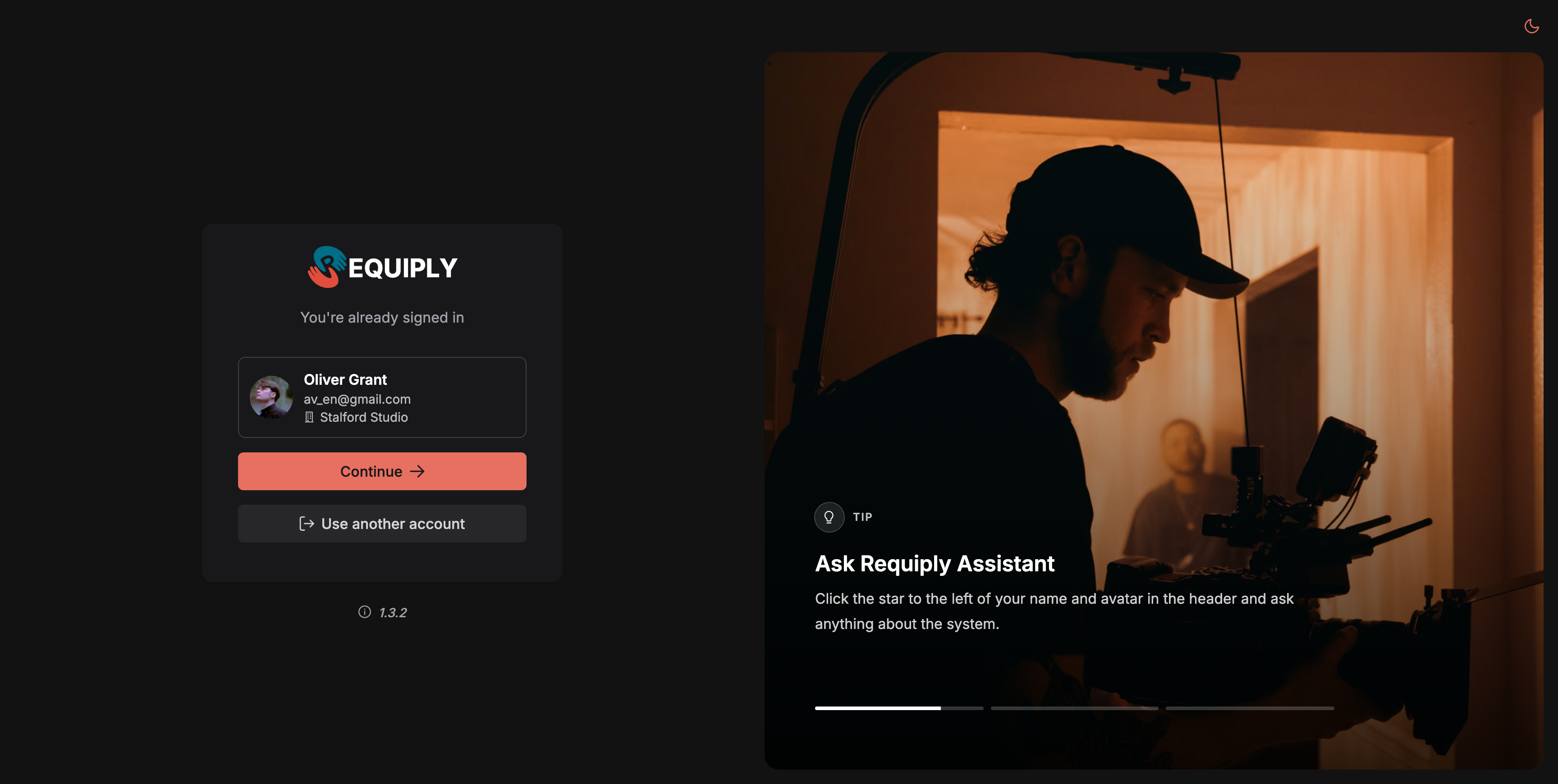
Opening the login page in a browser that is already signed in.
- **Continue** opens the app with that account, through the usual *Preparing your ...* screen. If you came from a link to a specific page, that page opens.
- **Use another account** signs this browser out, clears the data Requiply kept in it, and shows the normal login form. Other devices and browsers stay signed in. The next **Log in with Google** always asks which Google account to use, so you can pick a different one.
Opening the **Register** page while signed in takes you into the app instead of starting a second sign-up.
**Use another account** signs out only this browser. Signing out from the avatar menu in the app signs you out on all your devices.
New to Requiply? See [First setup checklist](https://requiply.com/docs/en/guides/get-started/first-setup-checklist). Invited by a colleague? Accept the invitation email instead of registering, see [Accounts](https://requiply.com/docs/en/guides/settings/organization/accounts#inviting-a-team-member).
## Forgot your password on the web
1. On the login page, click **Forgot password?** (Ukrainian interface: **Забули пароль?**). It opens [https://app.requiply.com/forgot-password](https://app.requiply.com/forgot-password).
2. **Reset your password:** *Enter your email address and we will send you a link to reset your password.* Type your **Email** and click **Send reset link**.
3. The page changes to **Check your email**: *We sent a password reset link to {email}.*
4. Open the email **Reset your Requiply password** (Ukrainian: *Скидання пароля в Requiply*) and click **Reset password**. The email comes in the language of the screen you asked from.
5. The link opens **Set a new password** at `https://app.requiply.com/reset-password`. Enter the **New password** (at least 6 characters) and click **Update password**.
6. **Password updated**: *Use your new password to log in on the web or in the Requiply mobile app.* Click **Continue to Requiply**.
**The link works on any device.** You can ask for the reset on your laptop and open the email on your phone. Each link works once and expires after an hour.
## Forgot your password in the mobile app
1. On the login screen, tap **Forgot password?**.
2. **Reset password**: *Enter the email you use for Requiply. We will send you a link to set a new password.* Type the email and tap **Send reset link**.
3. **Check your email**: *We sent a reset link to {email}. Open it on any device, set a new password, then log in here.*
4. Open the email, set the new password in the browser page it opens, and come back to the app to log in. **Back to log in** returns to the login screen.
## When the link has expired
Opening a link a second time, or more than an hour after it was sent, shows **This link has expired**: *Reset links work once and expire after an hour. Request a new one to continue.* Click **Request a new link** and repeat the steps.
## When the email does not arrive
- **Wait a minute and check spam.** The email comes from Requiply and can land in spam or promotions.
- **Check the address.** For privacy, Requiply shows *Check your email* whether or not an account exists for that address, so a typo does not produce an error. Make sure you typed the email you log in with.
- **You signed up with Google.** If you always use **Log in with Google**, you may not have a password yet. Keep using Google, or request a reset to set one.
- **Too many requests.** Requiply sends at most one reset email per address per minute and five per hour, and limits how often one network can ask. Asking too often shows *Too many requests. Please try again in a few minutes.* (mobile: the same text). Wait and try again.
- **Still nothing?** Ask an administrator of your organization to check your email under [Accounts](https://requiply.com/docs/en/guides/settings/organization/accounts). Administrators cannot see or set your password, but they can confirm the address.
## Your profile and connection in the mobile app
**Edit your name and photo.** Tap your avatar in the top bar, then the pencil at the top of the profile sheet. On **Edit profile**, change the photo (**Choose from library** or **Take photo**) or your **First name** and **Last name**, both required, and tap **Save**. The app confirms with *Profile updated*. The change shows on the web too, since it is the same account.
**The badge on your avatar.** A small badge on the corner of your avatar shows the connection. A red crossed-out Wi-Fi badge means *No internet connection* or *No connection to Requiply*. A blue badge, with or without a spinning ring, shows only when **Keep data on this phone** is on and means the app is working from, or updating, the copy on the phone. With a good connection there is no badge. Tap the badge to see what works right now. See [The badge on your avatar](https://requiply.com/docs/en/guides/mobile-app/slow-and-offline#the-badge-on-your-avatar) for details.
## Common scenarios
### Switching to a colleague's account on a shared computer
Open the login page. The card shows who is still signed in. Click **Use another account**, then log in with the other email or pick the other Google account. The first person stays signed in on their own phone.
### A new staff member forgot the password they chose at setup
They click **Forgot password?** on the login page or in the app, follow the email, and log in with the new password. Nothing needs to change on the admin side.
### Resetting from the phone
Tap **Forgot password?** in the app, open the email on the phone, set the new password in the browser, then return to the app and log in.
## Tips and cautions
**Tip:** Asked for several links? Use the newest email, and open it within the hour.
**Heads up:** Administrators never see or set passwords. Each person resets their own with **Forgot password?**.
## Sitemap
See the full [sitemap](https://requiply.com/docs/sitemap.md) for all pages.