---
title: "Dashboard settings"
description: "Choose which booking statuses the Pickups and Returns lists on the Dashboard show by default for everyone in the organization."
canonical_url: "https://requiply.com/docs/en/guides/settings/bookings/dashboard"
---
# Dashboard settings
> Choose which booking statuses the Pickups and Returns lists on the Dashboard show by default for everyone in the organization.
The **Dashboard** settings page sets the organization default for the [Dashboard](https://requiply.com/docs/en/guides/reports/dashboard) lists: which booking statuses **Pickups** and **Returns** show. Each team member can still change the lists for themselves with the status filter on the Dashboard; this page decides what everyone starts with.
You can find it under **Settings → Bookings → Dashboard**, at [`https://app.requiply.com/settings/reservations/dashboard`](https://app.requiply.com/settings/reservations/dashboard).
**Booking settings needed.** Changing the defaults needs **Booking settings** in the member's [permission group](https://requiply.com/docs/en/guides/settings/organization/accounts/permission-groups#settings), which the Administrators group always has. Every member can see the result on the Dashboard.
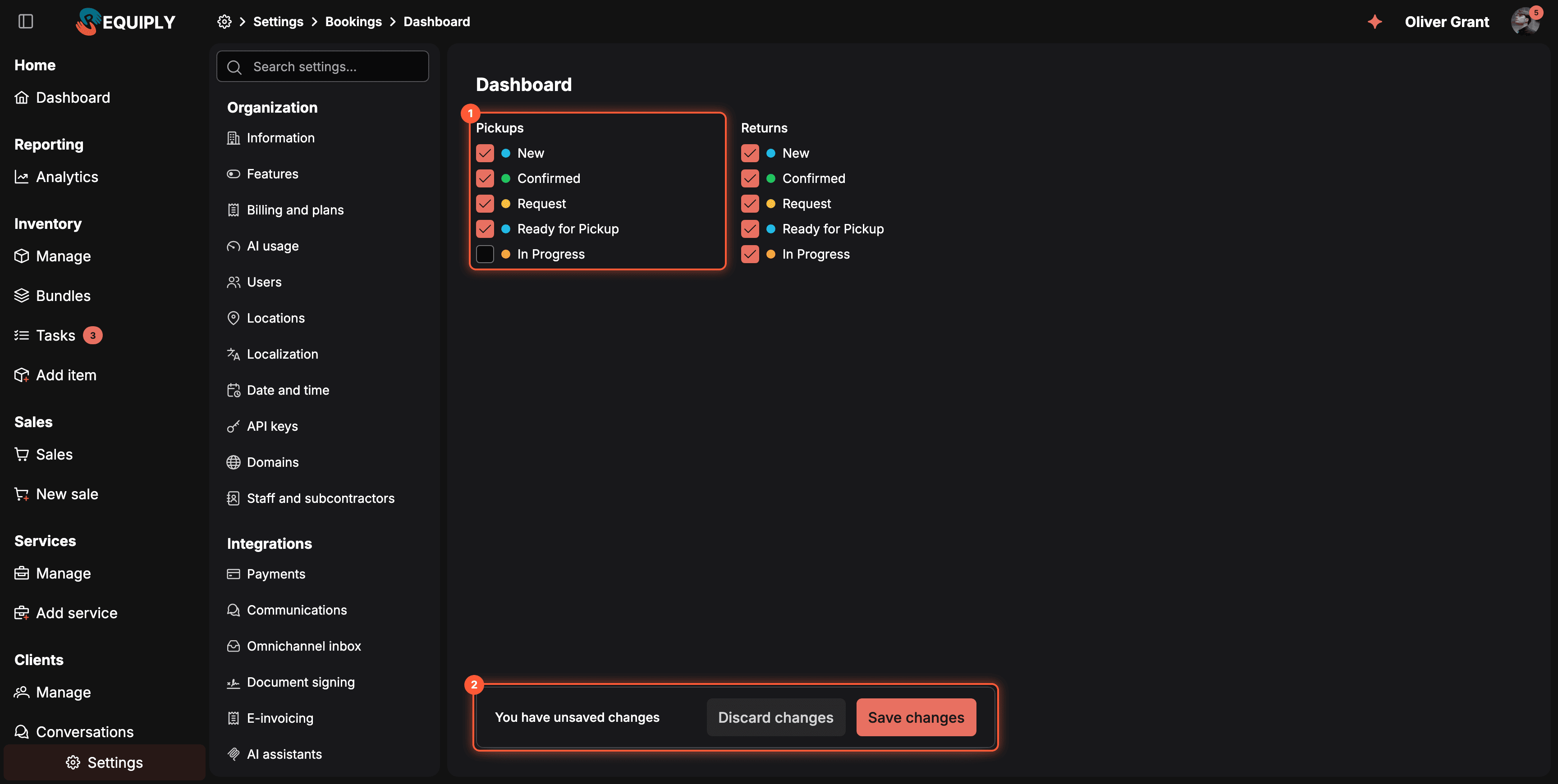
**1**: the statuses the Pickups list shows by default; here bookings already *In Progress* are left out. **2**: saves the new default for the organization.
## Choosing the default statuses
1. Tick the statuses each list should show. Both columns list your statuses with the **Active** lifecycle from [Booking statuses](https://requiply.com/docs/en/guides/settings/bookings/statuses).
2. Press **Save changes** in the bar at the bottom, or **Discard changes** to go back to the saved default.
- Each list keeps at least one status: the last ticked box cannot be cleared.
- With every status ticked, the list follows your statuses as they change: a new active status shows up in it automatically.
- Until you save anything here, both lists show every active status.
- The default applies to **Pickups** and **Returns** only. **Overdue** always lists every late booking.
## How it combines with each person's choice
A member who changes the statuses with the filter button on the Dashboard sees their own choice instead, and the button carries a dot. **Reset to default** in that filter brings them back to the default saved here. The personal choice is remembered in their browser. See [Choosing which statuses the lists show](https://requiply.com/docs/en/guides/reports/dashboard#choosing-which-statuses-the-lists-show).
## Common scenarios
### Pickups shows only what still has to go out
Untick *In progress* under **Pickups** and save. Bookings your team has already handed out drop off everyone's Pickups list, so the card shows only the pickups still to prepare.
### Returns ignores requests that never went out
Untick *Request* and *New* under **Returns** and save, so the list shows only bookings that were actually handed out or confirmed.
## Sitemap
See the full [sitemap](https://requiply.com/docs/sitemap.md) for all pages.