

Connect an assistant to Requiply MCP
Connect Requiply to Claude or ChatGPT from Settings → Integrations → AI. Every assistant uses the same MCP server URL, https://api.requiply.com/api/mcp, and an Admin signs in to Requiply to approve the connection. What the assistant can do once it is connected is described in MCP tools.
Connecting
Click Setup on the assistant you want to connect. The dialog shows the assistant logo, the MCP server URL, and the steps for that client.
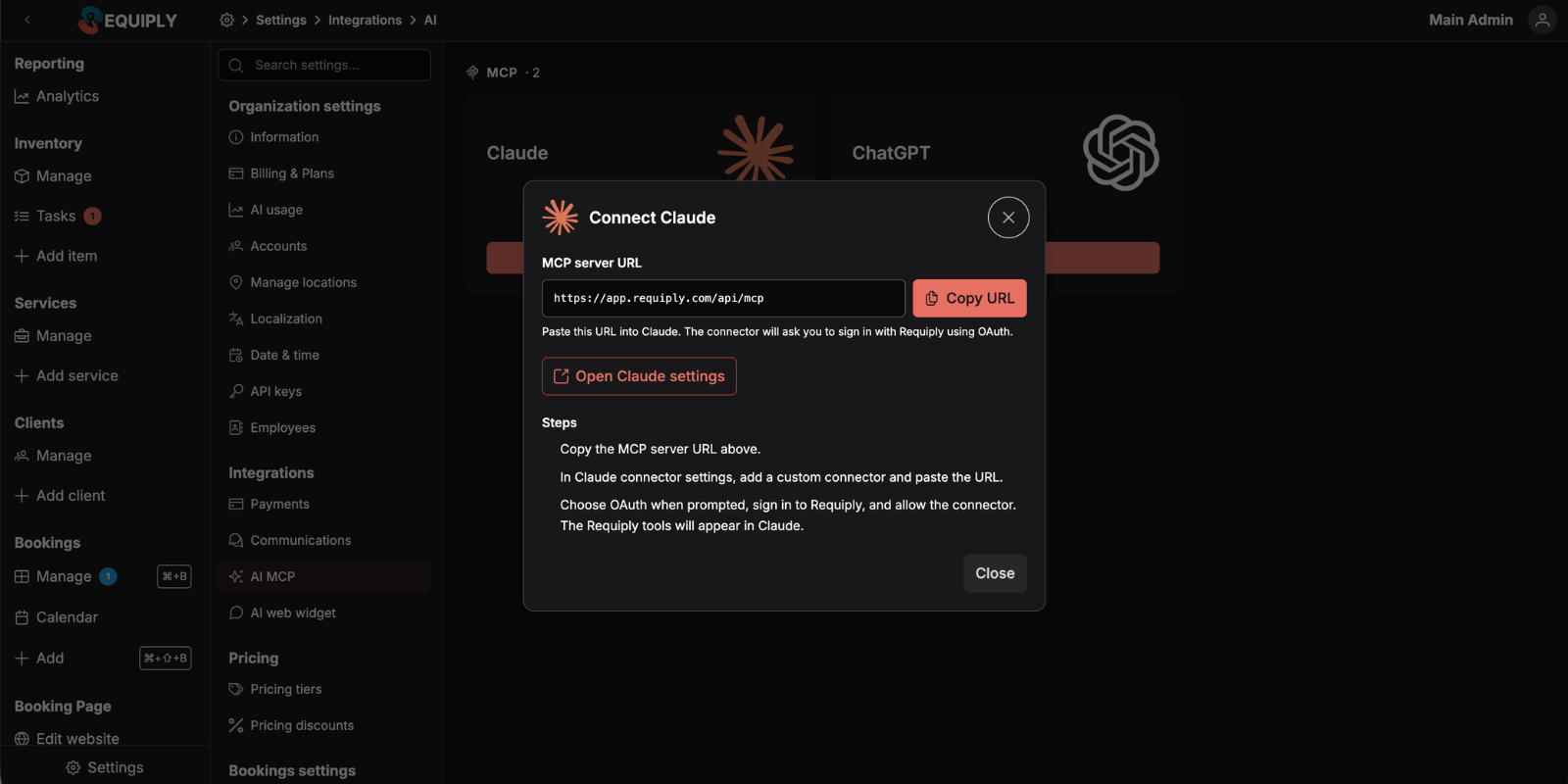
Authentication is via OAuth. When you connect, you sign in to Requiply and approve access. You must have the Admin role in the organization you are connecting. Non-admin users are rejected with "Admin role required".
https://api.requiply.com in production) and appends /api/mcp.https://app.requiply.com/api/mcp. It still works and forwards to https://api.requiply.com/api/mcp, so connectors set up with it do not need to be changed. Use the API address for new connections.Open the setup dialog
On Settings → Integrations → AI, click Setup on the Claude card.
Copy the MCP server URL
Copy the URL from the MCP server URL field.
Open Claude connector settings
Use Open Claude settings from the dialog, or open Claude connector settings manually.
Add a custom connector
Add a custom connector, paste the Requiply URL, and name it Requiply.
Sign in with Requiply
Choose OAuth when prompted, sign in to Requiply as an Admin, and allow the connector.
Start using the tools
The Requiply tools appear in Claude after the connector is approved.
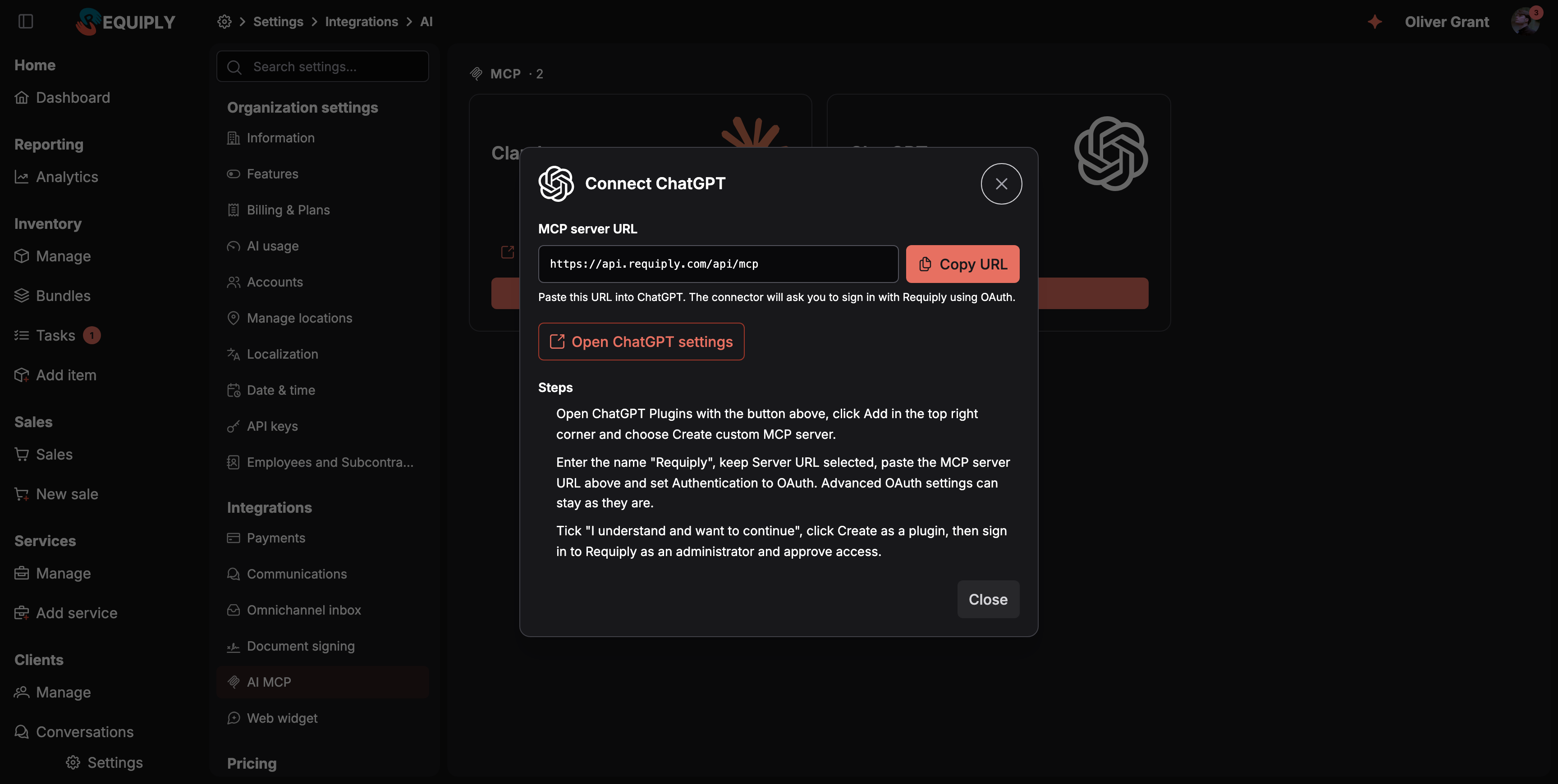
ChatGPT connects to Requiply as a custom MCP server on its Plugins page.
Copy the MCP server URL
On Settings → Integrations → AI, click Setup on the ChatGPT card and click Copy URL.
Open ChatGPT Plugins
Click Open ChatGPT settings in the dialog, or go to chatgpt.com/plugins. Click Add in the top right corner and choose Create custom MCP server.
Fill in the form
Enter the name Requiply (the description is optional). Keep Server URL selected, paste https://api.requiply.com/api/mcp, and set Authentication to OAuth. Leave Advanced OAuth settings as they are and Base scopes empty: ChatGPT reads what it needs from Requiply on its own, so there is nothing to register.
Create the plugin and approve access
Tick I understand and want to continue and click Create as a plugin. ChatGPT sends you to Requiply: sign in as an Admin, choose the organization, and approve access.
Use it in a chat
In a new chat, turn on the Requiply plugin from the tools picker and ask your question.
Overview
Connect Requiply to Claude, ChatGPT, or another MCP-capable assistant so it can answer questions using your live catalog, bookings, clients, conversations, and reports.
Tools
Every tool an assistant connected to Requiply can call: orientation and guidance, records, bookings and sales, availability and pricing, conversations, comments, reports, and configuration.