

Requiply Assistant
Requiply Assistant is the AI helper built into Requiply, on the web and in the mobile app. Ask it about your own business in plain language, such as "Which clients owe me money?", "What goes out and comes back today?" or "What's my revenue this month?", and it looks the answer up in your workspace. Ask how something works and it answers from the Requiply Knowledge Base, with screenshots. On the template editors it drafts complete booking emails, printable documents and client messages that you can apply to the editor in one click.
Open it from the star icon in the top bar, available on every page of the app and in Settings.
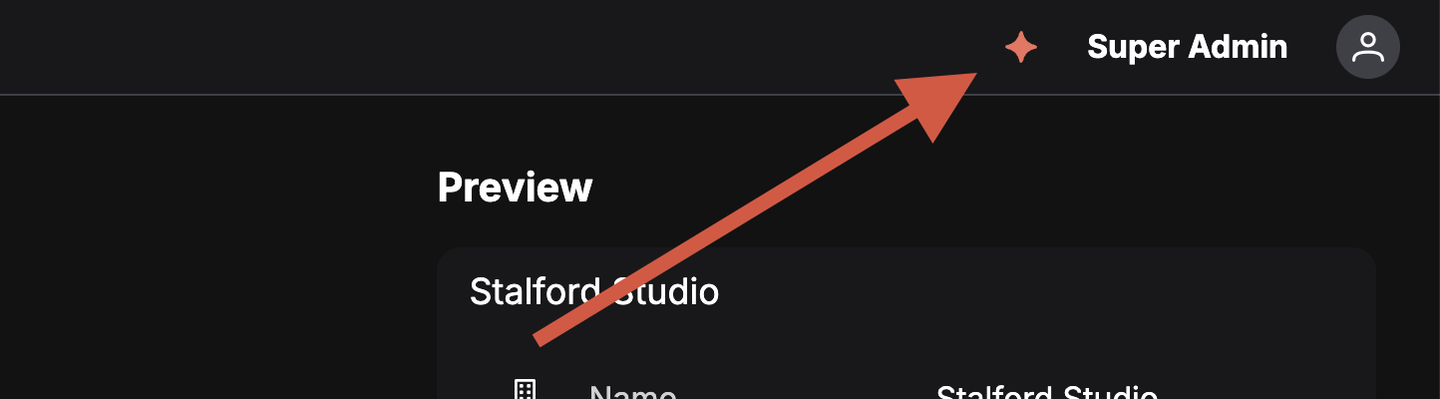
The star icon in the top bar opens the assistant from any page.
What it can do
The assistant works in four modes. The mode is set by where you open it from, and is shown as a badge in the panel header.
| Mode | Opened from | What it does |
|---|---|---|
| General assistant | The star icon in the top bar, or the Assistant tab in the mobile app | Answers questions about your workspace data (bookings, clients, inventory, sales, reports, availability, prices, your automations and settings) and product questions (setup, workflows, "where do I configure X") from the Requiply Knowledge Base. |
| Email designer | Create with Requiply Assistant on an email template | Drafts, improves, or translates a booking email using the variables available in that editor, and returns it as an applyable draft. |
| Document designer | Create with Requiply Assistant on an export template | Drafts printable documents — rental agreements, handover acts — as print-ready HTML, returned as an applyable draft. |
| Message designer | Create with Requiply Assistant on a message template | Writes short client messages for Telegram, Viber, and SMS, matched to the template's format, and returns the name and body as an applyable draft. |
Ask about your workspace data
In general mode the assistant reads your organization's live data as you: it sees exactly what your permission group allows. Without access to reports it cannot run reports, and without access to sales it cannot see sales. When something is outside your access, it names the permission and says that an administrator can grant it.
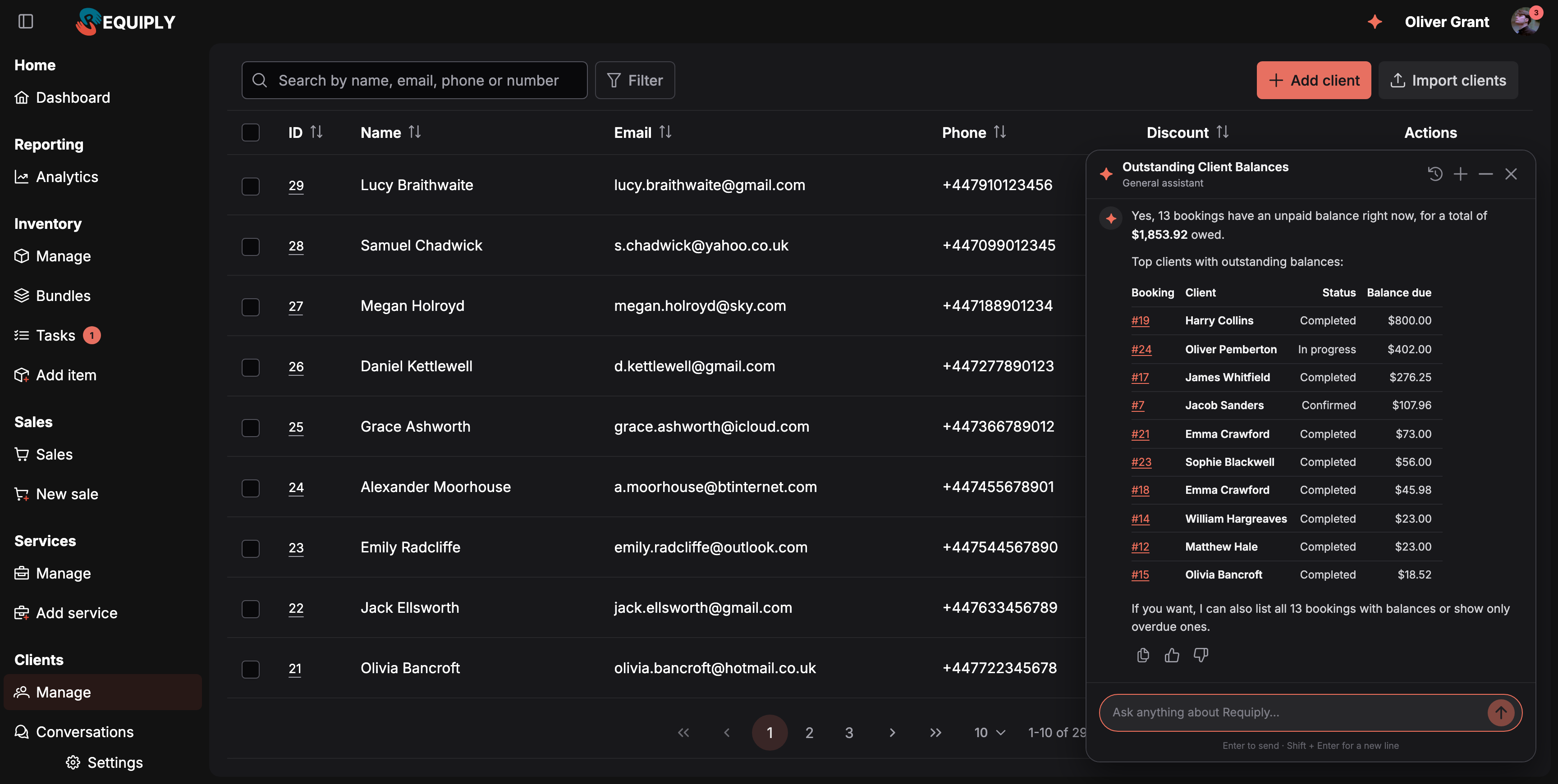
A data answer leads with the number, then a short table. Booking numbers are links that open the booking while the panel stays open.
What you can ask about:
| Area | Examples |
|---|---|
| Bookings | "What goes out and comes back today?", "Show booking #38", "Bookings for next weekend", "Which returns are overdue?" |
| Money | "Which clients owe me money?", "What's my revenue this month?", "Who is my most profitable client to date?" |
| Inventory | "Which items earned the most last month?", "What is on rent right now?", "How busy were the cameras this quarter?" |
| Availability and prices | "Is the Streaming kit free from Friday to Sunday, and what would it cost?" |
| Clients, sales, services, locations, statuses | "Emma Crawford's bookings", "Sales this week" |
| Your setup | "Do I have a return reminder?", "Which email templates do I use?", "What are my working hours?". Setup questions start from what you already have, for example "You have 3 automations, 2 enabled", then explain what is missing. |
How answers are built:
- Dates. "Today", "last month" and similar are read in your organization's time zone, and the answer states the exact dates it used.
- Numbers first. A data answer starts with the figure, then a table of up to about ten rows, with money in your currency.
- Links. Booking numbers, sales, items, automations and templates are links into the app. On the web they open in place and the panel stays open; in the mobile app bookings, clients, items and sales open in the app.
- Bundles. With bundle recommendations set to Internal, the assistant suggests a bundle when you ask about one of its items.
Who can use it
- Available to every signed-in user of the workspace — the launcher is in the top bar for all roles.
- The template-drafting modes are reached from admin-only settings pages, so in practice only admins use those.
- Answers follow the language you write in. A message in Russian is answered in Ukrainian, and a message with no clear language (a name, a number, a link) is answered in your organization's language.
The assistant window
The assistant opens as a floating panel over the current page, so you never lose your place in a form.
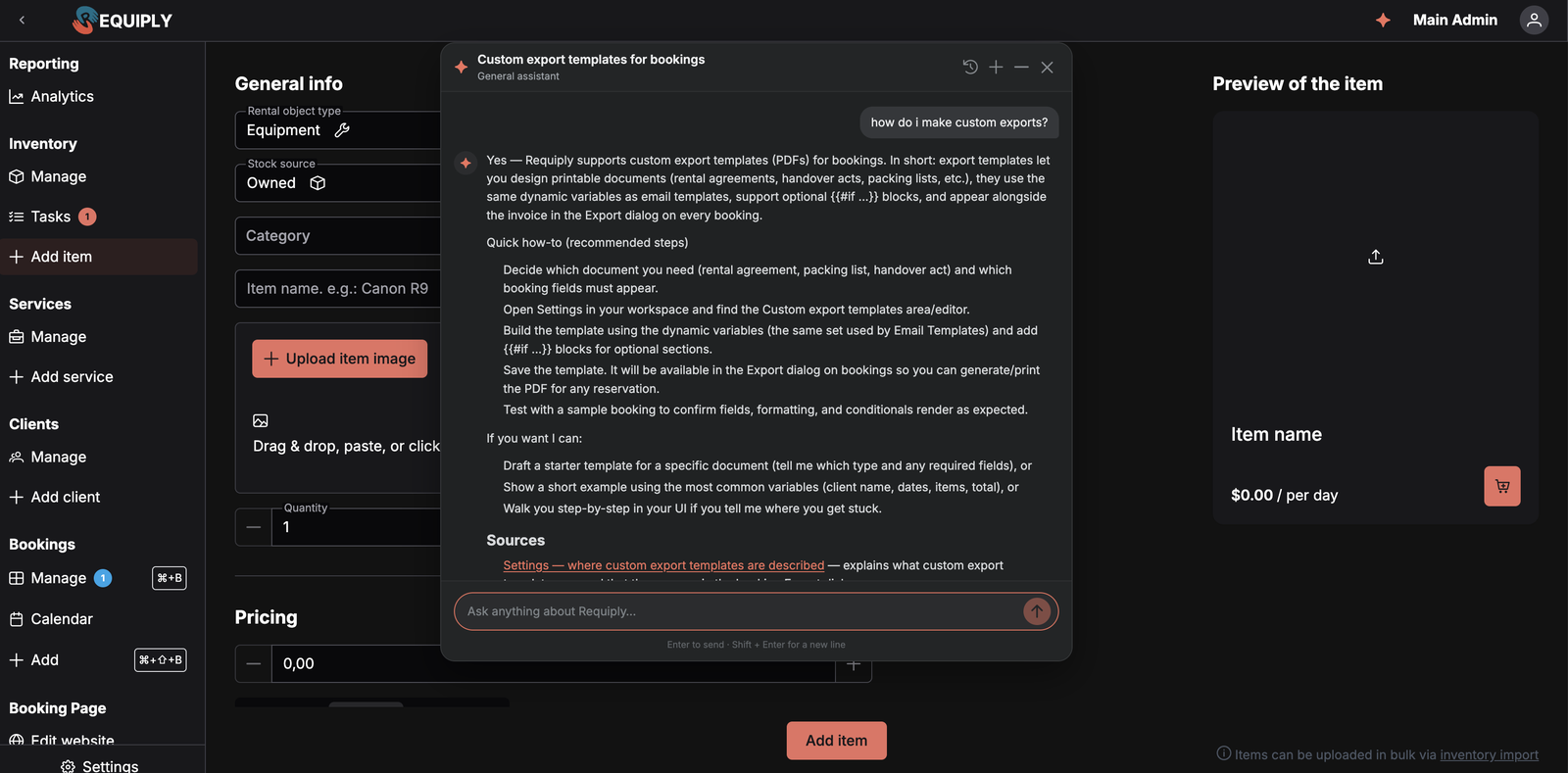
The assistant floats over the page you are working on, so a question never costs you your place in a form.
- Drag it by the header to move it out of the way.
- Minimize collapses it to the header bar; the icon restores it.
- Close hides the panel. The conversation is saved and can be reopened from history.
- On mobile the panel fills the screen instead of floating.
Starting a conversation
An empty conversation shows a short welcome, "How can I help with Requiply?", and up to four starter questions. In general mode they follow the page you are on: "Which clients owe me money?" on the clients pages, "What goes out and comes back today?" on the bookings pages, "What's my revenue this month?" on Reporting, "How do I remind clients about upcoming bookings?" on Workflows. Clicking one sends the question exactly as written. The template modes offer Draft a confirmation email, Translate into Ukrainian and similar, which send a fully written prompt.
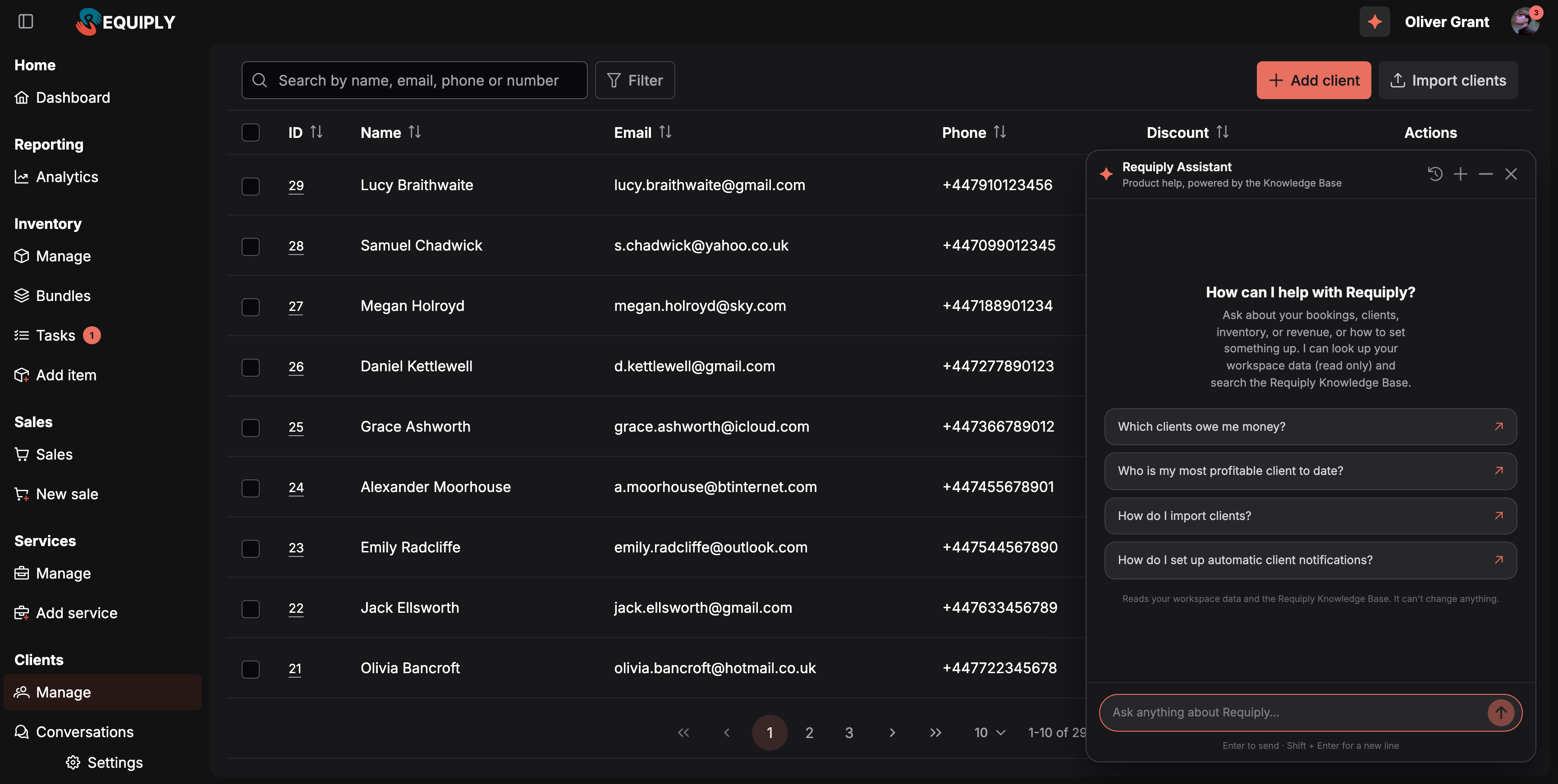
The starter questions change with the page you open the assistant from.
The general assistant also knows which page you have open, so a question like "where do I change this?" is answered for the page in front of you. When an answer points you to another page, the path is a link that opens that page in the app while the assistant stays open.
Otherwise, type into the composer:
- Enter sends the message; Shift + Enter starts a new line.
- While the assistant is writing, the send button becomes a stop button and Esc cancels the response.
While it works
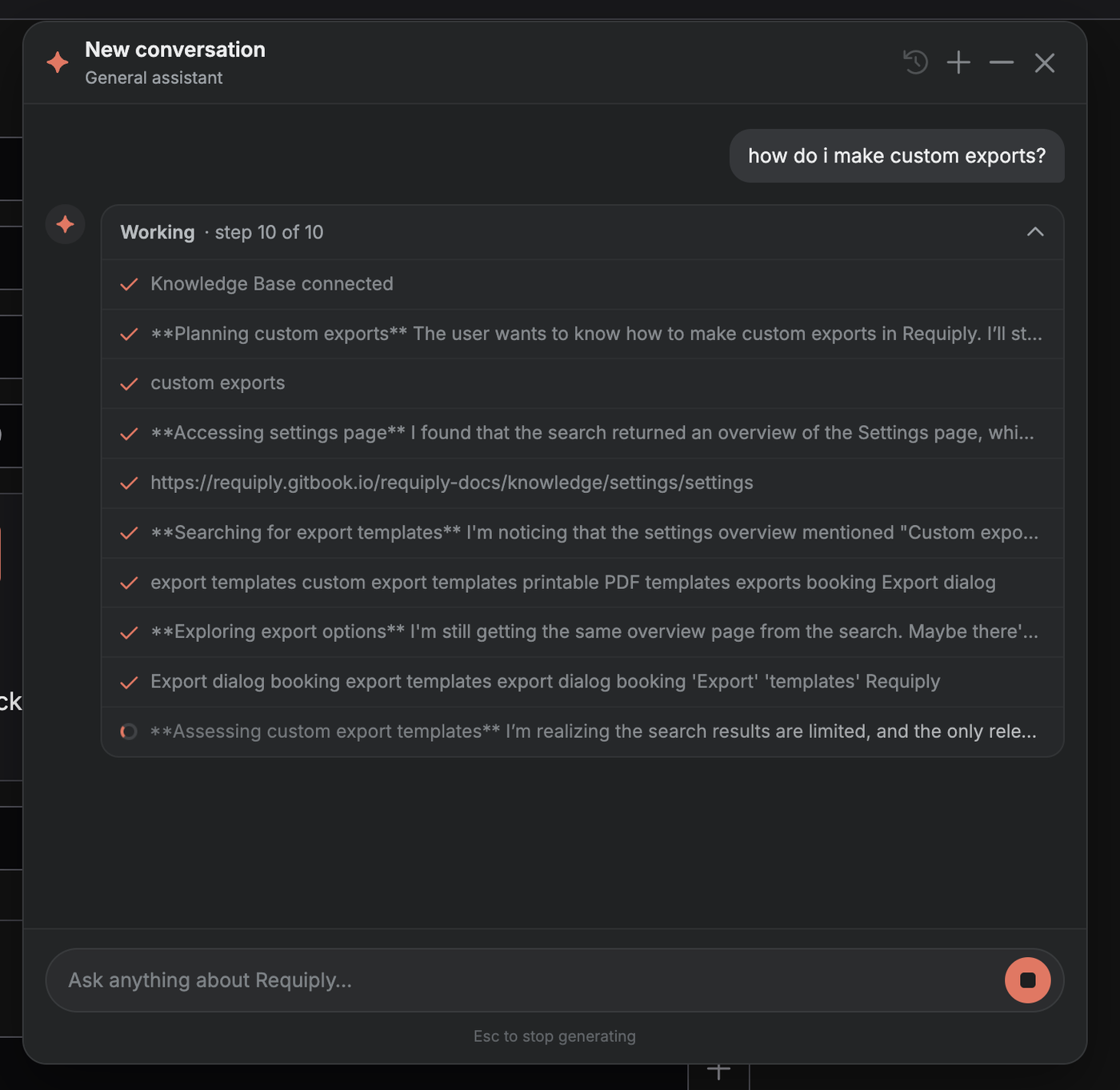
The trace list shows each reasoning step and documentation lookup while the answer is being written.
Answers stream in as they are written. Above the text, a steps list shows what the assistant is doing, in your interface language: Checking your workspace…, Searching bookings…, Opening clients…, Running report: unpaid balances…, Checking availability…, Calculating the price…, Searching the Knowledge Base…, Reading the guide…. The header reads Working until the answer is done, then Checked your workspace · 2 steps (or Used Knowledge Base · 3 steps). The star icon keeps animating until the answer is complete.
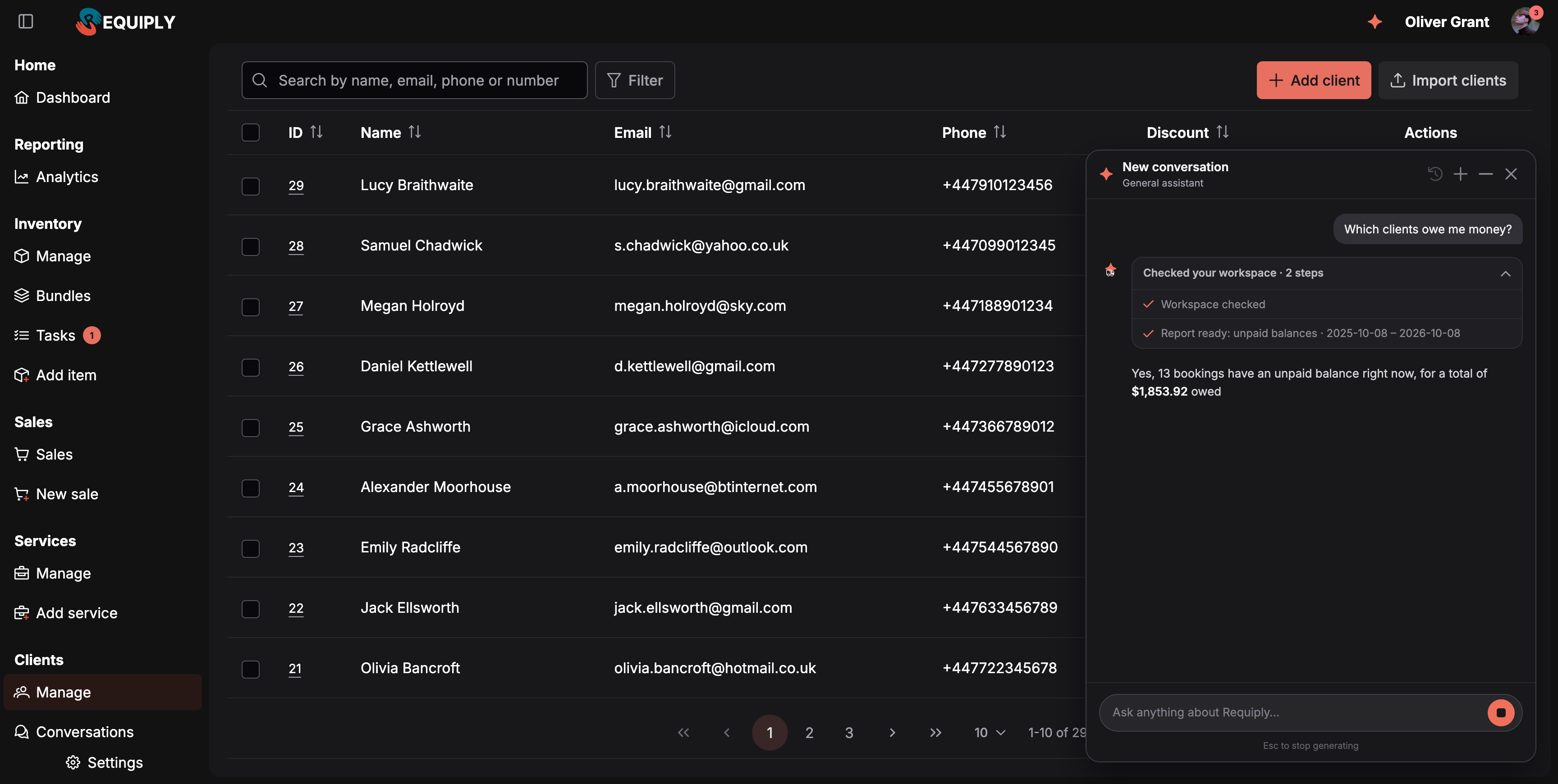
The steps list shows each lookup, including the dates a report covers.
Sources
Knowledge Base answers end with a Sources section listing the exact pages the answer was built from, each as a descriptive link. Follow them when you want the full procedure rather than the summary. Answers built only from your workspace data have no Sources section.
Screenshots in answers
Step-by-step answers include up to two screenshots from the Knowledge Base, each right after the step that opens that screen, so you recognize where to click. Click a screenshot to open it full size in a Screenshot from the Knowledge Base dialog.
Working with generated templates
In email, document, and message mode, the assistant returns a draft card rather than a wall of HTML.
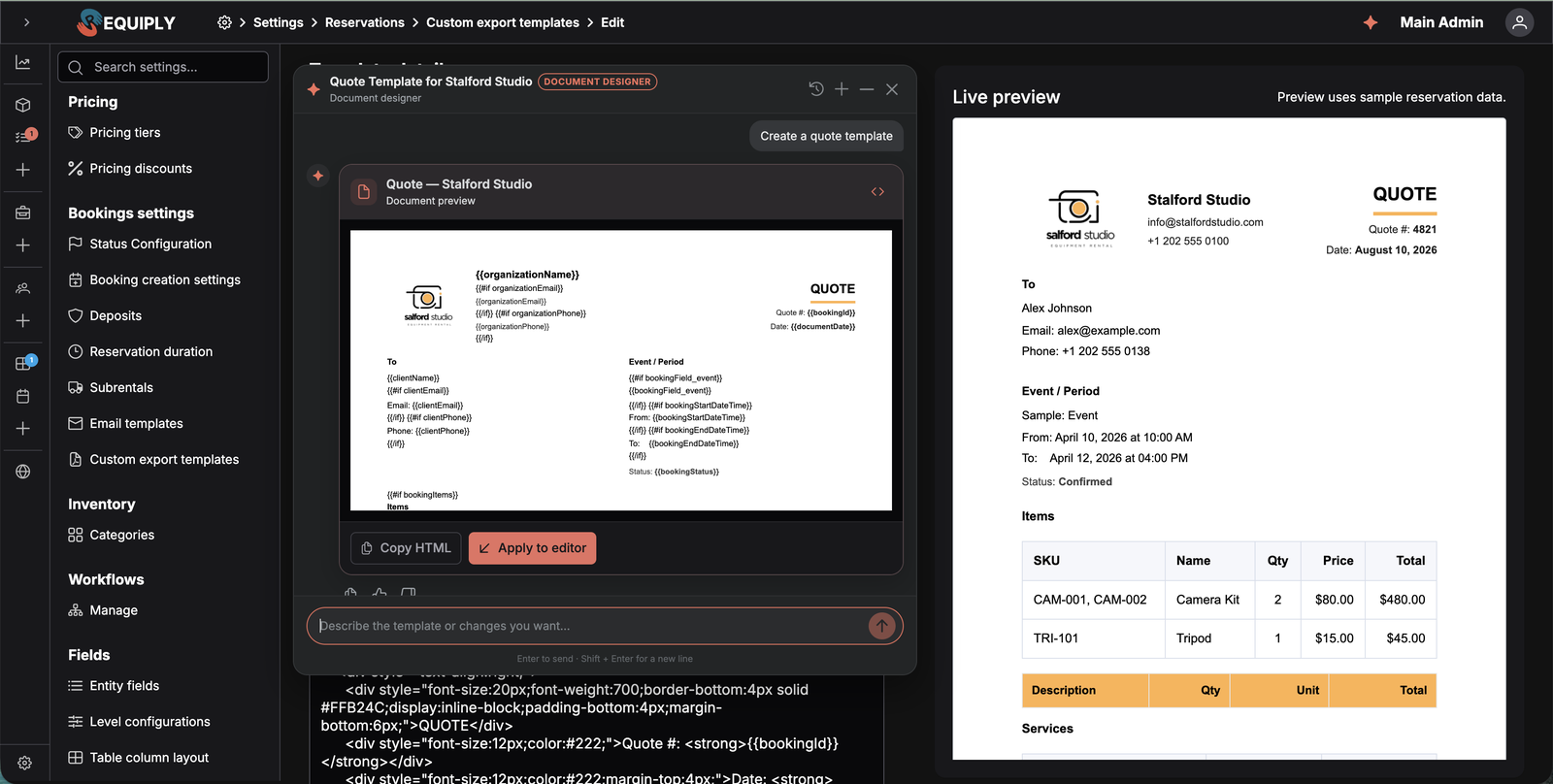
A generated draft arrives as a card: rendered preview, a code toggle, and Apply to editor. Email drafts look the same, with the subject line above the body preview.
Each card gives you:
- A rendered preview — an email preview or a print-styled document preview.
- A code toggle to inspect the raw HTML.
- Copy buttons for the subject, body, or document HTML.
- Apply to editor, which writes the draft into the template form you opened the assistant from.
Applying an email draft replaces the subject and body; applying a document draft replaces the template name and body and switches the editor to HTML mode; applying a message draft replaces the template name and message text, converted to whatever the selected format uses. Nothing is saved to your organization until you press Save on the template form yourself.
The assistant is told to use only the variables that exist in the editor it was opened from, and to keep every token exactly as written, so applied drafts substitute correctly. It also picks up your organization's name, brand color, and logo when designing, so drafts come back looking like your business rather than a generic template.
Conversation history
The history icon in the panel header opens your previous conversations.
- Each entry shows its title, its mode, and when it was last used.
- Search filters conversations by title.
- Clicking a conversation reopens it with its full message history.
- The trash icon archives a conversation, removing it from the list.
The + icon starts a new chat without deleting the current one.
Rating an answer
Under every completed answer are a copy button and thumbs up / thumbs down buttons. Rating an answer opens an optional comment box, "Tell us a bit more about this answer, or skip this step", so you can explain what was good or wrong. Click the highlighted thumb again to remove your rating. Ratings and comments go to the Requiply team and are used to improve the assistant; you can skip the comment and leave just the rating. In the mobile app you rate with the thumbs only.
In the mobile app
The iOS and Android apps have their own Assistant tab with the same workspace and Knowledge Base answers, written shorter for a phone screen. For the other tabs, see Mobile app.
- Open More. The tab is off by default.
- Switch Assistant on. Up to three tabs can be on at once besides Search and More, so switch another one off first if needed. You can also tap the Assistant row to open it as a page without adding a tab.
- Ask a question in Ask Requiply anything, or tap a starter question such as "Who still owes money?".
- Chat history: swipe right anywhere or tap the menu button to open Chats, grouped by Today, Yesterday, Previous 7 days and older, with Search chats and New chat. Long-press a chat to archive it: It disappears from your chats. Nothing in your workspace changes.
- AI credits: the bottom of the history drawer shows the organization's balance, for example 62% left, 1,240 of 2,000 and the renewal date. Every member can see it; only admins can buy credits, on the web under AI usage.
- Links in answers open bookings, clients, items and sales in the app; settings pages open in the web app.
- On iOS 26 the Ask Requiply anything field sits on the tab bar itself. It keeps your unsent draft, and turns into a stop button while the assistant answers.
Limits and messages
| Message | What it means |
|---|---|
| Your organization has no AI credits remaining. | The balance is used up. An admin can upgrade or buy credits under AI usage. |
| Too many assistant messages. Please try again in a minute. | More than 30 messages in a minute from one person. |
| Archived assistant conversations are read-only | Start a new chat to continue. |
| Requiply could not look that up right now. Please try again in a moment. | A workspace lookup failed; asking again usually works. |
Common scenarios
Planning the day
Open the assistant on the bookings page and click "What goes out and comes back today?". You get today's pickups and returns with booking links, in your time zone.
Chasing unpaid balances
Ask "Which clients owe me money?". The answer gives the total and the bookings with a balance, largest first. Click a booking number to open it and send a payment link.
Finding out how a feature works
Open the assistant from the top bar and ask in plain language — "how do buffers between bookings work?". The assistant searches the documentation, reads the most relevant page, and answers with a link to it in Sources.
Writing your first booking confirmation email
- Go to Settings → Bookings → Email templates → Create template.
- Click Create with Requiply Assistant.
- Use the Draft a confirmation email starter, or describe the tone and content you want.
- Review the preview, click Apply to editor, adjust anything you like, and save.
Producing a rental agreement
- Go to Settings → Bookings → Custom export templates → Create template.
- Click Create with Requiply Assistant and pick Draft a rental agreement.
- Apply the returned document, tweak the clauses for your business, and save.
The template then appears in the Export dialog on every booking.
Writing a Telegram reminder
- Go to Settings → Bookings → Message templates → Add template and set the format to Telegram.
- Click Create with Requiply Assistant and pick Draft a booking reminder.
- The assistant writes Markdown that Telegram can render, using only the variables available in the editor. Apply it, add an attachment or a button if you want one, and save.
Improving something you already wrote
Open the assistant from the editor with your draft in place and ask for a rewrite or a translation. The assistant receives the current draft as context and returns a complete revised version — always the full subject and body, or the full document, never a fragment.
Tips and cautions
Sidebar menu layout
Reorder and hide the sections and pages of the Requiply sidebar menu, for yourself on your Account page or for a whole permission group.
Overview
Connect Requiply to Claude, ChatGPT, or another MCP-capable assistant so it can answer questions using your live catalog, bookings, clients, conversations, and reports.