

How to start using the Requiply SDK
Quick answer
npm install @requiply/api-sdk, and create a RequiplyClient with the key. Then call its resources, for example inventory.list(), pricing.quote(), and bookings.create(). The SDK needs Node.js 18 or later, or a modern browser.@requiply/api-sdk is the official TypeScript client for the Requiply public API. It works in Node.js, serverless functions, Next.js, Nuxt, and browsers, with typed inputs and responses. This page takes you from nothing to a booking request in your Requiply account in about ten minutes.
1. Create an API key
Follow How to generate an API token and choose Secret. Store it in an environment variable:
REQUIPLY_SECRET_KEY=rq_sk_live_...
Building a storefront that runs in the browser? Create a Publishable key instead. It can do everything on this page, but bookings must be sent as requests (asRequest: true).
2. Install the package
npm install @requiply/api-sdk
The package is ESM only. See Installation for runtime requirements.
3. Create the client and make a first call
import { RequiplyClient } from '@requiply/api-sdk';

const requiply = new RequiplyClient({
  apiKey: process.env.REQUIPLY_SECRET_KEY!,
});

const org = await requiply.org.info();
console.log(org.name);
If this prints your organization's name, the key works. A wrong or revoked key throws a RequiplyError with status 401.
4. Find an item and price a quote
const startDate = '2026-11-10T10:00:00';
const endDate = '2026-11-12T18:00:00';

const inventory = await requiply.inventory.list({ startDate, endDate });
const item = inventory.items[0];

const quote = await requiply.pricing.quote({
  startDate,
  endDate,
  items: [{ groupId: item.id, quantity: 1 }],
});

console.log(item.name, item.availableQuantity, quote.total, quote.currency);
Dates without an offset are read in your organization's timezone. Always send a time: a date alone means midnight, which is usually outside working hours. The quote applies the same rules as the app: pricing tiers, the client's discount, and services.
5. Send a booking request
const request = await requiply.bookings.create({
  startDate,
  endDate,
  items: [{ groupId: item.id, quantity: 1 }],
  deliveryType: 'pickup',
  asRequest: true,
  client: { name: 'Sophie', lastName: 'Marlow', email: 'sophie.marlow@example.com' },
});

if (request.success) {
  console.log('Booking request', request.reservationOrgId);
} else {
  console.log('Not accepted:', request.message);
}
The client is matched by email, then phone, or created. A booking Requiply cannot accept, for example on a closed day or with no free units, resolves with success: false and a message instead of throwing.
6. Check it in Requiply
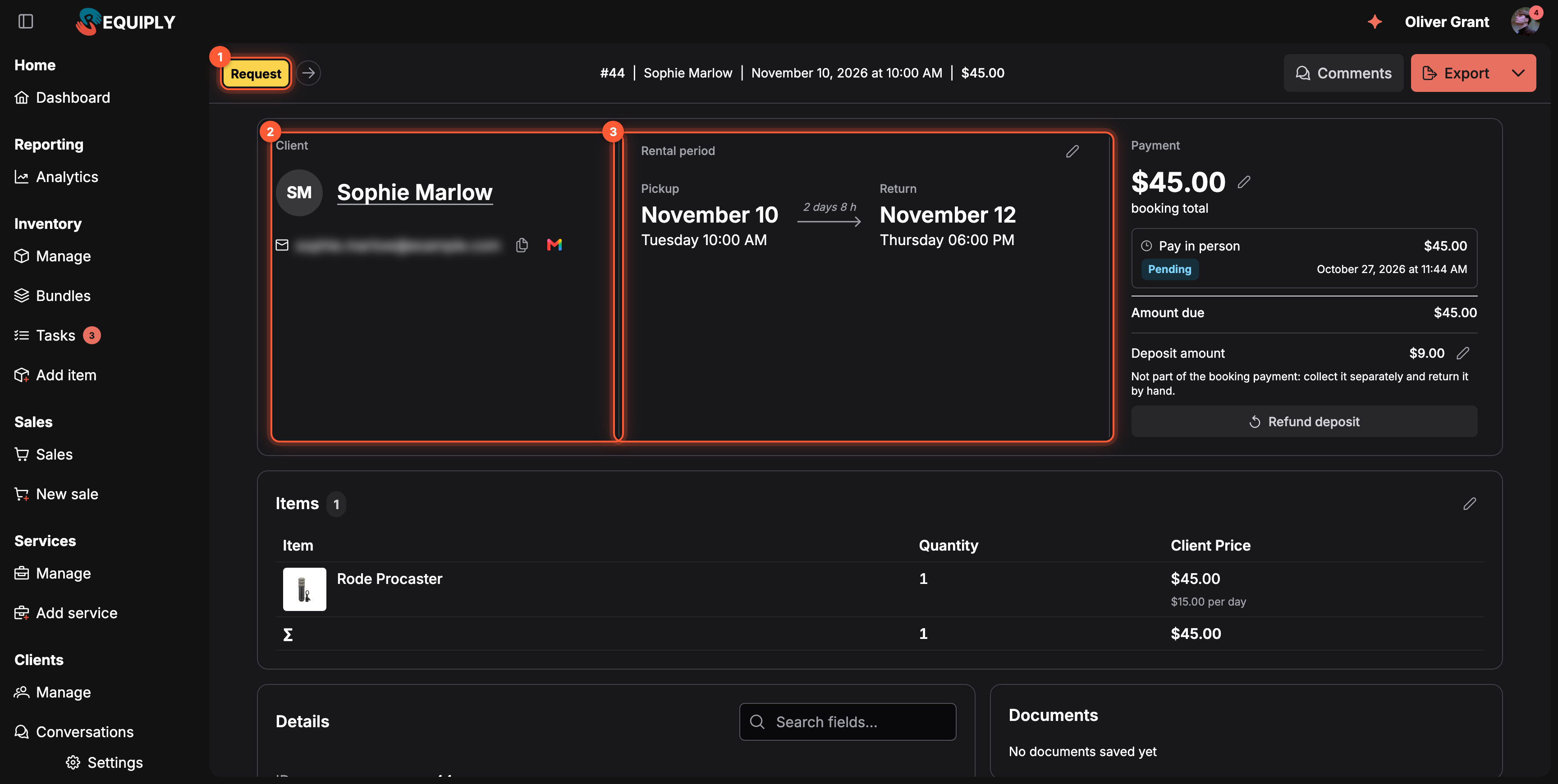
The booking request from the code above, in the web app.
- Request: the status of a booking request. Staff move it on with the arrow next to the tag.
- Client: the client the SDK matched or created.
- Rental period: the dates you sent, in your organization's timezone.
The request also appears in the mobile app, under Bookings.
Common questions
Should I use the SDK or the REST API?
Use the SDK in JavaScript and TypeScript. In any other language, call the REST API with the same key; the SDK is a thin, typed layer over it.
How do I create a confirmed booking instead of a request?
Use a secret key, leave out asRequest, and pass a paymentType. See Bookings.
How do I handle errors?
Catch RequiplyError and read status and reason. A 429 carries retryAfter in seconds. See Error handling.
Is there a sandbox?
No. Every key works on real data, so test against a demo organization. See No test mode.
Next steps
- Quick Start: a server and a storefront example side by side.
- SDK resources: every method, by resource.
- Examples: patterns for storefronts and integrations.
Generate an API token
Admins create API tokens, called API keys, under Settings → Organization → API keys: a secret key for servers or a publishable key for websites.
Authentication and API Keys
Create, name, and revoke Requiply API keys, choose between a publishable key for browser storefronts and a secret key for servers, and learn the rate limit.