

How to set working hours in Requiply
Quick answer
Working hours tell Requiply when your team can hand equipment over and take it back. They apply to pickups and returns, not to the rental itself: a booking can run over a weekend or a holiday, as long as the pickup day and the return day are open.
1. Set the timezone and the weekly schedule
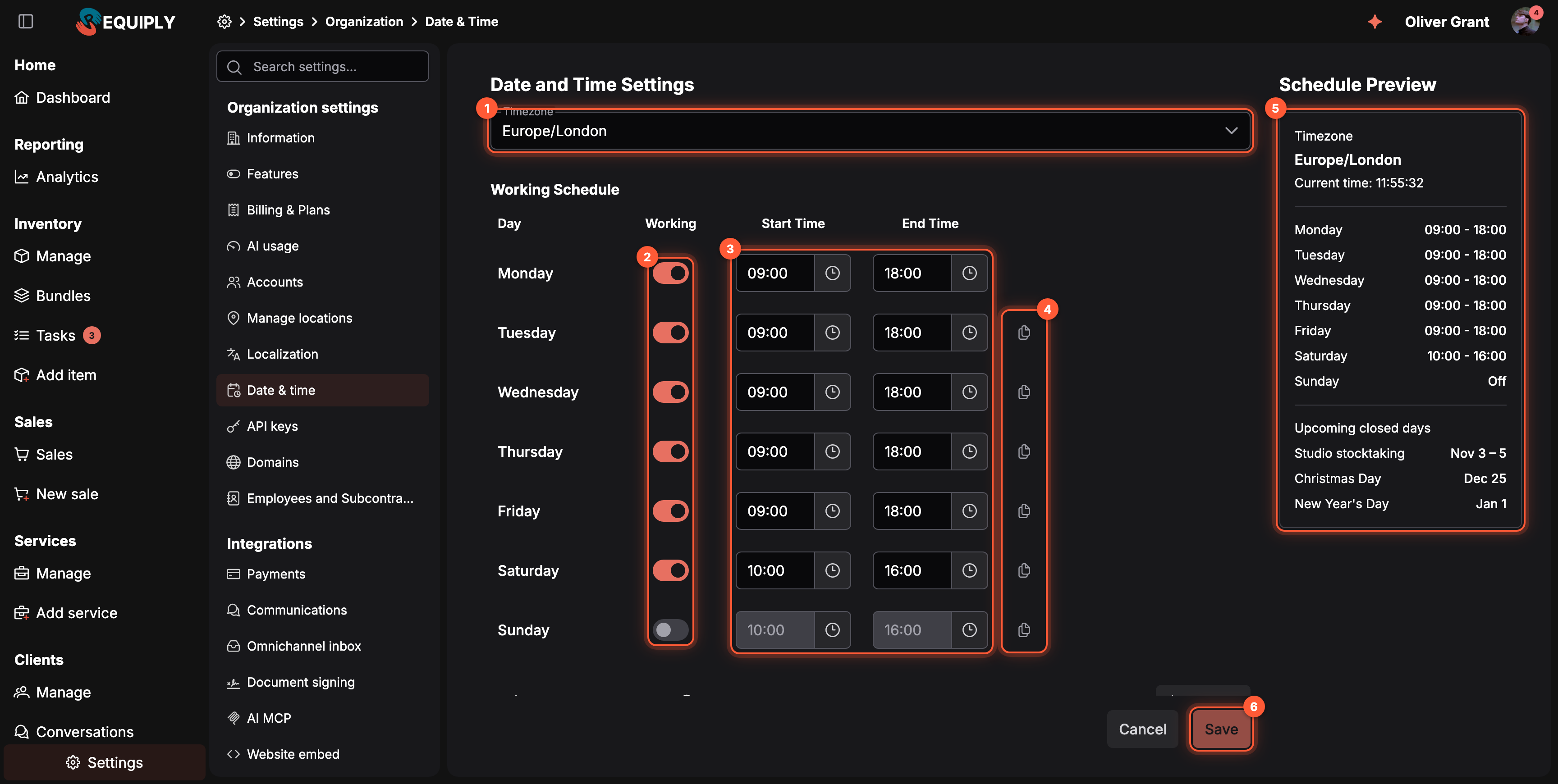
Settings → Organization → Date & time.
- Timezone: where your business operates. All times are read on this clock.
- Working: on for the days you open. A day switched off can't be a pickup or return day.
- Start Time and End Time: the first and last time a pickup or return can happen, in 15-minute steps.
- Copy from previous takes the hours of the day above, so you set Monday once and copy it down.
- Schedule Preview: the current time in your timezone, every day's hours, and the next closed days. If the current time looks wrong, the timezone is wrong.
- Save. Nothing is stored before you save.
The page is at app.requiply.com/settings/org/date-time-settings. It needs access to organization settings.
2. Add holidays and closed days
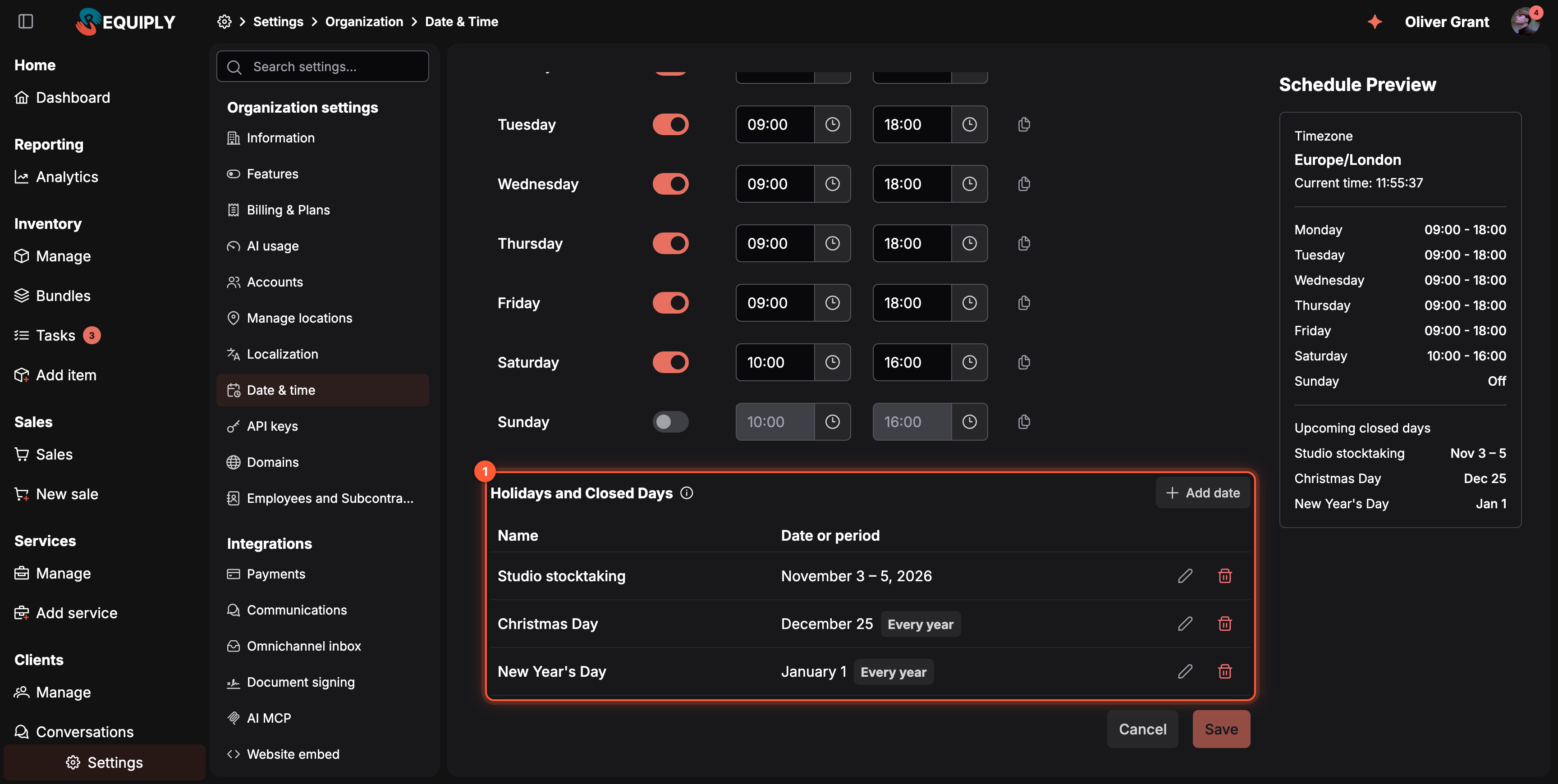
Holidays and Closed Days, under the weekly schedule.
- Holidays and Closed Days: click Add date, enter a name such as Christmas Day, pick one day or a period, switch on Repeat every year for fixed-date holidays, and click Add. Then click Save at the bottom of the page.
A holiday closes the day for pickups and returns, the same as a weekday switched off. Customers see its name when they hover the greyed-out day. Details: Holidays and closed days.
3. Decide who may book outside working hours
Customers on the client portal always get working hours only. Your staff can get an exception: a permission group with Allow booking outside of working hours may pick any time or a closed day, after a confirmation. Administrators have it by default. Switch it off for groups that should stay inside the schedule.
4. Check it when booking
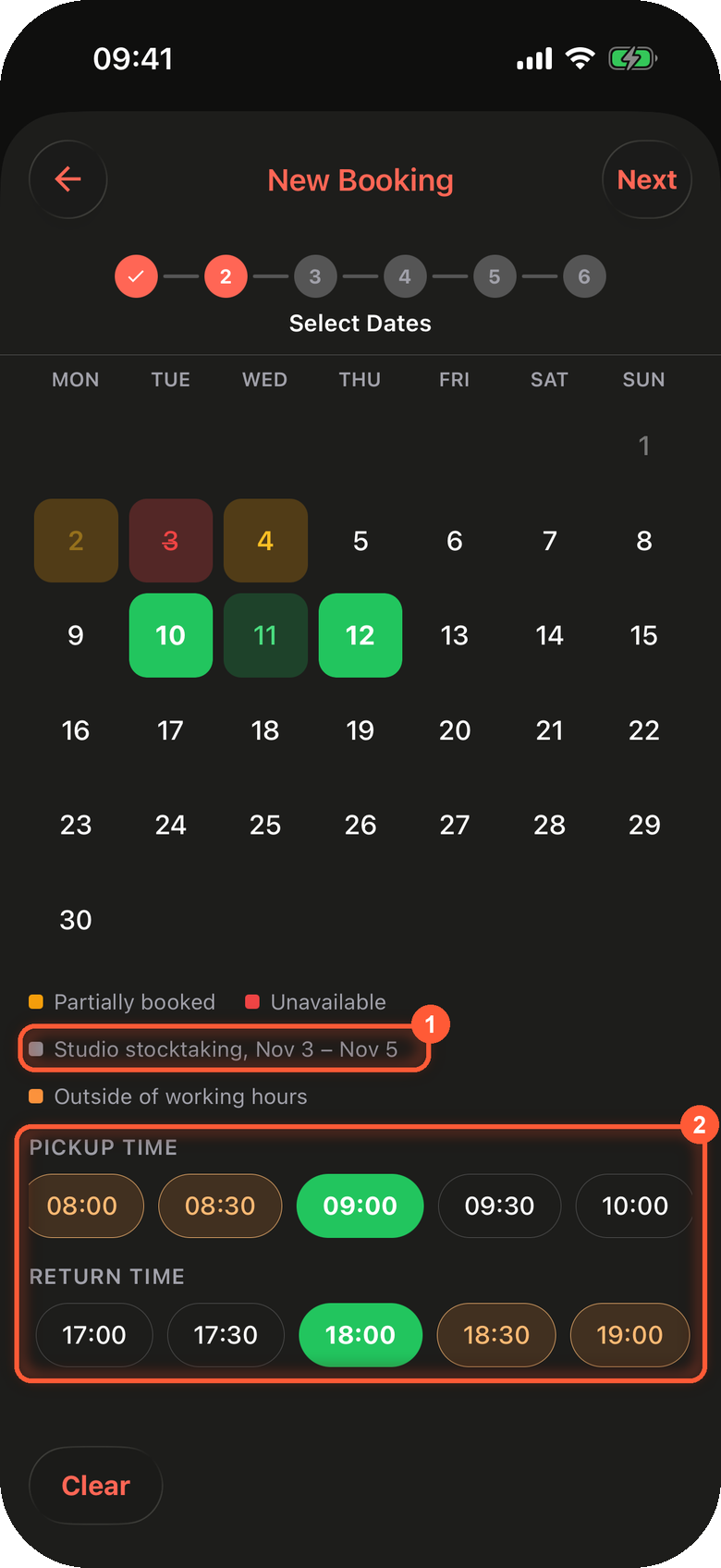
Choosing dates for a new booking in the iPhone app.
- Closed days: holidays in the month on screen are listed under the calendar, and their days can't be a pickup or return day.
- Pickup time and Return time: only times inside the day's working hours. Members allowed to book outside working hours also see the other times, in orange.
The web app's Add booking page, the client portal, and the website booking widget follow the same schedule.
Common questions
Can a rental last over a closed day?
Yes. Only the pickup and the return have to fall on open days. A camera picked up on Friday and returned on Monday is fine with the weekend closed.
Why can't a customer pick an evening time?
The time is outside the day's End Time. Extend the hours, or create the booking yourself with a group that may book outside working hours.
Do working hours change the price?
No. The Timezone does matter: per-day prices are counted on your local clock, so a Saturday-to-Monday rental is always 2 days, even over a clock change. See Timezone.
Do bookings already on a new holiday move?
No. Adding a holiday only stops the day from being chosen again. Move existing bookings with Edit booking dates.
Can I set working hours in the mobile app?
Not yet. Set them in the web app; the mobile app follows them when you create or change a booking.
Does the API follow working hours?
Yes. A booking through the public API or an AI assistant with a pickup or return outside working hours is refused with the reason. A secret API key can pass allowOutsideWorkingHours. See Booking outside working hours.
Localization
Choose the default language for your workspace, invoices, documents, and client portal. Currency is chosen once during setup and is not edited here.
Date & time settings
Set your timezone, weekly opening hours, and public holidays or other closed days, so nobody books a pickup or return when you are closed, and control who may book outside those hours.