

Pricing tiers
The Pricing tiers page is where you manage reusable tiered pricing groups for your inventory. A pricing tier group lets you charge a different percentage of an item's base price depending on how long the item is booked — perfect for offering discounts on longer rentals without editing every item one by one. A customer renting a camera for a week pays less per day than a customer renting it for one day, automatically.
Pricing tiers are the only length-of-rental pricing rule in Requiply. They react to duration, not to the calendar: Requiply does not charge a different rate for weekends, public holidays, or a high and low season, and there is no date-based or seasonal price list. If you need a seasonal rate, change the item's base price when the season turns, or keep separate item groups for each season.
You can find this page under Settings → Pricing → Pricing Tiers, or open it directly at app.requiply.com/settings/pricing/pricing-tiers/.
Why this page matters
A tier group is created once, then assigned to inventory item groups from inventory settings or bulk assignment tools. Each tier stores:
- The starting unit for the range.
- The ending unit for the range, or an unlimited final range.
- The percentage of the base item price to charge for that range.
Units are interpreted from the item's price type:
- Hourly items use hours.
- Daily items use days.
- Monthly items use months.
For example, a tier amount of 90% means Requiply charges 90% of the item's base price for matching units. In booking price calculation, the tier percentage becomes a multiplier.
For subrental products the base price is the marked-up client rate, and the tier percentage applies to it unchanged. The margin is never added on top of the tier.
What you'll see
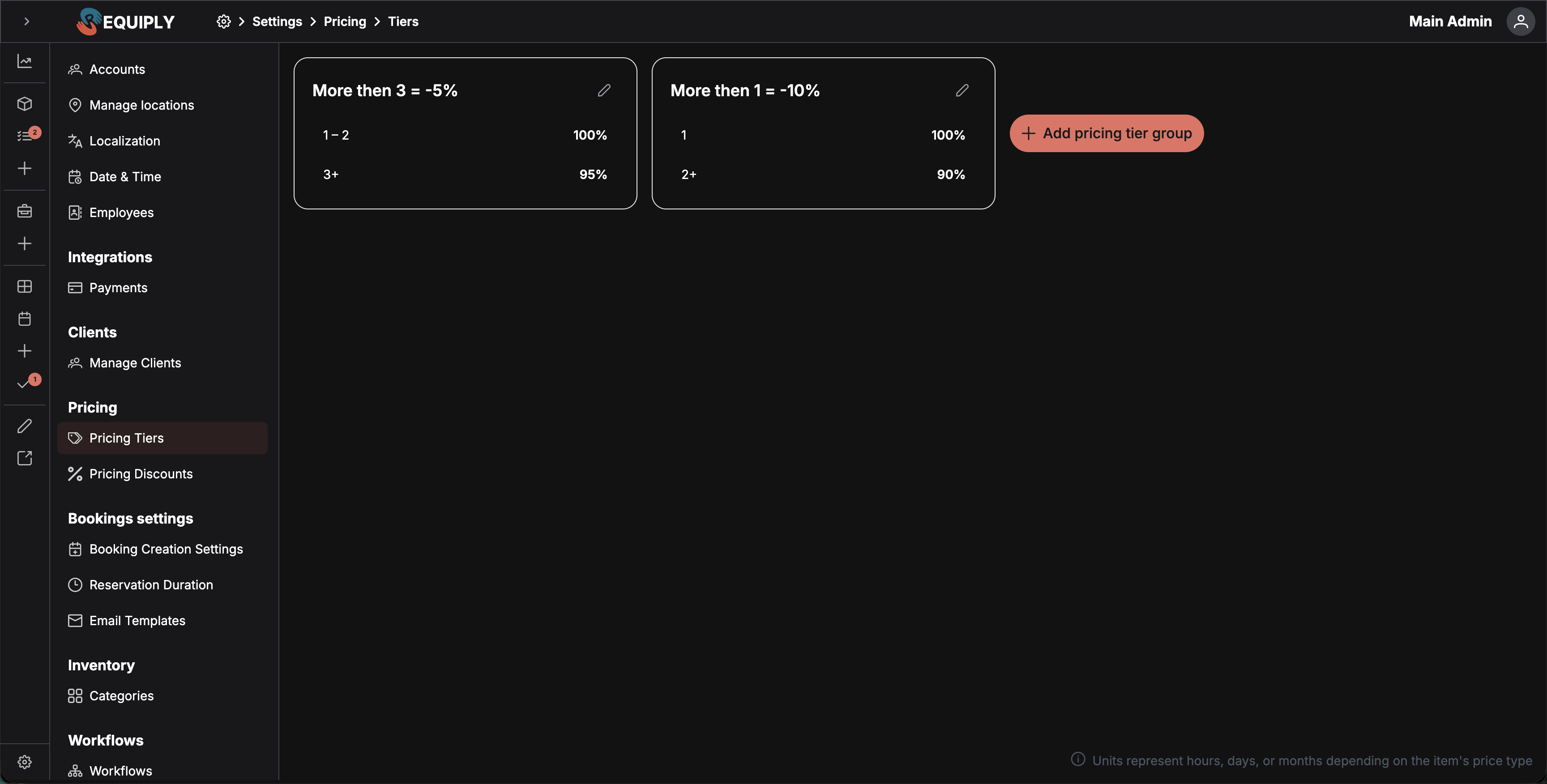
When the page loads, Requiply fetches all pricing tier groups for your organization and shows them as cards (newest first). Each card displays:
- The pricing tier group name.
- Up to three visible tiers, each with its unit range and percentage.
- A
+N morenote when the group has more than three tiers. - An edit pencil icon in the top-right corner.
When at least one group exists, an Add pricing tier group button appears next to the cards. At the bottom of the page, an info note reminds you that units represent hours, days, or months depending on the item's price type.
Empty state
If your organization has no pricing tier groups yet, the page shows an empty state with a tags icon and the title No pricing tier groups yet. The Create pricing tier group action takes you straight to the add form.
Adding a pricing tier group
Click Add pricing tier group (or Create pricing tier group from the empty state) to open the add form.
The add form includes:
- General Information — a required Group name field.
- Pricing Tiers rows — each with From (units), To (units), and Amount (%) fields.
- A final unlimited tier where the ending unit is shown with an infinity icon.
- An Add tier button for adding another bounded range.
- A Preview panel that calculates preview prices for an existing item group.
- Cancel and Save buttons.
After saving, Requiply creates the tier group, shows a success toast, and returns you to the pricing tiers list.
from query parameter), Requiply returns you to that source URL after saving instead of the list page.Editing a pricing tier group
Click the pencil icon on any pricing tier group card to open the edit page. From there you can:
- Rename the group.
- Change existing unit ranges.
- Change percentage amounts.
- Add additional tiers.
- Remove bounded tiers (as long as at least one bounded tier remains).
- Change the final unlimited tier percentage.
- Preview how the tiers affect an existing item group.
The Save changes button stays disabled until you change something. After saving, Requiply updates the group name, replaces the stored tiers with your new tier list, shows a success toast, and returns to the list.
Deleting a pricing tier group
The edit page also includes a Delete button. Clicking it opens a Confirm deletion dialog asking you to confirm. On success, Requiply deletes the group's tiers, deletes the group itself, and returns you to the list.
Forms and fields
Group name
Required. Use a name that makes the rule easy to recognize during bulk assignment, such as Weekend rentals, Long-term monthly, or Equipment weekly discount.
From (units)
The first bounded tier starts at a minimum of 1. Each later bounded tier starts immediately after the previous tier's ending unit.
To (units)
Defines the last unit count where a bounded tier applies. The form automatically creates a final unlimited tier after the last bounded tier.
Amount (%)
The percentage of the base item price charged for matching units. Accepts values from 0 to 100 with up to two decimal places.
| Amount | Effect |
|---|---|
100% | No change from the base price. |
90% | 10% reduction from the base price. |
75% | Three quarters of the base price. |
Final unlimited tier
Every form includes a final tier where To (units) is unlimited. Its starting unit is calculated from the previous bounded tier's ending unit plus one.
This matters because booking calculations look for a tier that matches the rental duration. Because the last tier always runs from the highest bounded number to infinity, there is no way for a booking duration to fall outside all defined ranges.
Item for pricing preview
The preview selector loads inventory item groups and defaults to the first available one. Selecting an item lets the preview card display calculated prices using that item's base price and price type.
How this page connects to the rest of Requiply
| Feature | How this page affects it |
|---|---|
| Inventory item groups | Pricing tier groups can be assigned to item groups from the item group edit form. |
| Bulk inventory actions | The bulk pricing tier dialog can assign one pricing tier group, or clear the assignment, for multiple item groups. |
| Inventory list and detail pages | Assigned pricing tier group names can appear in inventory management views. |
| Client portal | Item pages show the tier as a price-break table, and portal bookings are priced with the assigned tier rules. |
| Booking price calculation | Requiply chooses the tier that matches the booking duration units and multiplies the item price by the tier percentage. |
Common scenarios
Long-term rental discount
Keep the base item price at a normal daily rate, then create tiers such as:
- 1 day:
100% - 2–7 days:
90% - 8+ days:
80%
Assign this tier group to item groups that should become cheaper for longer bookings.
Different rules for different item types
Create one tier group for hourly items and another for monthly items. Because units depend on the item's price type, a "3 units" booking means three hours for hourly items, three days for daily items, and three months for monthly items.
Bulk assignment after setup
After creating a pricing tier group, use inventory bulk actions to assign the same tier group to several item groups at once.
Clearing tiered pricing
The inventory assignment UI supports clearing the selected tier group. When no pricing tier group is assigned, booking price calculation falls back to the item's base price without any multiplier.
Tips and cautions
Long-term rental discount is easier to recognize during bulk assignment than a narrow name like Camera tier.