


What's New in Requiply 1.2.1?
This release is about flexibility and ease of use. You can now create custom fields for any entity — an item SKU, item group, booking, or client — decide which ones appear in tables, reorder columns on a dedicated Table Column Layout page, and find any setting instantly through a fully refreshed searchable settings menu. Plus — 20–50% faster loading on the most heavily used pages, and stabilised custom styling for your Requiply site.
1. Entity Fields — Customise the System to Your Business
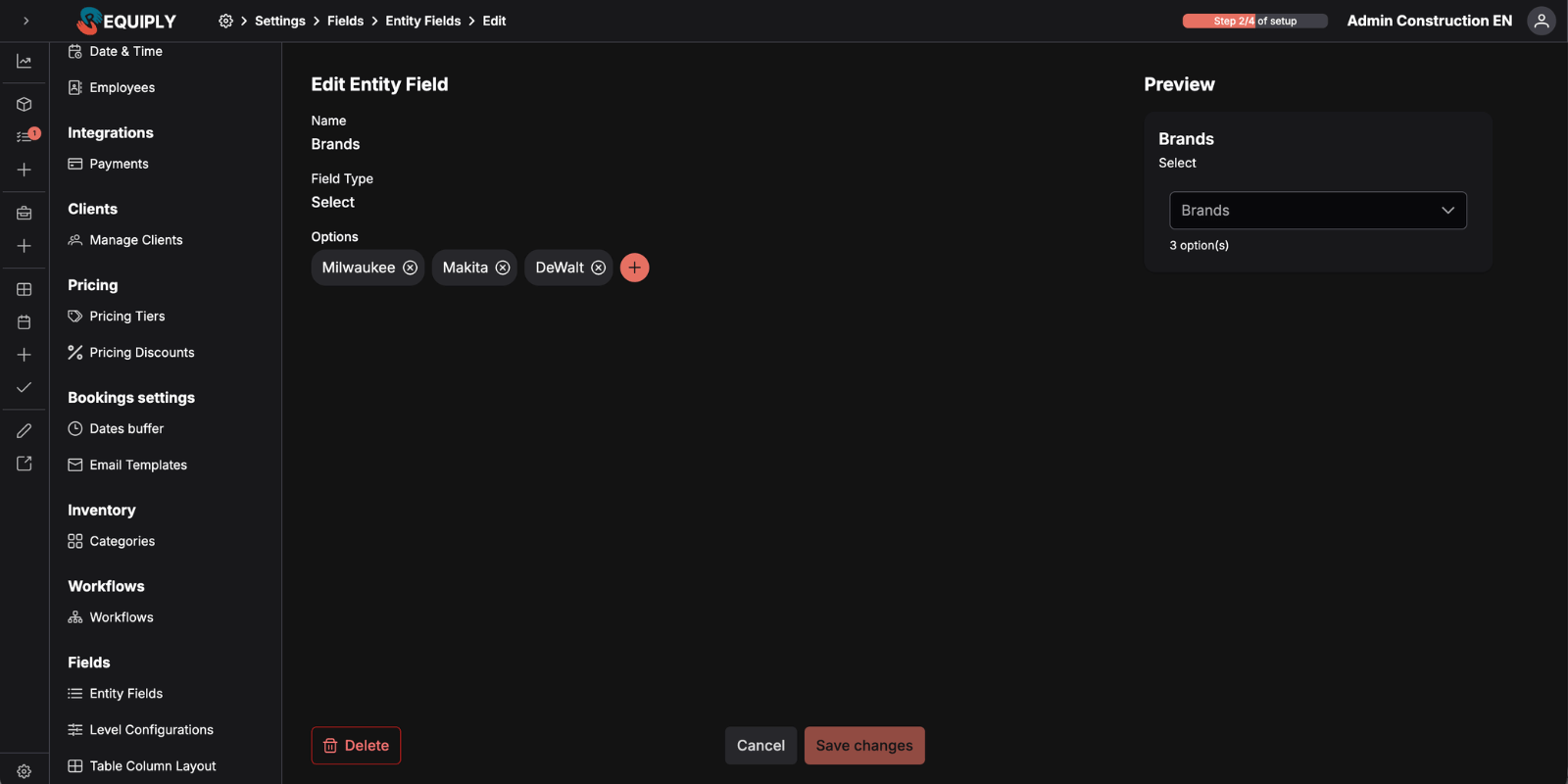
The new Entity Fields settings page lets you create custom fields that match your exact business needs. Instead of bending to the system's rigid structure, you define what data to store about SKUs, item groups, bookings, and clients.
Six Field Types
For text fields, you set minimum and maximum length. For number fields — minimum, maximum, and minimum/maximum decimal places (for example, for weight or tyre pressure). For select and multiselect fields, you add your own options — with no limit on how many.
Safe Editing Even When the Field Is Already in Use
You can add new options to a select list at any time — they appear in forms immediately. If you delete an option that is already in use on some SKU or booking, the value stays saved until that record is next edited. You do not lose historical data just because you reorganised the list.
The number of fields is unlimited — create as many as your business needs.
2. Level Configurations — Where and How a Field Appears
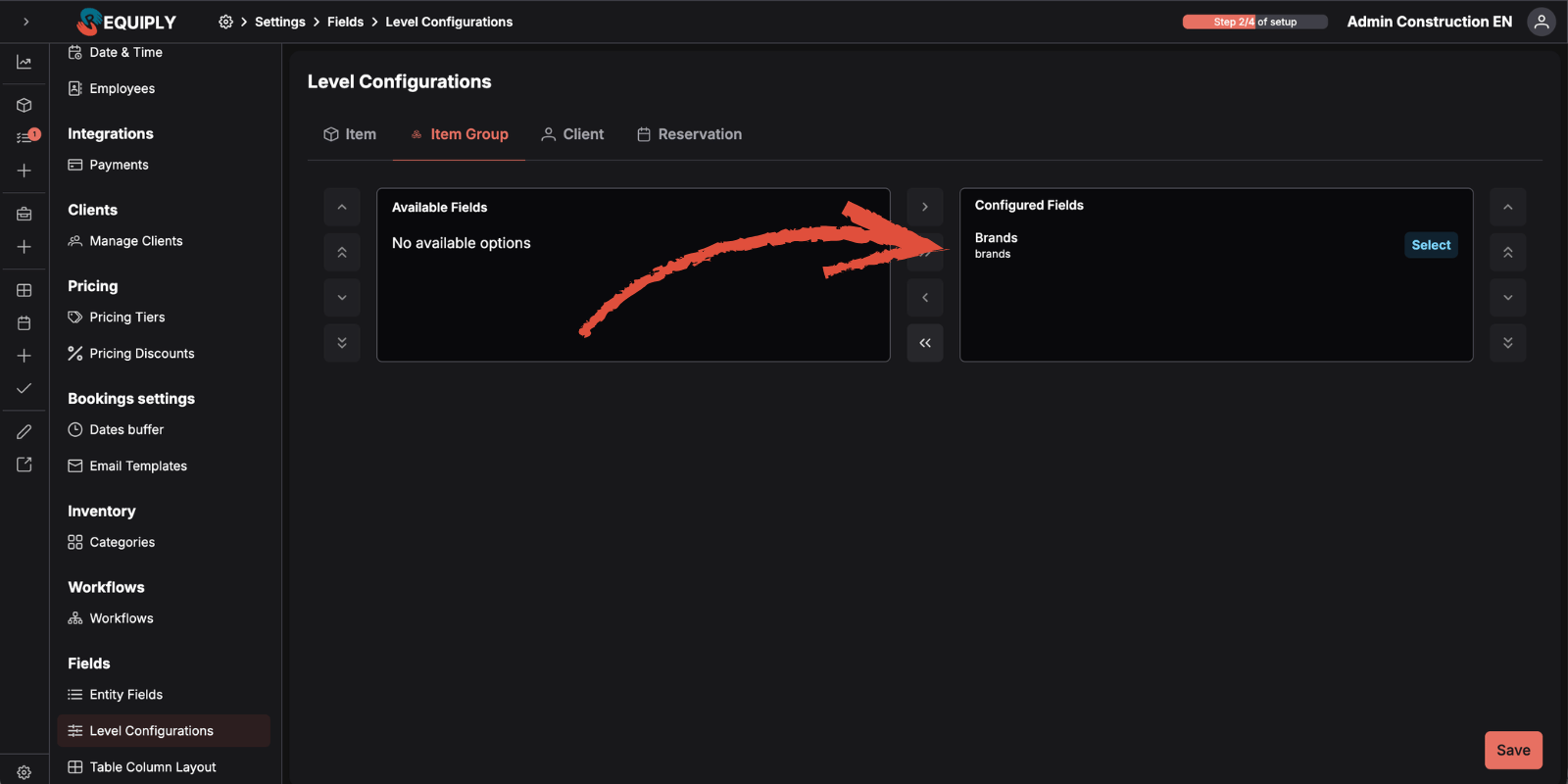
Creating a field is only half the job. On the Level Configurations page you decide which entity the field applies to and exactly where it appears. Four levels cover the entire system:
Configuration by Category for Inventory
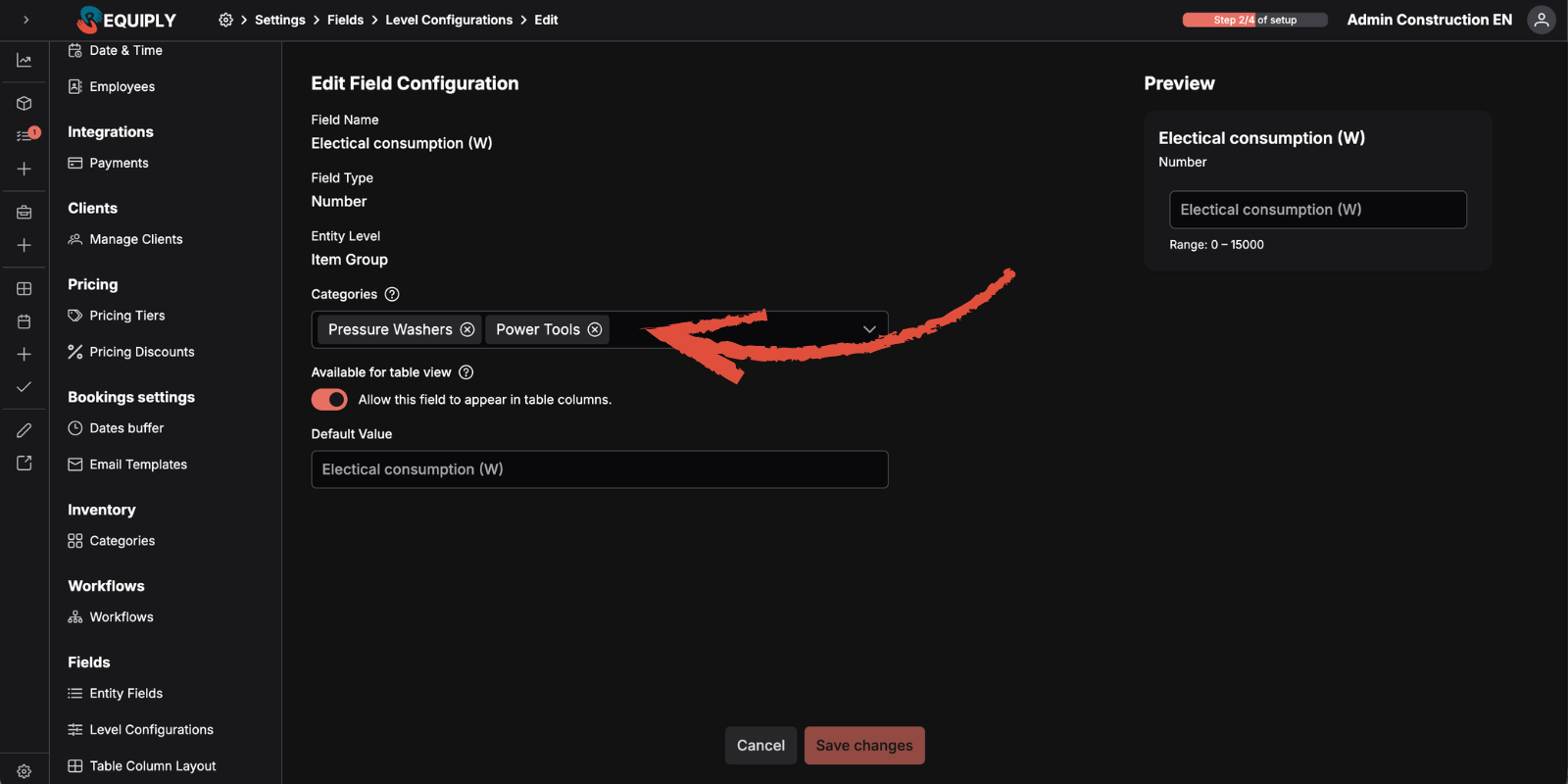
For the Item and Item Group levels, fields are configured by category. A "Tyre pressure" field makes sense for bikes and not for audio gear. Assign a field to one category, several, or all of them — the system shows it exactly where it belongs.
In Requiply, an Item Group is a model (for example, PROCATER) and Items (SKUs) are specific instances of that model (PROCATER-001, PROCATER-002). Level Configurations respect this hierarchy: model attributes live on the group level, unique per-instance data on the SKU level.
The "Available for table view" Toggle
Each field's configuration page has an Available for table view toggle — "Allow this field to appear in table columns." Turn it on and the field shows up in the column list inside Table Column Layout and can be added to the grid. Turn it off and the field stays in forms but does not clutter the table.
Filtering by Custom Fields
Custom fields become part of filtering straight away — and differently on different pages, to match how you actually work:
| Page | Filtering |
|---|---|
| Clients | Global filter field — searches across all enabled fields at once |
| Bookings | A separate filter on each table column |
| Inventory | Both a global filter and per-column filters — the most flexible mode |
Practical Use Cases:
- AV Equipment Rental: Add a SKU field "Serial number" and a group field "Manufacturer." Find a specific mixer by serial number after a tour returns, or filter all Yamaha consoles in inventory in two clicks
- Bike & Cycle Hire: For the "Mountain bikes" category, create "Frame size" (select: S/M/L/XL) and "Full suspension" (checkbox) fields. A tourist calls asking about a medium full-suspension bike — filter by both fields and immediately see what is available
- Party Supply Rental: At the client level, add a "Segment" field (multiselect: corporate, wedding, kids' event). The client list filter instantly pulls up every wedding client when you launch a seasonal campaign
- Construction Equipment: At the booking level, add "Delivery address" and "Site number" fields — your logistics lead filters tomorrow's bookings by district and plans a route in under a minute
3. Table Column Layout — Control Columns Your Way
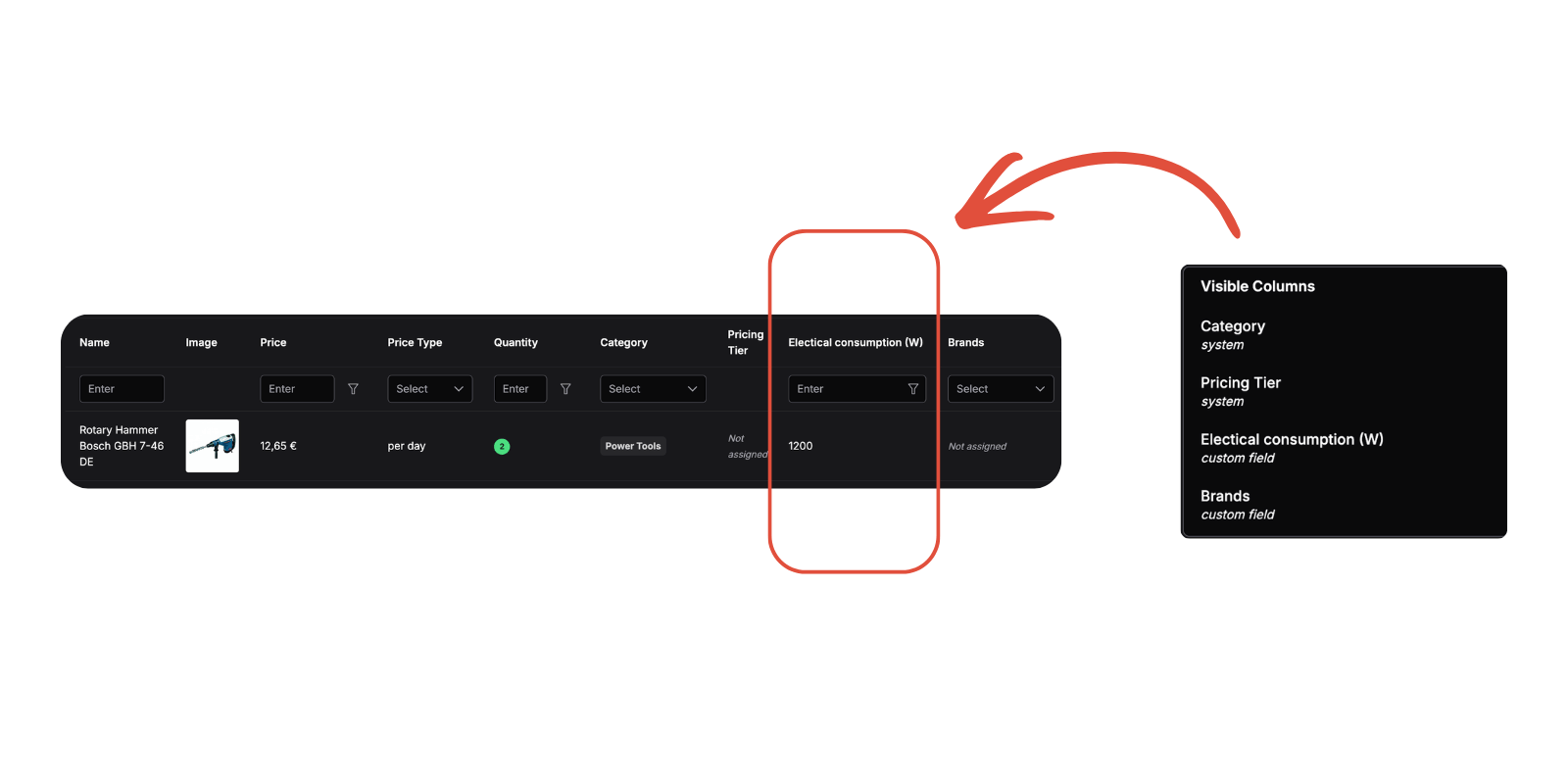
The new dedicated Table Column Layout page gives you full control over which columns appear — and in what order — across the main lists in the system.
What You Can Configure
The page shows two kinds of columns side by side: system columns (Requiply's standard fields — name, status, date, price) and custom columns (entity fields you created and exposed to tables). Drag them into the order you want, hide the ones you do not use, and the list immediately reflects the layout that matches your workflow.
Layout is saved at the organisation level — every team member sees the same configured tables, which keeps handoffs and reviews transparent.
Practical Use Cases:
- Ski & Snowboard Hire: In peak season, hide the system columns you do not use and promote your custom ones — "Length," "Bindings," "Riding level." The desk sees everything they need without any horizontal scrolling
- Event Equipment Rental: On the bookings page, bring your custom "Event type" and "Delivery address" columns to the front and hide the standard "Booking ID" column — the driver needs completely different data
- Photography Studio: In the client table, enable custom "Portfolio" (link) and "Specialisation" (select) columns — the marketing lead matches photographers to a casting without jumping into each client's page
4. Refreshed Settings Menu — Instant Search
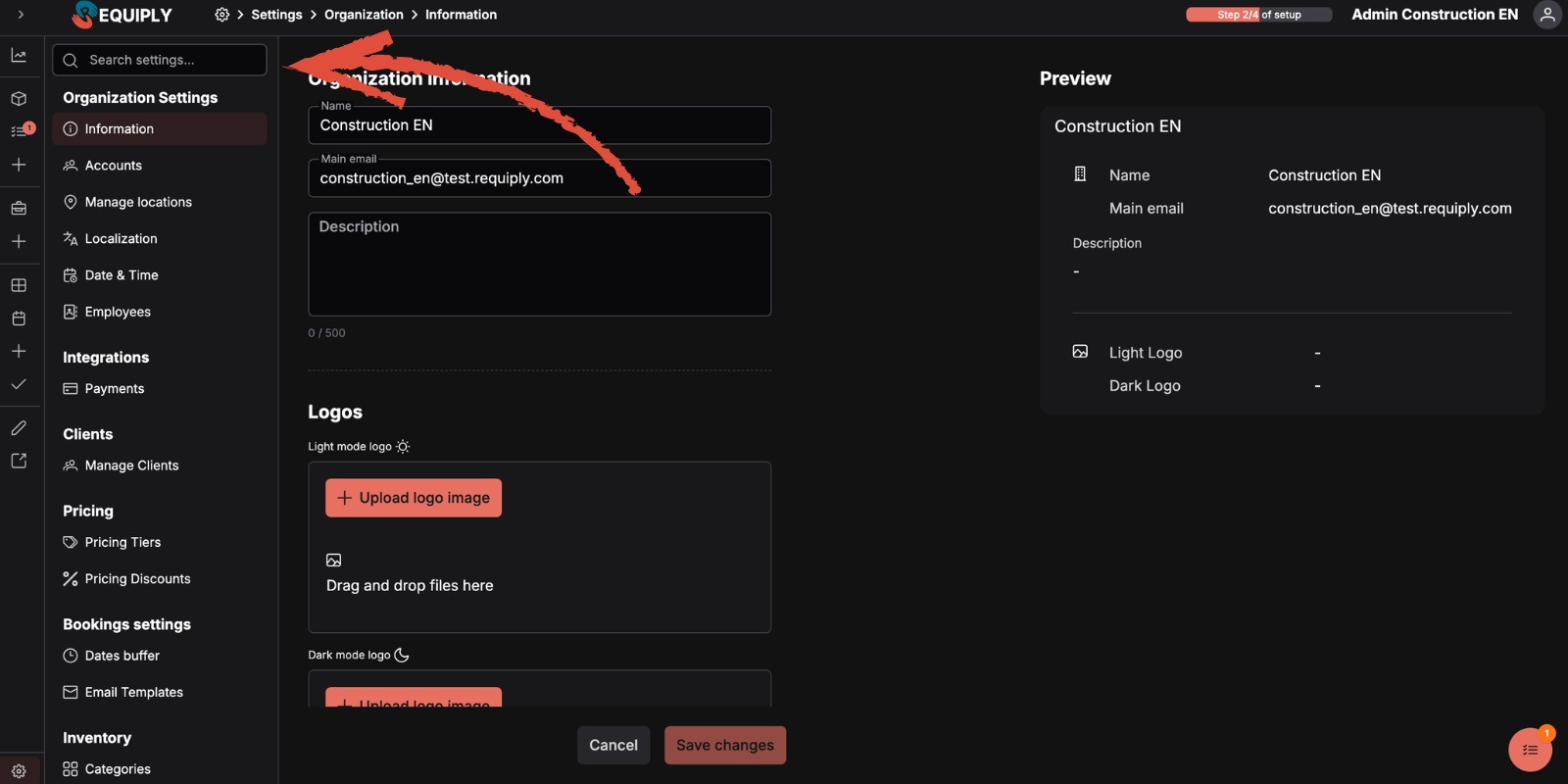
The number of settings pages keeps growing — payments, automations, templates, discounts, entity fields, table column layout. The old tile grid stopped scaling: hunting for a tile by eye among two dozen icons became awkward. So we rebuilt the menu from scratch.
What Changed
Search starts suggesting results from the first letter and understands queries in both languages equally — handy when part of the team uses English terminology and part uses Ukrainian.
The old tile layout has been fully replaced by the new menu — migration is automatic, no action required on your side.
Practical Use Cases:
- You need to change LiqPay settings — type "liq" into search and land on the page directly, no section drilling
- A new team member types "templates" — the menu surfaces "Email templates" whether they think in English or Ukrainian
- An admin preparing a new discount tier types "discounts" — search jumps straight to the discount settings page instead of scrolling through the whole menu
5. Performance and Website Style Stability
We completed a major internal state cleanup and removed saved data that was never read. The result is clearly visible on the most heavily loaded pages of the system.
What Got Faster
Stabilised Custom Requiply Site Styles
Previously, custom styles for your Requiply site sometimes failed to propagate into the preview or got lost on load — you configured colours and fonts, and your client saw the default look. We rewrote the style-loading logic: your branding now applies consistently, both in preview and on the live site, with no exceptions.
If you were holding off on setting up your branded site because of these glitches — now is a good time to come back and finish the look.
Frequently Asked Questions
What's Next?
Version 1.2.1 makes Requiply dramatically more flexible: you customise the system to your process, not the other way around. We want to see how you actually use entity fields in real businesses — that will shape where we take the feature next. If the current field types are not enough, if you need formulas, dependent fields, or other extensions — let us know. Based on early feedback, we plan to add new field types and more tooling around them so the system is useful for every scenario.
Here's what we're continuing to work on in parallel:
Custom status flows — the ability to define your own booking and payment status names, order, and transitions, so the Requiply workflow matches the way your business actually operates.
More workflow triggers and actions — we're expanding the automation engine: more triggers, branching conditions, and a wider set of actions, so you can automate almost any routine in your rental process.
Additional notification channels — email is just the start. We're planning SMS, WhatsApp, and other channels so you can reach clients the way they actually respond.
Custom domain management — connect your own domain and send emails from your own address, so every automated message lands in the client's inbox with your brand.
Have questions or suggestions? Write to us at info@requiply.com — we're always happy to hear from you, especially about how you use entity fields!
- Requiply version
- requiply
- custom fields
- entity fields
- level configurations
- table column layout
- grid configuration
- settings menu
- searchable settings
- performance
- rental software
- booking management
- inventory tracking