


Step-by-step guide to connecting Requiply's Reporting MCP to your AI assistant of choice — Claude, ChatGPT, or any other provider that supports the Model Context Protocol. Once connected, you can ask plain-language questions about your rental business — revenue, utilization, outstanding balances, upcoming bookings — and your AI assistant will answer using live data straight from your Requiply account. Connecting is simple — copy one URL, sign in with Requiply, done. There are no secret keys to generate, copy, or manage.
Updated for Requiply 1.3.0. The MCP server now lives at
https://api.requiply.com/api/mcp, and it does more than report. Assistants can write templates, set up workflows and change settings, and every change waits for your approval. See what's new in 1.3.0.
Reporting is where most people start. The same connection can also help you set Requiply up: it writes and fixes templates, builds workflows and changes settings, and nothing is saved until you approve the preview it shows you.
What is MCP and why it matters for rental businesses
MCP (Model Context Protocol) is an open standard for connecting AI assistants like Claude and ChatGPT to live business data. Once configured, the AI doesn't just answer from general knowledge — it queries your actual rental data in real time.
Reporting MCP is Requiply's MCP server. It gives AI assistants access to your revenue, bookings, inventory, clients, availability and utilization reports. Since Requiply 1.3.0 it can also change your setup, always after you approve a preview.
For a rental business owner, this changes how reporting works. Instead of:
- Opening five different report screens
- Exporting CSVs and combining them in spreadsheets
- Building static dashboards that go stale within a week
- Waiting for a developer or analyst to write a custom query
You just ask in plain language:
- "What was my revenue last month, broken down by category?"
- "Which inventory items had the lowest utilization in Q1?"
- "Who are my top 10 clients by total spend this year?"
- "How much money is outstanding right now, and which bookings are overdue?"
- "Can I take a new booking for the wedding tent from June 12 to June 14?"
How it replaces legacy reporting
Most rental businesses still rely on a mix of static reports, Excel exports, and gut feeling. Reporting MCP replaces all of that with a conversational layer on top of your live Requiply data:
- No more report fatigue — instead of navigating dozens of screens, ask one question and get the answer
- No more stale exports — every answer is computed from live data on the spot
- No more building dashboards for one-off questions — your AI can pivot, group, and filter on the fly
- Combine it with other connectors — Calendar, Gmail, Drive, Sheets — the AI can pull from all of them in a single conversation to give you cross-system answers
- Planning, not just looking back — ask "based on last month's utilization, which items should I buy more of?" and get a reasoned recommendation grounded in your actual numbers
What the assistant can read
- Business profile: currency, language, timezone, working hours, locations, payment and delivery options, and your staff
- Catalog: products with stock, prices and pricing tiers, plus categories, services and locations
- Availability and pricing: what is free for a date range, day-by-day availability and exact price quotes
- Bookings: search with filters, or open a booking by the number shown in the app
- Clients: exact lookup by email or phone, and search by name
- Reports: revenue, bookings summary, utilization, top items, top clients, outstanding balances, overdue bookings, pipeline and units on rent right now
- Templates and workflows: your email, message and document templates and your automations
What it can change, with your approval
- Templates: write, fix and preview email, SMS, Viber, Telegram and PDF document templates with the macros your organization actually supports
- Workflows: create, edit, enable, disable and delete automations, such as a reminder 24 hours before pickup
- Settings: organization details, working hours, booking rules, deposits and features
- Records: create and update clients, categories, services and locations
- Booking requests: draft a booking request for staff to approve, or add an internal note to a booking
Every change runs as a preview first. The assistant shows you the exact values, or what changes from before to after, and saves only once you approve. Deleting is limited to templates and workflows. A booking request holds no inventory and takes no payment until a staff member approves it.
For every tool, its parameters and example returns, see the AI integration documentation.
Step 1: Open the AI integrations page in Requiply
Sign in to your Requiply account:
After signing in, go to the AI integrations page:
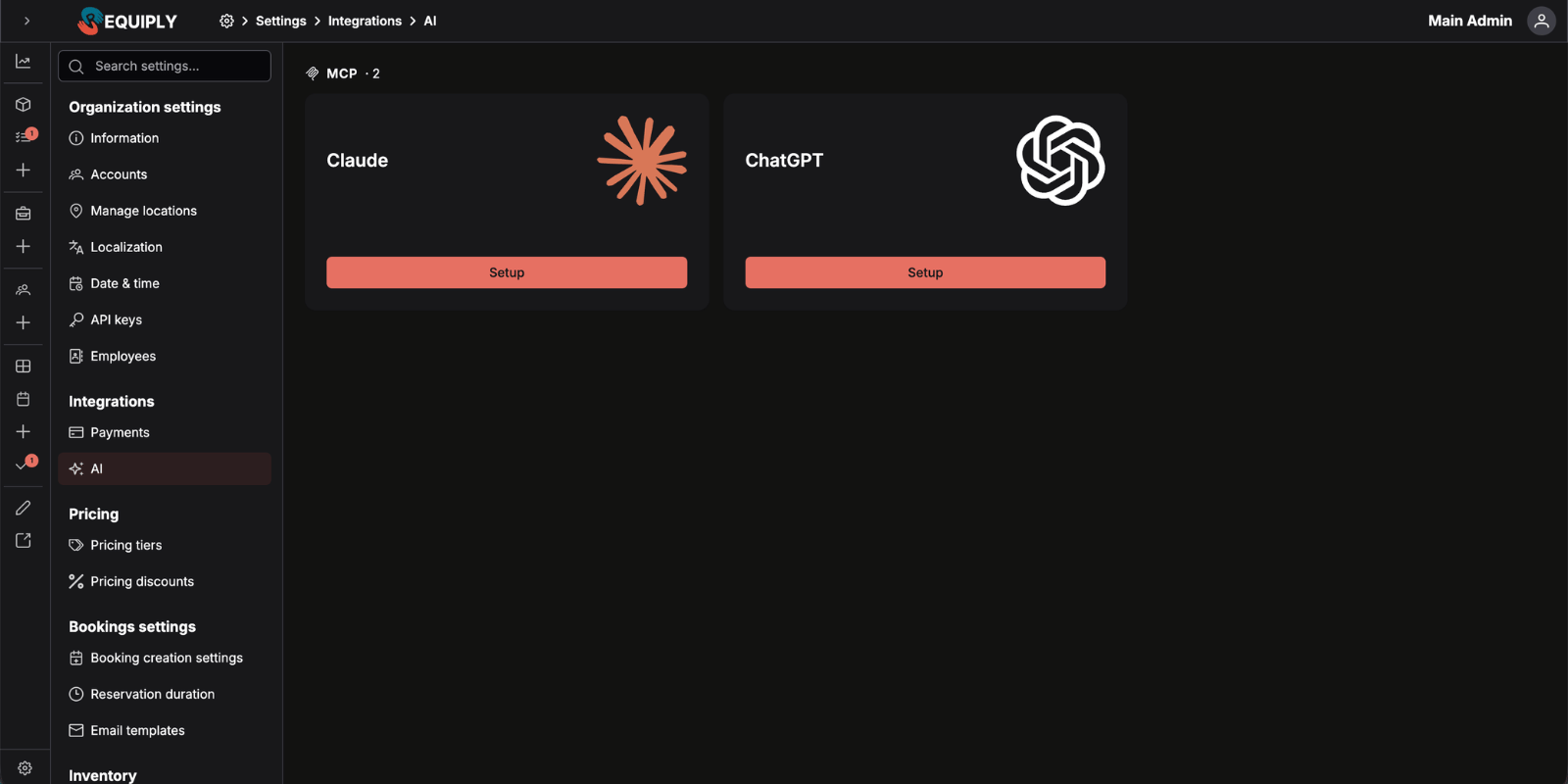
You can also navigate manually: Settings → Integrations → AI.
On this page you'll see MCP cards for the supported providers — Claude and ChatGPT. Click Setup on the card for the provider you want to connect.
Step 2: Connect to Claude
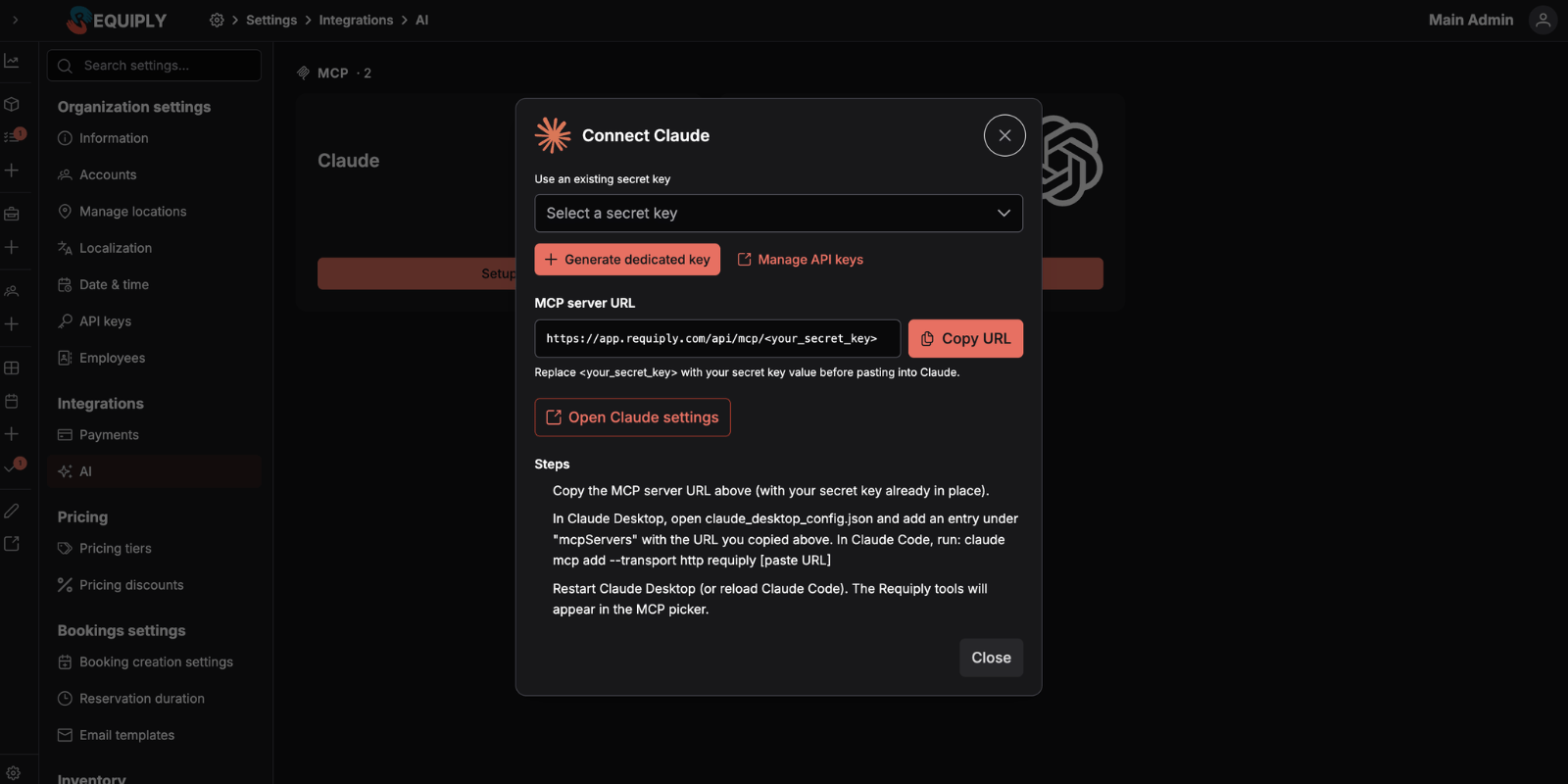
Click Setup on the Claude card. The Connect Claude modal opens with everything you need to copy the MCP server URL and jump straight into Claude.
1. Copy the MCP server URL
The modal displays your MCP server URL:
https://api.requiply.com/api/mcp
Click Copy URL. That's the whole address — there's no key or token to add to it, and nothing to generate beforehand. Authentication happens through OAuth when you connect: you simply sign in to Requiply and approve access.
The screenshots in this guide show the earlier address,
https://app.requiply.com/api/mcp. It still works, so connectors you have already added do not need any changes.
2. Click "Open Claude settings"
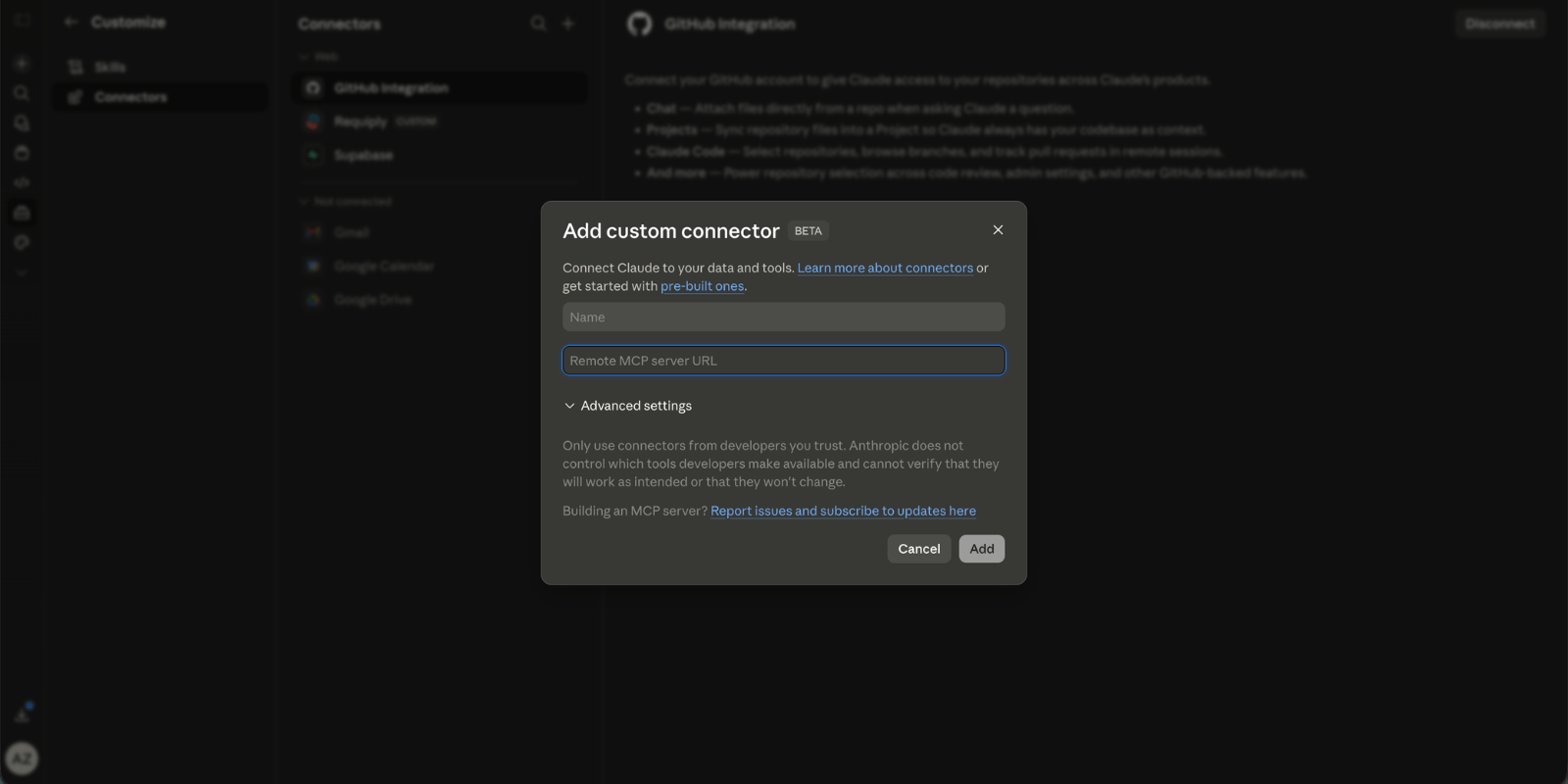
Click the Open Claude settings button in the modal. This opens Claude directly to the Add custom connector dialog — you don't have to navigate Claude's settings yourself.
3. Fill in the connector form in Claude
- Name:
Requiply(or any label you prefer — it's only used in Claude's UI) - Remote MCP server URL: paste
https://api.requiply.com/api/mcp
Click Add. When prompted, choose OAuth, sign in to Requiply with an account that has the Admin role, and approve access for the connector. Claude will then connect to the Requiply MCP server and discover the available tools.
This works everywhere Claude offers custom connectors — including claude.ai on the web.
Heads up — Claude custom connectors require a paid Claude plan. They are available on Pro, Max, Team, and Enterprise Claude plans, and not on the free tier. If the Add custom connector option doesn't appear in your Claude account, this is the reason.
4. Use it in a chat
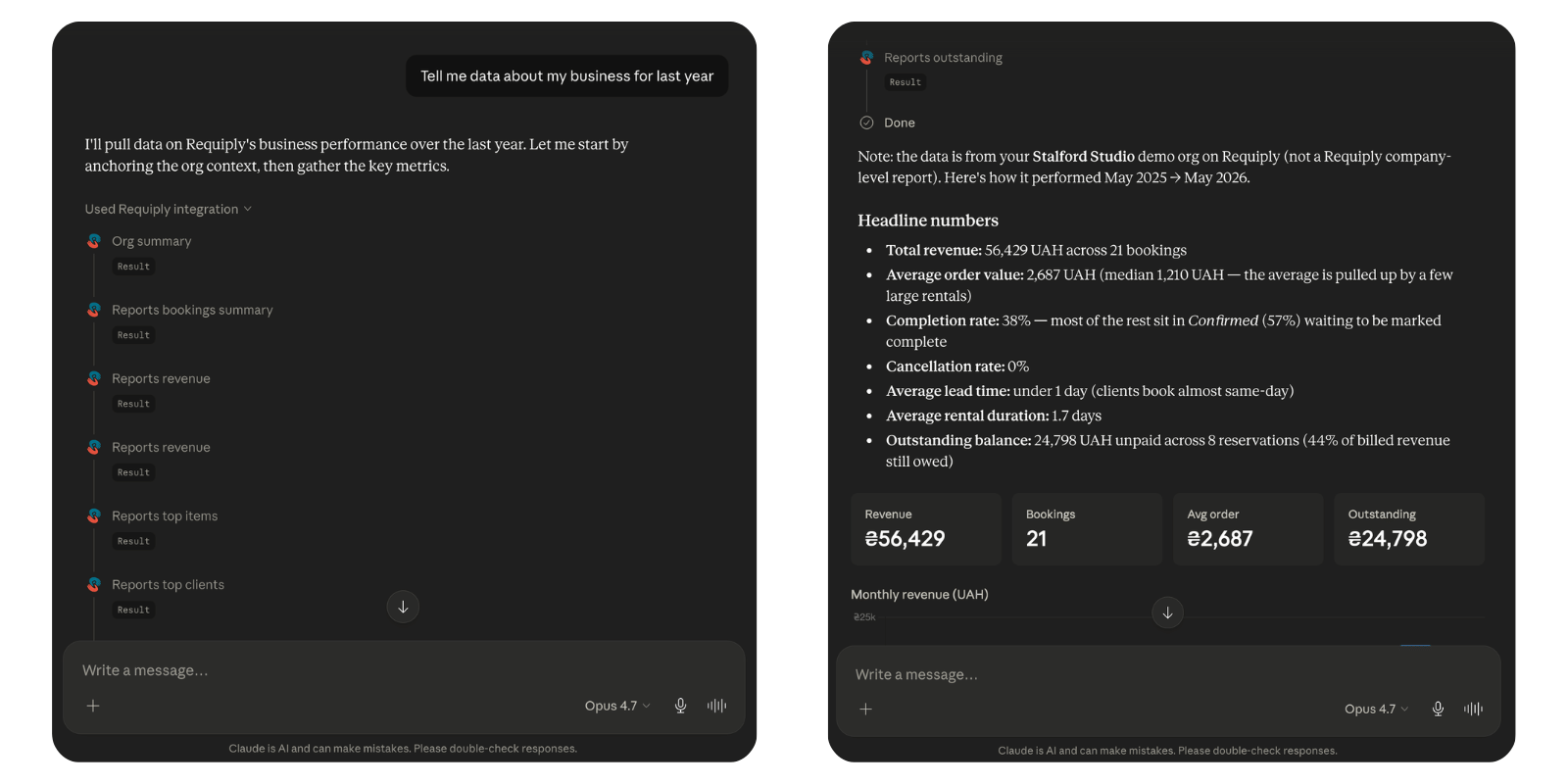
Start a new Claude conversation, enable the Requiply connector in the chat tools, and ask anything in plain language:
- "Tell me data about my business for last year."
- "How much revenue did we make in April?"
- "Which items had the highest utilization last quarter?"
Claude will call the appropriate Requiply tools and answer with live data from your account — often returning a visual dashboard with charts and category breakdowns rather than just text.
Step 3: Connect to ChatGPT
Click Setup on the ChatGPT card on the AI integrations page. The Connect ChatGPT modal opens with the same structure as the Claude one: the MCP server URL, a Copy URL button and an Open ChatGPT settings button that takes you to ChatGPT's Plugins page.
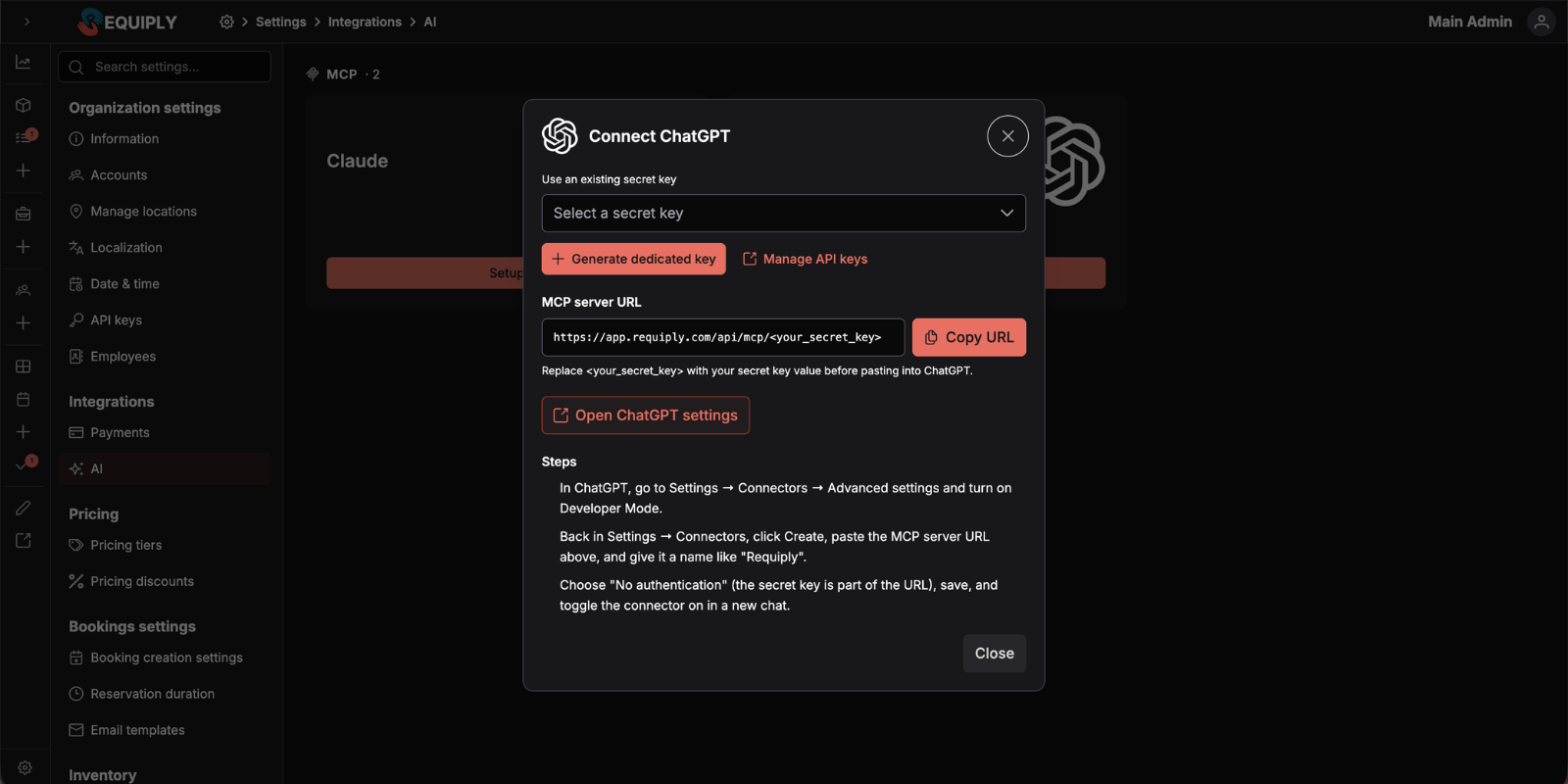
1. Copy the MCP server URL
Same as for Claude: click Copy URL to copy https://api.requiply.com/api/mcp. There's no key to generate or paste, because authentication is handled by OAuth.
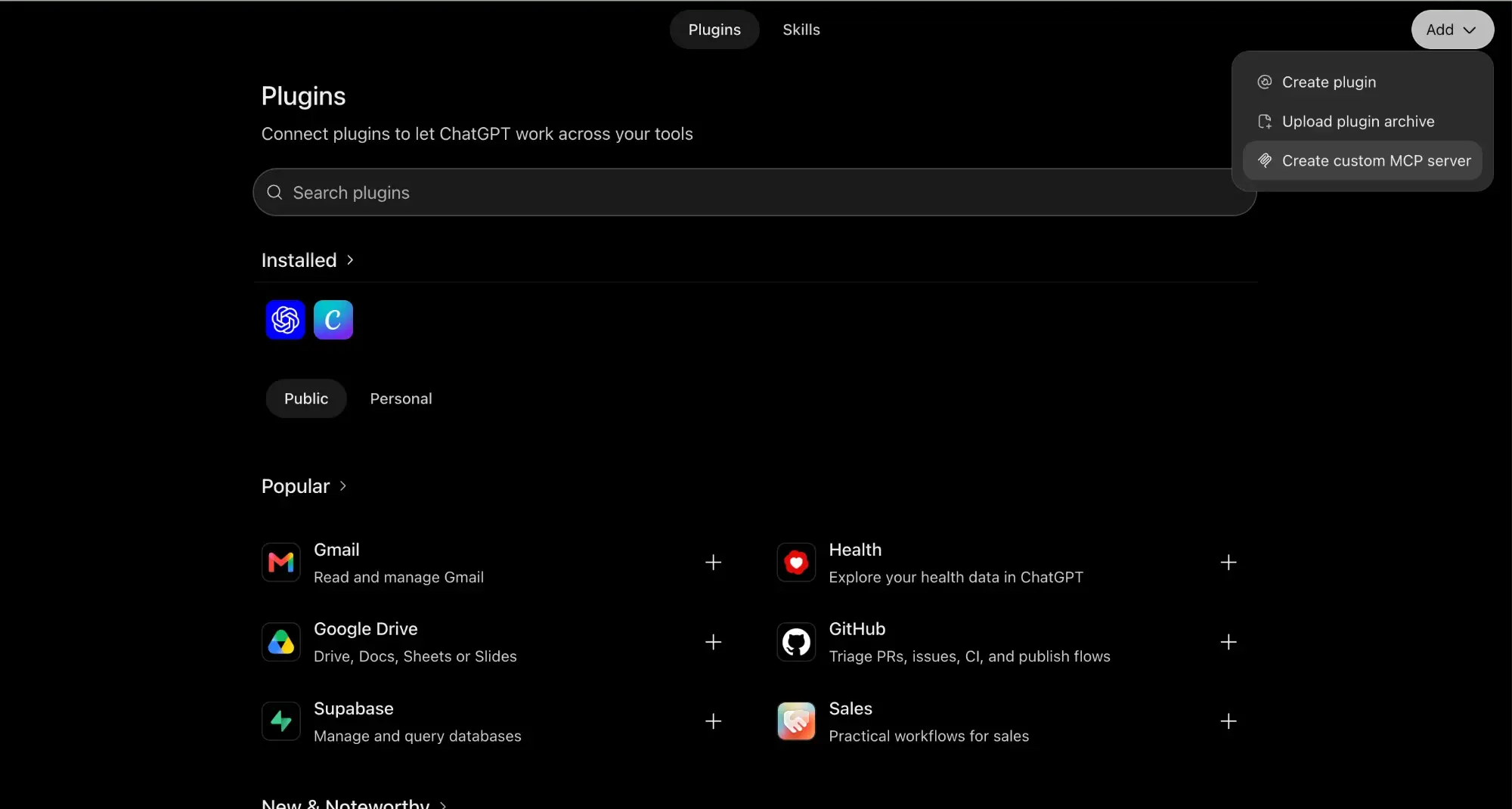
2. Open Plugins and choose "Create custom MCP server"
Click Open ChatGPT settings in the Requiply modal, or go to chatgpt.com/plugins yourself. Click Add in the top right corner and choose Create custom MCP server.
3. Fill in the form
- Name:
Requiply - Description (optional): for example
Bookings, inventory and reports from Requiply - Connection: keep Server URL selected and paste
https://api.requiply.com/api/mcp - Authentication:
OAuth
You don't need to open Advanced OAuth settings. ChatGPT reads them from Requiply on its own: the registration method is filled in automatically, and the default scope is mcp:access. Leave Base scopes empty.
Tick I understand and want to continue and click Create as a plugin. ChatGPT sends you to Requiply: sign in with an account that has the Admin role, choose the organization and approve access.
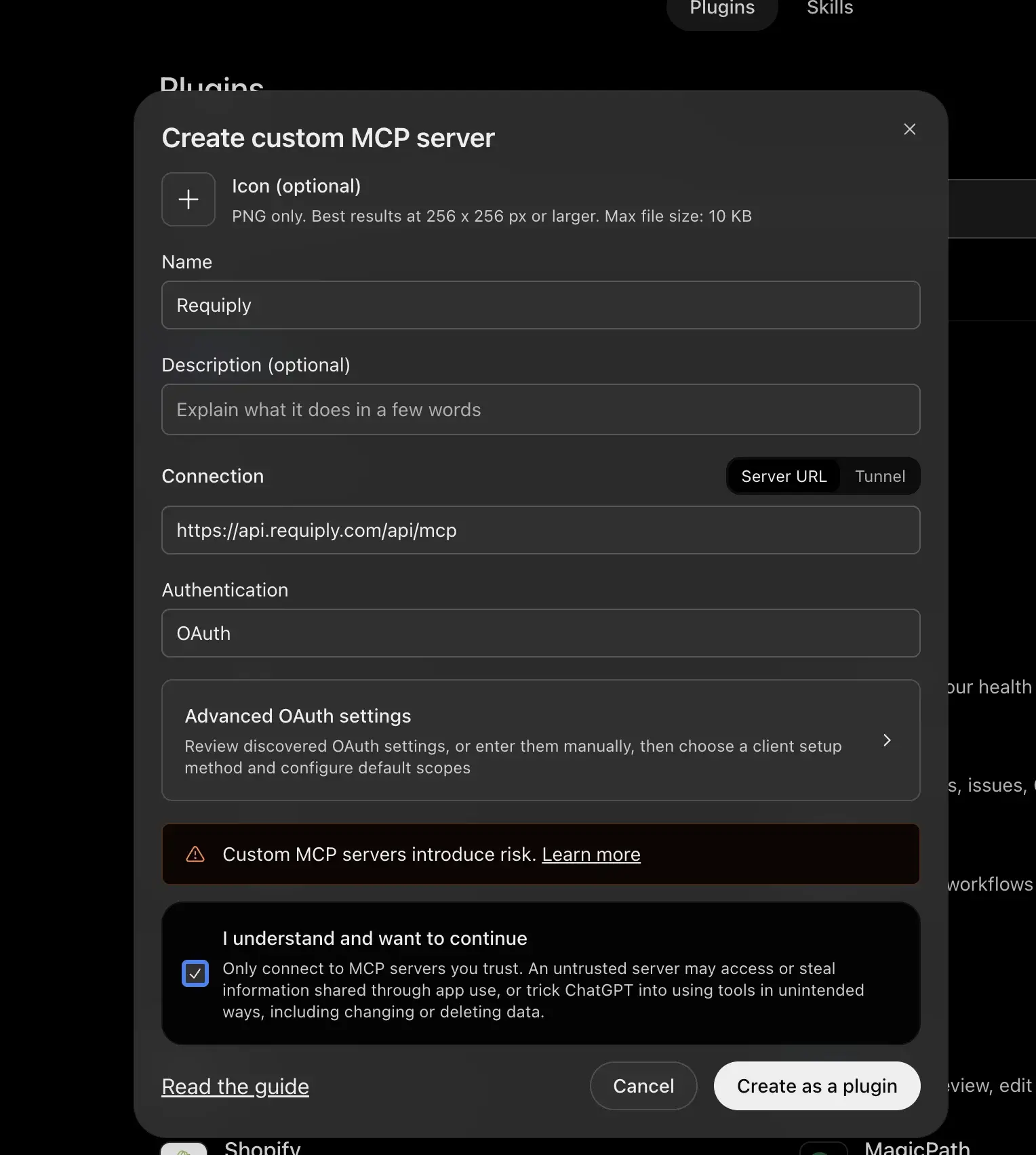
Don't see Create custom MCP server? Custom MCP servers need a paid ChatGPT plan. In a Business or Enterprise workspace, an admin may have to allow them first.
4. Use it in a chat
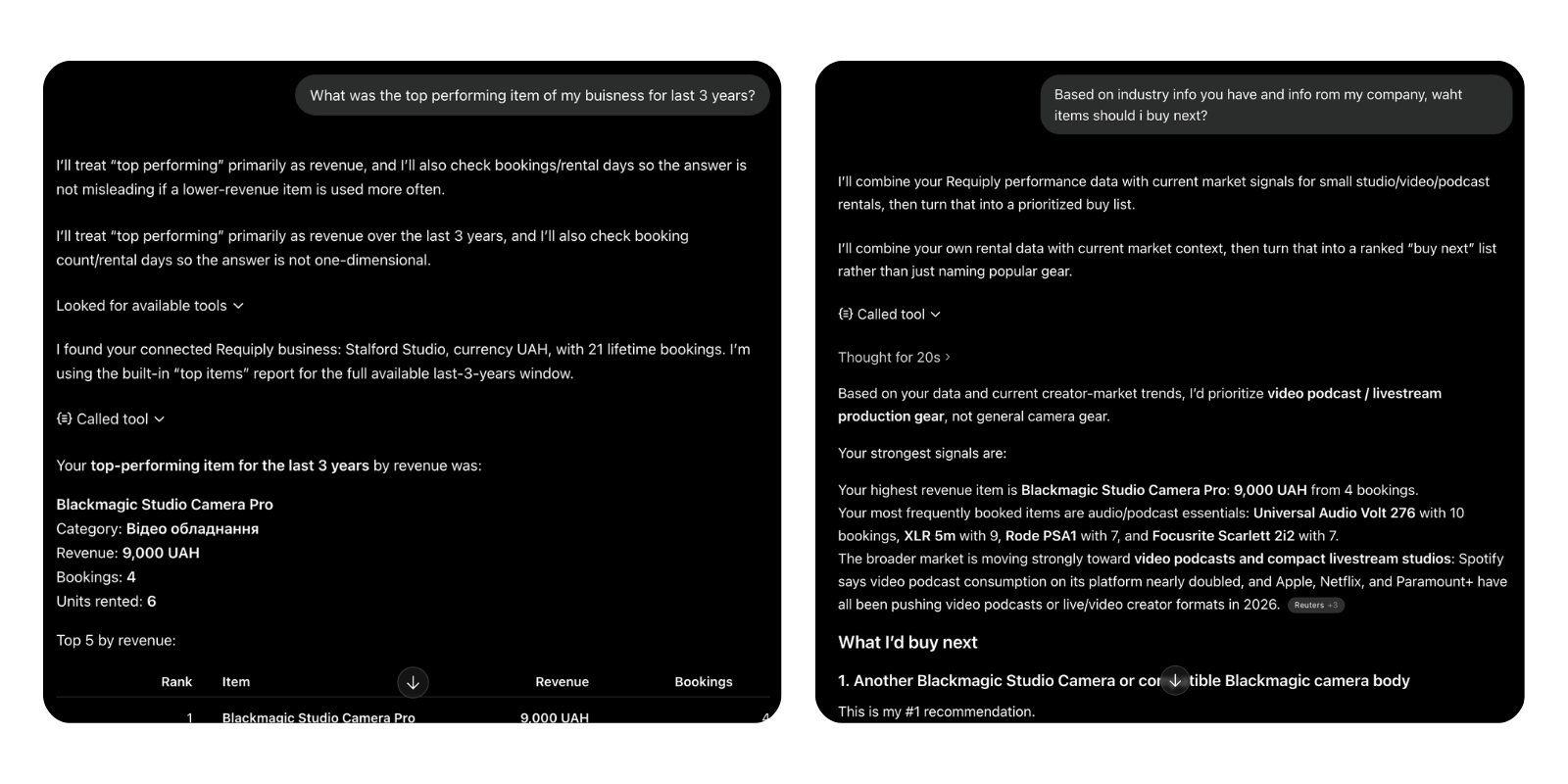
In a new chat, enable the Requiply plugin from the tools picker and ask your question in plain language. ChatGPT will call the Requiply MCP tools and answer with live data — including follow-up questions that combine your own data with broader market context.
For example, ask "What was the top performing item of my business for the last 3 years?" and then "Based on industry info you have and info from my company, what items should I buy next?" — ChatGPT will pull your top-items report, reason over it, and turn that into a prioritized buy list grounded in both your numbers and current market signals.
Using another AI provider? Anthropic, OpenAI, and most modern AI vendors are converging on MCP as the standard. If your provider supports MCP and we don't have a dedicated card on the AI integrations page yet, copy the MCP server URL (
https://api.requiply.com/api/mcp) and follow your provider's instructions for adding a remote MCP server — choosing OAuth and signing in to Requiply when prompted. If you need help, write toinfo@requiply.com— we'll walk you through it.
Step 4: Use cases — what to actually ask
Once connected, the Reporting MCP shines on the everyday questions every rental business owner has but rarely gets fast answers to. A few examples drawn from the tools the MCP exposes:
Revenue and financial health
- "What was my total revenue last month? Break it down by week and by category."
- "How much money is outstanding right now? Sort by oldest unpaid invoice."
- "Show me overdue bookings — clients who should have returned items by now."
- "Compare this quarter's revenue to the same quarter last year."
Utilization and inventory planning
- "Which inventory items had the lowest utilization in the last 90 days? Should I consider retiring any of them?"
- "Which categories are most over-booked? Where am I leaving money on the table by not having enough stock?"
- "What's the current status of inventory group 'Wedding Tents'?"
- "Top 10 items by revenue this year — and how does that list compare to top 10 by utilization?"
Client and pipeline analysis
- "Who are my top 20 clients by lifetime spend?"
- "How many bookings do I have in the pipeline for next month, and what's the expected revenue?"
- "Look up the booking history for client Jane Smith."
Smart planning and availability
- "A client just asked if they can rent the silver Mercedes from June 10 to June 14 — is it available, and what would the quote be?"
- "Show me the calendar availability for our entire wedding tent inventory for the next 30 days."
- "Based on the last 6 months of bookings, what days of the week are slowest? When should I run promotions?"
Setting up Requiply
Since 1.3.0 you can also ask the assistant to change how Requiply works:
- "Write a booking confirmation email that shows the deposit only when there is one."
- "Send clients a reminder 24 hours before pickup."
- "We are closed on Sundays from now on."
- "Take a 20% deposit on every booking."
- "Fix the macros in our rental agreement template."
Each request comes back as a preview. Check the values, approve, and the assistant saves the change. The documentation shows what these previews look like and explains how workflows, email templates and deposits work in the app.
Cross-system workflows
Where it gets really powerful is combining the Requiply MCP with other connectors:
- Requiply + Google Calendar — "Look at my Requiply pipeline for next week and add a calendar block for every high-value booking."
- Requiply + Gmail — "Draft a friendly reminder email for every client with an outstanding balance older than 30 days."
- Requiply + Sheets/Drive — "Export last quarter's revenue by category to a spreadsheet and save it to Drive."
Because everything happens in one conversation, the AI can chain calls across systems without you switching tools — the kind of workflow that previously needed a dedicated BI team.
Frequently Asked Questions
Additional information:
- Revoking access:
Because the connection is authorized through OAuth, you can revoke it at any time from your Requiply account — or remove the connector in your AI assistant. Access stops immediately; to reconnect, add the connector again and sign in. - Permissions:
Only an account with the Admin role can approve the connection, and the assistant works with that account's access. Administrators have every access permission, so when the assistant refuses a change, the record usually cannot be changed through MCP or the feature needs a higher plan. See Permission groups and Troubleshooting. - Changes need your approval:
Every change is shown as a preview with the exact values, and nothing is saved until you confirm. Deleting is limited to templates and workflows, and booking requests wait for staff approval. - Privacy:
Conversations happen between you and your AI provider. Requiply itself never sees the prompts or AI responses — only the API calls the MCP makes on your behalf. - Plan availability:
The MCP connection is not limited to a particular plan. An organization administrator approves it. - Documentation:
Tool reference and example returns: AI integration. Setting things up in the app: Workflows, Email templates, Message templates, Document templates, Working hours, Deposits and Features.
Have questions? Write to us at info@requiply.com or reach out to our support team — we're happy to walk you through the setup or help you connect a provider that isn't on our list yet.
- mcp
- model context protocol
- ai
- chatgpt
- claude
- analytics
- reporting
- rental business
- rental analytics
- ai analytics
- business intelligence
- ai for rental business
- ai automation
- workflows
- email templates
- requiply