


What's New in Requiply 1.2.4?
This release is about modelling the way your rental business actually operates — money, workflow, and the moment of pickup. Reservations now carry a full security deposit lifecycle with partial and full refunds. You can define your own statuses and the transitions between them instead of living with the defaults, and a new Change Booking Status workflow action lets automations move bookings for you. Confirmation emails can now attach a scannable QR pass that ties straight into the mobile app scanner, staff can change the payment method on an existing booking (and regenerate a payment link on the fly), and creating a reservation now starts from items or from dates — whichever matches how your team thinks.
1. Booking QR in Reservation Emails
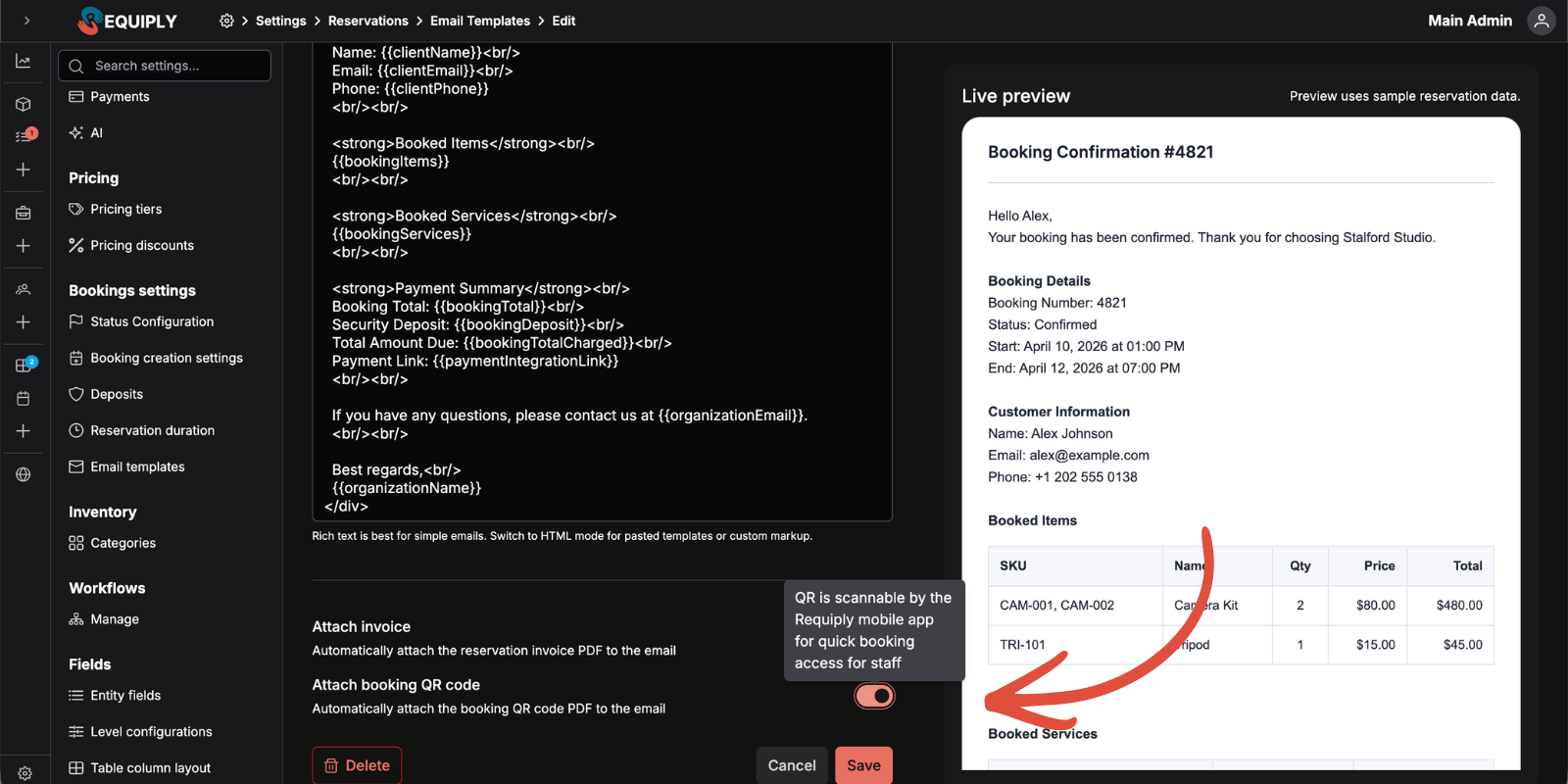
Reservation email templates can now attach a one-page PDF with a large booking QR code. The code resolves to Requiply's canonical scan URL, so the very same pass is read by the Requiply mobile app scanner, a stock phone camera, and the web resolver — letting staff pull up a booking instantly at pickup and return.
What Changed
Where to Configure
Open Settings → Reservations → Email Templates, add or edit a template, and switch on Attach booking QR. From then on, every email sent from that template carries the scannable pass.
Practical Use Cases:
- Bike rental: The confirmation email doubles as the pickup ticket — staff scan the customer's phone and the booking opens instantly, no name search
- Equipment yard: At return, scan the QR from the reminder email to jump straight to the reservation and mark items back in
- Event rental: Attach the QR to the reminder so on-site crew can verify each booking at the door without a laptop
2. Custom Statuses & Progressions
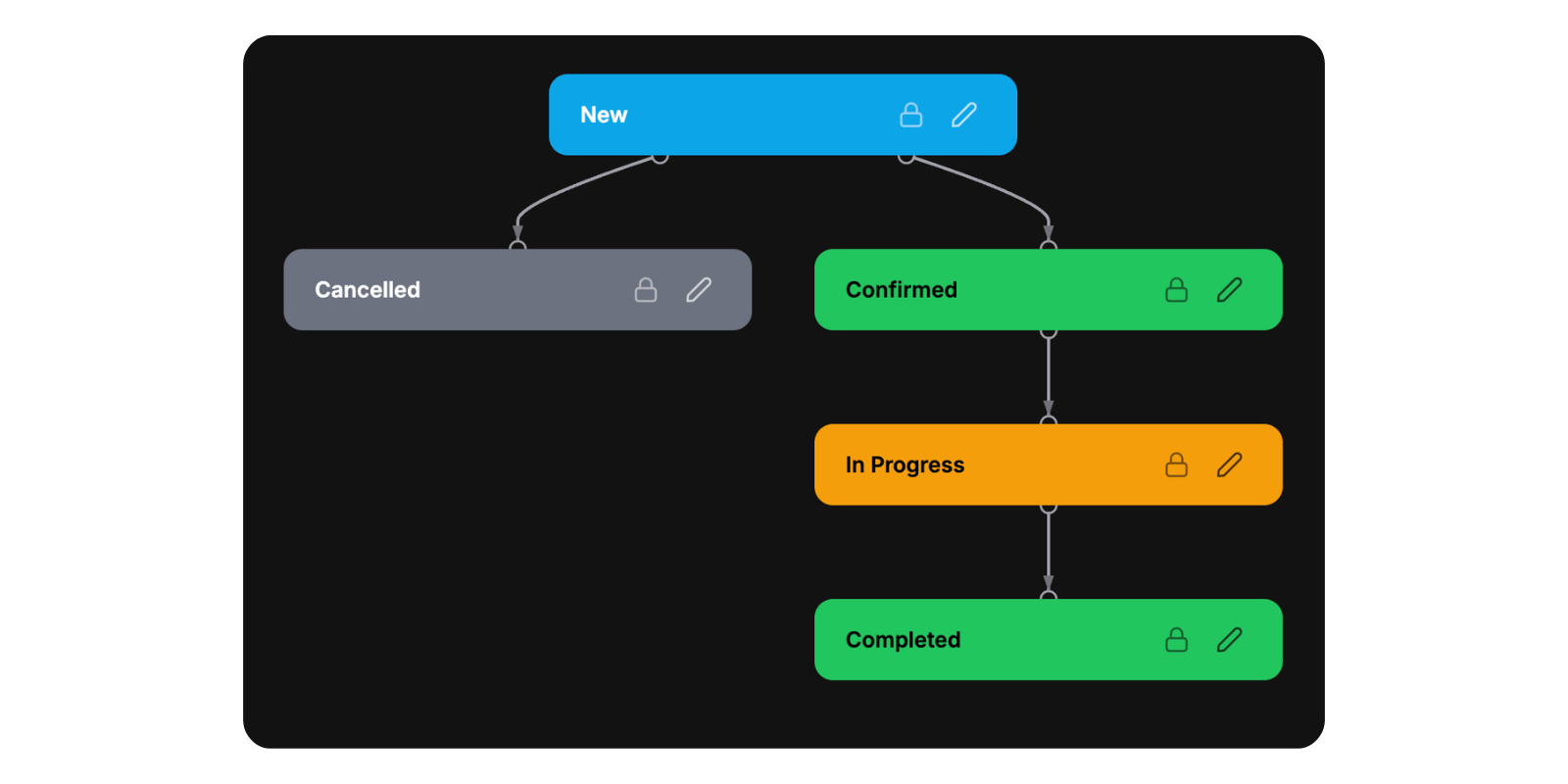
Until now every organization shared the same fixed set of reservation statuses. In 1.2.4 you can define your own statuses — name and color — and customize the allowed transitions between them, so the flow matches your real-world process instead of the other way around.
What Changed
Where to Configure
Open Settings → Reservations → Statuses. Use Add status to create a status (name plus color picker with live preview), and Customize progressions to fork the default flow into your own editable copy. The visual diagram makes the valid transitions obvious at a glance.
Practical Use Cases:
- Car rental: Add an intermediate Inspecting on return status between Active and Completed so damage checks are a visible step
- Costume rental: Insert a Cleaning status after return, so an item is never re-rented before it's been laundered
- Equipment hire: Restrict progressions so a booking can never jump from Reserved straight to Completed without passing through Picked up
3. Workflow Action — Change Booking Status
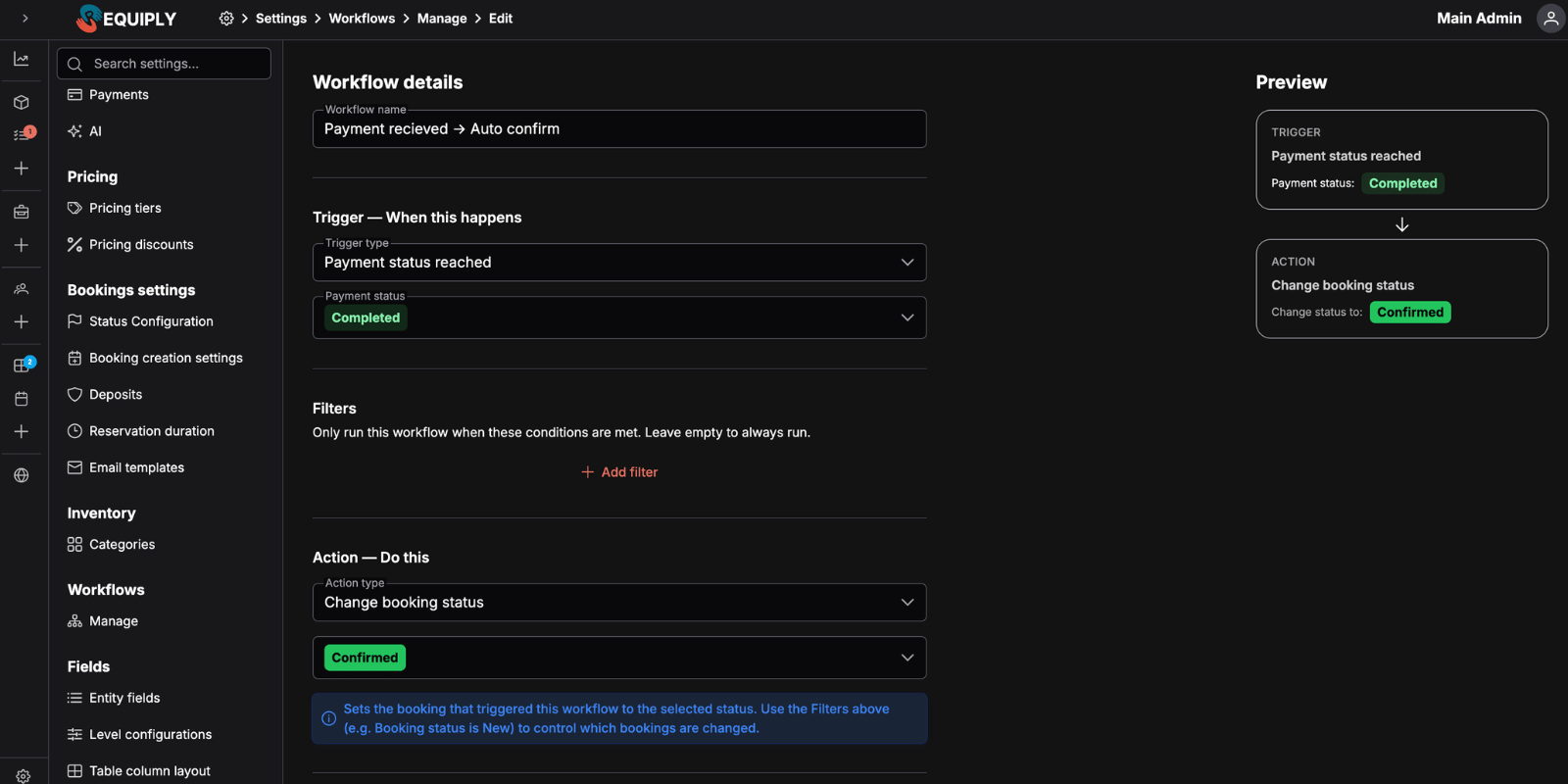
The automation engine gains a new action type: Change Booking Status. A workflow — triggered by a status reached, a payment status reached, or a booking being created — can now automatically move a reservation to another status, with no manual clicks.
What Changed
Where to Configure
Open Settings → Workflows, add or edit a workflow, pick a trigger, then choose the Change Booking Status action and the target status. Save, and the engine handles the rest.
Practical Use Cases:
- Online-pay rental: When payment status flips to Paid, automatically move the booking to Confirmed — the customer never waits on a manual step
- Studio: When a booking reaches its end time, auto-advance it to Completed so reporting stays accurate without staff touching it
- Equipment hire: When a reservation is created from the public site, auto-set it to Pending review so the dispatcher knows it needs a look
4. Deposits & Returns
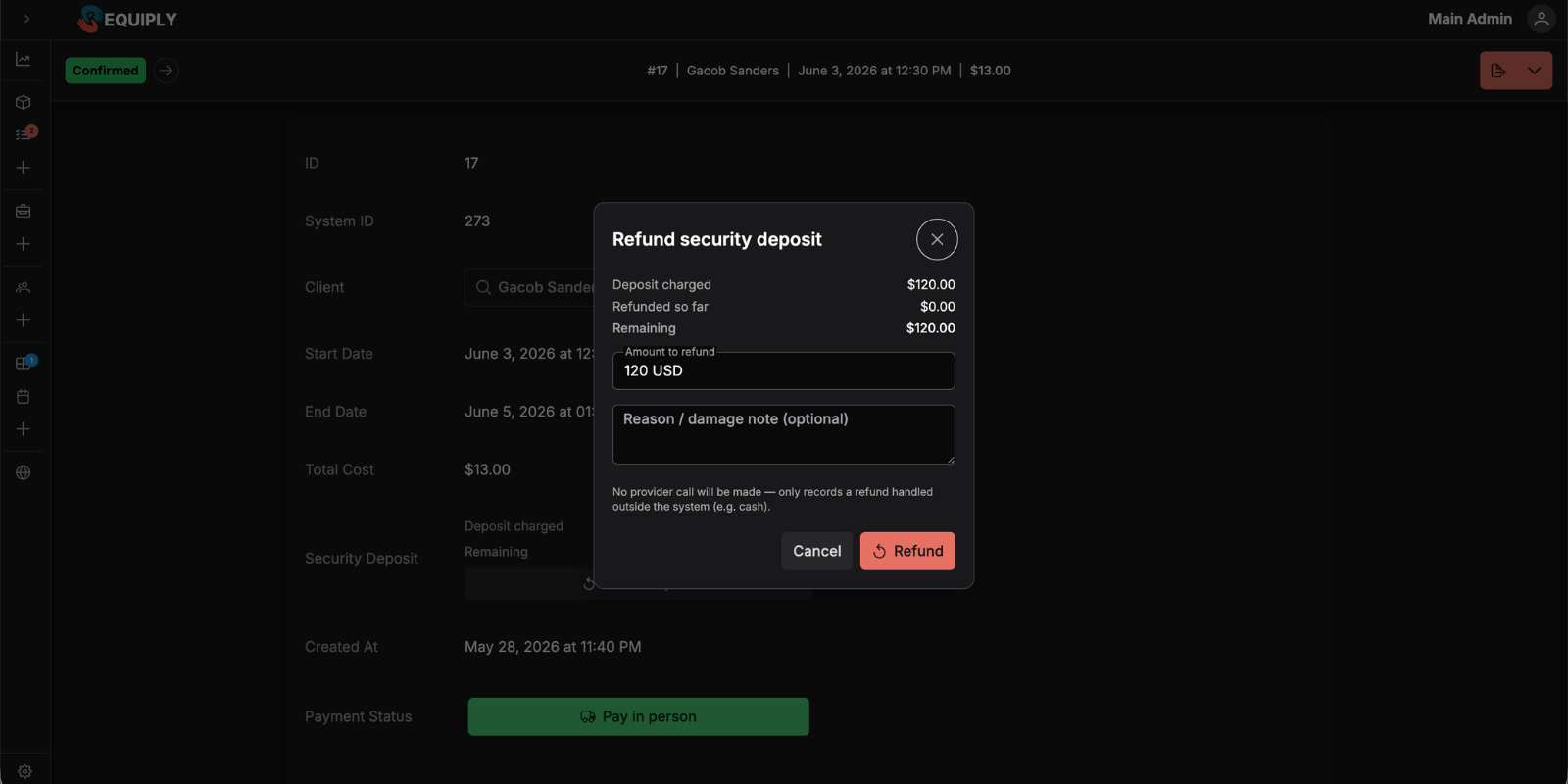
Reservations now support a full security deposit lifecycle and refunds of both the deposit and the original online payment — all surfaced from the reservation actions menu, with a complete, auditable payment trail.
What Changed
How It Works
Online refunds are sent straight to the payment provider; pay-on-pickup and manual refunds are pure bookkeeping (staff flip those by hand). Configure deposits with a per-item override on the inventory item page, or set an organization-wide deposit policy in settings — then charge, partially or fully refund, and keep a clean record of every movement.
Practical Use Cases:
- Camera rental: Hold a deposit on each booking; if gear comes back scratched, refund only part of it and keep an auditable note of why
- Party equipment: Take a full deposit online, then refund it automatically once items are returned in good condition
- Tool hire: Use a per-item deposit override so a high-value power tool carries a bigger hold than a hand tool
5. Change Payment Method on a Booking
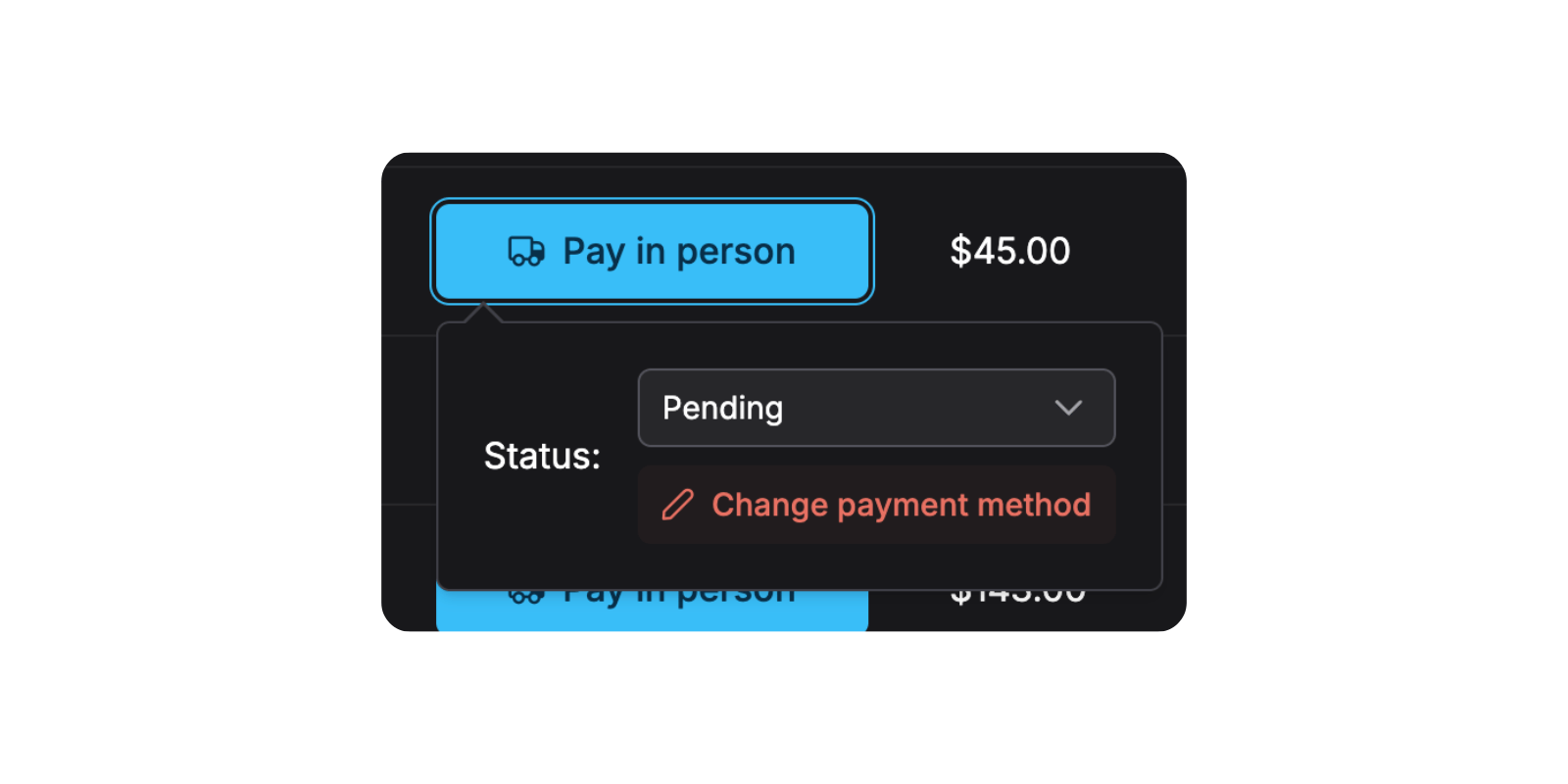
Staff can now change the payment method on an existing reservation — and for online providers, generate or regenerate a payment link on the fly, without recreating the booking.
What Changed
Where to Configure
On a reservation, open the Change Payment Method dialog and pick a method — the change applies immediately, and for online providers a payment link is generated for you. Provider credentials live under Settings → Integrations → Payments.
Practical Use Cases:
- Boutique rental: A customer who chose pay-on-pickup decides to pay online — switch the method and send them a fresh link in seconds
- Equipment hire: A payment link expired before the customer paid — regenerate it without touching the rest of the booking
- Multi-currency operator: Move a booking to the provider that supports the customer's currency, straight from the reservation
6. Book From Items or From Dates
Creating an internal reservation now supports two entry points via a simple mode toggle — so booking creation matches how your staff actually think about a request.
What Changed
Where to Configure
Open Reservations → Add Booking and use the mode toggle to choose Start from items or Start from dates. In dates-first mode, you'll only ever see inventory that's genuinely free in the window you picked.
Practical Use Cases:
- Event rental: A customer asks "what's free next weekend?" — start from dates and the list narrows itself to available items instantly
- Camera hire: A regular wants a specific lens — start from items, add it, then pick the dates as usual
- Equipment yard: Dates-first means staff never promise a machine that's already out, because unavailable items simply don't appear
Frequently Asked Questions
What's Next?
Version 1.2.4 puts your real-world workflow inside Requiply — deposits and refunds for the money, custom statuses and the Change Booking Status action for the process, and QR passes for the moment of pickup.
Here's what we're building next:
Official TypeScript SDK — a typed client for the public API, so anyone who wants a rental business website can describe it in Lovable, v0, Cursor, or any custom stack and get a working booking experience in hours, not weeks. The hard parts — availability math, payments, deposits, scheduling — stay Requiply's responsibility; the front end becomes yours to shape.
Have questions or suggestions? Write to us at info@requiply.com — we'd especially love to hear how deposits and custom status flows reshape the way you run your rentals.
- Requiply version
- requiply
- security deposit
- refunds
- custom statuses
- status progressions
- workflow actions
- booking QR
- payment provider
- payment method
- booking creation
- availability
- rental software
- booking management