


A step-by-step guide for setting up the Plata by mono integration in Requiply. After completing all the steps, you will be able to accept payments on your website and generate payment links for your bookings.
Inside Requiply, the Plata by mono integration works like this: you create a booking, choose Plata by mono as the payment type, and the system automatically builds a payment link with all items, prices, and the total amount. You can send this link to the client right away. When the client pays, cancels, or the payment changes status for any other reason, the booking status updates in real time without reloading the page.
Step 1: Create a monobank acquiring account
For more details, follow these links:
Step 2: Create an integration token
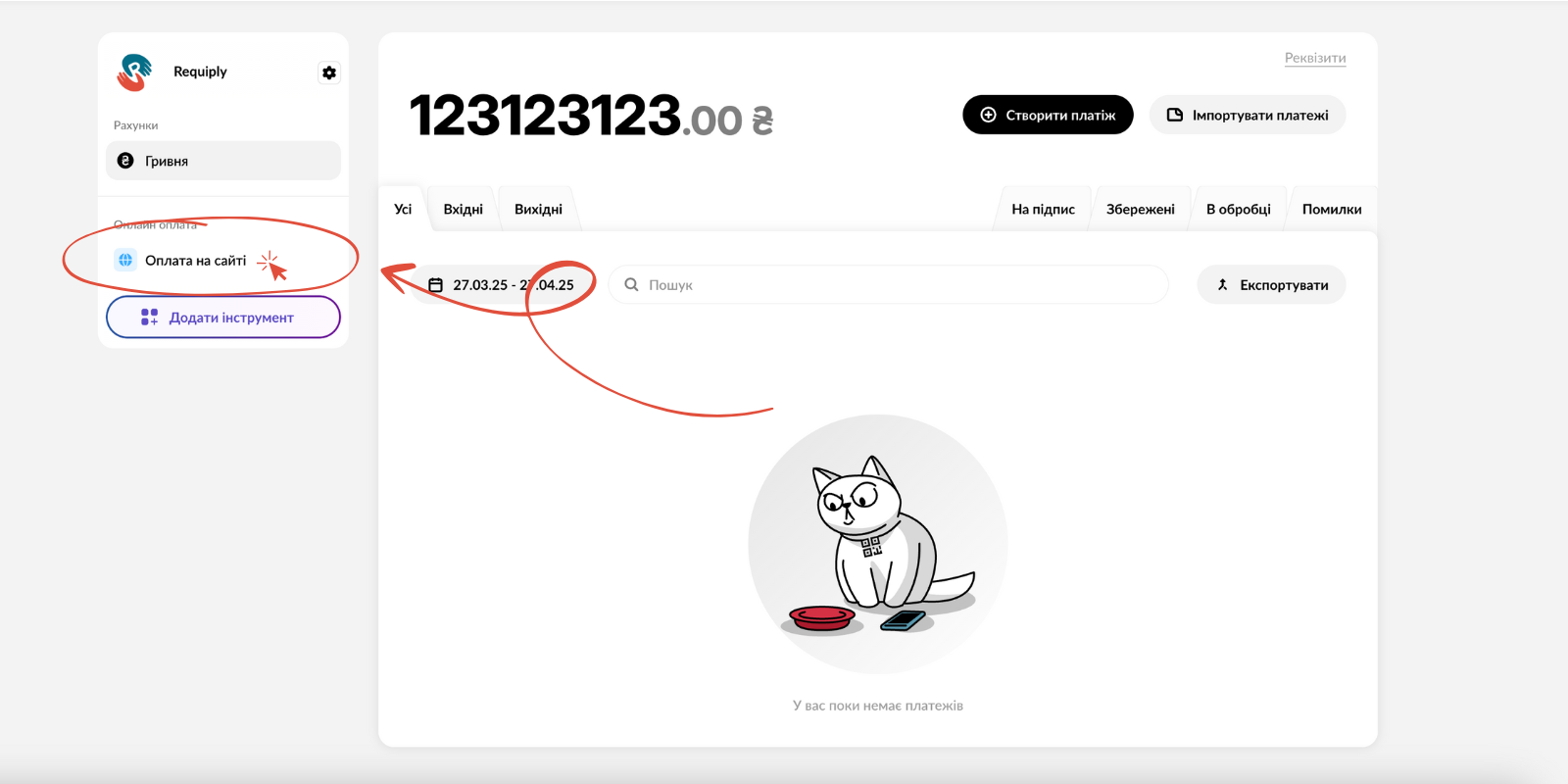
After creating your acquiring account, add the "Payment on website" tool and complete the following steps:
1. Click the "Payment on website" option
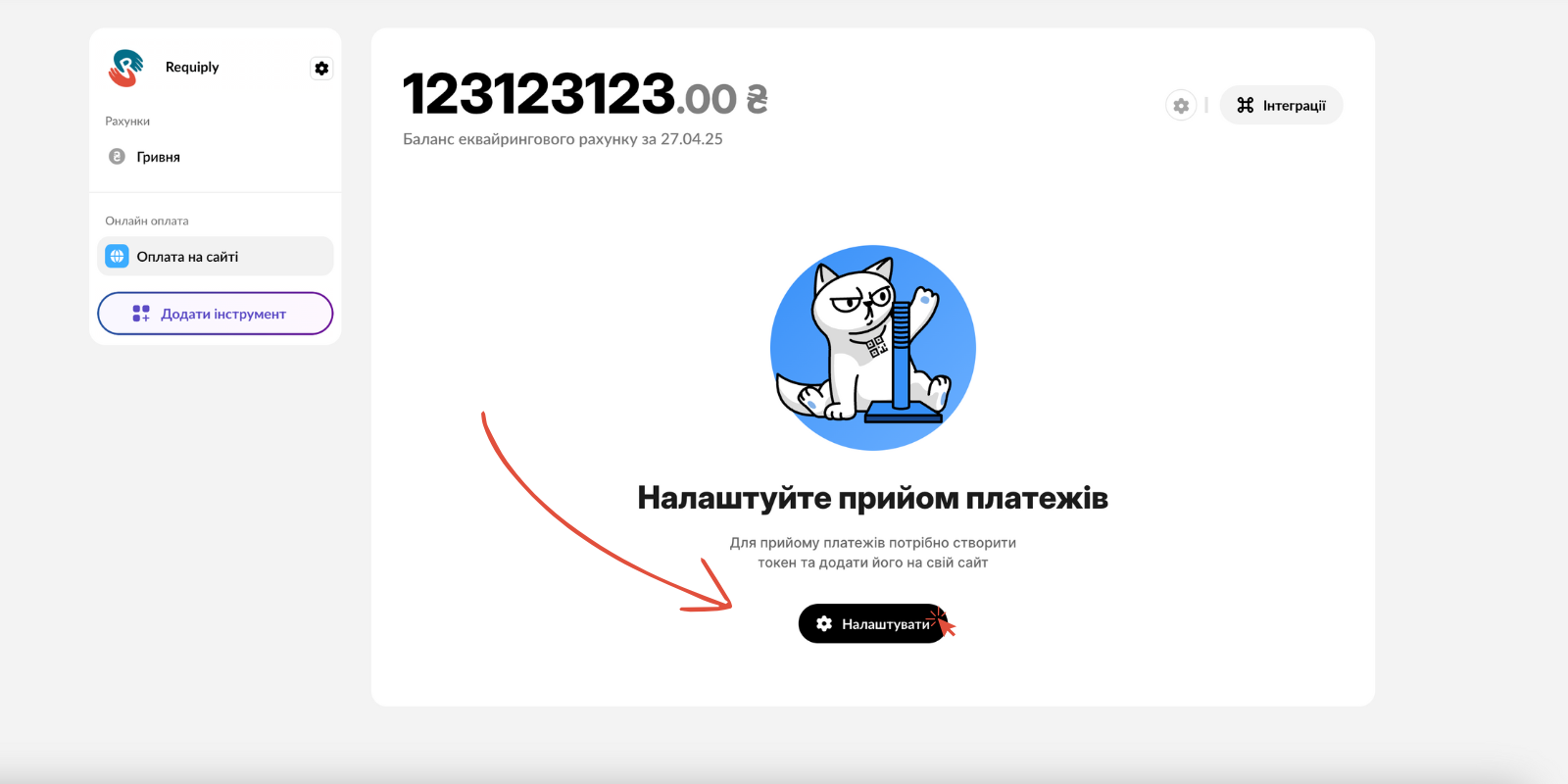
2. Click the "Configure" button
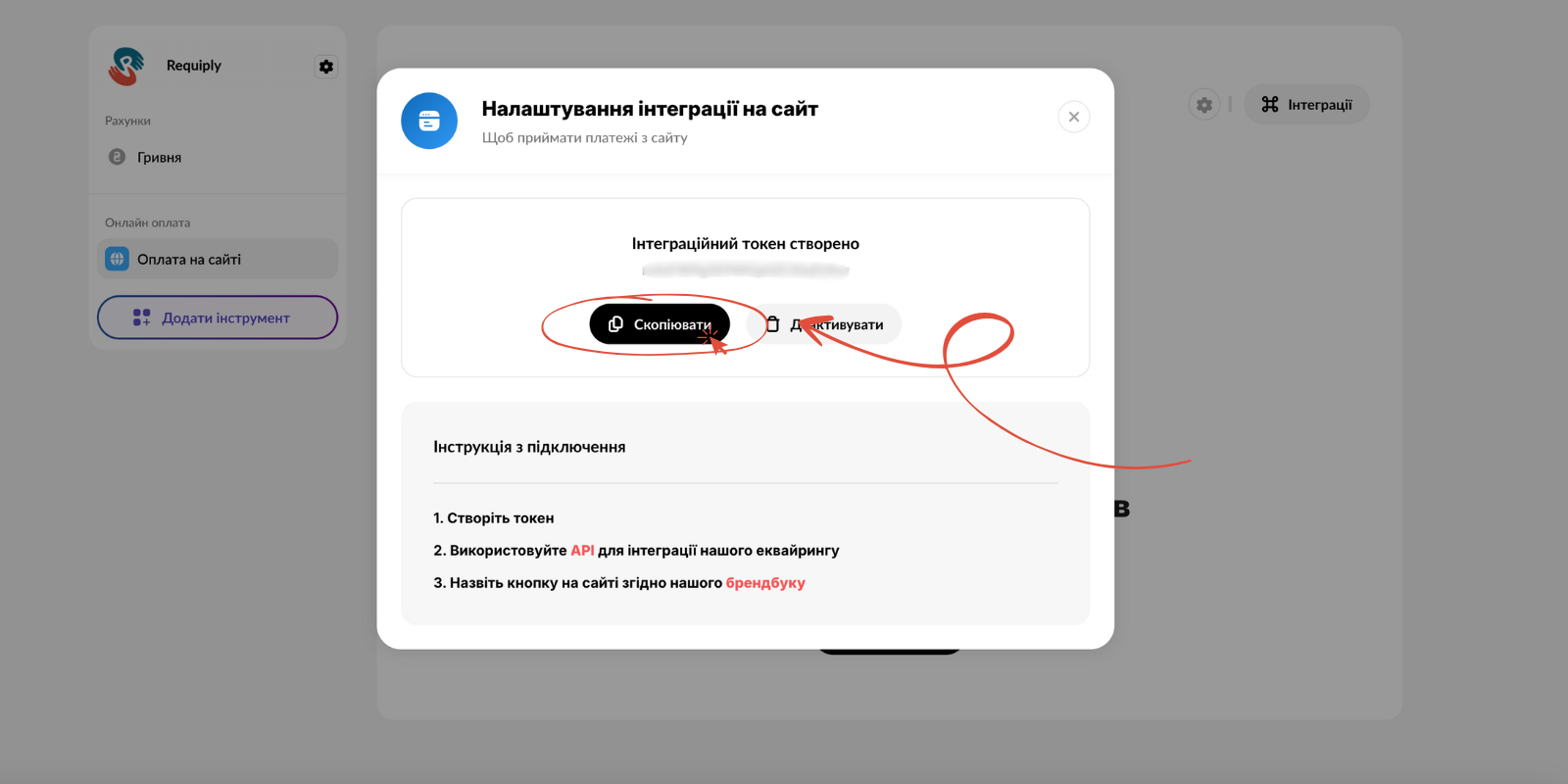
3. Copy the integration token
Step 3: Configure the integration in Requiply
Log in to your Requiply profile:
After signing in, go to the payment integrations settings page:
Then complete the following steps:
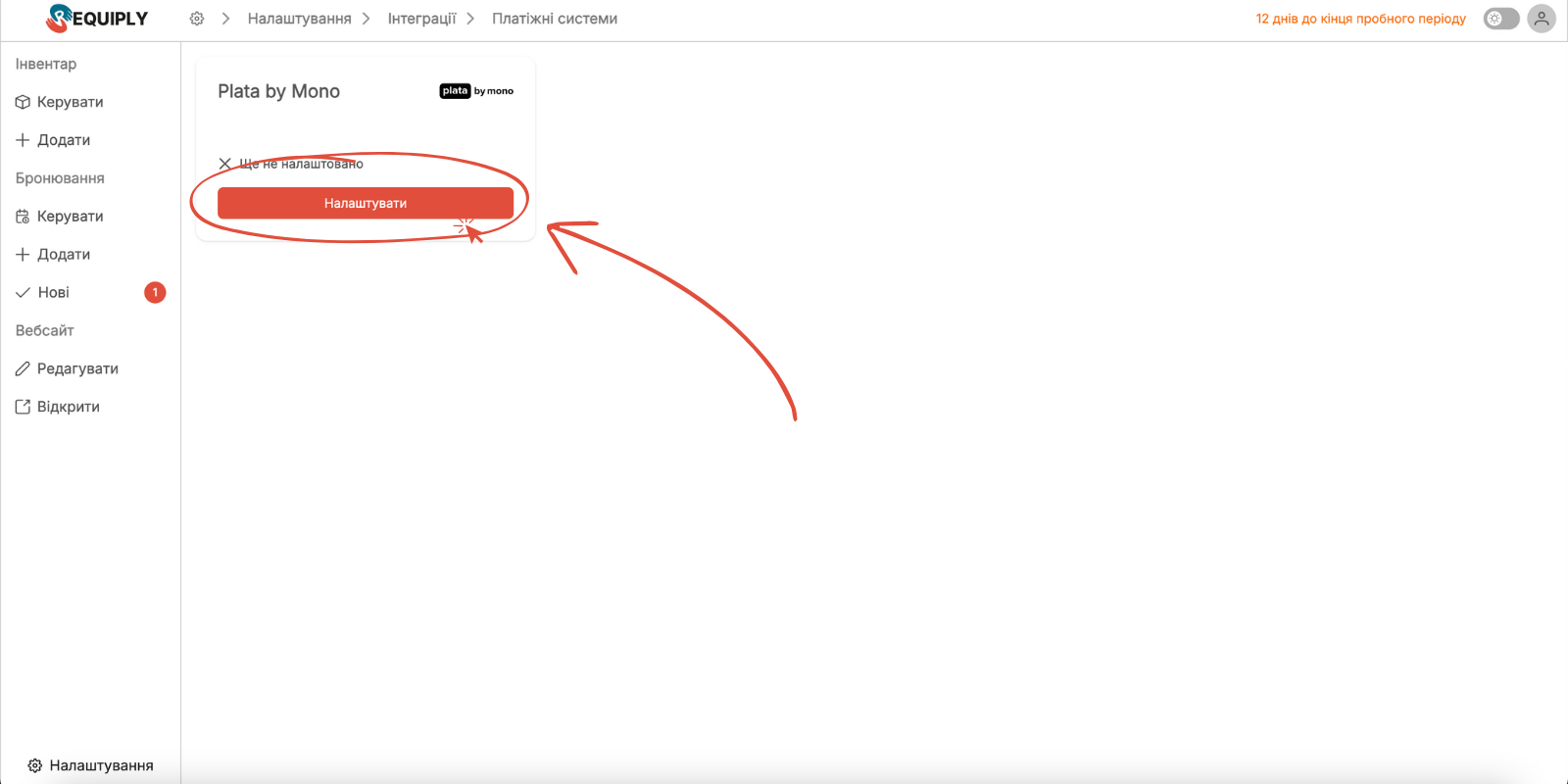
1. Click the "Configure" option on the "Plata by mono" integration card
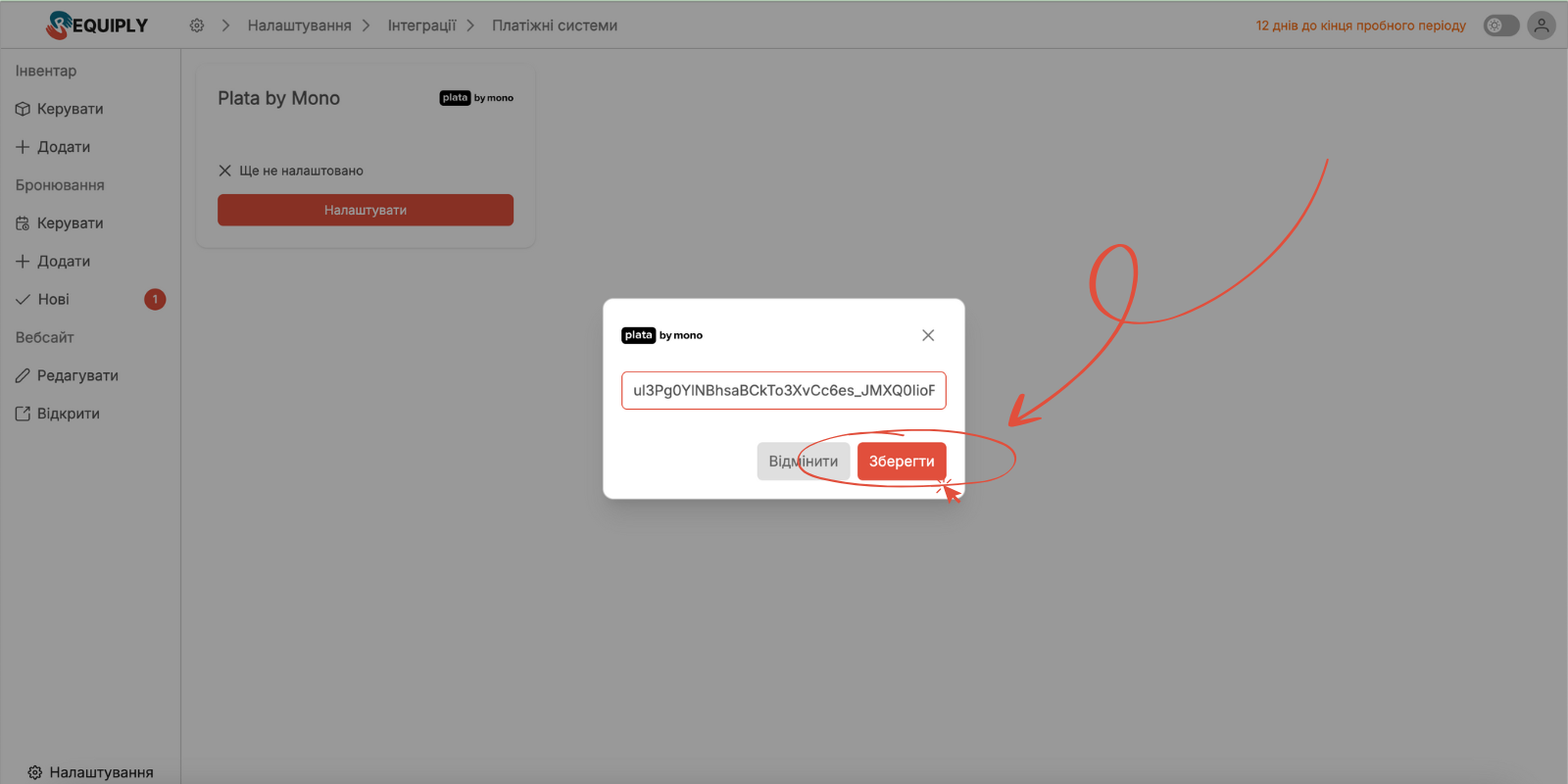
2. Paste the copied token and click the "Save" button
If an error appears, your token is incorrect. Contact support or try generating a new token in the monobank acquiring dashboard.
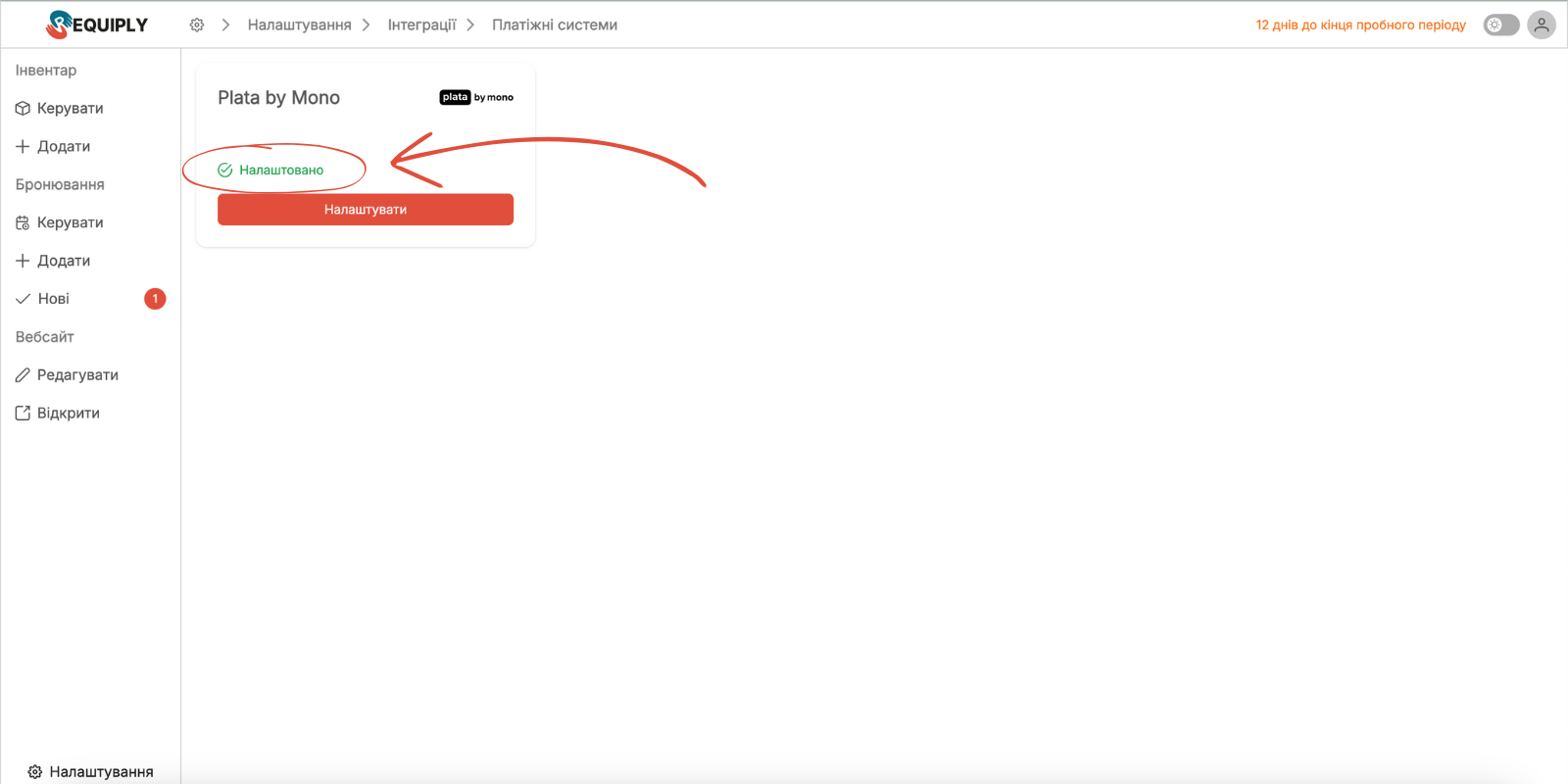
3. Verify the integration succeeded
Step 4: Enable "Plata by mono" for your website
Go to the Requiply website settings page and open the payments tab:
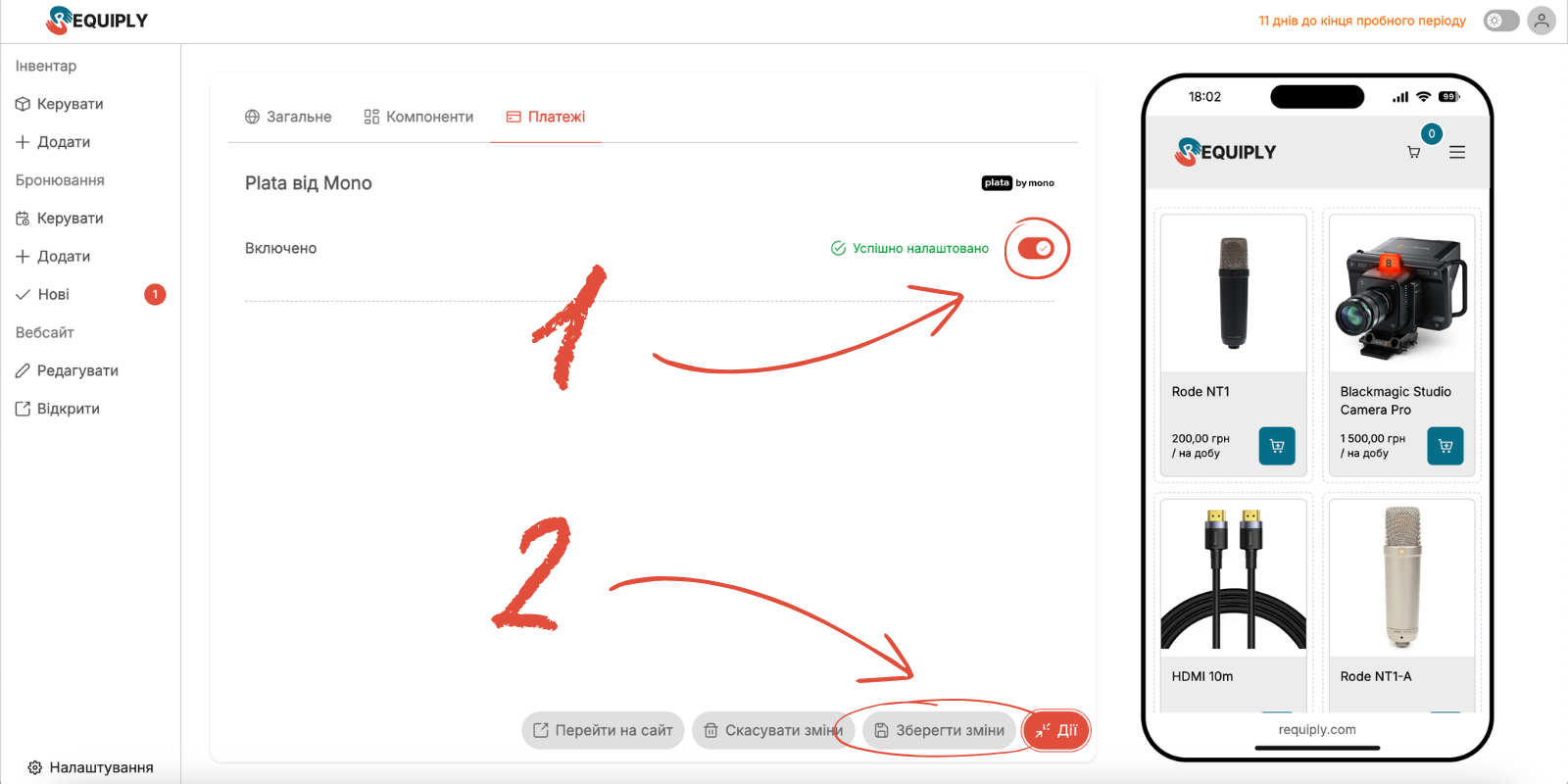
Enable "Plata by mono" (No. 1 on the screenshot), expand the actions menu, and save the changes (No. 2 on the screenshot).
Congratulations! The monobank acquiring integration is now fully configured. Your clients can pay for bookings on your website, and you can create bookings with the "Plata by mono" payment type: generating payment links, using the QR checkout, and more.
Additional information:
- Updating the token:
If your token is lost or you want to change it, you can always do so on the Requiply payment integrations settings page. - Partial use of the integration:
You can disable "Plata by mono" in the website settings but keep using this payment method inside Requiply to create orders and use all the acquiring integration's features.
Have questions? Write to info@requiply.com or contact our support team.
- mono
- plata by mono
- integration
- payments
- acquiring
- monobank
- requiply