


Step-by-step guide for setting up the Binotel integration in Requiply. After completing the setup, you can see every call with your clients, listen to call recordings, and call clients through Binotel in the Requiply web and mobile apps.
Inside Requiply, the Binotel integration works like this: you add your Binotel API key and secret once. Requiply then matches calls by the client's phone number and shows them in two places: on the client page and on a dedicated Calls page with every call from your phone system. Members with a Binotel line can start a call from the same screens: Binotel rings their phone first and then dials the client.
Step 1: Check Your Requiply Account
Before contacting Binotel, make sure your Requiply account is ready:
- An active trial or a paid Core plan or higher
- A Requiply account created with the same email you will use to log in to Binotel
Use the same email in Requiply and Binotel. Requiply links your Requiply account to your Binotel employee by email. That link is what lets you call clients from your own Binotel line in the web and mobile apps. If the emails differ, you will still see calls, but the Call button stays disabled.
Step 2: Create a Binotel Account
The fastest way to start with Binotel is a phone call. Binotel is a telephony provider and onboards new companies over the phone, so we suggest calling them right away instead of exploring the system on your own first.
Open the Binotel contacts page and call the Customer Service Center for your country:
The page lists phone numbers by department and country. For Ukraine, the Customer Service Center answers at 0 800 33 89 51 and +38 044 344 89 71.
Registration takes about 30 minutes. During the call:
- Ask for API integration at the very beginning. Only Binotel PRO plans and higher support the API, so Binotel will pick the right plan from the start.
- Complete the registration with the Binotel manager.
- Wait for the email from Binotel with your API key and API secret.
Keep the API secret private. It gives access to your company's call history and call recordings.
Step 3: Configure Binotel in Requiply
Log in to your Requiply profile:
After logging in, open the Binotel setup directly:
This link opens the Communications integrations page with the Binotel dialog already open. To get there manually, open Communications integrations settings and click Setup on the Binotel card.
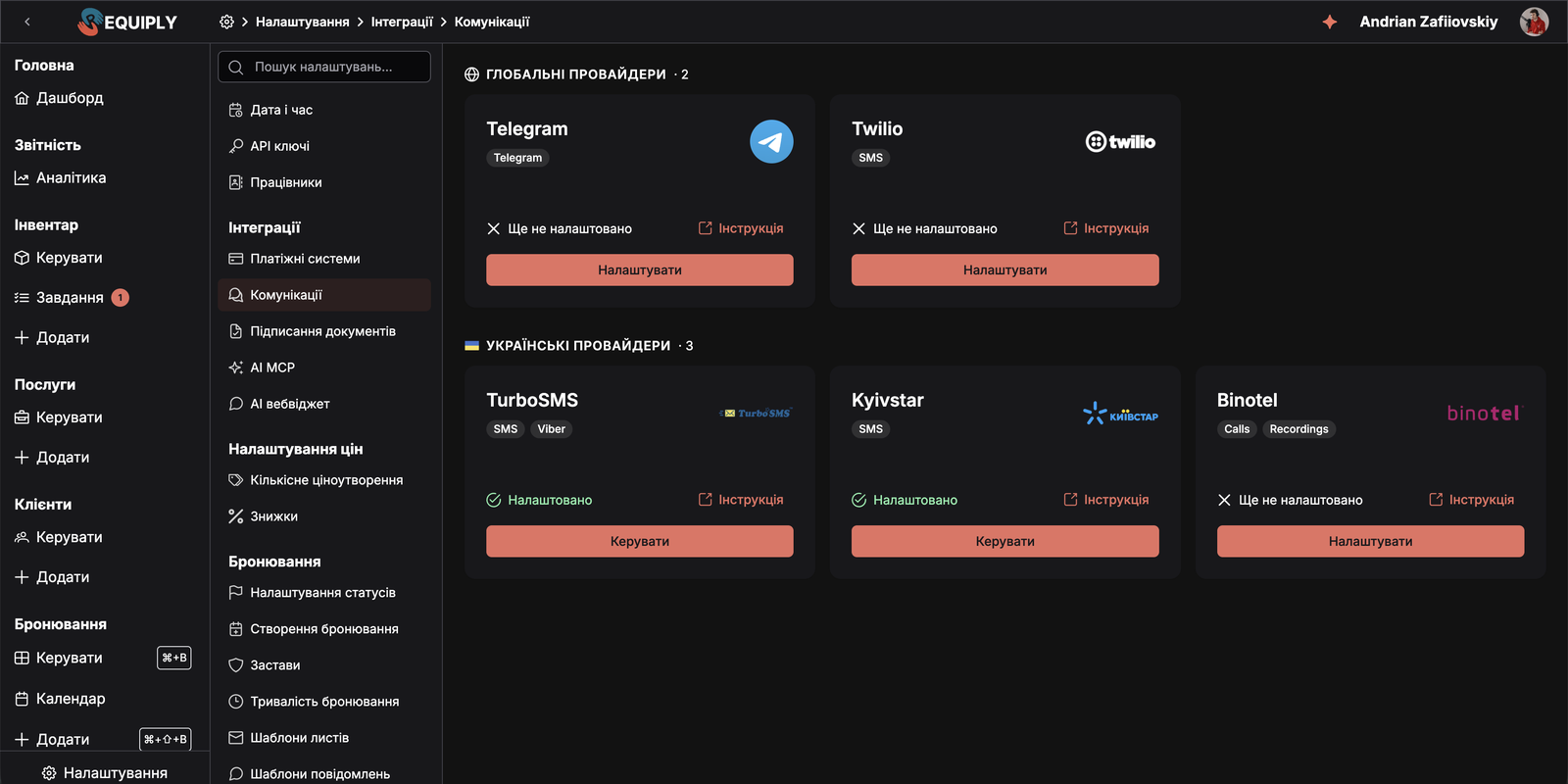
Then complete these steps:
1. Enter the API key and secret
The dialog has two fields: API key and API secret. Paste both values from the Binotel email.
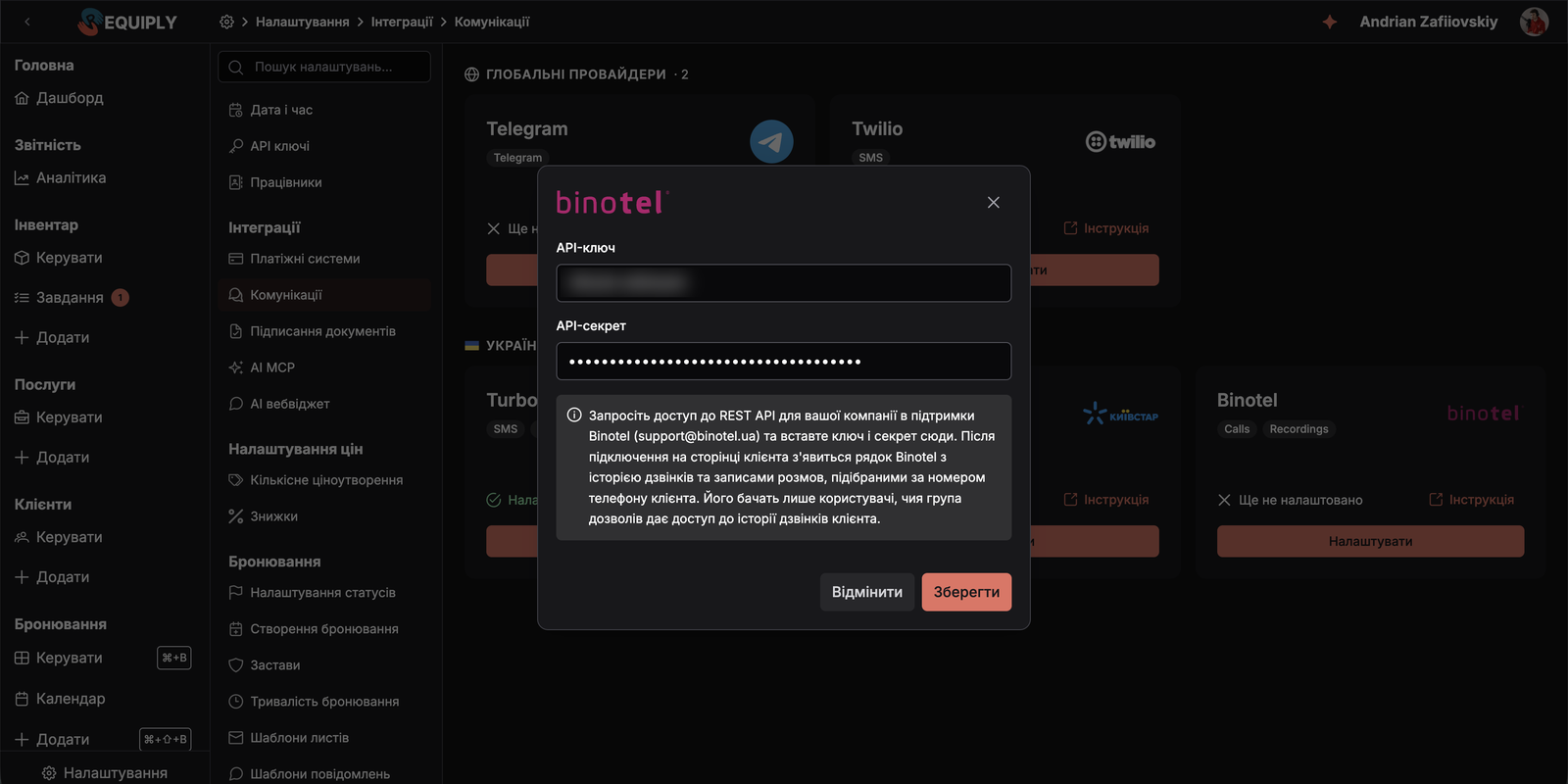
2. Save and check the connection
Click Save. Requiply verifies the key and secret with Binotel before storing anything, so invalid credentials never get saved.
When the connection works, the Binotel card shows a green checkmark with Configured, and its button becomes Manage.
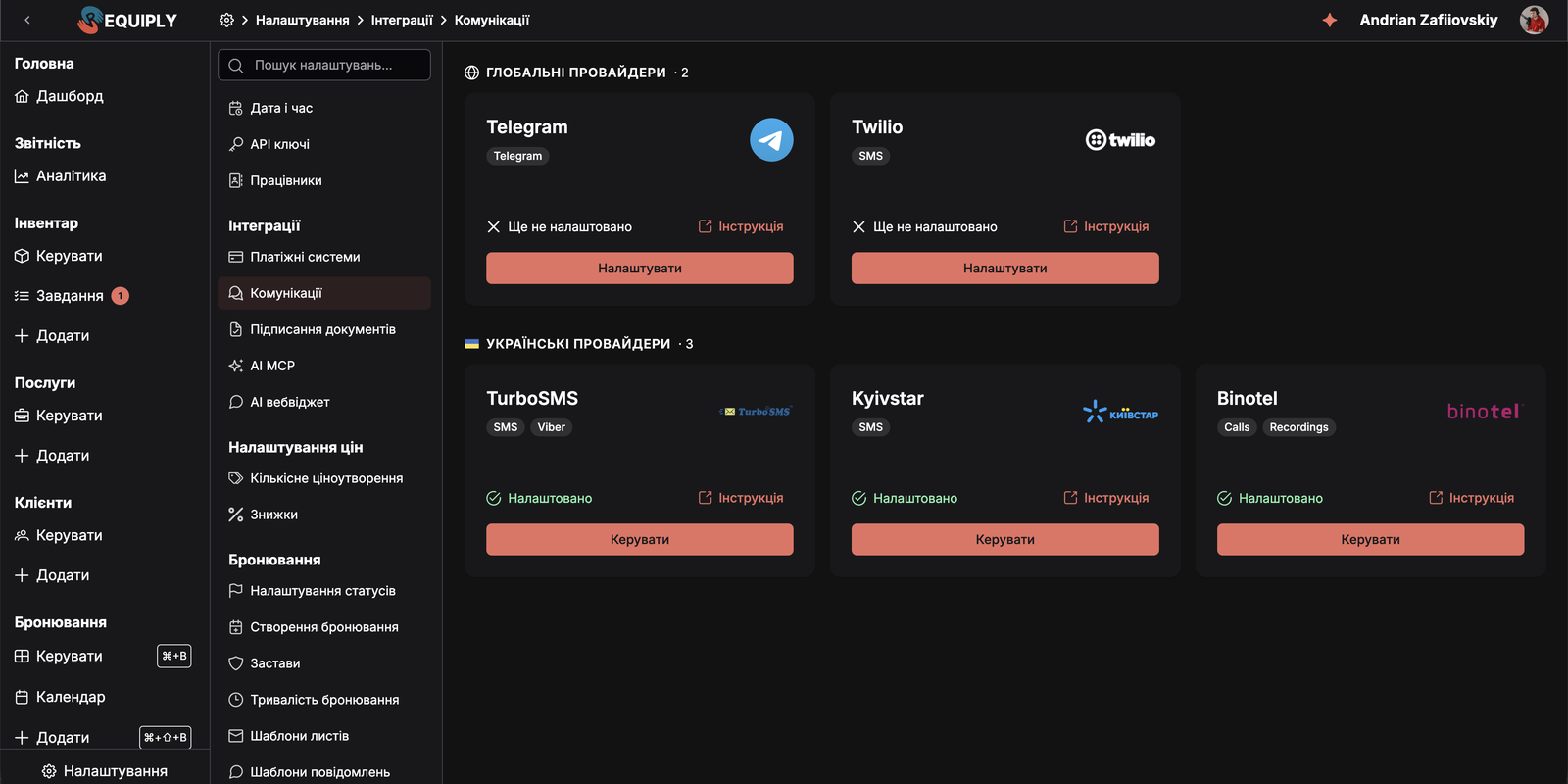
Only admins can connect or replace a communications provider. The API secret is stored encrypted and is never shown again: use Replace when you need to rotate it.
Step 4: See Calls on the Client Page
Open any client who called you recently or who already exists in Binotel:
1. Add the field to the client page
The Binotel calls field is not shown on its own. Once Binotel is connected, an administrator adds it on the page-level configuration page:
Open the Client tab, move Binotel calls from Available Fields to Visible Fields, drag it to the position you want, and click Save. The same page lets you move or hide the field later.
The field is offered only while Binotel is connected, and members see it only with the Allow access to client call history permission. Administrators have it by default. To show the field to other members, turn it on in the Communications section of their group in Account groups settings.
2. Read the call history
The top of the field sums up the client: their name in Binotel, the employee they are Assigned to, the number of calls, how many were missed, and the total minutes of talk. On the right are the Call button, the Binotel button that opens the client in your Binotel cabinet, and Refresh.

Below the header, calls are listed newest first, 10 per page:
| Column | What it shows |
|---|---|
| Date | When the call started |
| Direction | Incoming or Outgoing |
| Employee | Who handled the call and their internal line. For unanswered calls, how long the client waited |
| Status | The result of the call |
| Duration | How long the conversation lasted |
| Status | Meaning |
|---|---|
| Answered | The conversation took place |
| Transferred | The call was answered and passed to another employee |
| Missed | An incoming call that nobody answered |
| Busy, No answer, Cancelled | An outgoing call that did not connect |
3. Listen to a recording
Click the play button at the end of a row to open the recording right under it. The player shows the current position and the full length of the recording. Click or drag across the waveform to jump to any moment, switch the playback speed with the 1× button, or download the file. The row button turns into an X that closes the player.
The link icon in the row opens all calls with this phone number in your Binotel cabinet.
4. Call the client
Click Call at the top of the field. Binotel rings your line first, and once you pick up, it dials the client. For an incoming call that nobody answered, a Call back button appears at the end of its row.
Step 5: Open the Calls Page
Once Binotel is connected, the Clients section of the menu gets a new Calls page:
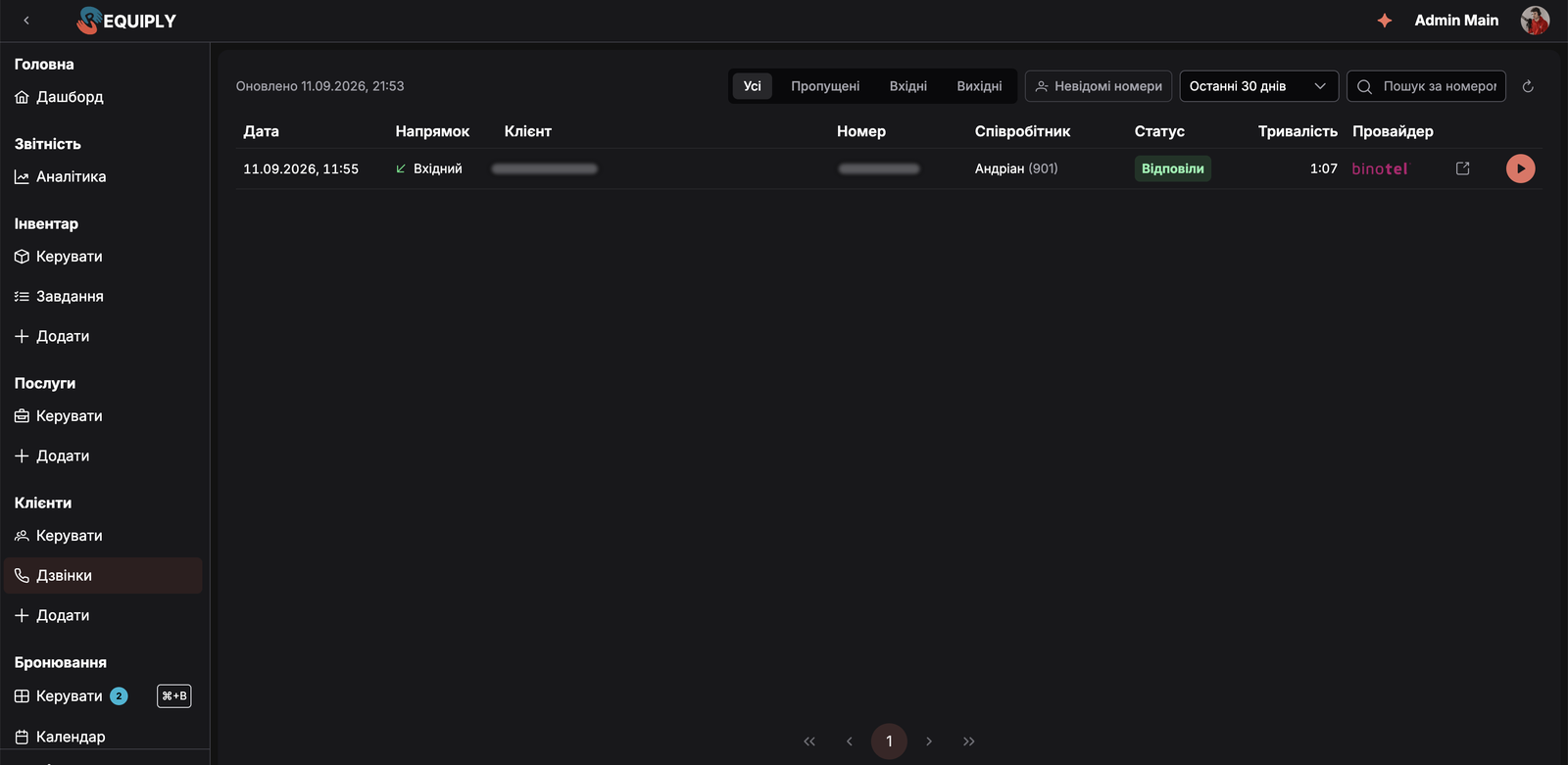
Here you see every call that comes through Binotel and other telephony providers connected to Requiply, not only the calls of one client. The top of the page shows when the list was last updated, the refresh icon pulls the latest calls from the provider, and the filters next to it narrow the list down:
| Filter | What it does |
|---|---|
| All, Missed, Incoming, Outgoing | Shows calls of one type |
| Unknown numbers | Shows only calls from numbers that do not belong to any client |
| Period | Today, Last 7 days, Last 30 days (default), or All time |
| Search by number | Finds calls with a specific phone number |
Calls are listed 25 per page with the Date, Direction, Client, Number, Employee, Status, Duration, and Provider columns. Click the client's name to open their page. At the end of each row, the link icon opens the calls with this number in Binotel, and the play button opens the recording. A missed call also gets a Call back button.
A call from a number that is not in Requiply is marked Unknown number and has a Create client button. It opens the new client form with the phone number already filled in, so a new lead becomes a client in a few clicks.
Step 6: Use Calls in the Mobile App
The same call history is available in the Requiply mobile app.
1. Open the Calls page
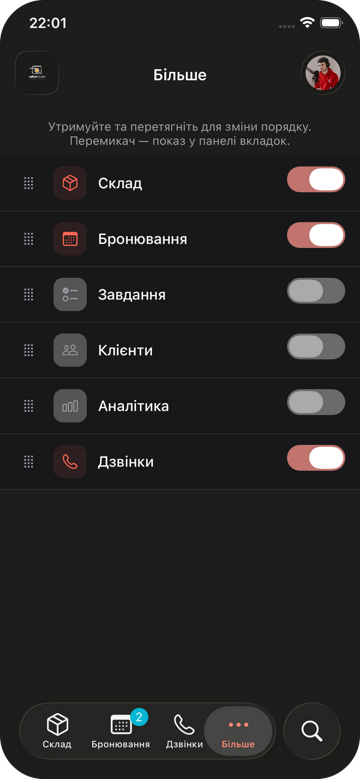
Go to More and tap Calls to open the page directly. The More screen lists every section of the app with a drag handle and a toggle. Turn on the toggle next to Calls to pin the page to the tab bar at the bottom, next to More and search, so it is always one tap away. Hold a row by its handle and drag it to change the order of the tabs.
The mobile Calls page shows every call as a card: direction, date and time, provider, status, the client, the employee with their internal line, and the duration. It has the same All, Missed, Incoming, and Outgoing filters, plus the Unknown numbers chip. Pull the list down to refresh it.
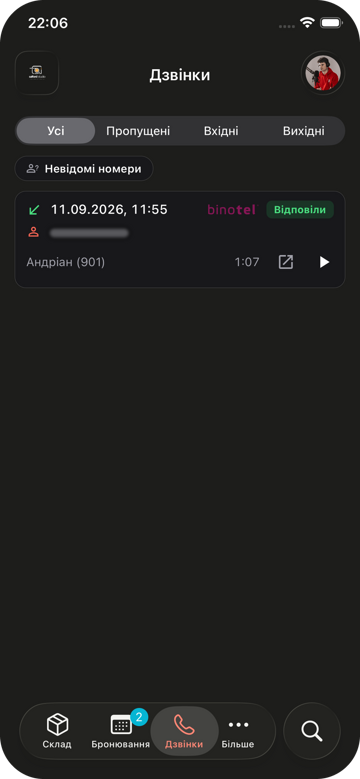
On each card:
- tap the client's name to open their page, or Create client for an unknown number
- tap the play button to listen to the recording right in the card, with a seek slider and a playback speed toggle
- tap the link icon to open the calls with this number in Binotel
- tap Call back on a missed call
When there are missed calls, their number appears as a badge on the Calls tab.
2. Open calls from the client page
Open a client whose phone number matches the number in Binotel. Below the contact details and messenger buttons, the client page shows a Calls with Binotel row. Tap it to open the Binotel calls screen for this client:
- the top card shows the client's name in Binotel, the employee they are Assigned to, and the number of calls, missed calls, and minutes of talk
- the Binotel button opens the client in your Binotel cabinet
- the phone button in the top right corner calls the client from your Binotel line
- the All, Missed, Incoming, and Outgoing filters narrow the history, and each call card has the recording player, the Binotel link, and Call back for missed calls
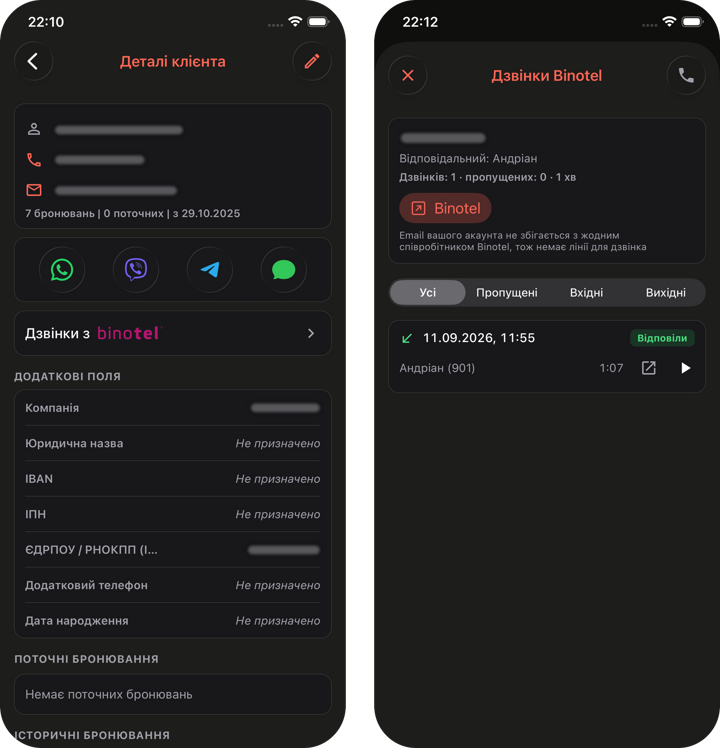
If your Requiply email does not match an employee in Binotel, the card explains that there is no line to call from, and the phone button stays disabled. See Step 1.
Congratulations! Binotel is now connected: your team sees every call with a client and can call back from the web or mobile app without switching to Binotel.
Step 7: Typical Scenarios
1. Turning unknown callers into clients
Filter the Calls page by Unknown numbers and use Create client for every new lead who called you.
2. Calling back missed calls
Filter by Missed at the end of the day and use Call back, so no client is left waiting.
3. Resolving disputes
A client says they were promised a different price or return date. Open the client page and listen to the call instead of relying on memory.
4. Preparing for pickup
Before handing over equipment, check the latest call to confirm what the client asked for: accessories, delivery, or timing.
Additional Information
- Who can set this up:
Only organization admins can connect or replace Binotel. - Calling from your line:
The Call and Call back buttons need a Binotel employee with the same email as your Requiply account. If there is none, the button is disabled and its tooltip explains why. - Phone numbers:
Requiply matches calls by the client's phone number and recognizes both the380…and0…formats. A client without a phone number shows Add a phone number to match Binotel calls. - Clients missing in Binotel:
Calls still appear even if the client is not in your Binotel customer list. The field then shows Not in the Binotel customer list instead of the customer name. - Missing recordings:
Calls that have no recording in Binotel have no play button.
Have questions? Write to us at info@requiply.com or contact the Requiply support team.
- binotel
- telephony
- call history
- call recordings
- click-to-call
- integration
- clients
- requiply