Requiply 1.3.4: Billing Periods Customization, Web & Mobile Sync
Requiply 1.3.4 for equipment rental: grace time and calendar days for billing, product photo search, booking previews and records that open on your phone.
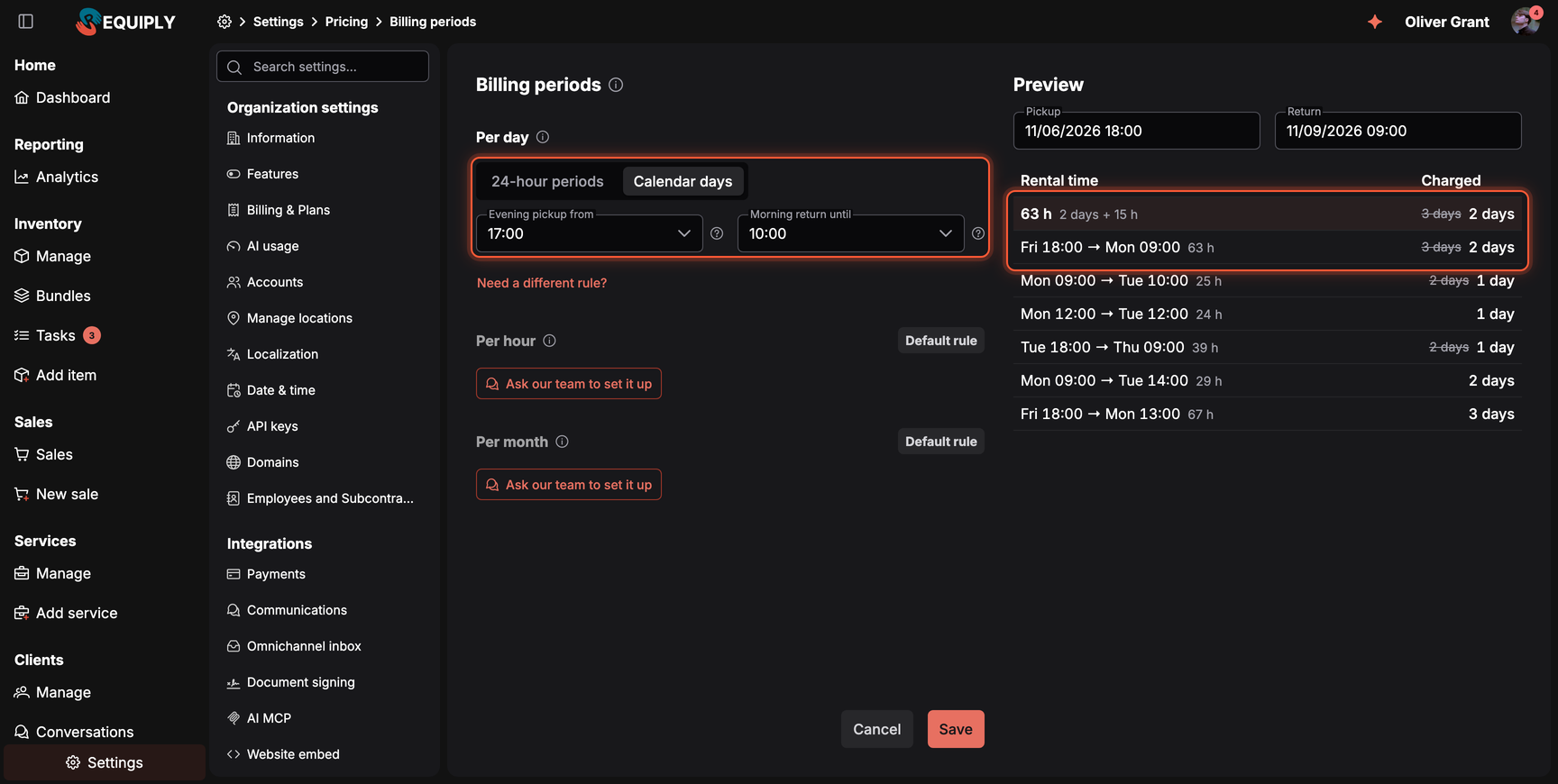
Friday evening to Monday morning: two days or three? A client one hour late: a full extra day? Until now Requiply charged every started 24-hour period. Under Settings → Pricing → Billing periods you now choose the rule for per-day prices.
Grace time from 0 to 12 hours, counted once per booking: with 2 hours, 26 hours is still 1 day
Calendar days: an evening pickup counts from the next day and a morning return doesn't count its day
Calendar days never charge more than 24-hour periods would
The new booking preview shows the hours and the days charged
Existing bookings keep the rule they were created with
Count hours or months differently? Click Ask our team to set it up on the same page and we'll configure it.
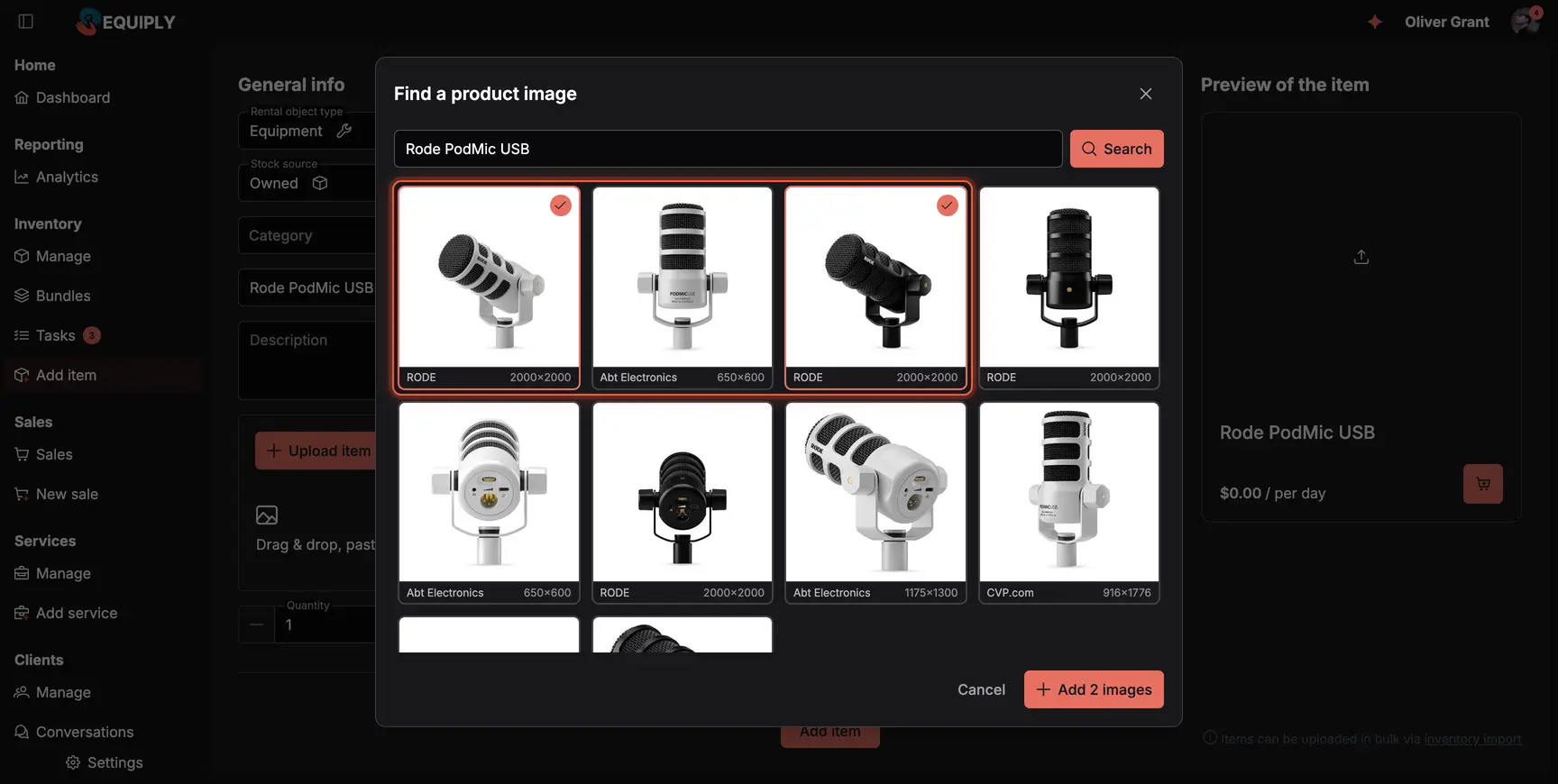
Search by the product name and add the photos you pick.
No photographer, no hunting for product shots. Find image next to the upload button searches the web for photos of the product on a white background, starting from the item name. Pick a few and they're added like your own uploads, resized and optimized.
Works when you add an item and when you edit one
Categories can have an image too, with the same search
Clean product photos help your booking page and website sell
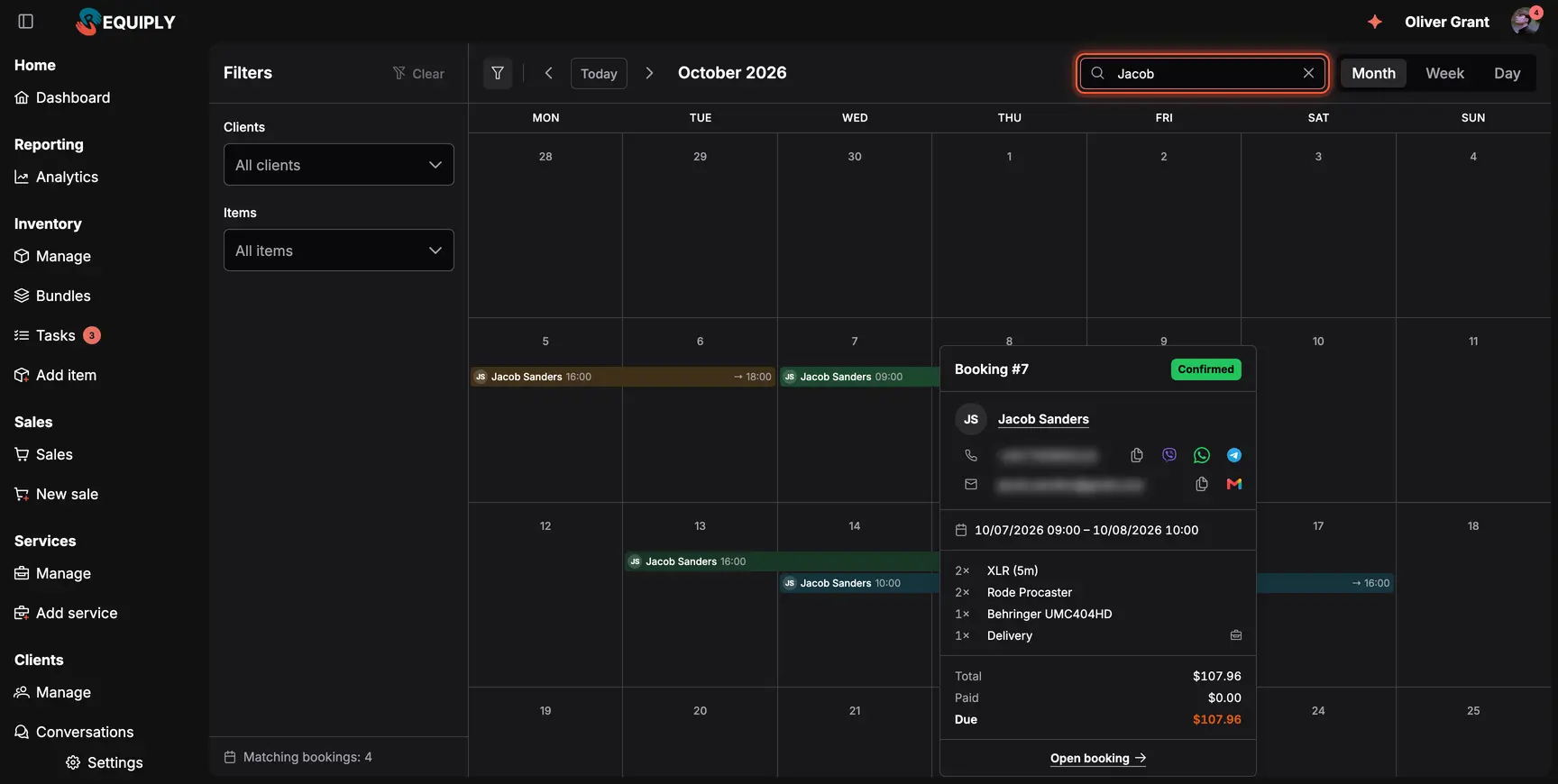
Search the calendar and hover a booking to see it without opening it.
Hover a booking on the dashboard or in the calendar and a card shows the client with quick contact buttons, the dates, the items and what's paid and due. The calendar also gets a search field: type a client, a phone number, an item or a SKU and press Enter.
Previews on Pickups, Returns and Overdue, and in the month, week and day views
A phone number matches in any format
Search works together with the client and item filters
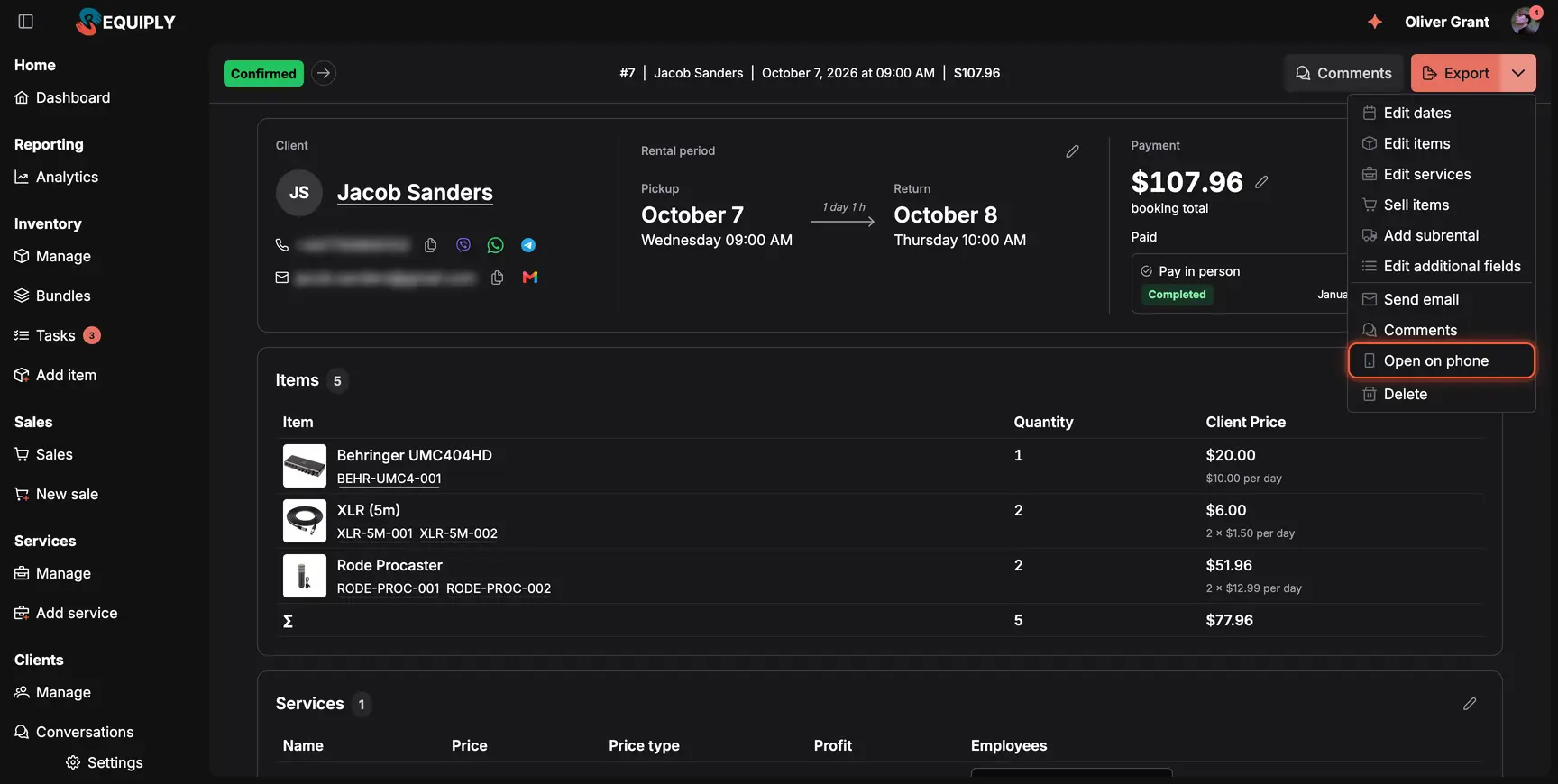
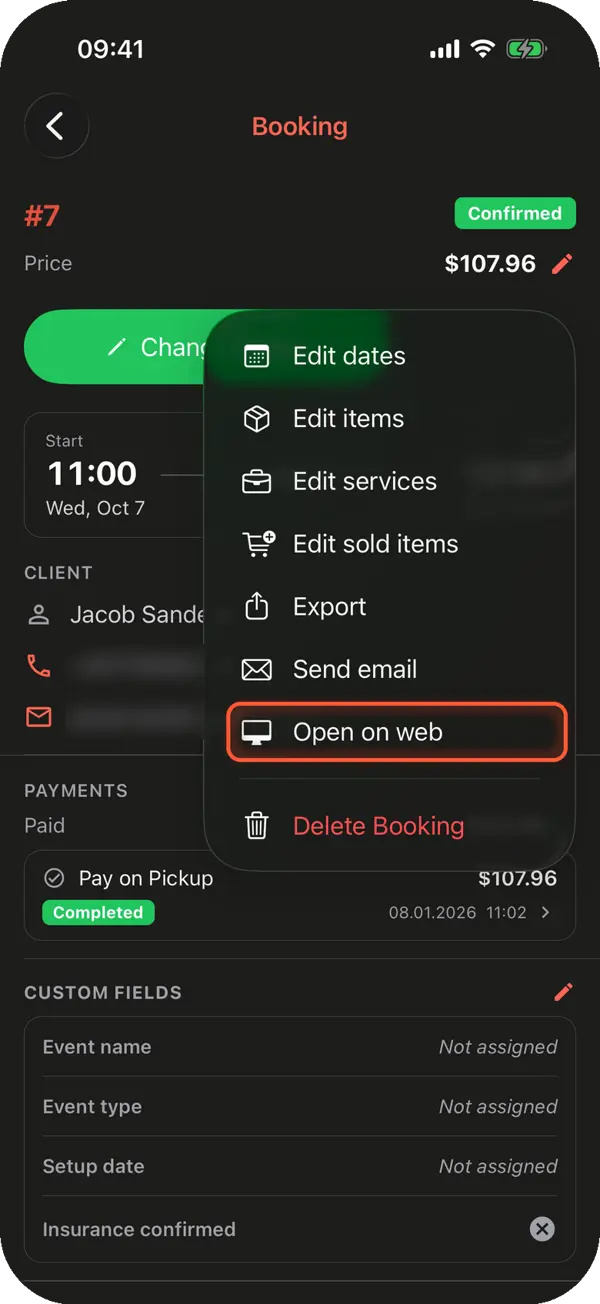
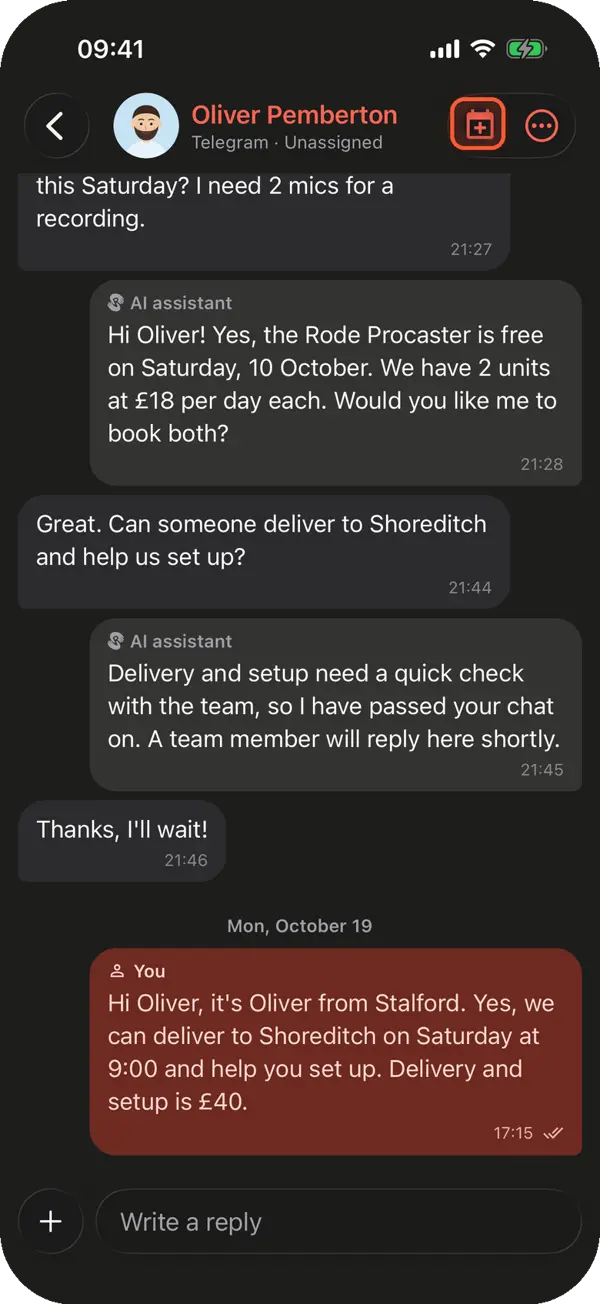
Found a booking at the desk and need it in the warehouse? Choose Open on phone in its menu. If the Requiply app is open, the booking opens there at once; if not, it arrives as a notification. On the phone, Open on web sends a booking, client, sale or conversation to your browser.
If your phone isn't signed in yet, a QR code opens the record there.
Rental companies with hundreds of products and thousands of clients told us the booking form and the phone slowed down. The item picker, code scans and calendar filters now load only what they need, and a booking page opens with one request instead of more than a dozen, on the web and in the app.
Open Settings → Pricing → Billing periods and set a grace time, from 0 to 12 hours. With 2 hours, a rental of 26 hours is charged as 1 day and 50 hours as 2 days. The grace counts once per booking and applies to new bookings.
Yes. Choose Calendar days under Settings → Pricing → Billing periods and set Evening pickup from and Morning return until, for example 17:00 and 10:00. A Friday 18:00 pickup then counts from Saturday and a Monday 09:00 return does not count Monday, so the rental is charged 2 days.
Click Find image next to the upload button on the item form. Requiply searches the web for photos of the product on a white background, starting from the item name. Pick the ones you like and they are added to the item.
Yes. Choose Open on phone in the booking menu. If the Requiply app is open on your phone, the booking opens there right away; otherwise it arrives as a notification. If the phone is not signed in yet, scan the QR code that appears.