


What's New in Requiply 1.2.0?
This release is about clarity and communication. You can now see all your bookings in a visual calendar, send fully customised emails to clients, automate those notifications with trigger-based workflows, and navigate directly to any item, group, or booking for a complete picture of its history. Four features that together make running a rental business noticeably less manual.
1. Calendar View — See Your Bookings Like a Schedule
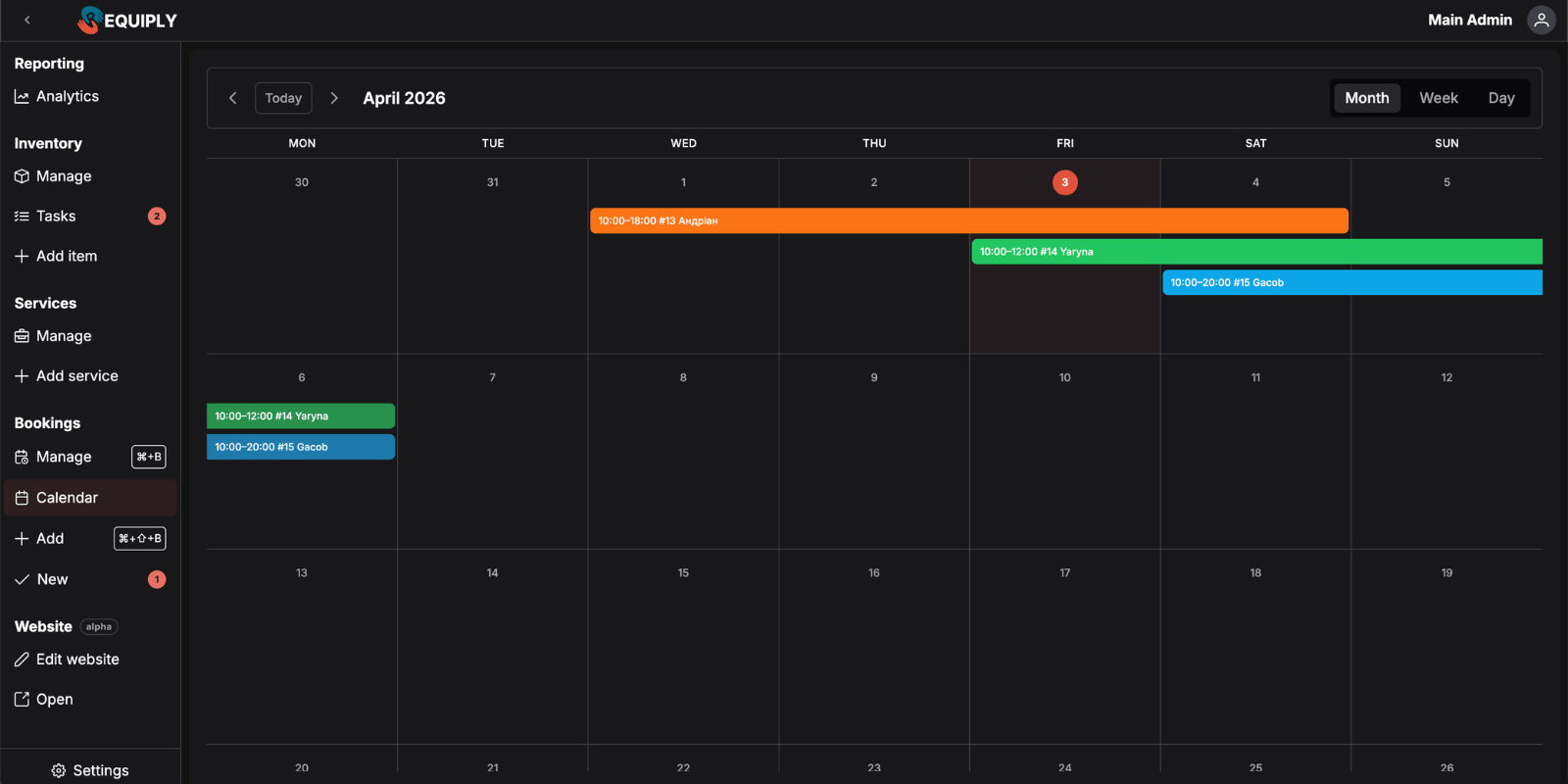
Bookings are now available in a visual calendar with month, week, and day layouts — the same style you already know from Google Calendar. Each booking appears as a colour-coded block where the colour reflects the booking's current status. You can read the state of your entire schedule at a glance, without opening a single record.
What You Get
The calendar sits alongside the existing list view — both remain available. Switch to the calendar when you need to understand how busy a period is, spot scheduling gaps, or quickly locate a booking by date. Clicking a booking opens the full detail page where everything works exactly as before.
Who benefits most: Any business managing multiple bookings per day where visual scheduling matters more than a flat list.
Practical Use Cases:
- Event & Party Rental: On Monday morning, switch to week view and immediately see which Saturday bookings are confirmed, which are still pending, and where you have open slots — no scrolling through 40 entries
- Ski & Snowboard Hire: During peak season, the month view reveals exactly how dense each day is. A cluster of overdue-coloured blocks on a Friday tells you what needs attention before the weekend rush
- AV Equipment Rental: A client calls asking about availability for a 3-day shoot next week. Switch to week view and see open days in seconds instead of mentally mapping list entries against dates
2. Email Templates — Professional Client Communication with AI Assistance
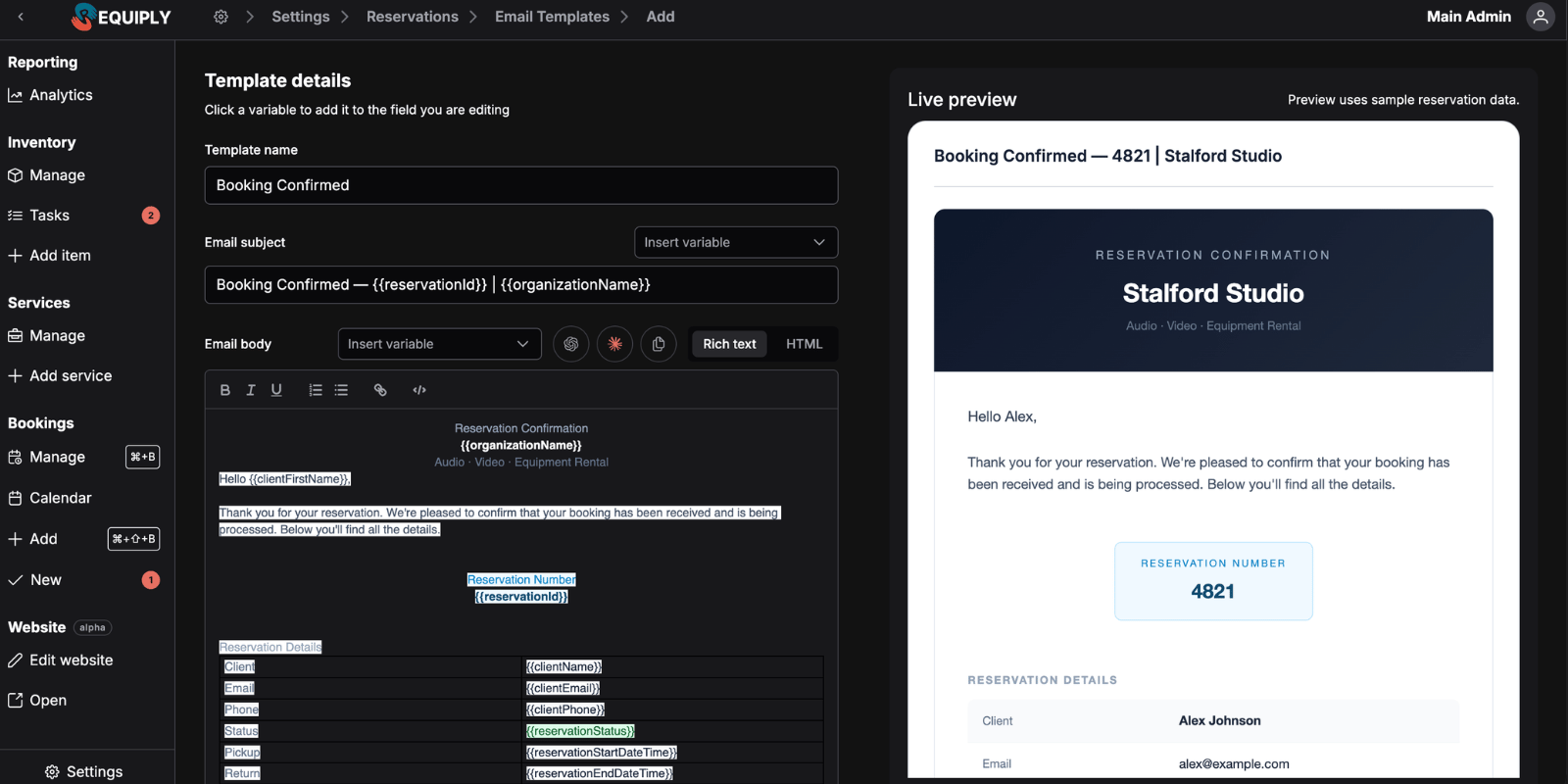
You can now create fully customised email templates for every stage of your rental workflow. Write your message in HTML, insert dynamic variables that pull real booking data automatically, and attach the Requiply-generated invoice with a single toggle.
How Email Templates Work
Available Variables
Every variable is replaced with live booking data when the email is sent. Use them in your HTML body or subject line:
| Variable | What it inserts |
|---|---|
{{clientName}} | Client full name |
{{clientFirstName}} | Client first name |
{{clientLastName}} | Client last name |
{{clientEmail}} | Client email address |
{{clientPhone}} | Client phone number |
{{bookingId}} | Booking number |
{{bookingStartDate}} | Start date (e.g. April 10, 2026) |
{{bookingStartDateTime}} | Start date and time |
{{bookingEndDate}} | End date |
{{bookingEndDateTime}} | End date and time |
{{bookingStatus}} | Current booking status |
{{bookingTotal}} | Total booking price |
{{paymentIntegrationLink}} | Payment link from your configured provider |
{{bookingItems}} | Full items table |
{{bookingServices}} | Full services table |
{{organizationName}} | Your organisation name |
{{organizationEmail}} | Your organisation email |
Building Templates with AI
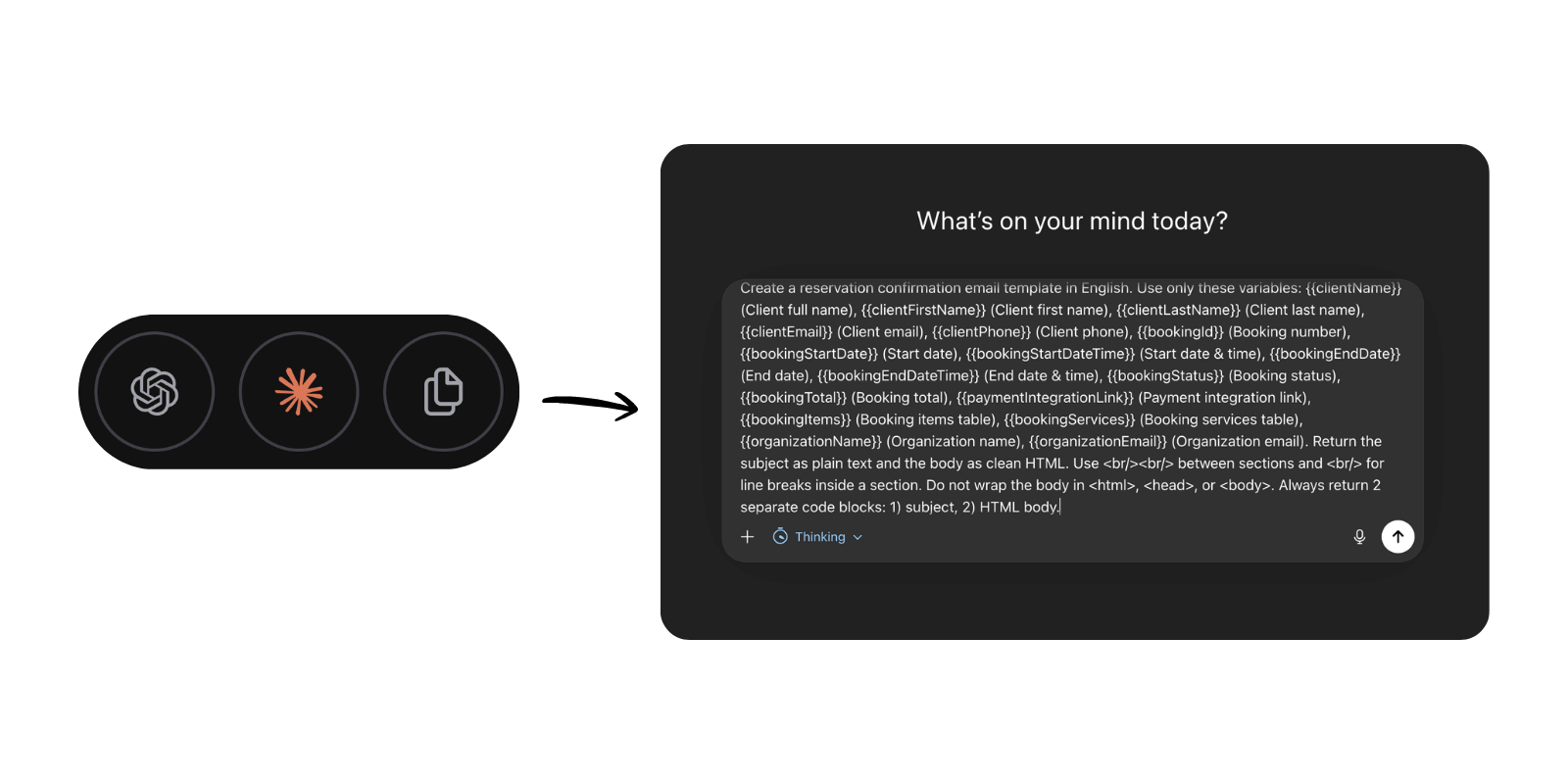
Writing HTML email templates from scratch is not always straightforward. Requiply automatically generates a prompt that explains every available variable to an AI assistant. Click Open in Claude or Open in ChatGPT to launch your preferred AI with the prompt pre-loaded — describe the email you want in plain language, and the AI returns valid HTML that uses your real Requiply variables. You paste it in and you're done.
Attaching the Invoice
Toggle Attach Invoice on any template, and every email sent using that template automatically includes the Requiply-generated PDF invoice. No extra steps at send time.
Practical Use Cases:
- Construction Equipment Rental: Send a confirmation the moment a booking is created. The email includes
{{bookingItems}}listing the excavator and compactor,{{bookingStartDate}}, and a{{paymentIntegrationLink}}so the contractor can pay before pickup - Bike & Cycle Hire: A tourist books 3 mountain bikes for the weekend. Your template fires automatically — their name, dates, total, and itemised list go out in one clean email, no copy-paste
- Party Supply Rental: Design a branded HTML confirmation with your logo, a warm
{{clientFirstName}}greeting, the full items table, and the invoice attached — everything the client needs in one message
3. Workflows — Automated Client Notifications on Every Trigger
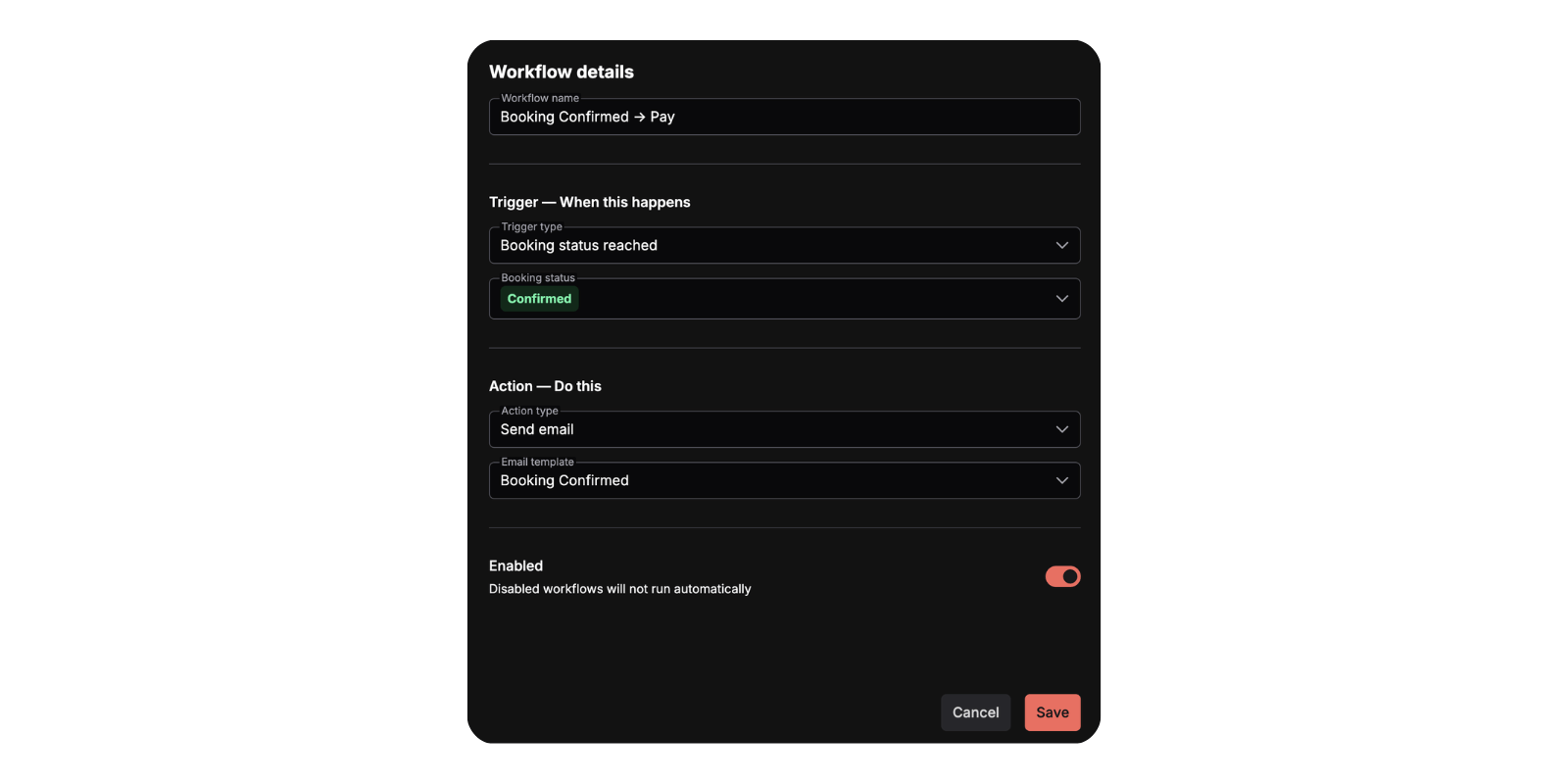
Workflows let you connect triggers to email actions so Requiply sends the right message to the right client automatically — without manual sends. Set them up once in the new Workflows settings page and toggle each one on or off independently.
How Workflows Work
Each workflow has one trigger and one action:
Available Triggers
| Trigger | When it fires |
|---|---|
| Booking Created | The moment a new booking is saved |
| Booking Status Reached | When a booking reaches a specific status (e.g. Confirmed, Cancelled) |
| Payment Status Reached | When a payment reaches a specific status (e.g. Paid, Failed) |
Available Actions
| Action | What it does |
|---|---|
| Send Email | Sends a selected email template to the client on the booking |
Example Workflow Setup
A typical three-workflow setup that covers the full client journey:
- Workflow 1 — Trigger: Booking Created → Action: Send "Booking Received" template
- Workflow 2 — Trigger: Booking Status Reached: Confirmed → Action: Send "Booking Confirmed" template (with invoice attached)
- Workflow 3 — Trigger: Payment Status Reached: Paid → Action: Send "Payment Received" template
Three workflows, zero manual emails. Your clients receive the right message at every stage while you focus on the booking itself.
Practical Use Cases:
- Event Equipment Rental: A booking is created — the client gets an acknowledgement immediately. You confirm it — they get a second email with the invoice. They pay via WayForPay — a payment confirmation fires. All automatic, all branded, all without you touching your keyboard
- Ski Hire: Peak season means dozens of bookings a day. Workflows handle every confirmation email so your team focuses on getting gear waxed and ready, not writing emails
- AV & Production Rental: A booking gets cancelled — the Booking Status Reached: Cancelled workflow fires instantly with a professional cancellation notice. No delayed message, no awkward silence
4. Single Object View — Full History for Every Item and Booking
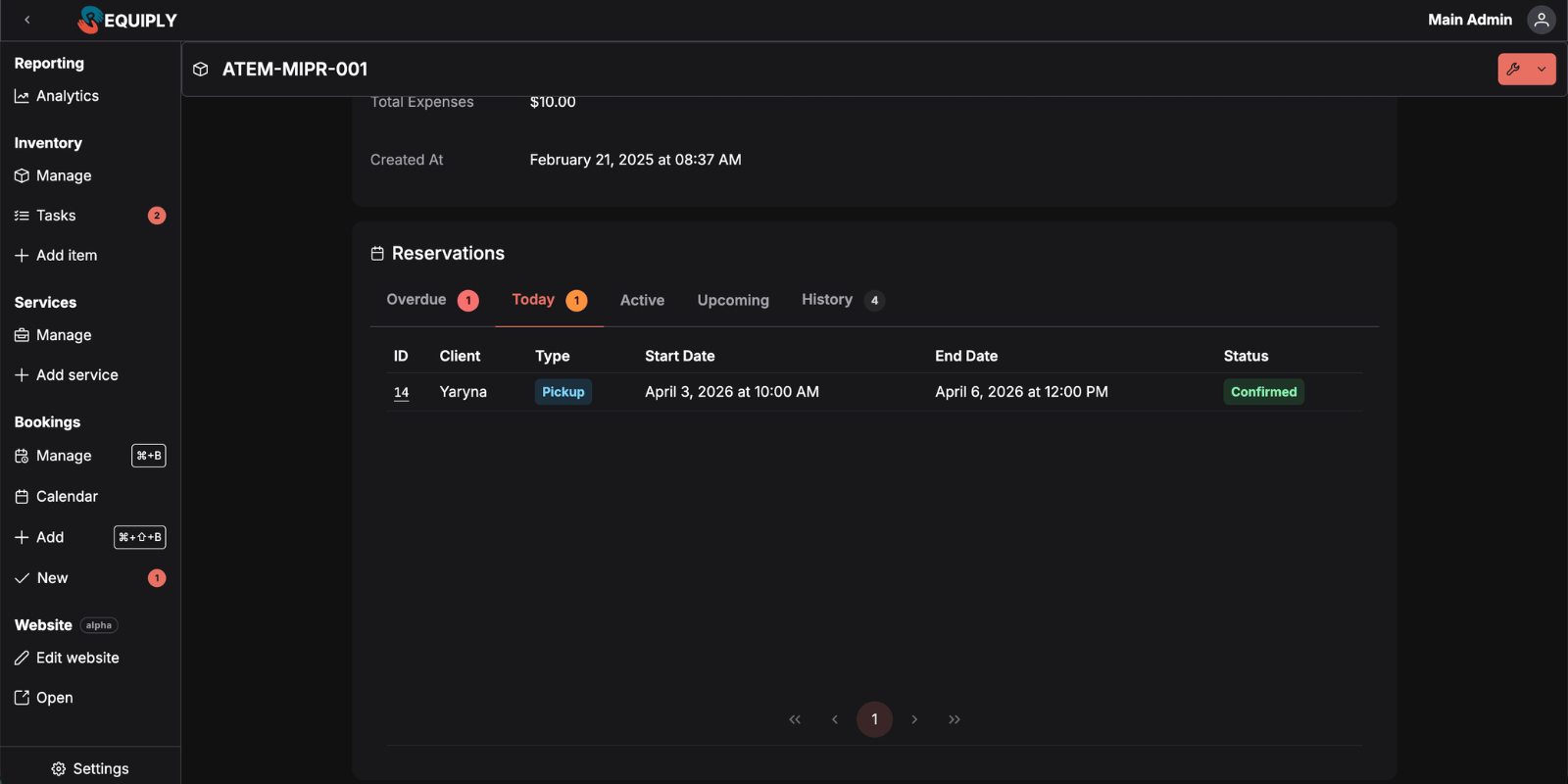
Every major entity in Requiply now has its own dedicated page. Navigate directly to an individual item SKU, an item group, or a booking and see its complete context — details, history, and status — in one place.
Individual Item (SKU) Page
Open any SKU and you land on a page showing the item's details alongside a full booking history split into four tabs:
The Overdue tab is the most immediately useful: if a piece of gear has not come back, you see the client's details, original booking dates, and every prior booking — all from one page, without building a manual search.
Item Group Page
The item group page shows the group's details with every individual SKU listed below. See the status of each unit at a glance and navigate into any SKU's dedicated page from there.
Booking Page
Every booking now has its own dedicated URL. Open it directly, perform actions, and review history — the same information as before, now on a stable, shareable page you can bookmark or link to.
Practical Use Cases:
- Bike Fleet: A rental bike has not come back. Open its SKU page, go to the Overdue tab, and see the client name, phone number, and booking dates immediately — then call them without hunting through filters
- Construction Equipment: Your hammer drill has been through four bookings this month. Open the Historic tab on its SKU page to see every client and date, then compare with maintenance costs to decide if it's time to replace the unit
- Party Supply Rental: A client calls saying they never received their invoice. Open the booking's dedicated page and resend in two clicks — no digging through the list to find it first
Frequently Asked Questions
Can I filter the calendar by item, client, or status? Not in this version. The calendar currently shows all bookings colour-coded by status. Filtering is something we're evaluating for a future release based on usage feedback.
Can one workflow trigger multiple email actions? Each workflow is one trigger paired with one action. To send two different emails from the same trigger, create two separate workflow items with the same trigger and different templates.
Is there a delay option in workflows — for example, send an email 1 hour before a booking starts? Not yet. Workflows fire immediately when the trigger condition is met. Scheduled/delayed sends are on our roadmap.
Where do I find the single object view for a booking or item? Navigate to any booking or item in the list, click through to it, and you'll land on its dedicated page. All pages now have stable URLs you can bookmark or share with your team.
What's Next?
Version 1.2.0 gives you a visual schedule, professional client communication, automation to run it hands-free, and full visibility into every item and booking in your system. We're continuing to refine all four features based on real usage — if you have feedback, we want to hear it.
Here's what we're working on next:
Custom status flows — today every organisation uses the same set of booking and payment statuses. We're building the ability to define your own status names, order, and transitions so your workflow in Requiply matches how your business actually operates, not the other way around.
More workflow triggers and actions — the current workflow engine covers the core events, but we're expanding it significantly. Expect more triggers, branching conditions, and a much larger set of possible actions — giving you the flexibility to automate nearly any routine in your rental process.
Additional notification channels — email is just the start. We're planning support for additional channels so you can reach clients the way they actually respond, whether that's SMS, WhatsApp, or others.
Custom domain sending — right now all emails go out through Requiply's shared domain. We're building domain management so you can connect your own domain and send emails from your own address. Every automated message will arrive in your client's inbox with your brand, not ours.
Have questions or suggestions? Write to us at info@requiply.com — we're always happy to hear from you!
- Requiply version
- requiply
- calendar view
- booking calendar
- email templates
- workflow automation
- automated client notifications
- booking management
- rental software
- inventory tracking
- single item view