


Step-by-step guide for setting up the TurboSMS integration in Requiply. After completing the setup, you can send automated SMS and Viber notifications to clients from workflows.
Inside Requiply, the TurboSMS integration works like this: you add your TurboSMS credentials once, then choose TurboSMS in a workflow action. When the workflow trigger happens, Requiply sends the message to the client's phone number automatically. This is useful for booking confirmations, payment reminders, pickup reminders, cancellation notices, and any other status-based notification.
Step 1: Prepare Your TurboSMS Account
Before configuring Requiply, make sure you have access to your TurboSMS account and API settings. If you do not have a TurboSMS account yet, register one first and complete the basic setup.
Open the TurboSMS API settings page:
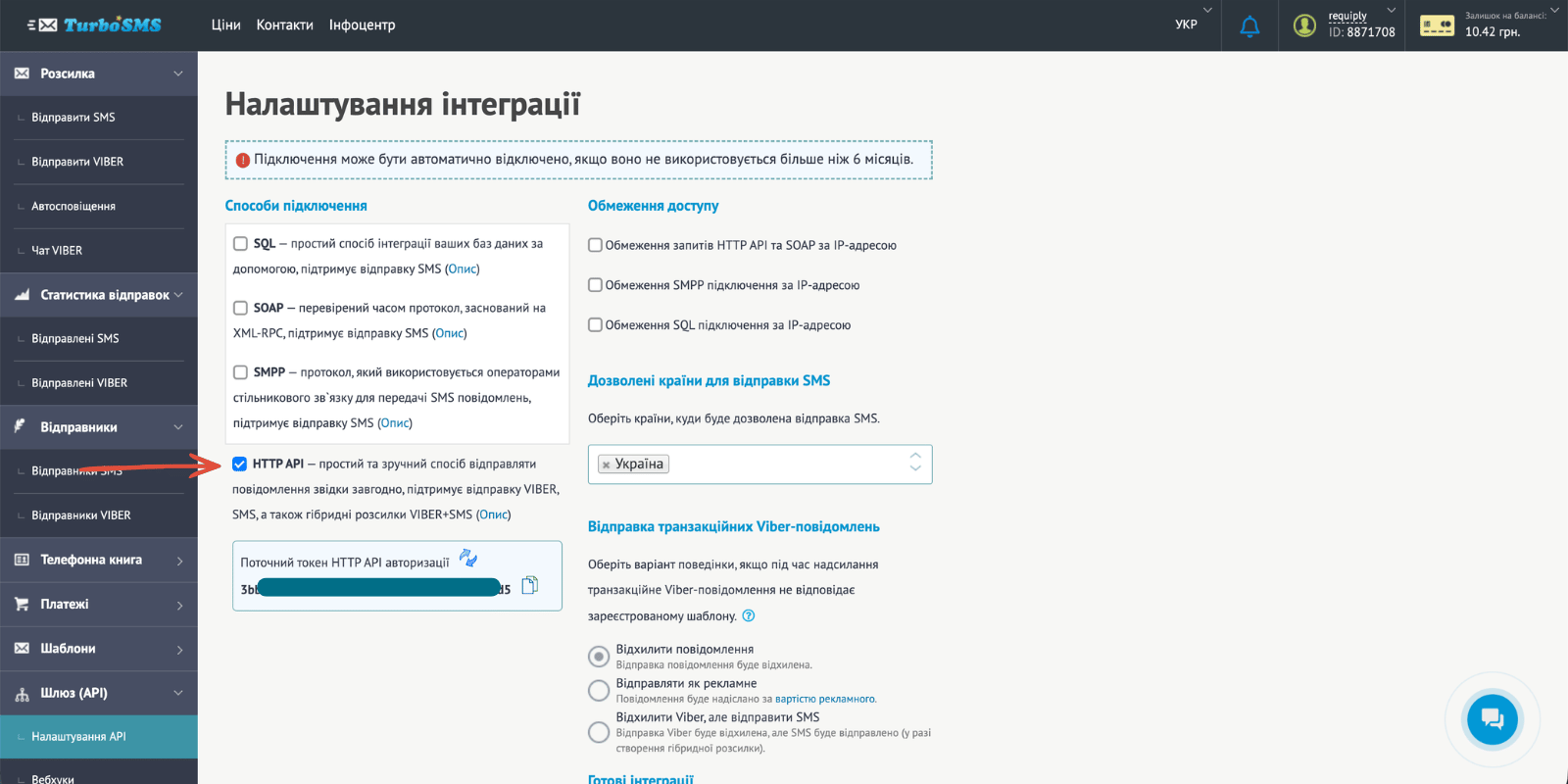
For the integration you need:
- API token
- SMS sender name
- Viber sender name if you plan to send Viber messages
For a quick SMS test, use the test SMS sender name Zamovlenya. Viber requires an officially configured business sender name.
Step 2: Enable the HTTP API and Copy the Token
On the TurboSMS HTTP API settings page, you must first enable the HTTP API. Only after the HTTP API is enabled does TurboSMS show the secret API token that you can copy.
Copy this token — you will paste it into Requiply in the next step.
Keep this token private. It allows Requiply to send messages through your TurboSMS account.
Step 3: Configure TurboSMS in Requiply
Log in to your Requiply profile:
After logging in, open the Communications integrations page:
Then complete these steps:
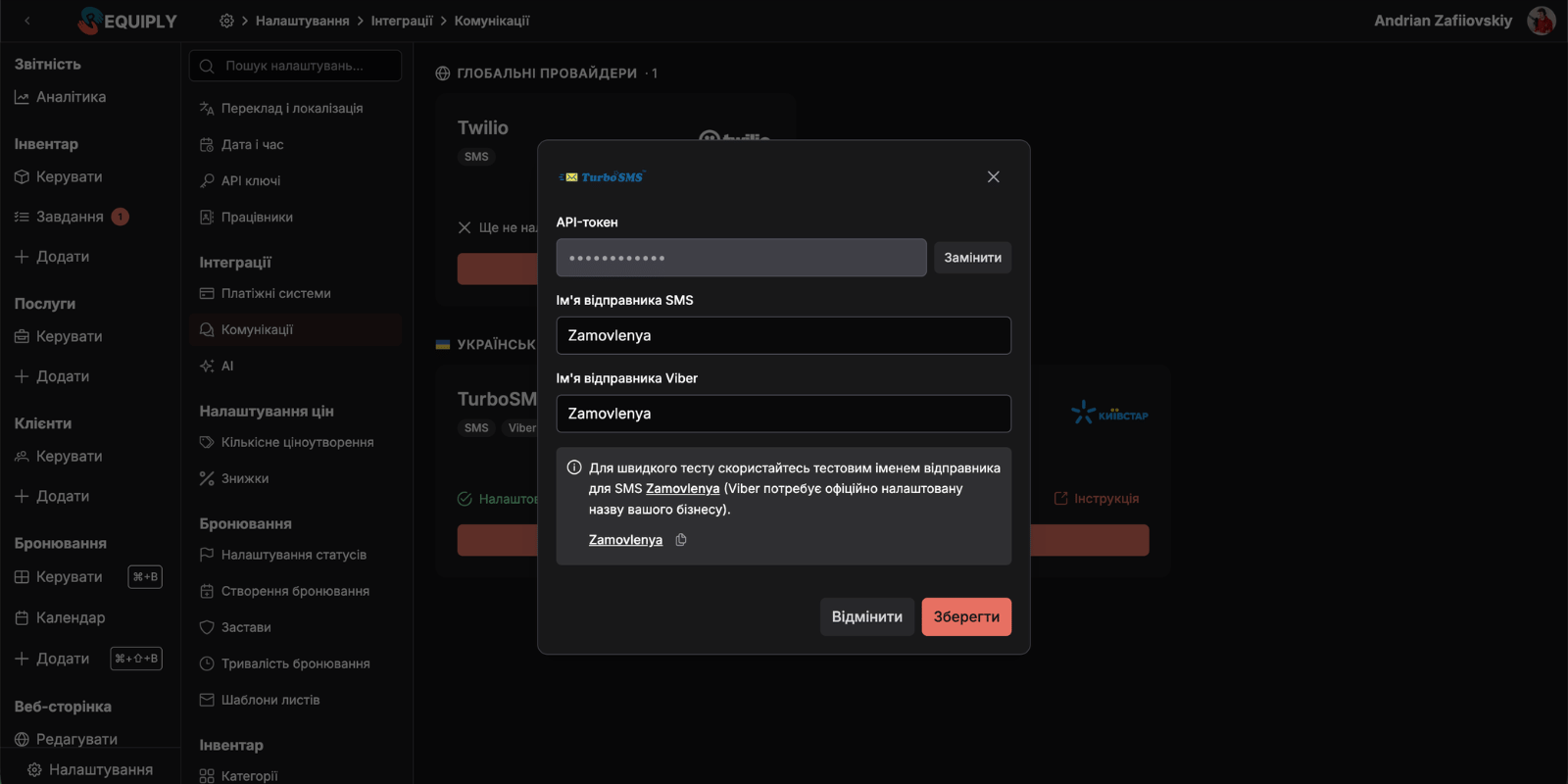
1. Click "Configure" on the TurboSMS integration card
Open the TurboSMS setup modal from the Communications integrations page.
2. Fill in the integration form
In the TurboSMS form, enter:
- API token from your TurboSMS account
- SMS sender name, for example
Zamovlenyafor a quick test - Viber sender name, if Viber is configured for your business
Click Save.
If a token was already saved earlier, Requiply shows it as hidden. Use Replace only when you need to rotate or correct the token.
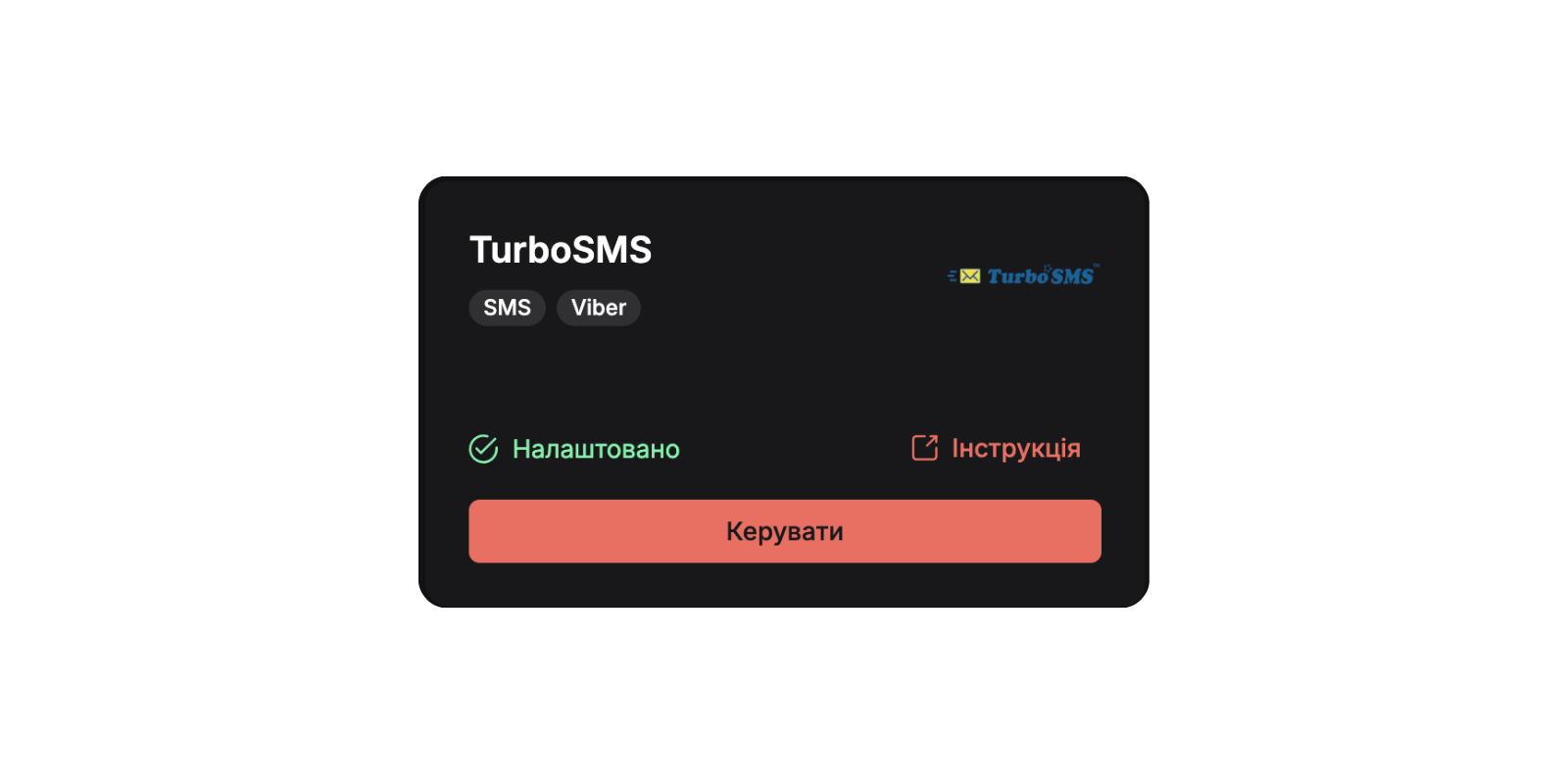
3. Check that the integration is saved
If the data is correct, TurboSMS becomes available as a provider in workflow actions.
Step 4: Use TurboSMS in Workflows
After the integration is saved, open the Workflows settings page:
Create a workflow or edit an existing one. A typical booking confirmation workflow looks like this:
| Field | Value |
|---|---|
| Trigger type | Booking status reached |
| Booking status | Confirmed |
| Action type | Send SMS / Viber to client |
| Provider | TurboSMS |
| Channel | SMS or Viber |
Example message:
{{clientFirstName}}, your booking for {{bookingStartDate}} is confirmed.

Payment link: {{paymentIntegrationLink}}

Total: {{bookingTotalCharged}}
The message is sent to the phone number on the booking client. The workflow requires a configured Communications integration and a client phone number.
Step 5: Typical Workflow Scenarios
After TurboSMS is connected, you can use it for:
1. Booking confirmation messages
Trigger the workflow when the booking status reaches Confirmed and send the client a message with the date, total, and payment link.
2. Payment reminders
Use a payment-related trigger or booking status to remind the client to pay before pickup.
3. Cancellation or status updates
Send a short SMS or Viber message when a booking is cancelled, changed, or moved to another custom status.
Congratulations! TurboSMS is now ready to send automated client notifications from Requiply workflows.
Additional Information
- Updating credentials:
If you rotate the API token or change sender names, update them on the Communications integrations page. - Sender names:
UseZamovlenyaonly for a quick SMS test. For production, use your approved sender name. - Viber messages:
Viber requires an officially configured business sender name in TurboSMS. - Message length:
Long SMS messages can be split into multiple SMS parts by the provider.
Have questions? Write to us at info@requiply.com or contact the Requiply support team.
- turbosms
- sms
- viber
- integration
- workflows
- client notifications
- requiply