

Permission groups
A permission group is a named set of permissions. Every account in your organization belongs to exactly one group and takes its access from it. Edit a group and every member of it changes at the same time.
Permission groups are what other systems call roles. This is the page to open whenever someone on your team cannot see a page, a column, or a button they need, or when you want to stop a member from deleting bookings, seeing prices, or reaching Settings. Requiply has no per-person permissions: you change what a group can do, or move the person into a different group.
Groups live on the Account groups tab of Settings → Organization → Accounts, at https://app.requiply.com/settings/org/accounts?tab=groups.
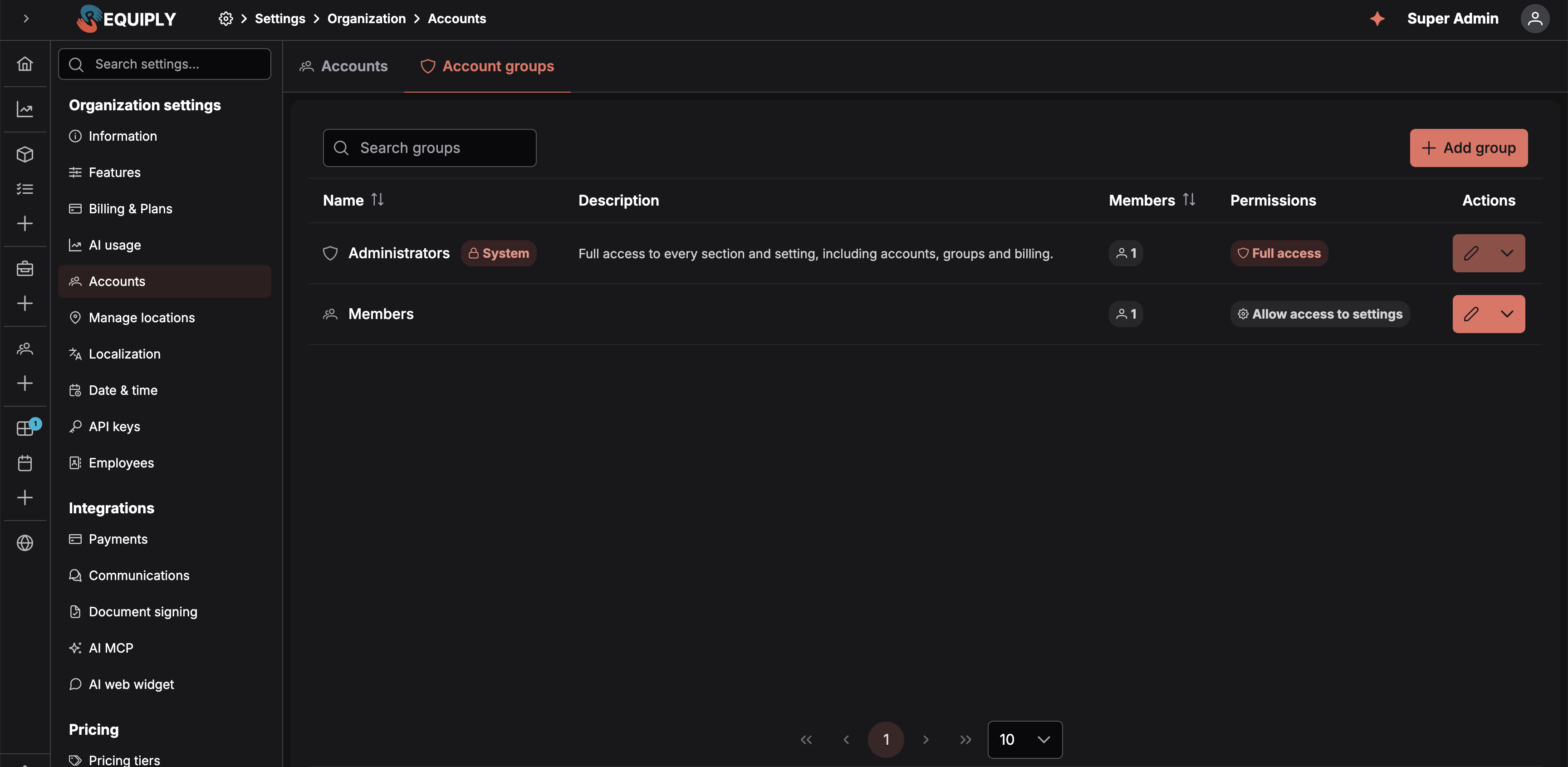
The Account groups tab. Administrators carries a System tag and reads Full access, followed by a chip for each Booking creation or Communications permission it has; other groups list the permissions they grant.
The Administrators group
Every organization has one built-in group called Administrators. It:
- grants every access permission, including account management, groups, and billing,
- cannot be renamed or deleted, and its Access permissions cannot be switched off,
- has every Booking creation, Communications, and Sales permission on by default, and those can be switched off for it, and
- must always have at least one member. The last administrator cannot be moved to another group or removed.
It is marked with a System tag and a shield icon wherever groups are listed.
The permissions a group can grant
The group editor has four sections: Access, Booking creation, Communications, and Sales. New groups start with every permission off.
Access
| Permission | Controls access to |
|---|---|
| Allow booking management | The Bookings section and booking management features, including the pickup, return, and overdue lists on the Dashboard, and the checklists. |
| Allow inventory management | The Inventory section and inventory management features, including creating, editing, and deleting bundles and generating their photos. |
| Allow services management | The Services section and services management features. |
| Allow client management | The Clients section and client management features, including the Calls page when Binotel is connected. |
| Allow access to reporting | The Reports section, and the monthly summary and money figures on the Dashboard. |
| Allow access to conversations | The Conversations inbox: reading and answering website chat and messenger conversations and taking them over from the AI assistant. Shown only while the inbox feature is on. |
| Allow website management | The Booking Page menu entry, where the client portal is configured. |
| Allow access to settings | The Settings section. A set of administrator-only areas inside it stays limited to the Administrators group regardless of this toggle. See What Settings access does and does not open. |
When an Access permission is off for a group:
- The matching section is hidden from the navigation of every member, on the web sidebar and in the mobile app.
- All functionality tied to that area is blocked for them, even where it appears inside another part of the product. With Allow inventory management off, for example, a member loses the Inventory menu entry and cannot create maintenance, adjust stock from a booking, or edit item details.
Booking creation
These permissions change what a member can do inside the Bookings section they already have access to. Turning one off hides no section; it only removes that capability.
| Permission | What it allows | Also needs |
|---|---|---|
| Allow booking outside of working hours | Picking a pickup or return time outside the working schedule from Date & time settings when creating a booking or changing its dates. The date picker then offers every time of day, and every closed day, with times outside the schedule shown in light orange. Saving asks the member to confirm that the pickup or return is outside working hours. Without this permission the picker only offers working hours, and the server rejects times outside them. An outside assistant connected through the AI integration follows the same permission. The public client portal and the AI web widget always enforce working hours, and through the API only a secret key can pass allowOutsideWorkingHours. | Nothing else. |
| Allow booking cost adjustments | Changing what a booking is charged: fewer or more days or months than its dates produce, a percentage, or a flat amount, depending on the types the organization allows. The same permission covers the deposit adjustment, which lowers, raises or waives the deposit of one booking. In the app it covers the Price and Deposit buttons of the Adjustments: row on Add booking and the Price and Deposit chips in mobile booking creation, the pencils and the Booking cost adjustment and Deposit adjustment rows on existing bookings, which open the adjustment dialog right on the booking page, and the adjustment field for API keys and AI assistants that act as the member. See Booking cost adjustment. Until September 2026 this was Allow chargeable period adjustment. | Enable booking cost adjustments under Features. |
| Allow assigning units on booking creation | Scanning or typing unit codes in the Units field on Add booking and on the Inventory step of mobile booking creation, so specific units are pinned to the booking right away. | Allow assigning units on creation under Booking creation. |
Communications
Permissions for client communication features that come from an integration.
| Permission | What it allows | Also needs |
|---|---|---|
| Allow access to client call history | Seeing the Binotel calls field on Client details on the web and the Calls with Binotel row on the mobile client page, with playable recordings and the Call button. The organization-wide Calls page is not controlled by this permission: it follows Allow client management. | The Binotel integration in Communications. |
Sales
Permissions for the Sales module, for selling goods such as memory cards and batteries. They take effect only while Enable sales is on under Features. While it is off, the section says Sales is switched off. These permissions apply once you switch it on in Settings > Features.
| Permission | What it allows |
|---|---|
| Allow viewing sales | Shows sale items, their stock and the list of sales. The Sales menu section, the Sales list, sale pages, products for sale in the inventory, and the Sold items of bookings. |
| Allow selling items | Lets members sell items on bookings and on their own, record payments and returns. New sale, Sell items and Return items on bookings, editing and cancelling sales, and collecting their payments. Includes viewing. |
| Allow managing stock | Lets members add and edit sale items, record deliveries, write-offs and stock counts, and see purchase prices. The stock buttons on the product page, net costs, and margins. Includes viewing. |
Allow viewing sales is included in the other two. While Allow selling items or Allow managing stock is on, it is switched on as well and cannot be turned off, and the editor shows Included with: Allow selling items. This keeps what the web app, the mobile app, and the API allow in line with what the group shows.
What Settings access does and does not open
Turning Allow access to settings on lets a group into Settings, but not into everything there. A large part of Settings stays gated to the Administrators group whatever this toggle says.
| Opened by Allow access to settings | Administrators only |
|---|---|
| Organization info, Localization, Date & time settings, Locations | Features, Billing & plans, AI usage |
| The Payments integration | Accounts, permission groups, API keys, Employees |
| Booking creation, Booking duration, Deposits, Subrentals | Communications, document signing, AI, and AI web widget integrations |
| Pricing tiers and pricing discounts | |
| Booking statuses | |
| Email, message, and custom export templates | |
| Inventory categories | |
| Workflows | |
| Fields: entity fields, level configurations, table columns, detail page fields |
The split is deliberate. The left column is the shape of your own working day: opening hours, locations, how long a booking may run, what deposit it takes. The right column changes what the organization is, what it costs, what it charges, and who can reach it.
Creating a group
Add group on the Groups tab opens the form.
| Field | Notes |
|---|---|
| Group name | Required, and unique within the organization. Saving a duplicate name returns "A group with this name already exists". |
| Description | Optional. Shown in the groups table, useful for saying who a group is meant for. |
| Permissions | The toggles above, grouped into the Access, Booking creation, and Communications sections, all off by default. |
| Menu layout | Optional. The order of the sidebar sections and pages for the group's members, and which of them are hidden. See Menu layout for a group. |
A Preview panel on the right shows how the group will look in the table, permission summary included. Save creates the group and returns you to the Groups tab.
Editing a group
Open a group from its row. The form is the same one used to create it, with these differences:
- For the Administrators group, the name and description are shown as plain text with the System tag. The Access section shows check marks instead of toggles, with the note Always granted to administrators. The Booking creation and Communications toggles can be changed and saved. There is no Delete button.
- A Delete button appears for ordinary groups.
Saving applies the new permissions to every member immediately. People who are signed in pick the change up on their next page load.
Groups are also push notification audiences. A workflow with the Send push notification to account groups action reaches everyone in the chosen groups at the moment it runs, so moving a person into or out of a group also changes which workflow pushes they get.
Menu layout for a group
Under Permissions, the Menu layout section sets how the main sidebar looks for every member of the group: which section comes first, the order of the pages inside each section, and which pages are hidden. It lists only the sections the group's Access permissions open, and follows the toggles live while you edit them.
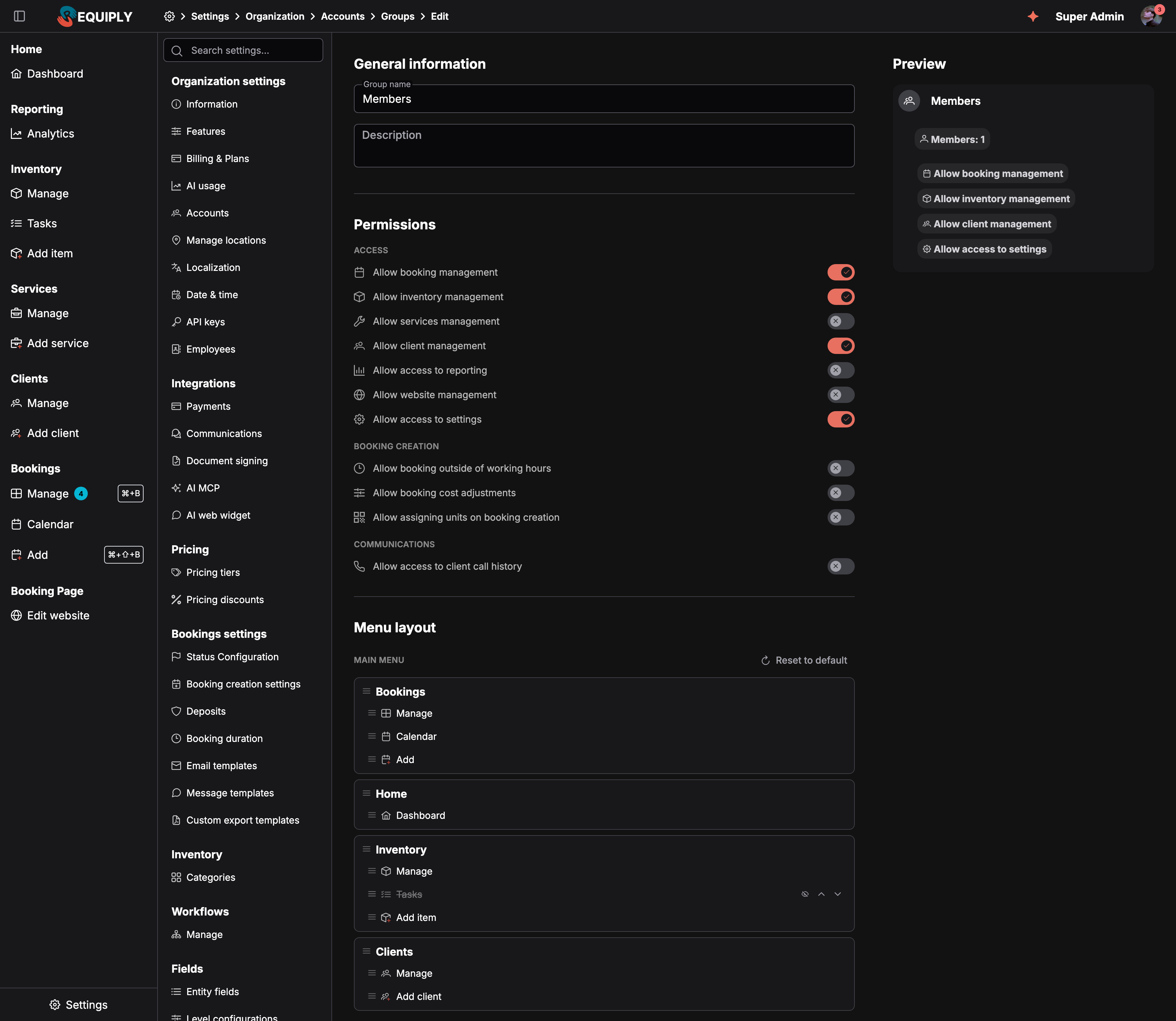
A group layout that puts Bookings first and hides Tasks for everyone in the group.
Drag a section or a page by its grip, or use the Move up and Move down arrows. Click the eye, Hide from the menu, to hide a page or a whole section. Reset to default returns to the standard order. The layout is saved with the group's Save button.
The Sales section appears in the layout once Sales is on and the group has a Sales permission. A group layout saved before Sales was switched on keeps it hidden until you show it here.
Members see the group layout as their starting point and can rearrange it further for themselves, but they cannot bring back a page the group hides. Hiding a page only removes it from the menu: it does not take away the permission, so the page still opens from a link. The full behavior is described under Sidebar menu layout.
Deleting a group
A group can only be deleted when it has no members. Move its people to another group first; until then, the delete action is disabled with the note "Move all accounts to another group before deleting". The Administrators group can never be deleted.
What happened to per-account permissions
Before permission groups, permissions were toggles on each individual account. When groups were introduced, existing access was carried over rather than reset:
- Everyone who was an Admin moved into the Administrators group.
- Every other account was grouped by the permissions it actually had: accounts with an identical set landed in the same new group, named Members, Members 2, and so on.
- Those migrated groups were given Allow access to settings, matching what non-admins could reach before the split existed.
Rename and reshape those groups freely. The names are only a starting point.
Common scenarios
Warehouse staff who should not see money
Create a group called Warehouse, turn on Allow booking management and Allow inventory management, and leave reporting, clients, website, and settings off. Members can run pickups and returns and manage stock without seeing revenue figures or client records.
A shift lead who adjusts how bookings run
Create a group called Shift lead with every section on, Allow access to settings included. They can open Settings and change locations, opening hours, deposit rules, and how long a booking may run. Pricing, statuses, templates, workflows, accounts, and billing stay with the administrators, so the levers that change what you charge and who can log in are not in their hands.
Front desk staff who should not give discounts
In the front desk group, leave Allow booking cost adjustments off and Allow booking outside of working hours off. They create bookings within opening hours at the dates' price, and a manager with those permissions handles exceptions.
Warehouse staff see bookings first
Open the Warehouse group, drag Bookings to the top of Menu layout, hide Add item under Inventory, and save. Everyone in the group gets the shorter menu at their next page load.
Only managers hear call recordings on client pages
Turn on Allow access to client call history for the Managers group only. Keep in mind that everyone with Allow client management can still open the Calls page and play recordings there.
A front desk that sells but does not count stock
Give the Front desk group Allow selling items (viewing comes with it) and leave Allow managing stock off. They can sell and take returns but never see purchase prices or margins. Give the Warehouse group Allow managing stock for deliveries and stock counts.
Promoting someone to administrator
Edit their account and change its Permission group to Administrators. There is no separate role field to change.
Onboarding three people with the same job
Invite all three straight into the same group. There is nothing per-person left to configure.