

Add or edit export template
This page is where you build a printable booking document — the name it appears under and the HTML body Requiply fills with booking data at export time.
You reach it from Settings → Bookings → Custom export templates by clicking Create template, the empty-state button, or the edit pencil icon on a template card.
The screen is split in two: the editable fields on the left, and a sticky Live preview on the right that renders the document as a printed page with sample booking data substituted in.
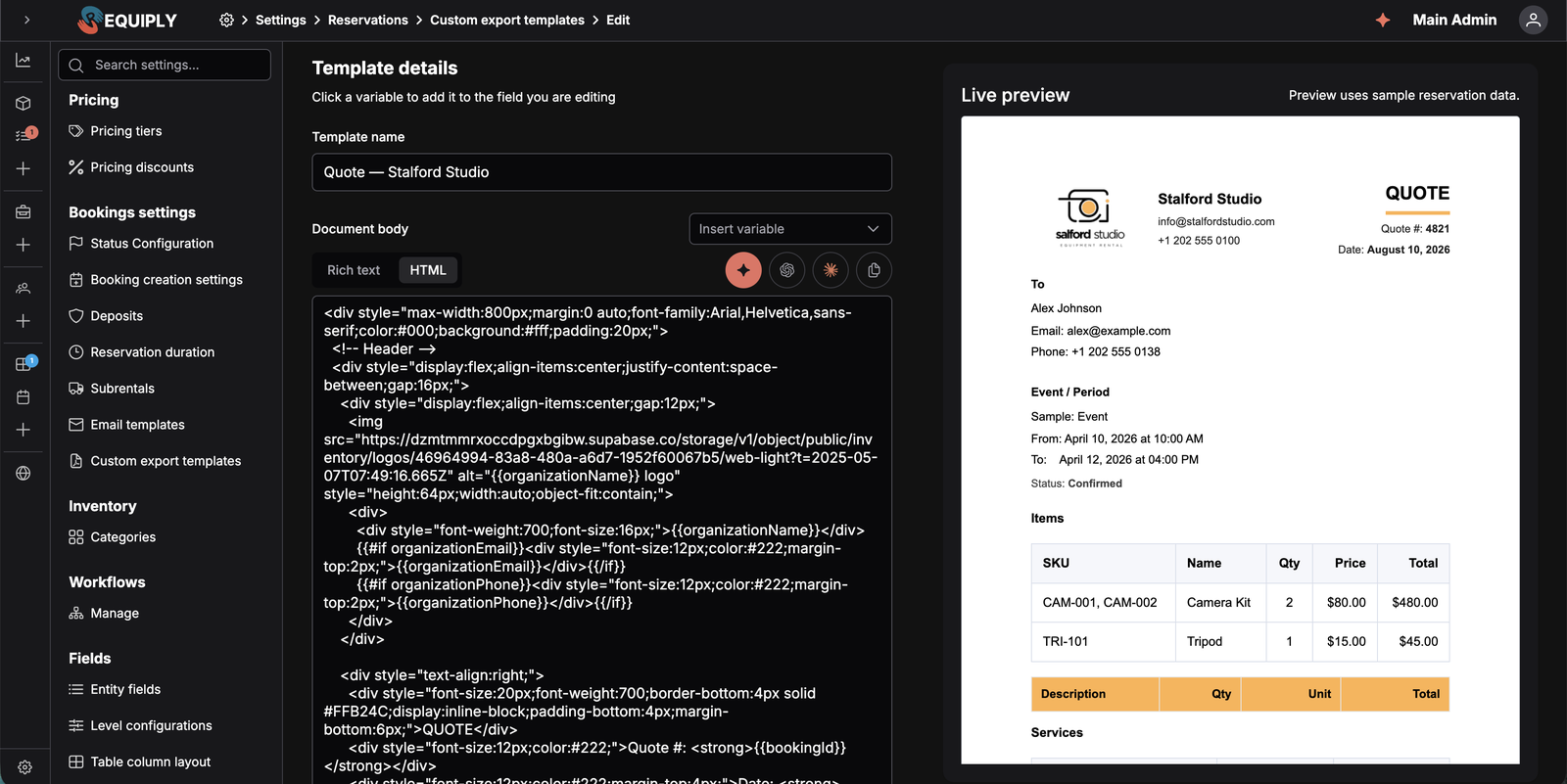
Template details on the left, live preview on the right — the preview renders the document as a printed page with sample booking data.
Add vs. edit
| Mode | What happens |
|---|---|
| Add | Creates a new template. The body editor starts in HTML mode. |
| Edit | Loads the saved name and body, picks the editor mode that matches the stored body, and shows the Delete action. |
While the page is saving, a full-screen overlay blocks the form so the template cannot be submitted twice. On the edit page the form appears only after the template has loaded; if it cannot be loaded, Requiply shows an error toast and returns you to Custom export templates.
Template details
A helper note above the fields reads: "Click a variable to add it to the field you are editing."
Template name
The display name for the document.
- Required
- 1 to 50 characters
- Used as the card title on the list page, as the label in the booking Export dialog, and as the downloaded file name
- Shows Name is required when missing and Name is too long when over the limit
Because staff pick this name from the Export dialog, use something they will recognize under pressure — Rental agreement, Handover act, Packing list.
Document body
The HTML body of the document.
- No length validation
- Dual-mode editor controlled by a Rich text / HTML toggle
- Rich text mode is a Quill editor with bold, italic, underline, ordered list, bullet list, link, and code-block formatting
- HTML mode is a monospaced auto-resizing textarea for full documents and pasted markup
A helper note reads: "HTML mode is best for full documents like contracts. Rich text works for simple pages."
Inserting variables
The Insert variable dropdown sits next to the body label. It is searchable — type part of a label, token, or key to filter — and each option shows the friendly label above the raw token.
The list contains every built-in booking, client, and organization variable plus one entry per custom field configured on the Client, Booking, or Organization level, labelled with its level (for example Passport number (Client)). It includes the rental days, item totals, sold goods totals, and logo variables: {{bookingDays}}, {{bookingItemsQuantity}}, {{bookingItemsTotal}}, {{bookingItemsFullPriceTotal}}, Total of sold items {{bookingSaleTotal}}, Booking total without sold items {{bookingRentTotal}}, and {{organizationLogoUrl}}. The complete list is documented on the Custom export templates page.
Totals of a numeric product or unit field, such as {{groupFieldTotal_weight_kg}} for the total weight, are not in the dropdown. Type them by hand, see Product and unit field totals.
How a token is inserted depends on the editor mode:
- In HTML mode, the token is appended on a new line.
- In Rich text mode, a simple token is appended as its own paragraph; the table variables
{{bookingItems}}and{{bookingServices}}are appended after a blank paragraph so the table sits on its own line.
Tokens are appended at the end of the body — reposition them by editing the body directly.
Table variables take a column list
{{bookingItems}}, {{bookingServices}}, and {{bookingSaleItems}} accept an optional list of columns in square brackets, so one template can print a short client-facing summary and another a full handover act:
{{bookingItems[index, name, serial, qty, price, total]}}
{{bookingItems[index, sku, name, qty, blank:Condition, blank:Signature]}}
{{bookingItems[index, image:Photo, name:Equipment, qty, full_price_total, total, totals]}}
The dropdown inserts the plain token; type the bracket list yourself. Every available column, including the product image, full_price_total, custom unit and product fields, and the blank:Label hand-filled column, is listed under Choosing the table columns. Three more things the list can do:
- Your own header. Write it after the column name with a colon, such as
name:Equipmentorqty:Units. A header cannot contain a comma or]. See Your own column headers. - A totals row. Add
totalsand the table ends with a Total: row that adds up the quantity, deposits, full price totals, line totals, and numeric custom field columns. See Totals row. - Photos.
imageprints each product's default photo as a thumbnail, and is left out when no product on the booking has a photo.
The live preview renders the columns, headers, and totals row you picked with sample data, so you can see the shape of the table before saving.
Sold items
With Sales on, {{bookingSaleItems}} prints the goods sold on the booking, such as memory cards or batteries, net of returns, and {{bookingSaleTotal}} prints their total, which is already part of {{bookingTotal}}. Both print nothing on a booking without sold goods, so one template works for every booking. {{bookingRentTotal}} prints the booking total without the sold goods (rent, services, discounts, and adjustments), so a summary can show the rent, the goods, and the amount to pay on separate lines. In the live preview they show sample amounts of 525 and 250 in your currency. The columns are listed under Sold items table columns.
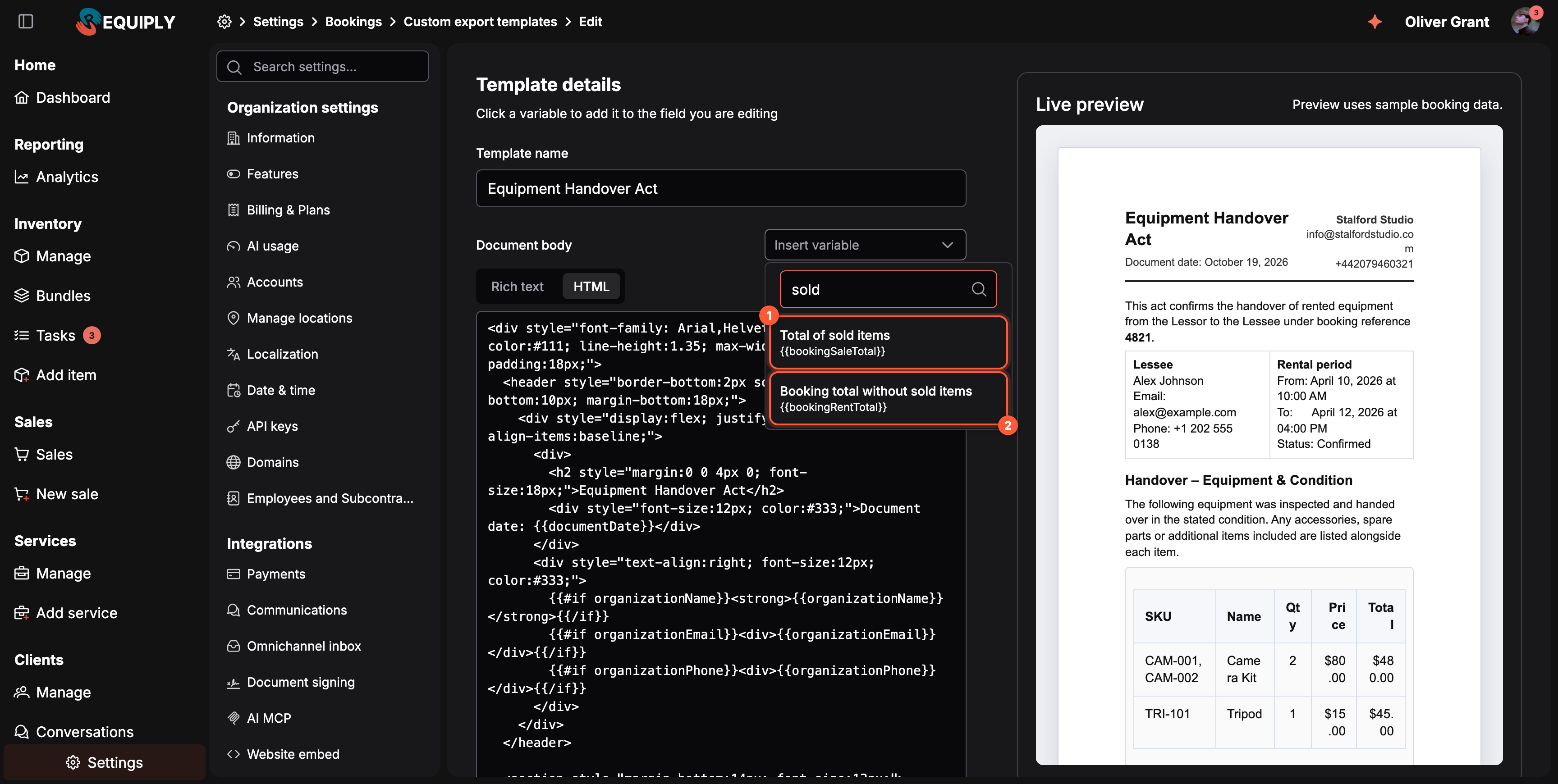
Search the Insert variable dropdown for sold: 1 the total of the goods sold, 2 the booking total without them.
AI assistance
Four buttons sit under the body label:
| Button | What it does |
|---|---|
| Create with Requiply Assistant | Opens the built-in Requiply Assistant in document-designer mode, already aware of this page's variables and your current draft. Its generated documents can be applied straight into the editor. |
| Open prompt in ChatGPT | Opens ChatGPT in a new tab with a prompt that explains every available variable. |
| Open prompt in Claude | Opens Claude in a new tab with the same prompt. |
| Copy AI prompt | Copies that prompt to the clipboard for any other tool. |
Only the first one writes back to the form. When the assistant produces a document, its preview card carries an Apply to editor button that replaces the template name and body and switches the editor to HTML mode. The external options are copy-and-paste round trips.

The four AI buttons, left to right: Requiply Assistant, ChatGPT, Claude, and copy prompt.
Live preview
The preview card on the right is sticky on wide screens and renders the body on a white, page-shaped sheet so you can judge the printed result.
Sample values are built from:
- The active interface language
- The organization's currency, name, email, and phone
- A built-in fixed set of sample booking data: client, dates, totals, items, and services. The sample booking runs 3 days with 3 units, and each sample product shows a grey placeholder picture in the
imagecolumn - A type-appropriate sample for each custom field (for example
123for a number field,Yesfor a checkbox) - For
{{groupFieldTotal_…}}and{{itemFieldTotal_…}}, the field's sample value times the 3 sample units
{{organizationLogoUrl}} is empty in the preview, so a logo wrapped in {{#if organizationLogoUrl}} does not show there. Export a real booking to check the logo.
A hint above the preview notes that it uses sample booking data.
Conditional {{#if …}} blocks are resolved in the preview too, so a block whose variable has no sample value disappears exactly as it would in a real export.
{{bookingTotl}} text.Validation
- Template name is required and must be 1–50 characters
- Document body has no validation
Errors appear under the affected field.
Saving changes
Click Save to store the template.
On success, a toast confirms Document template "<name>" created or … updated and you return to Custom export templates. On the edit page, only the fields you actually changed are written. If saving fails, an error toast appears and the form stays open.
Click Cancel to leave without saving.
Deleting a template
The edit page has a red Delete action. It opens a confirmation dialog headed Delete document template asking Are you sure you want to delete "<name>"?.
Confirming deletes the template immediately — export templates are not referenced by workflows, so there is no reference check to wait for. A toast confirms the deletion and you return to the list. The template disappears from the booking Export dialog for the whole organization.
Common scenarios
Drafting a rental agreement from scratch
- Open Create template and name it
Rental agreement. - Keep the editor in HTML mode.
- Build the sections — parties, booking period, equipment, charges, responsibilities, signatures.
- Insert
{{organizationName}},{{clientName}},{{bookingStartDateTime}},{{bookingEndDateTime}}, and{{bookingItems[index, name, serial, qty, price, total]}}. - Wrap the deposit paragraph in
{{#if bookingDeposit}}…{{/if}}. - Check the preview, then save.
Letting the assistant do the first draft
- Click Create with Requiply Assistant.
- Use a starter such as Draft a rental agreement, or describe the document you need.
- Review the print preview the assistant returns.
- Click Apply to editor, adjust the wording, and save.
Translating an existing document
- Open the template's edit page.
- Click Create with Requiply Assistant and ask for a translation — the assistant already has your current draft.
- Apply the result and save, or save it as a second template so you keep both languages.
Tips and cautions
{{bookingItems}} on its own line. On its own it expands into a table of SKU, name, quantity, price, and total; add a bracket list such as {{bookingItems[index, name:Equipment, serial, qty, total, totals]}} to choose the columns, rename their headers, and add a totals row.Overview
Design the printable PDFs you generate from a rental, such as the rental agreement, contract, handover act, return act, or packing sheet.
Overview
The Requiply app for iPhone, iPad and Android: install it, sign in with your Requiply account, choose the tabs in the tab bar, and set the language, dark mode and text size.