

Bundles
A bundle is a fixed set of your rental items that clients usually take together, booked as one line with one discount: a Podcast duo kit of two microphones, two boom arms, two cables and an interface, a camera kit, a sound system, a party package. Other tools call this a kit, a set or a package.
Bundles make the common combinations faster to book and easier to sell:
- Staff pick one bundle instead of five items, and the booking form suggests the bundle when someone picks one of its items on its own.
- Clients see a Book it as a set offer with the saving on the client portal, and the portal AI assistant can offer it too.
- Availability counts whole sets, so a kit is only offered when every piece is free.
Switching bundles on
Bundles are off until an admin switches them on under Settings → Organization → Features at https://app.requiply.com/settings/org/features. They are available on every plan.
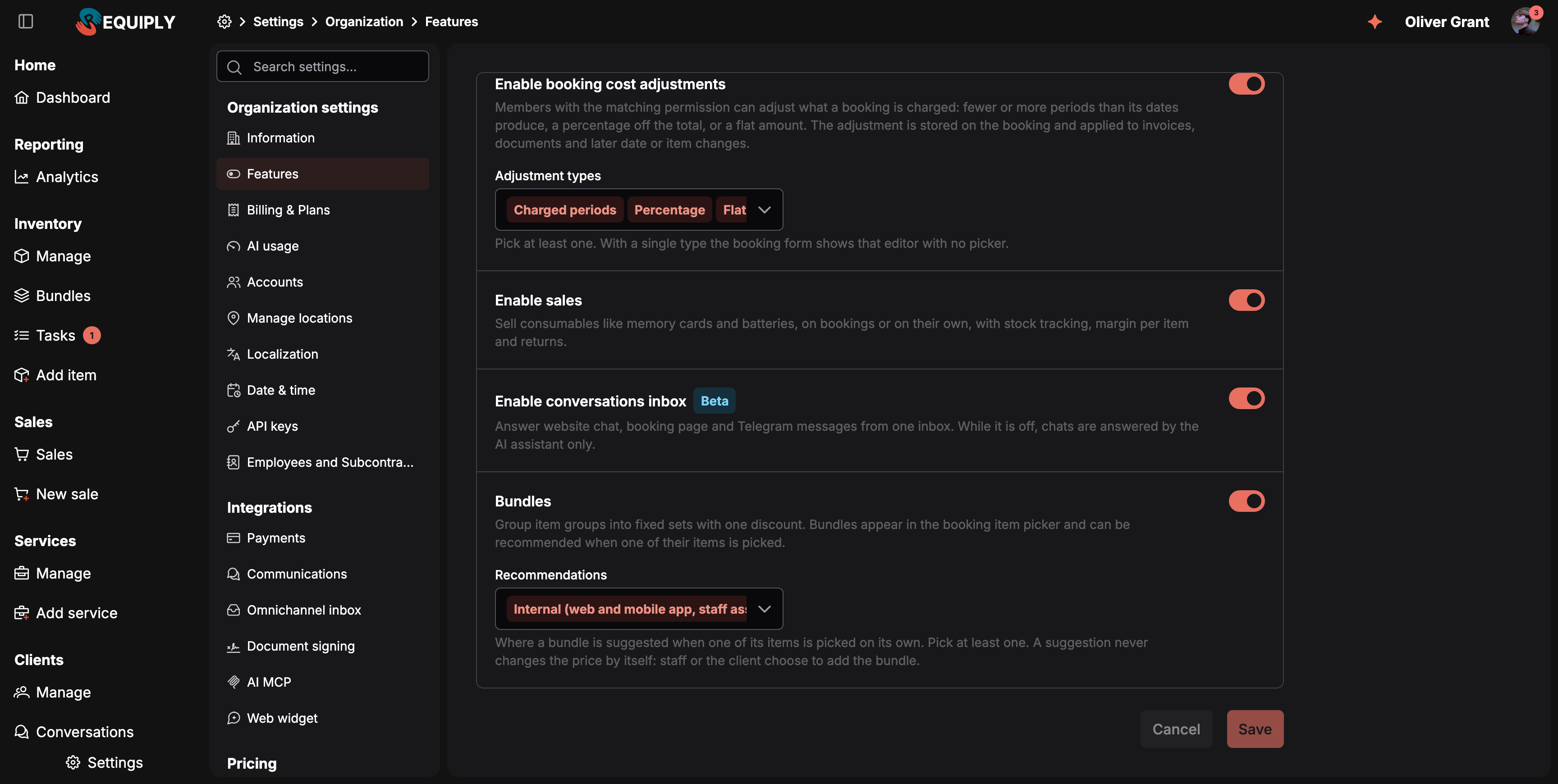
Bundles on the Features page, with the Recommendations setting under it.
Once the toggle is on, a Recommendations setting decides where a bundle is suggested when one of its items is picked on its own. Pick at least one. A suggestion never changes the price by itself: staff or the client choose to add the bundle.
| Option | What it does |
|---|---|
| Internal (web and mobile app, staff assistant) | Staff see a hint in the booking form when a picked item is part of a bundle, and the Requiply Assistant can suggest it. With this off, bundles are still offered in the staff item pickers, only the hints disappear. |
| External (client booking page, customer AI) | Clients see the bundle on the client portal and the portal booking assistant can offer it. With this off, the portal shows no bundles at all and the public API returns no bundles to publishable keys. |
Both options are on by default. Press Save at the bottom of the page.
Who can manage bundles: creating, editing, deleting and generating photos needs the Allow inventory management permission (see Permission groups). Every member can see bundles and book them.
The bundles list
Open Inventory → Bundles in the sidebar, or go to https://app.requiply.com/inventory/bundles. The menu entry appears only while the feature is on.
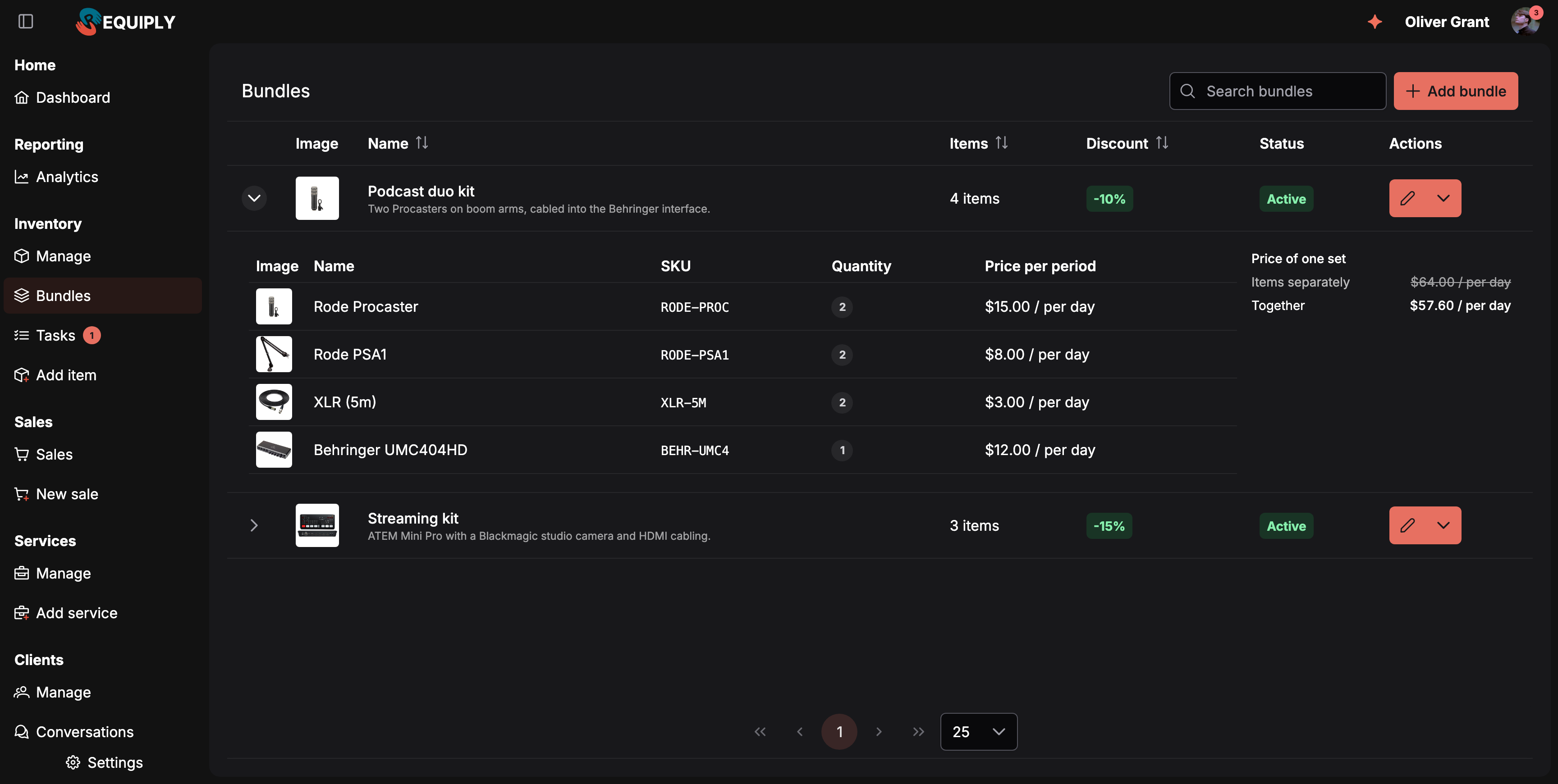
Expand a row to see what one set contains and what it costs with and without the bundle discount.
| Column | Shows |
|---|---|
| Image | The bundle photo, or the photo of its first item when the bundle has none. |
| Name | The bundle name, with its description underneath. |
| Items | How many different items the set contains. |
| Discount | The bundle discount, as a green -10% tag. |
| Status | Active, Archived, or Incomplete (see below). |
| Actions | The pencil opens the bundle for editing; the arrow next to it offers Delete. |
Use Search bundles to filter by bundle name, description or the names of the items inside. Expanding a row shows each item with its SKU, quantity per set and price per period, and a Price of one set panel with Items separately (struck through) and Together for every price type.
Incomplete bundles
If one of a bundle's items is archived or is no longer owned, the bundle turns Incomplete: One of its items was archived or is no longer owned. The bundle is hidden from bookings until you replace it. It disappears from the item pickers, the client portal and the AI assistants until you open it and replace that item. Bookings that already contain the bundle keep it.
Deleting a bundle
Choose Delete from the row's actions. Bookings that already include it keep their items and prices. A bundle that was never booked is deleted with its photos. A bundle that is used on a booking is archived instead, so its history stays intact: Bundle Podcast duo kit is used on bookings, so it was archived. Archived bundles stay in the list but are no longer offered for booking.
Creating or editing a bundle
Click Add bundle (or the pencil on an existing bundle). The form is on the left and a live Preview card on the right shows the bundle the way it will look, with its price per set.
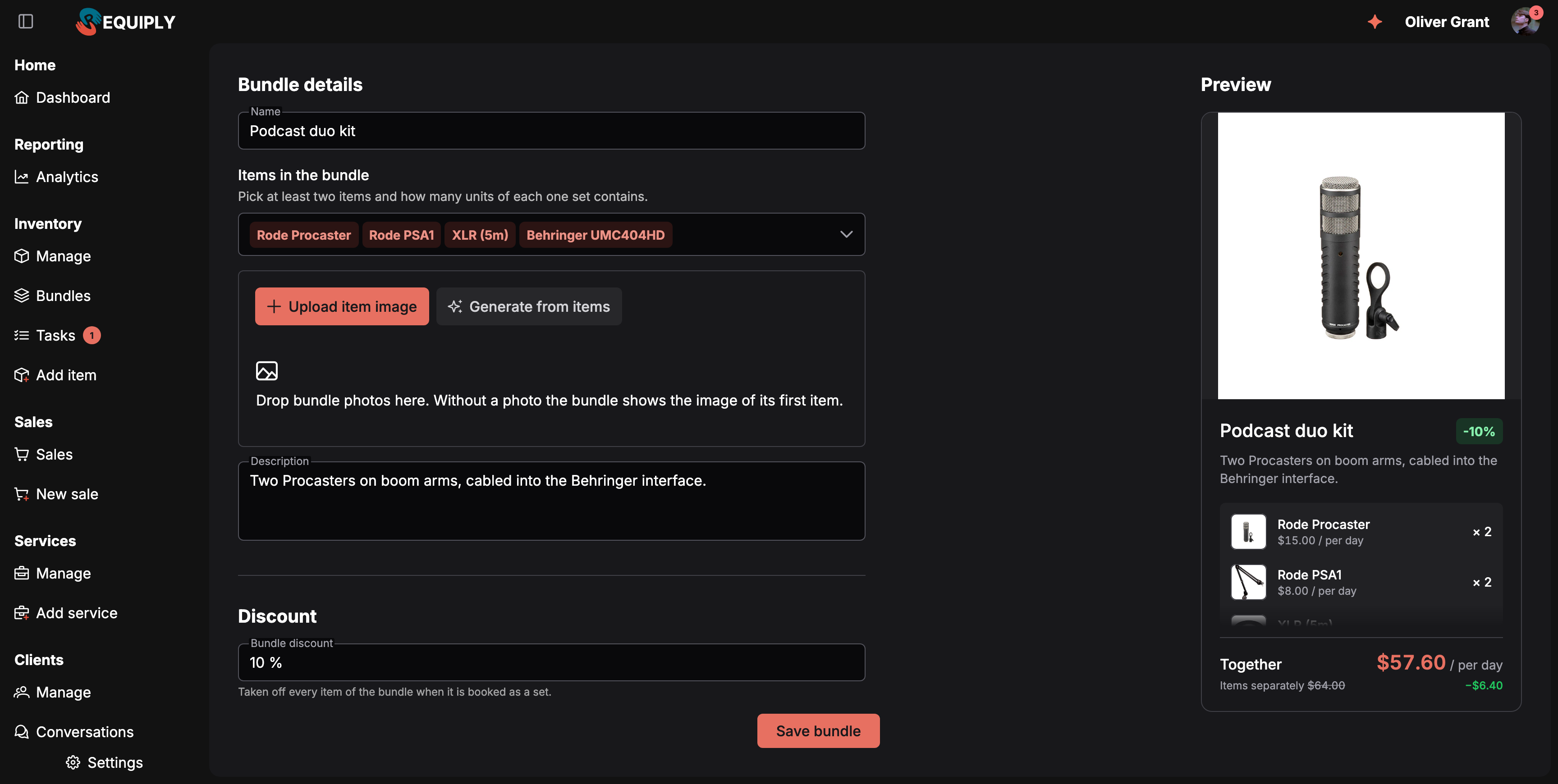
The preview updates as you pick items and set the discount.
| Field | What to enter |
|---|---|
| Name | Required, for example Podcast duo kit. Clients see it on the portal. |
| Items in the bundle | Pick at least two items and how many units of each one set contains. Use the stepper next to each item for its quantity per set, for example 2 microphones and 1 interface. Only items you own can be added: goods for sale and subrental products cannot be part of a bundle. |
| Photos | Up to five square photos, one of them marked as the main photo. Without a photo the bundle shows the image of its first item. Generate from items creates one with AI, see below. |
| Description | Optional. A line about what the set is for, shown on the list, in the pickers and on the portal. |
| Bundle discount | A percentage from 0 to 100. Taken off every item of the bundle when it is booked as a set. A bundle with 0 % is a quick way to book a standard kit without a discount. |
Click Save bundle. Saving never changes bookings that already include the bundle.
Generate a photo from the items
A bundle looks best with one photo of the whole set, but few rental companies have one. Generate from items takes the main photos of the items in the bundle and asks an AI image model for a clean studio shot of exactly those products together, on a light neutral background with no extra props or text.
- Enter the Name and pick at least two items that have photos.
- Click Generate from items. The preview shows the item photos merging while it works: Combining the items into one photo. Usually takes under a minute.
- The result is added as the main photo: Photo generated and set as the main one. Check it before saving the bundle.
- Check it, remove it with the cross if you do not like it, or click Save bundle to keep it.
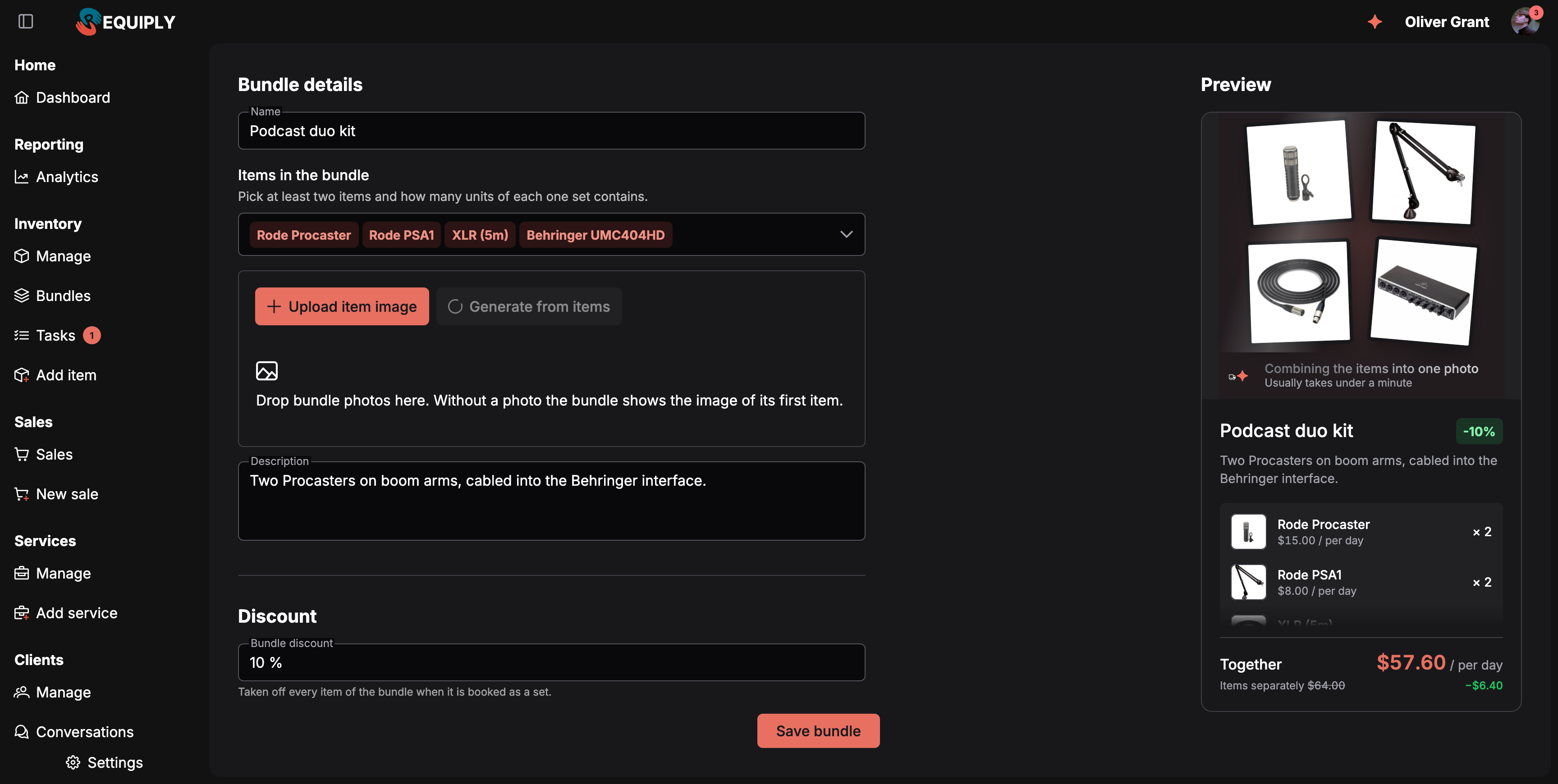
While the photo is generated, the preview shows the item photos being combined.
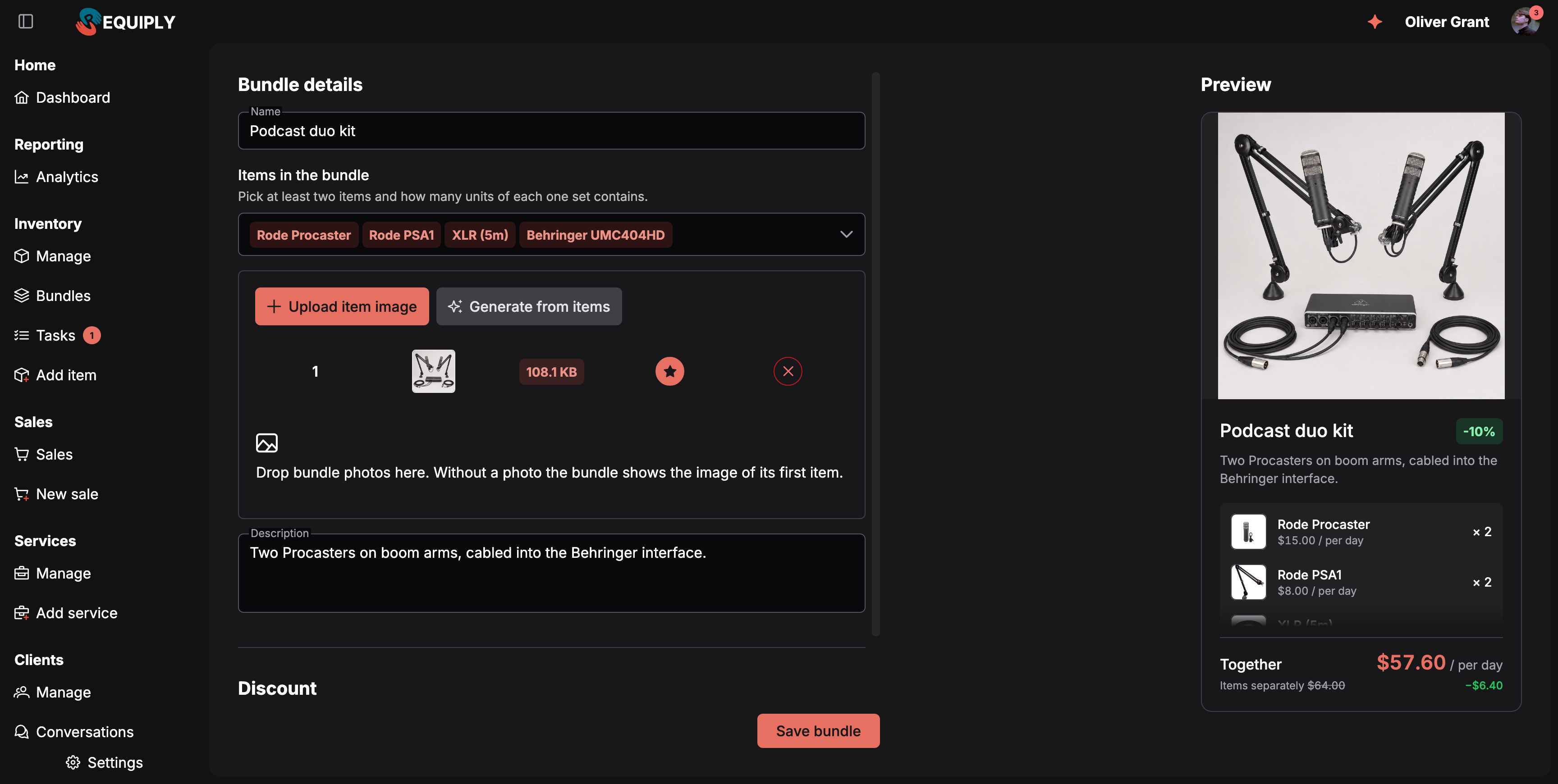
The generated photo becomes the main one. It is stored only when you save the bundle.
The button is disabled, with the reason in its tooltip, until the bundle has a name (Enter a name first) and at least two items with photos (Pick at least 2 items with photos first), and while five photos are already attached (Remove a photo to add a generated one).
How bundles are priced
The bundle discount applies only to the units that belong to the bundle. The order is:
- Each item is priced as usual: its price, the number of billable periods, its pricing tier.
- The bundle discount comes off the bundled units.
- The client's pricing discount applies on top.
- A percentage or amount booking cost adjustment applies last.
- A percentage deposit is taken from the rental after the bundle and client discounts. Items with a fixed deposit override keep their own deposit.
Extra units of the same item booked outside the bundle are charged at full price. The booking summary shows the saving as a separate Bundle discount row.
Availability is counted in sets. The number of free sets is decided by the scarcest item: if a set needs two microphones and only three are free for your dates, one set is available. Bundled and standalone units share the same stock.
Booking a bundle in the web app
On Add booking, bundles appear in the same Booking items list as your items, with a blue Bundle tag, the discount and the items they contain, for example -10% · 2 × Rode Procaster, …. Once dates are set, each bundle shows how many sets are free; a bundle with no free sets is greyed out.
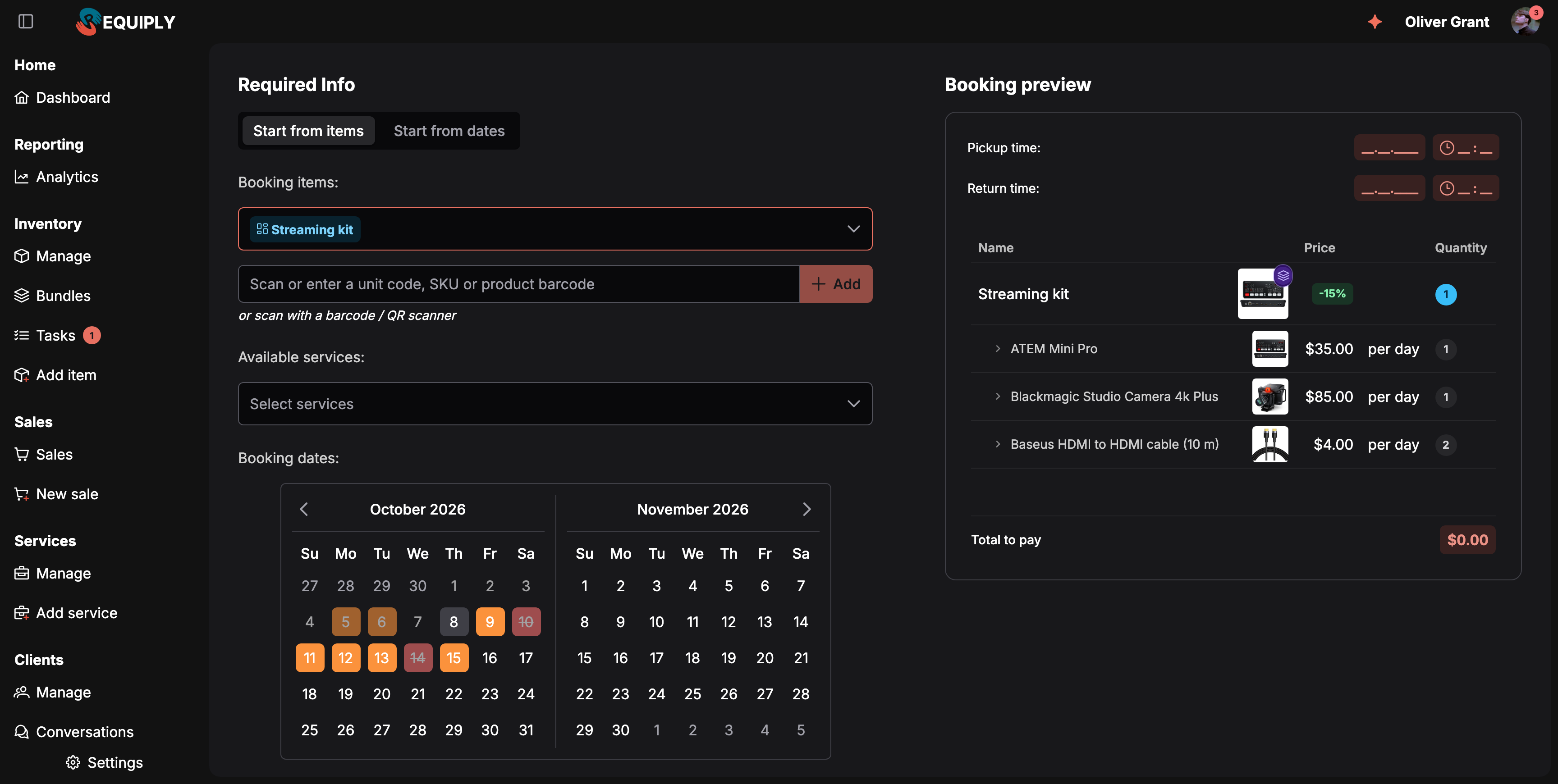
A picked bundle in the booking preview: the bundle row with its discount, and its items listed under it.
In the Booking preview the bundle is one row with a layers badge on its image and the discount in the price column; its items are listed under it with the units each one adds. The price summary shows a Bundle discount row.
The bundle hint
With Internal recommendations on, picking an item on its own that belongs to a bundle shows a hint under the item list:
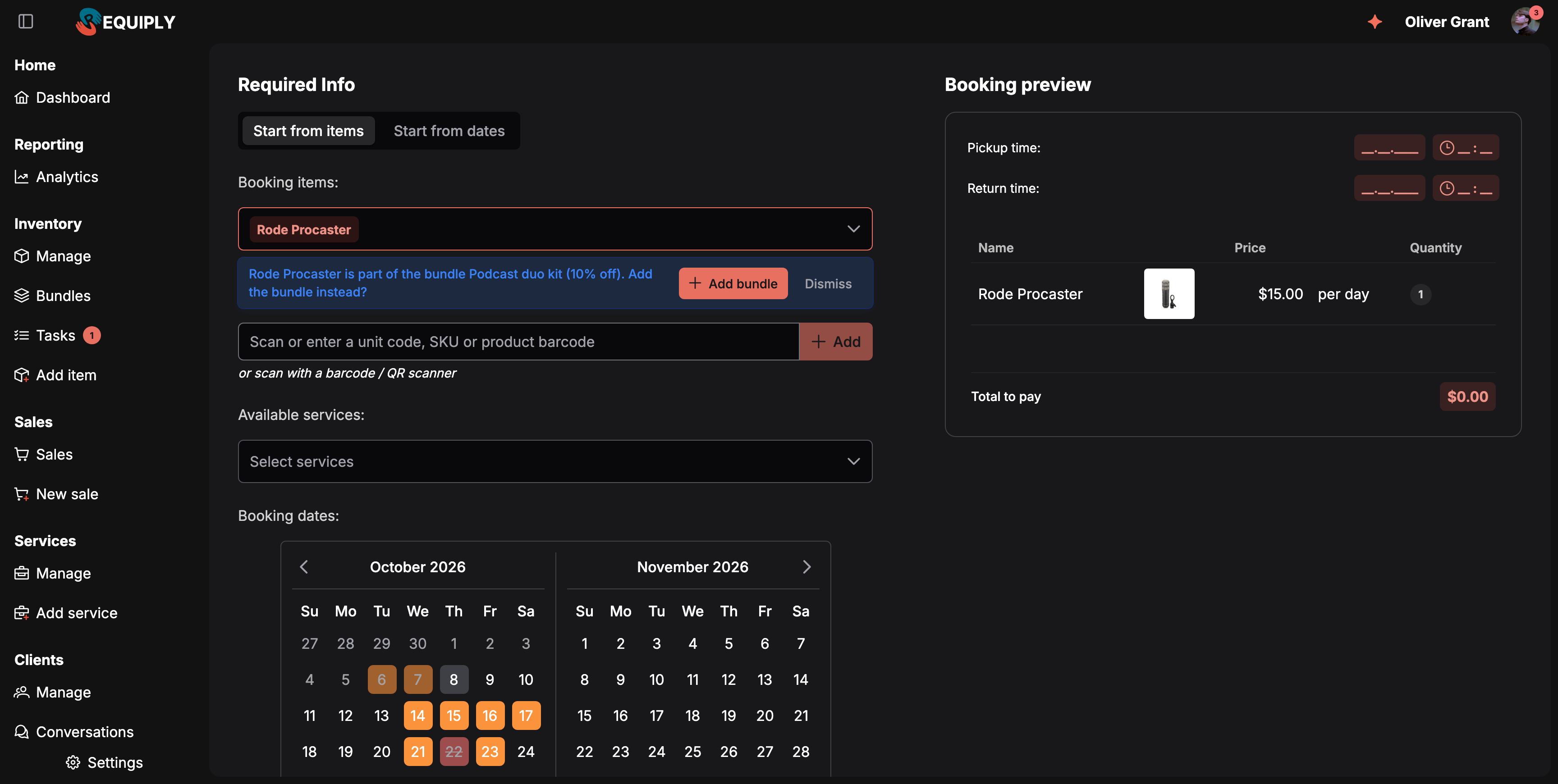
The hint offers the bundle when one of its items is picked alone.
- Add bundle removes that item line and adds one set of the bundle in its place.
- Dismiss hides the hint for this booking.
On the booking page
A booking that contains bundles shows a Bundles block at the top of its Items field: one card per bundle with its name, the Bundle tag, the discount and the number of sets, and a line per item such as 2 per set, 2 total. The item table next to it lists every unit as usual.
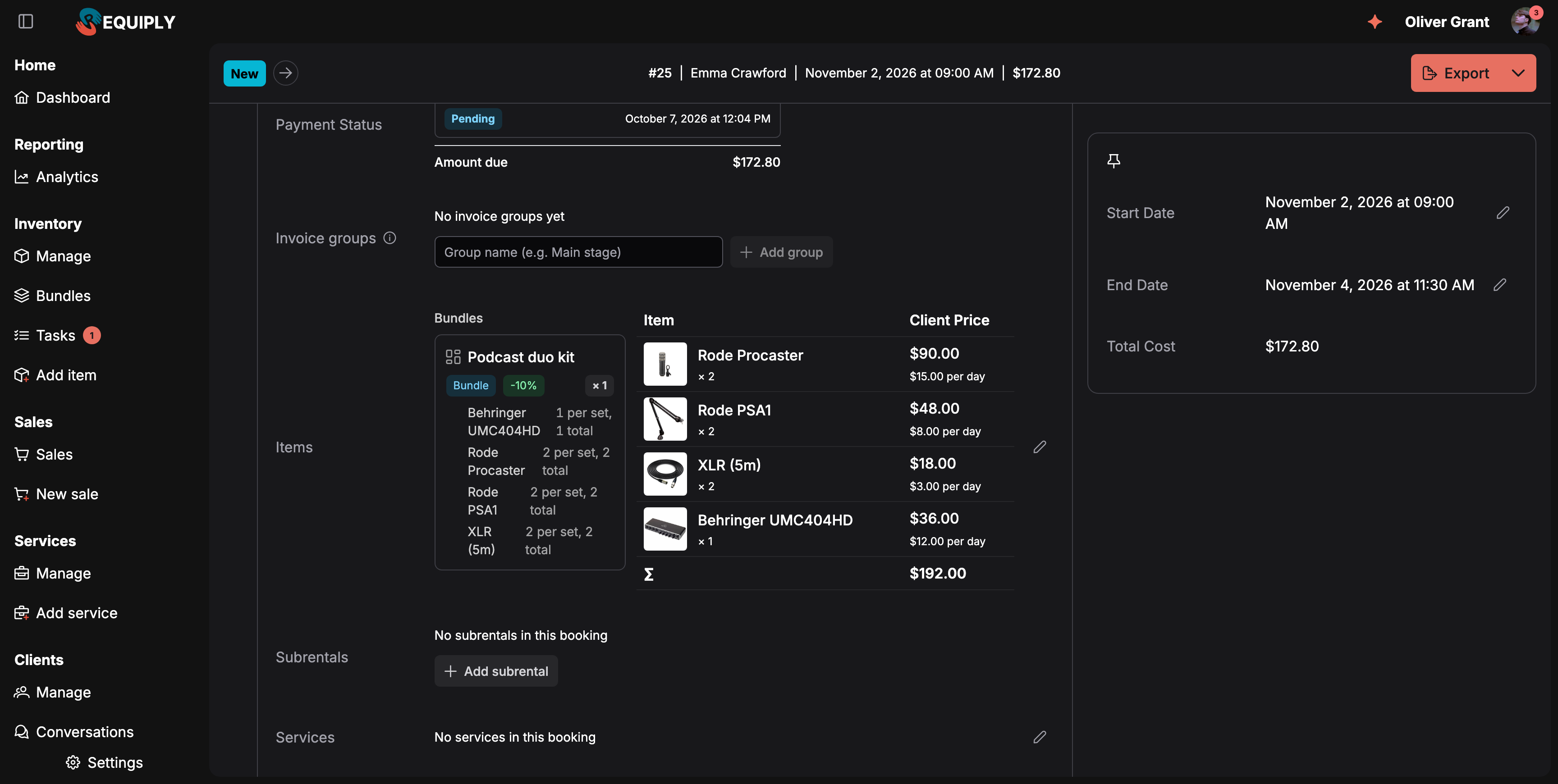
The Bundles block on the booking page shows what each set contains.
Changing a booking with bundles
On Edit booking items a booked bundle is one entry in the item picker, next to the items booked on their own:
- An item chip counts only the units booked outside bundles. Ticking a bundle takes matching standalone units into the set instead of adding new ones; unticking it removes the set's units.
- Unbundle on a ticked bundle turns the set into ordinary item lines: the units stay on the booking, the bundle discount goes.
- The Updated booking preview marks what changed with Added and Removed tags and the old and new quantity, and shows the new total before you save.
- Changing dates, services or the cost adjustment keeps the bundles and reprices them for the new values.
In the mobile app
- New booking: the items step shows a Bundles section above your items, each bundle with its photo, items, discount, free sets and a stepper. With Internal recommendations on, a banner offers the bundle when one of its items is picked: Rode Procaster is part of the bundle Podcast duo kit (10% off) with Add bundle and Not now. The confirm step lists the bundle and a Bundle discount row.
- Booking page: a Bundles section with each bundle and a Bundle discount row.
- Edit items: set steppers for bundles; item rows show 2 in bundles and stop at that floor. Unbundle turns a set into ordinary lines, and + on a bundle first regroups units already on the booking before adding new ones.
- Inventory tab: an Items / Bundles switch appears when the organization has at least one bundle. A bundle opens a read-only page with its photo, discount and items, each linking to its item page. Bundles are created and edited in the web app.
On the client portal
With External recommendations on, clients see bundles on the client portal:
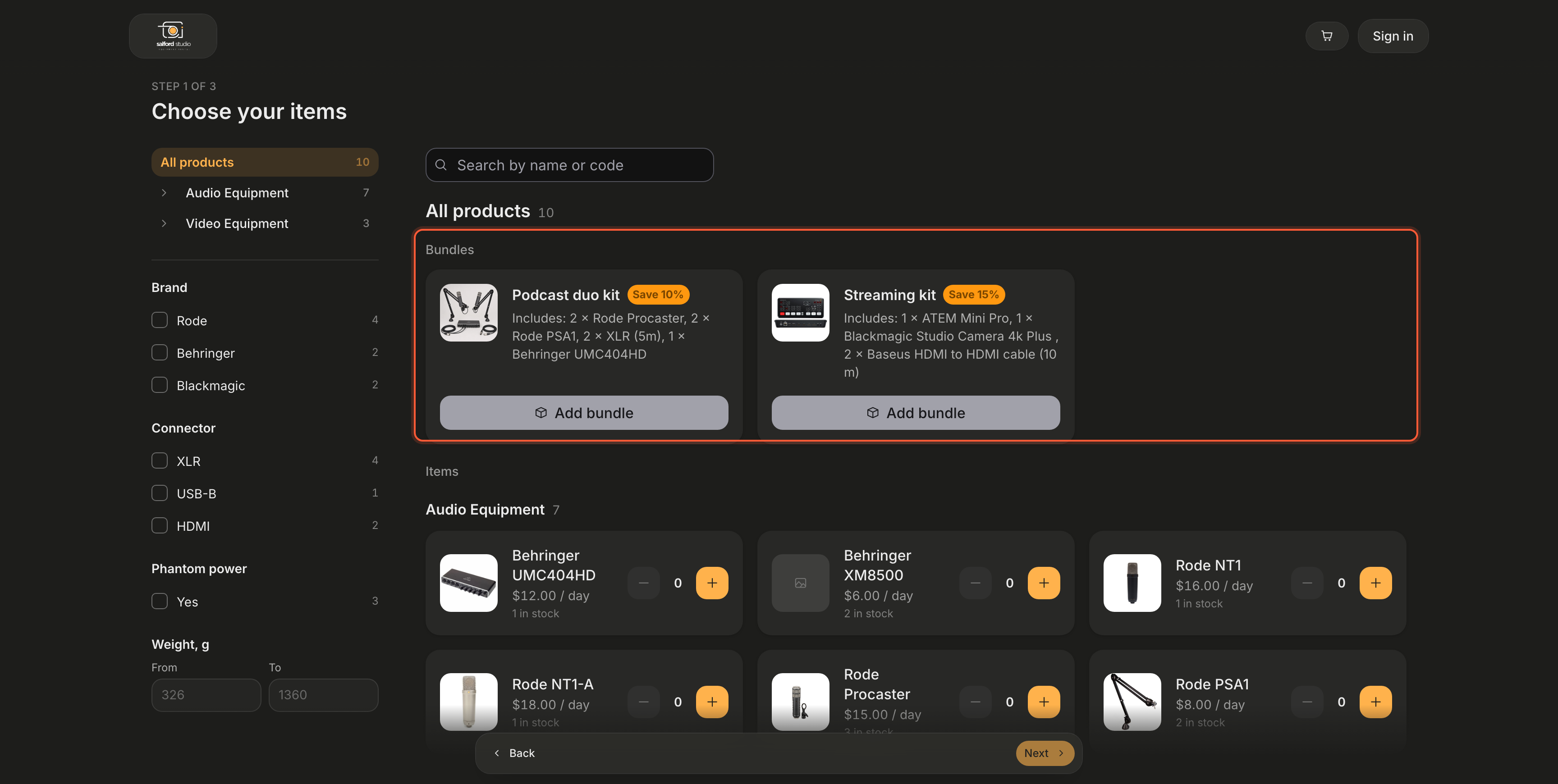
Bundles get their own section at the top of the portal catalog.
- Catalog: a Bundles section above the items, with every bookable set, its saving, Includes: …, the free sets for the chosen dates and an Add bundle button. The search box finds bundles by their name and by the items inside; inside a category only items are listed.
- Item page: a Book it as a set card for every bundle that contains the item. Add the bundle instead swaps the item in the cart for one set.
- Cart hint: when an item in the cart belongs to a bundle: Rode Procaster is part of Podcast duo kit: save 10% with the whole set, with Add bundle.
- Checkout: bundles with their discount and items, and a Bundle discount row in the price breakdown.
- Confirmation page and account: the booked bundle with its items, and a Bundle discount line above the total, so the lines add up to what the client pays.
- The portal booking assistant mentions a bundle and its saving before quoting, and can book it.
In documents, emails, messages and invoices
Bundles need no template changes. Wherever a booking's items are printed, each booked bundle adds one discount row after the items:
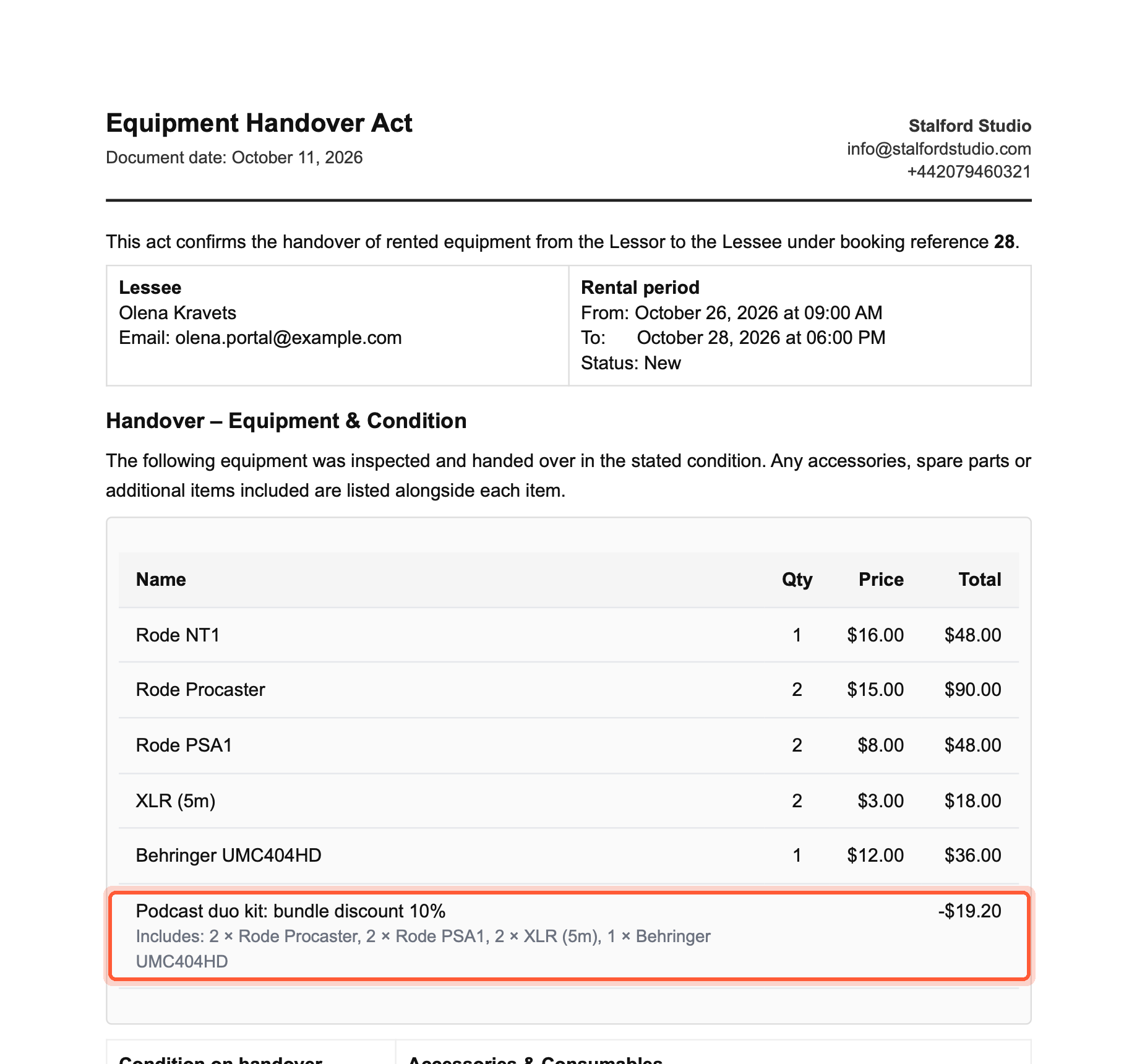
An existing handover act template, unchanged: the bundle row appears on its own and the table adds up to the booking total.
| Where | What is printed |
|---|---|
| Document templates (contracts, acts, quotes) | {{bookingItems}} ends with Podcast duo kit: bundle discount 10%, the set's contents in small grey text and the negative amount in the Total column. A table without a Total column puts the amount in the label. See export templates. |
| Email templates | The {{bookingItems}} table gets the same row. See email templates. |
| Message templates (SMS, Telegram, Viber) | The numbered item list ends with an unnumbered line, for example Podcast duo kit: bundle discount 10% — -$19.20. |
| Invoice PDF | One Bundle discount: Podcast duo kit (10%) row per bundle under Subtotal, before the client discount. See Booking documents. |
The variable {{bookingBundleDiscount}} prints the total bundle saving (for example $19.20) and is empty when no bundle is booked, so {{#if bookingBundleDiscount}}You saved {{bookingBundleDiscount}} with a bundle.{{/if}} shows the line only when it applies.
AI assistants, MCP and the API
- The Requiply Assistant and the MCP connection for Claude and ChatGPT can list bundles, check how many sets are free for given dates, and quote or create booking requests with bundles. They cannot create or edit bundles; that is done in the app.
- The public API lists bundles (
GET /bundles/list,GET /bundles/{id}) and acceptsbundleson price quotes and booking creation; the TypeScript SDK supports them from version 0.2.1. Secret keys see bundles whenever the feature is on; publishable keys only with External recommendations on.
Common scenarios
A podcast studio rents two-person kits
Create Podcast duo kit with 2 microphones, 2 boom arms, 2 cables and 1 interface at 10 %. Staff pick the kit in one click, the portal offers it on every microphone page, and the calendar shows the kit as unavailable as soon as any piece runs out.
A standard kit without a discount
Set Bundle discount to 0 %. The bundle becomes a shortcut that adds the right items in the right quantities, and nothing changes on the price.
You retire an item that is part of a kit
Archive the item as usual. The bundle turns Incomplete and is hidden from bookings. Open it, replace the item with its successor and save, and the bundle is back.
Tips and cautions
Add item
Create a new product in your rental catalog: name, category or subcategory, description, photos, price (0 allowed), deposit, quantity of units, and whether you own the stock or source it from a supplier.
Overview
Organize your equipment into categories and subcategories (up to five levels), set their order, and see how many products each one holds. The tree drives inventory filters and the catalog customers browse on the client portal and your website.