

Mobile app
The Requiply mobile app puts your bookings, inventory, clients and conversations on your phone, so the team can work at the counter, in the warehouse or on a delivery. It uses the same account and the same data as the web app: a booking created on the phone shows on the web at once, and the other way round.
The app is free with every plan. The current version is 1.1.7, the same on iPhone and Android.
Pages in this section
- Bookings on the phone: the bookings list with filters, creating a booking step by step, and the booking page with status changes, adjustments, checklists and documents.
- Scanning barcodes and QR codes: the camera scanner, the flashlight, and typing a code by hand.
- Slow internet and no connection: how the app keeps working on a weak signal or during a power outage, and the Keep data on this phone switch.
- Conversations and comments: answering clients from the phone, the long-press menu on messages, the photo viewer and comments.
Installing the app
| Phone | Where to get it |
|---|---|
| iPhone and iPad | App Store |
| Android phones and tablets | Google Play |
Search for Requiply in the store, or open the links above on your phone. The setup guide on the web links to both stores too.
Signing in
- Open the app and enter your Email and Password, then tap Log In.
- If you sign in to the web app with Google, tap Continue with Google instead. On iPhone you can also use Continue with Apple.
- The app shows Preparing your amazing inventory (or bookings, clients, and so on) while it loads your organization, then opens on your first tab.
If the Google or Apple account is not linked to a Requiply account, the app says This account isn't linked to a Requiply account. Please sign in with your Requiply email and password instead. Forgot the password? Tap Forgot password?, see Signing in and resetting your password.
You stay signed in until you tap Sign Out in your profile. A weak or dropped connection does not sign you out.
The screen at a glance
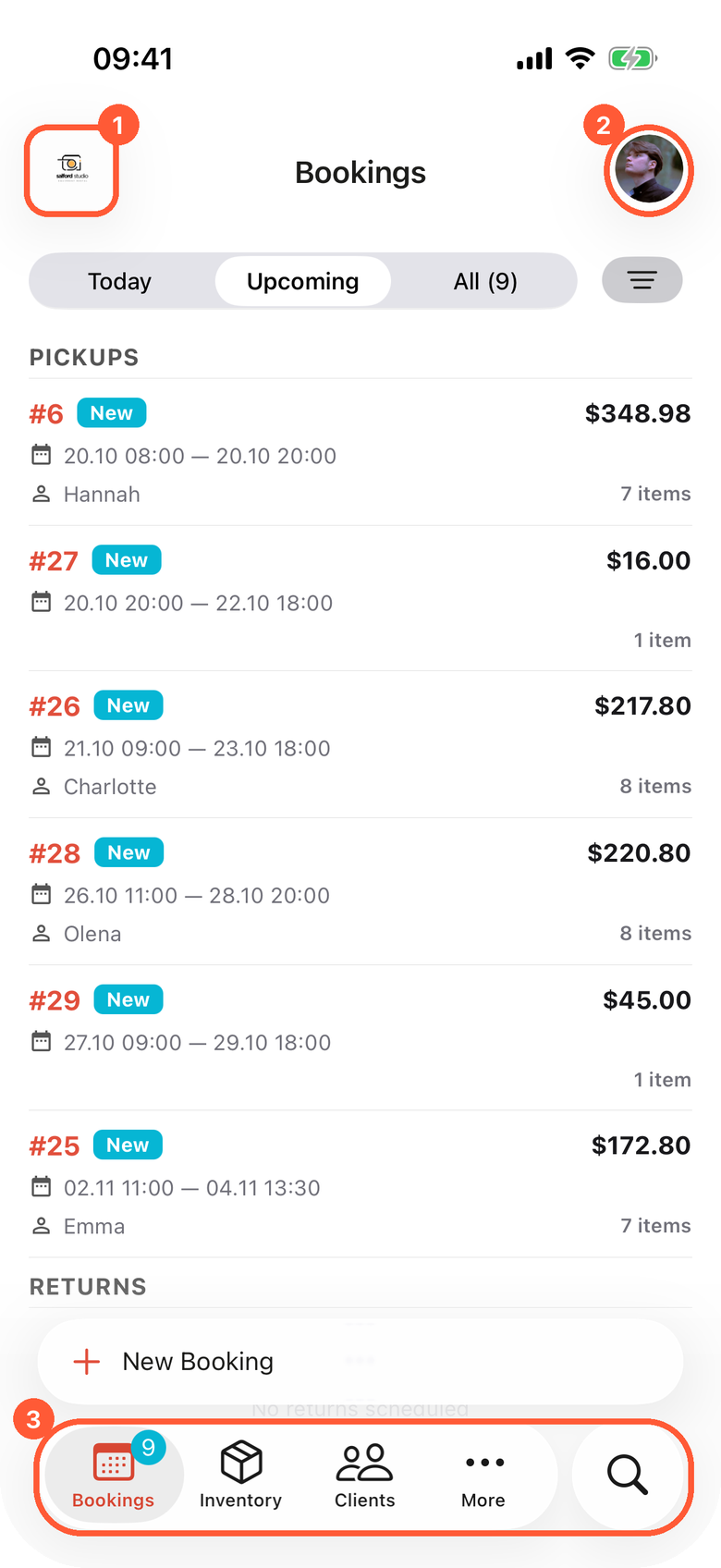
1 Organization logo. 2 Your avatar, which opens the profile. 3 The tab bar with up to three tabs, More and Search.
- The logo in the top left corner opens the organization card: its name, your plan (Core, Advanced or Scale), and the organization's email and phone with a copy button.
- Your avatar in the top right corner opens your profile. A small colored badge on the avatar means the connection is weak or gone, see Slow internet and no connection.
- Pull down on any list (bookings, inventory, clients, conversations, calls, sales, tasks) or on a booking page to refresh it.
The tabs
Which tabs you can use depends on your permission group and on the features your organization has switched on. A tab you have no access to is not offered.
| Tab | What it does | Shown to |
|---|---|---|
| Inventory | Your products and bundles with photos, prices and stock. Open a product to see its units, their status and reservations (Today, Future, Past). Open a unit (SKU) to see its barcodes or Send to maintenance. | Members with inventory management |
| Bookings | Today's pickups and returns, upcoming bookings, and every booking, with filters. The New Booking button starts a booking. See Bookings on the phone. | Members with booking management |
| Clients | The client list with search. A client page shows their contacts with buttons to message them in WhatsApp, Viber, Telegram or SMS, current and past bookings, conversations and custom fields, with Edit Client. | Members with booking management |
| Tasks | Inventory tasks such as maintenance, with status, assigned employees and expenses. | Members with inventory management |
| Analytics | Revenue, utilization and top items for a period. See Analytics. | Members with access to reporting |
| Calls | The Binotel call log with missed calls and recordings. See Calls. | Members with client management, when Binotel is connected |
| Sales | Sales of goods, with New sale. See Sales. | When Sales is on (Advanced plan and up) |
| Conversations | The client inbox. See Conversations and comments. | When the conversations inbox is on |
| Assistant | Requiply Assistant, the AI helper. See Requiply Assistant. | Everyone |
| More | Chooses which tabs show in the tab bar. Always shown. | Everyone |
| Search | Searches inventory, bookings and clients in one place, with the scan button. Always shown. | Everyone |
A badge on a tab counts what needs attention: new bookings on Bookings, missed calls on Calls, conversations waiting for an answer on Conversations.
Choosing the tabs
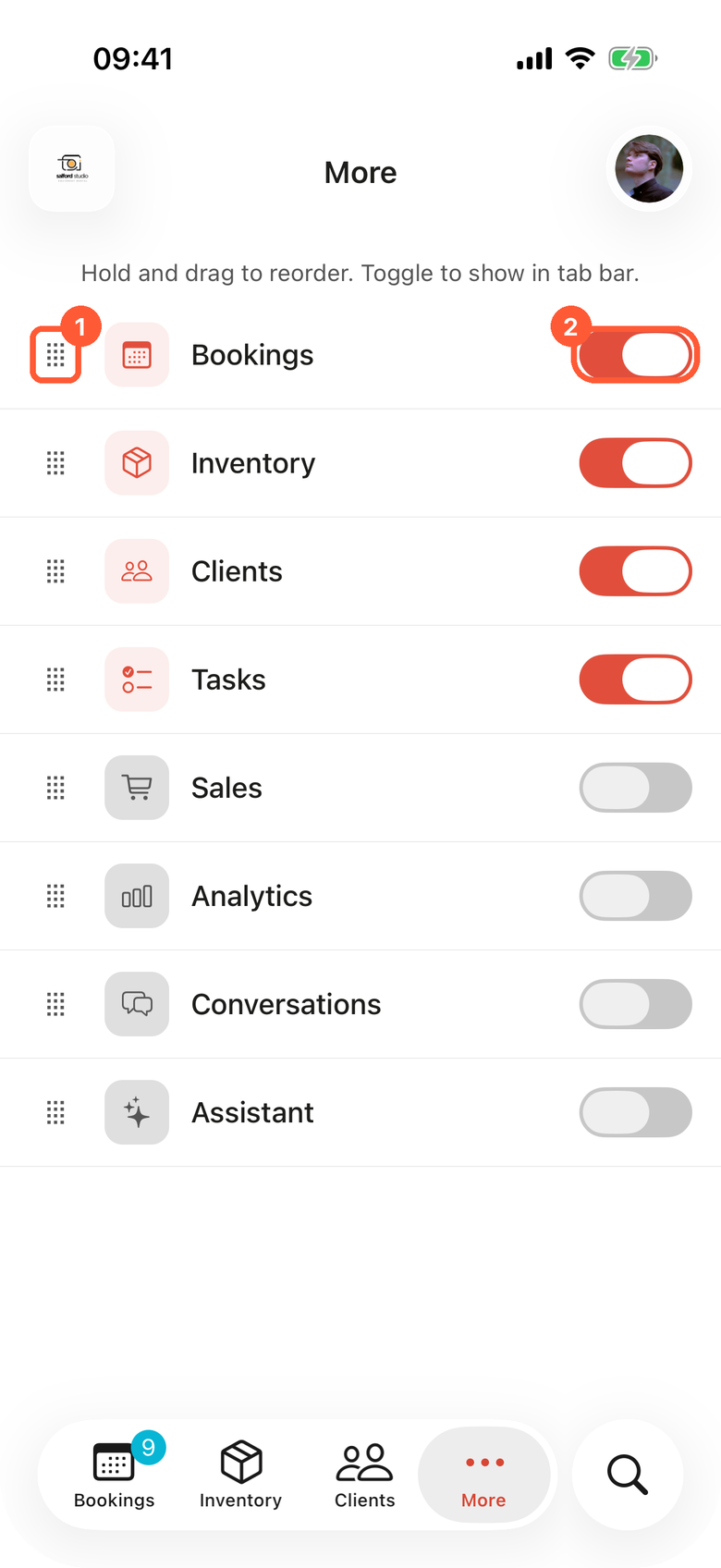
1 Hold and drag a row to change the order. 2 Switch a tab on to put it in the tab bar. A phone shows the first three switched-on tabs.
Open More. The screen says Hold and drag to reorder. Toggle to show in tab bar.
- Switch a tab on to add it to the tab bar, off to remove it.
- Hold the handle on the left of a row and drag it to change the order of the tabs.
- Tap a row to open that page without adding it to the tab bar. It opens with a back button.
On a phone, up to three tabs can be on, plus More and Search. Switch one off before you switch another on. On a tablet up to seven fit. New installs start with Inventory and Bookings on a phone, and four tabs on a tablet. Your choice is saved on that device.
Search
The Search tab has three sections: Inventory, Bookings and Clients. Type a name, a booking number, a phone number or a SKU. The round scan button opens the camera scanner, see Scanning barcodes and QR codes.
Your profile and settings
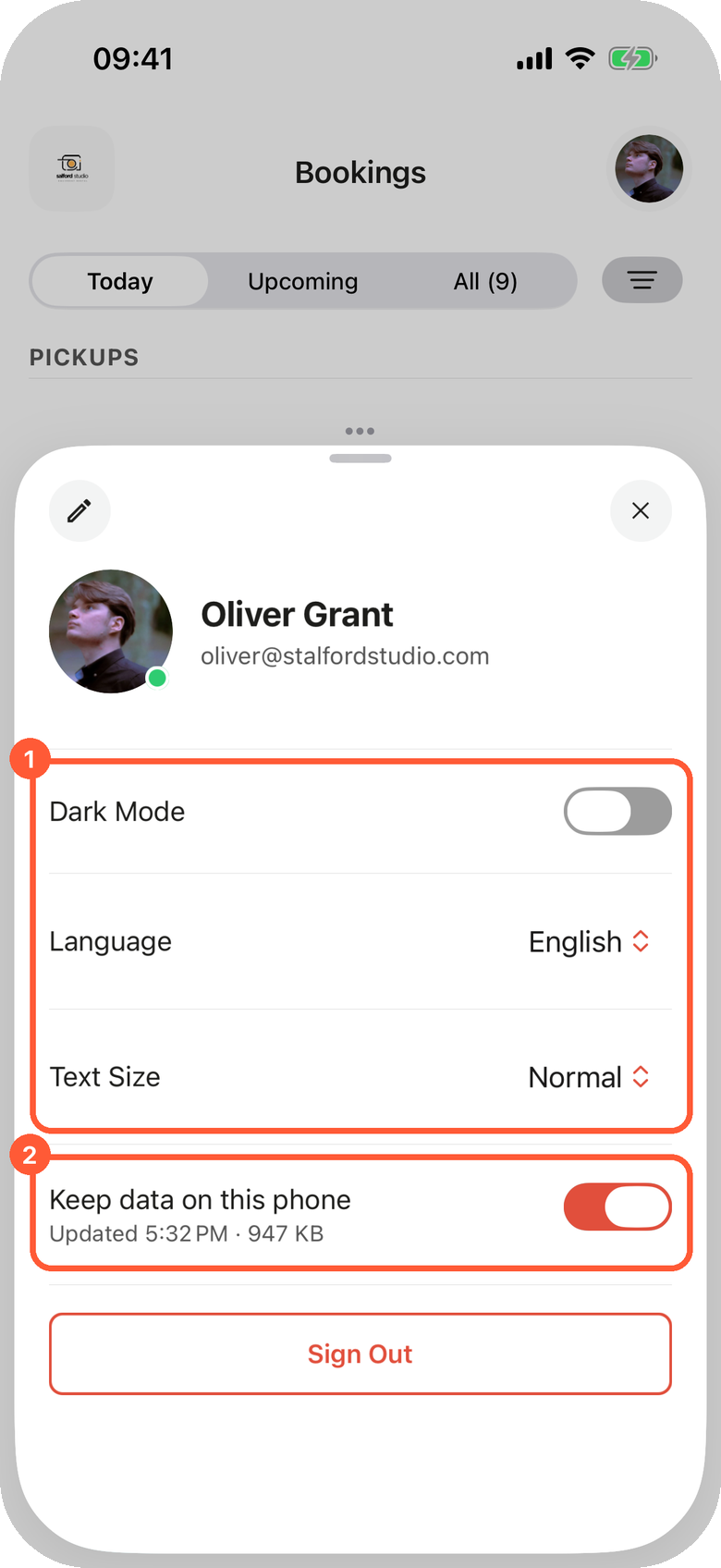
1 Appearance and language for this phone. 2 The copy of your data kept on the phone, with the time of the last update and its size.
Tap your avatar to open the profile.
| Setting | What it does |
|---|---|
| Pencil (top left) | Opens Edit profile: change your photo with Choose from library or Take photo, and your first and last name. The change shows on the web too. |
| Dark Mode | Switches the app between light and dark. |
| Language | English or Українська. The app starts in your phone's language and remembers your choice. |
| Text Size | Normal, Large or Extra Large. On a tablet, very large text shows lists as cards instead of tables so nothing is cut off. |
| Keep data on this phone | Keeps an encrypted copy of products, units, clients and bookings on the phone, for weak signal and no connection. See Slow internet and no connection. |
| Sign Out | Signs out of the app on this phone. It also deletes the copy of your data from the phone. |
These settings belong to the phone, not to your account: a second phone can have its own language or theme.
Phones and tablets
The app works on iPhone, iPad, Android phones and Android tablets, in portrait and landscape.
On a tablet (an iPad or an Android tablet) lists turn into tables with columns. On iPads from 11 inches and Android tablets of similar size, list screens split in two: the list on the left and the selected booking, client, product, conversation, sale or task on the right. Until you pick one, the right side says Select a booking. Its details open here.
Forms such as New Booking or Filter & sort open as a centered sheet on a tablet instead of covering the whole screen.
Push notifications
The app sends push notifications when you are assigned a task or a service, when someone mentions you or replies to your comment, about conversations you follow, and when a workflow sends a push to you. Allow notifications when the phone asks after you sign in. Tapping a notification opens the task, booking, comment or conversation. See Notifications for the full list and the switches.
Common scenarios
Setting up a phone for a warehouse worker
The worker signs in with their own login. In More they switch on Bookings and switch off what they do not need, so the tab bar shows Inventory, Bookings, More and Search. An admin gives their permission group inventory and booking management. If the warehouse has a weak signal, they turn on Keep data on this phone while still on good Wi-Fi.
A manager who answers clients on the go
They switch on Conversations and Clients in More and allow push notifications. New messages arrive as pushes; a tap opens the conversation.
Reading small text at the counter
Set Text Size to Large in the profile. Every screen of the app uses the bigger type, and buttons that no longer fit side by side stack under each other.
Tips and cautions
Add or edit export template
Build a printable rental document: give it a name, lay out the body, and insert booking, customer, item table, and organization variables.
Bookings on the phone
Bookings in the Requiply mobile app: today's pickups and returns, filters and sorting, creating a booking step by step, and the booking page with status changes, price and deposit adjustments, handover checklists and documents.