

Sidebar menu layout
The main sidebar of the web app can be rearranged. Put Bookings at the top if that is where your day starts, hide Analytics if you never open it, or give the whole warehouse team a menu with only what they use. Nothing is removed from Requiply: the layout only changes what the menu shows and in what order.
There are two places to set it:
| Layout | Where | Who it affects |
|---|---|---|
| Your own layout | Account page from the avatar menu, section Menu layout, /account | Only you. |
| Group layout | Permission groups, open a group, section Menu layout | Everyone in the group, as their starting point. |
How the app is laid out
Since version 1.3.1 every page of the web app sits in one rounded page card. The top bar and the sidebar are drawn directly on the background around it, without borders, so the page itself stands out. In Settings, the settings menu is a second card of its own next to the page card.
- Collapse and expand the sidebar with the panel button at the top left, next to the logo. Collapsed, the sidebar shows only icons; hover one for its name. Short lines separate the sections.
- Phones and tablets start collapsed. On a screen narrower than a laptop (under 1024 pixels), the sidebar starts collapsed so the page gets the room. On a wider screen it starts expanded.
- Your choice is remembered in this browser for a year and always wins over the screen size. Clicking Settings at the bottom of the sidebar collapses the main menu, and that also counts as your choice. Expand it again with the panel button.
The layout below changes which sections and pages the sidebar shows and in what order. It works the same with the sidebar collapsed or expanded.
Changing your own menu
- Click your avatar in the top bar and open Account.
- Scroll to Menu layout. Under Main menu, every section of your sidebar is a card with its pages inside.
- Rearrange it:
- Drag a section or a page by its grip (≡). Sections move among sections. Pages move only inside their own section.
- Or hover a row and use the arrows, Move up and Move down.
- Click the eye, Hide from the menu, to hide a page or a whole section. Hidden rows stay in the editor, dimmed and struck through, with the eye shown so you can click Show in the menu later.
- Click Save at the bottom of the page. The sidebar changes right away.
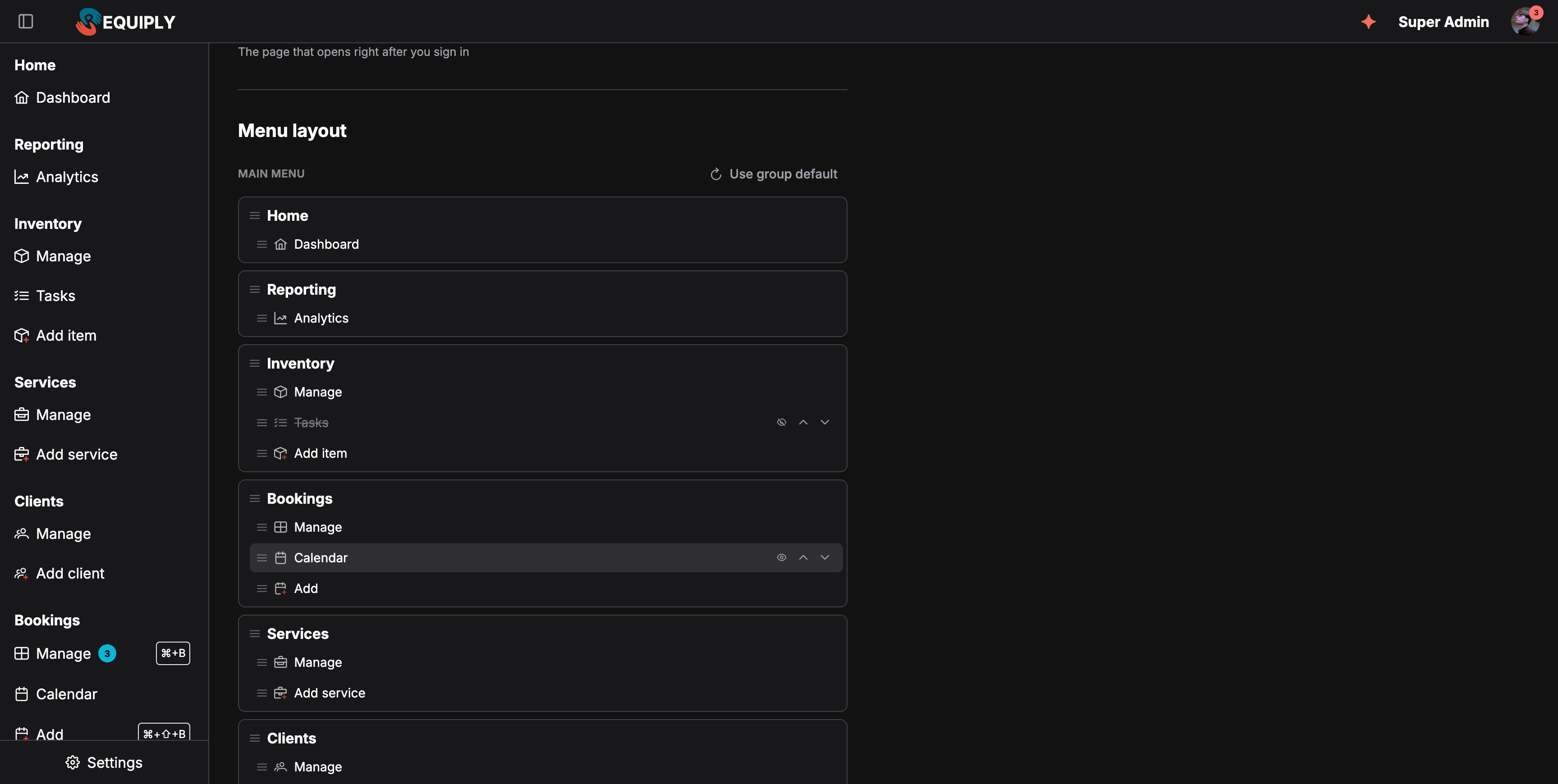
Your own layout on the Account page: Tasks hidden and Bookings moved above Services. The sidebar on the left updates after Save.
Use group default, at the top right of the editor, drops your changes and goes back to your group's layout. It appears once you have a layout of your own. Press Escape while dragging to cancel the drag.
Hiding a whole section hides all of its pages. A section with no visible pages disappears from the sidebar.
On a touch screen, the eye and arrow buttons are always visible, because there is no hover.
Setting a layout for a group
Administrators set a layout for a whole permission group under Settings → Organization → Accounts → Groups. Open the group and scroll to Menu layout under Permissions. The editor works the same way and lists only the sections the group's permissions open. Reset to default returns to the standard order, and the group's Save button stores it.
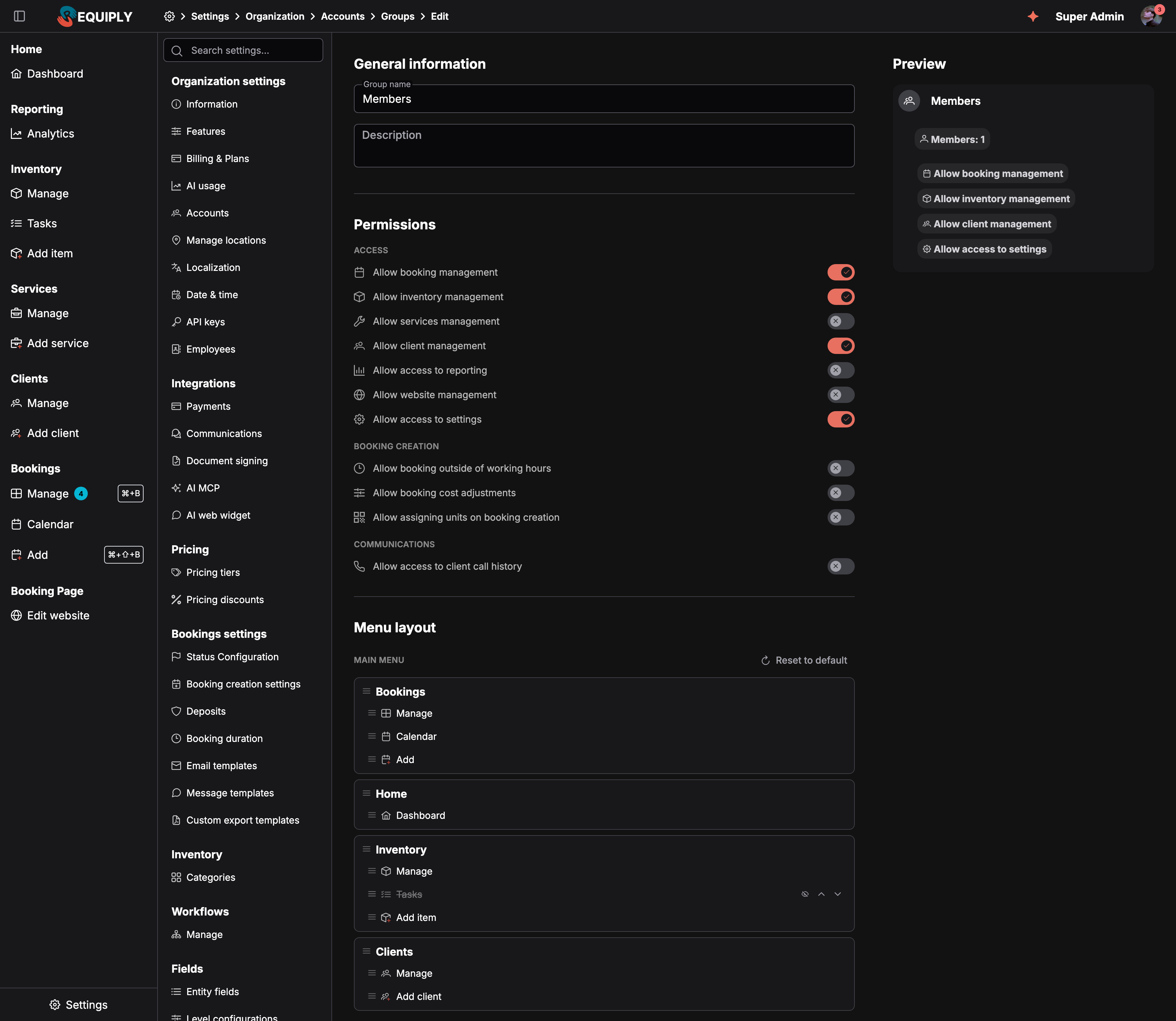
A group layout. Members of this group see Bookings first and no Tasks page.
How the layouts combine
Requiply builds each person's sidebar in three steps:
- The standard menu, filtered by the person's permissions.
- The group layout, if their group has one.
- Their own layout, if they have one.
A few rules keep this predictable:
- Pages the group hides stay hidden. They are left out of the person's own editor, so a member cannot bring them back. A member can hide more pages for themselves.
- A layout never shows a page the permissions do not grant. It only orders and hides what the person can already open.
- New pages appear automatically. A section or page added to Requiply later, or opened by a new permission such as Allow access to reporting, is added after the ones your layout lists. Optional sections such as Sales are the exception, see below.
- Hiding is not a permission. A hidden page still opens from a link or a bookmark. To stop someone from using a page, turn off the permission in their group.
- A layout identical to the default is not stored, so later changes to the group layout reach that person.
Optional sections such as Sales
Sections that belong to an optional module, today only Sales, are opt-in for anyone who already saved a layout. When an administrator switches on Sales, a member with a saved layout (their own or their group's) does not get the Sales section in the sidebar until it is added in the editor. The layout you built stays exactly as it was. Members without a saved layout see the section straight away.
The administrator who switches Sales on sees this as a dialog, Sales is on, but not in your menu yet, with links to your account settings and to the User groups tab. To show the section, open the editor, find Sales (it is listed, hidden), click Show in the menu, and save. For a group, do it in the group's layout so every member gets it.
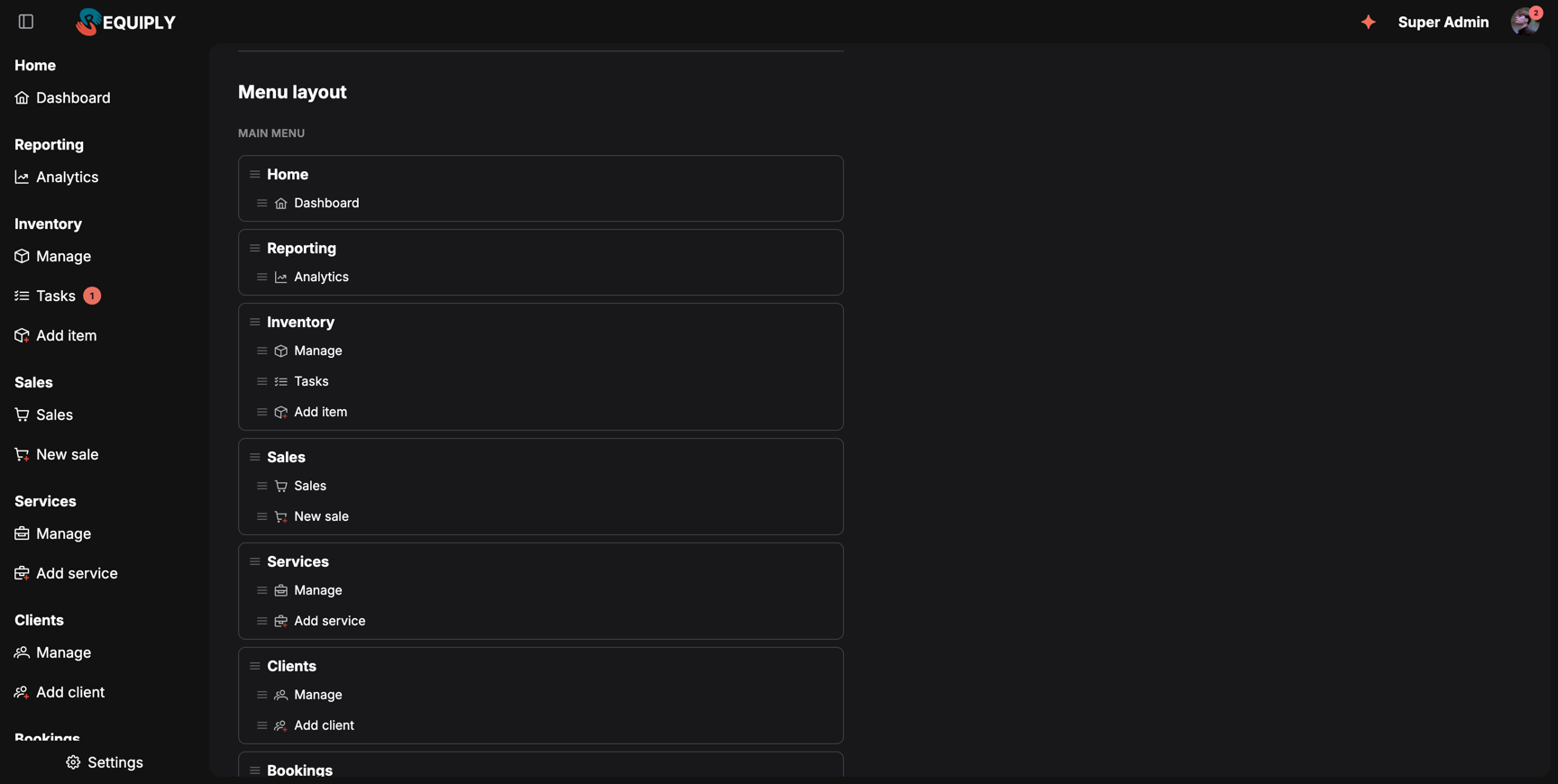
The Sales section in the menu editor, placed between Inventory and Services, the same as in the sidebar on the left.
The sections and pages
| Section | Pages |
|---|---|
| Home | Dashboard |
| Reporting | Analytics |
| Inventory | Manage, Tasks, Add item |
| Sales | Sales, New sale. Only while Sales is on and you have a Sales permission; New sale needs Allow selling items. |
| Services | Manage, Add service |
| Clients | Manage, Calls (with the Binotel integration), Add client |
| Bookings | Manage, Calendar, Add |
| Booking Page | Edit website |
The Add item, Add service, Add client, and Add booking entries use the section's own icon with a small colored plus (a box, a briefcase, people, and a calendar), so they are easy to tell apart when the sidebar is collapsed to icons.
The startup page
The Startup page list in Preferences, right above Menu layout, follows the order of your menu. It still offers pages you hid yourself, so you can open the app on a page you do not need in the menu. Pages your group hides are not offered, and a startup page the group hides later falls back to the Dashboard.
Common scenarios
A booking manager who lives in the calendar
Move Bookings to the top, move Calendar above Manage, and set Startup page to Bookings → Calendar. Save once, and every sign-in opens straight in the calendar with the booking pages at the top of the menu.
A warehouse team with a short menu
In the Warehouse group, hide Add item, Reporting, and Booking Page, move Inventory to the top, and save the group. Everyone in the group gets the same short menu, and can still reorder it for themselves.
Undoing your changes
Open Account, click Use group default above the editor, and save.
Tips and cautions
Detail page fields
Choose which rows appear on the detail page of an item, client, or booking, and which booking rows stay pinned beside the details.
Requiply Assistant
The in-app AI assistant (Requiply Assistant) on the web and in the mobile app: ask about your bookings, clients, inventory, debts, revenue and availability in plain language, get how-to answers from the Knowledge Base, and draft email, message and document templates. It reads your workspace data but never changes it.