

Add or edit email template
This page is where you create a new email template or update an existing one. Use it to define the subject, body, and invoice-attachment behavior for a reusable message that bookings and workflow automations can send to clients.
You reach it from Settings → Bookings → Email Templates by clicking Create template, the empty-state button, or the edit pencil icon on an existing template card.
The form is split into editable fields on the left and a sticky live Preview card on the right. The preview substitutes sample booking data, organization name, organization email, and the active currency into the subject and body so you can check how the email will look before saving.
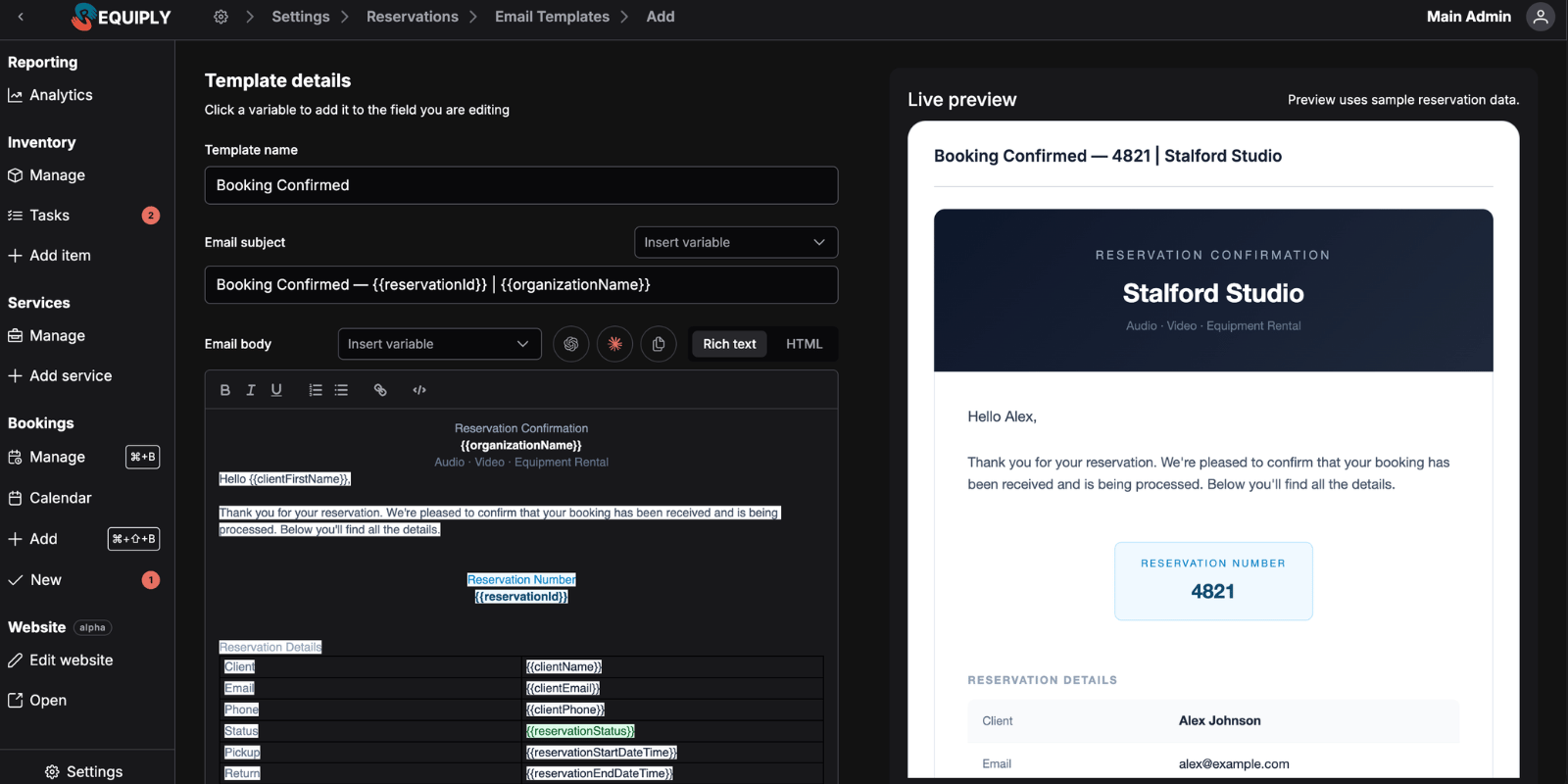
The add/edit form: name, subject, and body editor on the left with a sticky live preview on the right.
Add vs. edit
The same page is used for adding and editing email templates.
| Mode | What happens |
|---|---|
| Add email template | Creates a new template that can be used by bookings and workflows. |
| Edit email template | Updates the selected template's saved name, subject, body, and invoice toggle and shows the Delete action. |
When the page is saving, Requiply blocks the form with a loading overlay so the template cannot be submitted twice or changed mid-save. On the edit page, the form is shown after the template record has loaded.
If the template cannot be loaded, Requiply shows an error toast and returns you to the Email Templates page.
Template details
A short helper note above the fields reads: "Click a variable to add it to the field you are editing."
Template name
The display name for the email template.
- Required
- 1 to 50 characters
- Used as the card title on the Email Templates page and in workflow template pickers
- Shows Name is required when missing and Name is too long when over the limit
Use a name that is easy to recognize on cards and in workflow pickers, such as Booking confirmation, 24-hour reminder, or Payment received.
Email subject
The subject line of the outgoing email.
- Required
- 1 to 100 characters
- Includes an Insert variable dropdown next to the label so admins can append tokens like
{{clientName}}or{{bookingId}}directly - Variables are appended with a space separator and are not duplicated if the field already ends with the same token
- Shows Subject is required when missing and Subject is too long when over the limit
Email body
The HTML body of the email.
- No length validation
- Dual-mode editor controlled by a Rich text / HTML toggle
- Rich text mode uses a Quill editor with bold, italic, underline, ordered list, bullet list, link, and code-block formatting
- HTML mode uses a monospaced auto-resizing textarea for pasted templates or custom markup — Requiply provides a "full HTML editor for complete design control" so designer-built templates can be dropped in as-is
- Includes its own Insert variable dropdown that adapts to the active editor mode:
- In HTML mode, tokens are appended with a newline separator
- In Rich text mode, simple tokens are wrapped in their own paragraph block, and block-level variables (like
{{bookingItems}}or{{bookingServices}}) are appended after a blank paragraph so they sit cleanly on their own line
A short helper note reads: "Rich text is best for simple emails. Switch to HTML mode for pasted templates or custom markup."
Attachments
Under a divider sit the three attachment controls. Each one adds a PDF to every email the template sends, and each one puts a badge on the template's card in the list.
Attach invoice
A toggle, off by default. Helper text: "Automatically attach the booking invoice PDF to the email". When on, the Requiply-generated invoice goes out as invoice.pdf and the template's card shows an Invoice attached badge.
Attach booking QR code
A toggle, off by default. Helper text: "Automatically attach the booking QR code PDF to the email". The attachment is booking-qr.pdf, and its tooltip explains why it exists: "QR is scannable by the Requiply mobile app for quick booking access for staff". Useful on internal notifications, less so on client-facing ones. The card shows a Booking QR attached badge.
Attach documents
A multiselect listing your custom export templates, placeholder "Select export templates". Helper text: "Selected custom export templates are rendered for the booking and attached as PDF files".
Pick one or more, and every send renders those templates against the booking and attaches the results as PDFs. This is what turns a status-change email into a complete handover pack: the confirmation message, the invoice, and the rental agreement in a single email, with no one generating documents by hand.
The card shows a Documents attached badge, and the live preview footer reads "Document PDFs will be attached (n)".
Variable insertion
Both the subject and body editors include an Insert variable dropdown — the same variable toolbar that powers Requiply's email customization. The dropdown lists every supported token; clicking one inserts it at the end of the field you are currently editing. The full list of variables is documented on the Email Templates overview page.
AI assistance
Next to the body's variable dropdown, Requiply offers buttons that draft body content with AI:
- Create with Requiply Assistant opens the built-in Requiply Assistant in email-designer mode. It already knows this page's variables, your current draft, and your organization's name, brand color, and logo, and returns a draft with an Apply to editor button that fills the subject and body directly
- Open in ChatGPT opens ChatGPT in a new tab pre-filled with a drafting prompt that explains every available variable
- Open in Claude opens Claude in a new tab with the same prompt
- Copy prompt copies the prompt to the clipboard so you can paste it into another tool
Only Create with Requiply Assistant writes back to the form. The other three are copy-and-paste round trips — paste the result into the body editor once the model has produced a draft.
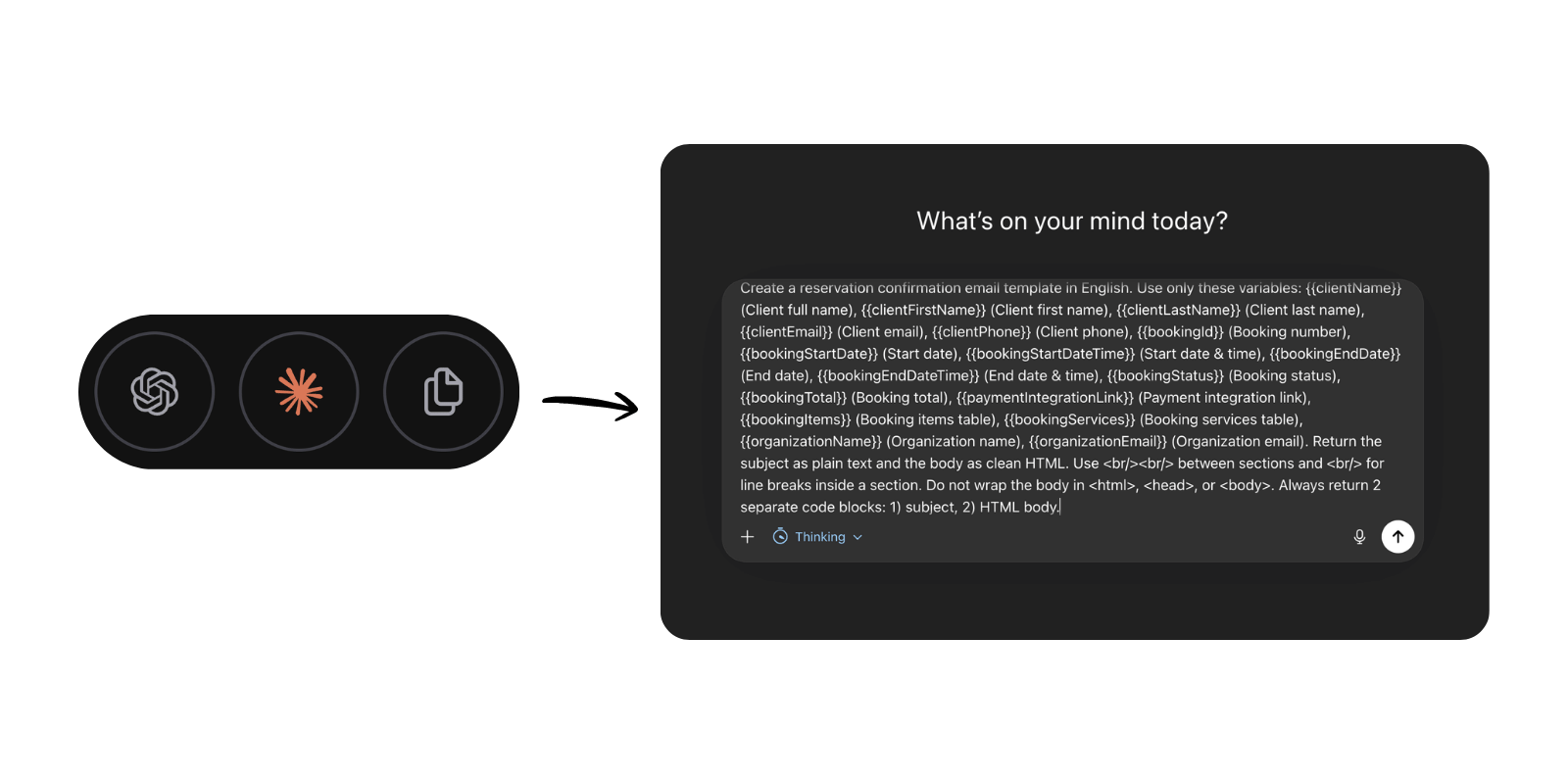
The AI assistance buttons open ChatGPT or Claude in a new tab, pre-filled with a prompt that explains every available Requiply variable.
Live preview
The preview card on the right is sticky on wide screens and renders the email exactly as a recipient would see it:
- The substituted subject at the top (or
...if the subject is empty) - A divider
- The substituted body as HTML, with body variable values HTML-escaped before substitution so values cannot break the layout
Sample values are built from:
- The active interface language
- The organization's currency, name, and email
- A built-in fixed set of sample booking data — client, dates, totals, items, services, and so on
A short hint above the preview reads: "Preview uses sample booking data."
Validation
The form validates before saving:
- Template name is required and must be 1–50 characters
- Email subject is required and must be 1–100 characters
- Email body has no length validation
Validation errors appear under the affected field so you can fix them before saving.
Saving changes
Click Save to store the email template.
On the edit page, Save stays disabled until you change something compared to the loaded values. When you save, Requiply applies only the fields that changed.
On success:
- A success toast appears that includes the template name
- The template is added or updated
- If you arrived from another setup flow (using a
fromquery parameter on the add page), Requiply returns you to that flow - Otherwise, you return to Settings → Bookings → Email Templates
If saving fails, an error toast appears and the form stays open so you can try again.
Saving the hardcoded default
If the template being edited is the hardcoded default (its ID is the special default identifier), saving does not update the default. Instead, Requiply creates a new template using the form values, shows the created success toast, and returns to the list. The original default remains unchanged. The Delete button is hidden in this case.
Cancelling
Click Cancel to leave without saving. Requiply returns you to Settings → Bookings → Email Templates.
Deleting an email template
When editing an existing template, the page includes a red Delete action (hidden for the hardcoded default).
Clicking Delete opens a confirmation dialog with a warning icon. Before the admin can confirm, Requiply checks whether any workflow automations reference this template by ID:
- While checking, an info message reads "Checking references..."
- If the check fails, an error message is shown and the Yes confirm button stays disabled
- If no workflows reference the template, the standard confirmation message appears (including the template name) and the admin can confirm deletion
- If one or more workflows reference the template, deletion is blocked. The dialog shows:
To delete this email template, first delete these automations:
followed by a numbered list of the referencing workflows. Each name is a clickable link that opens the workflow's edit page. The Yes confirm button stays disabled until the references are removed.
After a successful deletion, Requiply shows a success toast that includes the deleted template's name and returns to the Email Templates page. If deletion fails, Requiply shows a generic error toast and the dialog closes.
How this page connects to the rest of Requiply
| Feature | How the email template form affects it |
|---|---|
| Email Templates page | Created and updated templates appear as cards with the template name, subject preview, body preview, and an Invoice attached badge when applicable. |
| Workflow automations | Workflows connect templates to three triggers — Booking Created, Booking Status Reached, and Payment Status Reached — and send the selected template to the client when conditions are met. Editing the body or subject changes what every workflow that uses it sends. |
| Booking emails | Manual emails sent from a booking pick a template from the list. The template's subject, body, and invoice toggle drive the outgoing message. |
| Booking confirmations | The template configured for confirmations determines what new clients receive when a booking is created. |
| Invoices | When Attach invoice is on, Requiply attaches the booking invoice PDF to every email that uses the template. |
| Custom export templates | Templates chosen under Attach documents are rendered for the booking and attached as PDFs. See Custom export templates. |
Common scenarios
Setting up the first booking confirmation
- Open Add Email Template from the Email Templates page.
- Enter a clear name such as
Booking confirmation. - Write a subject like
Your booking is confirmed | {{organizationName}}using the variable dropdown. - Compose the body in Rich text mode, inserting variables like
{{clientFirstName}},{{bookingStartDateTime}}, and{{bookingTotal}}. - Turn on Attach invoice so clients receive the booking details and PDF together, and pick your rental agreement under Attach documents if it should travel with the confirmation.
- Use the preview to verify the substituted text looks right.
- Save.
Replacing the hardcoded default
- Open the hardcoded default from the Email Templates list.
- Edit the name, subject, and body to match the organization's voice.
- Save. Requiply creates a new template based on the form — the original default stays in place untouched.
Adjusting wording for a campaign
- Open the template's edit page.
- Update the subject or body.
- Use the preview to check formatting.
- Save.
Every workflow and manual send that references this template will use the new wording on the next send.
Pasting a custom HTML template
- Open the add or edit page.
- Switch the body editor to HTML mode.
- Paste the HTML.
- Use the preview to confirm it renders correctly.
- Save.
Drafting body content with AI
- Open the add or edit page.
- Click Create with Requiply Assistant next to the body editor.
- Use a starter such as Draft a confirmation email, or describe the email you need.
- Review the preview in the assistant, then click Apply to editor.
- Adjust the wording, check the live preview, and save.
To use an external model instead, click Open in ChatGPT or Open in Claude — the tab opens with a prompt that already explains every available Requiply variable — then paste the result back into the body editor and save.
Removing an unused template
- Open the template's edit page.
- Click Delete.
- Wait for the workflow reference check to finish.
- If no workflows reference it, confirm the deletion.
- If workflows reference it, click each listed workflow to update or remove its email action, then return and try again.
Tips and cautions
{{clientNme}}) will render as the literal token in customer emails — the preview is the fastest way to catch this.