

Email Templates
The Email Templates page is where admins create and manage the email messages Requiply sends to clients about their bookings. Templates are reused by booking confirmations, manual emails sent from a booking, and workflow automations, so anything you change here affects how customers experience your communication.
You can find this page under Settings → Bookings → Email Templates.
Why this page matters
Requiply sends a lot of email on your behalf — booking confirmations, reminders, follow-ups, and any custom messages your automations trigger. Each of those emails needs a subject, a body, and a decision about whether to attach the booking invoice. Email templates are the reusable building blocks for all of that.
For messenger channels — SMS, Viber, Telegram — the equivalent building blocks are message templates.
Other Requiply areas that depend on these templates:
- Bookings (manual "send email" actions on a booking)
- Workflow automations (Send Email and Send Email to List actions)
- Invoices (templates can automatically attach the booking invoice PDF)
- Booking confirmations sent to clients
Who can use this page
- Admins only. Users without the admin role are redirected to the access-denied screen.
- There are no plan limits, paid add-ons, or feature flags gating this page — every organization on any plan can create unlimited templates.
What you'll see
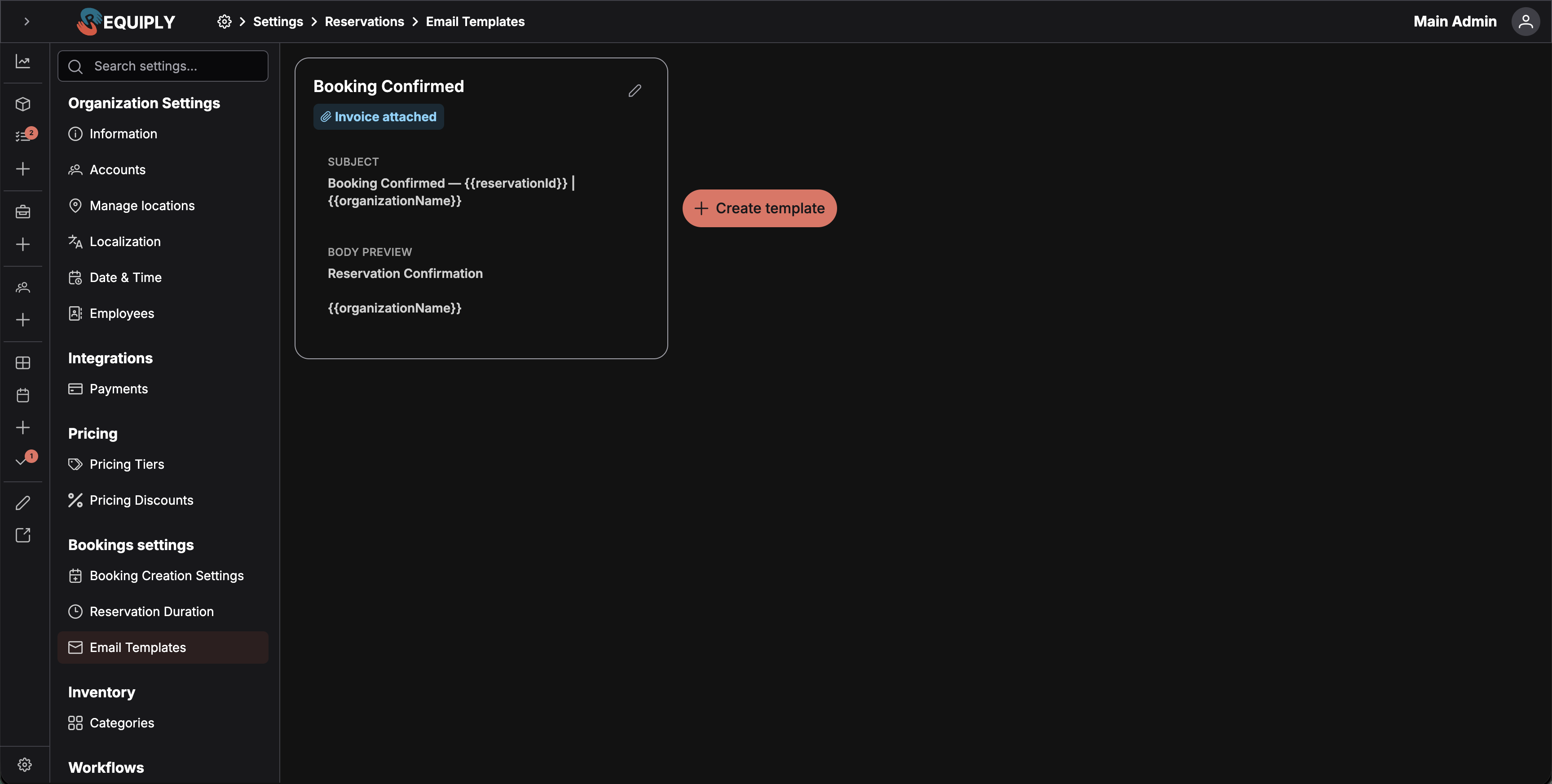
The page loads templates for the current organization and shows them as a wrapping grid of cards. While loading, three skeleton placeholders appear in the same layout.
Each template card shows:
- The template name (truncated with a tooltip on hover).
- Badges for what the template attaches: Invoice attached, Booking QR attached, and Documents attached when it renders custom export templates as PDFs.
- The subject line preview in a gray box.
- A body preview rendered as plain text from the underlying HTML, capped to a few lines.
- An edit (pencil) button that opens the Add or edit email template page for that template.
After the cards, a rounded Create template button with a plus icon opens the add page.
Empty state
Requiply does not ship any hardcoded or built-in templates. A new organization starts with zero templates and must add them manually before they can be used in bookings or workflows.
When the list is empty, the page shows a centered placeholder with:
- An envelope icon.
- The title "No email templates yet".
- A primary action button Create template that navigates to the Add or edit email template page.
This is the only call to action in the empty state — the first template most organizations create is the one used for booking confirmations.
Main actions
Adding a new template
Clicking Create template (either the plus button on a populated page or the empty-state button) opens the Add or edit email template page. After saving, the user is returned to the list and a toast confirms the template was created.
Editing a template
Each card has a pencil icon that opens the same Add or edit email template page in edit mode, with Save and Delete actions.
Deleting a template
Deletion happens from the edit page. Before removing a template, Requiply checks whether any workflow automations reference it. If they do, deletion is blocked and the dialog lists the blocking workflows so the admin can repoint or remove them first. See Add or edit email template for the full flow.
Available variables
Both the subject and body editors include an Insert variable dropdown. Variables are tokens wrapped in curly braces (for example {{clientName}}) that get replaced with real booking data when the email is sent.
The full list of variables available across templates:
| Variable | Replaced with |
|---|---|
{{bookingId}} | The booking's number, as shown on the booking and its invoice. |
{{bookingStartDate}} | The booking's start date. |
{{bookingStartDateTime}} | The booking's start date and time. |
{{bookingEndDate}} | The booking's end date. |
{{bookingEndDateTime}} | The booking's end date and time. |
{{bookingStatus}} | The current status of the booking. |
{{bookingTotal}} | The rental total for the booking. |
{{bookingDeposit}} | The security deposit charged with the booking. |
{{bookingTotalCharged}} | The total charged — rental plus deposit. |
{{bookingBundleDiscount}} | What the booked bundles save in total, for example $19.20. Empty when the booking has no bundle. |
{{bookingItems}} | A table of the products included in the booking, with their quantities. Individual SKUs appear once units have been assigned — see Assigning units at pickup. A booked bundle adds its discount row at the end, see Bundles in emails and messages. |
{{bookingServices}} | A table of the services included in the booking. |
{{clientName}} | The client's full name. |
{{clientFirstName}} | The client's first name. |
{{clientLastName}} | The client's last name. |
{{clientEmail}} | The client's email address. |
{{clientPhone}} | The client's phone number. |
{{organizationName}} | The organization's name. |
{{organizationEmail}} | The organization's contact email. |
{{organizationPhone}} | The organization's contact phone number. |
{{paymentIntegrationLink}} | A link the client can use to pay for the booking. |
{{telegramConnectLink}} | The client's personal invite link to your Telegram bot. Resolved only when the organization has an active Telegram integration; otherwise it renders as nothing. |
Bundles in emails and messages
When a booking contains a bundle, {{bookingItems}} ends with one row per bundle: Podcast duo kit: bundle discount 10%, the set's contents in small grey text, and the negative amount in the Total column. The table then adds up to {{bookingTotal}}, so existing templates stay correct without any change.
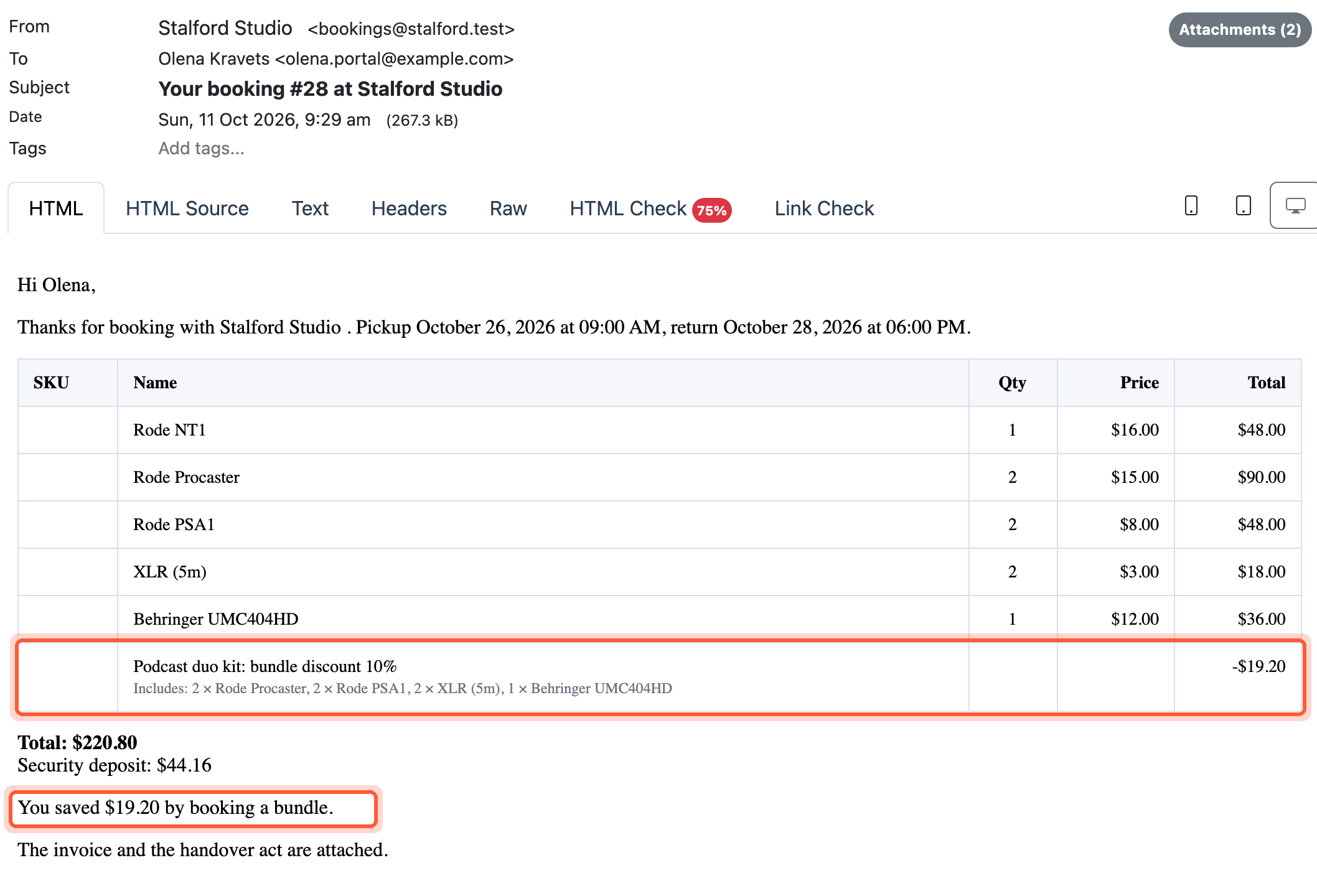
The bundle row in an email's items table, and an optional sentence built with {{bookingBundleDiscount}} inside {{#if bookingBundleDiscount}}.
In message templates, where {{bookingItems}} is a numbered list, the bundle adds an unnumbered line after the items, for example Podcast duo kit: bundle discount 10% — -$19.20.
To mention the saving only when there is one, wrap it in a conditional block:
{{#if bookingBundleDiscount}}You saved {{bookingBundleDiscount}} by booking a bundle.{{/if}}
Custom field variables
Beyond the built-in list, every custom field configured on the Client, Booking, or Organization level is available as a variable. Requiply builds the token from the field's key with a level prefix:
| Entity level | Token pattern | Example |
|---|---|---|
| Client | {{clientField_<field key>}} | {{clientField_passport_number}} |
| Booking | {{bookingField_<field key>}} | {{bookingField_delivery_notes}} |
| Organization | {{organizationField_<field key>}} | {{organizationField_vat_number}} |
They appear in the Insert variable dropdown alongside the built-in variables, labelled with the field name and its level — for example Passport number (Client). Checkbox fields render as a localized Yes/No and multiselect fields as a comma-separated list. Empty fields substitute to nothing.
Create the field under Entity fields, then attach it to the Client, Booking, or Organization level under Level configurations.
Localization
Email templates are not multilingual. There is no per-language field on a template — each template carries a single subject and body.
If you need to communicate with clients in multiple languages, create a separate template per language (for example, Booking Confirmation — EN, Booking Confirmation — ES) and select the appropriate one when sending manually or branching by language in your workflow automations.
How this page connects to the rest of Requiply
| Feature | How this page affects it |
|---|---|
| Booking confirmations | When a booking is created, the template selected for confirmations is used. Editing the body or subject changes what new clients see. |
| Manual booking emails | When sending an email from a booking, the admin picks a template from this list. |
| Workflow automations | The Send Email and Send Email to List actions in workflows reference a template by ID. Deleting a template that a workflow uses is blocked until the workflow is updated. |
| Invoices | Templates with Attach invoice enabled automatically include the booking's invoice PDF, so clients receive both the message and the document in one email. |
| Custom export templates | Templates selected under Attach documents are rendered for the booking at send time and attached as PDFs, so a confirmation email can carry the rental agreement with it. |
Common scenarios
New business setup
A new organization starts with no templates at all — Requiply does not provide any defaults. The first thing most admins do is create a polished booking confirmation template with their brand voice and turn on Attach invoice so clients get the booking details and invoice in one email.
Building automations
When setting up a workflow that emails clients (for example, a reminder 24 hours before a booking), the admin first creates the email template here, then references it from the workflow's Send Email action.
Updating wording across all communication
Because workflows and bookings reference templates by ID, editing a template's body or subject immediately changes the text used by every automation and manual send that points at it. There is no per-workflow override.
Supporting multiple languages
Create a separate template per language and route to the right one from the workflow that triggers the email, since templates do not store per-language variants.
Tips and cautions
Recipes
Ready-made workflows for common jobs: confirmation emails, reminders before pickup, messages over SMS, Viber, or Telegram, staff alerts, confirming paid bookings, and targeting with filters.
Add or edit email template
Write an email template: subject, body, merge variables such as the customer name and total, and whether the invoice, QR code, or documents are attached.