

Data migration
Data migration copies your data from another rental system into Requiply. For Booqable it works on its own: paste an API key, choose what to bring, and Requiply reads your settings, customers, products and bookings straight from your Booqable account. Nothing changes in Booqable, so you can keep working there while you try Requiply on your real data.
For any other system, the same page has a form to request a custom migration, see Other systems.
Open it at Settings → Integrations → Data migration, https://app.requiply.com/settings/integrations/data-migration.
Before you start
| Requirement | Why it matters |
|---|---|
| An administrator in Requiply | Only administrators start, stop and see migrations. |
| A Booqable API key, created by the Booqable account owner or an admin | Keys made by other Booqable users cannot read all data. Booqable lists API access from its Grow plan. On Start, email info@requiply.com and we will plan the move with you. |
| Your Booqable company name | The first part of your Booqable address: yourcompany in yourcompany.booqable.com. |
| The same currency in both systems, ideally | Amounts are copied as they are, without conversion. The dialog warns you when the currencies differ. |
To create the key, follow Booqable's guide How to create an API key. Requiply uses the key only for the migration, keeps it encrypted while the migration runs and deletes it when it finishes.
Connecting your Booqable account
- On the Booqable card, press Start migration (or Migrate again after an earlier run).
- Enter the Booqable company name. Pasting the whole Booqable address also works.
- Paste the API key.
- Press Connect. Requiply checks the key and counts what it can bring.
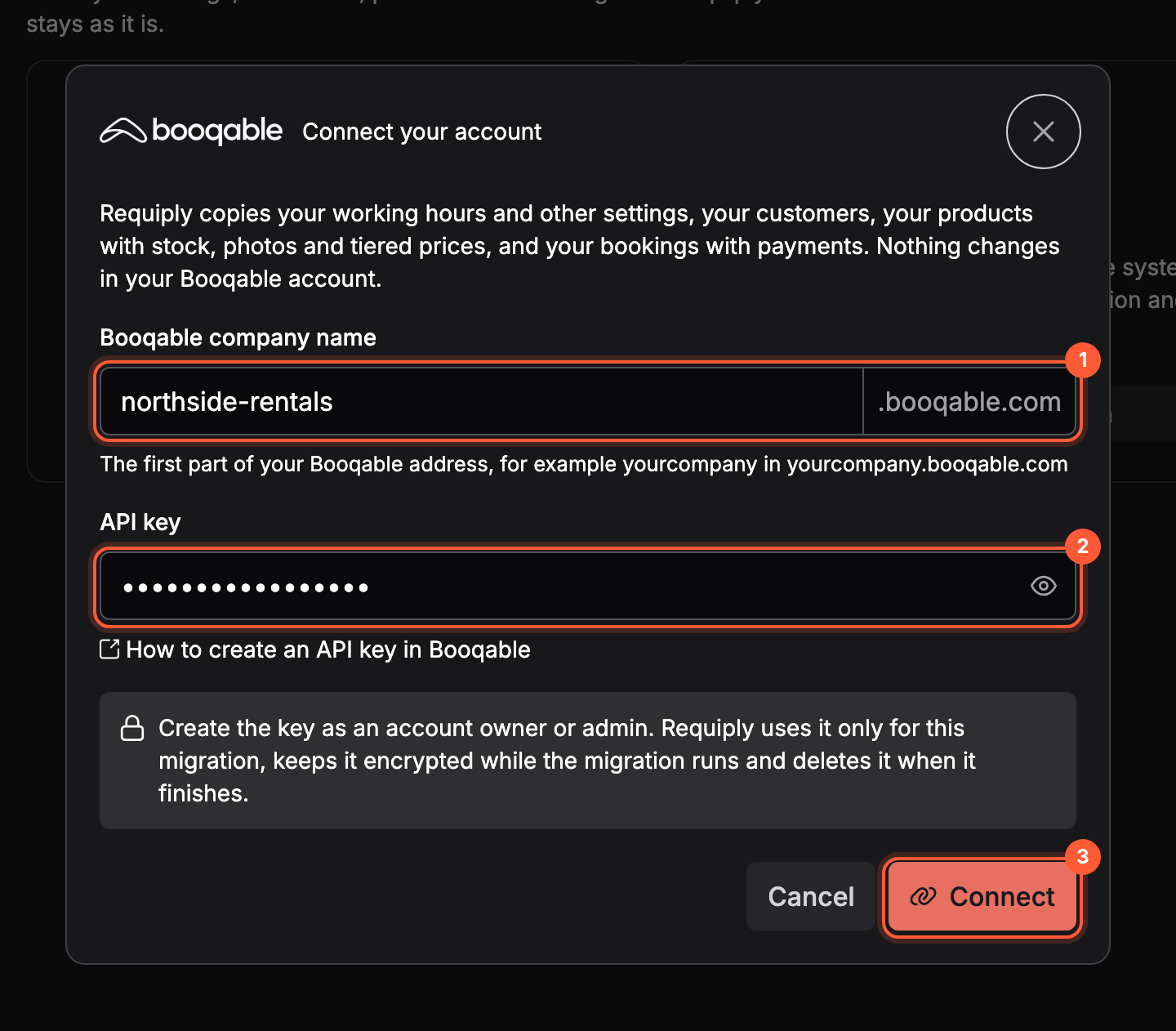
Company name (1), API key (2) and Connect (3).
If the connection fails, the dialog says why:
| Message | What to do |
|---|---|
| No Booqable account was found at this address. | Check the company name against your Booqable address. |
| Booqable did not accept this API key. | Copy the key again in full, and check it was not deleted in Booqable. |
| This API key cannot read all data. | Create the key as the Booqable account owner or an admin. |
| Booqable is busy right now. / Booqable could not be reached. | Try again in a minute. |
Choosing what to migrate
After connecting, the dialog shows your Booqable account, how many customers, products and bookings it has, and what to bring.
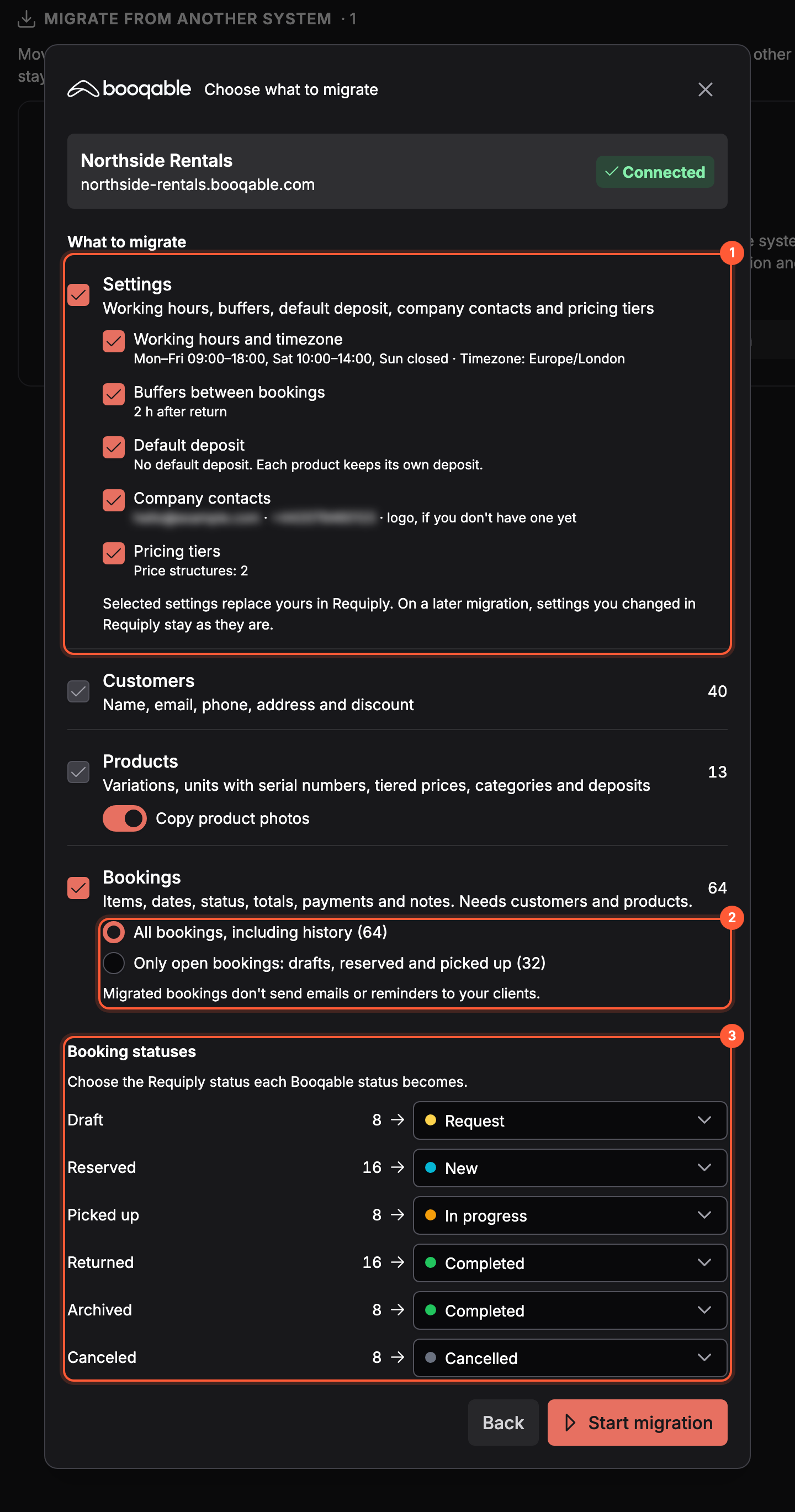
Settings with a preview of each value (1), which bookings to bring (2) and the status each Booqable status becomes (3).
Choosing Bookings also selects Customers and Products, because bookings need them.
Settings
Each part shows the value it will set, so you can untick anything you prefer to keep. Only the parts your Booqable account has something for are listed.
| Part | From Booqable | Where it goes in Requiply |
|---|---|---|
| Working hours and timezone | Your opening hours and the company timezone | Date & time. Days without opening hours become closed days. |
| Buffers between bookings | Buffer time before and after, which Booqable sets per product | Booking duration. Requiply has one buffer for all bookings, so it takes the setting most rental products use, rounded up to whole hours (up to 72). |
| Default deposit | The default deposit in Booqable's settings | Deposits. See the table below. |
| Company contacts | Company email, phone and logo | Organization info. The logo is copied only if you have none yet, and only once. |
| Pricing tiers | Every shared price structure that is not archived, including ones no product uses yet | Pricing tiers, named after the structure with (Booqable) added. |
The default deposit maps like this. Deposits set on each Booqable product are copied with the product either way, and they always apply.
| Booqable default deposit | Requiply default deposit |
|---|---|
| None | None |
| 100% of the product deposit (Booqable's usual setting) | None. Each product keeps its own deposit, as in Booqable. |
| Another percentage of the product deposit | None, with a note: Requiply takes each product's full deposit. |
| Percentage of the whole order | The same percentage of the rental, for items without a deposit of their own, with a note. |
| Fixed amount | The same fixed amount per booking. |
How tiered prices convert. A Booqable price tile charges a multiple of the base price for a whole length, for example 2.5 times the daily price for 3 days. A Requiply tier is a percentage of the base price per unit, so each tile becomes the percentage that gives the same total at that length: 3 days at 2.5 times becomes 83.33% per day. Totals match Booqable at every tile length, and the last tier applies to everything longer.
Customers
Customers become clients:
- Name. People are split into first and last name. Companies keep their whole name.
- Email, phone and address. Phone numbers are stored in international format. Numbers written without a country code get your Booqable company's country code.
- Discount. A customer discount becomes a pricing discount on the client.
- Other fields go into the client's notes.
- Existing clients with the same email or phone are linked, not duplicated.
Products
- Rental products become item groups, one per variation, named like Tent (Large).
- Stock. Tracked products get one unit per Booqable stock item, with its identifier as the serial number. Bulk products get as many units as they have in stock. Products Booqable did not track get one unit.
- Prices. Daily, hourly and monthly prices are copied as they are. Weekly prices become daily ones (a seventh), per-minute prices become hourly ones, and flat prices per booking become daily prices. Each conversion is listed under Things to check.
- Tiered prices become pricing tiers, as described above.
- Deposits, categories and photos. Booqable collections become categories. Copy product photos copies up to 8 photos per product.
- Services and sales items. Service products become services. Sales items become sale items when the Sales feature is on (Advanced plan); without it they are skipped and listed.
- Items you already have in Requiply with the same name or address slug are linked instead of duplicated, and keep their own units.
Bookings
Choose All bookings, including history or Only open bookings: drafts, reserved and picked up. With the whole history, archived Booqable products come along too, archived in Requiply, so old bookings keep their items.
Under Booking statuses, choose the Requiply status each Booqable status becomes: Draft, Reserved, Picked up, Returned, Archived and Canceled. Requiply suggests one for each.
Each booking brings its items, dates, status, totals, deposit and refunded deposit, payments and refunds, notes as comments, and the units assigned to reserved and picked-up bookings. Bundles become their items. A system comment on each booking keeps the Booqable order number, tags, delivery address, other charges and discount.
- Booking numbers. Booqable numbers are kept when your Requiply account has no bookings of its own yet. Otherwise imported bookings get the next free Requiply numbers.
- No messages to clients. Migrated bookings send no emails, messages or reminders.
- Origin. Migrated bookings show Imported in the Origin column.
- Skipped drafts. Drafts without rental dates are not migrated and are listed.
While the migration runs
Press Start migration. The migration runs on Requiply's servers, so you can close the dialog or leave the page. The card shows the progress, and View progress reopens it.
- Stop ends the run. Everything imported so far stays, and running the migration again continues from there.
- Only one migration runs at a time per organization.
Results and things to check
When the run finishes, each part shows its counts: added, updated, already there and failed. Below them, Things to check lists every record that was migrated with a change or not migrated at all, with the reason. The usual ones:
| Message | Meaning |
|---|---|
| A weekly price was migrated as a daily price (and similar) | The product's price unit had no exact match. Check the price. |
| Tiered prices became percentage tiers... | A price structure became a tier group. Check it under Pricing tiers. |
| Sales items need the Sales feature | Turn on Sales and run the migration again to bring them. |
| Booqable products use different buffers | Only the most common buffer applies now. Adjust it in Booking duration if needed. |
| Closure periods were not migrated | Requiply has no closure dates. Close those days by hand in your schedule. |
| Booqable has several opening ranges on... | Requiply keeps one range per day, from the earliest opening to the latest closing. |
| Changed in Booqable after the last migration but also changed in Requiply | A booking or setting was edited on both sides, so Requiply's version stays. |
The Migration history table lists every run with its date, status, what it imported and who started it.
Running the migration again
Press Migrate again on the card and paste the key again. A second run never duplicates anything:
- New customers, products and bookings from Booqable are added.
- Customers and products imported before are not changed.
- Bookings changed in Booqable since the last run are updated (status, dates, totals, deposit, items, unit pickups and new payments), unless they were also edited in Requiply.
- Settings are written again only when they changed in Booqable and not in Requiply. Tier groups are not created twice.
What does not move
Booqable's online store and website, taxes, seasonal and other price rules, closure dates, coupons, custom fields, email and document templates, and team members. Set these up in Requiply yourself.
On a WordPress website, the free Requiply Rental Booking plugin has a Migrate from Booqable button that turns Booqable shortcodes into Requiply ones, so product buttons keep working (setup guide). On any other website, link your booking buttons to your client portal.
Other systems
For any other system (Rentman, Current RMS, a spreadsheet), use the Your system isn't listed? card: press Request a migration, enter your current system, your name and email, and anything we should know, such as the number of products and bookings or a deadline. Our team replies by email to plan the migration and setup.
Common scenarios
- Trying Requiply before switching. Migrate on day one and keep taking bookings in Booqable. On the day you switch, run the migration again to bring the latest bookings and changes, then cancel Booqable.
- Only current work. Choose Only open bookings to start with what is still ahead, and leave the history in Booqable.
- You already set your working hours in Requiply. Untick Working hours and timezone so yours stay.
- Sales items were skipped. Turn on the Sales feature, then run the migration again. Only the missing products are added.
Tips and cautions
- Check the currency warning. Amounts are not converted, so a USD Booqable account copied into a EUR organization keeps the same numbers.
- Review Things to check after the first run, especially price conversions and the buffer.
- Stopping is safe. What was imported stays, and the next run continues without duplicates.
- Do not edit migrated bookings in both systems while you still use Booqable. Bookings edited in Requiply are not updated from Booqable anymore.