

Sales list
The Sales page lists every sale your team recorded: standalone sales made on New sale and goods sold on bookings with Sell items. Use it to see what was sold today, chase unpaid sales, collect a payment, or record a return.
Open it from Sales → Sales in the sidebar, or at https://app.requiply.com/sales/manage. The page exists only while Sales is switched on, and it needs Allow viewing sales (or one of the Sales permissions that include it).
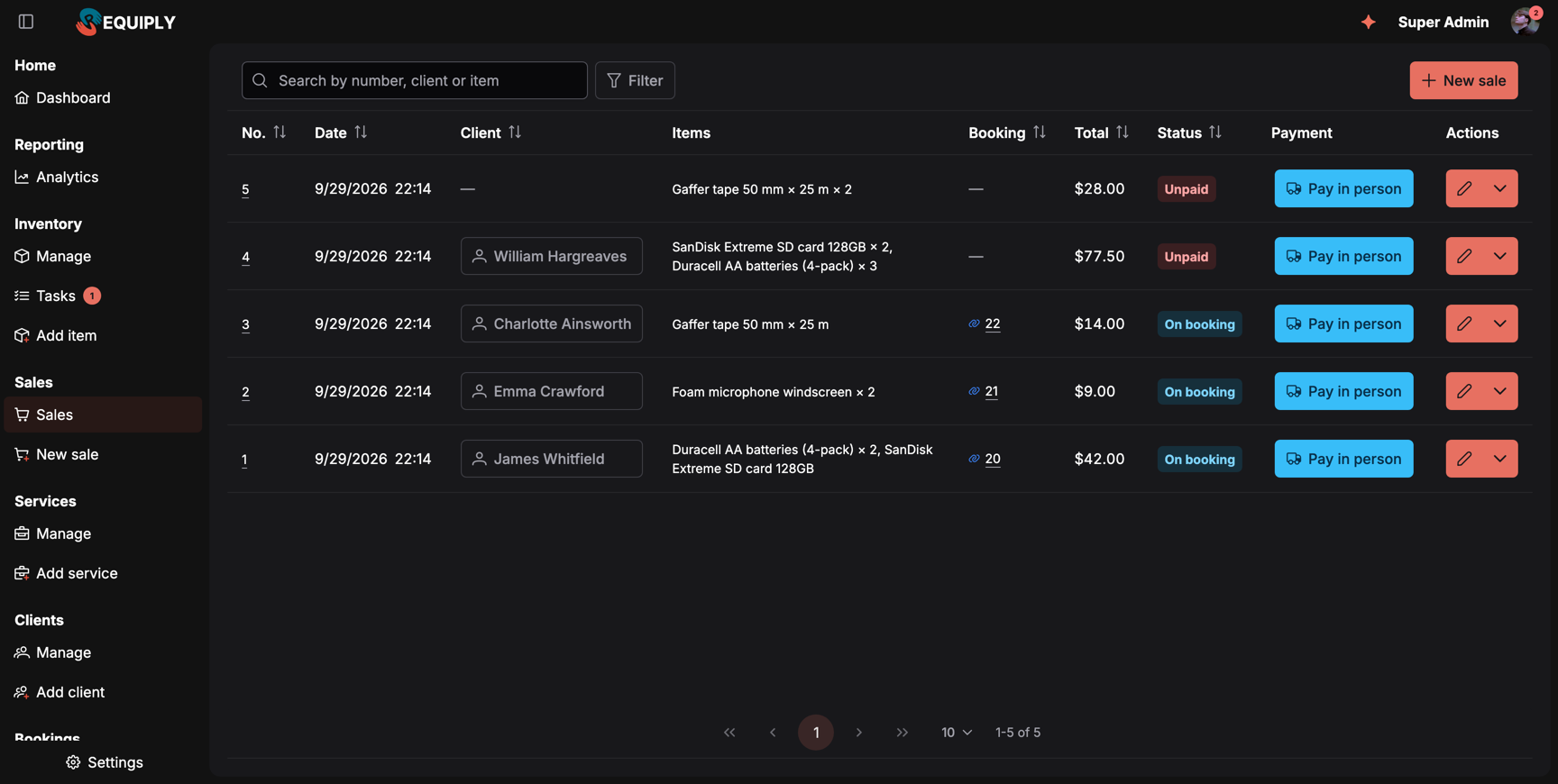
Two standalone sales waiting for payment and three sales made on bookings. The link icon next to a booking number means the booking collects the payment for those goods.
What you'll see
Toolbar:
- The search box: Search by number, client or item. It matches the sale number, the client's name, email, or phone, and the name or SKU of a product on the sale.
- Filter, to add filters one at a time (see below), and Reset filters once anything is set.
- New sale, for members with Allow selling items. It opens New sale.
Columns:
| Column | What it shows |
|---|---|
| No. | The sale number. Click it to open the sale page. |
| Date | When the goods were sold. |
| Client | The client, with the client hover card on hover, or a dash for a sale without a client. |
| Items | Each product with its quantity, for example SanDisk Extreme SD card 128GB × 2, Duracell AA batteries (4-pack) × 3. |
| Booking | For a sale on a booking, the booking number with a link icon. Hovering the icon shows Booking #20 collects the rental and these items in one payment. A dash for a standalone sale. |
| Total | What the client pays for the goods: the sale total minus returns. |
| Status | The sale's state, see the table below. |
| Payment | The sale's payment button. For a sale on a booking it is the booking's payment. |
| Actions | A split button, see Row actions. |
Sorting: click No., Date, Client, Booking, Total, or Status to sort, and again to reverse. Without a chosen sort the newest sale comes first.
Pagination: 10 sales per page by default, with a counter such as 1-5 of 5. Only the current page is loaded.
Sale states
Every sale shows one state, decided in this order:
| State | When |
|---|---|
| Cancelled | The sale was cancelled. Its goods went back to stock. |
| Returned | Everything on the sale was returned. |
| On booking | The sale belongs to a booking. The booking's payment covers it. |
| Paid | A standalone sale with nothing left to pay. |
| Partly paid | A standalone sale with some money received and a balance left. |
| Unpaid | A standalone sale with nothing received yet. |
Searching and filtering
Click Filter, pick a field, set its value, and click Done. Each active filter becomes a chip you can click to change or remove with its ×. All filters combine.
| Filter | How it works |
|---|---|
| Status | Tick one or more states: Unpaid, Partly paid, Paid, On booking, Returned, Cancelled. |
| Sale type | Standalone sales or On bookings. |
| Date | A from-to range, or a preset: Today, Tomorrow, This week, Next 7 days, This month, Last month. Days are counted in your organization's time zone. |
| Client | Search for a client and pick one. |
| Total | A minimum, a maximum, or both. |
The search, filters, sort, and page are part of the page address, so you can bookmark a view such as "unpaid sales this month" or send it to a colleague. With filters that match nothing, the table says No sales match these filters and offers Reset filters.
Row actions
The pencil button and the menu next to it depend on the sale and on your permissions:
| Action | When it is offered | What it does |
|---|---|---|
| Edit items (pencil) | A standalone sale that is not cancelled, for members with Allow selling items. | Opens /sales/{id}/edit, see Editing a sale. |
| Edit on booking (pencil) | A sale on a booking, same conditions. | Opens the booking's Sold items page, see Sell items on a booking. |
| Open sale (eye) | Instead of the pencil for members who can only view, or a cancelled sale. | Opens the sale page. |
| Booking #N | A sale on a booking. | Opens the booking. |
| Return items | The client still holds some goods from the sale, for members with Allow selling items. | Opens the return dialog, see Returns. |
| Cancel sale | A standalone sale that is not cancelled, for members with Allow selling items. | Asks Cancel this sale? and puts the goods back in stock. |
Collecting a payment from the list
The Payment column shows the payment button of each standalone sale, for example Pay in person, in the color of its status. Click it to open the payment popover:
- Status: change the payment status, for example from Pending to Completed when the client paid at the counter.
- Total: the amount of that payment.
- For an online method, the Payment URL: with a copy button, Open, and Generate payment link or Regenerate payment link.
- Change payment method, to switch from pay in person to an online link or the other way round. LiqPay needs a client with an email: LiqPay sends the invoice by email. Choose a client with an email.
When a standalone sale has a balance but no open payment, for example after an edit, the column shows Collect payment instead. For a sale on a booking the button is the booking's payment, since the booking collects the goods together with the rental.
Empty state
With no sales yet, the page says No sales yet and, for members who can sell, offers New sale.
Common scenarios
Chasing unpaid sales
Click Filter → Status, tick Unpaid and Partly paid, and click Done. Sort by Total to start with the largest amounts. Clients on these sales also carry the balance as debt on their client page.
What did we sell today?
Click Filter → Date → Today. Add Sale type → Standalone sales to leave out goods sold on bookings.
A client brings back an unopened memory card
Search for the client's name, open the row's menu, and pick Return items. Enter the quantity, keep Back to stock on, and confirm the refund amount.
Tips and cautions
Overview
Sell consumables such as memory cards, batteries, and gaffer tape next to your rentals: switch on Sales, give your team the Sales permissions, keep stock counts, and record sales on their own or on a booking.
New sale
Record a standalone sale of goods such as memory cards or batteries: pick or scan the products, choose pay in person or an online payment link, attach a client if you want, and see the total and margin before you save.