

Bookings on the phone
The Bookings tab shows what goes out and comes back today, and New Booking creates a booking in a few taps. The booking page on the phone covers the daily work at the counter: change the status, run the pickup or return checklist with the camera, adjust the price or the deposit, send documents and take payments.
The tab is shown to members whose permission group allows booking management. Everything here uses the same statuses, prices and rules as the web app; see Booking for the full picture.
The bookings list
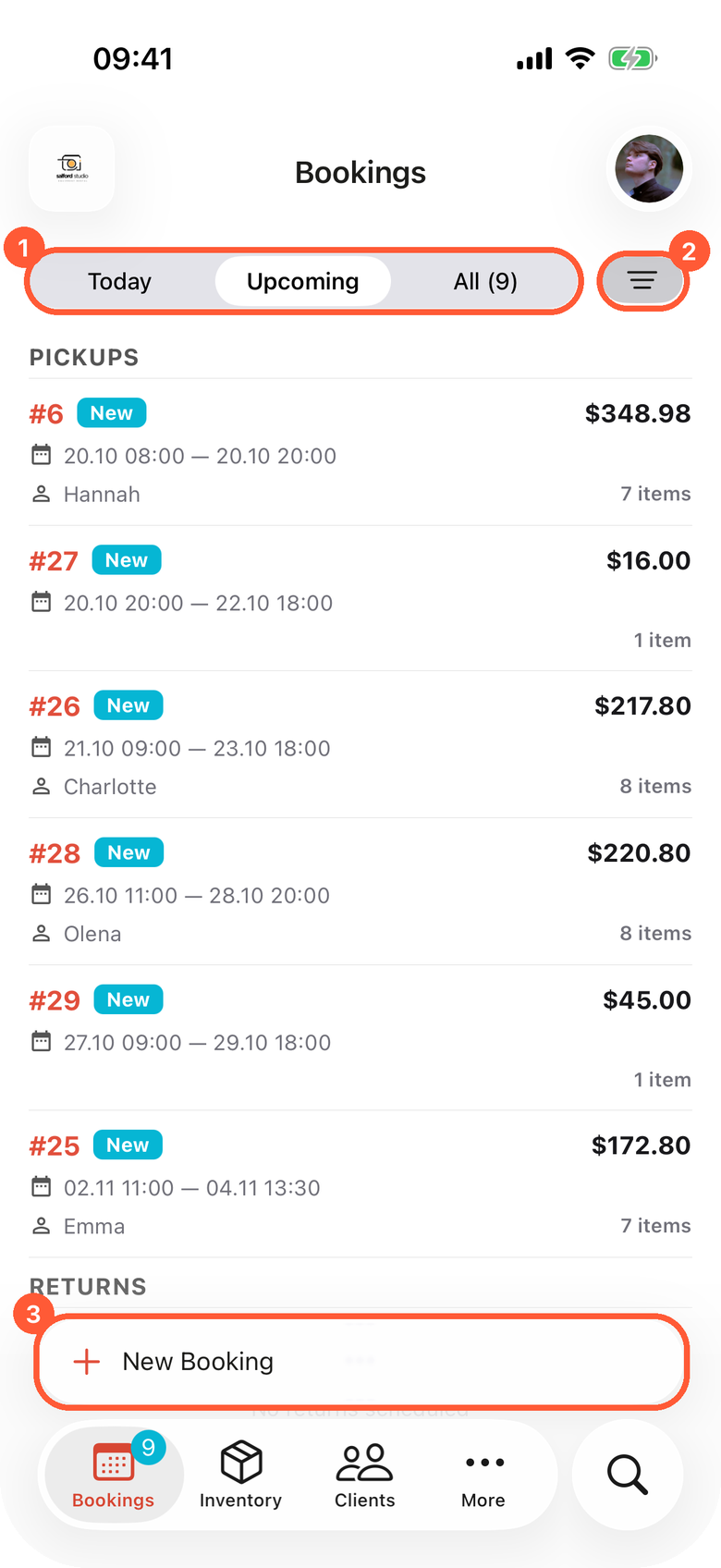
1 Switch between today's pickups and returns, upcoming ones and all bookings. 2 Filter and sort. 3 Start a new booking.
| View | What it lists |
|---|---|
| Today | Pickups (bookings that start today) and Returns (bookings that end today). |
| Upcoming | Pickups and returns from tomorrow on. |
| All | Every booking. All (7) means seven bookings are still in the status new bookings start in, the same count as the badge on the Bookings tab. The count drops as bookings move on. |
Each card shows the booking number, client, dates and status tag. Tap a card to open the booking. Pull down to refresh.
Filter and sort
Tap the filter button next to the view switch. The Filter & sort sheet opens.
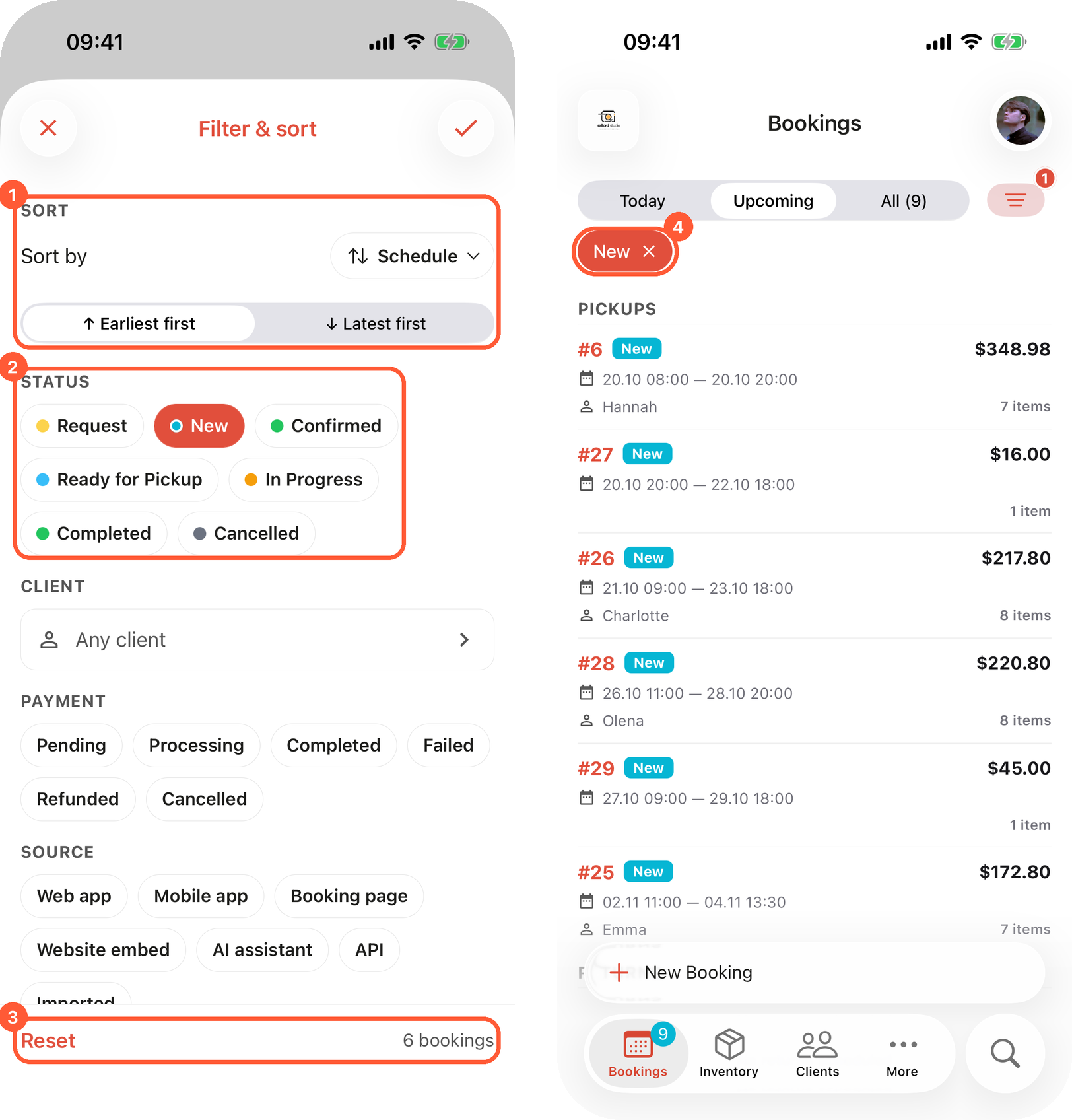
1 Sort order. 2 Status filter. 3 Reset and the number of matching bookings. 4 Active filters as chips; tap the cross to remove one.
| Section | Options |
|---|---|
| Sort | Sort by Schedule, Date created, Client name or Total, then the direction: Earliest first / Latest first, Oldest first / Newest first, A to Z / Z to A, Lowest first / Highest first. |
| Status | Your organization's booking statuses. Pick several. |
| Client | Any client, or tap to pick one client. |
| Payment | Payment statuses such as Pending, Completed or Refunded. |
| Pickup date | All view only: Any time, This week, Next 7 days, This month or Custom range. |
| Source | Where the booking came from: Web app, Mobile app, Booking page, Website embed, AI assistant, API or Imported. |
The bottom of the sheet shows how many bookings match, for example 4 bookings, before you apply. Tap the check in the top right to apply, or Reset to go back to the defaults.
Active filters show as chips under the view switch. Tap the × on a chip to remove that filter, or Clear all to remove every one. When nothing matches, the list says No bookings match these filters with a Clear filters button.
- Filters apply to all three views; the sort is kept per view. All starts sorted by Date created, newest first, and Today and Upcoming by Schedule.
- The phone remembers your filters and sorting for each organization.
Creating a booking
Tap New Booking. On iPhone with iOS 26 it sits above the tab bar; on other phones and on Android it is a round + button in the corner of the Bookings tab. The New Booking wizard walks through the steps shown at the top:
| Step | What you do |
|---|---|
| Select Dates | Pick a start and end day on the calendar, then the Pickup time and Return time. |
| Inventory | Pick products, bundles and goods for sale with the + and − buttons, or scan them. |
| Services | Add services. Quote services ask for the Quoted Price. |
| Select Client | Search and tap a client, or Create Client. |
| Details | Booking fields your organization asks for. Shown only when some exist. |
| Confirm | Choose the Payment Method, check the summary and total, and tap Create. |
Next moves on; it stays dimmed until the step is complete. Services, Select Client and an optional Details step show Skip while nothing is picked, because they are optional. The arrow in the top left goes back one step.
The booking is opened as soon as it is created. On a weak connection see The notice on the Confirm step.
Items first or dates first
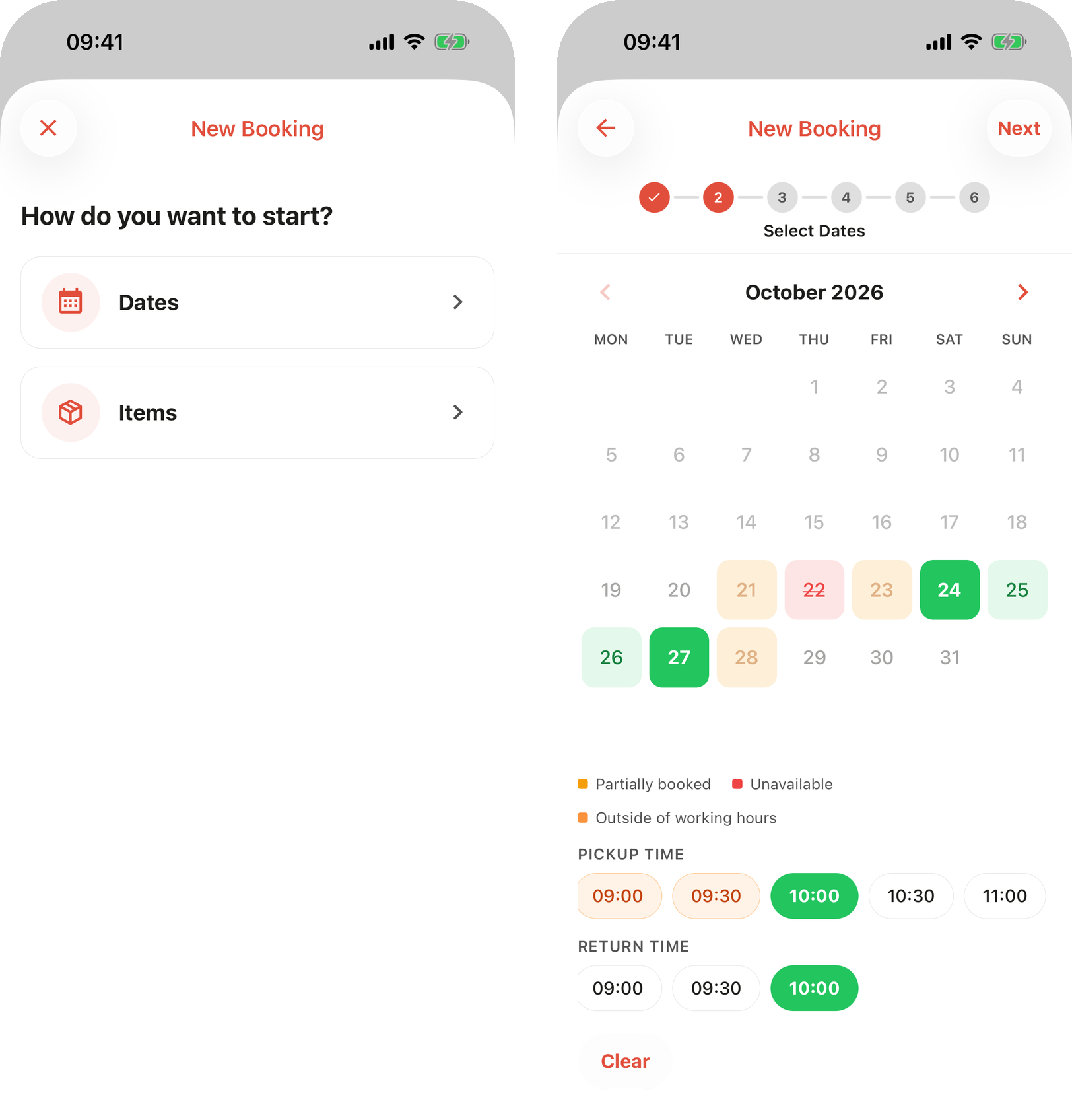
Start from dates or from items. Starting from items shows which days the chosen items are booked.
- Start from dates: pick the dates first, then the Inventory step lists only what is available for them.
- Start from items: pick the items first, then the calendar shows which days they are free, with days marked Partially booked.
The wizard opens in the mode set as Start from under Booking creation. The How do you want to start? question appears when you go back from the first step.
On the calendar, closed days and holidays cannot be picked. Members whose group has Allow booking outside of working hours also see times outside the schedule, marked Outside of working hours; creating such a booking asks Outside Working Hours: This booking falls outside of working hours. Are you sure you want to proceed? Tap Proceed to create it. Dates shorter than the minimum rental period show These dates are shorter than the minimum rental period.
The Inventory step
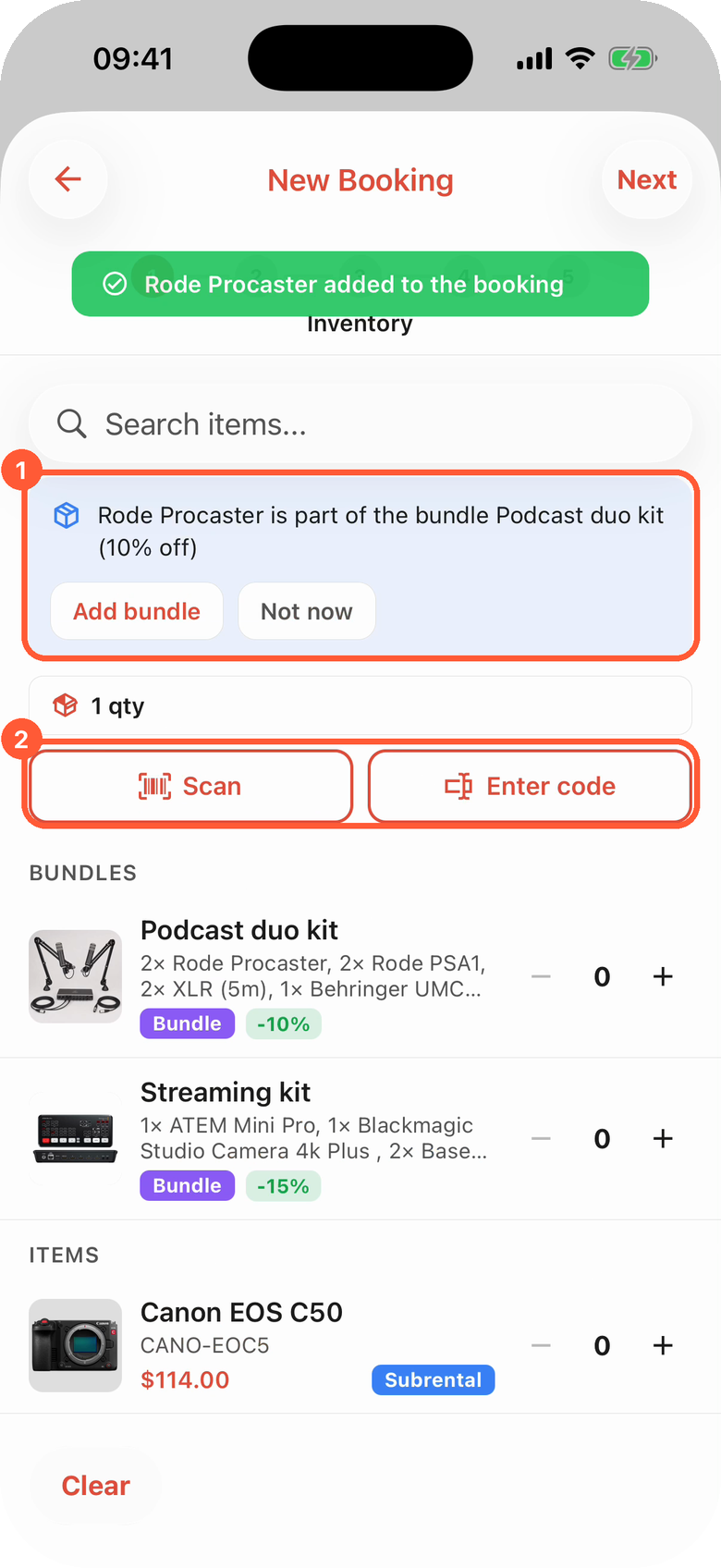
1 The bundle hint when an item belongs to a bundle. 2 Add items by scanning or by typing a code.
- Search items... filters the list. Each product shows its price and how many are available.
- Bundles are listed with the products. When you add an item that is part of a bundle, a hint says {item} is part of the bundle {bundle} ({percent}% off): Add bundle swaps it for the bundle with its discount, Not now keeps the single item.
- Goods for sale carry a For sale tag when Sales is on.
- Scan and Enter code add a unit, a SKU or the barcode of a product for sale. Scan opens the camera and needs the Advanced plan; see Scanning barcodes and QR codes. When your organization allows assigning units on creation, a scanned unit is pinned to the booking and listed under the buttons.
The Select Client step
Search by name, phone or email and tap the client. Create Client at the bottom opens New Client; the new client is selected for the booking when you save.
If the client is missing details your organization requires, the app says This client is missing required details. Fill them in to use the client. and opens a sheet with the missing fields. Save stores them and keeps the client on the booking; the cross deselects the client. See Clients missing required details.
The Details and Confirm steps
The Details step appears when booking fields are marked Required or Show at creation. Required fields carry a red * and Next waits until they are filled in. See Booking details in the mobile app.
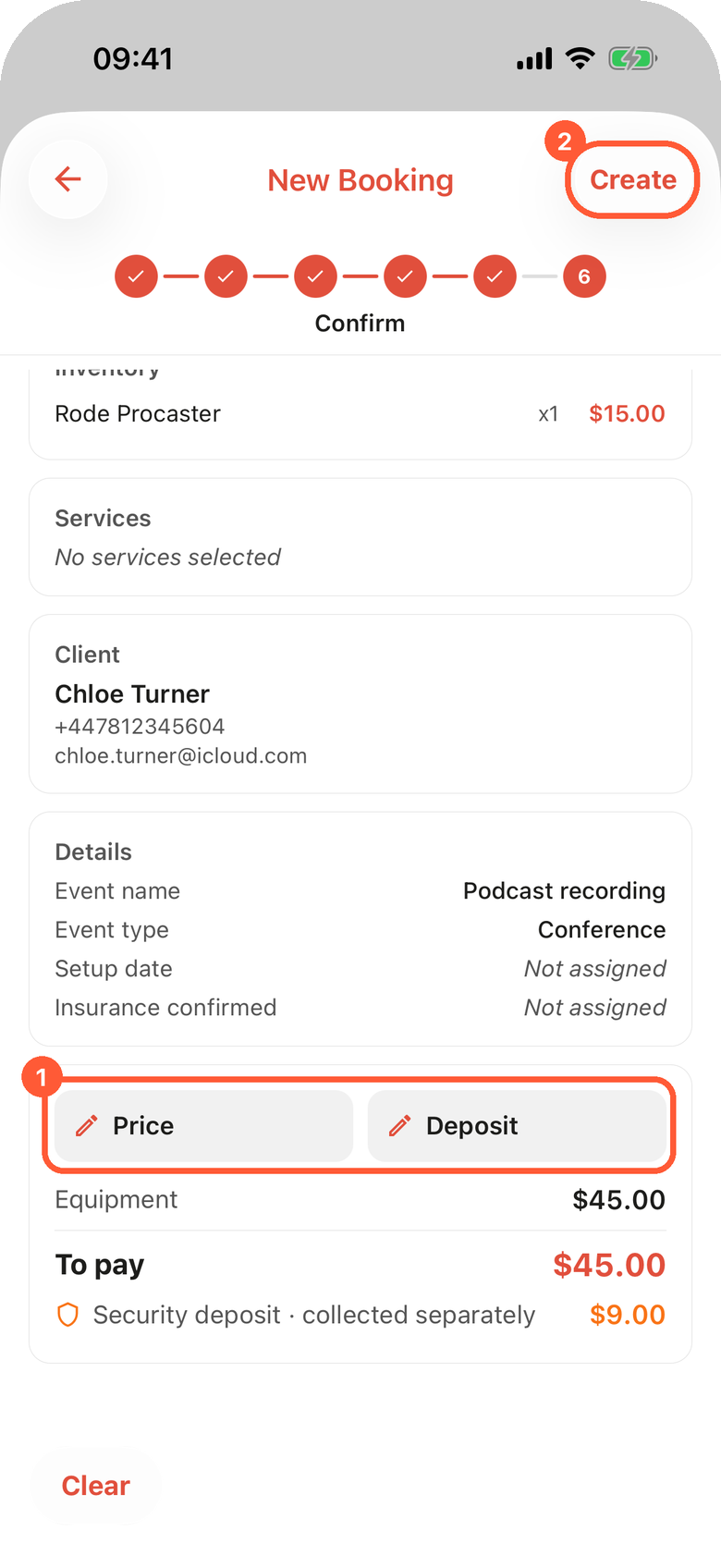
1 Adjust the price or the deposit before creating. 2 Create the booking.
The Confirm step shows the payment methods your organization accepts (Pay on Pickup and any connected online payment), then the Summary: dates, items, services, client, details, and the total with discounts, deposit and To pay. The total is calculated by Requiply with your pricing tiers and the client's discount.
Members allowed to adjust prices see two chips, Price and Deposit. They open the same editor as on the booking page, see Price and deposit adjustments.
The draft is kept
The wizard remembers what you picked if you close it. A dot on New Booking shows a draft is waiting. Clear in the bottom left asks Discard draft? and starts over.
The booking page
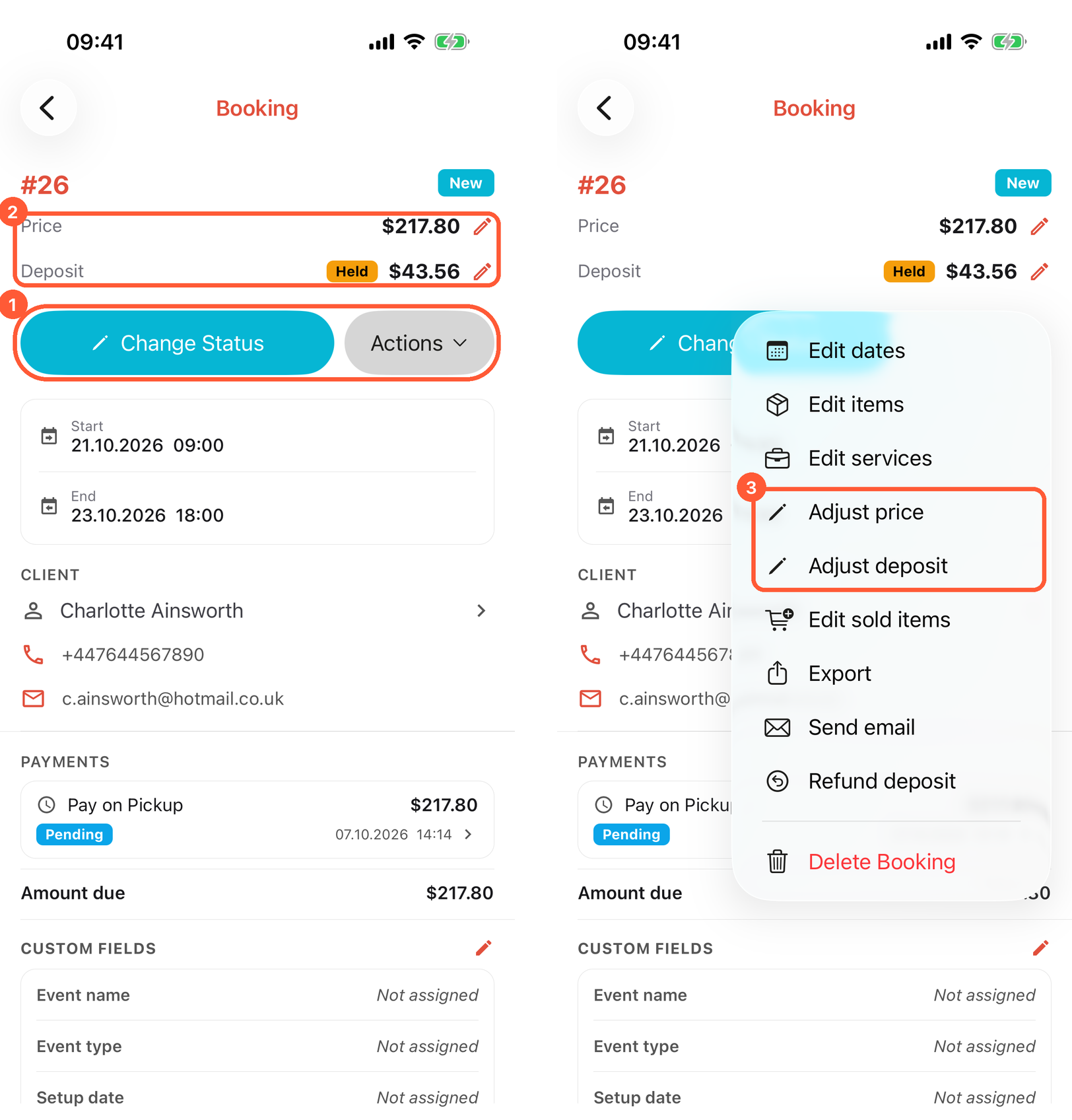
1 Change the status or open more actions. 2 Tap a pencil to adjust the price or the deposit. 3 The same adjustments from the Actions menu.
The booking page shows the dates, the items with their units, services, the client (tap it to open the client page, where you can message them in WhatsApp, Viber, Telegram or SMS), the price summary, the deposit, payments, documents, sold items, subrentals, custom fields and comments.
When units are assigned at pickup, the items show 2 of 3 assigned and Not assigned yet: a unit is picked when the booking is handed over. A warning Some items can't be handed over appears when a product is short, as on the web, see Unit shortages.
Changing the status
Tap Change Status. The Choose booking status sheet shows the Current status and the Next statuses your status configuration allows. Tap one to move the booking.
- If the new status has a pickup or return checklist and checklists are on, the checklist opens instead. See Handover checklists.
- Some items in this booking have since been booked for these dates and no free replacement is available. means availability changed; adjust the items or dates first.
- This booking's status was changed elsewhere means a teammate moved it at the same time; try again.
The Actions menu
| Action | What it opens | Full guide |
|---|---|---|
| Edit dates | Move or extend the booking, with the new total and payment changes before you save. | Edit booking dates |
| Edit items | Add, remove or change quantities. | Edit booking items |
| Edit services | Add or remove services and set quote prices. | Edit booking services |
| Adjust price | Charge a different number of periods, a percentage or an amount. | Price and deposit adjustments |
| Adjust deposit | Lower, raise or waive the deposit. | Price and deposit adjustments |
| Edit sold items / Return items | Goods for sale on this booking. | Sell items on a booking |
| Export | Invoice (PDF) or one of your Document templates: share it, or Save to documents. | Booking documents |
| Send email | Pick an email template and send it to the client. | Email templates |
| Full refund / Refund deposit | Refund an online payment or return the deposit, in full or in part. | Manage bookings |
| Delete Booking | Deletes the booking after a confirmation. |
An action is listed only when it is possible for this booking and allowed for you. For example, Edit items disappears once the items were handed out.
Price and deposit adjustments
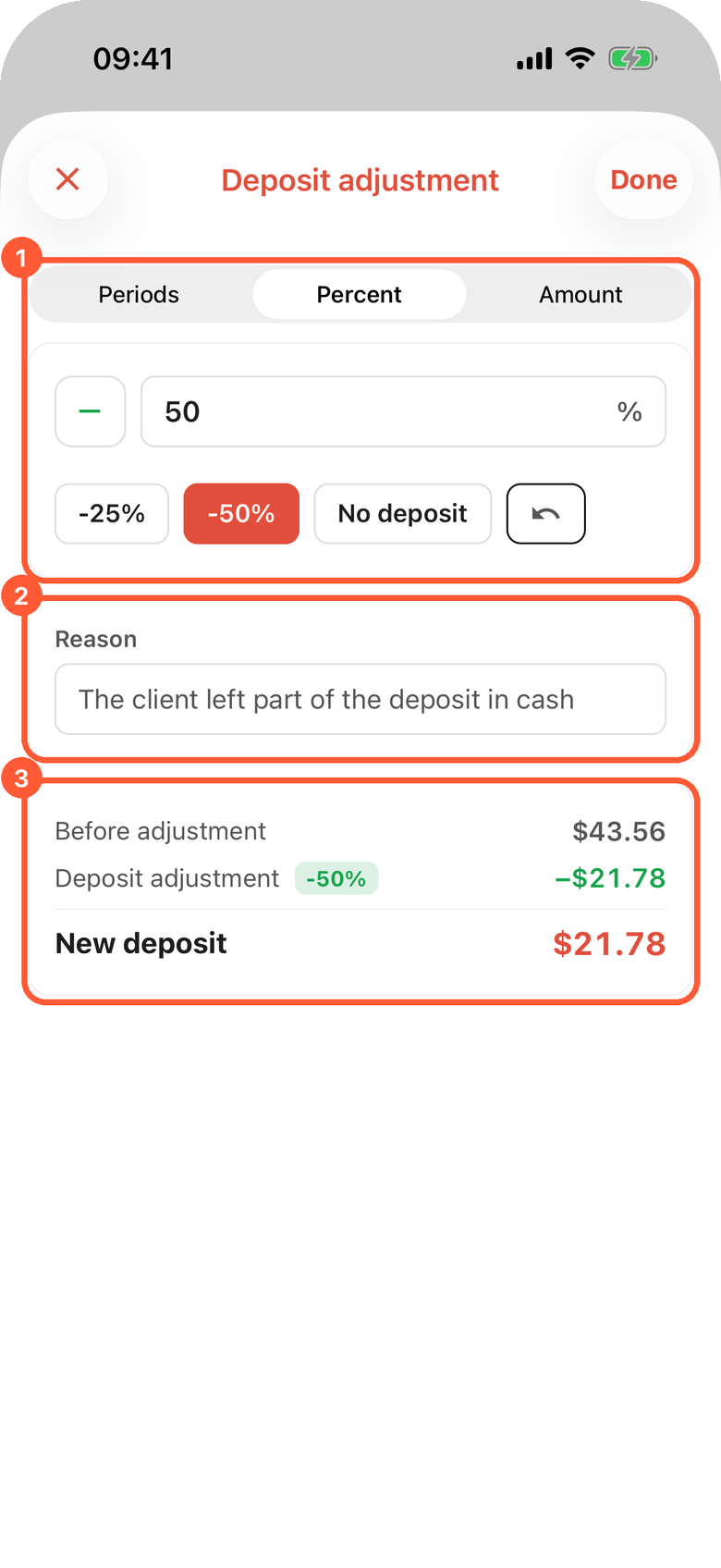
1 Type and size of the adjustment. 2 An optional reason, shown on the booking. 3 The deposit before and after.
Open Adjust price or Adjust deposit from Actions, or tap the pencil next to the price or deposit on the booking page.
- Pick the type your organization allows: Periods (charge a different number of days or months than the dates give), Percent or Amount. With one allowed type there is no switch.
- Use the minus and plus toggle to Reduce the charge or Increase the charge. For the deposit, No deposit waives it.
- Enter the Reason and check Before adjustment and New total (or New deposit), then tap Done.
On the booking page the adjustment shows as its own row under the total or the deposit; tap the info icon to read the reason. It needs Enable booking cost adjustments under Features and the Allow booking cost adjustments permission. A deposit that does not depend on the rental period cannot be adjusted in periods. If the booking is already paid, the app says what to do first, for example The deposit was paid together with the booking. Return part of it with a deposit refund instead. See Booking cost adjustment.
Handover checklists
When pickup and return checklists are on, moving a booking into a pickup or return status opens the checklist on the phone. An unfinished one shows Continue pickup checklist or Continue return checklist on the booking page.
- The header shows Pickup checklist or Return checklist, Moving to with the target status, and {n} of {m} units checked.
- Tick each unit, or Mark all for a whole section. Tap a product to tick its units one by one.
- Scan opens the camera above the list and keeps it open for the next unit. The flashlight button lights up the label; Stop scanning closes the camera. Enter code takes a barcode or SKU typed by hand.
- Feedback comes right away: CAM-002 checked, CAM-002 is already checked, This unit is not part of this booking. Scanning a different unit of the same product offers Replace reserved unit?.
- With units assigned at pickup, Units to assign lists what is still open; scan a unit or tap Assign all.
- Confirm moves the booking to the new status: Checklist confirmed, status updated.
On a return with unticked units, the Unreturned units screen asks for each one: With client, Damaged or Lost, with a comment and Camera or Gallery photos for damaged and lost units. Select all and Comment for selected handle many units at once. Confirm return saves it. If some units are still with the client, the app shows Return saved and Set return date. See Partial returns.
Scanning needs the Advanced plan with QR codes & barcodes on. Enter code and ticking by hand work on every plan.
Documents
The Documents section lists documents saved on the booking. Tap one to share it, or delete it. With a signing service connected, Send for signing via {service} sends a document to the client and Refresh signing statuses updates where it stands. See Booking documents.
Common scenarios
A walk-in client wants a tripod for the afternoon
Tap New Booking, pick today and the times, scan the tripod's label on the Inventory step, find or create the client, and tap Create. Then Change Status to the pickup status and scan the tripod again in the checklist.
Checking what goes out this morning
Open Bookings on Today. Pickups lists every booking that starts today in time order. Filter by status Confirmed to see only what is ready.
Waiving the deposit for a regular client
Open the booking, Actions, Adjust deposit, pick Percent and No deposit, enter the reason, and tap Done.
A return comes back with a broken stand
Run the return checklist, leave the stand unticked and Confirm. On Unreturned units, set it to Damaged, add a photo with Camera and a comment, and tap Confirm return. The stand goes on maintenance.
Tips and cautions
Overview
The Requiply app for iPhone, iPad and Android: install it, sign in with your Requiply account, choose the tabs in the tab bar, and set the language, dark mode and text size.
Scanning barcodes and QR codes
Scanning QR codes and barcodes with the phone camera in the Requiply mobile app: the scan screen, the flashlight, typing a code by hand, and what a scanned unit, SKU or package barcode does in bookings, checklists and sales.