

Slow internet and no connection
The Requiply mobile app keeps working when the signal is weak, and with Keep data on this phone turned on it keeps working with no connection at all. On a weak connection, even EDGE or a 4G cell overloaded during a power outage, bookings and clients still go through: slower, but never lost and never created twice. With no connection, the screens you need at the counter open from the phone.
This works on iPhone and Android from version 1.1.7, on every plan. For the story behind it, see the blog post Slow and no internet mode for equipment rental businesses.
Two levels
| Weak connection | No connection | |
|---|---|---|
| Without the switch | Everything works, with longer waits. Bookings and clients are sent again until they land. | Screens you opened in the last 72 hours still show. Lists you never opened say No connection to Requiply. |
| With Keep data on this phone | Product, client and service pickers, client search and scanning answer from the phone at once. | Inventory with prices and stock, client search, the booking wizard and scanning work from the phone. Saving still needs a connection. |
Working on a weak connection is always on. Turning on Keep data on this phone is a choice each person makes for their own phone.
The badge on your avatar
A small badge on the corner of your avatar shows the connection. With a good connection there is no badge.
| Badge | Meaning |
|---|---|
| Blue | Slow internet. Working from the copy on this phone. The connection is weak, and the app answers from the data kept on the phone. Shown only when Keep data on this phone is on. |
| Blue with a spinning ring | Updating data on this phone. The copy on the phone is downloading changes. Everything works as usual. |
| Red, crossed-out Wi-Fi | No internet connection (the phone has no network) or No connection to Requiply (the phone is on a network, but nothing reaches Requiply). |
Without the switch, a weak connection shows no badge: the app simply waits longer. The red badge shows in both cases.
The connection sheet
Tap the badge to see what it means right now.
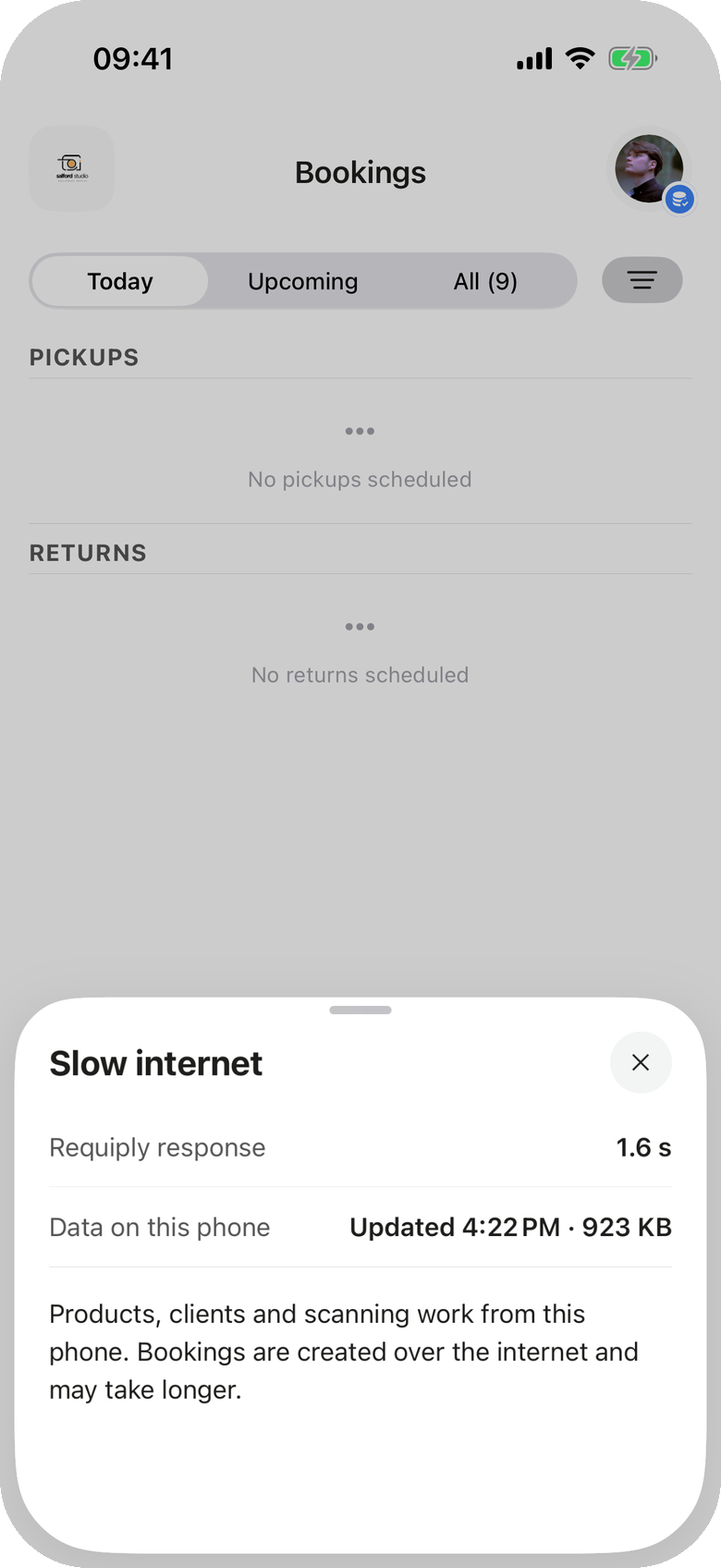
The sheet on a weak connection: how fast Requiply answered the last check, when the copy on the phone was updated, and what works.
| Row | What it shows |
|---|---|
| Title | The state: Slow internet, Updating data on this phone, No internet connection or No connection to Requiply. |
| Requiply response | How long Requiply took to answer the last check, for example 1.6 s. Hidden while there is no connection. |
| Data on this phone | When the copy was last updated and its size, for example Updated 4:22 PM · 923 KB. Shown only with the switch on. |
| The last line | What works now, for example Browsing and scanning work from this phone. Creating bookings needs a connection. |
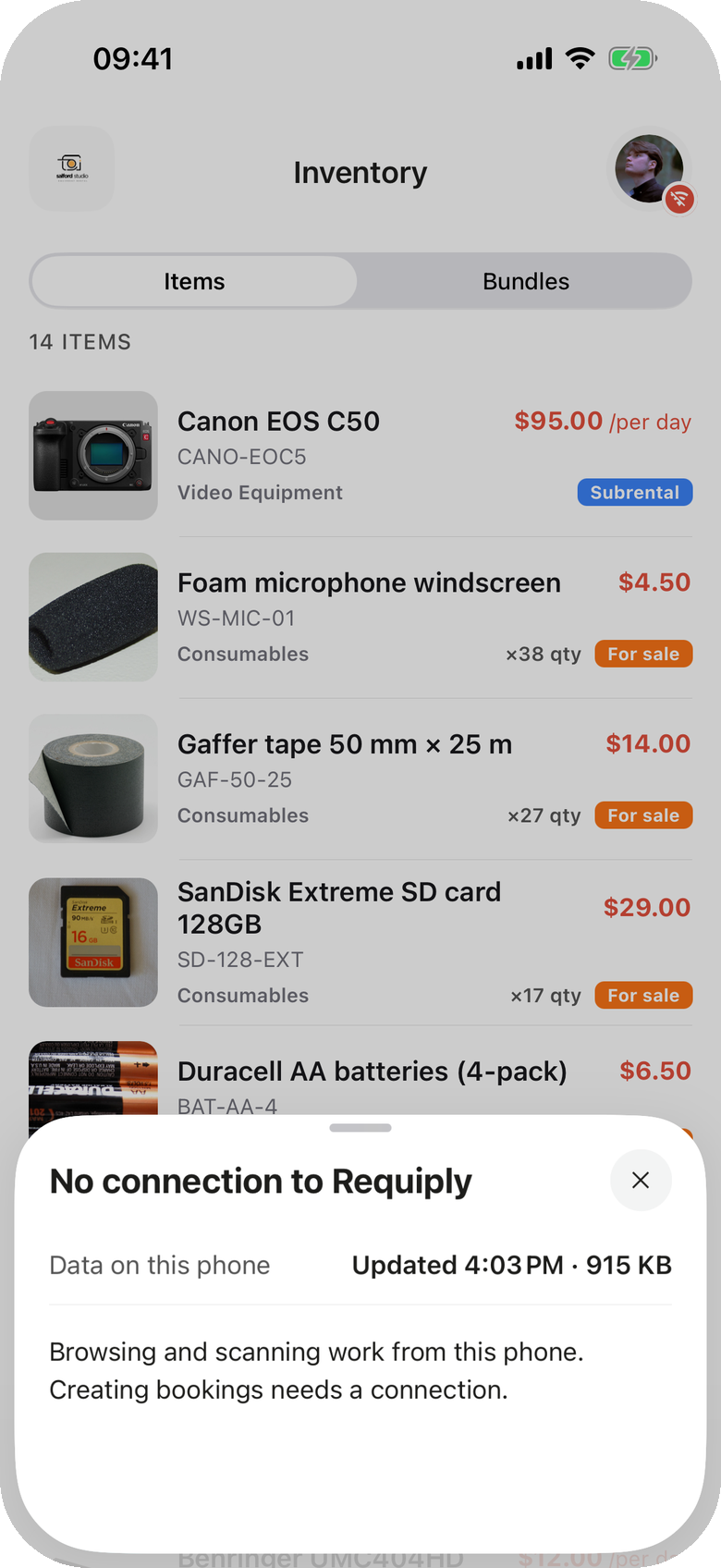
The sheet with no connection and the copy on the phone ready.
Keep data on this phone
The switch keeps an encrypted copy of your organization's data on the phone and keeps it up to date in the background.
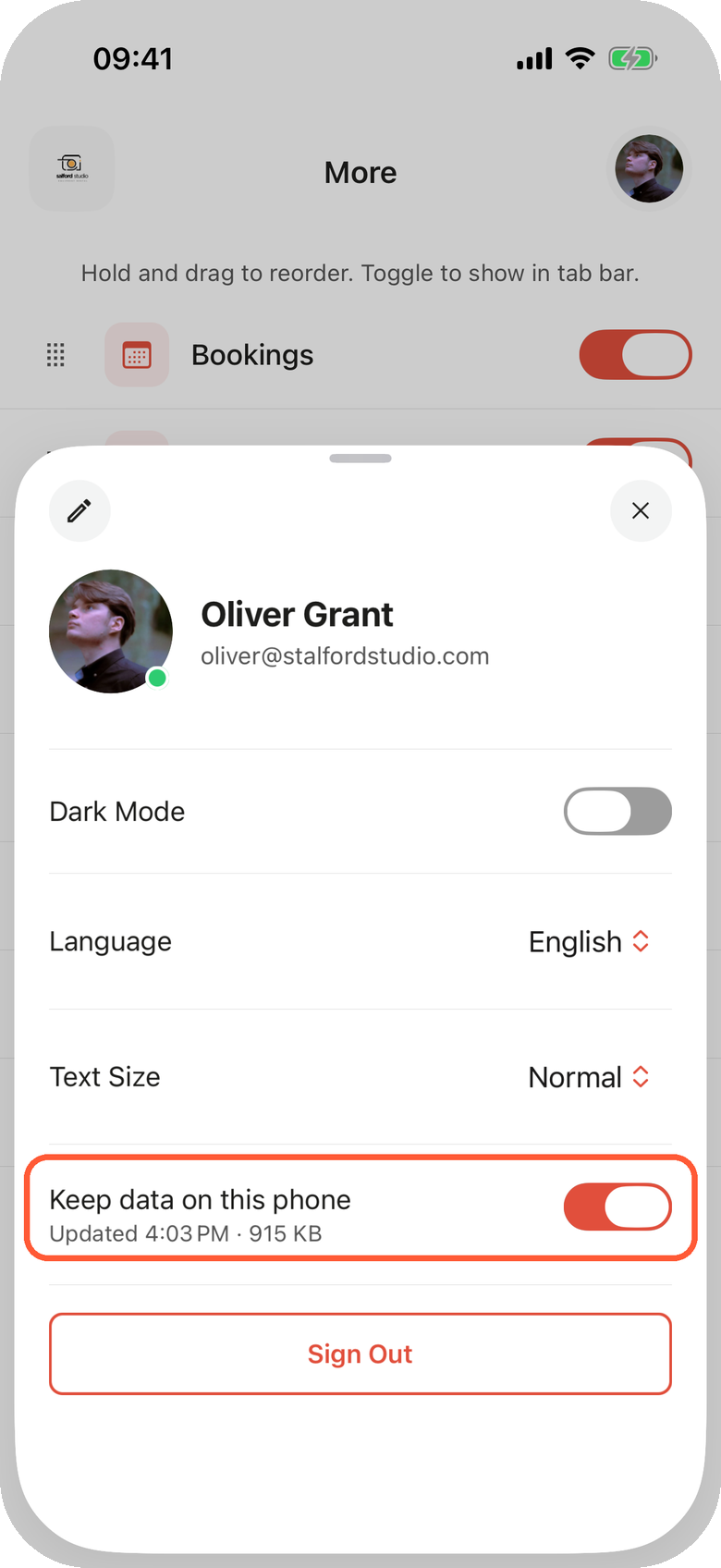
The switch in the profile, with the time of the last update and the size on the phone underneath.
Turning it on
Do this ahead of time, on a good connection.
- Tap your avatar in the top right corner.
- Turn on Keep data on this phone.
- The app asks Keep data on this phone? and says what it will download, with your organization's numbers: products, units, clients and bookings, About {size} to download, {size} on the phone.
- Tap Download. A spinner shows beside the switch and the avatar badge turns blue with a spinning ring until the data is ready.
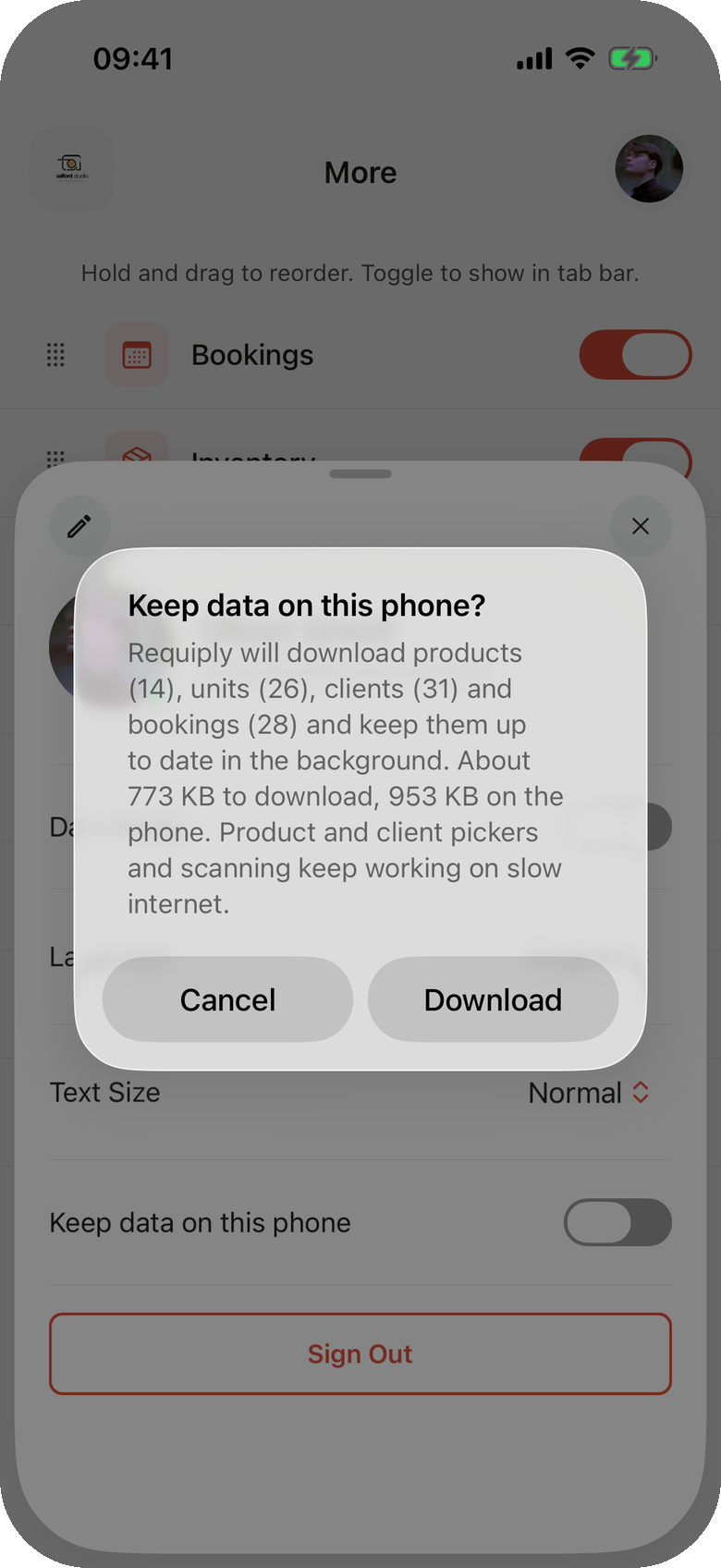
The download size for your organization shows before anything is downloaded.
With no connection the switch cannot be turned on: Connect to the internet to turn this on. If the first download fails, the line under the switch reads Not downloaded yet. It will retry automatically.
What is kept on the phone
| Data | What it is used for |
|---|---|
| Products, bundles and goods for sale, with prices, stock and the main photo | The inventory list and the item pickers |
| Every unit with its SKU, status and barcodes | Scanning and typed codes, checklists |
| Clients | The client picker and client search by name or phone |
| Bookings: every current booking and recent history | Which booking holds a unit |
| Services | The services step of a new booking |
| Organization settings and your permissions | Working hours, holidays, required fields, statuses |
Data your permission group does not allow you to see is never downloaded. Comments, conversations, documents and payments are not kept.
Size. A small rental shop takes a few megabytes. In our tests a catalog of 3,470 units took about 3.4 MB, and the first download over EDGE took 15 to 25 seconds. Product photos download only on a good connection.
Keeping it up to date
The copy updates by itself while the app is open:
- Changes your teammates make reach the phone within seconds.
- On top of that it checks every 5 minutes on a good connection and every minute on a weak one.
- When the connection comes back, when you return to the app, and after you create a booking or a client.
- With the app closed, the phone updates it in the background from time to time, when the system allows.
Security
- The copy is encrypted. Requiply issues a key for each phone and renews it on every update. The key is valid for 72 hours after the last update.
- Removed from the organization: the copy is deleted at the phone's next connection.
- Offline for more than 72 hours: the phone deletes the key, and the copy can no longer be read. When the connection comes back and the person is still a member, the key is issued again and nothing is downloaded twice.
- Not used for 14 days: the copy is deleted to free space.
- Turning the switch off asks Delete data from this phone? and deletes the copy. Sign Out deletes it too.
What works with no connection
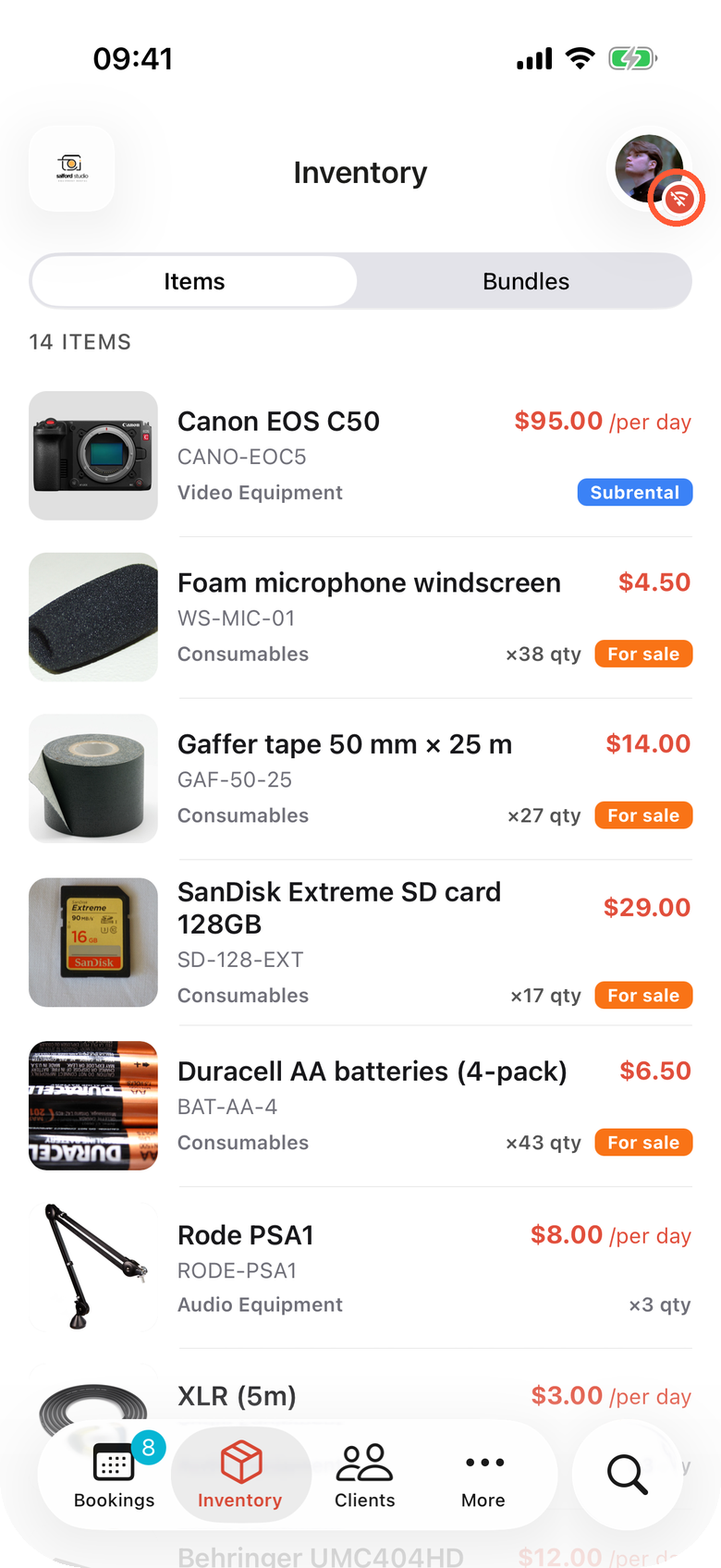
Inventory with prices and stock, opened from the phone. The red badge on the avatar (highlighted) says there is no connection.
| Works | Notes |
|---|---|
| Screens you opened recently | Booking lists, booking pages, clients and products you opened in the last 72 hours, on every phone, switch or not. |
| Inventory with prices and stock | Needs the switch. |
| Client search by name or phone | Needs the switch. |
| Putting a new booking together | Items, dates, services and the client all come from the phone. Needs the switch. |
| Scanning and Enter code | Unit barcodes, SKUs and package barcodes of goods for sale resolve on the phone. Needs the switch. |
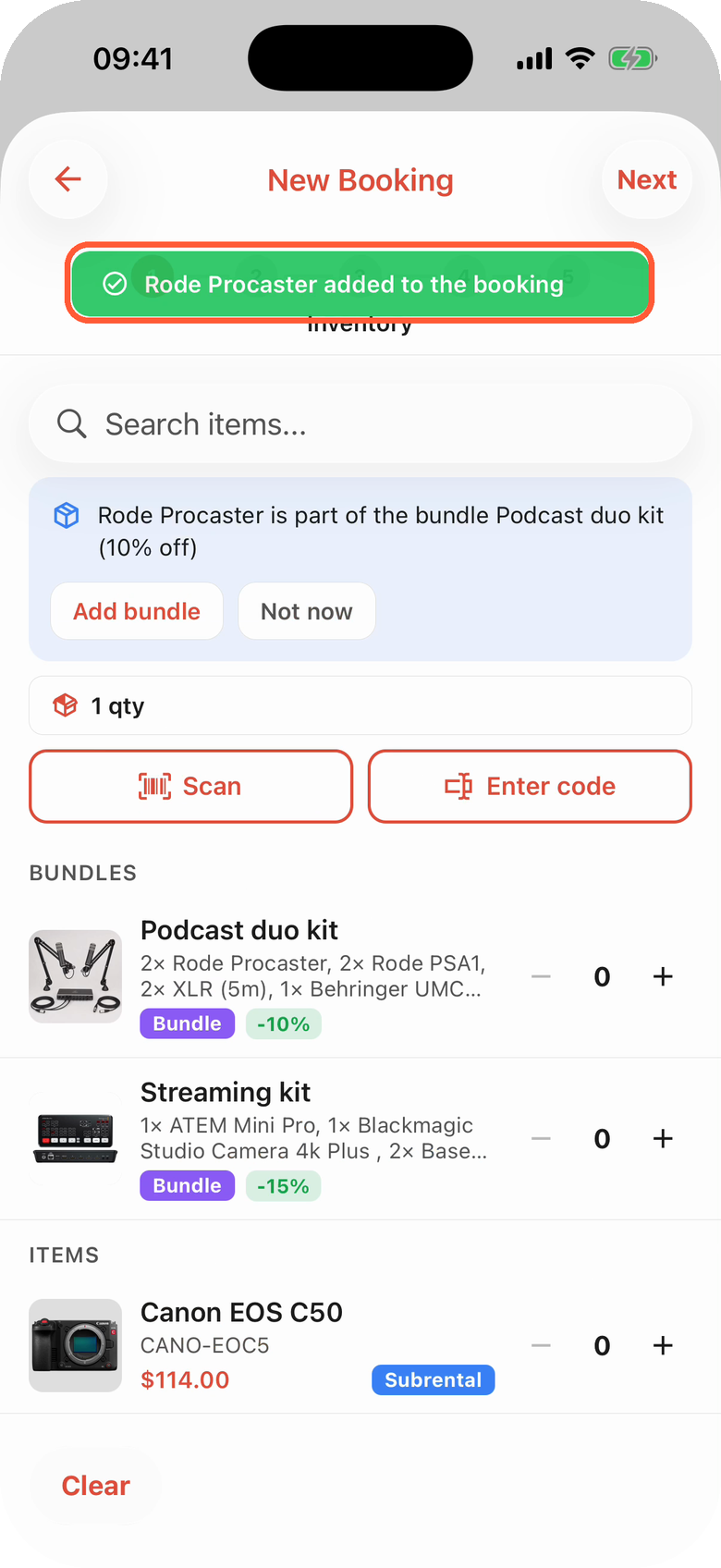
A unit code typed with Enter code is found on the phone and added to the booking.
A list that has nothing to show yet says No connection to Requiply or No internet connection with The list will load as soon as the connection is back. It loads by itself when the connection returns.
What needs a connection
- Saving a new booking and its exact total. Prices on the phone are a guide; the total with pricing tiers, discounts and deposits is calculated by Requiply when the booking is saved, and availability is checked at the same moment. With no connection Create is dimmed and tapping it says No internet connection. Check Wi-Fi or mobile data and try again. The draft stays, so tap Create again once there is a signal.
- Status changes, and confirming a pickup or return checklist.
- Editing dates, items or services, payments, refunds, sending emails and documents.
- Conversations, comments and the assistant.
On a weak connection
When Requiply answers slowly, the app adapts instead of freezing:
- It waits longer before giving up: up to two minutes for a new booking.
- It refreshes lists in the background less often and holds back photo downloads, so your booking gets the bandwidth.
- With the switch on, pickers, search and scanning answer from the phone, so typing and scanning cost no waiting.
The notice on the Confirm step
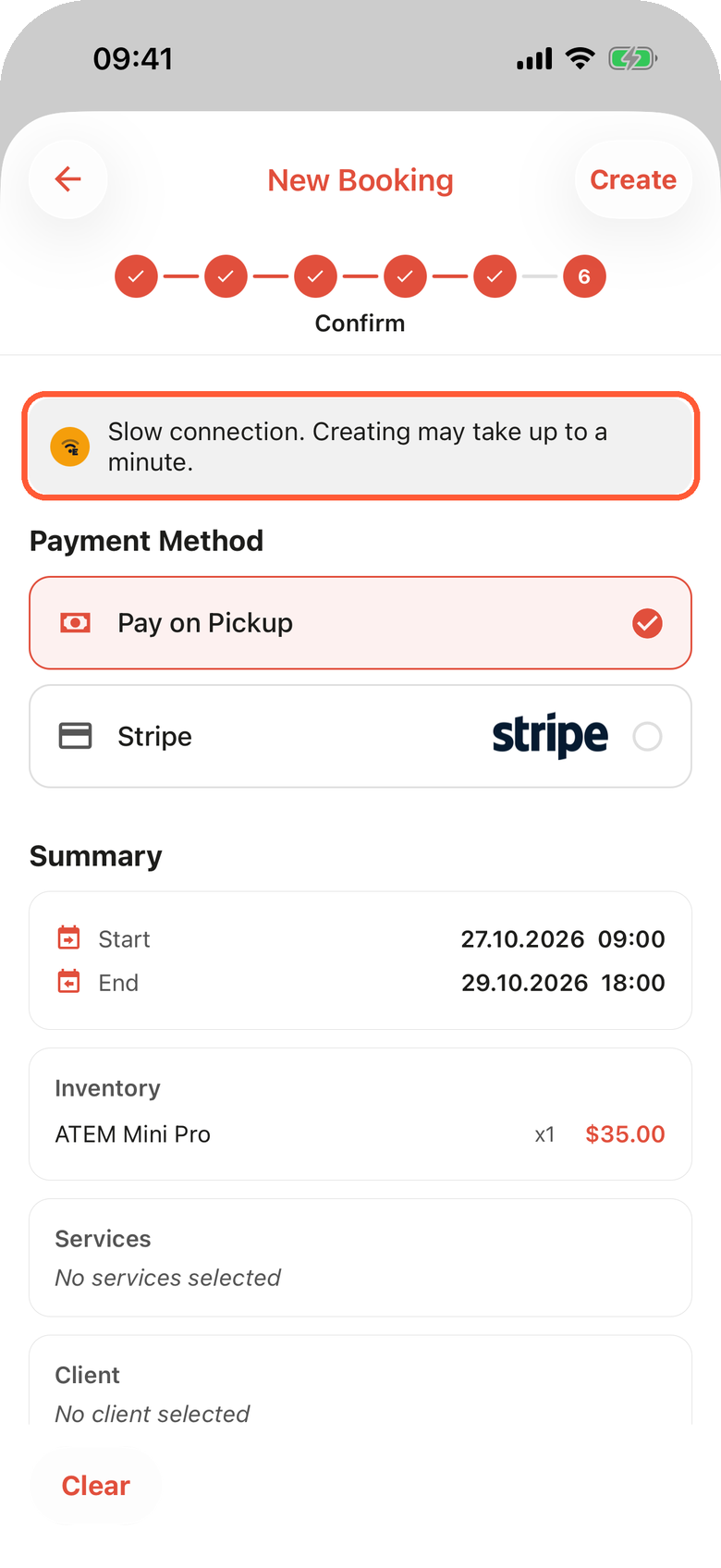
On a weak connection the last step of a new booking warns that creating can take longer.
On the last step of a new booking, a weak connection shows Slow connection. Creating may take up to a minute. above the payment method. After you tap Create, the button shows a spinner until the booking is saved.
Bookings and clients are never lost or doubled
A new booking or client is saved on the phone before it is sent. If the connection drops, the answer gets lost, or the app is closed while it is being sent:
- The app says No answer from the server yet. The booking will be sent again as soon as the connection improves. (for a client: ...without creating a duplicate.).
- It sends it again when the app starts, when you return to it, or when the connection comes back.
- Requiply recognizes the repeat and never creates a second booking or client.
- When it lands, a message confirms it, for example Booking #29 created, even if you have left the booking screen.
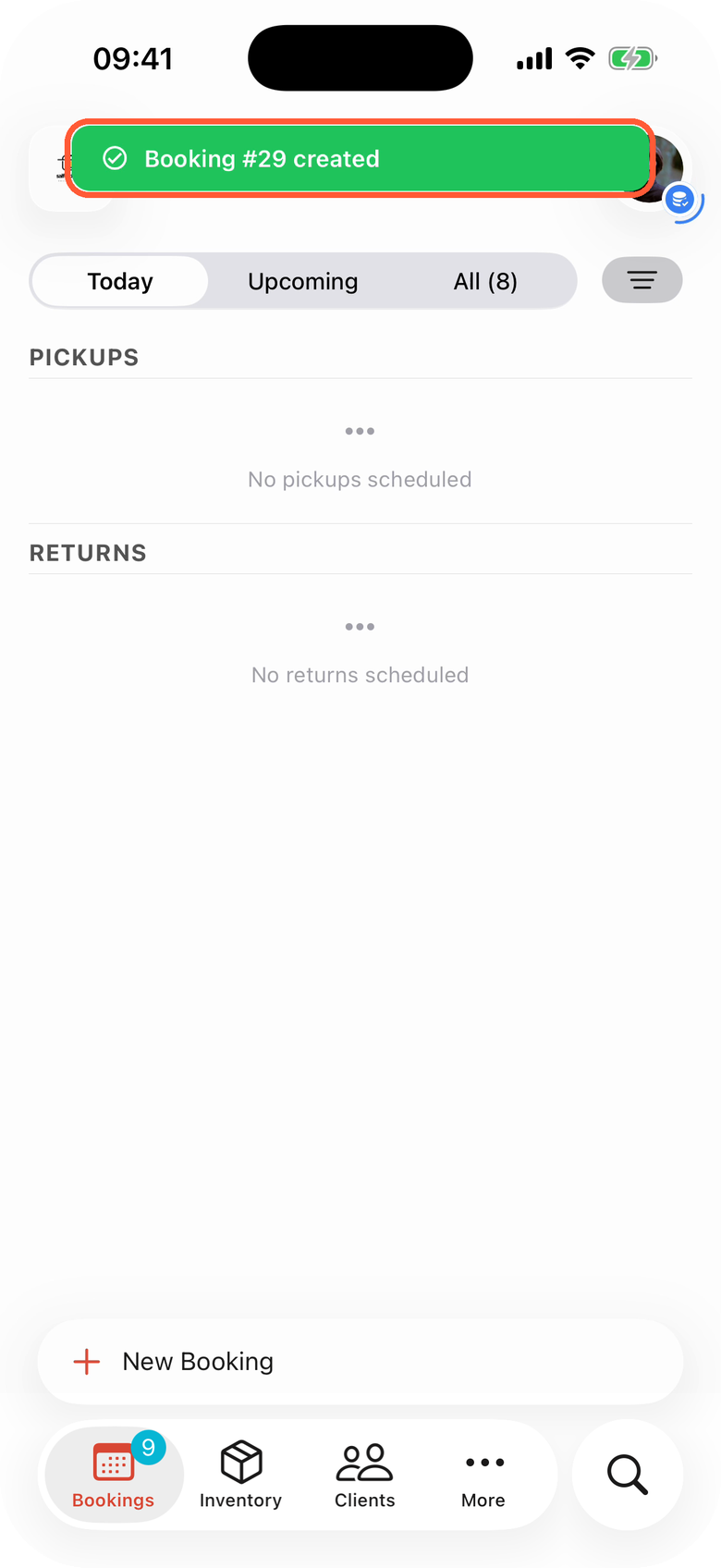
A booking that was still on its way when the app closed, confirmed after the app was opened again.
Availability is always checked by Requiply when the booking arrives. If a teammate booked the last unit while your request was on its way, the booking is refused with the reason, for example Not enough "ATEM Mini Pro" for these dates: requested 1, available 0. A refused booking that was sent again later shows The booking was not created: {reason}.
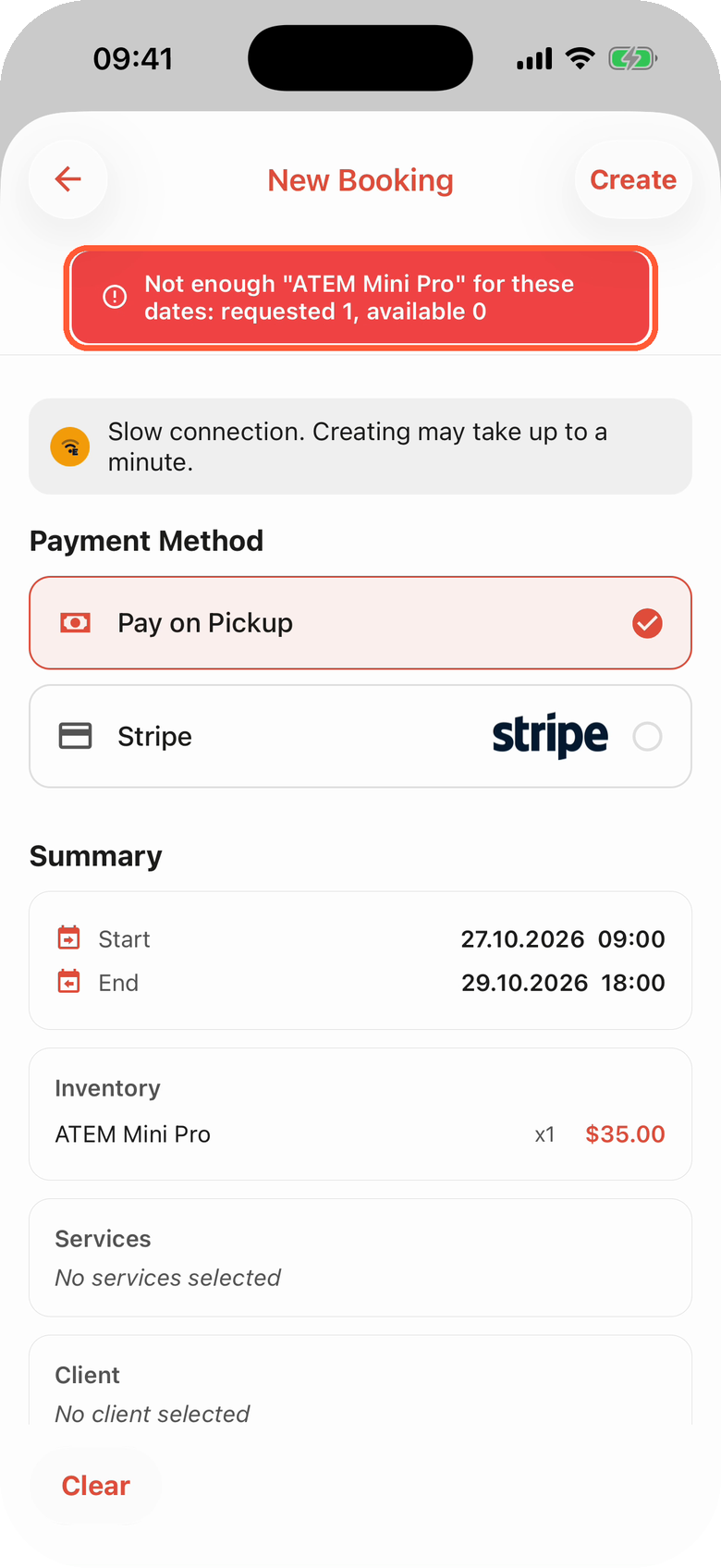
The same unit is never rented twice: Requiply refuses the booking and says how many are available.
Common scenarios
Quoting a price during a power outage
A client calls, the call gets through, but mobile data loads nothing. Open Inventory: daily prices and stock are on the phone. Give an estimate, then start a new booking and pick the items, dates and client. When any signal appears, tap Create; Requiply calculates the exact total with your pricing tiers and the client's discount.
Handing over equipment in a basement
Turn on Keep data on this phone in the office. On site, open the booking and its checklist. Each scanned code is found on the phone at once, and the tick is sent over the weak signal. If the signal is gone completely, step outside to one bar to tick the rest and Confirm the checklist.
The app was closed while a booking was being sent
Open the app again on any connection. The booking is sent again by itself and Booking #N created appears. Do not create it a second time and do not sign out until the message appears.
Tips and cautions
Scanning barcodes and QR codes
Scanning QR codes and barcodes with the phone camera in the Requiply mobile app: the scan screen, the flashlight, typing a code by hand, and what a scanned unit, SKU or package barcode does in bookings, checklists and sales.
Conversations and comments
Answering clients and teammates from the Requiply mobile app: the conversations inbox, the long-press menu on messages and comments (reply, copy, edit, delete), linking a client to a conversation, the photo viewer and the Assistant tab.