

Scanning and pinning on a new booking
On Add booking you can add items by their code instead of by name and, when your organization allows it, pin the exact units that go out with the booking.
Adding items by scanning
You can add an item by its code instead of looking it up by name. There is no separate scan field: codes go into the Booking items search, and a handheld barcode scanner works anywhere on the form.
Typing a code. Open Booking items and type or paste a unit code, a unit SKU, or (with Sales) the barcode of a product for sale. The search placeholder reads Name, SKU or unit code. When the text matches no product by name or SKU and is at least 3 characters long, Requiply looks it up as a code and offers one row: the product image and name, then Unit {sku} or For sale · {price}, with an Add tag. Click the row or press Enter to add it. The search clears so you can type the next code. A code that matches nothing shows No results found.
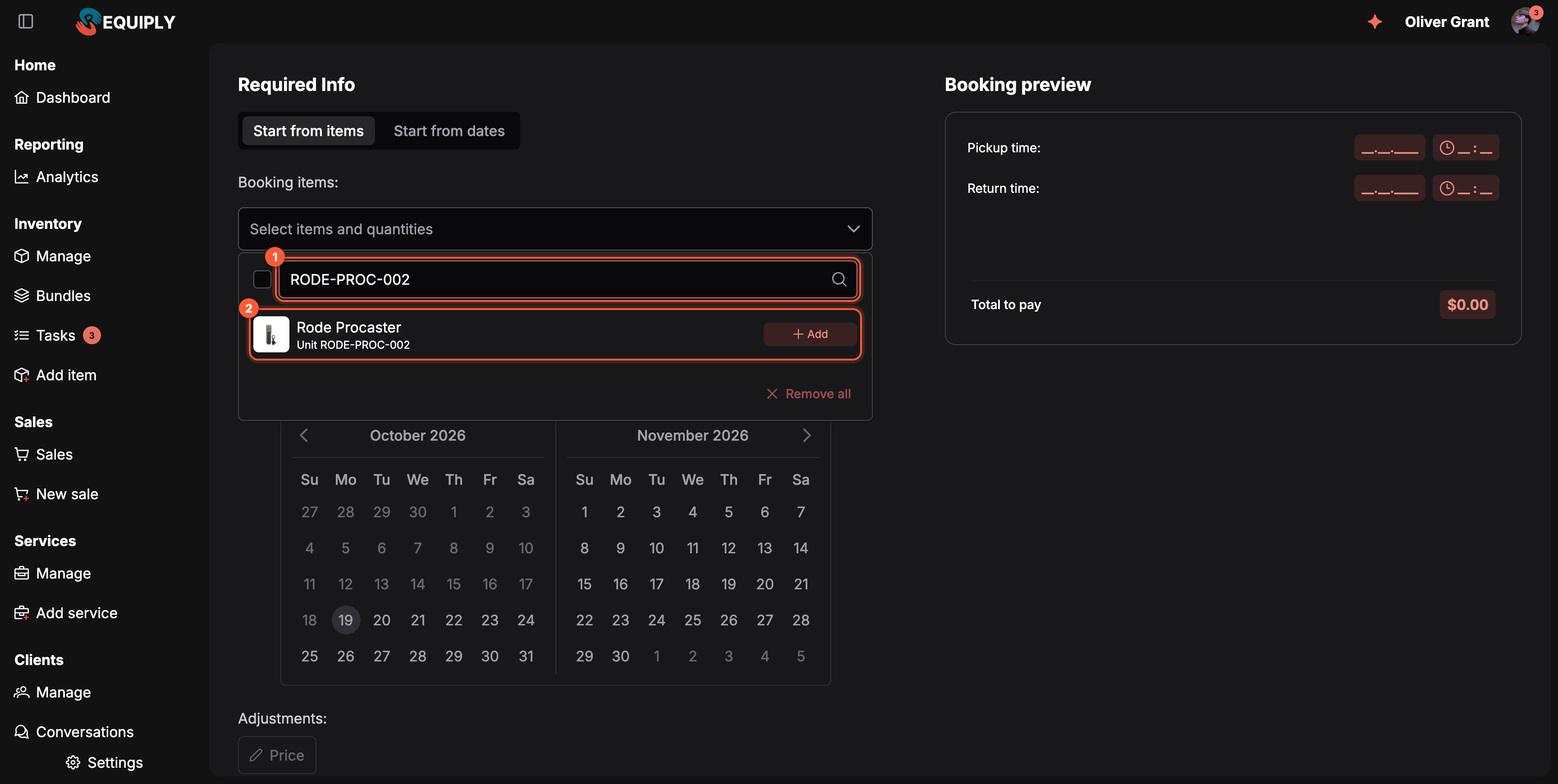
1 A unit code typed into the items search. 2 The matching unit, added with a click or Enter.
Scanning. With QR codes & barcodes on (Advanced plan), scan a label with a handheld scanner while the Add booking page is open. You do not need to click into a field first: Requiply recognizes the scanner by its burst of 5 or more very fast keystrokes and adds the item. If the cursor was in another field, such as the client search, that field keeps its own text. Scans are ignored while a dialog is open, and in Start from dates mode until both dates are picked.
Code search is available when unit assignment on creation is allowed for you, or when QR codes & barcodes is on. Scanning with a handheld scanner needs QR codes & barcodes.
| You enter or scan | Without unit assignment | With unit assignment |
|---|---|---|
| A unit's barcode or SKU | The unit's product is added, or its quantity goes up by one: {name} added to the booking. No specific unit is pinned. | The unit is pinned, see below. |
| A product barcode of a good for sale | One is added to the sold goods: {name} added to the booking. | The same. |
| A scan that matches nothing | No unit or item for sale matches this code. (or No unit matches this code. without Sales) | The same. |
Assigning units on creation
Staff can pin specific physical units to a booking while creating it, by scanning or typing the unit's code. Use it when the customer asked for a particular unit, or when the unit is already on the counter.
Two switches are needed:
- Allow assigning units on creation is on in Booking creation settings. It is off by default.
- The member's permission group has Allow assigning units on booking creation (section Booking creation). It is on for Administrators by default and off for new groups.
With both, a unit code entered in the Booking items search, or scanned with a handheld scanner, pins that exact unit to the booking (see Adding items by scanning for how codes are entered):
- Pinned units are listed under Booking items as Pinned units, each with its image, product name, SKU tag, and an X button (Unpin unit) to remove the pin. The list appears only once a unit is pinned.
- In Start from dates mode codes are accepted only once both dates are picked.
Which codes work. A unit barcode (the Requiply RQ… code, an EAN-8 code, or a manufacturer barcode tied to the unit) or the unit's SKU. Only owned units can be pinned; units of subrental products cannot.
What pinning does:
- If the unit's product is not selected yet, it is added with quantity 1.
- If the product is already selected and its quantity has a slot without a pinned unit, the unit fills that slot.
- Otherwise the product's quantity goes up by 1.
- Lowering the quantity in Booking items unpins the most recently pinned units first.
- The preview on the right shows the pinned SKUs as tags under the product name.
| Message | Meaning |
|---|---|
| Unit {sku} pinned to the booking. | The unit was pinned. |
| No unit matches this code. | The code or SKU is unknown, or it belongs to a subrental product or to another organization. |
| Unit {sku} is already pinned to this booking. | Nothing to do; the unit is on the list already. |
| Unit {sku} is {status} and cannot be booked. | The unit's status is not Available. |
| {name} is not available for the selected dates. | The product has no free stock for the dates. |
| Unit {sku} is booked by another reservation for these dates. | An overlapping booking already holds this unit. |
| All available units of {name} are already in this booking. | The product line is already at its available quantity. |
Dates and conflicts.
- In Start from items mode, days when a pinned unit is booked by another booking are blocked in the date picker.
- If the dates change after units are pinned and a pinned unit is booked elsewhere for the new dates, that unit gets a red Booked #N tag with the other booking's number. The form shows Remove the conflicting units before creating the booking, and Create booking stays disabled until you unpin the unit or pick other dates.
- In Start from dates mode, changing the dates clears the selected items together with their pinned units.
What happens on create. Pinned units are assigned to the booking immediately. The rest of the quantity follows the Unit assignment option under Features: with Assign units at booking (or with checklists switched off) it is auto-assigned right away; with Assign units at pickup it waits for the pickup checklist. If the setting or the permission is missing, the server refuses the booking with Assigning units on booking creation is not enabled for this organization or Your permission group does not allow assigning units on booking creation.
In the mobile app
You can create a booking from the Requiply mobile app on iPhone and Android: tap the New booking button and work through the same wizard as the web form. The mobile app does not ask whether to start from items or from dates; it opens straight into whichever mode is set as Start from under Booking creation. The How do you want to start? question only appears when you go back from the first step or clear the draft. Everything below describes how scanning units into a booking behaves there. For the whole wizard step by step, see Creating a booking in the mobile app section.
The same two switches control unit pinning in the Requiply mobile app. Members with both see a units block on the Inventory step of New booking: step 1 when starting from items, step 2 when starting from dates. The block sits between the selected quantity counter (for example 0 pcs) and the item list.
- Scan opens the camera scanner. It appears only when QR codes & barcodes is on, which needs the Advanced plan.
- Enter code opens the Pin a unit prompt: Enter a unit barcode or SKU to add it to this booking. Type the code into Barcode / SKU and tap Add.
- Pinned units are listed under the buttons with the product name and SKU. Tap ✕ (Unpin unit) to remove a pin.
When Sales is on, goods for sale appear in the item list with a For sale tag, and the code prompt becomes Add by code: Enter a unit barcode, SKU or the barcode of an item for sale. A scanned product for sale is added to the sold goods ({name} added to the booking); an unknown code shows No unit or item for sale matches this code.
Pinning follows the same rules as on the web: a product that is not selected yet is added, and lowering its quantity unpins units. When dates are already picked, a unit held by another booking for those dates cannot be pinned (Unit {sku} is booked by another reservation for these dates). A pinned unit that becomes held after a date change gets a red Booked #N tag, and creating the booking stops with Remove the conflicting units before creating the booking.
When unit pinning or the scan buttons are missing
Go through these checks in order. The web form and the mobile app both need all of them.
| Check | Where | What to look for |
|---|---|---|
| Organization toggle | Settings → Bookings settings → Booking creation | Allow assigning units on creation is on and saved. It is off by default for every organization. Without it, a unit code on the web only adds the product. |
| Member permission | Permission groups, Booking creation section | The member's group has Allow assigning units on booking creation. |
| Mobile app version | App Store or Google Play | The Requiply app is updated to the latest version. |
| Mobile app refresh | The phone | After switching the toggle on, close and reopen the app. The app keeps the previous value for a few minutes. |
If Enter code is there but Scan is not, the units block is working: the camera button needs QR codes & barcodes switched on, on the Advanced plan.
Booking dates
Pick the pickup and the return on the Add booking calendar: availability colors, selecting a range in either direction, and booking outside working hours with the matching permission.
Client and details
Pick or create the client for a new booking, complete a client who is missing required details, and fill in the booking fields your organization asks for at creation.