

Client details
The Client details page is the single view of everything Requiply knows about one client: their contact record, the money they have generated and still owe, their custom field values, and every booking they have ever made — grouped by what needs attention first.
Before this page existed, client information was spread across the clients table, individual bookings, and reports. Now one page answers the two questions staff actually ask at the counter: who is this person and do they owe us anything.
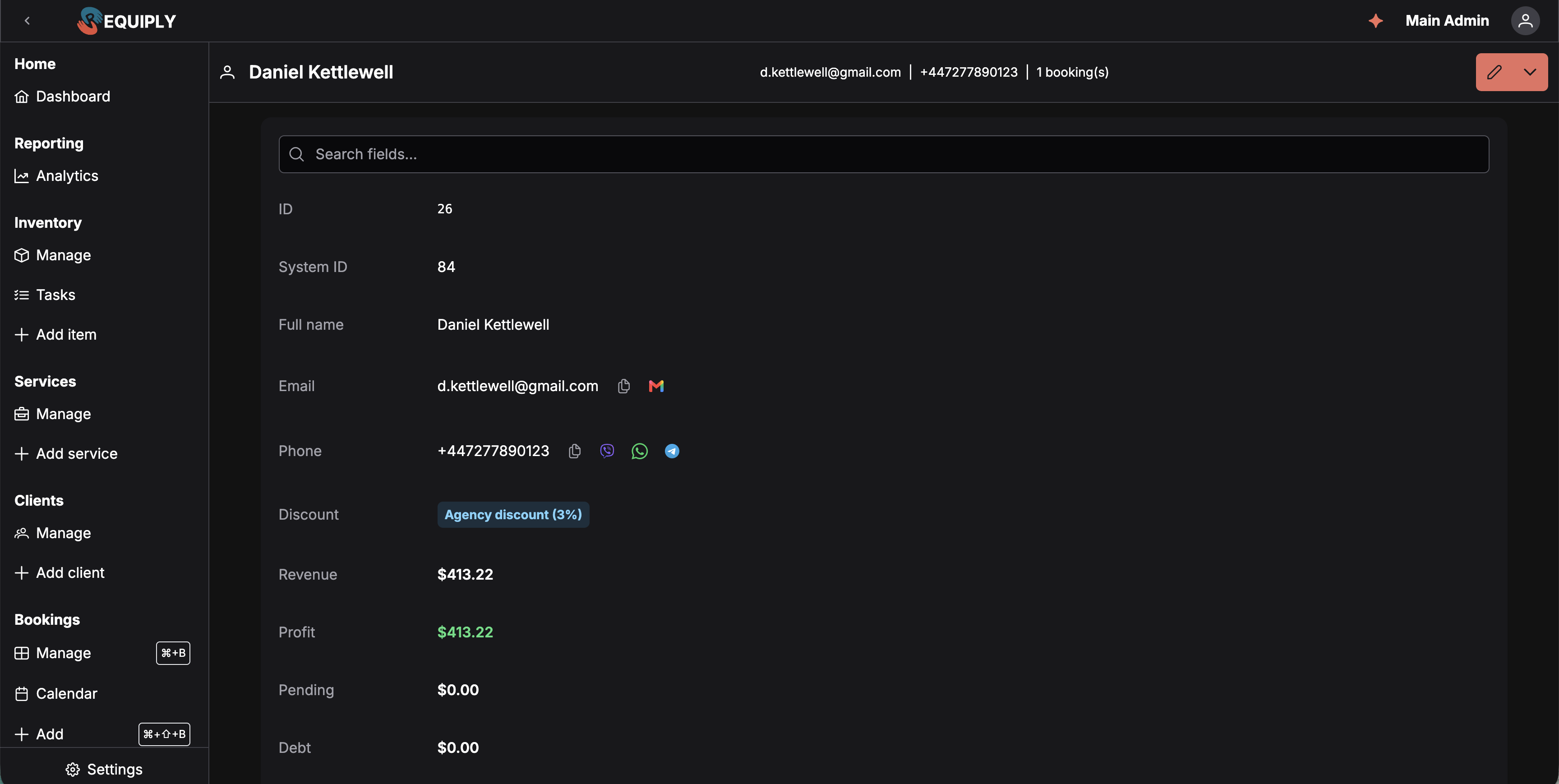
Contact details and finance figures are rows of the same list — there is no separate finance card. This client owes nothing, so Debt reads $0.00 and no Settle debt button appears, and Profit matches Revenue exactly ($413.22) because nothing was spent on subrentals or service payouts against their bookings.
How to open it
The page lives at /clients/{id}, where {id} is the client's organization-scoped number. There are two ways in:
- On Manage clients, click the ID tag in the left-most column of any row.
- From a booking, open the client popover (the client button on a booking row or on the booking detail page) and click the ID tag inside it.
The page runs the auth and store-refresh middleware, so it is available to any signed-in member of the organization.
What you'll see
A sticky toolbar sits at the top with the client's full name, their email and phone, the number of bookings they have, and the same Actions split button used on Manage clients — edit, assign discount, delete. Deleting only succeeds for a client with no bookings; on success you are returned to the clients list.
Below the toolbar are up to three cards: the details card, then Messaging, then Bookings.
The details card holds every field row for the client — contact details, the finance figures, and the organization's own client fields — in one ordered list. Which rows appear and in what order is set per organization under Settings → Fields → Detail page fields, so the order below is Requiply's default rather than a fixed layout.
A Search fields… box sits at the top of the card. Typing filters the rows by their label and their value — search an email address, a phone number, or a figure and only the matching rows remain. Matching ignores case and accents, and each word can match anywhere in the row. When nothing matches, the card shows No fields match your search.
Details rows
The plain contact record:
| Row | Notes |
|---|---|
| ID | The organization-scoped client number — the one shown on bookings and invoices. |
| System ID | The internal database id, useful for support and API calls. |
| Full name | First and last name joined. |
| Followed by quick actions — copy the address, or open it in your mail client. Shows a muted Not assigned when empty. | |
| Phone | Followed by quick actions — copy the number, or open a Viber, WhatsApp, or Telegram chat with it. Shows a muted Not assigned when empty. |
| Discount | The assigned pricing discount as a tag with its percentage (for example Premium (5%)), or Not assigned. |
| Client portal | Whether the client has an account on your client portal. With one, a green Has account tag followed by Account since {date} and Last seen {date}; without one, a grey No account. Starts hidden: add it in Detail page fields. |
Finance rows
Four figures summarising the client's financial history with your organization, all in the organization currency. They are rows in the same card as the contact details and can be reordered or hidden alongside them.
| Figure | What it means |
|---|---|
| Revenue | Money actually collected: settled charges, minus recorded refunds, minus any security deposit still being held. A deposit is a liability until it is kept or returned, so it is not counted as revenue while you hold it. |
| Profit | Revenue minus costs. Costs are employee service payouts plus what you paid suppliers for subrentals, across all non-cancelled bookings, plus the net cost of goods the client bought (Sales). Shown in green when positive, red when negative. |
| Pending | Charges that are currently pending or processing — money on its way but not yet settled. |
| Debt | What the client still owes: each booking's billed total minus what was actually collected on it, floored at zero and summed, plus the unpaid part of their standalone sales. Shown in red when above zero, with a Settle debt button next to it. |
Requests, cancelled bookings, and fully refunded bookings never contribute debt. A fully refunded booking is treated as called off, so re-billing the client for it would be wrong.
Goods sold on a booking are already inside that booking's total. What a client paid for a standalone sale counts in Revenue, and cancelled sales count nowhere.
When the client owes money, the Settle debt button opens the debt settlement flow — see Debt settlement. When a settlement is already running, this row shows the payoff payment itself with a Regenerate button beside it.
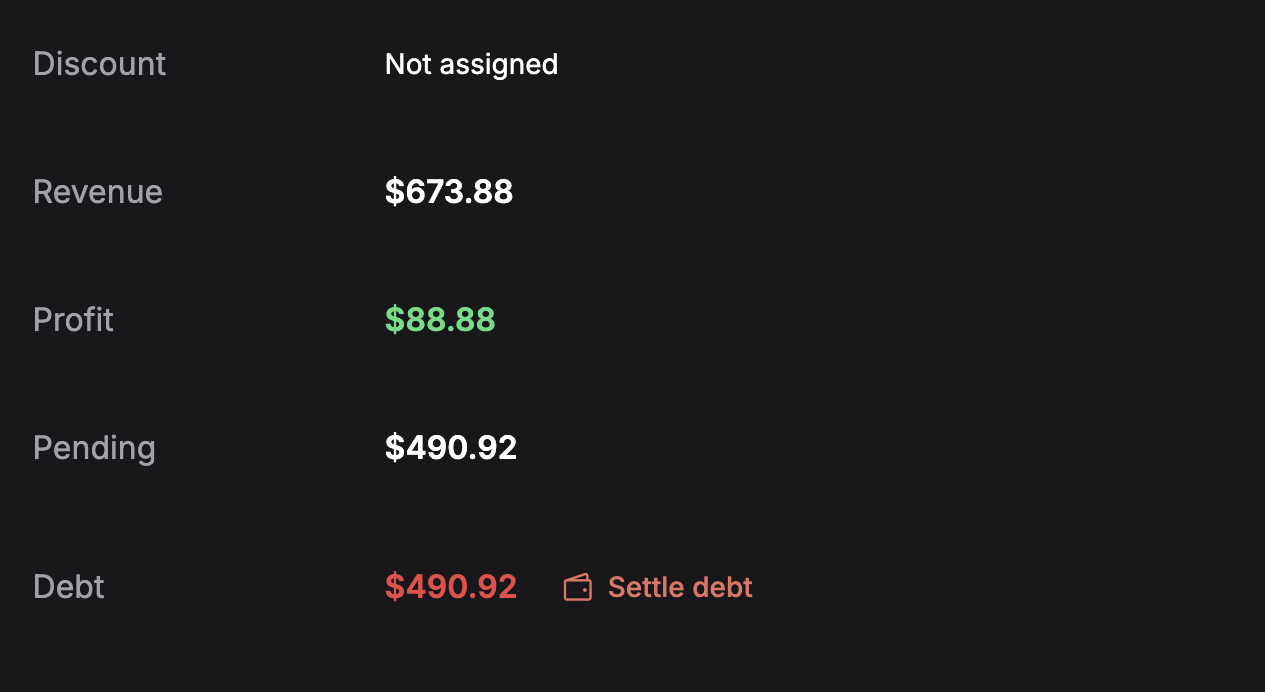
Above, $673.88 was collected but Profit is only $88.88, so most of that went straight back out as subrental spend or service payouts. Pending and Debt show the same $490.92, which is not double counting: those charges have been raised but not settled, so the money is simultaneously on its way and not yet collected. It clears from both rows at once when the payment settles.
This client also has no discount assigned, which is why Discount reads a muted Not assigned rather than a tag.
Messaging
Shown when your organization has at least one messaging channel configured, or when Requiply has already tried to message this client.
The card has two parts.
Channel reach, in the header beside the title — one entry per channel your organization has configured (Telegram, Viber, SMS), each showing whether this client can actually be reached on it:
| Channel | What it shows |
|---|---|
| Telegram | The client's connection state — Connected (with their @handle), Invited, Blocked, or Not connected. Until they connect, a Copy invite link button puts their personal bot link on the clipboard, ready to paste into a chat or email. |
| Viber / SMS | Phone on file when the client has a usable number, No phone number when they do not. |
Recent messages, underneath — a table of every message Requiply sent this client, newest first, ten rows to a page with a paginator. The columns are Channel, Template, Message, Booking, Status, and Date; the status is a Sent or Failed tag, and expanding a row shows the full message text. Failures carry the reason. When nothing has been sent yet, the card reads No messages have been sent to this client yet.
Failure reasons are written in plain language:
| Reason | What to do |
|---|---|
| The client has not connected Telegram yet | Send them the invite link from this card. |
| The client blocked the bot | They removed the bot in Telegram; use another channel. |
| The client has no phone number / The client phone number is invalid | Fix the number on Add or edit client — it must include a country code. |
| The messaging provider is not configured | Connect a provider under Communications. |
| The message template was deleted / The template format does not match the channel | Repoint the workflow at a compatible template. |
Conversations
When the Conversations inbox is on and the client has chatted with you, a Conversations row lists their conversations from every channel: the channel (Booking page, Website widget, Telegram, OLX, Instagram) with the contact's profile picture when the channel shares one, the last message, its time, and a Closed tag on finished ones. Click a conversation to open it in the inbox. The row is hidden when the client has no conversations.
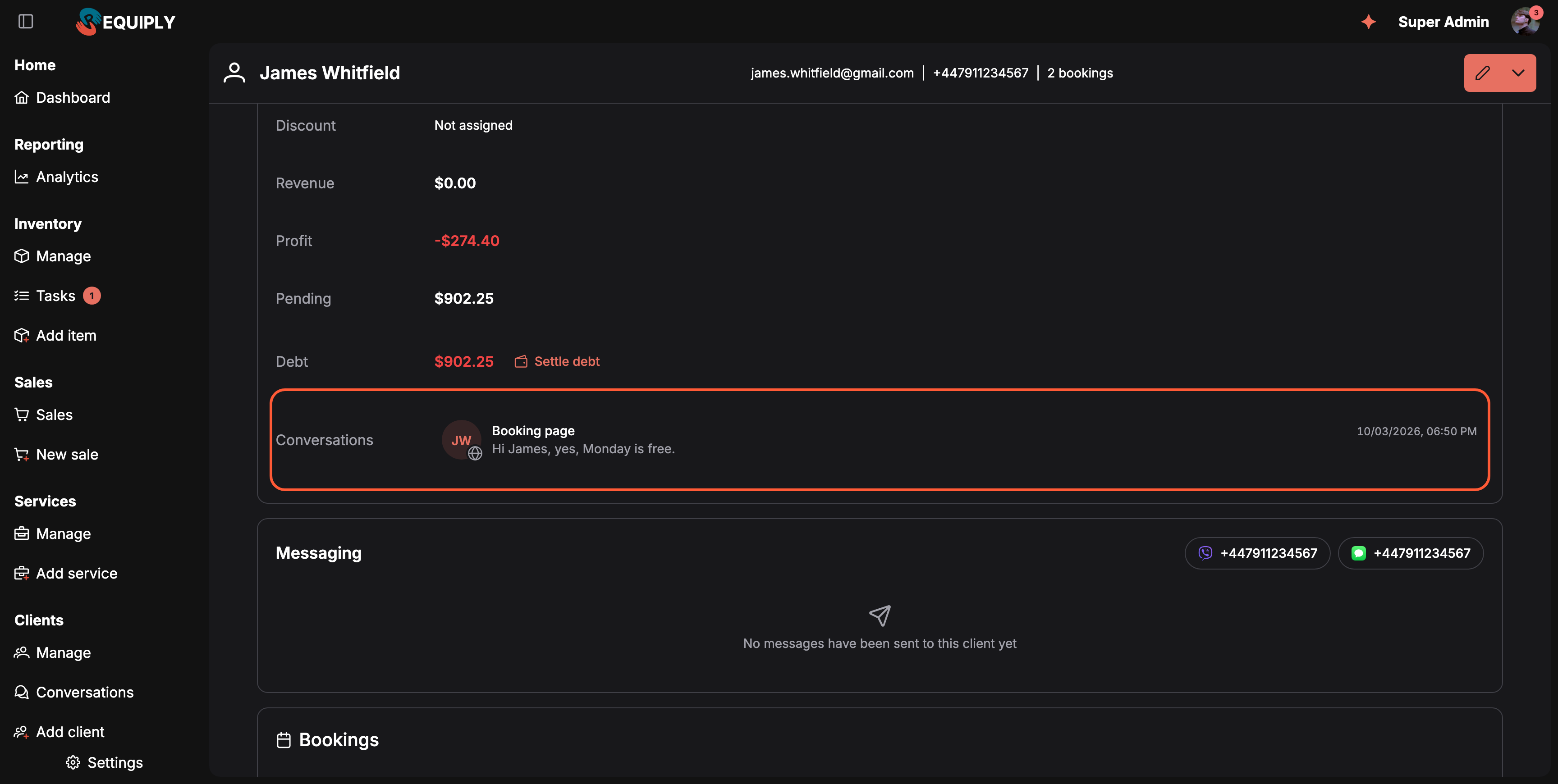
Every chat with the client, whatever channel it came from, next to their bookings and messages.
The same list is on the mobile client page as a Conversations card.
Binotel calls
An optional row in the details card that shows the client's phone calls from Binotel, matched by the client's phone number, with recordings you can play on the spot and a button to call the client.
The row appears only when all of these are true:
- Binotel is connected under Communications.
- An administrator has added Binotel calls to the Client tab of Detail page fields at
/settings/fields/page-level-configurations?tab=client. It is not added automatically when Binotel is connected. - Your permission group has Allow access to client call history. The Administrators group has it by default.

The Binotel calls row with a recording open. The client name is hidden in this screenshot.
The header sums up the client:
- the client's name in Binotel, the employee they are Assigned to, and their Binotel labels, or Not in the Binotel customer list when Binotel has no customer card for them,
- the number of calls, how many were missed (in red when above zero), and the total minutes of talk,
- Call, which calls the client through Binotel from your own line. Binotel rings your line first and dials the client once you pick up. Hovering the button shows which line will ring,
- a Binotel button that opens the client in your Binotel cabinet,
- Refresh, which reloads the history.
The calls table lists calls newest first, 10 per page:
| Column | What it shows |
|---|---|
| Date | When the call started. |
| Direction | Incoming or Outgoing, with a colored arrow: green for answered, red for missed. |
| Employee | Who handled the call and their internal line. For unanswered calls, how long the client waited. |
| Status | Answered, Transferred, Missed (an incoming call nobody answered), or Busy, No answer, Cancelled (an outgoing call that did not connect). |
| Duration | How long the conversation lasted. |
At the end of each row, a link icon opens all calls with this number in Binotel, and the play button opens the recording right under the row. The player has a waveform you can click or drag to jump to any moment, the position and full length, a playback speed button, and a download button. The play button turns into an X that closes the player. Missed incoming calls without a recording show Call back instead.
Empty states:
| Message | Meaning |
|---|---|
| Add a phone number to match Binotel calls | The client has no phone number. Add one on Add or edit client. |
| No calls with this client yet | Binotel has no calls with this number. |
| Binotel is not connected | The integration was disconnected or is inactive. |
| Binotel has no recording for this call | Call recording is off in Binotel for that line or employee. |
For the whole organization's call log, with missed calls, unknown numbers, and the mobile app, see Calls.
Custom field rows
Every client entity field the organization has configured for the Client level appears as a row in the same card. New fields are visible by default and land at the end of the list; they can then be moved anywhere among the built-in rows under Detail page fields. Checkboxes render as Yes / No, multi-selects as a comma-separated list, and empty values as Not assigned.
Bookings
Every booking belonging to this client, split across five tabs. The page opens on the first tab that has rows, and each tab carries a count badge.
| Tab | What lands here |
|---|---|
| Overdue | Ended before today and the booking's status does not release availability — the gear is still out. Adds a red Days Overdue badge. |
| Today | Starts or ends today. Adds a Type tag: Pickup, Return, or Same Day, and shows times as well as dates. |
| Active | Started before today and ends after today — currently out on rental. Adds a Days Left badge. |
| Upcoming | Starts after today. |
| History | Ended before today and the status releases availability — closed and returned. Adds the booking's Total Cost. |
Every tab shows the booking ID (linking to the booking), start and end dates, the payment status, and the booking status tag. Tables paginate at 10 rows.
The same widget appears on the inventory item detail page, where it answers the equivalent question for a piece of gear instead of a person.
Empty and error states
- Client not found — a full-page placeholder with This client may have been removed or belongs to another organization and a Back to clients button. This is what you get from a stale link or an id belonging to a different organization.
- No bookings — the Bookings card shows a calendar icon and No bookings for this client instead of tabs.
- Finance failed to load — the finance rows show Could not load finance data. The rest of the page still works; reload to retry.
- Every row hidden — if an admin hides all rows for the Client level, the details card is not rendered at all. The messaging and bookings cards are unaffected.
How this page connects to the rest of Requiply
| Feature | Relationship |
|---|---|
| Manage clients | Entry point via the ID column; the Actions button here is the same one used there. |
| Add or edit client | Reached from the Actions button; changes are reflected when you return. |
| Debt settlement | Launched from the Debt row and lives entirely on this page. |
| Booking detail | Every row in the Bookings card deep-links into it. |
| Subrentals | Supplier spend on subrentals is subtracted from Profit. |
| Services | Employee service payouts are subtracted from Profit. |
| Pricing discounts | The assigned discount is shown in the Details card. |
| Entity fields | Client-level custom fields become rows in the details card. |
| Detail page fields | Sets which rows the details card shows and in what order, for everyone in the organization. |
| Communications | The Messaging card reflects the Telegram integration and the invite link generated for this client. |
| Message templates | Named in every entry of the message log. |
| Calls | The organization-wide call log. The Binotel calls row shows the same calls filtered to this client. |
| Permission groups | Allow access to client call history decides who sees the Binotel calls row. |
| Analytics | Organization-wide versions of the same revenue and utilization figures. |
Common scenarios
A client walks in and wants to rent again
Open their page from the client popover on any past booking. The Debt row tells you immediately whether to take payment before handing over new gear, and the Overdue tab shows anything they still have not returned.
Chasing an overdue return
The Overdue tab lists only bookings whose status has not released availability, with a day count on each. Click straight through to the booking to call the client or extend the dates with Edit booking dates.
Working out whether a client is worth the trouble
Compare Revenue and Profit. A large gap means the client's bookings lean heavily on subrented gear or paid services — the revenue is real but most of it leaves again.
Tips and cautions
Manage clients
The customer list: search clients by name, email, phone, or number, filter by discount, client portal account, or custom fields, assign a discount to several at once, delete records with no bookings, and open any client's full history.
Add or edit client
Create a customer record or update an existing one: name, phone, email, address, assigned discount, and your custom client fields, including the ones your organization made required.