

New sale
The New sale page records a sale of goods that is not part of a booking: a walk-in customer buying batteries, or a regular client who only needs a new memory card. Requiply takes the goods off the stock, opens the payment, and gives the sale its own number.
To sell goods together with a rental, add them to the booking instead, so the client pays once: see Sell items on a booking.
Open it from Sales → New sale in the sidebar, the New sale button on the Sales list, or at https://app.requiply.com/sales/add. You need Allow selling items in your permission group. Members who can only view sales are sent back to the Sales list.
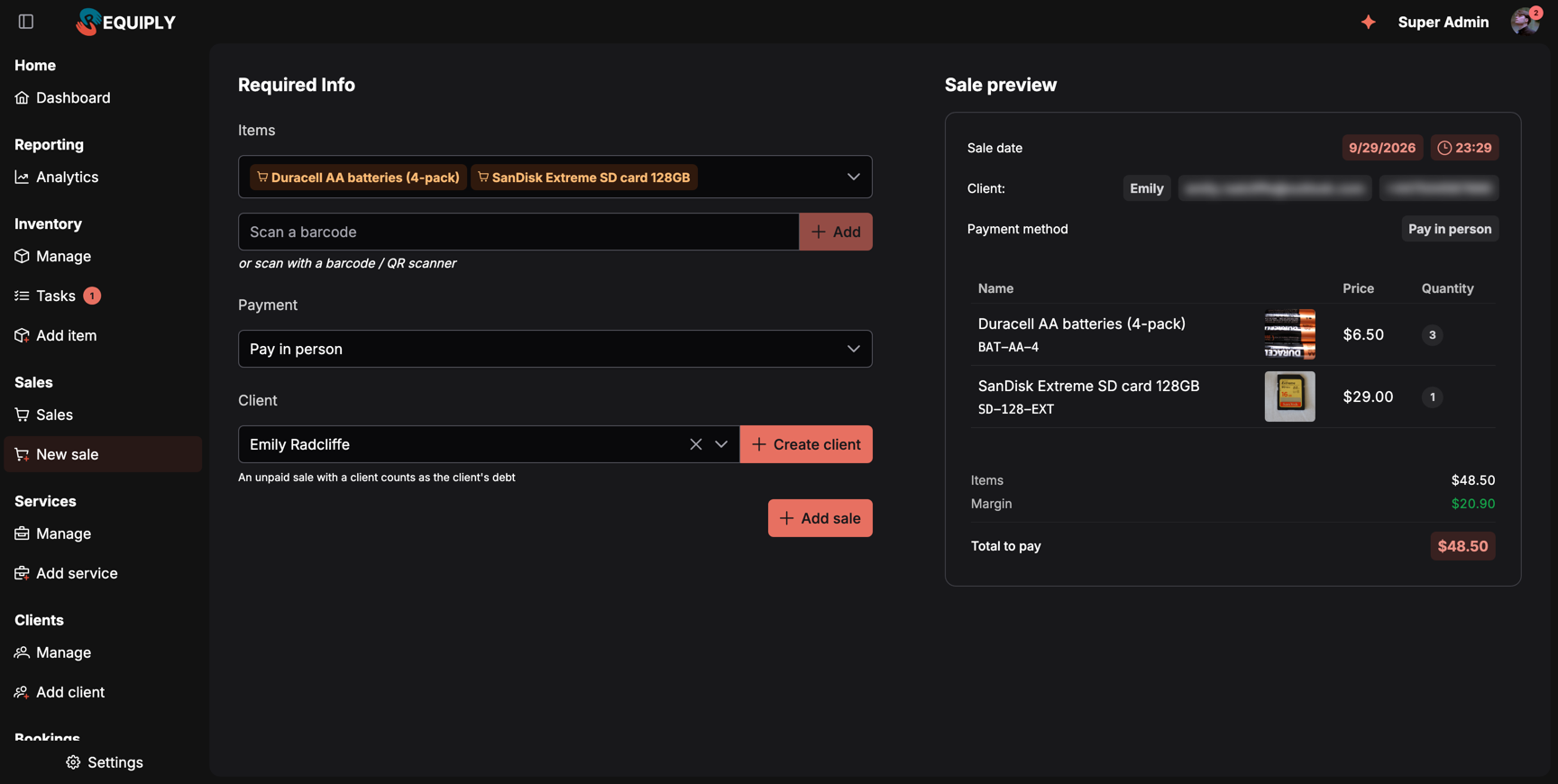
A sale of three battery packs and a memory card, paid in person. The preview shows the margin because this member can manage stock.
What you'll see
The page has two columns.
Left, the form under Required Info:
| Section | What it holds |
|---|---|
| Items | The product selector, then the scan field (see below). |
| Payment | The payment method: Pay in person or one of your connected payment providers. |
| Client | An optional client, picked from the list or created with Create client. The hint under it: An unpaid sale with a client counts as the client's debt. |
Right, the Sale preview: Sale date (now, updated while the page is open), the client, the Payment method, one row per product with its image, price, and quantity, then Items, Margin, and Total to pay.
Adding products
From the list. Open the Items selector (Select items and quantities). It lists your active Equipment for sale with the price, a stock tag such as 17 in stock or, in red, Out of stock (0), and a quantity field. Tick a product and set how many. Each chosen product becomes an orange chip with a cart icon.
By scanning. With QR codes and barcodes on (Advanced plan), a Scan a barcode field sits under the selector. Scan the manufacturer barcode on the package or a product's SKU with a USB or Bluetooth scanner, or type the code and click Add. Each scan adds one; scanning the same product again adds one more. A code that matches nothing shows No sale item has this code, and an archived product shows {name} is archived and cannot be sold. Without the Advanced plan the field is replaced by an upgrade button.
Prices come from the product's Sale price. Client discounts never apply to goods.
Choosing how the client pays
| Method | What happens when you save |
|---|---|
| Pay in person | A pending payment for the total is added to the sale. Mark it Completed from the sale's Payment button when the client has paid. |
| An online provider (Mono, LiqPay, WayForPay, Stripe) | A payment link is created when you record the sale. After saving, Requiply shows Payment link created, and the link is on the sale's Payment button to copy and send. If the provider fails: The payment provider did not create a link. Try again from the sale. |
LiqPay needs a client with an email, because LiqPay sends its invoice by email. With LiqPay chosen and no such client, the page shows LiqPay sends the invoice by email. Choose a client with an email and Add sale stays disabled.
The client
A client is optional. Leave it empty for a walk-in customer. With a client:
- the client's name links from the sale and the Sales list, with the client hover card, and the Client filter finds all their sales,
- an unpaid or partly paid sale adds its balance to the Debt row on Client details. Collect it from the sale's own Payment button: Settle debt covers bookings only.
Create client opens the usual client dialog and selects the new client when saved. Opening the page with ?clientId= in the address, for example from a link, preselects that client.
Saving
Add sale is enabled once at least one product is on the sale. On save, Requiply:
- records the sale and its number: Sale #6 recorded,
- takes the quantities off the stock (a Sold entry in each product's stock history),
- opens the payment in the chosen method,
- takes you to the new sale page.
Margin
Members with Allow managing stock see Margin in the preview: the items total minus the Net cost of the products. When one of the products has no net cost, the margin is not shown. Members without that permission never see costs or margin.
In the mobile app
Open the Sales tab and tap the cart button to start a New sale. It has two steps:
- Items: search the products, tap Scan to use the camera, or Enter code to type a barcode or SKU (Type the barcode or SKU printed on the package.). Set quantities with − and +. Each product shows 17 in stock, Out of stock, 16 left after this sale, or Short by 2. The bottom bar shows the count and total; tap it or Go to checkout.
- Checkout: the Summary, Payment method, and Client (Choose a client, Remove client), then Total to pay and, for stock managers, Margin. Tap Add to save: Sale #7 added.
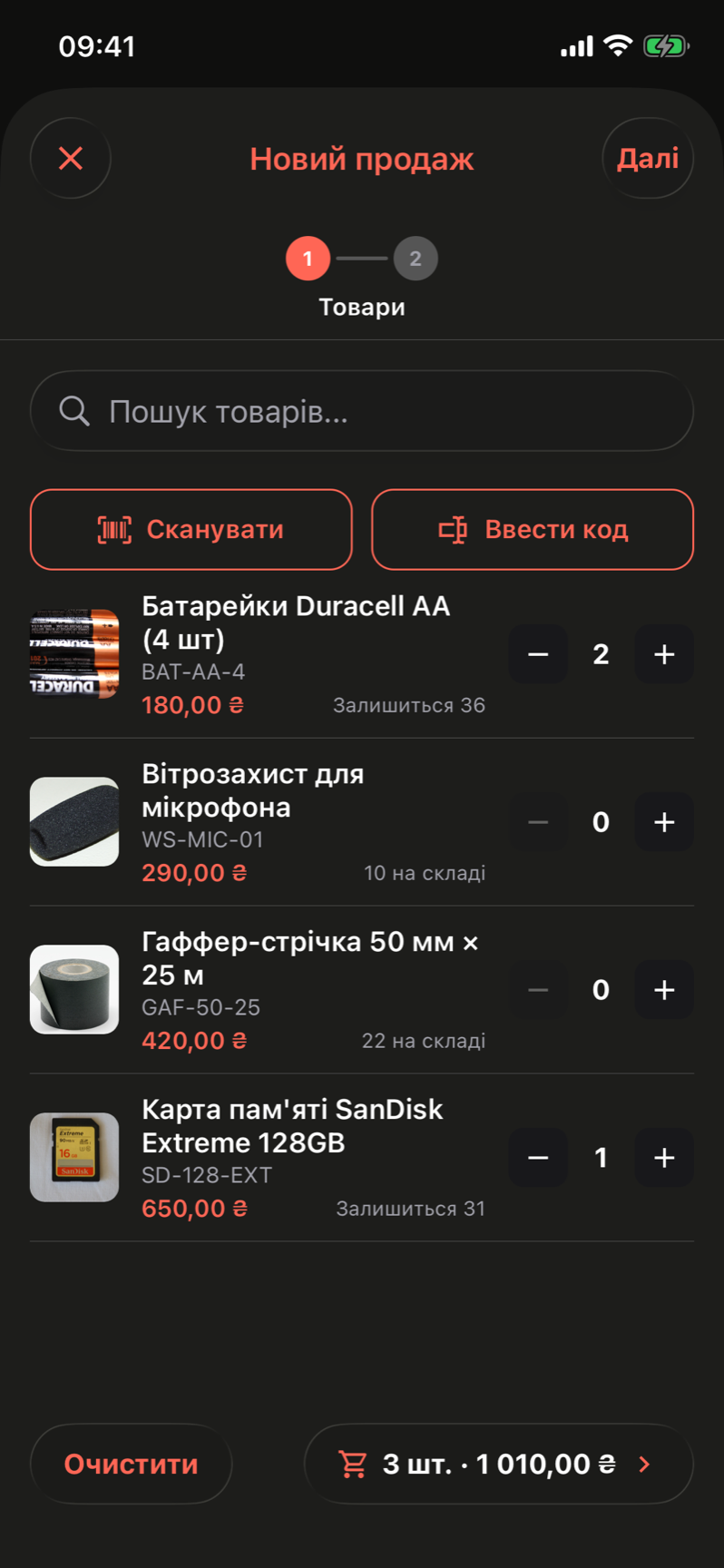
The Items step on iPhone, in the Ukrainian interface. Chosen products show how many will be left; the bar at the bottom carries the count and total to checkout.
Closing the screen with products picked asks Discard this sale? first. With no products for sale yet, the list says No products for sale yet. Add them in Inventory on the web.
Common scenarios
A walk-in customer pays cash
Add the products, keep Pay in person, leave the client empty, and click Add sale. On the sale page, click the Pay in person button and set the status to Completed.
A regular client buys cards and pays later
Pick the client, keep Pay in person, and save. The sale stays Unpaid, and the amount appears as debt on the client's page until it is paid or settled.
Sending a payment link
Choose your online provider (with LiqPay, pick a client with an email), save, then copy the link from the sale's Payment button and send it to the client.
Tips and cautions
soldAt if you import older sales.Sales list
The Sales list: every sale of goods in one table, searchable by sale number, client, or item, filterable by payment state, sale type, date, client, and total, with payment and return actions on each row.
Sale page
The page of one sale of goods: its products, total, payment, and returns. Collect or change the payment, edit the products, record a return with a refund and restock, or cancel a standalone sale.