

Dashboard
The Dashboard is the home page of the Requiply workspace — the first page that opens after you sign in, and the page the Requiply logo in the top-left corner takes you back to. It answers the questions a rental team asks every morning: what goes out today, what comes back, what is late, and how the month is going.
You can find it under Home → Dashboard in the main navigation, or open it directly at app.requiply.com/dashboard.
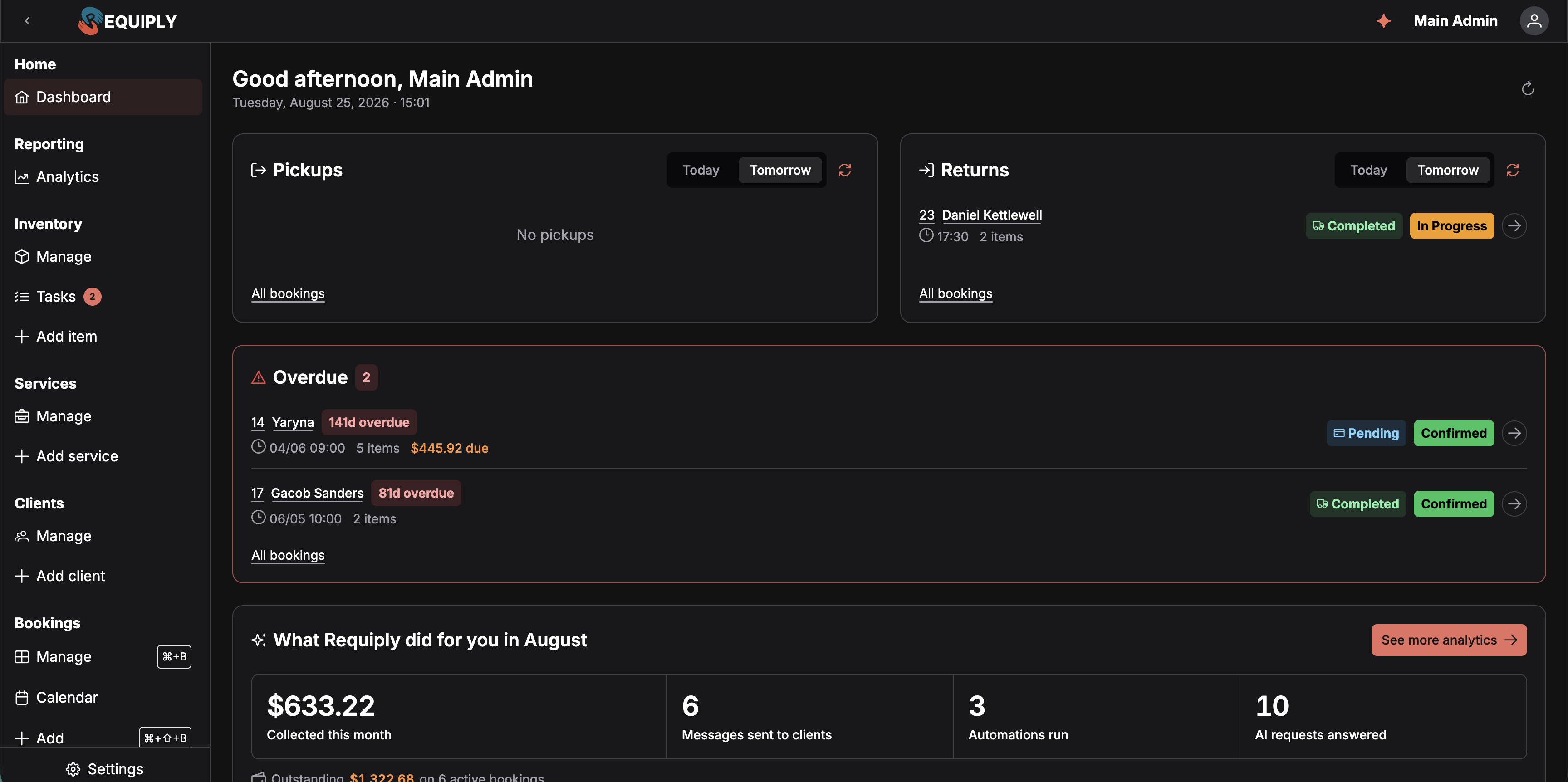
The Dashboard answers the morning's questions in one screen: what goes out, what comes back, what is late, and how the month is going. Here both day switches are synced to Tomorrow, and the empty Pickups card simply reads No pickups.
What you'll see
The page opens with a greeting — Good morning, {name} — followed by today's date and the current time in your organization's timezone (set under Date & time settings), so a team spread across locations reads the same "today". The clock ticks every minute, and the refresh button in the top-right corner reloads every section at once.
Below the greeting are three sections.
Pickups and Returns
Two side-by-side cards list the bookings that start (Pickups) and end (Returns) on the selected day.
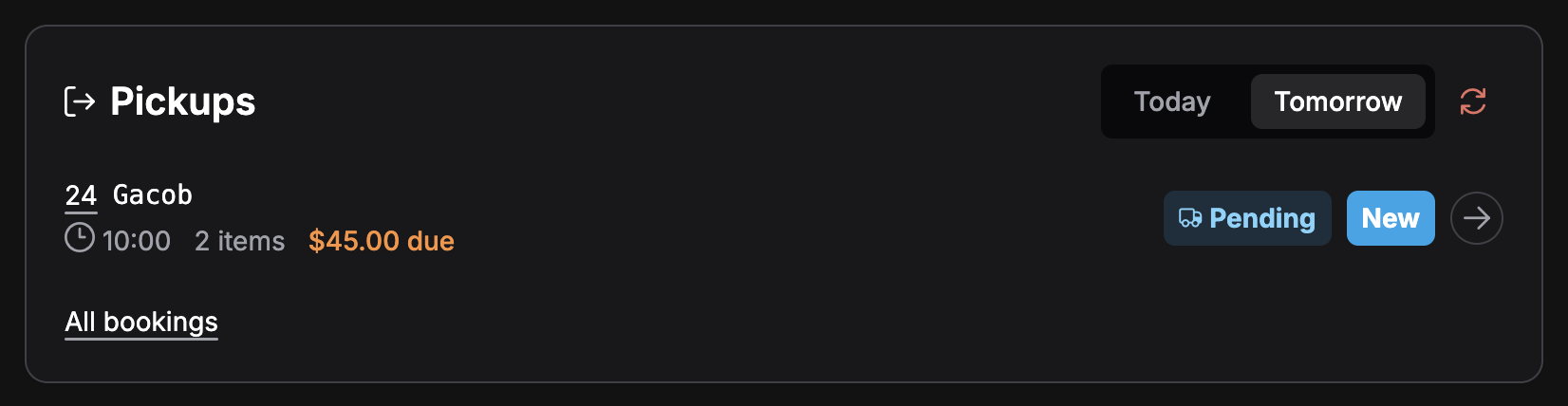
Each row carries the booking ID, the client, the pickup time, the item count, anything still due, and the payment and status tags with the progression arrow. On Today, a live countdown follows the time as well.
- A Today / Tomorrow switch on each card picks the day. By default the two cards are synced — switching one switches the other — so you can flip the whole dashboard to tomorrow's plan with one click. The sync icon next to the switch turns syncing off when you want, say, today's returns next to tomorrow's pickups.
- Rows are sorted by time. Each shows the booking's ID tag (opens the booking), the client's name (opens the client page) or No client, the pickup or return time, the number of items, and — when the client still owes money — the outstanding balance as {amount} due.
- For today's rows a live countdown follows the time: (in 1h 20m) or (35m ago). It turns orange under 30 minutes and red under 15 minutes or once the time has passed.
- On the right sit the booking's payment tag and its status tag with the same arrow button as on Manage bookings, so you can move a booking to In progress or Completed without leaving the dashboard. With checklists enabled, that arrow opens the booking's pickup or return checklist instead — which makes the Pickups and Returns lists a natural starting point for the day's handovers. If someone already moved the booking elsewhere, Requiply refuses the change with This booking's status was changed elsewhere, so this move is no longer allowed, reloads the list, and you pick again.
- All bookings in the card footer opens the full Manage bookings list.
An empty card reads No pickups or No returns.
Overdue

The card border and icon turn red as soon as anything is late, and each row is tagged with how many days it has been outstanding next to the return date it missed. Both bookings here are still in the active Confirmed status — which is exactly why they are counted as overdue.
The Overdue card is where a customer who has not brought the equipment back on time shows up. It lists bookings whose end date has already passed but which are still in an active status — nobody has marked them completed or cancelled yet. Each row carries a red {n}d overdue tag and the original return date and time. The card border and icon turn red as soon as anything is late, and the header shows the count.
The card shows the eight most overdue bookings; Show all {n} expands the rest. When nothing is late it reads Nothing overdue.
What Requiply did for you in {month}
A summary card for the current calendar month, counted in the organization's timezone:

Collected money leads, followed by counters for what the platform did for you — Booking requests and Documents signed are missing here because both are still zero. The footer line links through to the bookings still carrying a balance and the deposits waiting to be returned.
| Figure | What it counts |
|---|---|
| Collected this month | Money captured on completed charges this month. A green badge such as +18% shows the growth against last month; it appears only when last month had takings and this month is already ahead. A line underneath gives how much of it was collected online through a connected payment provider. |
| Booking requests | Bookings that arrived from outside your team — the client portal, the AI web widget, chat, or an AI connector — shown against the total number of bookings created this month. |
| Messages sent to clients | SMS, Viber, and Telegram messages delivered through your communications provider. |
| Automations run | Workflow actions that completed. |
| AI requests answered | Requiply Assistant and chat bot requests. |
| Documents signed | Documents signed electronically by clients through a signing provider. |
Figures that are still zero are hidden, and until anything has happened the card reads Nothing to show for {month} yet. See more analytics opens the full Analytics report.
Under the figures, two live balances link to the bookings list:
- Outstanding — the total clients still owe across active bookings, and how many bookings that is. Booking requests that have not been approved yet, meaning bookings still in your Status for booking requests (see Booking creation), are not counted.
- Deposits to refund — deposits still held on completed bookings, waiting to be returned to clients. See Deposits.
Who sees what
The dashboard follows your account permissions:
| Section | Needs |
|---|---|
| Pickups, Returns, Overdue | Allow booking management |
| What Requiply did for you, Outstanding, Deposits to refund | Allow access to reporting |
Admins always see everything. A member with neither permission sees "Your account has no sections enabled yet. Ask an administrator for access."
Which bookings count
The lists rely on each status's lifecycle — Active, Completed, or Cancelled — configured on the Booking statuses page:
- Pickups, Returns, and Overdue only include bookings in an Active status. Marking a booking Completed or Cancelled removes it from the lists immediately.
- Collected this month and Outstanding ignore Cancelled bookings.
- Deposits to refund looks only at Completed bookings.
If you add custom statuses, give each one the right lifecycle — a "Returned" status left as Active keeps its bookings on the Overdue list.
Choosing your startup page
The dashboard is the default landing page, but every user can pick their own. Open your Account page from the avatar menu in the top bar and, under Preferences, choose a Startup page — any page from the main navigation you have access to, grouped by section (for example Bookings → Calendar or Inventory → Tasks). Save, and that page opens right after you sign in. The list follows the order of your sidebar menu layout and leaves out pages your permission group hides from the menu.
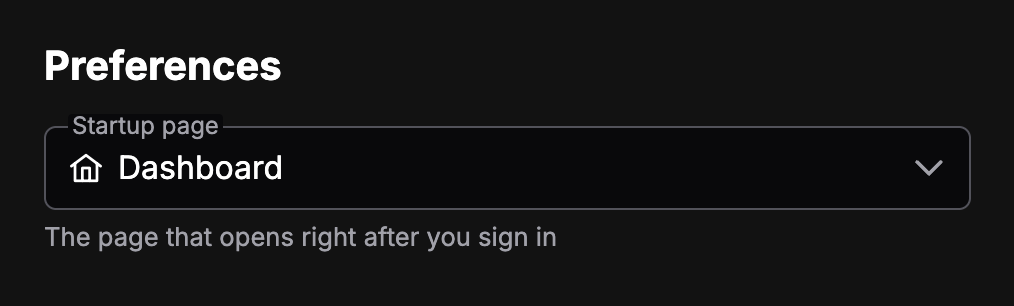
Every user picks their own landing page here. Opening the dropdown lists the pages your permissions allow, grouped by navigation section.
If the chosen page later becomes unavailable — for example because a permission was removed — Requiply falls back to the dashboard. While the setup guide is still in progress, signing in opens the guide instead.
Common scenarios
Morning stand-up
Keep Today selected and walk through Pickups top to bottom: who is collecting, at what time, and whether they still owe anything. Then check Returns for the units coming back, and Overdue for anyone to call.
Planning tomorrow
Switch either card to Tomorrow — with sync on, both flip — to see what needs preparing tonight.
Chasing late returns
Overdue rows show how many days late each booking is. Open the booking from its ID tag to message the client, or use the status arrow to close it out once the items are back — which opens the return checklist if your organization uses them.
Month-end check
The impact card gives the month's collected total against last month at a glance; See more analytics takes you to the full breakdown by category, item, and service.
Tips and cautions
Sale items and stock
Add goods you sell (Equipment for sale) with a sale price, net cost, barcode, and opening stock, then keep the stock count right with deliveries, write-offs, and stock counts, and see sales and margin on the product page.
Analytics
How the business performed over a chosen period: revenue, profit, expenses, utilization rate, repeat customers, revenue by month with the monthly average, revenue by category with share changes against the previous period, and your best-earning items and services, on the web and in the mobile app with custom periods.