

Booking flow
This page walks through the portal the way a customer sees it, so you know what they are looking at when they call you. Nothing here needs to be configured: the flow follows your catalog, your working hours, and the methods you switched on under Portal settings.
A customer needs no account to book. Signing in only becomes useful afterwards, to follow the booking (see Customer accounts).
The shell around every page
- Header: floats over the page on translucent chips, with your logo on the left, then a cart button that picks up a count once something is in the cart, and either a Sign in button or, once the customer is signed in, a round bubble with their initials that leads into their account.
- Footer: no bar, only a discreet Powered by Requiply line at the bottom of the page.
- Language: the portal opens in the language set under Localization, and prices use your organization currency.
- Light and dark mode: the portal follows the visitor's own device setting and uses the matching logo you uploaded.
1. Entry page
The address portal.requiply.com/<your code> opens on your organization's name from Organization info, its description under it, and up to three ways in, stacked as full-width cards:
| Card | Leads to |
|---|---|
| Start from items | The catalog, then the dates for what was picked. |
| Start from dates | The date picker, then only what is free in that period. |
| Ask the assistant | The booking assistant. Shown only while the AI chat is switched on. |
Each card carries an icon, its title, a line of explanation, and a chevron.
Both booking paths are two steps and are labelled Step 1 of 2 and Step 2 of 2, so the customer always knows how far along they are.
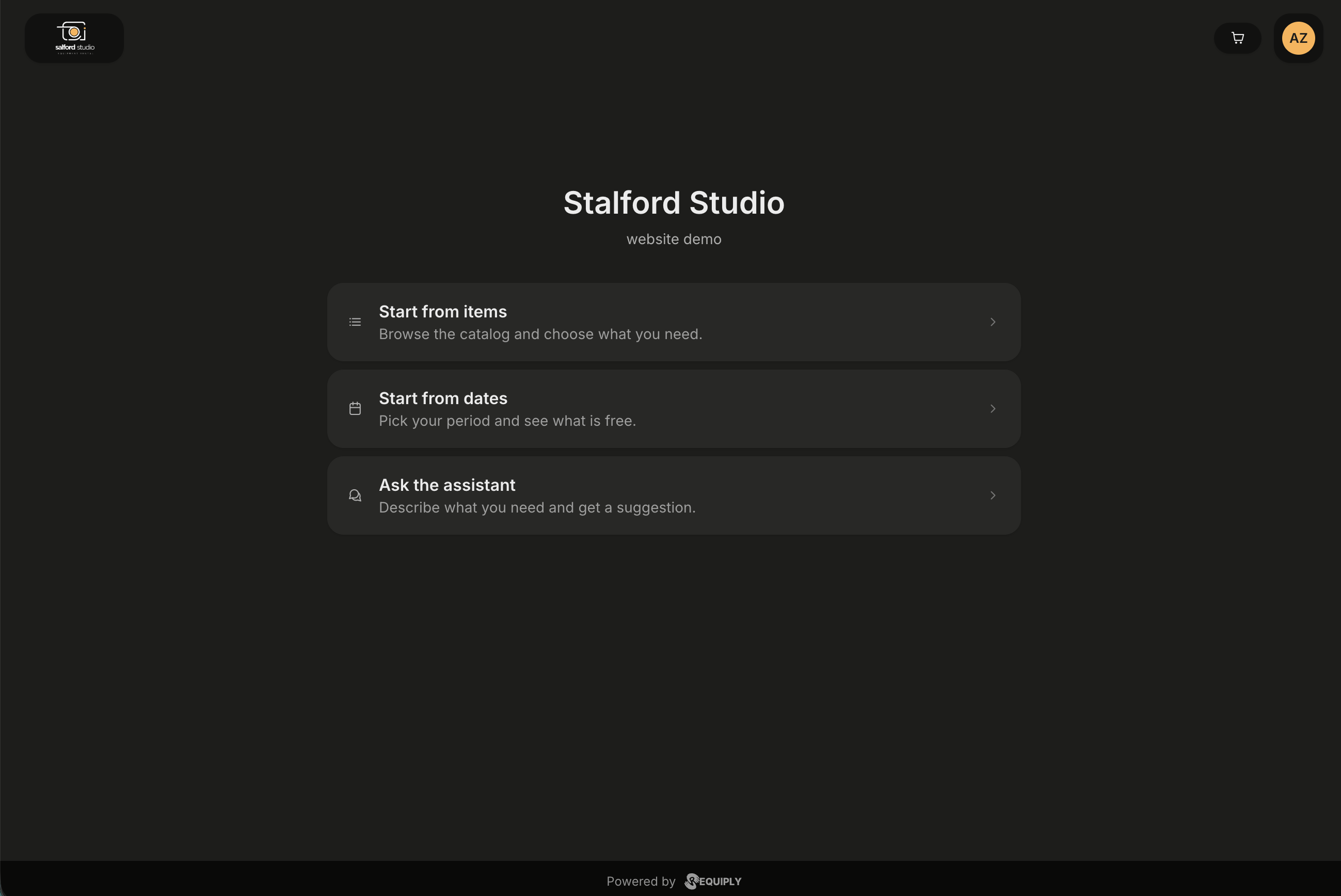
The entry page of a portal with the AI chat switched on. The account bubble shows initials because this visitor is signed in; a visitor who is not sees a plain bubble that leads to sign-in.
2. Choosing items
The catalog is headed Choose your items, with a Step 1 of 2 marker above it. Your bookable item groups are laid out as a grid of cards, two or three across on a desktop and one under another on a phone, each with a square photo, the name, the price with its price type, and how many are free.
- Search by name or code.
- Categories from your category tree, see Browsing by category.
- Filters by product specifications, see Filtering by specifications.
- Load more pulls in the next page of items rather than one long scroll.
- A minus button, the quantity, and a plus button on each card set how many to book.
- An item with nothing free shows Not available and cannot be added.
- A floating dock at the bottom carries Back on the left, a count of what is selected in the middle (for example 3 selected), and Next on the right. Next stays disabled until at least one item is in the booking. The page content fades out under the dock as you scroll. With the Sharp corner style from Portal settings, the dock is a full-width bar instead.
When the customer picked dates first, the page is titled Available for your dates and only shows what is free for that period, with the free quantity per item. Categories and filters work the same way there.
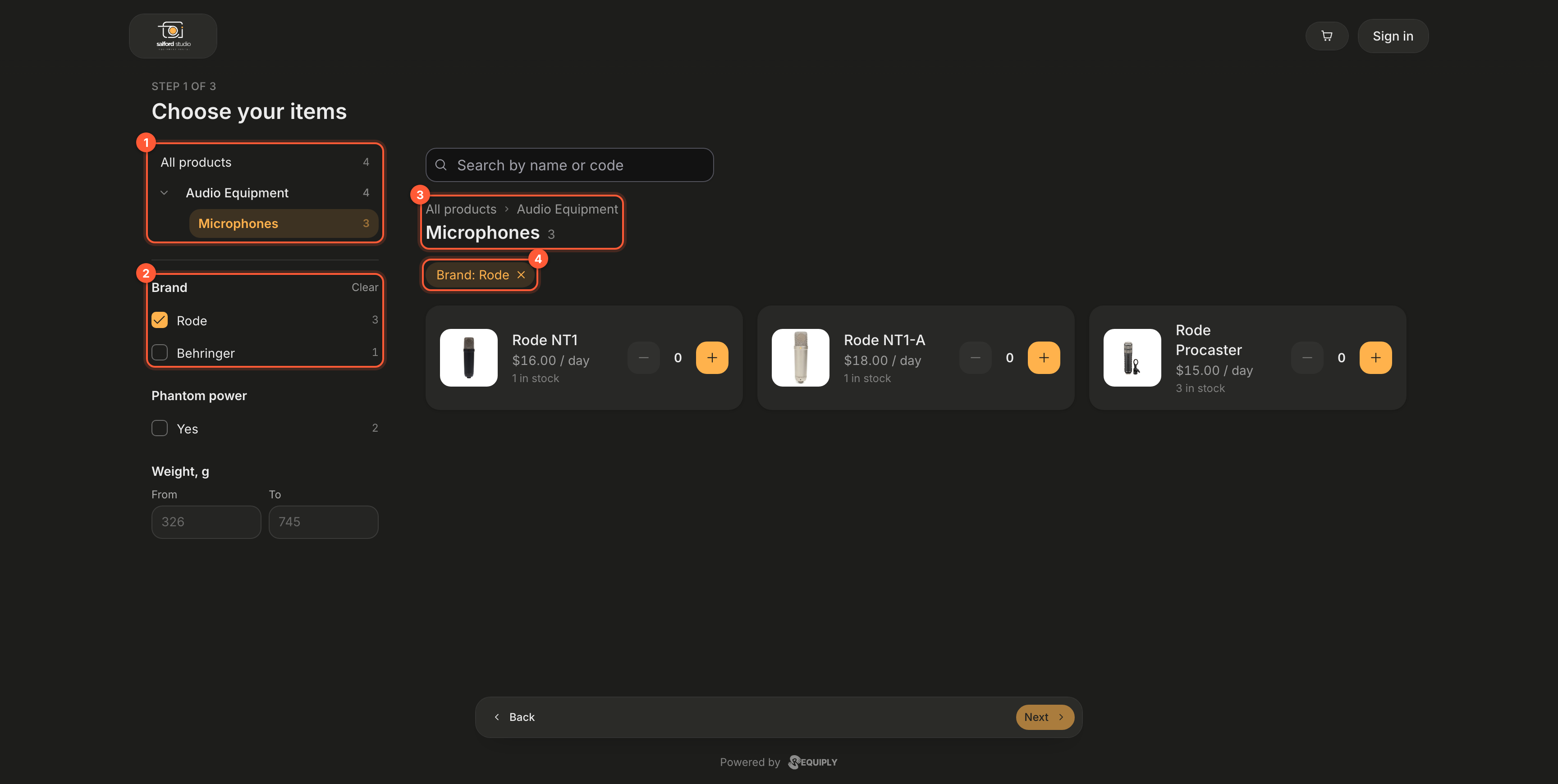
1 The category tree with a count per category. 2 A specification offered as a filter. 3 Where the customer is in the tree, with links back up. 4 Each active filter as a chip that removes itself.
Browsing by category
Customers browse your products by the same tree and in the same order you set on Categories.
On a desktop, a column on the left lists All products and your categories, each with the number of matching products. A category's count includes its subcategories. Click a category to show its products; a branch opens by itself when one of its categories is chosen, and the small arrow beside a parent opens or closes it by hand. Only categories that have something to show are listed.
On a phone, the subcategories of the open category appear as wrapping chips above the products, each with its count. After eight chips, a {count} more chip shows the rest.
Above the products, the customer always sees where they are:
- the path back up, such as All products › Audio Equipment, each part a link,
- the name of the open category, or All products, with the number of results.
When a category holds subcategories, its products are shown shelf by shelf: one section per subcategory with its first six products and a {count} more button that opens the subcategory. A category without subcategories shows a plain grid. At the top of the catalog, the shelves are used as long as the tree is nested and has no more than twelve top-level categories. Products with no category are grouped as Other.
If a category holds only one subcategory with results, the portal opens that subcategory straight away, because there is nothing to choose between. Bundles are listed only while no category is open and no filter is on.
Filtering by specifications
Product fields you marked as specifications become filters. On a desktop they sit under the category tree; on a phone a Filters button next to the search opens them in a sheet from the bottom, with Show {count} to apply and Clear all. The button shows how many filters are on.
| Specification type | Filter |
|---|---|
| Select, multi-select, text | A list of values, each with how many products it would show. The first six are listed, Show all ({count}) opens the rest. |
| Number | From and To boxes, with the lowest and highest value as hints. |
| Checkbox | A Yes switch with its count. |
- A filter only shows values found in the open category, so Microphones offers microphone brands only.
- Ticking several values of one filter shows products with any of them; different filters combine.
- Every active filter appears as a chip above the products; click it to remove it. Clear all removes them all, Clear next to a filter's name resets just that one.
- When nothing matches, the catalog says Nothing matches your search. with Clear filters.
The chosen category and filters are kept in the page address, so a customer can share a link to a filtered view, for example every Rode microphone.
The item page
Clicking a card opens the item's own page: an image gallery with arrows when there is more than one photo, the category, the name, the price with its price type, how many are free, the code, and an Add to booking button that turns into a quantity stepper.
Under it, the page can show two more blocks side by side:
- Description: the text from the product's Description field, split into paragraphs at blank lines.
- Specifications: the product's specification values, one per line, such as Brand: Rode or Phantom power: Yes. Only fields marked Filter on the booking page and website are listed; every other custom field stays internal.
A block without content is left out. When the product has a description, its first 160 characters also become the page's description in search results.
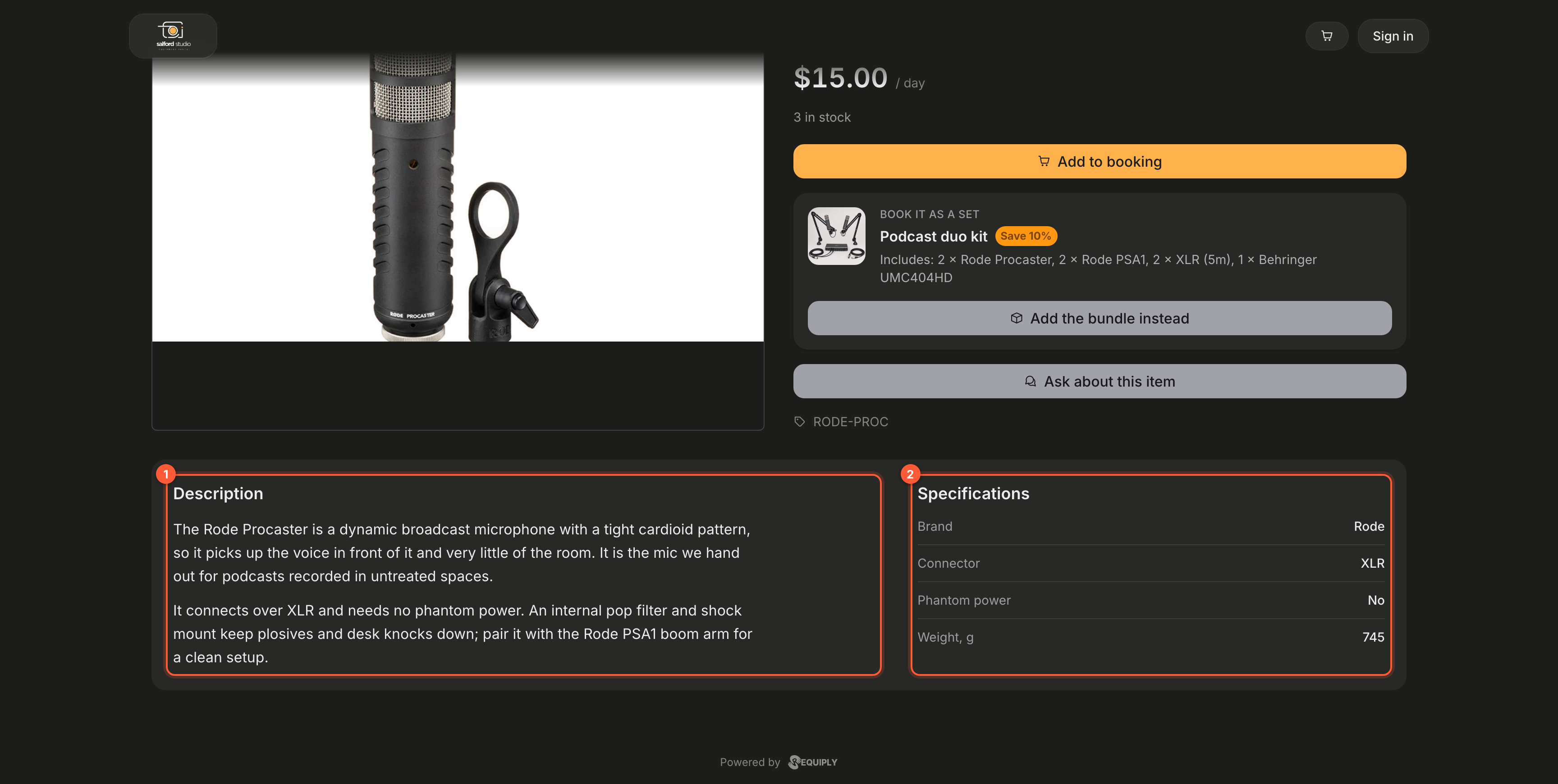
1 The product description. 2 Specifications: the public product fields, which customers can also filter by in the catalog.
When the item group has a pricing tier group, the page also shows a Longer bookings cost less table with one row per tier: the duration it covers, the rate per unit, and how much that saves against the base rate. This is the clearest place for a customer to understand why a week costs less per day than a weekend.
While the AI chat is switched on, the item page also has an Ask about this item button that opens the chat with the item attached. See Booking assistant.
Bundles on the portal
When the Bundles feature is on with External recommendations, the portal offers your sets in four places.
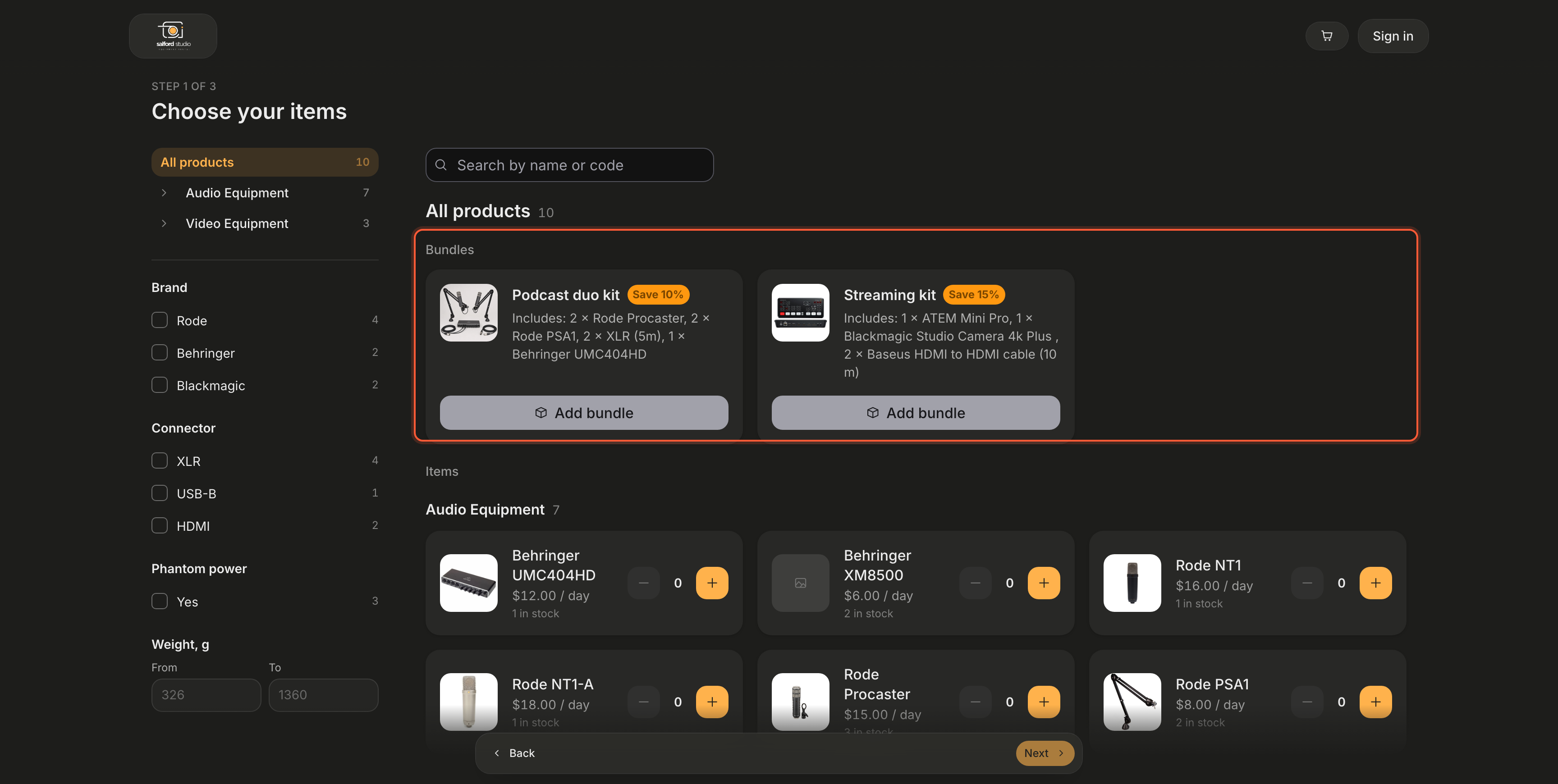
The catalog lists your bundles in a Bundles section above the items.
- Catalog: a Bundles section above the items, with every bookable set, its Save 10% tag, Includes: …, how many sets are free once dates are chosen, and Add bundle. After a set is added, the card shows 1 in your booking with a stepper. The search box also finds bundles, by their name or by an item inside them; picking a category shows items only.
- Item page: a Book it as a set card for each bundle that contains the item. Add the bundle instead swaps the item in the cart for one set.
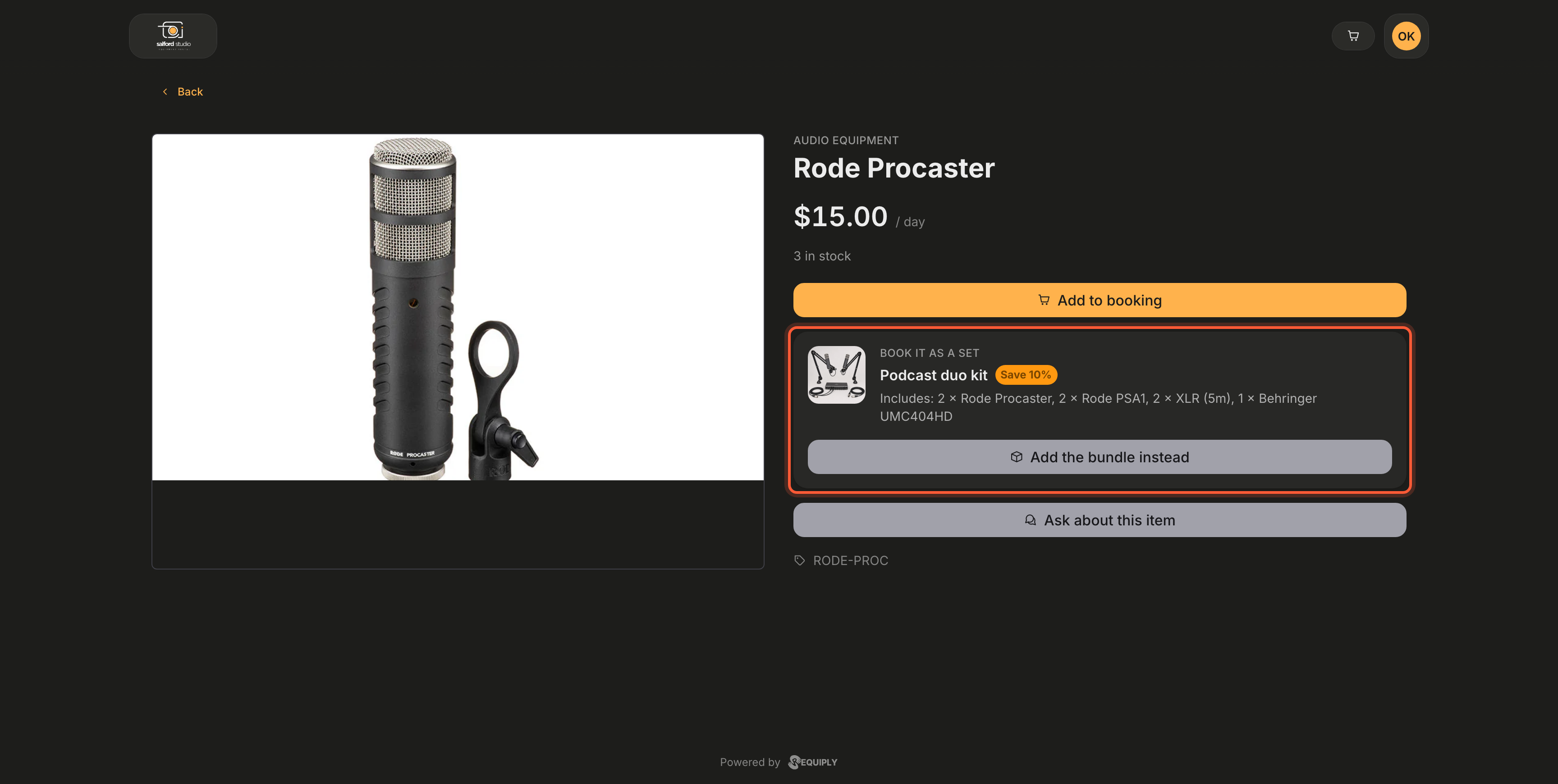
On an item page, every bundle that contains the item is offered as a set.
- Cart hint: an item in the cart that belongs to a bundle gets a hint such as Rode Procaster is part of Podcast duo kit: save 10% with the whole set with an Add bundle button.
- Checkout: each bundle is one line with a Bundle tag, its discount and Includes: …, and the figures show a Bundle discount row under Rental subtotal.
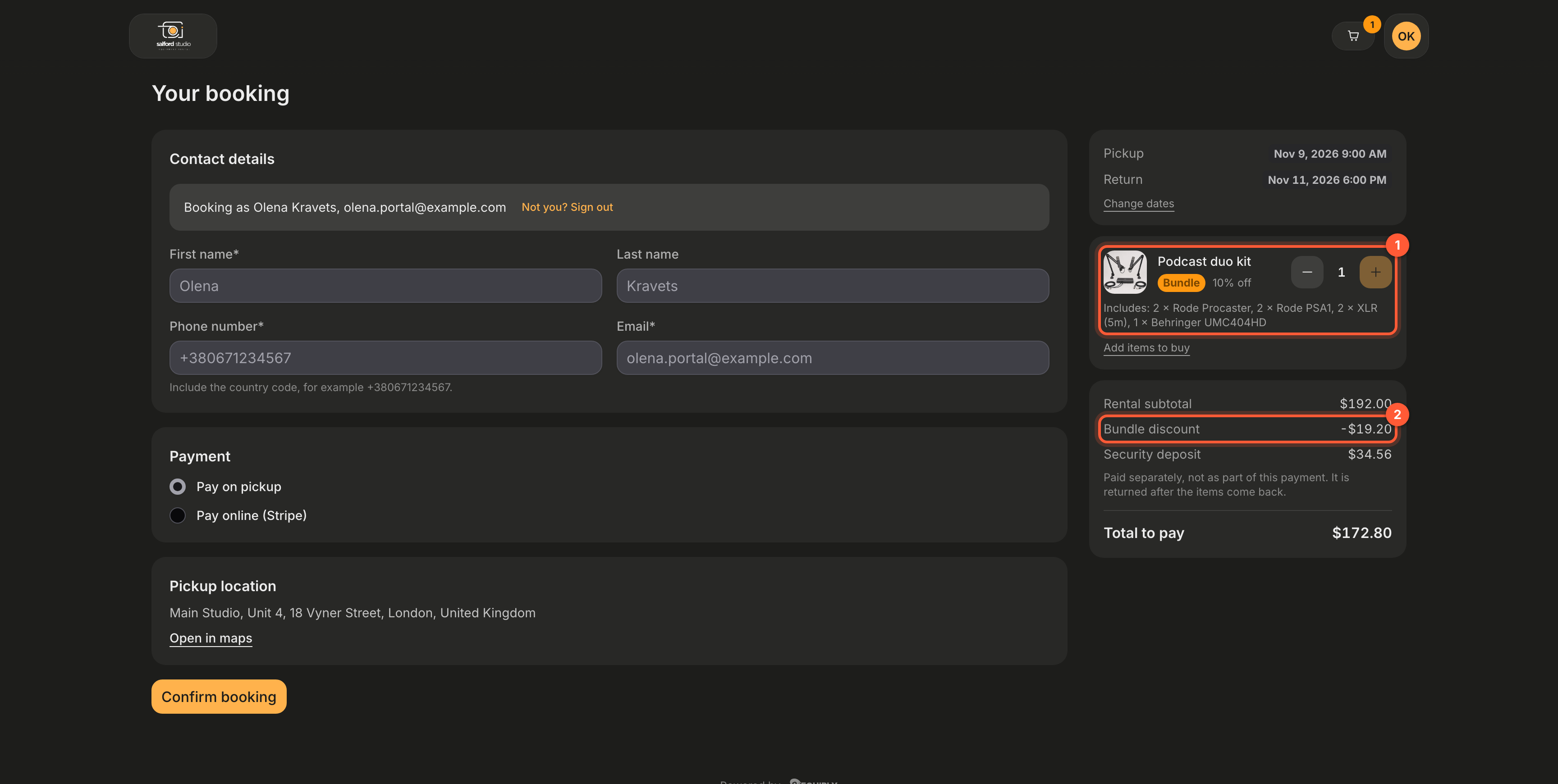
1 The bundle in the cart. 2 Its saving, already taken off the total to pay.
The confirmation page and the booking in the customer's account show the booked bundle and the same Bundle discount line.
With External off, the portal shows no bundles at all.
3. Choosing dates
The date step is headed Choose your dates and uses the picker style you chose under Booking creation: an inline calendar for a date range, or for a single day when you picked the one-date style. On a desktop two months are shown side by side, with arrows to move through them; past days are dimmed, today is outlined, and the chosen range is filled in.
Under the calendar sit two columns of time pills, Available pickup times and Available return times, in half-hour steps. Pickup and return times are always chosen from pills here, including when your team types times in the app.
- Only days and times inside your working schedule from Date & time settings are offered. Customers never get an outside-working-hours option, whatever permissions your team has.
- Holidays and closed days are greyed out like a closed weekday, and hovering one shows its name, for example Christmas Day. A customer cannot pick up or return on a holiday, but the rental can run through it: December 23 to December 27 is fine with the 25th closed. The website booking widget follows the same rule.
- Times come from real availability. A day with nothing left shows No times available and asks for another day.
- When a selected item frees up or runs out part way through a day, the picker says so on the affected time, for example "Camera available after 14:00".
- A booking shorter than your minimum duration is refused with The booking has to last at least ..., taken from Booking duration.
- Clear dates starts the selection over.
If availability changed while the customer was busy choosing, the portal adjusts the quantities and says which items were affected instead of failing at checkout.
The range is picked on the calendar, the exact times underneath. The pills stop at 17:30 because that is where this organization's working day ends.
4. Items to buy (optional)
When the portal sells items, a third step appears between the dates and checkout, headed Add items to buy with the line These items are for sale, not for rent, so you keep them. This step is optional. The step counter then reads Step 3 of 3 instead of two steps.
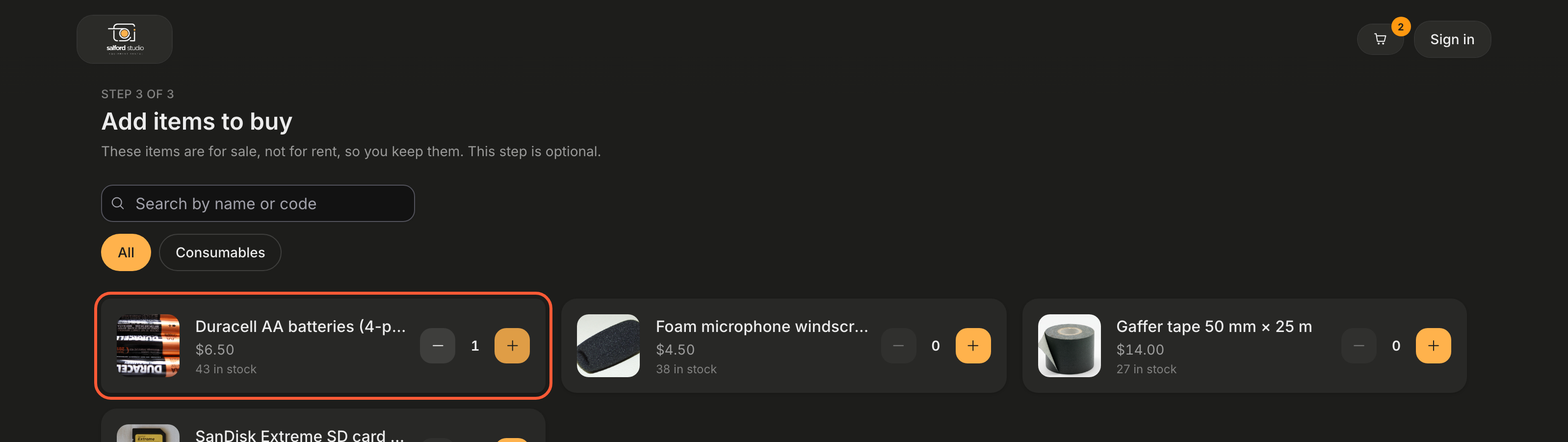
Consumables offered right before checkout. The estimated total in the dock already includes the batteries.
- Only products of the Equipment for sale type are shown, with their price and how many are in stock. See Sale items and stock.
- Search by name or code and the category chips narrow the list.
- The + and − buttons set the quantity. A customer can never take more than you have in stock; products that are out of stock appear greyed out.
- With nothing added, the dock button reads Skip; once something is added it reads Next.
The step is shown when Selling items is on under Portal settings, the Sales feature is on, and at least one product for sale is active. Otherwise the portal goes straight from the second step to checkout.
5. Checkout
The checkout screen is titled Your booking. The form runs down the left in three cards, Contact details, Payment, and Pickup location, with Confirm booking under them, and the summary sits in a column on the right. On a phone the summary moves above the form.
Contact details
| Field | Required |
|---|---|
| First name | Yes |
| Last name | No |
| Phone number | Yes, with the country code |
| Yes |
A signed-in customer sees Booking as {name}, {email} with their details filled in, and a Not you? Sign out link. Anyone else can jump to sign-in from the Have an account? line.
A signed-in customer whose account has no first name yet is asked for it before they can book: Add your first name to finish booking. We will save it to your profile.
Payment
A radio button per method you enabled under Portal settings: Pay on pickup, and Pay online ({provider}) for each connected provider. Choosing an online provider sends the customer to that provider after they confirm, and back to the confirmation screen afterwards.
Pickup location
The location name and full address from Locations, with an Open in maps link under it.
Summary
Three stacked cards on the right:
- Pickup and Return with their dates and times, and a Change dates link back to the date step.
- The items, each with its photo, name, rate, and quantity.
- The figures: Rental subtotal, Bundle discount when the booking contains a bundle, Discount with the percentage when the customer has one, Purchases when the customer added items to buy, Security deposit from Deposits with a note under it, and Total to pay.
When you offer checkout services, such as delivery or setup on site, an Additional services card in the summary column lists them with a switch and a price each (Price on request for a quote service without a default price), and the services the customer switches on are added to the booking and its price.
Whether Total to pay includes the deposit depends on the Keep the deposit out of booking payments setting in Deposits:
- Kept out (the default): the deposit is listed with Paid separately, not as part of this payment. It is returned after the items come back. and Total to pay is the rental, less any discounts, without the deposit.
- Included: the note reads The deposit is returned after the items come back. and Total to pay is the rental, less any discounts, plus the deposit.
Every figure is computed on the server from your inventory, tiers, discounts, and deposit rules, so a customer cannot influence the price from their browser.
Confirm booking creates the booking. Items the customer bought are listed together with the rented ones, and the bought ones are added to the booking as sold items.
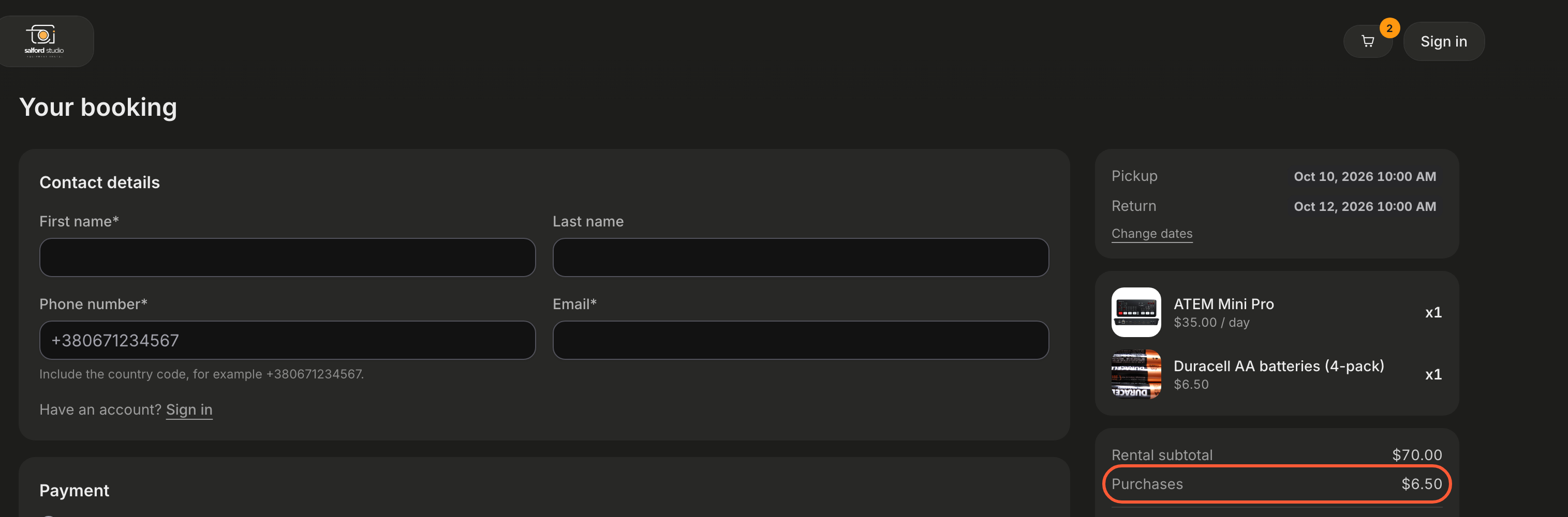
Rented and bought items share one list. The purchases get their own line in the figures and never count towards the deposit.
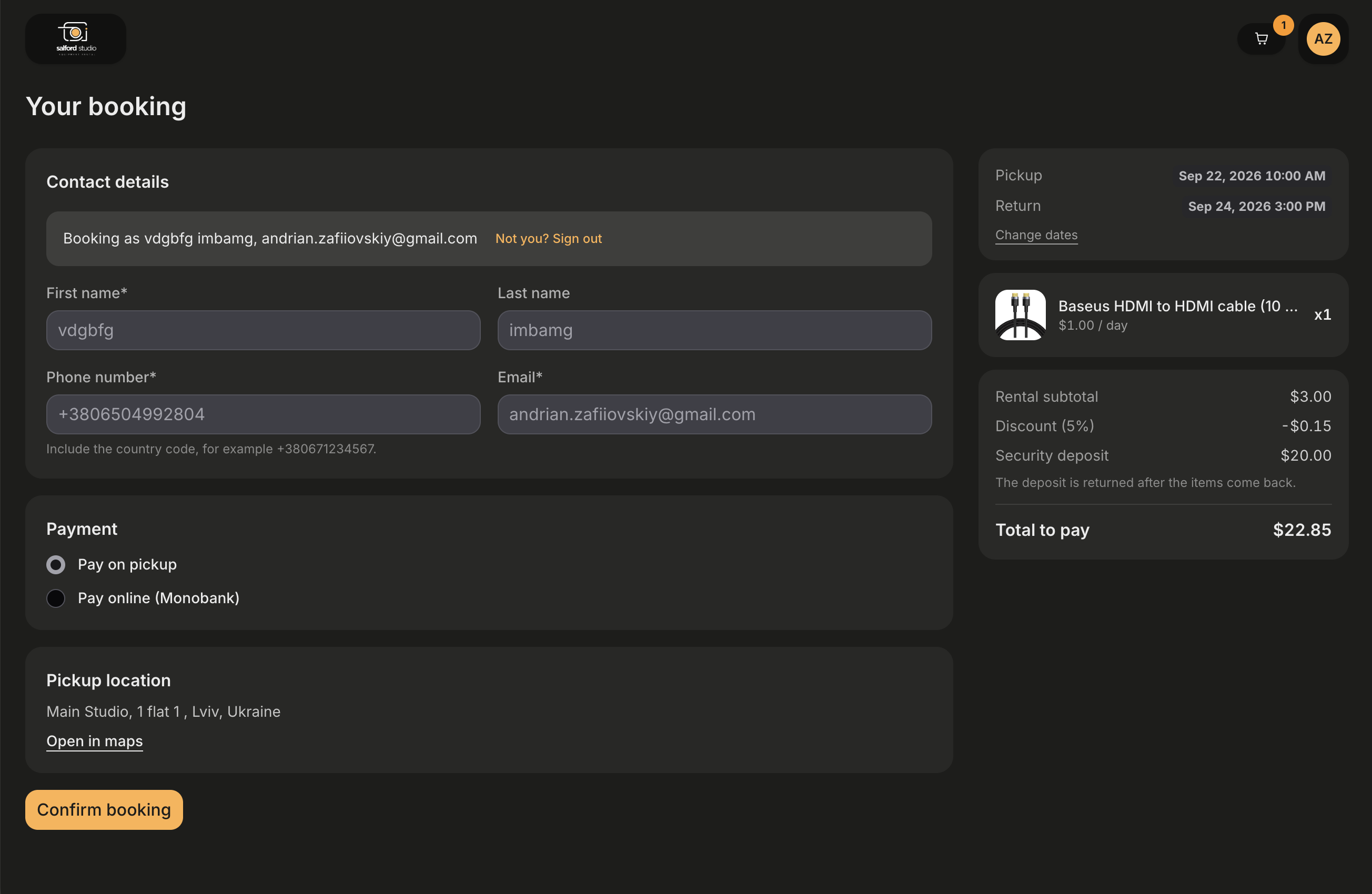
A signed-in customer has their details filled in and their discount applied. This organization includes the deposit in the payment, so Total to pay here is the 3.00 rental less the 5% discount plus the 20.00 deposit.
6. Confirmation
The success screen confirms the booking and gives the booking number to quote, with the pickup and return dates, the items, and any payment. A booked bundle is shown above its items with its discount, and a Bundle discount line sits above the deposit and the total.
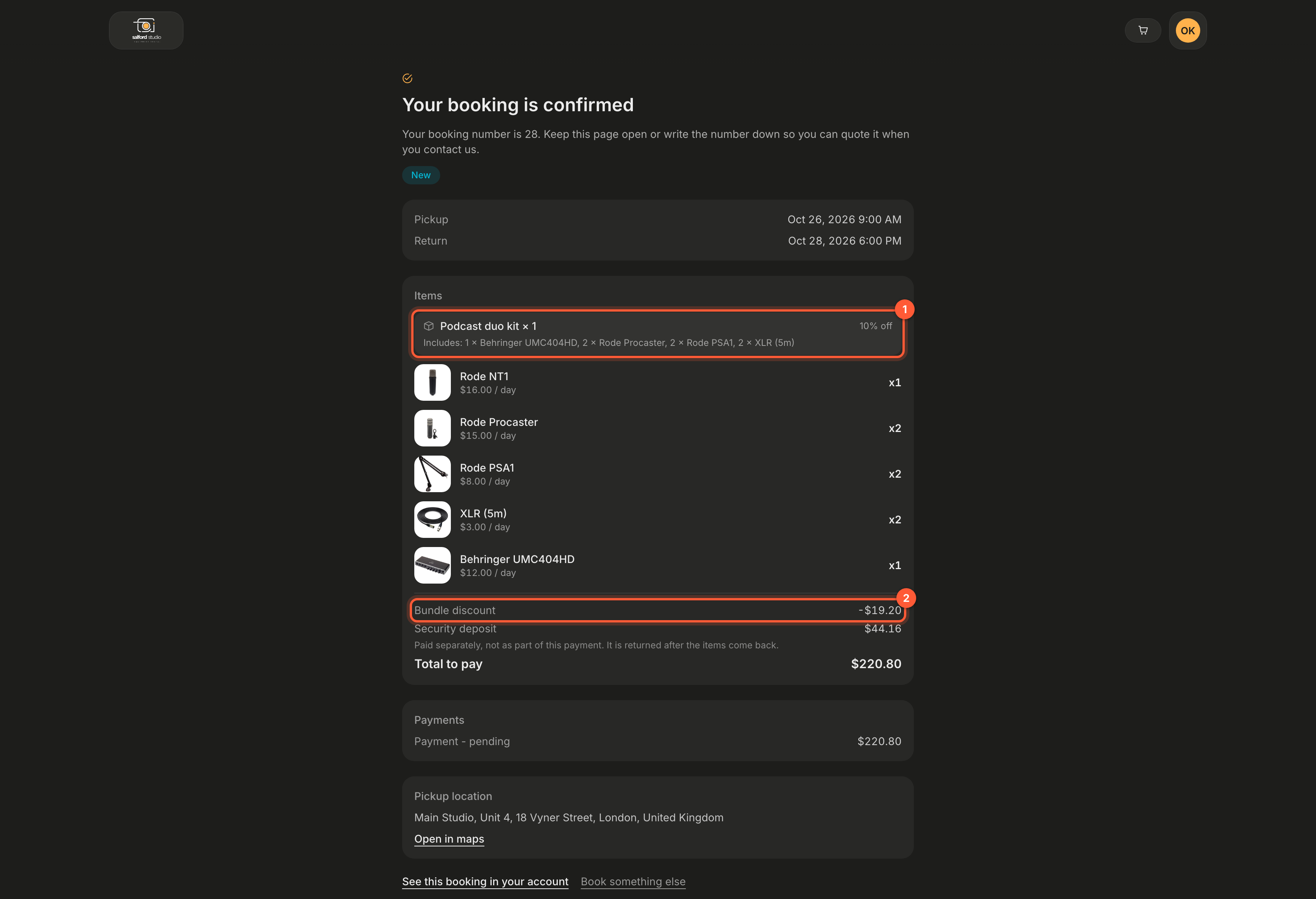
1 The booked bundle. 2 Its saving, so the figures match what was quoted at checkout.
From there the customer can:
- See this booking in your account, when they are signed in.
- Create an account to manage your bookings, when they are not.
- Book something else.
The confirmation link carries its own unguessable token rather than the booking number, so it can be reopened later, or from a phone, without signing in. Nobody can reach another customer's booking by editing the address.
If an online payment did not go through, the screen says so and explains that the booking is saved and your team will be in touch about paying. The booking is not lost.
What happens in Requiply
| Step | In the app |
|---|---|
| Checkout confirms | A booking is created in your Default status for new bookings (New unless you changed it under Booking creation). It holds the stock straight away, exactly like a booking your team creates. |
| The customer is new | A client record is created from the checkout details. A returning customer is matched on their verified email or phone instead of being duplicated. |
| The booking is created | Booking-created workflows fire: confirmation emails, messages, and notifications. |
| Your team looks at it | The booking shows up in Manage bookings and on the Calendar, with Origin reading Booking page. |
| Payment | Pay on pickup leaves a pending payment for your team to take at the counter. An online payment lands as a completed charge on the booking's payment ledger. |
A booking created by the booking assistant is different: it arrives in your Status for booking requests (Request unless you changed it) for your team to approve, with Origin reading AI assistant.
Common scenarios
A customer says an item they need is not listed
The catalog only shows item groups that are bookable, not archived, and have free quantity. When they searched after picking dates, the item may simply be booked out for that period. Check the item group in Manage inventory first.
A customer wants a pickup at 7 in the morning
That is a working-hours question, not a portal one. Widen the schedule under Date & time settings, or create the booking for them in the app, where members with Allow booking outside of working hours may pick any time.
A customer paid online but the booking looks unpaid
Open the booking in Manage bookings and check its payment ledger. A provider that rejected or abandoned the payment leaves the booking in place with a pending or failed charge, which is what the confirmation screen tells the customer too.
Tips and cautions
Portal settings
Set the brand color, corner style, logos, browser tab icon, payment methods, sign-in methods, online cancellation status and the services customers can add at checkout (delivery, setup, carrying to a taxi) of your client portal, with a live phone preview.
Customer accounts
How customers sign in to your client portal with a one-time code, follow their bookings, pay a balance, cancel online, and keep their details up to date.