

Pricing discounts
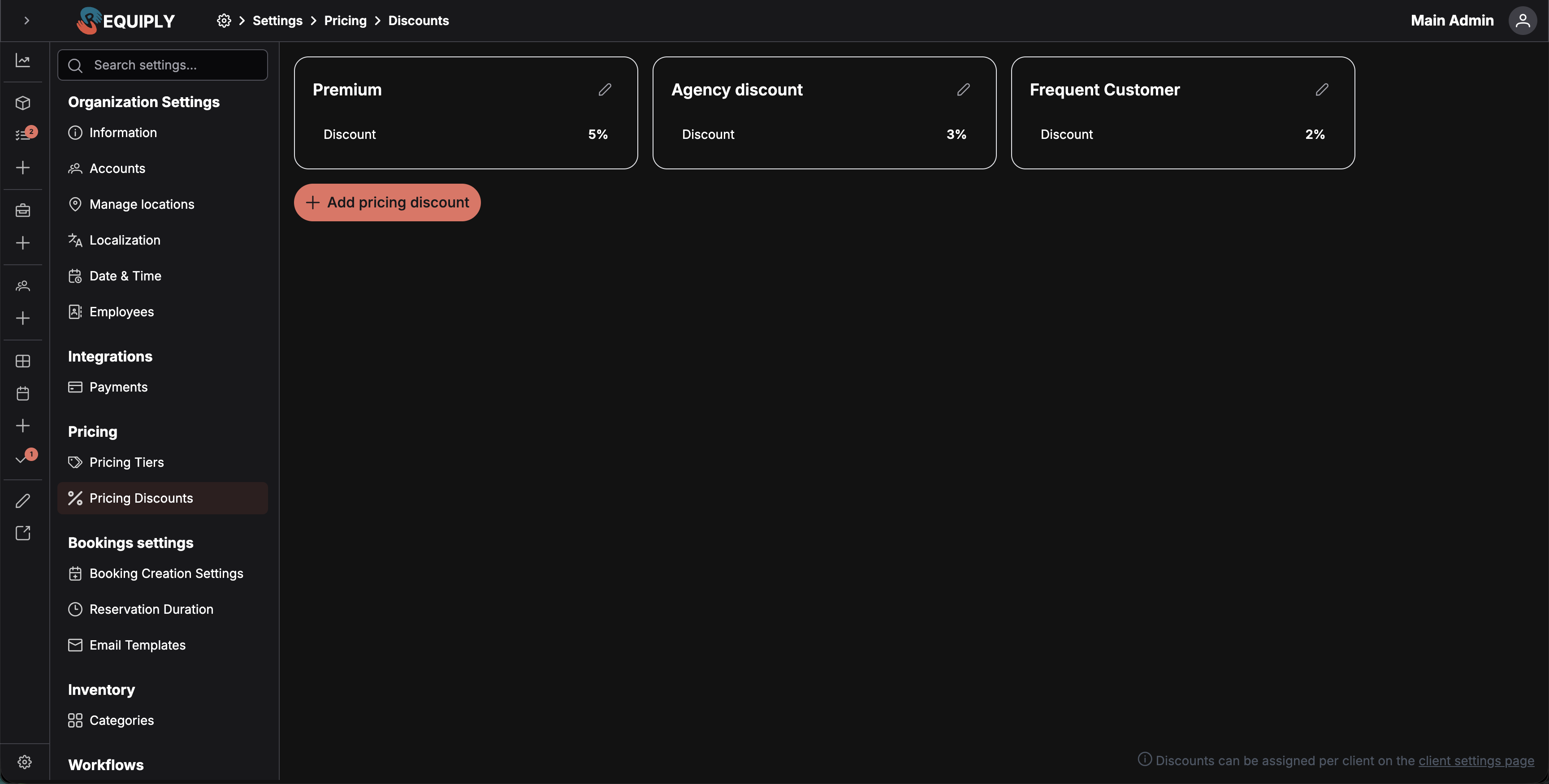
The Pricing discounts page is where you create and manage percentage-based discounts that can be assigned to individual clients. Once a discount exists here, it becomes available on the Clients page and is applied whenever pricing is shown for a client who has it.
This is how you give a customer a cheaper price in Requiply. A discount is attached to the client, not to a single booking: assign one to a customer and every booking you create for them is discounted automatically, with no code, voucher, or coupon to type in. To take money off one booking only, use a booking cost adjustment instead: a percentage, a flat amount, or fewer charged days on that booking. The client's discount is applied first and the adjustment after it.
You can find this page under Settings → Pricing → Pricing Discounts, or open it directly at app.requiply.com/settings/pricing/pricing-discounts/.
Why this page matters
Discounts are how Requiply supports customer-level pricing rules. Once a discount is defined here, it can be attached to a client record so that whenever pricing is shown or applied for that client, the discounted amount is used.
This is useful for:
- Loyalty or VIP pricing for repeat clients.
- Negotiated rates for corporate or partner clients.
- Promotional rates for a defined group of customers.
The discount itself does not modify item prices — it is applied at the client level when prices are shown.
What you'll see
When the page loads, Requiply fetches all pricing discounts for your organization (newest first) and shows them as cards. Each card displays:
- The discount name.
- The discount value as a percentage, for example
5%. - An edit pencil icon in the top-right corner.
When at least one discount exists, an Add pricing discount button appears next to the cards. A small note at the bottom of the page reminds you that discounts are assigned per client on the client settings page.
Empty state
If your organization has no pricing discounts yet, the page shows an empty state with a percent icon and the title No pricing discounts yet. The Create pricing discount action takes you straight to the add form. The bottom info message is hidden in this state, since there is nothing to assign yet.
Adding a pricing discount
Click Add pricing discount (or Create pricing discount from the empty state) to open the add form.
The add form includes:
- General Information — a required Discount name field and a Discount (%) field.
- A Preview panel where you can pick an item group and immediately see the original price and the discounted price calculated using the entered percentage.
- Cancel and Save buttons.
After saving, Requiply creates the discount, shows a success toast, and returns you to the discounts list.
from query parameter), Requiply returns you to that source URL after saving instead of the list page.Editing a pricing discount
Click the pencil icon on any discount card to open the edit page. From there you can:
- Rename the discount.
- Change the percentage.
- Preview how the discount affects an existing item group.
The Save button stays disabled until you change something. After saving, Requiply shows a success toast and returns to the list.
Deleting a pricing discount
The edit page also includes a red Delete button in the bottom-left corner. Clicking it opens a Confirm deletion dialog asking you to confirm. On success, Requiply deletes the discount and returns you to the list.
Forms and fields
Discount name
Required. Shown on the card and used as the label everywhere the discount is referenced. Use clear, descriptive names like VIP 15% or Corporate Partner 20% — the card only shows the name and the percentage, so the name is the only place context lives.
Discount (%)
The percentage applied to the base price. Accepts values from 0 to 100 in steps of 0.5, with up to two decimal places. The input includes plus/minus buttons and a % suffix.
| Amount | Effect |
|---|---|
0% | No discount. |
10% | 10% reduction from the base price. |
25% | One quarter off the base price. |
Item for pricing preview
The preview selector loads inventory item groups so you can see a real before/after price calculation for the entered percentage.
How this page connects to the rest of Requiply
| Feature | How this page affects it |
|---|---|
| Clients | Discounts created here become selectable on each client. The same discounts also appear in the Bulk assign discount dialog on the clients management page, where many clients can be updated in one go. |
| Services and item groups | Item groups are the source of the original prices used in the preview panel. The discount is applied at the client level when prices are shown — it does not change item prices. |
| Pricing tiers | Pricing tiers are managed on a sibling page under Settings → Pricing. They are a separate concept and do not interact with discounts directly. |
Common scenarios
Setting up a VIP rate
Create a discount named VIP 15% at 15%, then open the clients list and assign it to your top customers. Whenever those clients book or are quoted a price, the discounted amount applies.
Running a short-term promotion
Create a discount called Spring Promo 10%, bulk-assign it to a group of clients from the Clients page using the bulk-assign dialog, then remove it once the promotion ends by either deleting it or bulk-clearing the discount on those clients.
Adjusting an existing discount
Open the discount card, change the percentage, and save. The new percentage is used everywhere the discount is referenced going forward, for every client it is assigned to.