

Add or edit pricing tier group
This page is where you create a new pricing tier group or update an existing one. Use it to define a reusable schedule of unit ranges and percentage values that can be assigned to inventory items so volume pricing stays consistent across the catalog.
You reach it from Settings → Pricing → Pricing tiers by clicking Add pricing tier group, Create pricing tier group on the empty state, or the edit pencil icon on an existing pricing tier group card.
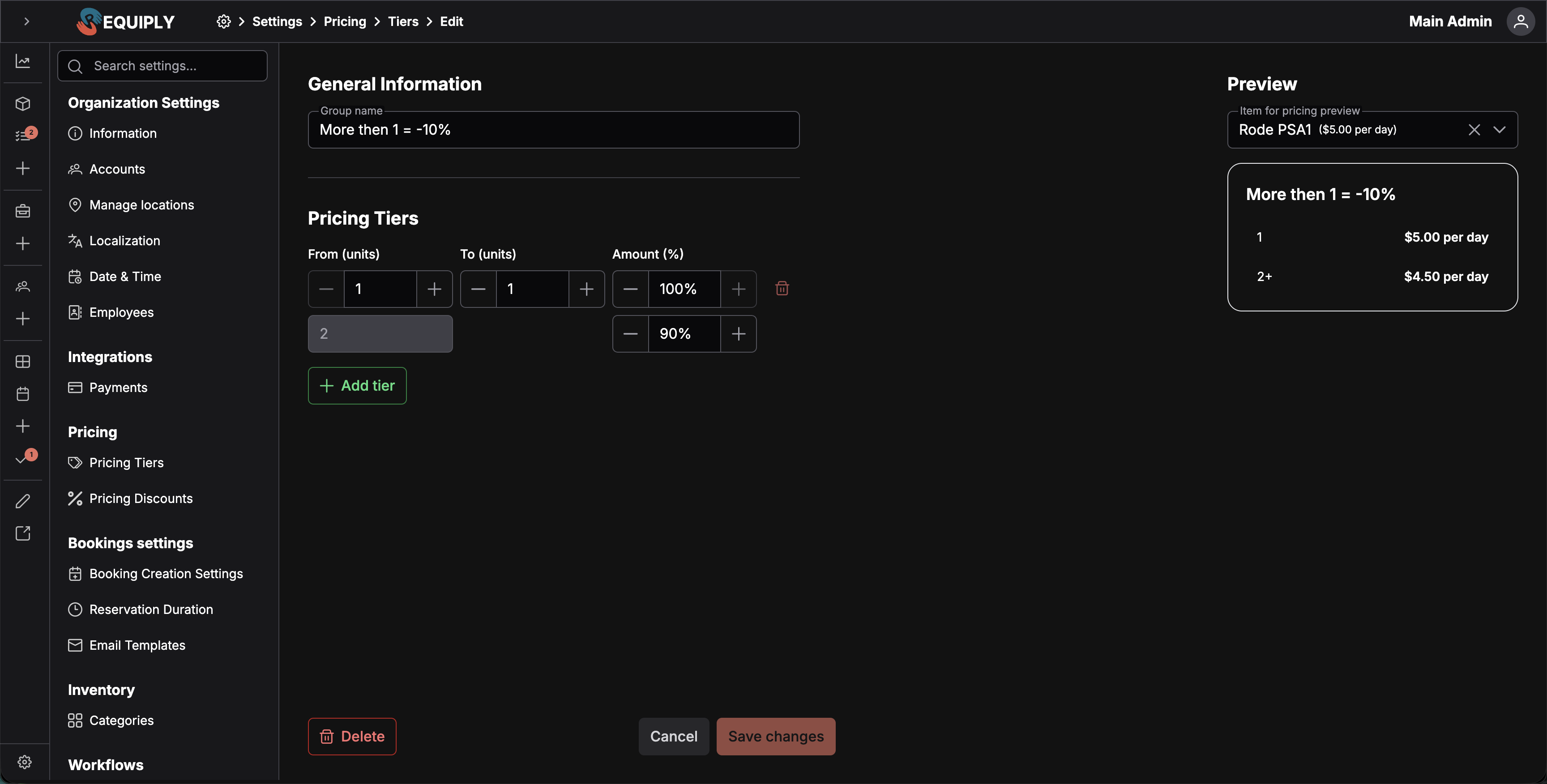
The form is split into editable fields on the left and a live Preview card on the right. The preview updates as you edit so you can check how the group will appear on the Pricing tiers page before saving.
Add vs. edit
The same page is used for adding and editing pricing tier groups.
| Mode | What happens |
|---|---|
| Add pricing tier group | Creates a new tier group that can be assigned to inventory item groups. |
| Edit pricing tier group | Updates the selected group's saved name and tiers and shows the Delete action. |
When the page is saving, Requiply blocks the form with a loading overlay so the group cannot be submitted twice or changed mid-save. On the edit page, the form is shown after the pricing tier group record has loaded.
If the group cannot be loaded, Requiply shows an error toast and returns you to the Pricing tiers page.
General Information
Group name
The display name for the pricing tier group.
- Required
- Used as the card title on the Pricing tiers page and inside the preview card
- Shows Name is required when missing
- Falls back to an "untitled" placeholder in the preview when empty
Use a name that makes the rule easy to recognize during bulk assignment, such as Standard volume discount, Long-term monthly, or Equipment weekly discount.
Tiers information
The tiers section is an editable list of bounded tier rows followed by a final unlimited tier. Each bounded tier row exposes three numeric inputs and a remove action.
From unit
The first unit covered by this tier.
- The first tier has a minimum of
1. - Each later bounded tier's minimum is one more than the previous tier's to-unit.
To unit
The last unit covered by this tier.
- Has a minimum of
0. - The form automatically creates a final unlimited tier after the last bounded tier.
Amount (%)
The percentage applied within this tier.
- Whole-number steps
- Minimum of
0 - Maximum of
100 - Up to two decimal places allowed
| Amount | Effect |
|---|---|
100% | No change from the base price. |
90% | 10% reduction from the base price. |
75% | Three quarters of the base price. |
Remove tier
Each bounded tier row has a trash icon. Clicking it removes that row. The trash icon is disabled when only one bounded tier remains, so there is always at least one editable tier in addition to the final unlimited tier.
Add tier
The Add tier button appends a new tier after the current last bounded tier. Its starting unit is set to one more than the previous tier's to-unit, and the new tier inherits the previous tier's percentage as a starting value.
Final unlimited tier
The last row represents quantities above the last bounded tier and is partially locked:
- From unit is read-only and is automatically set to one more than the last bounded tier's to-unit.
- The to-unit is shown as an infinity icon, indicating no upper bound.
- Amount (%) is editable using the same percentage rules as a bounded tier.
This tier always exists and cannot be deleted. Because the last tier always runs from the highest bounded number to infinity, there is no way for a booking duration to fall outside all defined ranges.
Preview
The right side of the page shows a live Preview card. It mirrors the pricing tier group card shown on the Pricing tiers page (without the edit button and with all tiers visible), including:
- The group name, falling back to an "untitled" placeholder when empty.
- Each bounded tier with its from-unit, to-unit, and percentage.
- The final unlimited tier with its from-unit and percentage.
- The selected preview item's contribution to the displayed values, when an item is chosen.
Preview item
The preview column includes a Preview item dropdown.
- Optional
- Lists item groups loaded for the organization
- Shows each option as the item name plus the item's price and price type
- Defaults to the first available item group when the page loads
- Can be cleared
Selecting an item lets the preview card render the tier group against that item's base price and price type, so you can see the resulting numbers for a real item without saving.
Validation
The form validates before saving:
- Group name is required.
- Each tier's From unit must respect the minimum (
1for the first tier, one more than the previous tier's to-unit for later tiers). - Each tier's To unit cannot be negative.
- Amount (%) values must stay between
0and100.
Validation errors appear under the affected field so you can fix them before saving.
Saving changes
Click Save or Save changes to store the pricing tier group.
On the edit page, Save changes stays disabled until you change something compared to the loaded values.
On success:
- A success toast appears that includes the group name.
- The group is added or updated.
- If you arrived from another setup flow (using a
fromquery parameter), Requiply returns you to that flow. - Otherwise, you return to Settings → Pricing → Pricing tiers.
If saving fails, an error toast appears and the form stays open so you can try again.
Deleting a pricing tier group
When editing an existing group, the page includes a Delete action.
Clicking Delete opens a confirmation dialog with a warning icon and a message asking whether you are sure you want to delete the group. The message includes the original group name.
After a successful deletion, Requiply shows a success toast and returns to the Pricing tiers page. If deletion fails, Requiply shows an error toast and opens the error page.
Cancelling
Click Cancel to leave without saving. Requiply returns you to Settings → Pricing → Pricing tiers.
Common scenarios
Set up a first volume-pricing schedule
- Open Add pricing tier group.
- Enter a clear name such as
Standard volume discount. - Adjust the first tier's from-unit, to-unit, and percentage.
- Click Add tier to add more ranges and set their values.
- Set the final unlimited tier's percentage for quantities above the last range.
- Pick an item in the Preview to sanity-check the resulting numbers.
- Save the group.
Adjust a tier schedule for a seasonal promotion
- Open the group with the edit pencil icon.
- Update the percentages on the affected tiers (and the final unlimited tier if needed).
- Add or remove tiers as needed to match the promotion structure.
- Save changes.
The list page and any items using this group will reflect the new percentages.
Restructure tier ranges
- Open the group with the edit pencil icon.
- Adjust each tier's from-unit and to-unit so ranges line up correctly. The first tier's from-unit must be at least
1, and each later tier's from-unit must be at least one more than the previous tier's to-unit. - Confirm the final unlimited tier picks up at the correct unit (it auto-updates from the last bounded tier's to-unit).
- Save changes.
Remove an unused group
- Open the group with the edit pencil icon.
- Click Delete.
- Confirm the deletion.
Because the current form does not show usage warnings, review which items reference the group before deleting it.
Tips and cautions
Long-term rental discount is easier to recognize during bulk assignment than a narrow name like Camera tier.