

Detail page fields
The Detail page fields page is where admins choose which rows appear, and in what order, on the detail pages of items, item groups, clients, and bookings, and which booking rows stay pinned beside the details. It is the detail-page counterpart to Table column layout: one controls what a list shows, the other controls what a single record shows when it is opened.
You can find this page under Settings → Fields → Detail page fields.
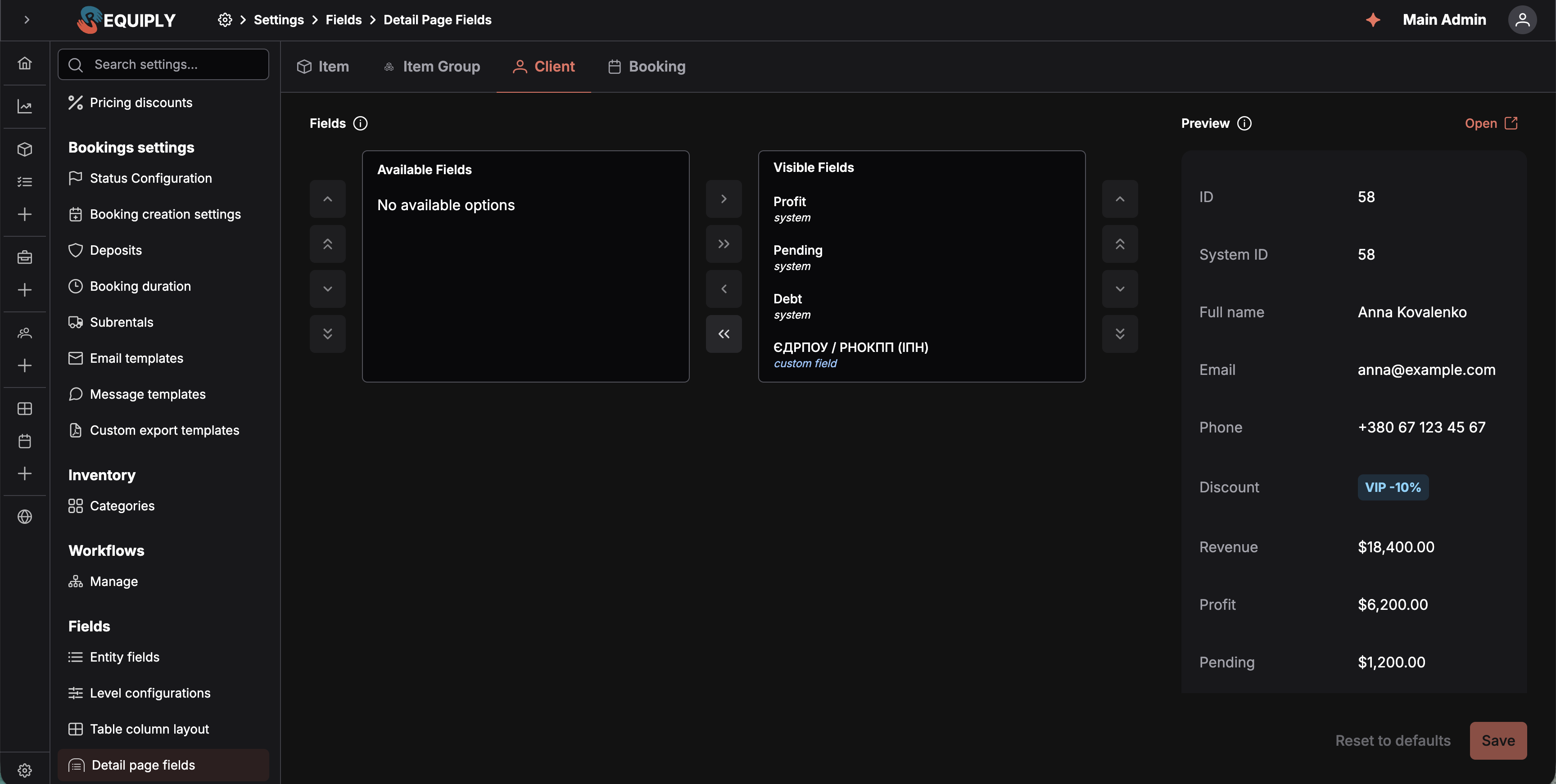
The Client tab with every row visible, so Available Fields is empty. The Preview on the right renders the same rows against sample data, and Open jumps to the real list page.
Why this page matters
Every detail page in Requiply used to render a fixed set of rows in a fixed order. That order suits a general rental business, but not every business cares about the same things — a dry-hire company may want SKU, Status and Barcodes at the top of a unit, while a production house wants Total expenses and Price type first and never looks at System ID.
This page turns that order into a per-organization setting. What you configure here is what everyone in the organization sees when they open a record:
- The item page (an individual unit).
- The item group page.
- The client page.
- The booking page.
Both Requiply's built-in rows and the organization's own custom fields are configured here together, in one ordered list — so a custom field can sit between two system rows rather than being pushed into a separate block at the bottom.
Who can use this page
- Admins only. The route uses the
adminmiddleware, plusstore-refreshso the latest organization data is loaded before the page renders. - There are no plan or billing restrictions on the page itself, but rows belonging to an optional feature only appear while that feature is on — see Feature-gated rows.
What you'll see
Entity level tabs across the top — Item, Item Group, Client, Booking. The active tab is reflected in the URL as ?tab=…, so a specific level can be linked to or refreshed without losing context. There is no Organization tab: the organization record has no detail page.
Inside each tab, the page is split in two.
Fields pick list
A two-sided pick list, labelled with an info icon that explains what it controls:
- Available Fields (left) — rows that exist for this level but are hidden from the detail page. When every row is visible this side reads No available options.
- Visible Fields (right) — rows that will be shown, in the order they appear here.
Each row shows its label and a small subtitle marking it as a system row (built into Requiply) or a custom field (defined by the organization on this entity level).
On the Booking tab, every row saved in Visible Fields also has a pencil that opens its settings, and a pin icon before the pencil marks a row that is pinned.
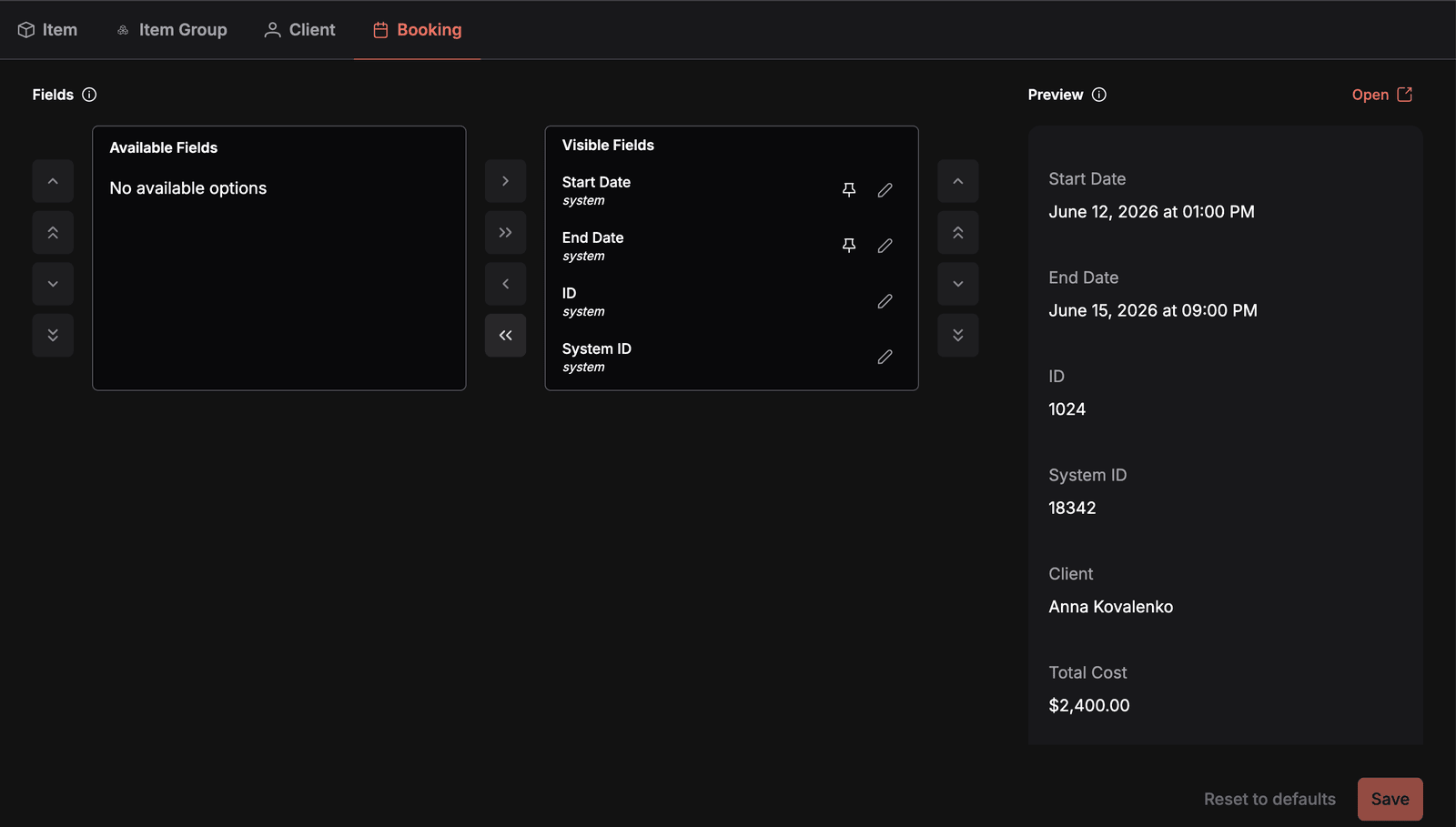
The Booking tab with Start Date and End Date pinned. Every saved visible row has a pencil; the pin before it marks the pinned ones.
Arrow buttons between the two columns move the selected rows across — one at a time, or all at once — and the arrow columns on the outer edges move a selected row up, down, or to the very top or bottom of its list.
Preview
Beside the pick list — to the right on wide screens, underneath on narrow ones — a live Preview renders the detail rows exactly as they will appear, using sample data. It updates as you move and reorder rows, before anything is saved. An Open button in the preview header opens the corresponding list page in a new tab so you can check the real thing.
Under the two panels sit Reset to defaults and Save. While either is running, the whole page is blocked with a full-screen overlay so the configuration cannot be edited mid-operation.
The rows available per level
Item
Image, Item Group, Category, SKU, QR, Barcodes, System ID, Status, Price, Price Type, Total Expenses, Created At.
Item Group
Image, SKU, QR, System ID, Name, Category, Price, Price for client, Price Type, Deposit, Quantity, Supplier, Margin, Pricing Tier, Created At.
Client
ID, System ID, Full name, Email, Phone, Discount, Client portal, Revenue, Profit, Pending, Debt, Binotel calls.
Client portal also starts in Available Fields. Move it across to show whether the client has an account on your client portal, when they created it, and when they last opened it.
Binotel calls starts in Available Fields too: it is offered while the Binotel integration is connected, but it is not made visible automatically. Move it to Visible Fields and save to show the client's call history on Client details. Even then, only members whose permission group has Allow access to client call history see it.
Booking
Start Date, End Date, ID, System ID, Client, Total Cost, Booking cost adjustment, Security Deposit, Deposit adjustment, Created At, Origin, Payment Status, Invoice groups, Items, Subrentals, Services, Sold items.
Origin starts in Available Fields. Move it across to show which channel the booking came through: Web app, Mobile app, Booking page, AI assistant, API, or Unknown for bookings made before the field existed.
Booking cost adjustment shows the booking's booking cost adjustment with a pencil that opens the Price adjustment dialog on the booking page. Deposit adjustment does the same for the deposit adjustment and opens the Deposit adjustment dialog. Both show No adjustment while there is none. They are visible by default, but only offered while the feature is on, and shown only to members with Allow booking cost adjustments.
Sold items lists the goods sold on the booking, with a pencil that opens Sell items. It is offered while Sales is on and shown only to members who can view sales. See Sell items on a booking.
Plus, on every level, the custom fields configured for that level under Level configurations.
Feature-gated rows
Some rows belong to an optional feature and are only offered here while that feature is enabled under Features:
| Row | Requires |
|---|---|
| QR (item, item group), Barcodes (item) | QR codes and barcodes — Advanced plan |
| Supplier, Margin (item group), Subrentals (booking) | Subrentals |
| Booking cost adjustment, Deposit adjustment (booking) | Booking cost adjustments. On the booking page they are also hidden from members without Allow booking cost adjustments. |
| Sold items (booking) | Sales. On the booking page it is also hidden from members without a Sales permission. |
| Binotel calls (client) | An active Binotel integration. Hidden by default even when connected, and shown on the client page only to members with Allow access to client call history. |
When the feature is off, the rows disappear from both sides of the pick list. Saving while they are hidden does not discard them — they are kept in the stored layout and reappear as soon as the feature is switched back on, though they may come back at the end of the list rather than in their old position.
Some rows also only make sense for certain records — a Price for client row on an item group that has no client price, for example. Those rows are dropped on the individual record even when they are in the visible list.
Main actions
Choosing which rows are visible
Move rows between Available Fields and Visible Fields with the pick list controls. Everything on the right will be shown on the detail page; everything on the left is hidden.
Reordering visible rows
Reorder within the Visible Fields side. The order saved here is the top-to-bottom order the rows are rendered in on the detail page.
Switching between entity levels
Click a tab to switch level. Each tab loads its own saved layout and its own custom fields. Unsaved changes on the previous tab are discarded — only the saved layout for the new tab is loaded.
Saving changes
Save stores the full list for the active level: visible rows with their order and marked visible, hidden rows stored as hidden so that newly added custom fields can still be detected later. A toast confirms Page field layout saved successfully.
The button is disabled when nothing has changed since the last load, and while a save or reset is running.
Resetting to defaults
Reset to defaults restores Requiply's built-in row set and order for the active level. If a saved layout exists it is deleted and the default is reloaded; if there is no saved layout and only the on-screen state has changed, the default is simply restored locally. A toast confirms Page field layout reset to default.
Pinning a booking row
A pinned row also appears in a separate card beside the booking details that stays on screen while you scroll. Pin the rows your team keeps coming back to — the dates, the Total Cost, or a table such as Items — so they never scroll out of view. Pinning is available on the Booking tab.
- Move the row to Visible Fields and click Save. The pencil appears only on rows that are saved as visible.
- Click the pencil on the row. Edit Page Field Configuration opens with the row's Field Name, Field Kind (System field or Custom field), and Entity Level, and a Preview of the row on the right.
- Switch on Pinned — Pin this field on the detail page. The preview gets a Pinned tag.
- Click Save, which becomes clickable once the switch differs from the saved setting. Requiply confirms Field configuration updated successfully and returns to the Booking tab, where the row now carries a pin icon.
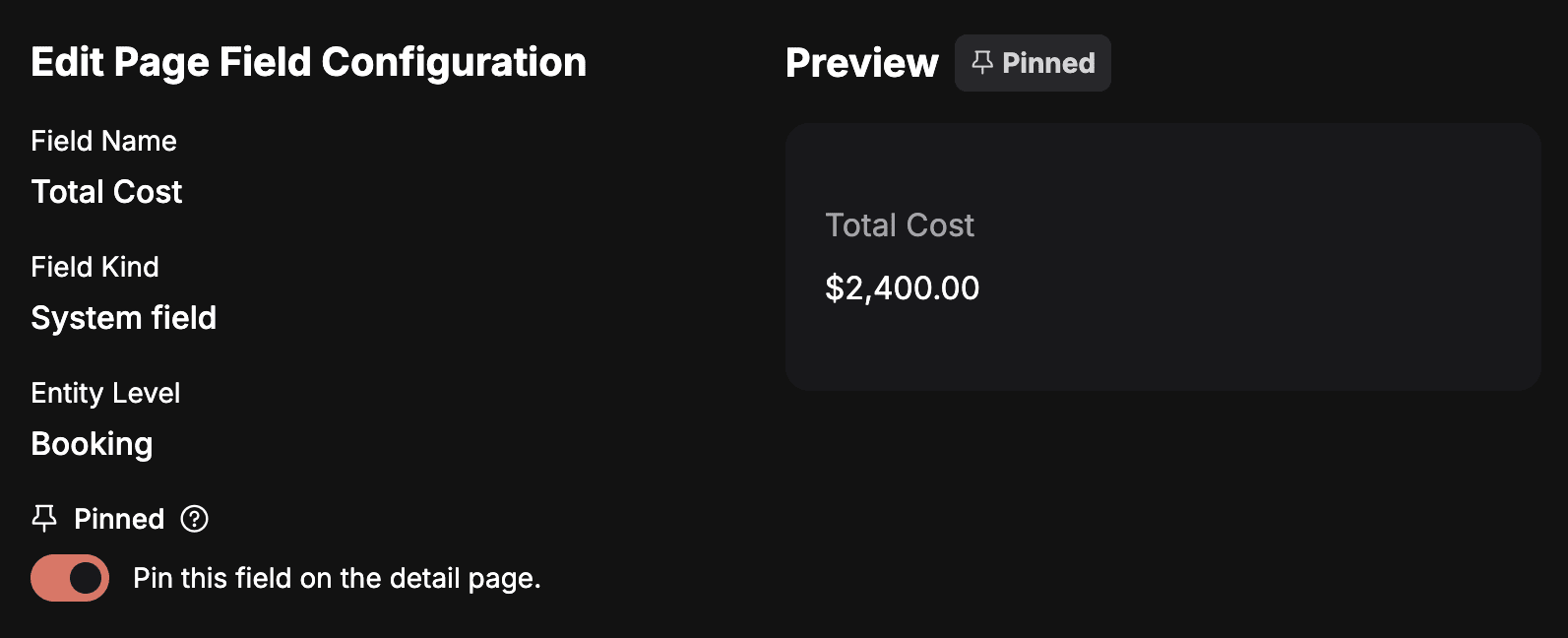
Pinning Total Cost. The Preview on the right shows the row on its own, tagged Pinned.
To unpin a row, open its pencil again and switch Pinned off. Pins are stored apart from the row layout: the pick list's Save does not change them, and Reset to defaults does not remove them.
What changes on the booking page
- On a wide screen (1280 px and up), the booking details and documents narrow to two thirds of the page, and the pinned card fills the column on the right. It stays in place as you scroll, and scrolls on its own when its rows are taller than the window.
- On a smaller screen, the pinned card sits above the booking details.
- The card is marked with a pin icon (Pinned fields) and lists the pinned rows in their layout order.
- Pinned rows keep their actions. The pencil on a pinned Start Date or End Date opens Edit booking dates straight from the card.
- Pinned rows also stay in their usual place in the details card. The Search fields… box filters the details card only.
- Rows that hold a table or a ledger — Payment Status, Invoice groups, Items, Subrentals, and Services — put their label above the content when the card is narrow. A narrow Items table hides its Profit column.
- The card is shown only when at least one pinned row is visible to the member. A pinned row moved back to Available Fields, a row whose feature is off, and Booking cost adjustment or Deposit adjustment for a member without the permission are left out of the card too.
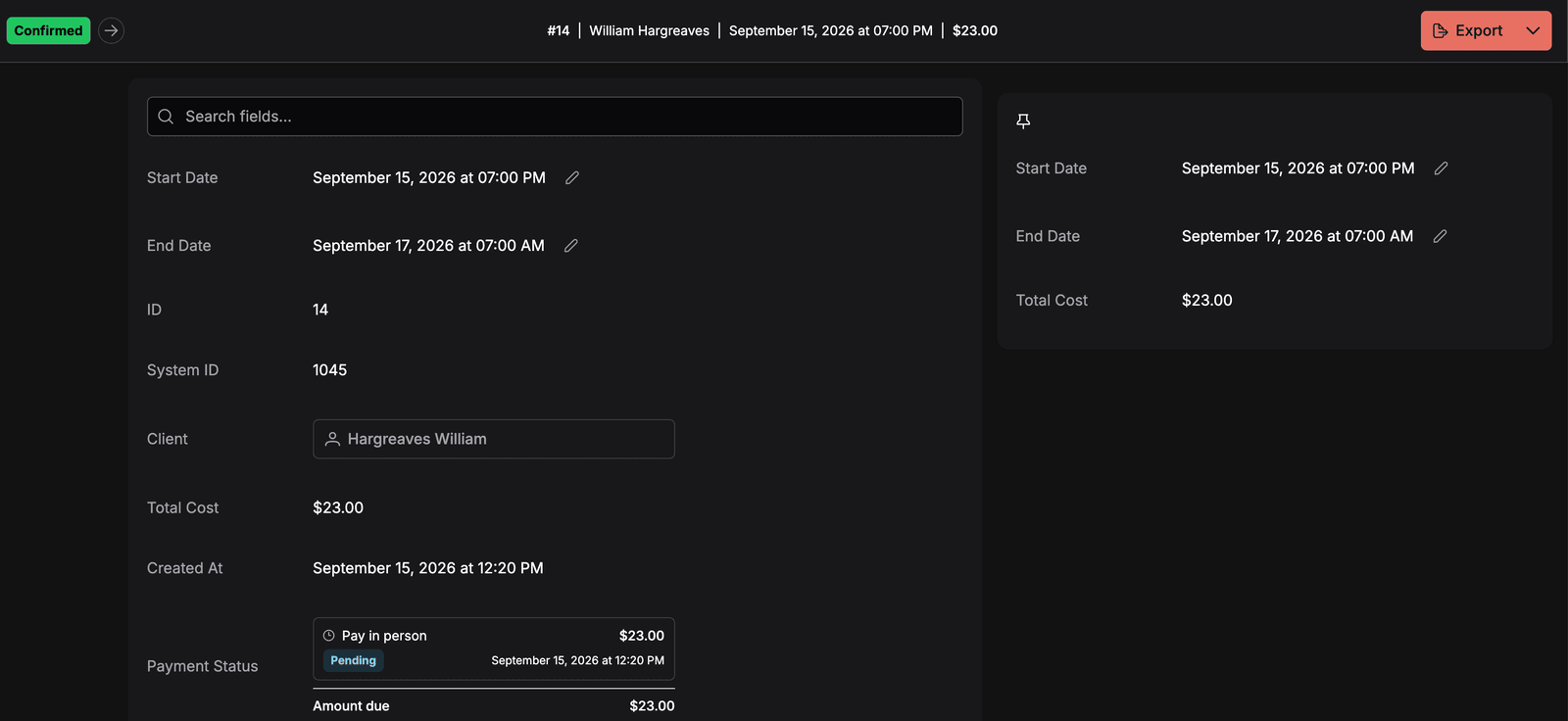
A booking with Start Date, End Date, and Total Cost pinned. The rows also stay in the details card on the left, and the date pencils work in both places.
How custom fields behave here
Custom fields behave differently on this page than on Table column layout:
| Detail page fields | Table column layout | |
|---|---|---|
| Which custom fields appear | Every field configured for the level | Only fields with Available for table view switched on |
| Default state of a new field | Visible — it appears on the detail page straight away | Hidden — it waits in Available Columns until promoted |
The detail-page default matches how detail pages behaved before they were configurable: a custom field attached to a level showed up on the record automatically.
A field added to a level after you last saved a layout is appended to the end of the list rather than being lost, so a new field never requires a re-save to become visible. The same applies to rows Requiply ships in a later release — they appear at the end of an existing saved layout, ready to be moved where you want them.
Removing a custom field from the visible list here does not delete the field or its stored values. It only stops it being rendered on the detail page; the field is still on the entity's forms and still available for table columns.
Searching fields on the detail page
Because a well-populated record can carry a lot of rows, every configurable detail page has a Search fields… box above the rows. Typing filters the rows by their label and their displayed value — so searching a serial number, an email address, or a supplier name finds the row that holds it. Matching ignores case and accents, and each word of the query can match anywhere in the row, in any order. When nothing matches, the card shows No fields match your search.
The search is per-user and per-visit — it filters what is on screen and changes nothing about the saved layout.
How this page connects to the rest of Requiply
| Feature | How this page affects it |
|---|---|
| Item and item group pages | Controls the rows of the details card, including QR and barcode rows. |
| Client details | Controls the single details card — contact rows, finance figures, and client custom fields are one ordered list. |
| Booking page | Controls the booking's detail rows, including the items, services, subrentals, and invoice group rows, and which of them are pinned beside the details. |
| Entity fields / Level configurations | A custom field must exist and be attached to the level before it can be ordered here. |
| Table column layout | Independent — a row can be visible on the detail page and hidden from the table, or the other way round. |
| Features | Turning a feature off removes its rows from this page and from detail pages, without discarding a saved layout. |
The layout is stored per organization, so a change is visible to every user the next time they open a record of that type.
Common scenarios
Putting the warehouse first
A rental house that scans everything moves Barcodes, QR, SKU and Status to the top of the Item tab and pushes Created At and System ID to the bottom. Warehouse staff now see the scannable identity of a unit without scrolling.
Surfacing a custom field on clients
After adding a Loyalty tier field to clients, an admin opens the Client tab, drags it up next to Discount, and saves. The tier now sits with the commercial rows instead of at the end of the card.
Hiding internal identifiers
An organization that never quotes database ids to support removes System ID from all four tabs. The rows stay in Available Fields and can be brought back at any time.
Keeping the items table in view
Staff adjust booked items all day, and the Items table sits halfway down a long booking. An admin pins Items on the Booking tab. On a laptop screen the table now stays on the right of every booking while staff scroll through payments and documents.