

Website embed
The Website embed lets customers book from your own website instead of only from your client portal. Booking buttons, product cards, a product grid, a date picker and a booking cart appear on your own pages, with live prices and availability from Requiply. When the customer is ready, checkout opens on your client portal with the same items, and the booking lands in Requiply like any other.
This is the page to open when a customer asks "how do I add a rent button to my WordPress site", "can I take bookings on my website", or "how do I connect WooCommerce to Requiply".
Open it at Settings → Integrations → Website embed, https://app.requiply.com/settings/integrations/website-embed.
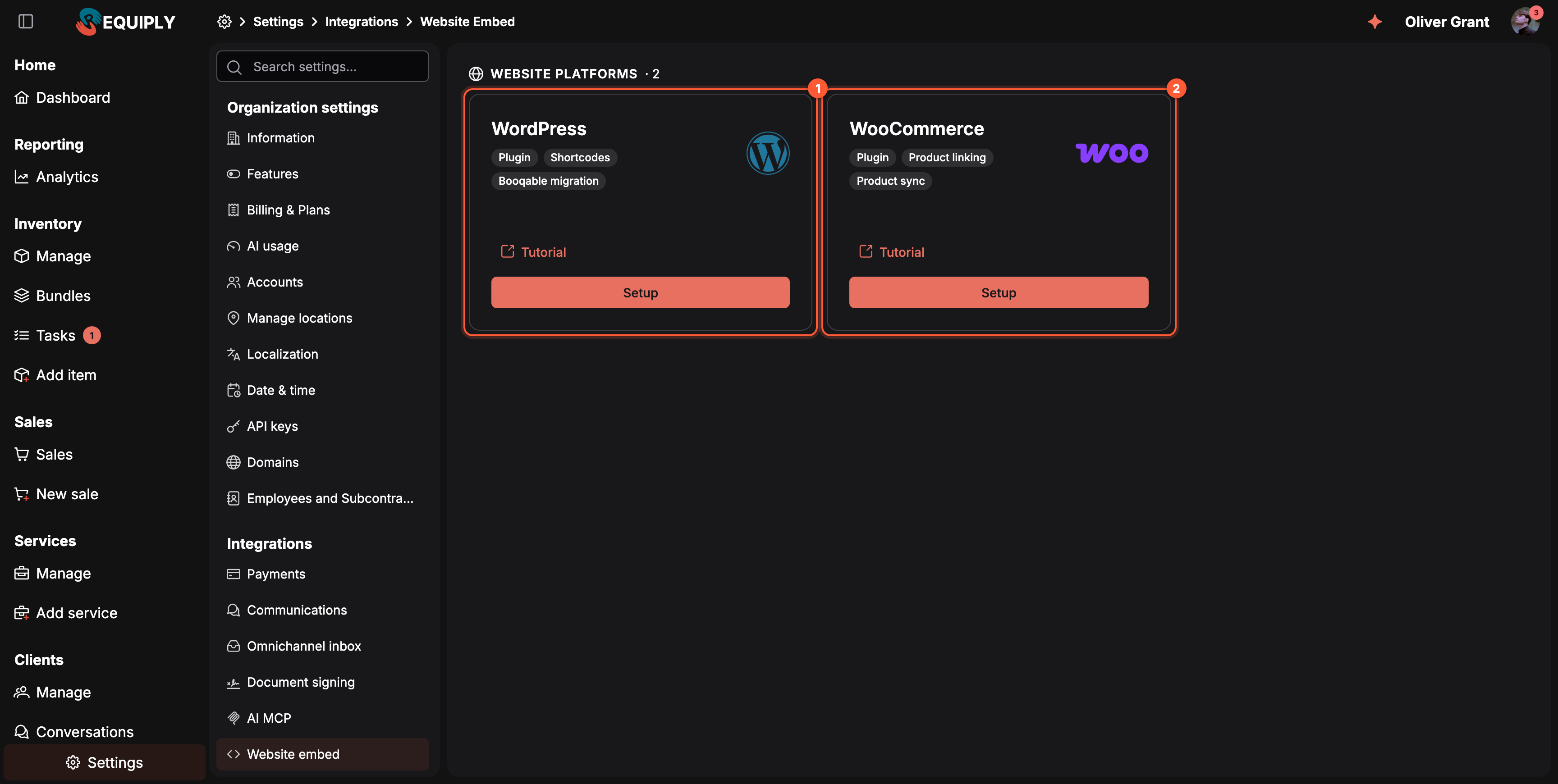
One card per website platform: WordPress (1) for any WordPress site, WooCommerce (2) for WordPress shops. Setup opens the setup page in Requiply, Tutorial the full guide on requiply.com.
Why it matters
- Customers book where they already found you. Your website keeps its design, texts and search ranking; it only gains a working booking button.
- Prices and availability are never out of date. Everything the buttons show is read from Requiply when the page opens, so there is no second price list to maintain.
- One booking flow. Checkout, payment, the customer account and every workflow email and message work exactly as for bookings made on the portal.
- Moving from Booqable is one click on WordPress. The plugin rewrites Booqable shortcodes into Requiply ones.
Before you start
| Requirement | Why it matters |
|---|---|
| Products with prices in Inventory | The embed shows only what your account contains: products, prices per day, hour or month, pricing tiers and deposits. |
| Working hours under Date & time and booking rules under Booking duration | The date picker offers only pickup and return times inside your working hours and follows your minimum duration and buffers. |
| At least one payment method under Portal settings | Checkout runs on the client portal and offers the methods switched on there. |
| A WordPress site (5.8 or newer, PHP 7.4 or newer) for the plugin | Other websites can use the embed script directly, see Other websites. |
| Advanced plan, the Sales feature and Selling items on, only for products for sale | Then the same button also sells products of the Equipment for sale type, with stock and no dates. |
WordPress
Click Setup on the WordPress card to open /settings/integrations/website-embed/wordpress. The header says what the plugin does: Add booking buttons, a product grid and the booking cart to any WordPress page with shortcodes. The Setup guide button opens the WordPress guide on requiply.com.
If your site runs WooCommerce, a Using WooCommerce? banner under the header points you to Open WooCommerce setup instead, because the WooCommerce setup puts the booking button on your product pages for you.
The page walks you through three steps:
- Install the plugin. Download plugin saves the free Requiply Rental Booking plugin as a zip. In WordPress, upload it under Plugins > Add New > Upload Plugin and activate it.
- Connect your account. Copy your Organization code with the copy button and paste it in WordPress under Settings > Requiply. The code is the last part of your portal address: for
portal.requiply.com/my-rentalit ismy-rental. - Add booking to your pages. Paste a shortcode from the table below into any page, post or Elementor widget.
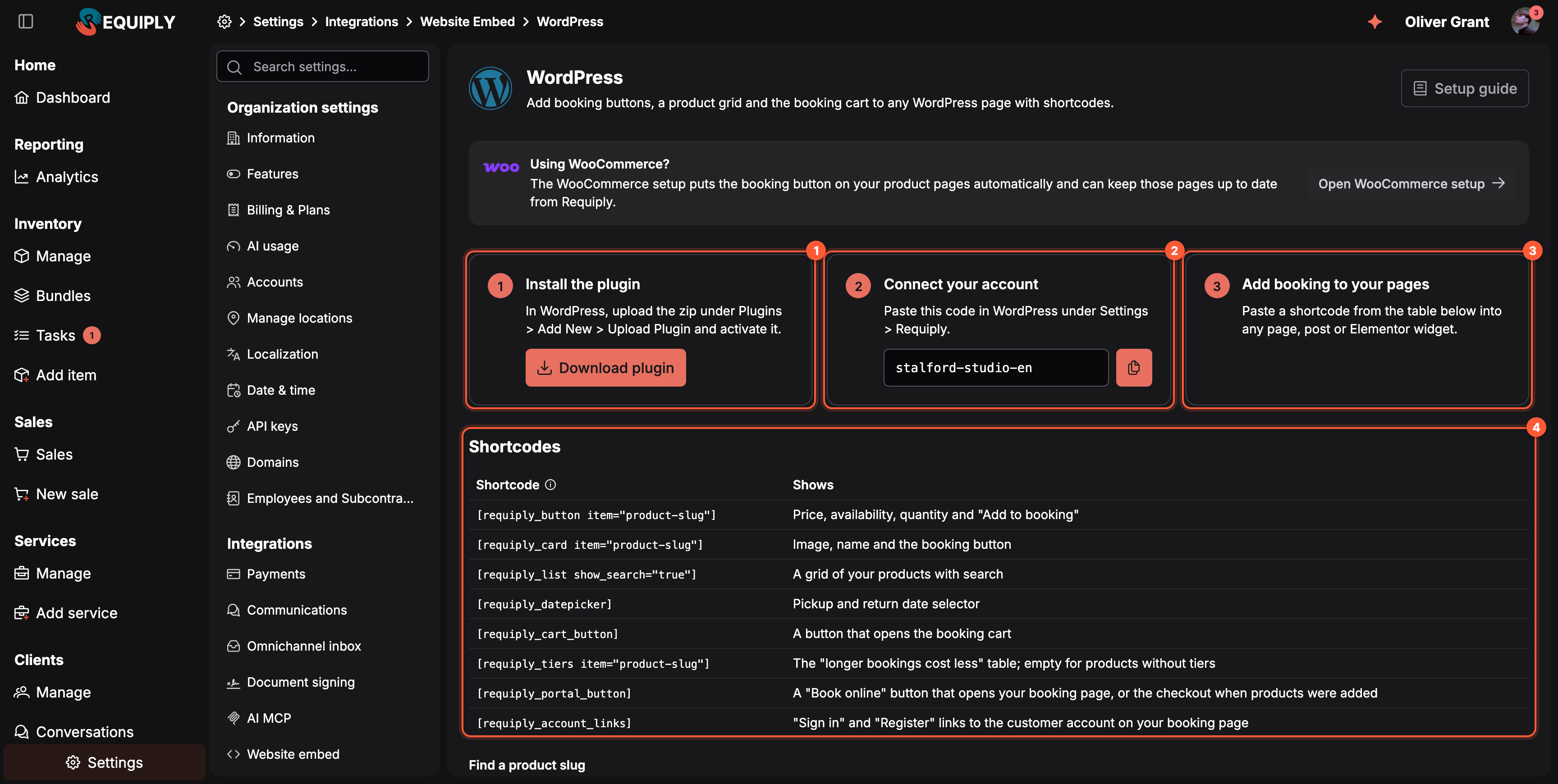
Download plugin (1), copy the Organization code (2), then place shortcodes on your pages (3) from the Shortcodes table (4).
Shortcodes
| Shortcode | Shows |
|---|---|
[requiply_button item="product-slug"] | Price, availability, quantity and "Add to booking" |
[requiply_card item="product-slug"] | Image, name and the booking button |
[requiply_list show_search="true"] | A grid of your products with search |
[requiply_datepicker] | Pickup and return date selector |
[requiply_cart_button] | A button that opens the booking cart |
[requiply_tiers item="product-slug"] | The "longer bookings cost less" table; empty for products without tiers |
[requiply_portal_button] | A "Book online" button that opens your booking page, or the checkout when products were added |
[requiply_account_links] | "Sign in" and "Register" links to the customer account on your booking page |
Replace product-slug with the slug of the product, see Find a product slug. The guide on requiply.com lists the extra options of each shortcode, such as a category or a limit for the grid.
Find a product slug
Product shortcodes point to a product by its slug: a short, readable name made from the product name, for example sony-fx6. Requiply creates it automatically when the product is added. It is unique in your organization and does not change when you rename the product, so shortcodes already on your pages keep working. The same slug is in the address of the product's page on your portal, for example portal.requiply.com/my-rental/item-sony-fx6.
To get a slug, scroll to Find a product slug under the shortcode table: Pick a product to get the slug for its shortcodes. Type in Search products, pick the product, and copy the Product slug with the copy button.
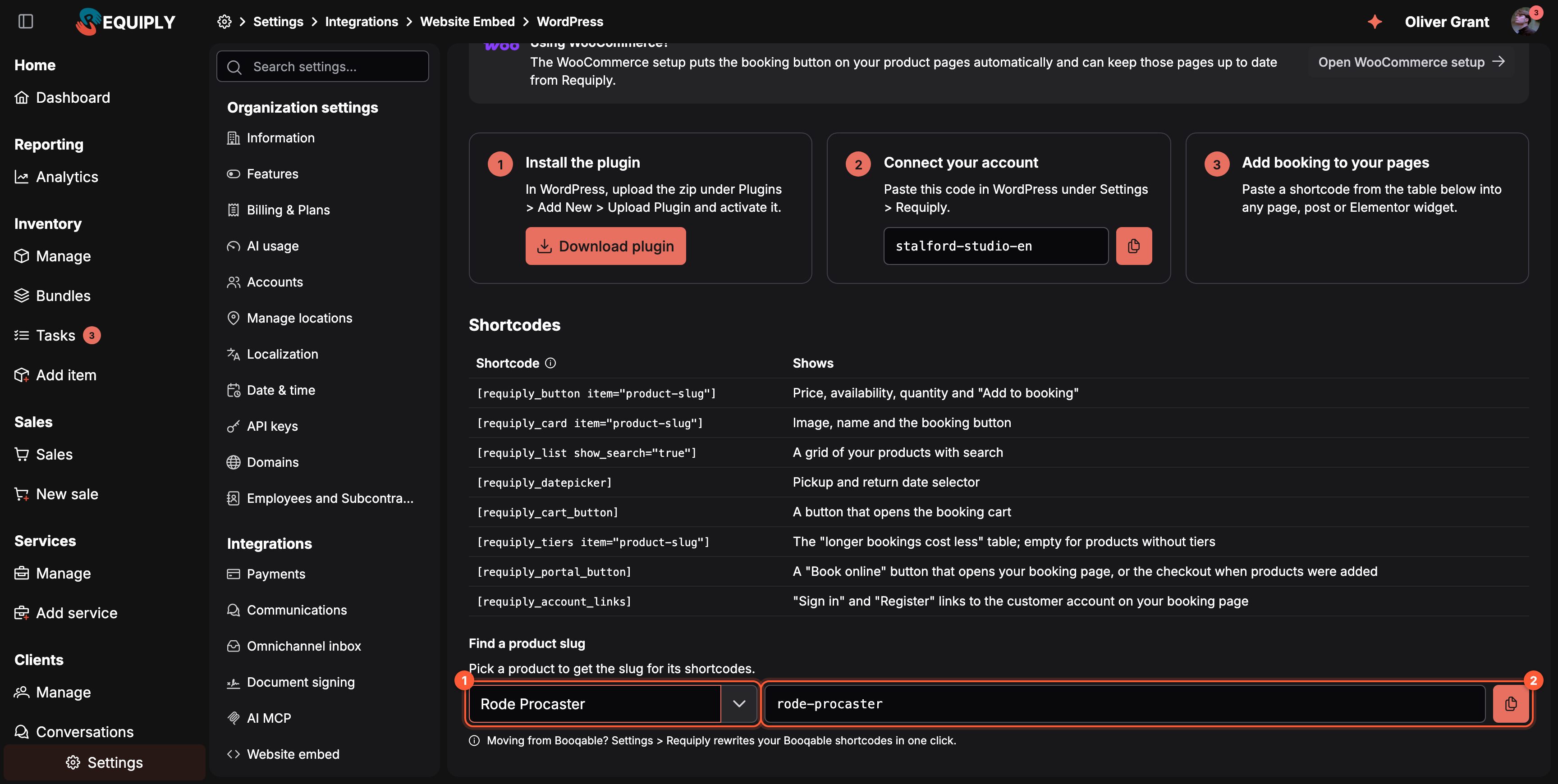
Search for the product (1) and copy its slug (2). The slug lookup is on the WordPress and the WooCommerce setup pages.
The slug cannot be edited in Requiply. Product pages no longer show embed codes; the lookup on this page is the one place to find a slug.
Moving from Booqable
Moving from Booqable? Settings > Requiply rewrites your Booqable shortcodes in one click. The Migrate from Booqable button in the plugin turns Booqable buttons and placeholders on your pages into Requiply shortcodes, so product buttons keep working. To bring your Booqable products, customers and bookings into Requiply first, use Data migration.
WooCommerce
Click Setup on the WooCommerce card to open /settings/integrations/website-embed/woocommerce: Turn "Add to cart" on your WooCommerce products into a booking button, and let Requiply keep the products up to date. Setup guide opens the WooCommerce guide.
The first two steps are the same plugin and organization code as for WordPress. The third, Choose how products stay in step, is set in WordPress under Settings > Requiply:
| Mode | What it does |
|---|---|
| Link only | Link each WooCommerce product to its Requiply product, one by one or all at once by matching names. WooCommerce data is never changed. |
| Sync from Requiply | Requiply creates and updates your WooCommerce products every hour. Price and stock always follow Requiply; descriptions, URLs and SEO stay yours. |
Linked products show the booking button instead of "Add to cart" on product pages and in category grids. Bookings never become WooCommerce orders: the cart and checkout are Requiply's.
The shortcodes are optional on WooCommerce: use them to add a date picker, cart button or sign-in links to your theme. The Find a product slug lookup is on this page too.
Product data flows one way, from Requiply to WooCommerce. Changing a price in WooCommerce does not change it in Requiply; change it in Inventory and the shop follows.
Other websites
On a website that is not WordPress (Wix, Webflow, Tilda, Squarespace or your own HTML), you can still use the embed if the site lets you add your own HTML code:
- Add the script once, for example in the site header, with your organization code:
<script async src="https://portal.requiply.com/embed/v1/requiply-embed.js" data-org="your-code"></script> - Put a placeholder where a booking button should appear, with the product slug from Find a product slug:
<div class="requiply-button" data-item="product-slug"></div>
The WordPress guide describes the placeholders for the other components. If your site builder does not accept custom code, link a "Book now" button to your portal address instead, or to your own domain.
What customers see
- On your pages, each product shows its price per day, hour or month. Before dates are set it offers Check availability, which opens the date picker; after that it reads how many units are free, or Not available for these dates.
- The date picker shows a calendar and pickup and return times inside your working hours. Days that are fully booked, closed days and holidays cannot be picked, and the picker enforces your minimum booking duration.
- The booking cart follows the customer from page to page. It lists the period, the items with quantities (capped at what is free), the checkout services you offer as switches, such as delivery, and the subtotal, discount, deposit and total.
- Continue to checkout opens your client portal with the same cart. The customer enters contact details or signs in, picks a payment method and confirms. After an online payment the provider sends them back to the portal.
- The success page shows the booking number and a Back to the website link to the page they started from.
The components take the brand color and corner style from Portal settings, and the font of your website. They open in your website's language, English or Ukrainian. When your portal runs on your own domain, every link they produce uses it.
When Booking creation is set to Start from dates, product buttons ask for dates first and add the product once the dates are applied.
What your team sees in the app
A booking from the embed is an ordinary booking in Manage bookings, on the Calendar and on the Dashboard. Its Origin reads Website embed, so you can filter or count bookings that came from your website. Add the Origin column under Table column layout to see it in the list.
A cart that contains only products for sale becomes a standalone sale instead of a booking. A cart that mixes rentals and purchases becomes one booking with the sale attached.
Common scenarios
- A WordPress site with a page per product. Install the plugin, paste the organization code, and add
[requiply_button item="..."]to each product page with the slug from Find a product slug. Add[requiply_datepicker]and[requiply_cart_button]to the header so customers can set dates once and see their cart everywhere. - A WooCommerce shop with hundreds of products. Choose Link only and link by matching names, then fix the few that did not match on the product screen. Or choose Sync from Requiply and let Requiply keep prices and stock current every hour.
- Offering delivery in the cart. Add the delivery service under Checkout services. It appears as a switch in the embed cart and at checkout.
- Moving from Booqable. Import your data with Data migration, install the plugin, and click Migrate from Booqable in Settings > Requiply.
- A site that is not WordPress. Add the script and placeholders from Other websites, or link a "Book now" button to your portal.
Tips and cautions
Booking assistant
The optional AI chat on your client portal: it answers catalog, availability and price questions in your customer's language, can send a booking request, and lets customers ask about an item, edit or unsend their messages and chat with your team.
AI web widget
Embed a Requiply AI chat bubble on your own website so visitors can ask about availability and prices without leaving your site.