

Categories
Categories are the groups your products are sorted into, such as Audio Equipment, Cameras or Cabins. A category can hold subcategories (Audio Equipment → Microphones → Dynamic microphones), up to five levels deep, and the order you set here is the order customers see on your client portal and website.
You can find this page under Settings → Inventory → Categories, or at https://app.requiply.com/settings/inventory/categories.
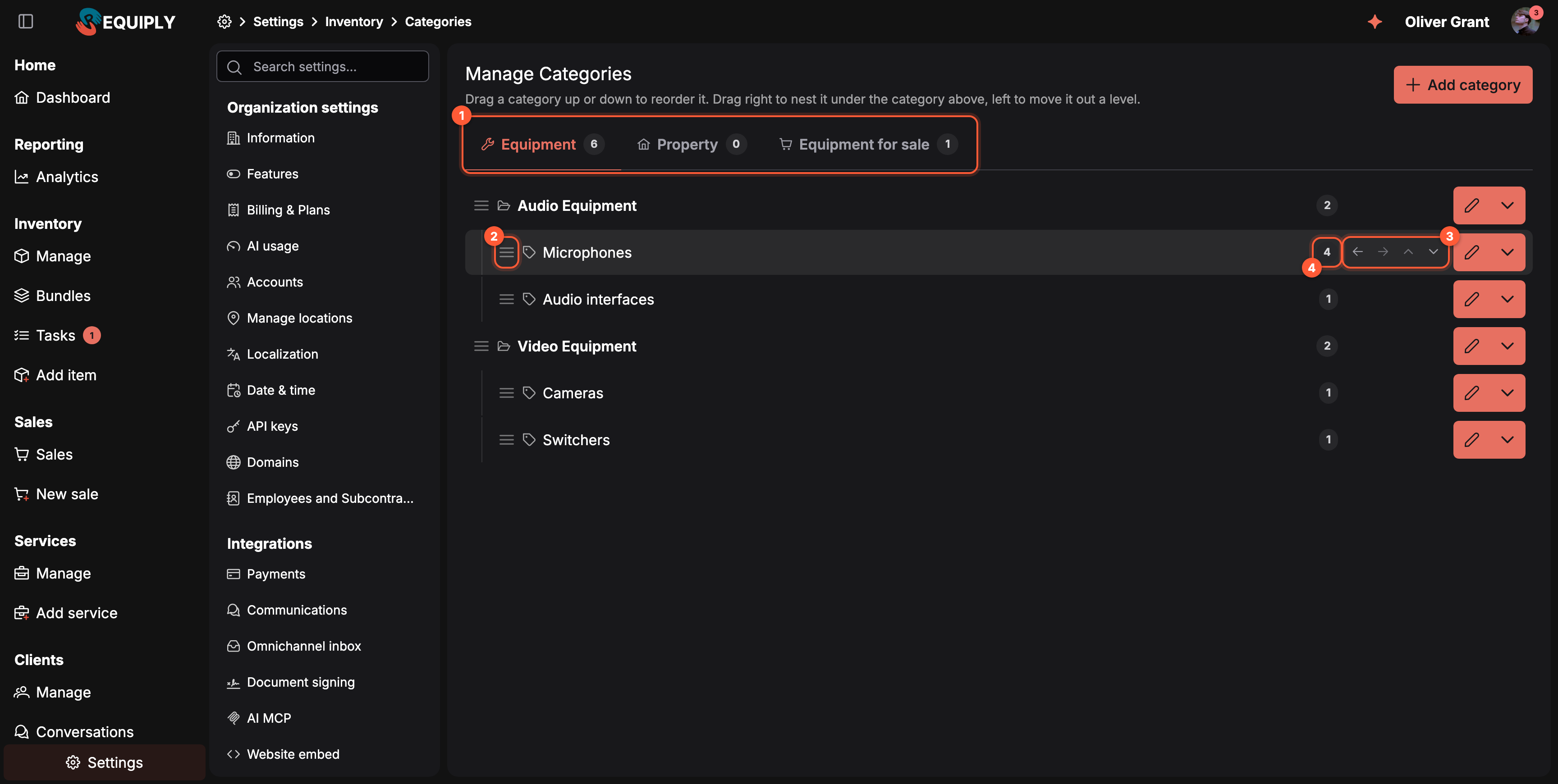
1 One tree per inventory type. 2 Drag a row by its grip to move it. 3 The same moves with buttons, shown when you point at a row: out a level, nest under the category above, up, down. 4 How many active products sit directly in the category.
What categories are used for
| Where | What the category does |
|---|---|
| Manage inventory | The Category column and the Category filter. Filtering by a parent category also finds the products in all its subcategories. |
| Add item and the product edit page | Every product can be placed in one category, at any level of the tree. |
| Custom fields | A field limited to a category also applies to every subcategory below it. |
| Client portal and website | Customers browse the catalog by the same tree, in the same order, with a product count per category. |
| Import inventory | The category column accepts a path such as Audio Equipment > Microphones and builds the missing levels. |
The page at a glance
The page shows one card titled Manage Categories with:
- the hint Drag a category up or down to reorder it. Drag right to nest it under the category above, left to move it out a level.
- Add category on the right, which opens the add page with the type of the open tab already chosen,
- a tab per inventory type: Equipment, Property, and Equipment for sale once at least one sale category exists. Each tab shows how many categories it has.
Each tab holds the tree of that type. A row shows:
| Part | Meaning |
|---|---|
| Drag grip (three lines) | Hold and drag to move the category. |
| Folder or tag icon | A folder means the category has subcategories, a tag means it has none. |
| Name | Top-level categories are bold. Vertical guide lines show the nesting. |
| Count tag | Products in this category itself, without its subcategories. Archived products are not counted. Hover for Products in this category: {n}. |
| Arrow buttons | Move out a level, Nest under the category above, Move up, Move down. A button is greyed out when the move is not possible. |
| Edit button | The pencil opens the edit page. Its menu holds Delete. |
A tab with nothing in it reads No categories of this type yet. When the organization has no categories at all, the page shows No categories yet with an Add category button instead.
Building the tree
Nesting a category under another
There are three ways to put Microphones under Audio Equipment:
- Drag the Microphones row by its grip to just below Audio Equipment, then drag it to the right by one step.
- Place Microphones right below Audio Equipment and click Nest under the category above (the right arrow).
- Open Microphones with the pencil and pick Audio Equipment as its Parent category. This saves immediately.
Move out a level (the left arrow) does the opposite: the category moves one level up and becomes a sibling of its former parent. A category always moves together with its subcategories.
Changing the order
Drag a row up or down, or use Move up and Move down. A category moves within its own level, together with its whole branch. The order of siblings is the order the client portal and website show.
Saving
Moves made with drag and drop or the arrow buttons are a draft until you save them:
- Save order stores the whole tree of the open tab at once and shows Category order saved.
- Discard changes puts the tree back the way it was.
- While there are unsaved moves, the other tabs are locked and Add category is replaced by these two buttons.
- Leaving the page asks The category order has unsaved changes. Leave without saving?
If someone else added or removed a category of the same type in the meantime, saving fails with Could not save the category order. Reload the page and repeat the moves.
Rules the tree follows
| Rule | What you see when it is broken |
|---|---|
| At most five levels: a category, four levels of subcategories under it. | Categories nest at most five levels deep. The nest button stays disabled. |
| A parent and its subcategories have the same inventory type. Equipment categories cannot sit under a Property category. | The parent category must have the same inventory type. |
| A category cannot be placed inside its own subcategory. | A category cannot be placed inside its own subcategory. |
| A category with subcategories cannot change its type. | Move the subcategories out before changing the type of this category. |
Adding, editing and deleting
- Add category opens Add or edit category. A new category is added at the end of its level.
- The pencil on a row opens the same page for that category: name, type and Parent category.
- Delete is in the row's menu, or on the edit page.
What deleting does
Deleting a category never deletes products or other categories:
- its products move to the parent category, or are left without a category when it was a top-level category,
- its subcategories move one level up, under the parent of the deleted category.
The confirmation dialog tells you how many products use the category: There are 3 inventory items using this category. Are you sure you want to delete "Microphones"? with the note Its products move to the parent category (or lose the category if it is top level), and its subcategories move one level up. Click Yes to delete.
Common scenarios
Splitting a long flat list into groups
A studio has twelve categories side by side. The admin adds Audio Equipment and Video Equipment, then drags Microphones, Audio interfaces and Headphones to the right under Audio Equipment, and Cameras, Switchers and Lights under Video Equipment. Save order. On the portal, customers now see two groups and can open either one.
Putting the best sellers first
Customers should see Cameras before Lights. The admin drags Cameras to the top of the Video Equipment branch and saves. The portal and website show the new order straight away.
Removing a category nobody uses
The admin deletes Old stock. Its three products move to the parent category and its one subcategory moves up a level, so nothing disappears from the catalog.
Building the tree from a spreadsheet
Instead of clicking, the admin fills the category column of the import template with paths such as Audio Equipment > Microphones. Each level is matched by name or created during the import.
Tips and cautions
Bundles
Bundles (kits, sets, packages) group items that are rented together, like a podcast kit or a camera set, into one fixed set with one discount. Create them with an AI product photo, book them on the web, in the mobile app and in the client portal, and see the bundle discount on invoices, documents, emails and messages.
Add or edit category
Create or rename a category, choose whether it holds equipment, property or goods for sale, and place it under a parent category to make it a subcategory.