

Inventory settings
Three things shape how your catalog is organized and how customers find equipment in it: categories, product descriptions and product specifications. Categories sort products into a tree, the description tells a customer what they are renting, and specifications such as brand, connector or weight become filters on the client portal and your website.
| Building block | Where you set it up | What customers see |
|---|---|---|
| Categories and subcategories | Settings → Inventory → Categories | A category tree to browse, with a product count per category. |
| Product description | The Description field on Add item and on the product edit page | A Description block on the product page. |
| Product specifications | A custom field on the Item Group level with Filter on the booking page and website switched on | Filters beside the catalog and a Specifications list on the product page. |
All three are available on every plan.
Categories and subcategories
Categories group products, for example Audio Equipment and Video Equipment. Each category can hold subcategories (Audio Equipment → Microphones), up to five levels deep. You set the order by dragging, and that order is what the portal and website show.
- Build and reorder the tree on Categories.
- Create, rename or move one category on Add or edit category.
- On Manage inventory, filtering by a parent category also finds the products in its subcategories.
- A custom field limited to a category also applies to every subcategory under it.
Product descriptions
Every product (item group) has an optional Description of up to 10,000 characters. Write it on Add item or on the product's edit page, or fill the description column of the import template.
The description is for customers:
- the portal product page shows it in a Description block; a blank line starts a new paragraph,
- the first 160 characters become the product page's description for search engines,
- the website integration receives it with the rest of the product.
Inside Requiply the description is shown on the add and edit forms only, so it never clutters the inventory tables.
Product specifications and filters
A specification is a custom field on the product that customers are allowed to see. Brand, Connector, Phantom power or Weight, g are typical ones. Once it is switched on, the portal and the website offer it as a filter beside the catalog, and its value appears in a Specifications list on each product page.
Fields stay internal unless you switch them on, so purchase prices, supplier notes and other private fields never reach customers.
Setting up a specification
- Create the field under Settings → Fields → Entity fields (https://app.requiply.com/settings/fields/entity-fields). Pick a type that can be filtered, see the table below. For Brand, a Select with the options Rode, Behringer and Blackmagic works well.
- Open Level configurations on the Item Group tab (https://app.requiply.com/settings/fields/level-configurations?tab=item_group) and add the field from the Add a field chips.
- Click the pencil on the field to open Edit Field Configuration.
- Switch on Filter on the booking page and website and save.
- Fill the value on each product: the field now appears in the custom fields block of Add item and of the product edit page.
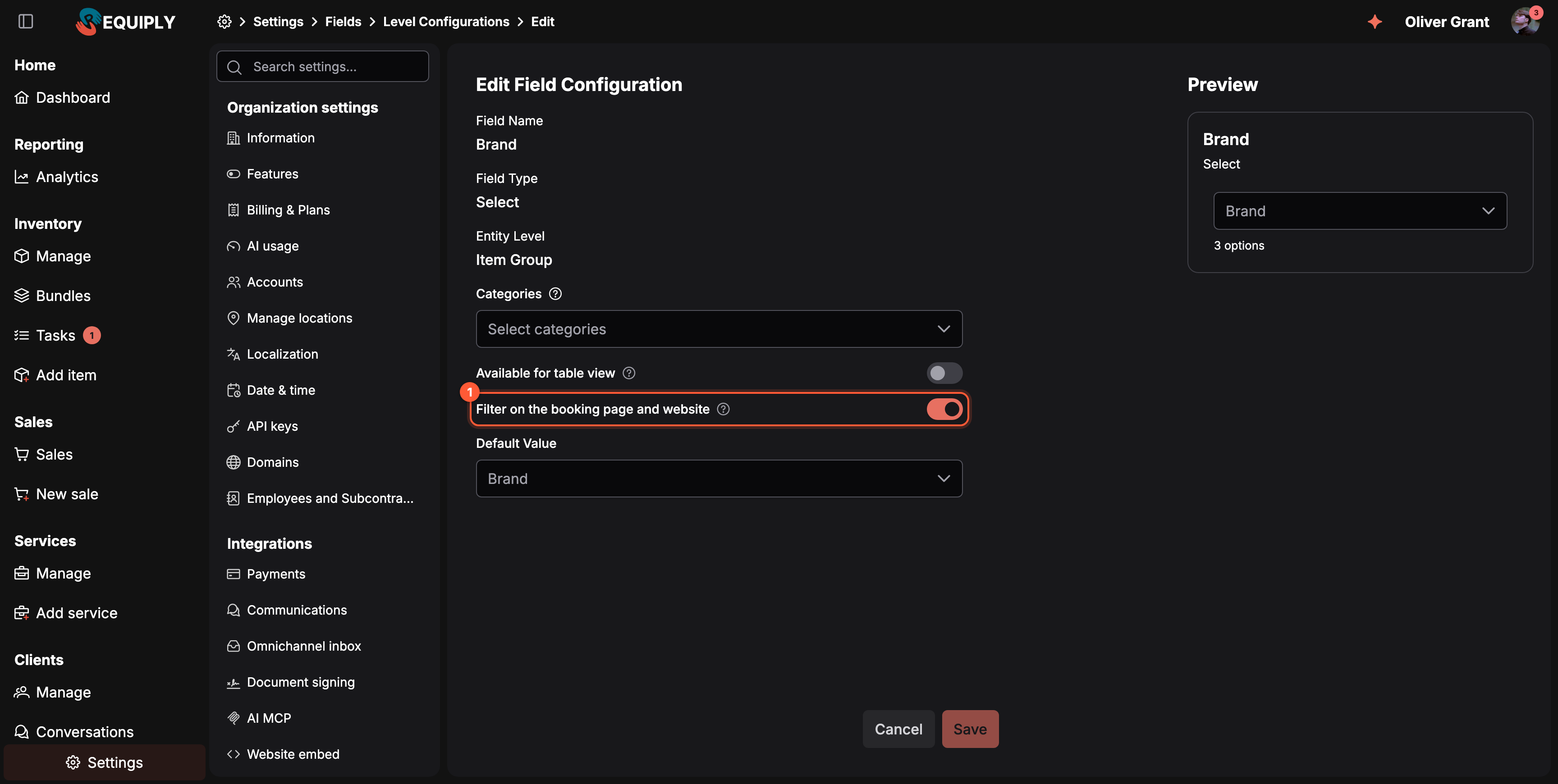
1 This switch is what makes a product field public. It appears only for Item Group fields of a type that can be filtered.
The help icon explains: Customers can filter products by this property on your booking page and website, and its value shows in the product details. Fields without this stay internal.
Which field types can be a filter
| Field type | Filter on the portal |
|---|---|
| Select | A list of the options with a count each. Options keep the order you set on the field. |
| Multi-select | The same list. A product matches when it has any of the ticked options. |
| Text | A list of the distinct values your products have. A text field with more than 40 different values is shown in Specifications but not offered as a filter. |
| Number | From and To boxes. Their hints show the lowest and highest value among the results. |
| Checkbox | A single Yes switch with the number of products that have it. |
Text area, Date and Phone fields cannot be filters, and the switch does not appear for them. Fields on the Item (unit) level are never public: specifications belong to the product, not to a single unit.
When a filter shows up
The portal only offers a filter when it gives the customer a real choice for the products on screen:
- at least two different values, a number range with different lowest and highest values, or at least one product marked Yes,
- counted inside the category the customer has open, so Microphones shows only microphone brands,
- each count already takes the other active filters into account.
Ticking several values of one filter shows products that have any of them (Rode or Behringer). Different filters combine, so Brand: Rode plus Phantom power: Yes shows only Rode products that need phantom power.
A product without a value for a specification simply has no row for it in Specifications.
Common scenarios
Letting customers filter microphones by brand
The admin creates a Select field Brand, adds it on the Item Group level, switches on Filter on the booking page and website, and sets the brand on each microphone. On the portal, opening Microphones now shows a Brand filter with Rode (3) and Behringer (1).
Keeping a field private
Purchase supplier is an Item Group field the team uses internally. Its switch stays off, so it never appears on the portal, the website or the public catalog.
Writing a product page that sells
For the ATEM Mini Pro the admin writes two short paragraphs in Description: what is in the case and what it is good for, separated by a blank line. Customers read them on the product page, and search engines show the first sentence.
Tips and cautions
Deposits
Set the organization's security deposit policy: no deposit, a fixed amount, or a percentage of the rental, keep it out of online payments or include it, and override it per product.
Overview
Add your own fields to Requiply and control where they appear: which fields exist, which records they apply to, which table columns show, and which detail rows show.