

Scanning barcodes and QR codes
The phone camera is a barcode scanner: point it at a label and Requiply opens the unit, adds it to a booking or ticks it off a checklist. Every place that scans also has Enter code, for a worn label or a code read out over the phone.
Scanning with the camera is part of the Advanced plan and up, and needs QR codes & barcodes switched on under Settings → Organization → Features. Printing labels and tying manufacturer barcodes to units are explained in QR codes and barcodes.
Where you can scan
| Where | What a scan does |
|---|---|
| Search tab, the round scan button | Opens what the code belongs to: a unit, a product for sale, or the booking, client or product of a Requiply QR code. |
| New Booking, Inventory step: Scan / Enter code | Adds the unit's product, pins the unit when assigning units on creation is allowed, or adds one product for sale. |
| A pickup or return checklist: Scan / Enter code | Ticks the unit off, assigns it, or offers to replace a reserved unit. See Handover checklists. |
| New sale: Scan / Enter code | Adds one of the product for sale. See New sale. |
| A unit, Actions → Tie barcode | Ties a manufacturer barcode or serial label to that unit. |
| A product for sale, Actions → Tie barcode | Sets the package barcode of the product. |
The scan screen
Open the Search tab and tap the round scan button in the corner. The camera opens full screen with Point your camera at a Requiply QR code or a barcode.
- The first time, the phone asks for camera access. If you said no, the screen shows Camera access needed with Open settings.
- Tap the flashlight button (Turn on flashlight) in a dark warehouse, a van or a basement.
- The phone vibrates when a code is read. Codes it cannot use show a short message, and scanning continues after a moment.
The camera reads QR codes and EAN-13, EAN-8, UPC-A, UPC-E, Code 128, Code 39, Code 93, ITF-14 and Data Matrix barcodes.
What a scan opens
| You scan | What happens |
|---|---|
| A Requiply QR code | The booking, client, product or unit it points to opens. |
| A barcode of one of your units: the Requiply code, the generated EAN-8, or a tied manufacturer code | The unit opens, with its status, barcodes and reservations. |
| A SKU of one of your units | The unit opens. |
| The package barcode of a product for sale | The product opens. |
| A Requiply code of another organization | This Requiply code belongs to another organization. |
| A barcode that is not linked yet | Unknown barcode: Barcode {code} is not linked to any SKU yet. Link it now? |
| Any other QR code | Not a Requiply code. |
On the Core plan the scan button shows a crown; tapping it says Advanced plan feature: QR codes and barcodes are available on the Advanced plan. Upgrade in the Requiply web app. When an Advanced organization has the feature off, the button is hidden.
app.requiply.com. Scanned with the phone's own camera app, they open the Requiply app when it is installed, and the web app otherwise.Linking an unknown barcode
Equipment often arrives with the manufacturer's barcode already on it. Scan it, tap Link to SKU (or Link when Sales is on), search for the unit or the product for sale, and tap it. The app confirms Barcode linked to {sku}, and the next scan opens it directly.
If the code already belongs to another unit, the app asks Already linked: Barcode {code} is already linked to {sku}. Move it to {new sku}? Tap Move to move it. Linking needs Allow inventory management.
Typing a code with Enter code
Every Scan button has an Enter code button next to it. In a new booking it opens Add by code (Enter a unit barcode, SKU or the barcode of an item for sale.); type the code printed under the barcode, or the SKU, and tap Add (in a checklist, Check).
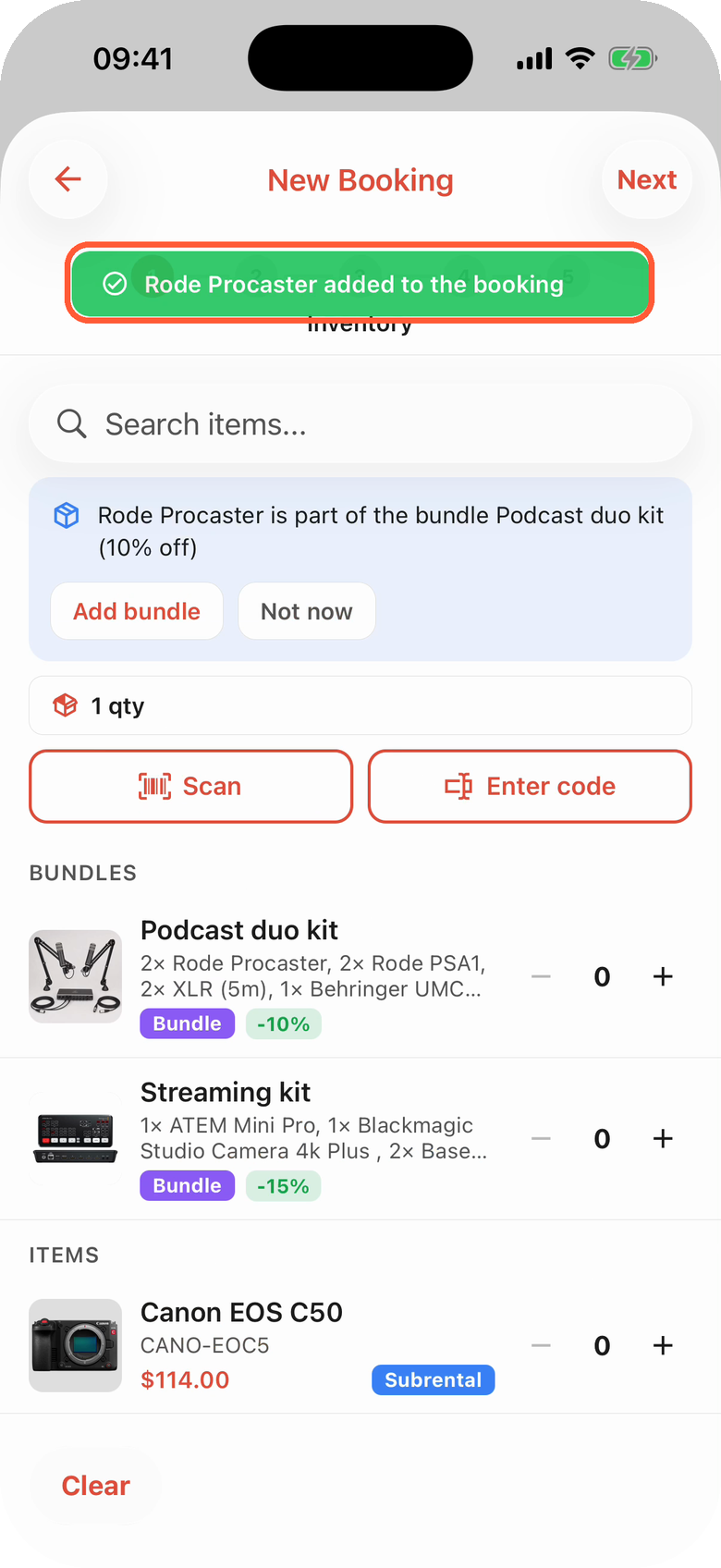
A code typed with Enter code adds the unit's product, here with no connection at all.
Enter code does not use the camera. In checklists it is there on every plan. On the Inventory step of a new booking it shows when camera scanning is available, or when your organization allows assigning units on creation. Use it when a label is torn, the code is read to you over the phone, or a Bluetooth scanner types it in.
Adding items to a booking
On the Inventory step of New Booking, tap Scan to open the camera above the list, or Enter code. Depending on the code:
- A unit pins that exact unit to the booking (Unit {sku} pinned to the booking) when your organization allows assigning units on creation and your group has the permission. Otherwise it adds one of its product ({name} added to the booking).
- A product for sale adds one to the sold goods.
- A unit held by another booking for the chosen dates, on maintenance or lost is refused with the reason, for example Unit CAM-004 is booked by another reservation for these dates.
Tap ✕ next to a pinned unit to unpin it.
Tying a barcode to a unit
Open a unit (from Inventory, or by scanning it), tap Actions and Tie barcode. Point the camera at the serial number or asset tag, or type it under Or type the code. The app shows the code it read with Detected: {symbology} and Check that the code matches the label on the unit. Tap Tie to {sku} to save it, or Scan another code.
The unit's Barcodes card shows every code of the unit as a scannable barcode, tagged Requiply, Generated or Third-party, with Primary on the one your organization prints. Tap a code to show it large, Copy code, or Unlink a third-party code. See QR codes and barcodes.
With a weak signal or no connection
With Keep data on this phone on, every scan and every typed code is looked up on the phone itself: instantly on a weak signal, and also with no connection at all. A code linked a few minutes ago on another phone is checked with Requiply when there is a connection. Without the switch, each scan asks Requiply, and with no connection the app says Could not look up this code. Check your connection and try again.
Common scenarios
Checking what a case on the shelf is
Open Search, tap the scan button and point at the label. The unit opens with its status and the booking it is reserved for.
Using the manufacturer's barcode instead of printing labels
Scan the barcode on a new microphone. Unknown barcode appears; tap Link to SKU, pick the unit, and from then on that barcode opens it.
Handing out twenty cables in a dark van
Open the pickup checklist, tap Scan, turn on the flashlight and scan the cables one after another. The camera stays open, and each scan ticks the next unit.
Tips and cautions
Bookings on the phone
Bookings in the Requiply mobile app: today's pickups and returns, filters and sorting, creating a booking step by step, and the booking page with status changes, price and deposit adjustments, handover checklists and documents.
Slow internet and no connection
How the Requiply mobile app keeps working on a weak signal, EDGE or a congested network during a power outage, and with no connection at all: the avatar badge, the Keep data on this phone switch, and what needs a connection.