

Manage bookings
The Manage bookings page is the central list view of every booking in the organization. It is where staff search, filter, expand, status-change, and act on bookings — the operational counterpart to the calendar view.
You can find this page under Bookings → Manage in the main navigation, or at https://app.requiply.com/reservations/manage. It also has a keyboard shortcut: Cmd/Ctrl + B from anywhere in the app.
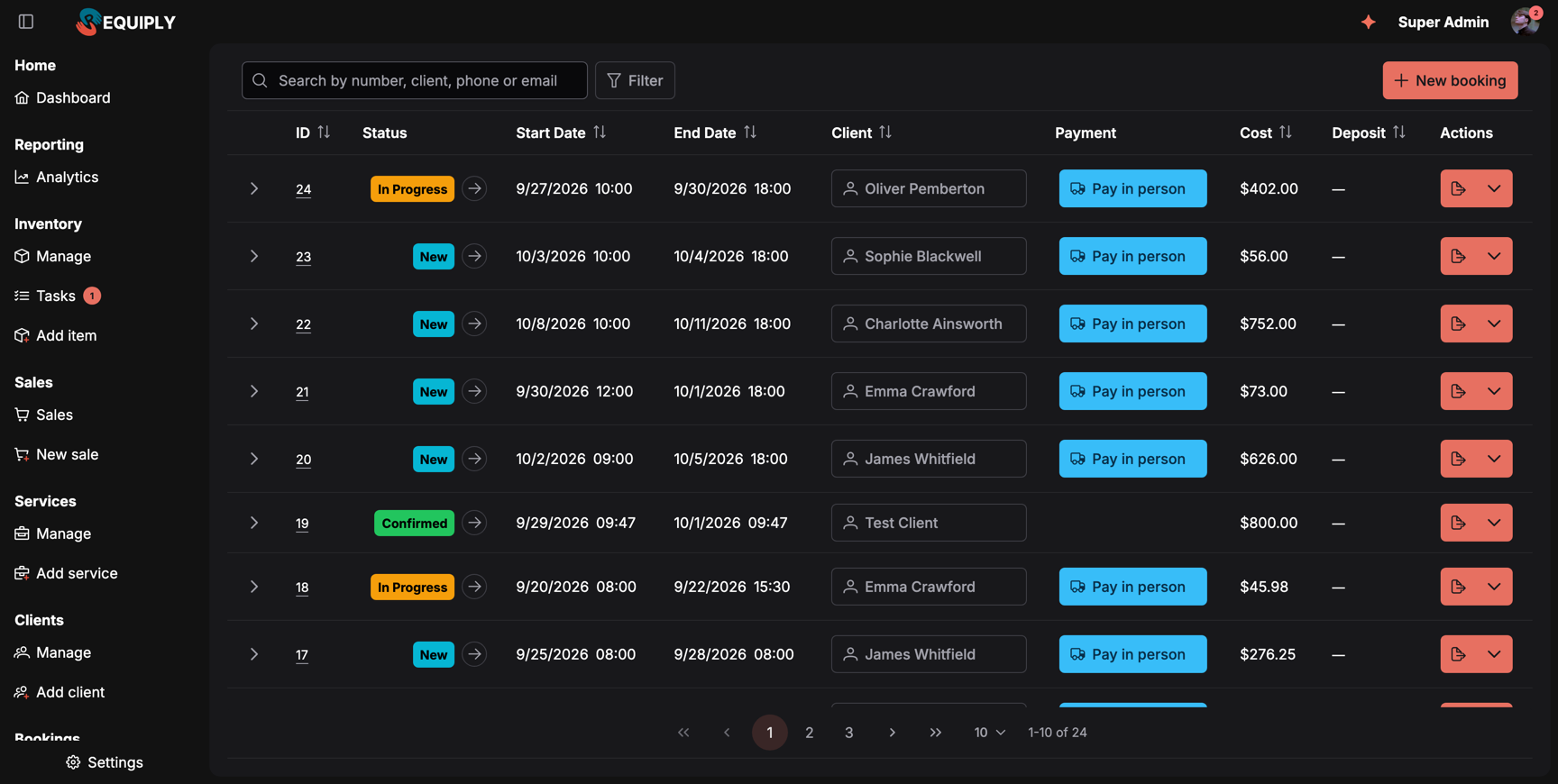
The bookings list opens with the newest booking number first. Search, filters, sorting, and the page you are on are all kept in the page address. New booking on the right opens Add booking.
/access-denied. The page also runs the auth and store-refresh middleware so the org context is fresh on entry.Why this page matters
This is the day-to-day workspace for anyone who manages bookings. From here, staff can:
- See every booking at a glance, with sortable, filterable columns and an expandable row that shows booked items, services, and subrentals.
- Move a booking through its lifecycle by progressing the status (New → Confirmed → In Progress → Completed, or Cancelled), via the status tag's arrow button.
- Open a single booking's detail view by clicking its ID tag.
- Trigger booking-level actions from the per-row action menu — export or save a document, edit dates, edit additional fields, send email, view comments, refund, or delete.
- Reassign clients on bookings inline, without going to the booking detail.
- Search and filter by booking number, client name, phone, or email, and by status, dates, client, payment status, origin, cost, deposit, and any custom booking field the organization has configured.
If a business needs to know "what's happening today" with their bookings, this is the page they live on.
Who can use this page
- Any user with the Bookings permission.
- Not admin-only. Staff can manage bookings without other admin privileges.
- The page itself has no read-only mode. Anyone who can see it can also progress statuses, edit clients on bookings, and delete bookings.
What you'll see
The page is a single full-height card containing the Bookings data table.
Toolbar above the table:
- A search box: Search by number, client, phone or email.
- A Filter button that adds filters, with a badge counting the active ones. Each active filter shows as a chip next to it. See Searching and filtering.
- Reset filters, shown once a search or filter is set.
- Collapse all, shown while rows are expanded.
- New booking on the right, which opens Add booking. The keyboard shortcut
Cmd/Ctrl + Shift + Bdoes the same from anywhere.
Columns are not hard-coded — they come from the organization's saved table layout for the Booking entity level. Only visible columns are rendered, in the order the layout defines. The full set of standard columns:
- ID — the org-scoped booking ID rendered as a tag. Clicking it navigates to the booking detail page.
- Status — a colored status tag with an inline arrow that opens a popover for valid status progressions (rules come from the organization's status configuration).
- Start Date / End Date — locale-formatted date and time.
- Client: opens an inline selector for changing the assigned client without leaving the page. Hovering the name for half a second opens the client hover card with the phone, email, and recent bookings.
- Payment — a split status tag summarising every charge on the booking (see The Payment column). Filterable by payment status (Pending / Processing / Completed / Failed / Refunded / Unknown).
- Total Cost — locale-formatted with currency.
- Deposit — the refundable amount charged with the booking. Partial or full refunds render the value with a line-through; a muted dash means no deposit. See Deposits for how the amount is computed.
- Origin: the channel the booking came through. One of Web app, Mobile app, Booking page, AI assistant, API, Website embed, Imported (brought in by Data migration), or Unknown for bookings made before the field existed. Filterable by several origins at once. Hidden by default: add it in Table column layout.
- Custom fields — any booking-level entity fields the organization has defined are rendered as additional columns when they're in the layout.
- Actions — a split button per row (see below).
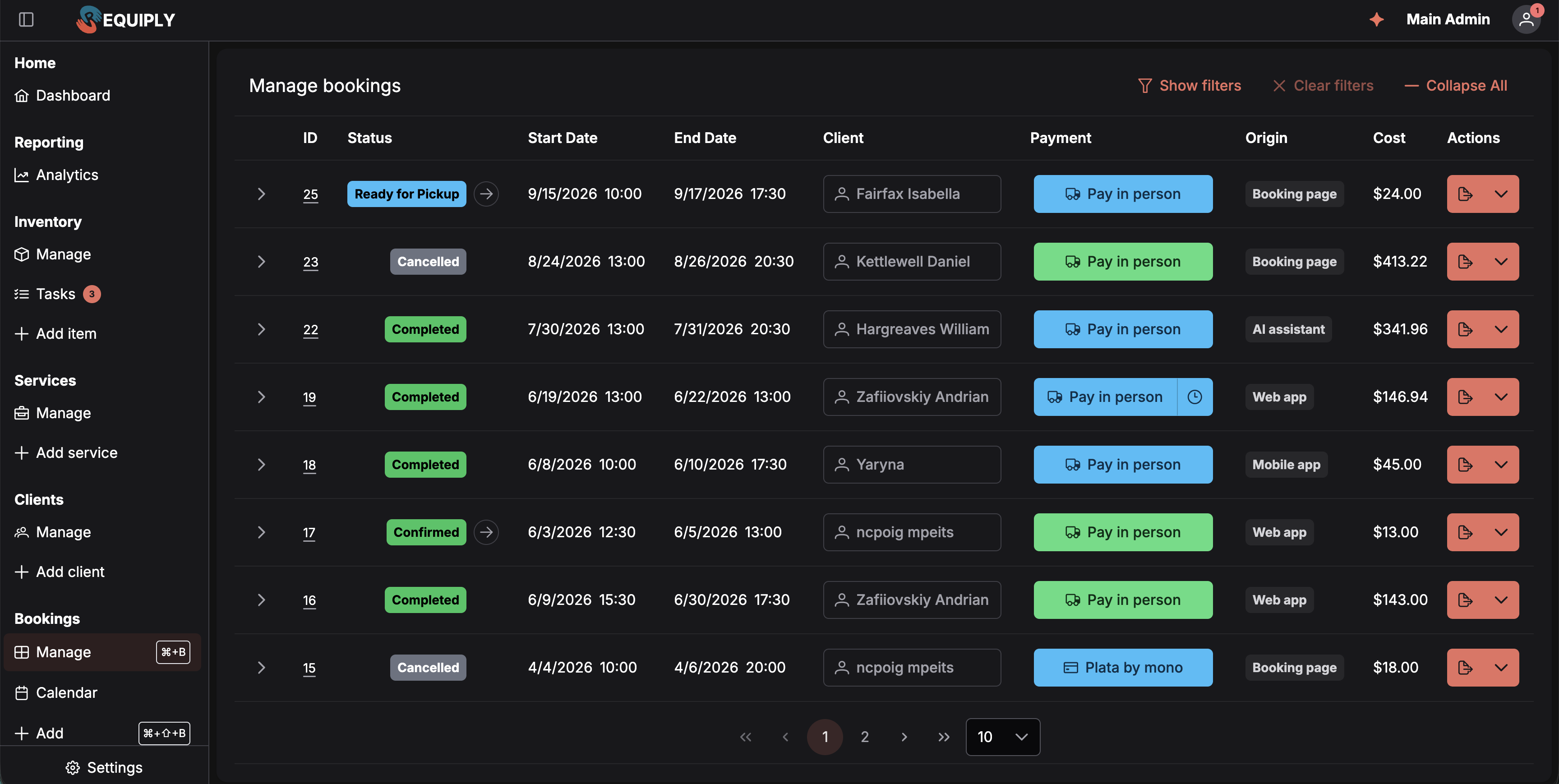
The optional Origin column, with four of its five values on screen. Bookings tagged Booking page came from the client portal and AI assistant from the booking assistant, which is the pair worth watching.
Row expansion: clicking the chevron expands a row into tabs for Inventory, Services, and, when present, Subrentals and Sales. Inventory lists booked items with SKU, name, image, price, and price type, and shows an Archived tag if the underlying item or item group has been archived. Services shows services and employee assignments. Subrentals shows procurement status, supplier, client revenue, supplier spend, and profit. Sales, with a count badge, lists the goods sold on the booking (see Sell items on a booking); it shows only when Sales is on and you may view sales.
Sorting: click the header of ID, Start Date, End Date, Client (by name), Cost, Deposit, or Origin to sort; click again to reverse. Without a chosen sort, the newest booking number comes first.
Pagination: 10 bookings per page by default, with 10 / 20 / 50 to choose from, and a counter such as 1-10 of 18. Only the current page is loaded, so the list stays fast however many bookings you have.
The page also renders two Setup Guide FABs:
- Create booking — completes when the org has at least 2 bookings.
- Generate invoice.
Empty states
The page has three different empty placeholders depending on what's missing:
- No inventory at all — box icon, "Empty inventory" title, "Before making bookings you need to have inventory" subtitle, "Add items" action that navigates to the inventory add page. This takes priority over the no-bookings state.
- Inventory exists but no bookings yet — calendar icon, the manage-bookings empty title and subtitle, "Add booking" action that navigates to Add booking.
- All other cases — the data table is shown.
Main actions
Searching and filtering
Search matches the booking number (with or without #), the client's first and last name in either order, the client's email, and their phone number. Phone numbers match on digits, so 067 123 also finds +380 67 123 45 67. Press Enter or pause typing to search.
Filters are added one at a time:
- Click Filter and pick a field from the list.
- A chip for that field appears and its editor opens under it. Choose the values and click Done.
- The chip now shows the chosen value, for example Status New or Start Date 09/01/2026 → 09/30/2026. Click the chip to change it, or its × to remove it.
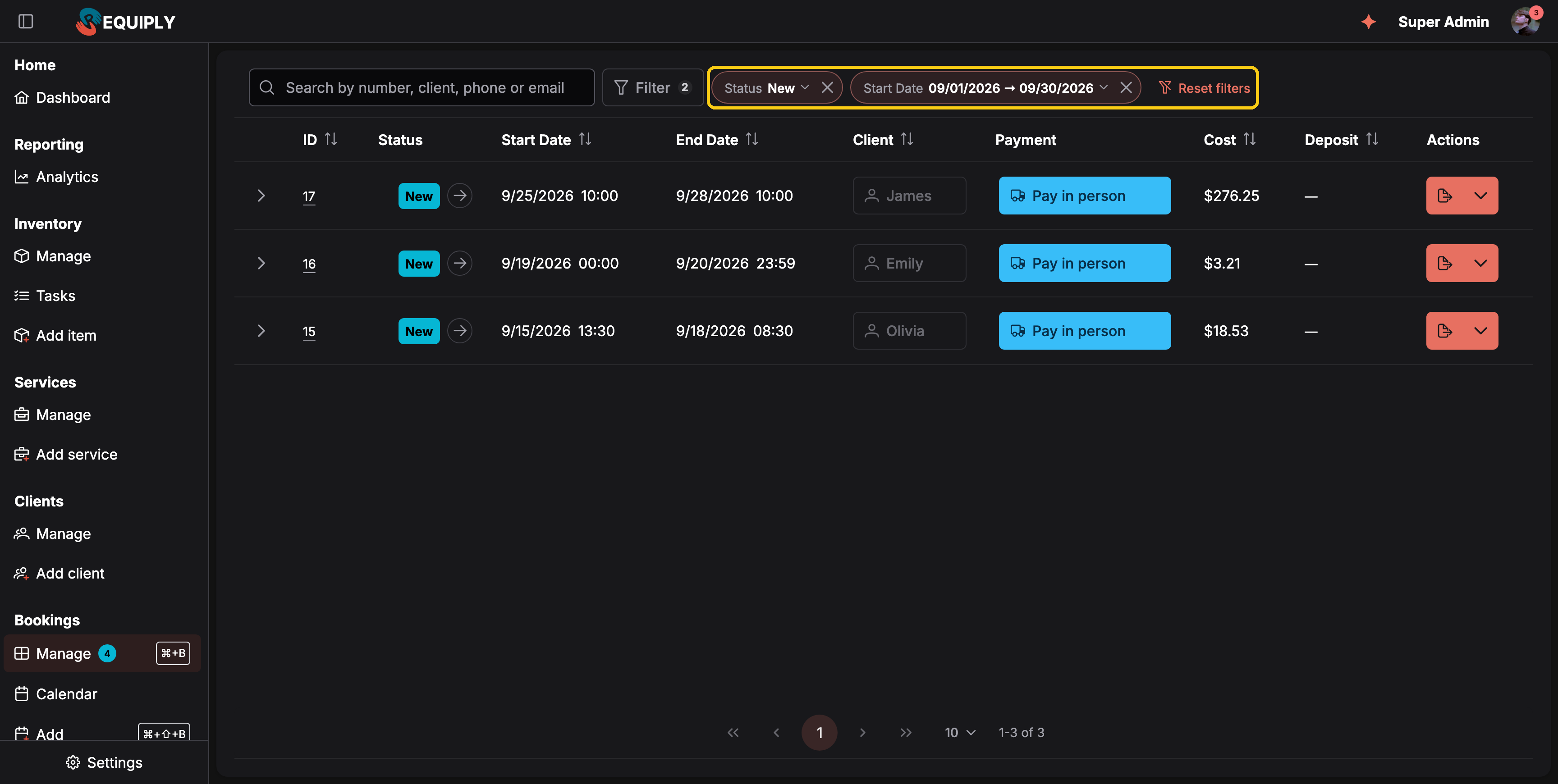
Two filters combined: new bookings that start in September.
| Filter | How it works |
|---|---|
| Status | Tick one or more of your booking statuses. |
| Start Date / End Date | A from-to range picked on a calendar, or a preset: Today, Tomorrow, This week, Next 7 days, This month, Last month. Whole days count, in your organization's time zone, so Today matches every booking that starts today whatever the hour. |
| Client | Search for one client and pick them. |
| Payment | Tick payment statuses. A booking matches when any of its payments has one of them. |
| Origin | Tick one or more channels: Web app, Mobile app, Booking page, AI assistant, API. |
| Cost / Deposit | A minimum, a maximum, or both. |
| Custom fields | Every booking-level custom field in your table layout. Text fields match what you type, number and date fields take a range, and choice and checkbox fields offer their options plus Not assigned. |
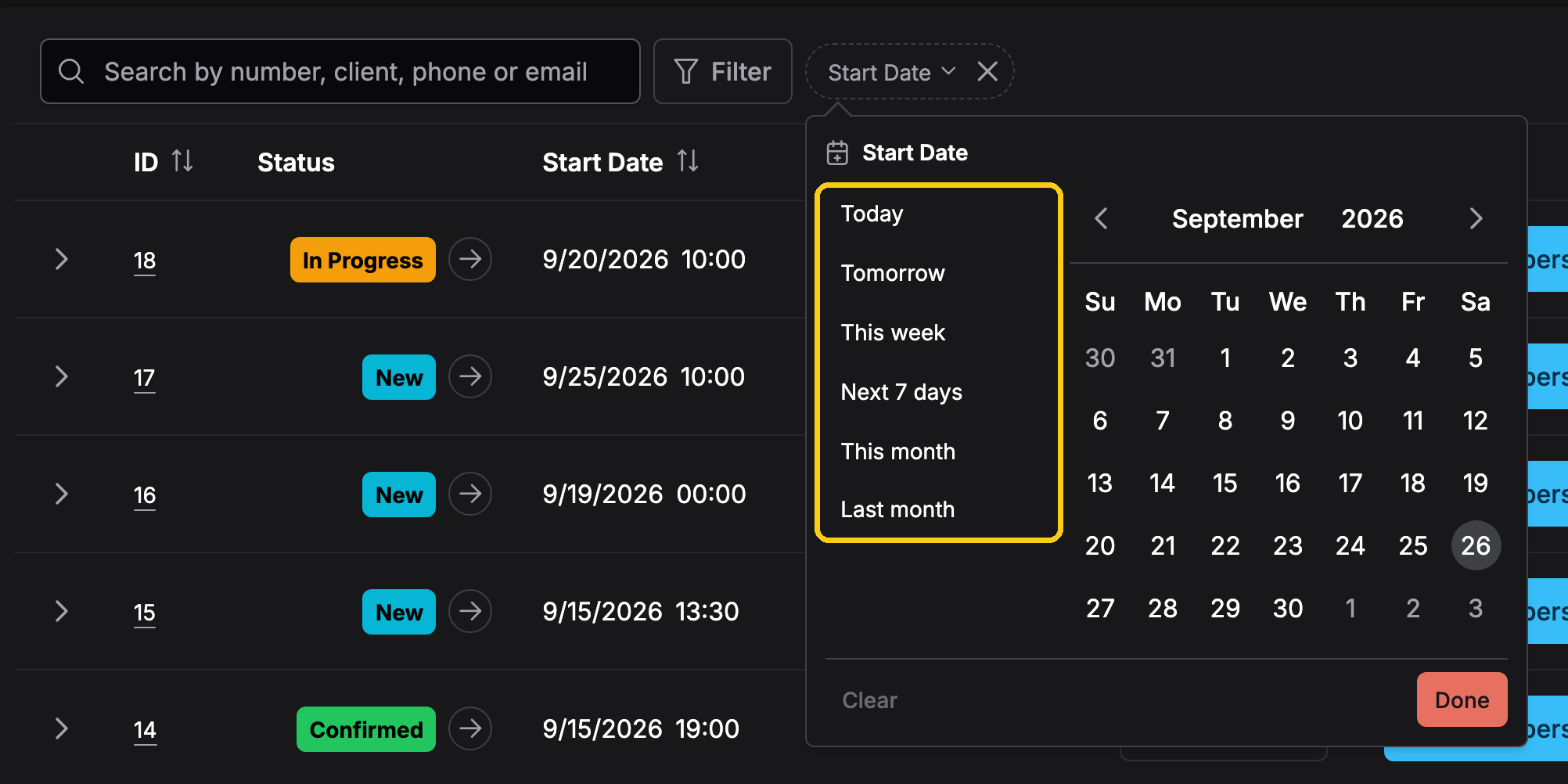
Date filters offer presets for the common ranges, or pick any range on the calendar.
All filters combine: a booking must match every one of them. Reset filters clears the search and every filter at once.
Progressing a booking's status
Each row's status tag has an inline arrow button. Clicking it opens a popover listing only the valid next statuses for the current status, as set under Allowed transitions on Booking statuses. Picking one updates the booking and shows a success toast on completion, or an error toast on failure.
When pickup and return checklists are enabled and the status you pick is flagged as a pickup or a return, the arrow opens that booking's checklist instead of changing the status on the spot — the booking moves only once every unit has been confirmed. There is no free-form status assignment — the transitions are always rule-based and are edited under Booking statuses, where each status also gets the lifecycle that decides whether the booking still counts as active on the Dashboard.
If a colleague or another device changed the booking's status in the meantime, the move you picked may no longer be valid. Requiply refuses it with This booking's status was changed elsewhere, so this move is no longer allowed. The list has been refreshed, please try again. and reloads the bookings, so the tag shows the current status. Open the arrow again and pick from the moves that are valid now. The same check applies to the status arrow on the Dashboard and on the booking detail page.
Reassigning a client on a booking
The Client column renders an inline client selector, which lets staff change the client tied to a booking without navigating away. This is reflected in invoices, customer-facing booking links, and any pricing discount applied.
The selector searches your clients on the server as you type, by name, phone, or email, and lists up to 20 matches, so it stays fast with thousands of clients. With an empty search it lists the first clients by name. A client that is not listed is found by typing more of the name or the phone number.
Per-row actions (split button)
The right-most column is a per-row split button. The primary action is Export, which opens an export dialog scoped to the row's booking. The Choose export type dialog lists PDF Invoice first, followed by every document your organization has designed under Custom export templates — rental agreements, handover acts, packing lists.
Once you have picked a type, the dialog offers two ways to produce it:
- Quick Download — generates the filled-in A4 PDF and downloads it, storing nothing.
- Save — generates the same PDF and stores it on the booking, then opens the booking's detail page with the new row highlighted in its Documents card. See Booking documents.
Click the arrow next to Export to open the actions menu. Its entries are decided by the server for this booking and for you, so the menu only offers what would actually work right now. The web app, the mobile app, and the row pencils on the booking page all use the same rules.
While the rules load, the menu shows grey placeholder rows with Loading. It usually opens instantly, because Requiply starts loading as soon as your pointer reaches the arrow. If loading fails, the menu shows Something went wrong; close it and open it again.
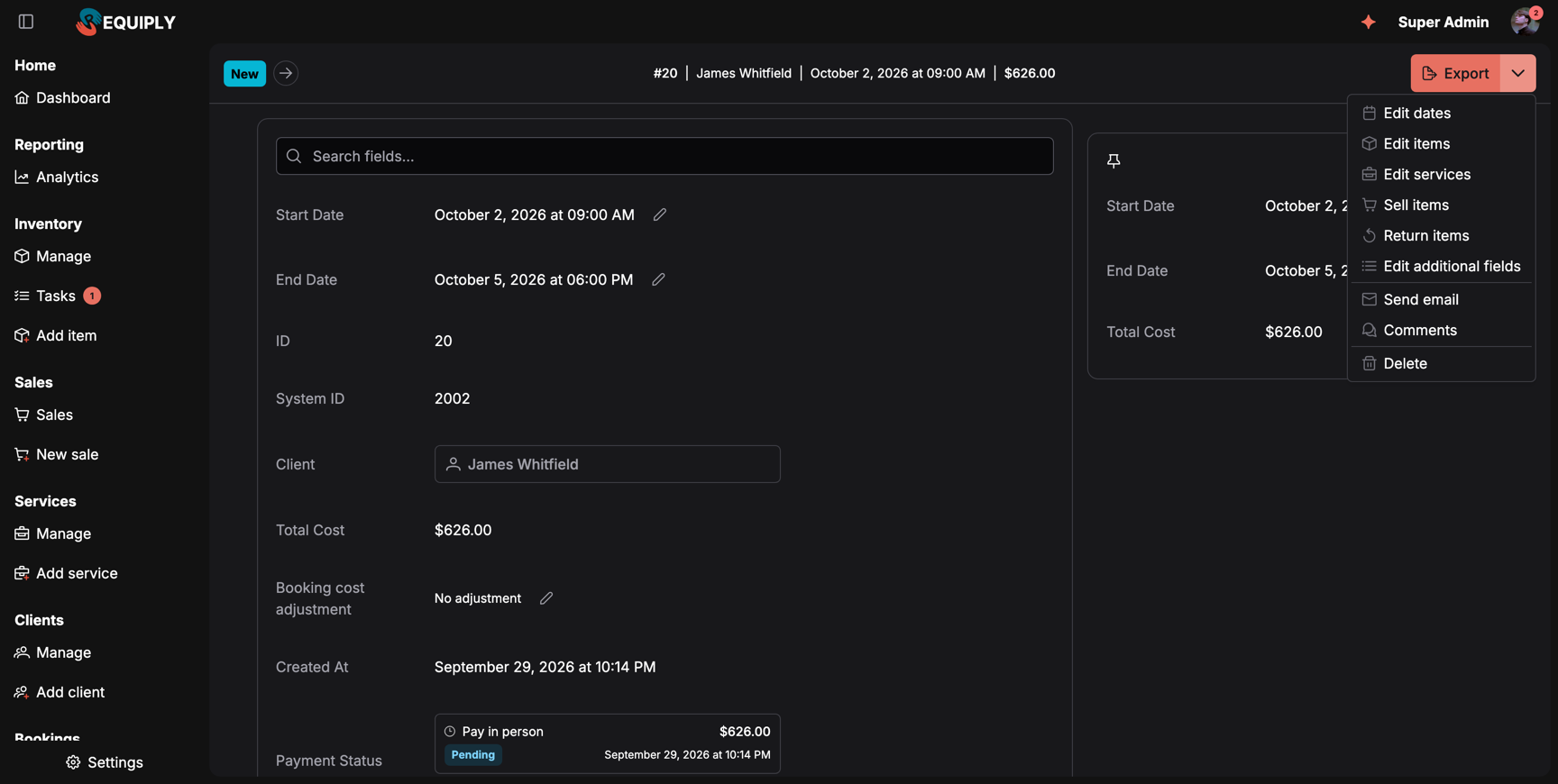
The actions of an active booking that has not been handed out yet, with Sales on. Full refund and Refund deposit are missing because this booking has no online payment or deposit to refund.
The menu is grouped in three parts:
| Entry | Shown when |
|---|---|
| Edit dates: opens Edit booking dates. | You have Allow booking management, and the booking is not cancelled. After a partial return only the return date can change. |
| Edit items: opens Edit booking items. | Allow booking management, and the items were not handed out yet, and the booking is not completed or cancelled. |
| Edit services: opens Edit booking services. | Allow booking management, and the booking is not completed or cancelled. |
| Sell items: opens Sell items on a booking. | Sales is on, you have Allow selling items, and the booking is not completed or cancelled. |
| Return items: records goods coming back. | Sales is on, you have Allow selling items, and the client still holds goods sold on the booking. |
| Edit additional fields: the booking's custom-field page. | Always. |
| Send email: the send booking email dialog. | Always. |
| Comments: the booking's comments drawer. | Always. |
| Full refund: refunds the online payment. | The booking has a captured online payment with something left to refund. The dialog shows what was captured, the rental and deposit parts, and what was already refunded, loaded fresh each time it opens. |
| Refund deposit: see Deposits. | The booking has a deposit that is not fully refunded and a payment to refund it from. |
| Delete: kept at the bottom. Opens a confirmation dialog; deletion is irreversible, and the row disappears from the table on success. | Always. |
The price and deposit adjustments are not in the web menu. They open from the pencils next to the total and the deposit on the booking page, shown when the feature is on and your group has Allow booking cost adjustments, until the booking is cancelled.
When an entry is missing, the reason is the booking's state or your permissions. For example, once the goods were handed out, Edit items disappears: record a return or create a new booking instead. Opening an edit page from an old link while it is not allowed takes you back to the booking.
In the mobile app, the booking's Actions menu follows the same rules and lists Edit dates, Edit items, Edit services, Sell items, Return items, Export, Send email, Full refund, Refund deposit, and Delete Booking, plus Adjust price and Adjust deposit for members who may adjust bookings. It is loaded together with the booking, so it opens without waiting.
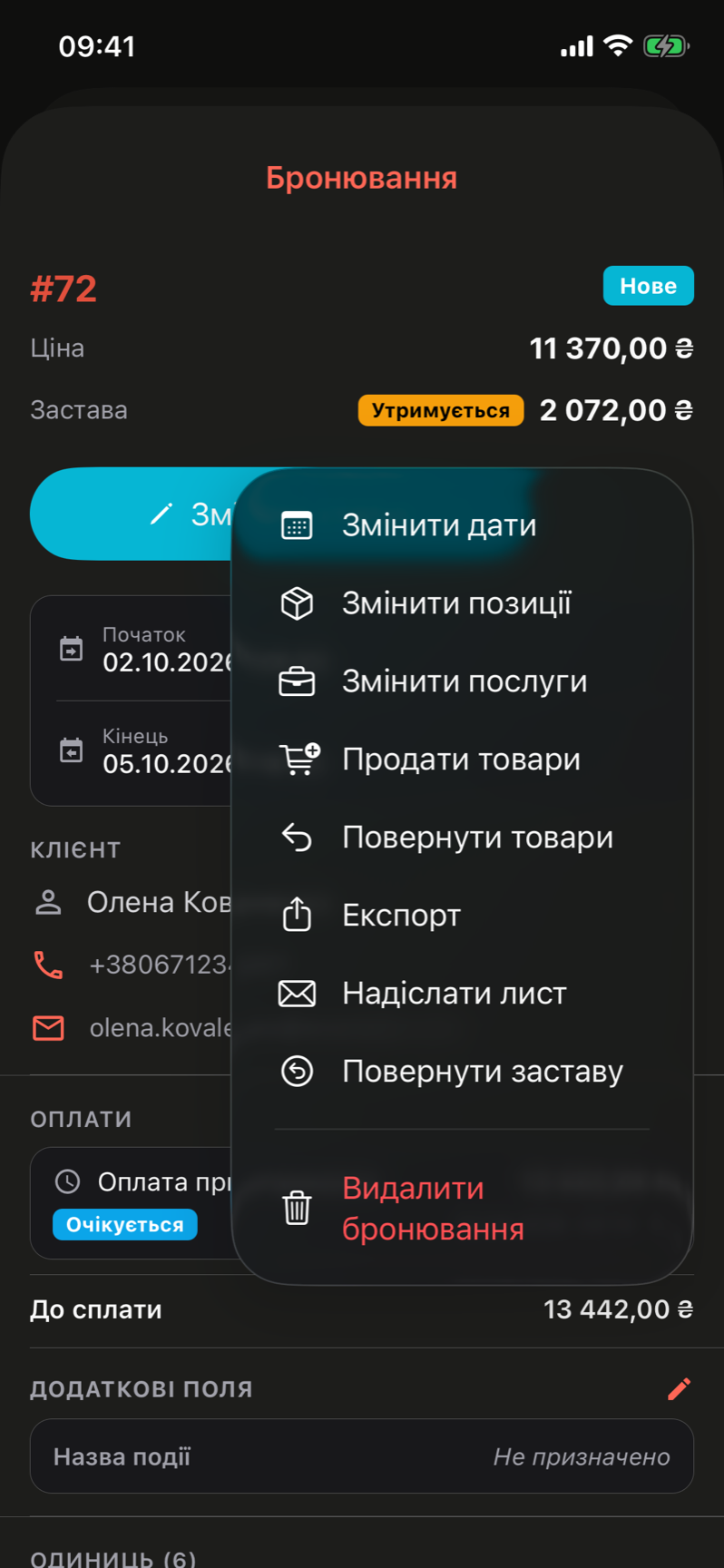
The Actions menu of a booking on iPhone, shown here in the Ukrainian interface. The entries match the web menu for the same booking.
The Payment column
A booking can carry more than one charge: a deposit taken up front and the balance on pickup, an extra charge created by changing the dates or the items, or a record produced by a client-wide debt settlement. The Payment column reflects all of them in a single segmented tag.
- The first segment is the booking's primary payment: its status label, colored by status, with a truck icon for pay-in-person and a card icon for online methods.
- Each additional charge appends a narrow icon-only segment, oldest first: a check for completed, a clock for pending or processing, a cross for failed or cancelled, an undo arrow for refunded.
- Hovering any segment shows its method, status, and amount.
- A muted dash means the booking has no payment records at all.
Filtering by payment status matches a booking when any of its payments has the selected status, so a partly paid booking appears under both Completed and Pending.
Opening a booking's full detail
Click the ID tag in any row. This navigates to the booking detail page.
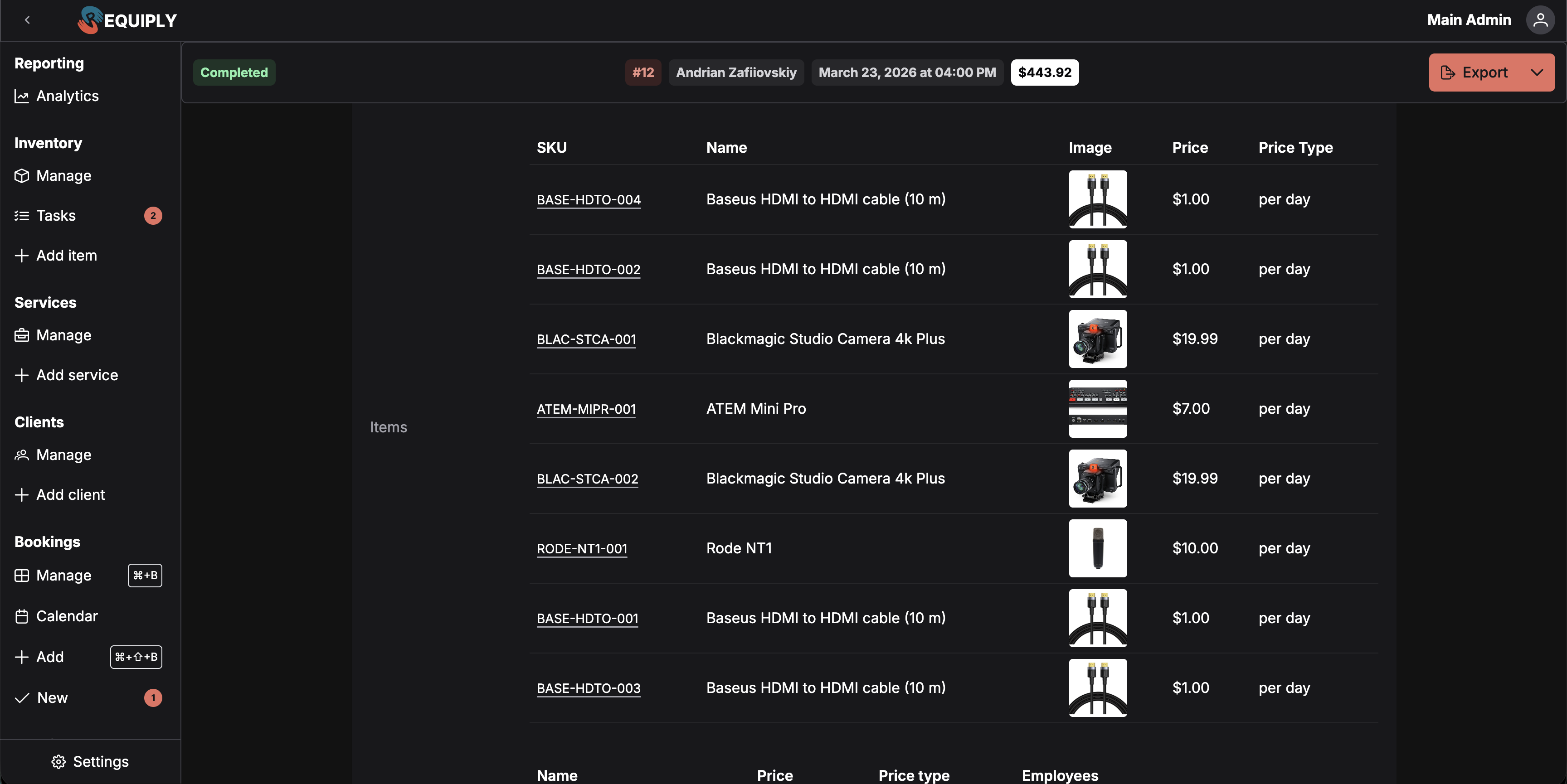
A toolbar across the top shows the status tag with its arrow, the booking number, the client, the start, and the total, with the Export button on the right. If a pickup or return checklist was started but not confirmed, a Continue pickup checklist / Continue return checklist button sits next to the status tag.
Below it, the details card lists the booking's rows: Start Date and End Date, each with a pencil that leads to Edit booking dates, then the IDs, the client, the totals, the payment ledger, items, services, and subrentals. Which rows appear, and in what order, is set under Detail page fields. The booking's documents follow in their own card.
When the organization uses booking cost adjustments, the details include a Booking cost adjustment row under Total Cost and a Deposit adjustment row, each with a pencil that opens the adjustment dialog right on the page. The rows are shown only to members whose group has Allow booking cost adjustments.
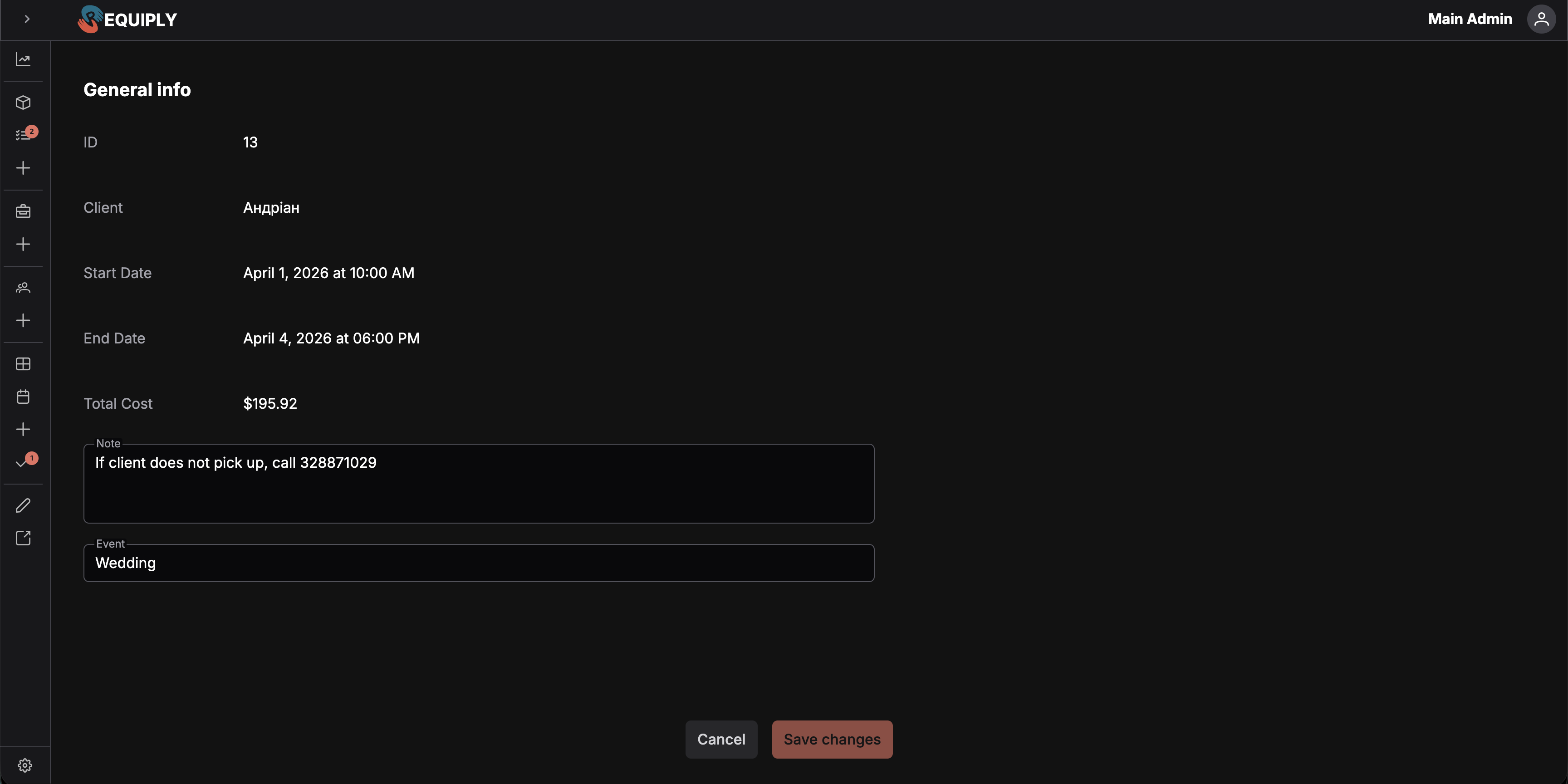
A booking created without a client shows a client picker in the summary card instead of the client's details, for members with booking management. Type part of a name, phone, or email to search, or click + (Create client) to add a new one. Picking a client assigns it at once: {name} assigned to booking.
Admins can pin booking rows such as the dates, Total Cost, or Items. Pinned rows get their own card, on the right of the details on a wide screen and above them on a smaller one, so they stay in view while you scroll. See Pinning a booking row.
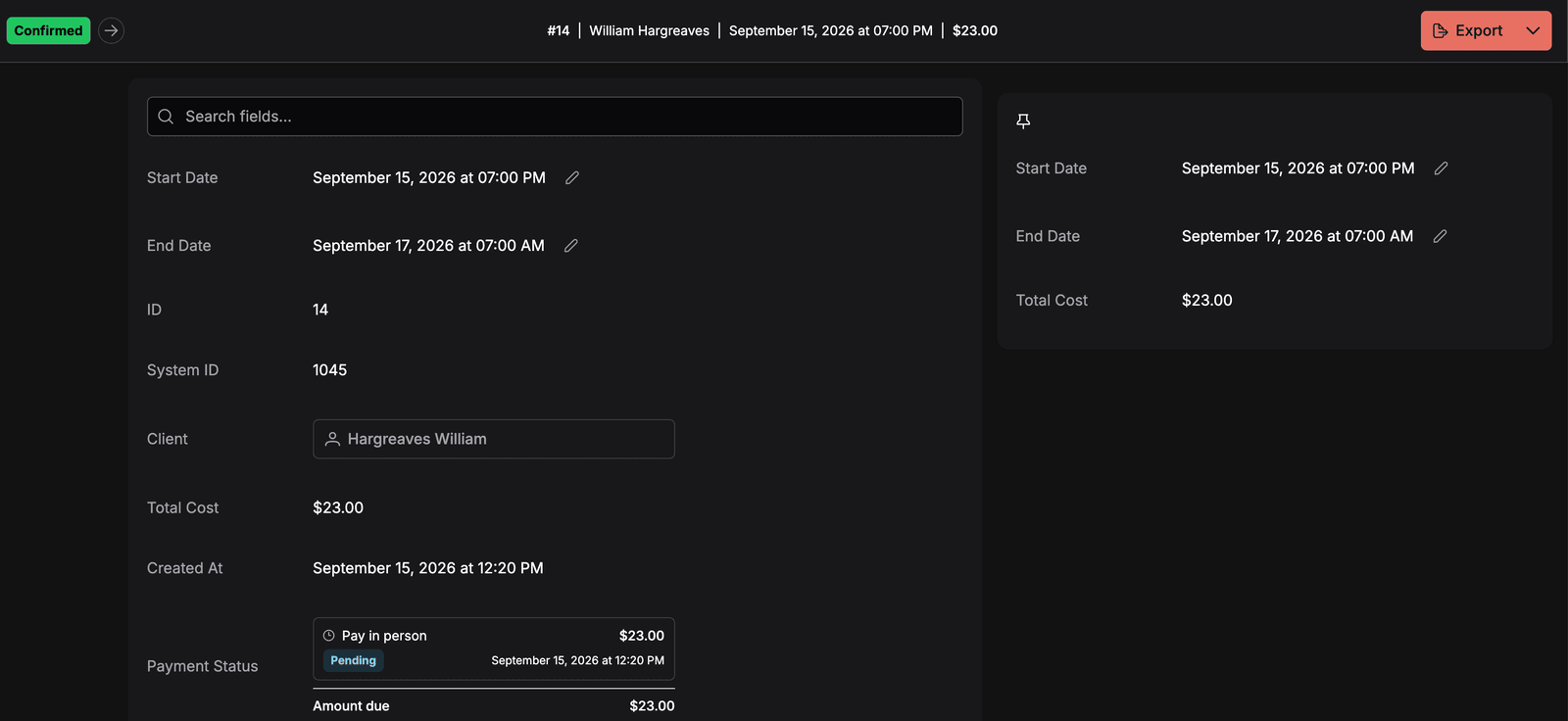
Booking #14 with the dates and Total Cost pinned. The pinned card stays in view while you scroll down to the payment ledger.
The payment ledger on the booking detail page
The detail page's payment section is a full ledger rather than a single status, built for bookings that are paid in more than one instalment.
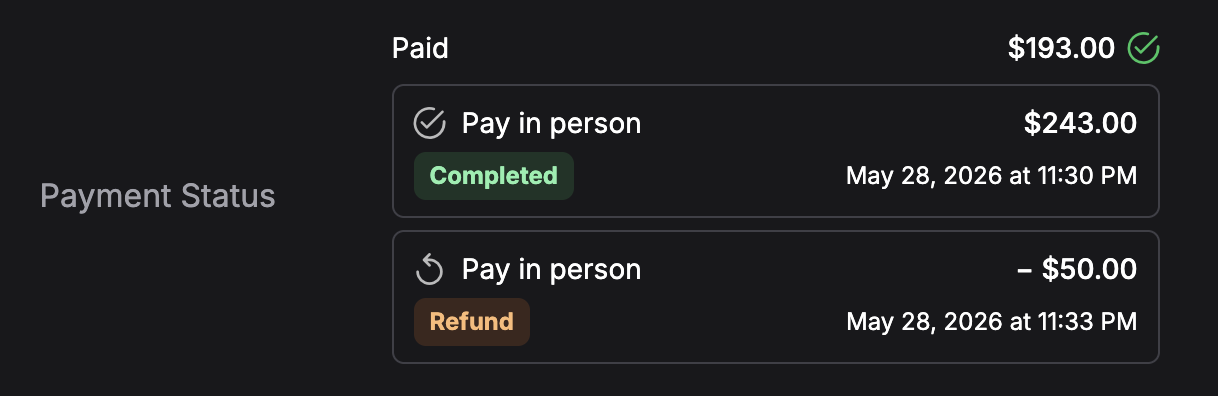
In the example above the client paid $243.00 in person and was later refunded $50.00, leaving Paid at $193.00. Nothing is pending, so the green check is shown and no Amount due section appears.
- Paid — the total actually collected: completed charges minus refunds. A green check appears next to it once no charge is still pending or processing.
- One row per payment record, oldest first, each showing the method, the amount, a status tag, and the timestamp. Refunds are shown as negative rows. Clicking a row opens the familiar payment popover, where the status can be changed and the payment link copied.
- Amount due — the sum of every charge still pending, shown under a divider when anything is outstanding.
- An action button beside the outstanding amount: Copy payment link when the most recent pending online charge already has a link, or Create payment link when it does not.
Because each charge is its own row, a booking that took a deposit online and the balance in cash reads as two clear lines instead of one ambiguous status.
Forms and fields
There is no form on this page itself. The table reflects the booking rows for the current organization. Custom field columns pull values from the batch-fetched entity field map keyed by booking ID.
Table layout configuration
This page does not configure its own columns. Column visibility, order, headers, frozen state, and width come from a table layout stored per-organization for the Booking entity level. Custom fields appear here only when they are added to that layout. Changes made to the table layout configuration are picked up the next time this page is loaded.
How this page connects to the rest of Requiply
| Feature | How this page affects it |
|---|---|
| Add booking | The empty state's call-to-action and the inventory-empty subtitle both lead here. |
| Booking detail | The ID tag in each row deep-links into the detail view. |
| Edit booking dates | Reachable from each row's action menu; changed dates show up in the table immediately. |
| Edit booking items | Also in each row's action menu; changed items update the row's item count and total immediately. |
| Sell items on a booking | Sell items and Return items in the action menu; the expanded row gets a Sales tab. |
| Booking documents | Export → Save stores the generated PDF on the booking, where it can be downloaded again or sent for electronic signing. |
| Calendar | Same data, different visualization. Status changes here are reflected on the calendar. |
| Confirm bookings | Status progressions made here can move bookings into or out of the confirmation queue. |
| Clients | Inline client reassignment updates the client on the booking everywhere it's referenced. The client popover's ID tag opens their Client details page. |
| Invoices / payments | The Payment column summarises every charge on the booking and supports the booking → invoice → payment chain. |
| Debt settlement | Settling a client's debt creates or settles payment records on these bookings, so their payment tags and ledgers update accordingly. |
| Subrentals | Expanded rows expose supplier-sourced procurement and its profitability alongside owned stock and services. |
| Workflows / notifications | Status changes can trigger workflows and notifications configured at the organization level. |
| Custom entity fields | Booking-level custom fields appear as columns and are filterable, so the table doubles as a reporting surface for those fields. |
| Client portal | Bookings customers made themselves carry Origin: Booking page; ones the booking assistant prepared arrive in your Status for booking requests (Request by default) with Origin: AI assistant. |
| Setup Guide | The "Create booking" and "Generate invoice" steps surface here as FABs. |
Common scenarios
Showing only the new bookings that start this month
Click Filter → Status and tick New, click Done, then Filter → Start Date → This month and Done. The list now shows only new bookings with a pickup this month, and the page address keeps that view, so you can bookmark it. Swap This month for Next 7 days or Today for a shorter window, or click Reset filters to see everything again.
Daily ops: "what do we need to confirm today?"
Click Filter → Status, tick New (or whatever your Default status for new bookings is called), then Filter → Start Date → Today. The remaining rows are the bookings that need attention. Use the status arrow to move each one to Confirmed as you work through the list.
Seeing which bookings came from customers
Add the Origin column in Table column layout for the Booking level. Adding the Origin filter with Booking page shows everything customers booked themselves on the client portal; AI assistant shows what the booking assistant prepared and is still waiting for approval.
Reconciling unpaid bookings
Add the Payment filter with Pending or Failed and click the Cost header to sort by amount. The export dialog or the per-row send-email action lets staff chase payment without leaving the page. When the same client turns up on several unpaid rows, their Client details page can settle the whole balance in one payment instead.
Cleaning up a cancelled or duplicate booking
Open the row's split-button → Delete, confirm in the dialog. Use this carefully — there is no undo. If the booking has already been invoiced, prefer status Cancelled instead so financial history is preserved.
Reassigning a booking to a different client
Click into the Client cell and pick the new client. Discounts and notifications associated with the new client take effect immediately on subsequent operations.
Tips and cautions
Overview
Where rentals are created, scheduled, tracked, and invoiced: what each page in the Booking section does and how bookings feed payments, documents, and reports.
Calendar
See every rental on a month, week, or day timeline, spot free and busy periods at a glance, filter by client or equipment, and open a booking from the calendar.