

Sell items on a booking
A client who rents a camera often buys a memory card or spare batteries with it. Instead of recording a separate sale, add the goods to the booking. They land on the same invoice as the rental, the client pays once, and the stock drops by what was sold.
This page covers goods sold on a booking. For a sale without a booking, see New sale. Goods must first exist as Equipment for sale, and Sales must be switched on.
Who can use it
| Task | Needed |
|---|---|
| See the Sold items of a booking | Allow viewing sales (or a Sales permission that includes it) |
| Add goods while creating a booking, Sell items, Return items | Allow selling items |
| See the Profit column | Allow managing stock |
Members without Sales permissions do not see the goods, but the booking total still includes them.
Adding goods when you create a booking
On Add booking, your products for sale are listed in the items selector together with the rental products, marked with an orange For sale tag and a stock tag such as 17 in stock. Tick a product and set the quantity, the same way as for rental items.
With QR codes and barcodes on (Advanced plan), the scan field under the items adds goods too: Scan or enter a unit code, SKU or product barcode. Scanning a product barcode adds one (SanDisk Extreme SD card 128GB added to the booking.), and a code that matches nothing shows No unit or item for sale matches this code.
- The Price summary shows a Sold items row. Goods are never discounted: client discounts and booking cost adjustments apply to the rental only.
- When a product would run out, a warning says Not enough in stock: {items}. The booking can still be created.
- The goods are taken off the stock when the booking is saved, even for a booking request whose rental items are not held yet.
The Sold items row on the booking
The booking detail page gets a Sold items row. Like every row, its place is set in Detail page fields, and it is shown only to members who can view sales.
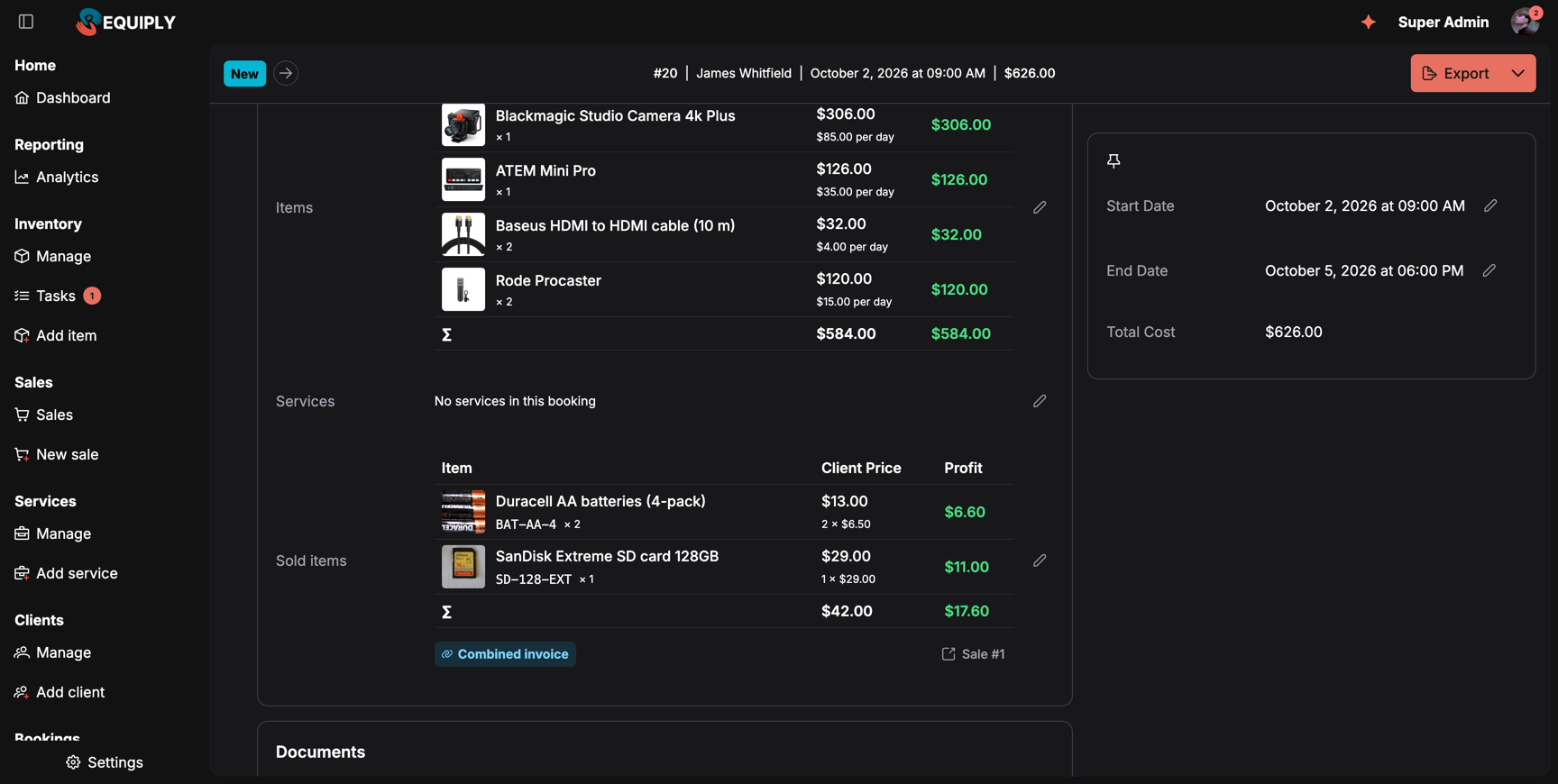
Two products sold with booking #20. Combined invoice means the booking's payment covers the goods; Sale #1 opens the sale record.
It shows:
- a table with Item (image, name, SKU, quantity, and a 1 returned tag when some came back), Client Price (with the unit price), and Profit for stock managers,
- the totals row,
- Combined invoice (hover: Booking #20 collects the rental and these items in one payment), Returned: $29.00 when something came back, and a Sale #1 link to the sale page,
- a pencil that opens Sell items, or a Sell items button while nothing is sold yet (Nothing sold on this booking).
On Manage bookings, a booking with goods gets a Sales tab with a count badge when you expand its row.
Selling items later: Sell items
Open Sell items from the booking's Actions menu, or the pencil on the Sold items row. The page is /reservation/{number}/edit-sale-items, titled Sold items with Booking #20 under it.
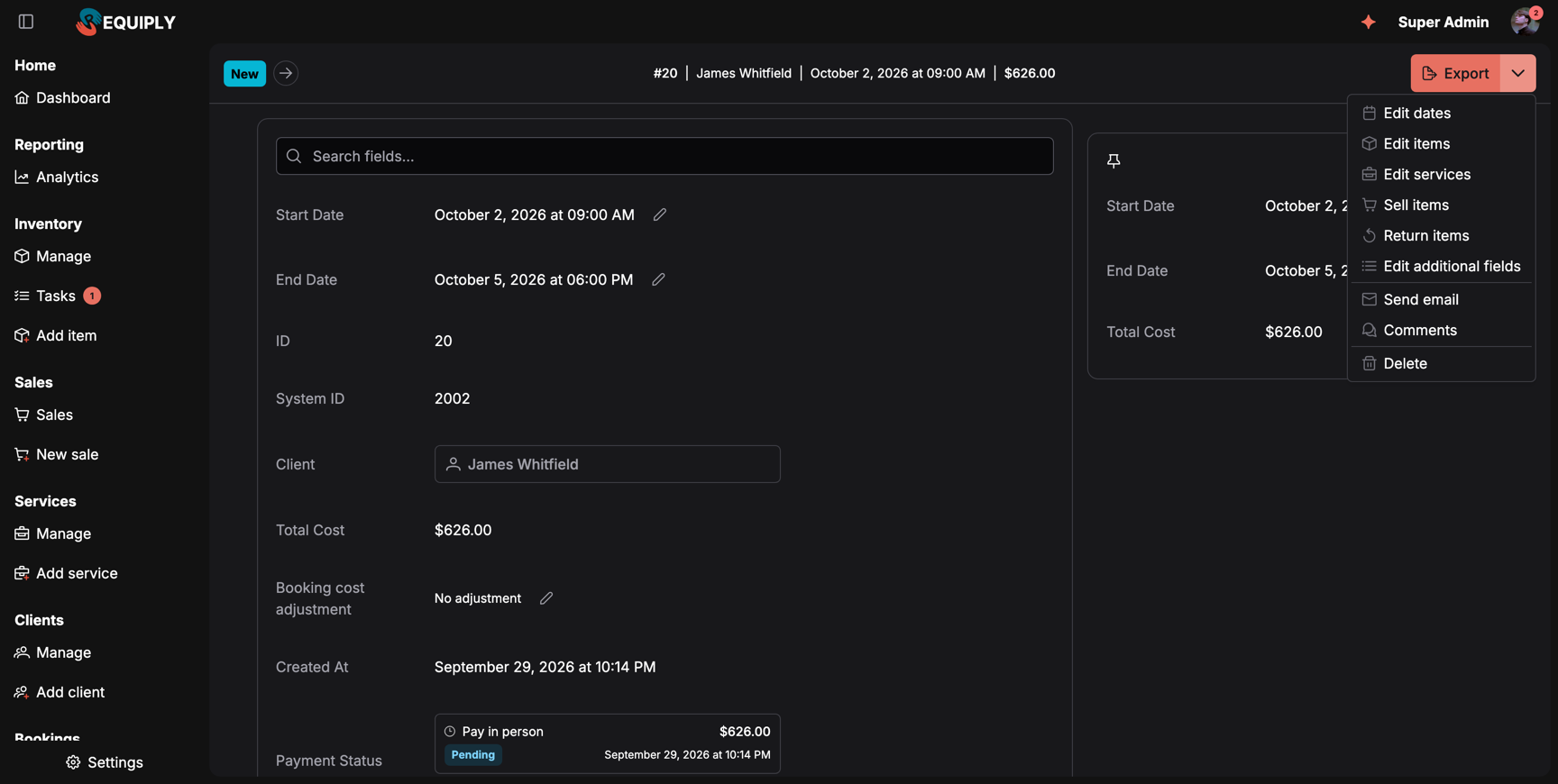
Sell items and Return items sit under Edit services in the Actions menu when Sales is on.
- Left: the product selector and, with barcodes, a scan field. Change quantities, add products, or remove them. Under the products, warnings such as SanDisk Extreme SD card 128GB: the stock will be short by 2. You can still save and correct the stock later.
- Right, What changes: Sold items now, Sold items after, Booking total now, Booking total after, and the note Sold items are added at their own price. Client discounts do not apply.
Each change is checked with the server. The payment line reads the same as on Edit booking dates, for example The unpaid pay-on-pickup balance will be updated to $668.00. Click Save sold items: Sold items saved, and the booking total moves by the difference.
The change is added to the booking's comments, for example Sold items changed: + Duracell AA batteries (4-pack) × 2 (13), SanDisk Extreme SD card 128GB × 1 → 2 (58), − Gaffer tape 50 mm × 25 m.
When Sell items is not offered
Sell items is available while the booking is active, including after the rental items were handed out. It disappears once the booking reaches a status with the Completed or Cancelled lifecycle, the same rule as for services.
| Message | Why |
|---|---|
| Change the items or their quantities | Nothing changed yet. |
| Each line needs a whole quantity above zero and a price of zero or more | A quantity or price is invalid. |
| One of the items no longer exists | A product was deleted while you were editing. |
| Archived items cannot be sold | An archived product can stay on the booking or be reduced, not added or increased. |
| A line cannot go below the quantity already returned | Some of that product came back already. |
| A line with returned items cannot be removed | Keep products that have returns. |
| The booking is paid. Refund the difference before removing sold items. | The new total would be below what was paid. |
| The online payment link must be replaced first | An outstanding online payment has to be reissued. |
| The booking changed while you were editing. Reload and try again. | Someone else changed the booking. |
| The booking is cancelled | The booking was cancelled meanwhile. |
| The booking is completed. Use a return instead. | The booking was completed meanwhile. |
Returning goods sold on a booking
When the client brings goods back, pick Return items in the booking's Actions menu. It is offered to members who can sell while the client still holds goods from the booking, also after the booking is completed.
The Return sold items dialog works as described in Returning goods: per product the Quantity to return, Back to stock, and Refund, then Return. For a booking, The refund is taken off the booking total. Money already paid is refunded from the booking. When the booking was already paid, Requiply says how much needs to be refunded to the client.
Cancelling or deleting the booking
- Cancelling the booking cancels its sale and puts the goods the client still had back in stock. Moving the booking back to an active status takes them again.
- Deleting the booking returns its goods to stock as well.
On invoices and documents
- The PDF Invoice prints a Sold items block, with Returned for goods that came back.
- Export templates can print the goods with
{{bookingSaleItems}}and their total with{{bookingSaleTotal}}, see Add or edit export template. - The goods total is part of the booking's Total Cost and of every payment preview, for example the Sold items row in Booking cost adjustment.
In the mobile app
The booking screen shows a Sold items card with the products, the Combined invoice note, and the sale link. The Actions menu offers Sell items and Return items under the same rules as the web.
- Sell items opens Add goods for sale to booking #20 or change their quantities. They are paid together with the booking. It lists On this booking and Add products, checks the change, and shows Items now, Items after the change, Difference, and New booking total before Save.
- Return items opens the return screen: Choose the items the client brings back from booking #20.
- When creating a booking, products for sale appear in the items step with a For sale tag, and Add by code accepts a unit barcode, SKU or the barcode of an item for sale.
Common scenarios
Adding a memory card at pickup
The client asks for a card while collecting the camera. Open Actions → Sell items, add the card, and click Save sold items. The unpaid balance grows by the card's price, and the client pays everything at once.
The client returns an unused battery pack with the rental
At the return, open Actions → Return items, enter 1 for the batteries, keep Back to stock, and click Return. If the booking was already paid, refund the amount Requiply shows.
Removing goods from a paid booking
Removing goods would push the total below what was paid, so Requiply blocks it with The booking is paid. Refund the difference before removing sold items. Record a return instead, or refund first.
Tips and cautions
Subrentals
Rent equipment you do not own by sourcing it from a supplier for one booking: set the default margin (markup) and your suppliers, track what the gear costs you, and charge the customer your own marked-up rate.
Overview
The equipment, vehicles, properties, and supplier-sourced stock you rent out: where the catalog lives and how it feeds bookings, pricing, and the client portal.