

Add or edit employee or subcontractor
This form creates a new employee or subcontractor profile, or updates an existing one. Open it from Employees and subcontractors with Add, Create the first one, or the pencil on a row or on the profile's detail page.
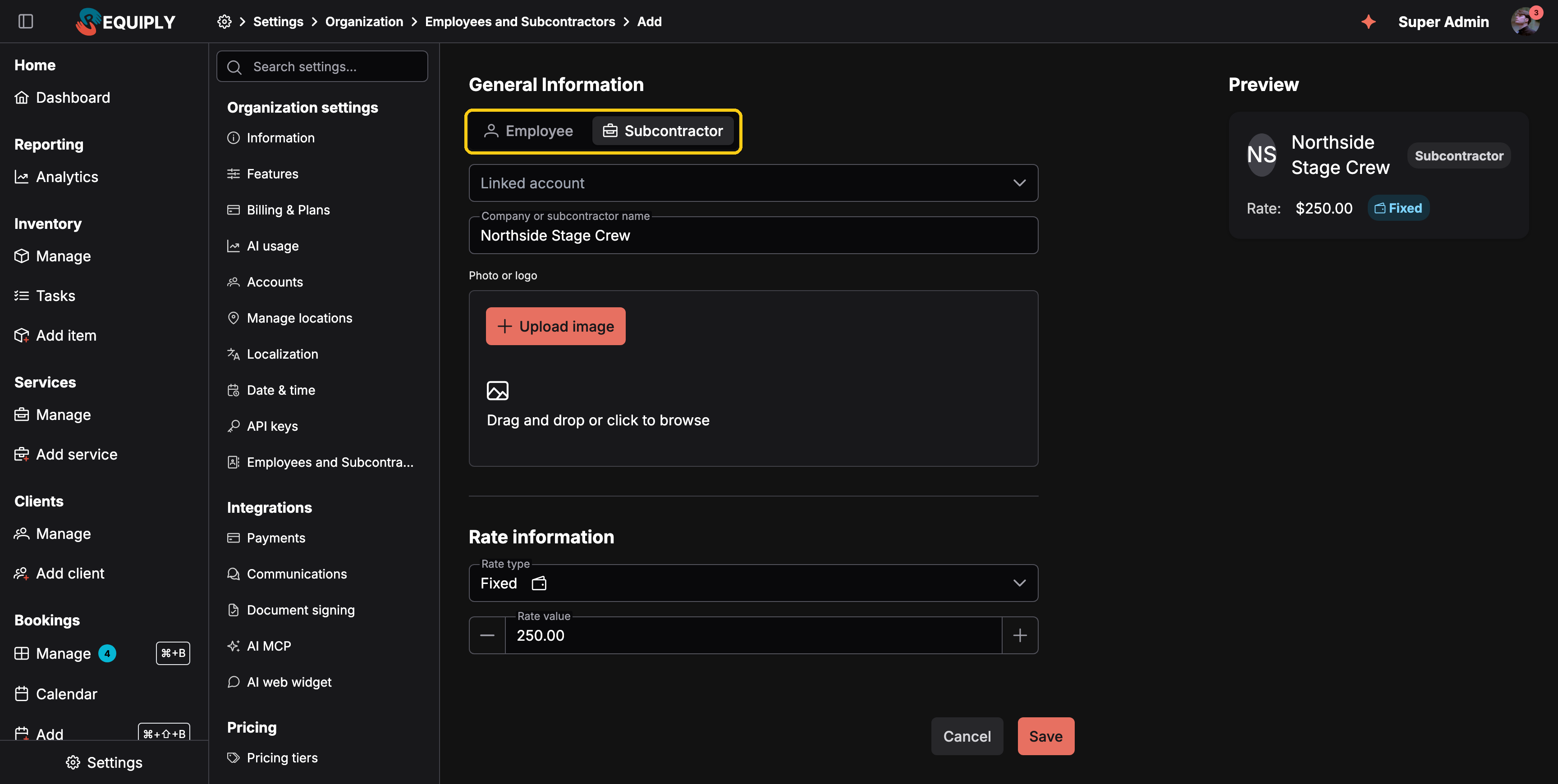
Choosing Subcontractor replaces the first and last name with one company name field.
The form sits on the left and a live Preview card on the right shows how the profile will look in the list.
General information
| Field | Required | Notes |
|---|---|---|
| Employee / Subcontractor | Yes | The kind of profile. Employee is preselected. See Employee or subcontractor. |
| Linked account | No | Connects the profile to a Requiply login account, listed as First name Last name (email), or just the email when the account has no name. Picking an account fills in the name. |
| First name / Last name | Yes, for employees | Shown in lists, on bookings, and on tasks. |
| Company or subcontractor name | Yes, for subcontractors | Replaces the two name fields, for example Northside Stage Crew. |
| Photo or logo | No | Drag and drop an image, or click Upload image. Remove image clears it. Without an image, initials are shown. |
If the profile saves but the image upload fails, Requiply says The profile was saved, but the image could not be uploaded. Open the profile again and retry the upload.
Rate information
| Field | Required | Notes |
|---|---|---|
| Rate type | Yes | Fixed, Hourly, Percentage, or None. Each option has a tooltip explaining when to use it. |
| Rate value | For Fixed, Hourly, Percentage | Money in your organization's currency for Fixed and Hourly (not negative); a whole number from 0 to 100 for Percentage. Hidden for None. |
The rate is the default copied onto each new assignment. You can change it per booking service or per task, see Rates. A percentage rate pays a share of the service price; on a task, which has no price, it pays 0.
Saving
Click Save. It becomes available once something has changed. On success, {name} created successfully or {name} updated successfully appears, and you return to the list, or to the page that sent you here (for example the service or booking you were setting up).
Cancel leaves without saving.
Deleting
On an existing profile, Delete is at the bottom of the form. A profile that is assigned to any booking service or task cannot be deleted, so its payout history stays correct. See Deleting a profile.
Common scenarios
Add a team member who already signs in
Choose Employee, select their account under Linked account (the name fills in), pick the rate, and save.
Add an outside company
Choose Subcontractor, enter the company name, upload its logo, choose Fixed with the price you pay per job, and save.
Add someone who never signs in
Leave Linked account empty. The profile can still be assigned to services and tasks.
Change a rate
Open the profile, change Rate type or Rate value, and save. Only new assignments use the new rate; past bookings and tasks keep the payout they were given.
Overview
Employees and subcontractors: the people and outside crews you assign to booking services and maintenance tasks, with their payout rate, a photo or logo, and a page showing what each one is owed.
Billing & plans
Your Requiply subscription: plans and prices, subscribing through Paddle, changing plan or seats, cancelling and resuming, invoices, trial, and renewals.