

Document signing
The Document signing page connects Requiply with an electronic document-flow (EDO) provider, so the PDFs you generate from a booking can be sent for a qualified electronic signature without leaving Requiply.
You can find this page under Settings → Integrations → Document signing.
Why this matters
Requiply already turns a booking into paperwork — the invoice and any custom export template you designed. Until now those PDFs were downloads: staff exported the rental agreement, emailed it, and chased a signed scan back.
With a signing provider connected, the loop closes inside Requiply:
- Save the generated PDF to the booking (Booking documents).
- Send it to the provider for signing, addressed to the client's company.
- Watch the status on the booking — Awaiting your signature, Awaiting client, Signed, Rejected.
Supported providers
| Provider | Region | Tags | What it is |
|---|---|---|---|
| Vchasno | Ukrainian | КЕП, EDO | Vchasno.EDO — Ukrainian electronic document flow with qualified electronic signature (КЕП). |
Each provider is a card showing its logo, tags, a Tutorial link that opens Requiply's step-by-step setup guide in a new tab (in your interface language), and Set up (or its configured state once connected).
Setting up Vchasno
Click Set up on the Vchasno card. The dialog asks for one credential:
| Field | What it means | Input type |
|---|---|---|
| API token | The API token from your Vchasno.EDO cabinet. Required to connect. | Password |
The dialog carries the setup note:
Create an API token in your Vchasno.EDO cabinet (an active Integration plan is required). Documents you send will appear in your Vchasno cabinet and be routed to the client's company for signing with a qualified electronic signature.
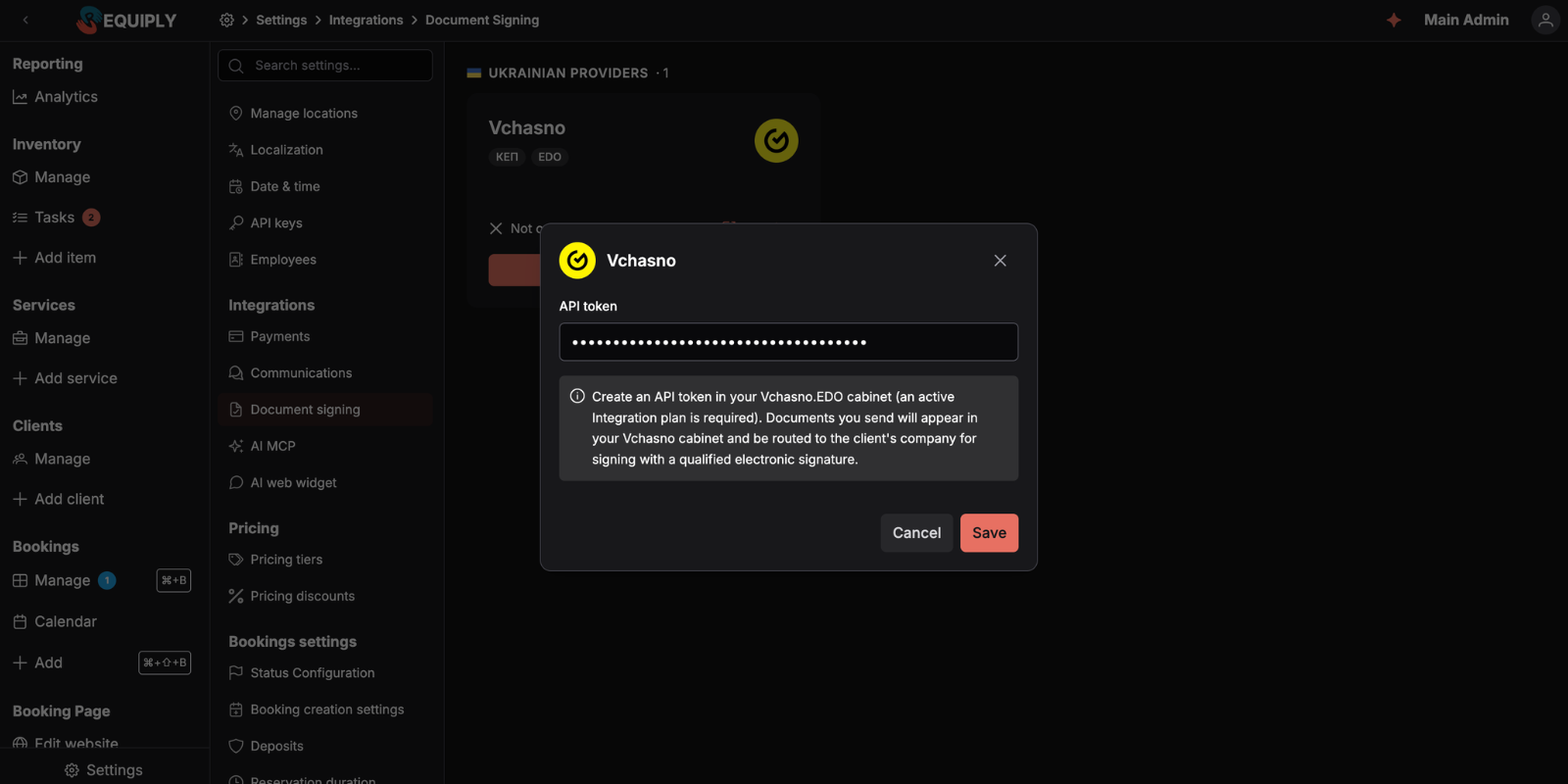
When you click Save, Requiply verifies the token with Vchasno before storing it. Only a verified token is encrypted and saved, and the card then shows the integration as configured.
If your Vchasno plan is missing
Vchasno's API requires the Integration plan. If your token is valid but the company behind it has no such plan, the dialog does not fail — it shows an amber panel:
Your token is valid, but your Vchasno company does not have the Integration plan required for API access. You can activate a free 30-day trial — Vchasno offers it once per company, and the 30 days start immediately.
Click Activate free 30-day trial and Requiply asks Vchasno to switch the company onto the trial, then saves the integration automatically.
Managing connected accounts
Reopening the dialog for a connected provider shows what is connected. The stored token is never returned to the browser.
With one account, the dialog looks like the setup form: the token is masked (••••••••••••) with a Replace button. Below it are Disconnect and Add another account.
With two or more accounts, the dialog lists them. Each row shows the account name and when it was connected:
| Element | What it does |
|---|---|
| Star | A filled star marks the Default account, the one preselected when someone sends a document. There is always exactly one while any account is connected. Click an outlined star to make that account the default. |
| ⋯ menu | Rename, Replace token or Disconnect the account. |
| Needs attention tag | Vchasno refused the account's token the last time Requiply used it (revoked token, expired plan). Replace the token to clear it. |
Several Vchasno accounts
An organization that signs as more than one legal entity (for example a company and a sole proprietor) can connect one Vchasno account per entity:
- Open the Vchasno dialog and click Add another account.
- Enter a Name that tells the accounts apart, such as the company name, and the API token of that Vchasno company.
- Click Connect. The token is verified the same way as the first one, including the trial offer when the plan is missing.
The first account keeps the provider's name (Vchasno) until you rename it. The same token cannot be added twice.
Disconnecting an account
Disconnect removes the account from this list and from the send dialog right away. If it was the default, the oldest remaining account becomes the default.
Documents already sent from that account and still waiting for a signature keep updating: Requiply holds on to the token until each of them is signed or rejected, then deletes it. The confirmation dialog says how many such documents there are.
What the integration unlocks
Once a provider is active, a signing button appears next to every saved document on a booking's Documents card. Sending asks for two things about the counterparty:
| Field | Notes |
|---|---|
| Client company code (EDRPOU/IPN) | 8 digits (EDRPOU) or 10 digits (IPN). Requiply routes the document to that company inside the provider. |
| Recipient email | Prefilled with the booking client's email; used by the provider to notify the signer. |
Requiply uploads the PDF with first_sign_by: owner, so your organization signs first in the Vchasno cabinet, and the document then moves to the client. The full flow, statuses, and status refresh are documented in Booking documents.
Statuses
The chip on each document maps the provider's status onto one of:
| Status | Meaning |
|---|---|
| Sent | Uploaded to the provider; no signing state reported yet. |
| Awaiting your signature | The document is waiting for someone in your organization to sign it in the provider's cabinet. |
| Awaiting client | Your side is done; the counterparty has not signed yet. |
| Signed | Every required signature is in place. |
| Rejected | The counterparty declined the document. |
| Error | The provider reported a failure for this document. |
How this connects to the rest of Requiply
| Feature | Relationship |
|---|---|
| Booking documents | The Documents card is where documents are saved, sent for signing, and tracked. |
| Custom export templates | Any template you design can be saved to a booking and then signed — this is how contracts and handover acts get executed. |
| Invoices | The invoice PDF can be saved and signed the same way. |
| Clients | The recipient email defaults to the booking client's email; the company code belongs to the client's legal entity, not to the person. |
Common scenarios
Getting a rental agreement signed
- Connect Vchasno here.
- Open the booking, use Export → Save to store the rental agreement on the booking.
- On the Documents card, click the Vchasno button next to it, enter the client's EDRPOU and email, and send.
- Sign it in your Vchasno cabinet, then watch the chip move to Awaiting client and finally Signed.
Rotating a leaked token
Revoke the token in the Vchasno cabinet, generate a new one, then use Replace here (Replace token in the account's ⋯ menu when several accounts are connected). Documents already sent keep their history — the chip and provider link on each document stay valid.
Tips and cautions
Communications
Connect an SMS, Viber, or Telegram channel for automated customer messages, connect Binotel telephony to bring calls and recordings into Requiply, and sign in with OLX or Instagram to receive messages in the Conversations inbox.
Data migration
Move your Booqable account into Requiply with an API key: settings (working hours, buffers, default deposit, company contacts, pricing tiers), customers, products with stock and photos, and bookings with payments. Run it again without duplicates, or request a custom migration from another system.