

Payments
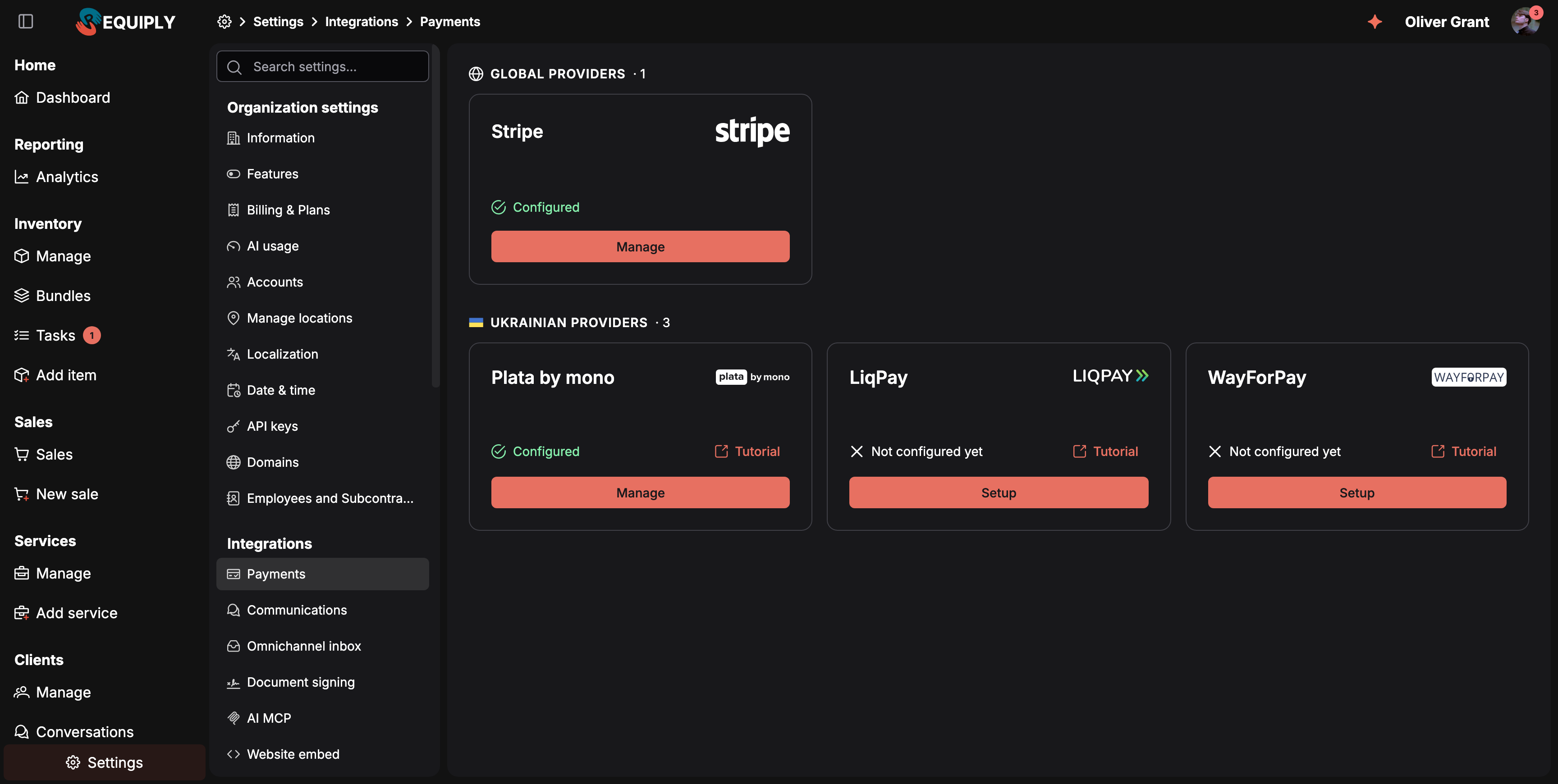
The Payments page is where you connect Requiply with online payment providers. Connected providers let customers pay online during booking, checkout, invoice, and payment-link flows.
You can find this page under Settings → Integrations → Payments.
Why payments matter
Payment integrations control which online payment providers are available for your organization. Without an active provider integration, Requiply can still support non-online payment workflows, but customers cannot use that provider for hosted online checkout.
Connected payment providers can be used across:
- Client portal checkout - online payment methods can be enabled only after the matching provider is configured.
- Bookings - online payment attempts create payment records connected to the booking.
- Invoices and payment links - customers can open provider payment URLs from payment records.
- Payment status updates - provider callbacks update the booking payment status after a payment succeeds, fails, expires, or is cancelled.
What you'll see
The page groups the providers into two sections:
- Global providers - Stripe, for card payments in any of the 14 Requiply currencies.
- Ukrainian providers - Plata by mono, LiqPay, and WayForPay.
Each provider card includes:
- Provider name and logo.
- Setup status - either Configured or Not configured yet.
- Tutorial - opens Requiply's step-by-step setup guide for that provider in a new browser tab, in your interface language. The Stripe card has no tutorial link; its setup steps are in Stripe below.
- Setup - opens the credential form for that provider. Once the provider is configured, the button reads Manage and opens the same form.
The current provider catalog includes:
| Provider | Credentials required | Supported currencies |
|---|---|---|
| Stripe | Secret API key and webhook signing secret | All 14: CHF, DKK, EUR, GBP, INR, ISK, JPY, MKD, NOK, PLN, RON, TRY, UAH, USD |
| Plata by mono | Monobank token | No Requiply catalog restriction |
| LiqPay | Public key and private key | UAH, USD, EUR |
| WayForPay | Merchant Login, website domain, and Merchant Secret Key | UAH |
Opening a tutorial
Click Tutorial on a provider card when you need help finding credentials in the provider account. Requiply opens its own step-by-step guide for that provider in a new tab — the English or Ukrainian version, matching your interface language.
Setup guides:
| Provider | Guide |
|---|---|
| Plata by mono | Monobank integration guide |
| LiqPay | LiqPay integration guide |
| WayForPay | WayForPay integration guide |
Setting up a provider
Click Setup on a provider card to open the setup dialog. The dialog shows the selected provider logo and the credentials Requiply needs for that provider.
After you click Save, Requiply checks the credentials with the payment provider before storing the integration. If verification succeeds, the provider becomes active for your organization and the card can move to Configured. If verification fails, Requiply shows an error and does not save the provider as active.
Click Cancel to close the setup dialog without saving changes.
Provider fields
Plata by mono
| Field | What it means | Input type |
|---|---|---|
| Monobank token | Token used to connect Requiply with the organization's Monobank payment capability. | Password |
Requiply verifies the token with Monobank before saving it. A token with invalid permissions or an invalid value is rejected. Tokens from the Monobank business cabinet, including legal-entity accounts, verify as well. If such a token was refused before, try saving it again.
LiqPay
| Field | What it means | Input type |
|---|---|---|
| Public key | Public LiqPay key used in payment requests. | Text |
| Private key | Private LiqPay key used to sign API requests and webhook checks. | Password |
Requiply verifies the LiqPay public and private keys before saving the provider.
WayForPay
| Field | What it means | Input type |
|---|---|---|
| Merchant Login | The merchant account login from WayForPay. | Text |
| Website domain | The merchant website domain, such as requiply.com. | Text |
| Merchant Secret Key | Secret key used to sign WayForPay requests and webhook responses. | Password |
Requiply verifies the WayForPay merchant details before saving the provider.
Stripe
| Field | What it means | Input type |
|---|---|---|
| Secret API key | The secret key from your Stripe account, starting with sk_live_ (or sk_test_ for testing). Not the publishable key that starts with pk_. | Password |
| Webhook signing secret | The signing secret of the webhook endpoint you add for Requiply in Stripe, starting with whsec_. Requiply uses it to check that payment updates really come from Stripe. | Password |
Requiply verifies the secret key with Stripe before saving it. The webhook signing secret is not checked at save time: if it is wrong or the endpoint is missing, customers can still pay, but the payment stays Pending in Requiply because the updates from Stripe never arrive or are rejected.
Add the Requiply webhook in Stripe
Stripe tells Requiply about paid, failed, expired, and refunded payments through a webhook. Add it before you save the integration:
- In the Stripe Dashboard, open Developers → Webhooks and add an endpoint (newer Dashboards call it an event destination).
- Set the endpoint URL to
https://app.requiply.com/api/payment-integrations/stripe/update-status. - Select these events:
checkout.session.completed,checkout.session.async_payment_succeeded,checkout.session.async_payment_failed,checkout.session.expired, andcharge.refunded. - Save the endpoint, reveal its Signing secret, and paste it into Webhook signing secret in Requiply.
sk_test_ key to an sk_live_ key, add the endpoint again in live mode and save its signing secret together with the live key.Currencies and amounts
Stripe charges customers in your organization's currency, and all 14 Requiply currencies are supported, including the Indian rupee (INR). JPY is charged in whole yen and ISK in whole krónur, so amounts in those currencies are rounded to a whole unit.
Stripe also has a minimum charge per currency, for example 0.50 USD or EUR, 0.30 GBP, 2.50 DKK, 3.00 NOK, or 50 JPY. A payment link below the minimum is refused. See Stripe's supported currencies for the full rules.
Updating credentials
To replace a token, private key, or merchant secret, click Manage on the same provider card, enter the new credentials, and click Save. Requiply updates the existing active integration after the new credentials pass verification.
Saved secret values are not displayed on the page after setup. Keep a secure copy in your payment provider account or password manager.
Disconnecting a provider
The current Payments page does not include a visible disconnect or delete action. To change an active provider, click Manage and save new credentials for the same provider.
Where payment integrations are used
| Feature | How the integration is used |
|---|---|
| Portal settings | Online payment methods are available only when the matching provider is configured. |
| Customer checkout | Enabled online payment providers can appear as customer payment choices. |
| Bookings | Online payment attempts create booking payment records with provider, amount, currency, status, and payment URL details. |
| Payment status | Provider callbacks update the payment status after customer or provider events. |
| Invoices and payment links | Provider payment links can be attached to payment records for customers to open. |
Common scenarios
Connect online payments for the first time
- Go to Settings → Integrations → Payments.
- Choose the provider your organization uses.
- Click Tutorial if you need help finding the required credentials.
- Click Setup.
- Enter the provider credentials.
- Click Save.
- Confirm the provider card changes to Configured.
- Go to the Payments tab of Portal settings and enable the matching online payment method if needed.
Update provider credentials
- Go to Settings → Integrations → Payments.
- Click Manage on the provider you want to update.
- Enter the new token, keys, or merchant details.
- Click Save.
- Confirm that setup succeeds.
Troubleshoot a failed setup
If setup fails:
- Confirm the credential values were copied from the correct provider account.
- Check that the provider account is active and allowed to create payments.
- Make sure the organization's currency is supported by the provider you want to use.
- For Stripe, paste the secret key (
sk_...), not the publishable key (pk_...). - For LiqPay and WayForPay, verify that both public and secret credentials belong to the same merchant account.
- Try opening the provider tutorial and repeating the setup steps from the provider dashboard.
Stripe payments stay Pending
If customers pay through Stripe but the payment in Requiply stays Pending:
- Check that the webhook endpoint in Stripe points to
https://app.requiply.com/api/payment-integrations/stripe/update-statusand listens to the events listed in Add the Requiply webhook in Stripe. - Check that the signing secret saved in Requiply belongs to that endpoint and to the same mode (test or live) as the secret key.
- After fixing the endpoint, click Manage on the Stripe card and save the corrected signing secret.
Overview
Connect Requiply to outside services: online payment providers, SMS and messenger channels, the Conversations inbox channels Telegram, OLX and Instagram, telephony, electronic signing, AI assistants, booking on your own website, and data migration from Booqable.
Communications
Connect an SMS, Viber, or Telegram channel for automated customer messages, connect Binotel telephony to bring calls and recordings into Requiply, and sign in with OLX or Instagram to receive messages in the Conversations inbox.