

Add or edit pricing discount
This page is where you create a new pricing discount or update an existing one. Use it to define a single reusable percentage value that can be assigned to clients so promotional and standard discounts stay consistent across the catalog.
You reach it from Settings → Pricing → Pricing discounts by clicking Add pricing discount, Create pricing discount on the empty state, or the edit pencil icon on an existing pricing discount card.
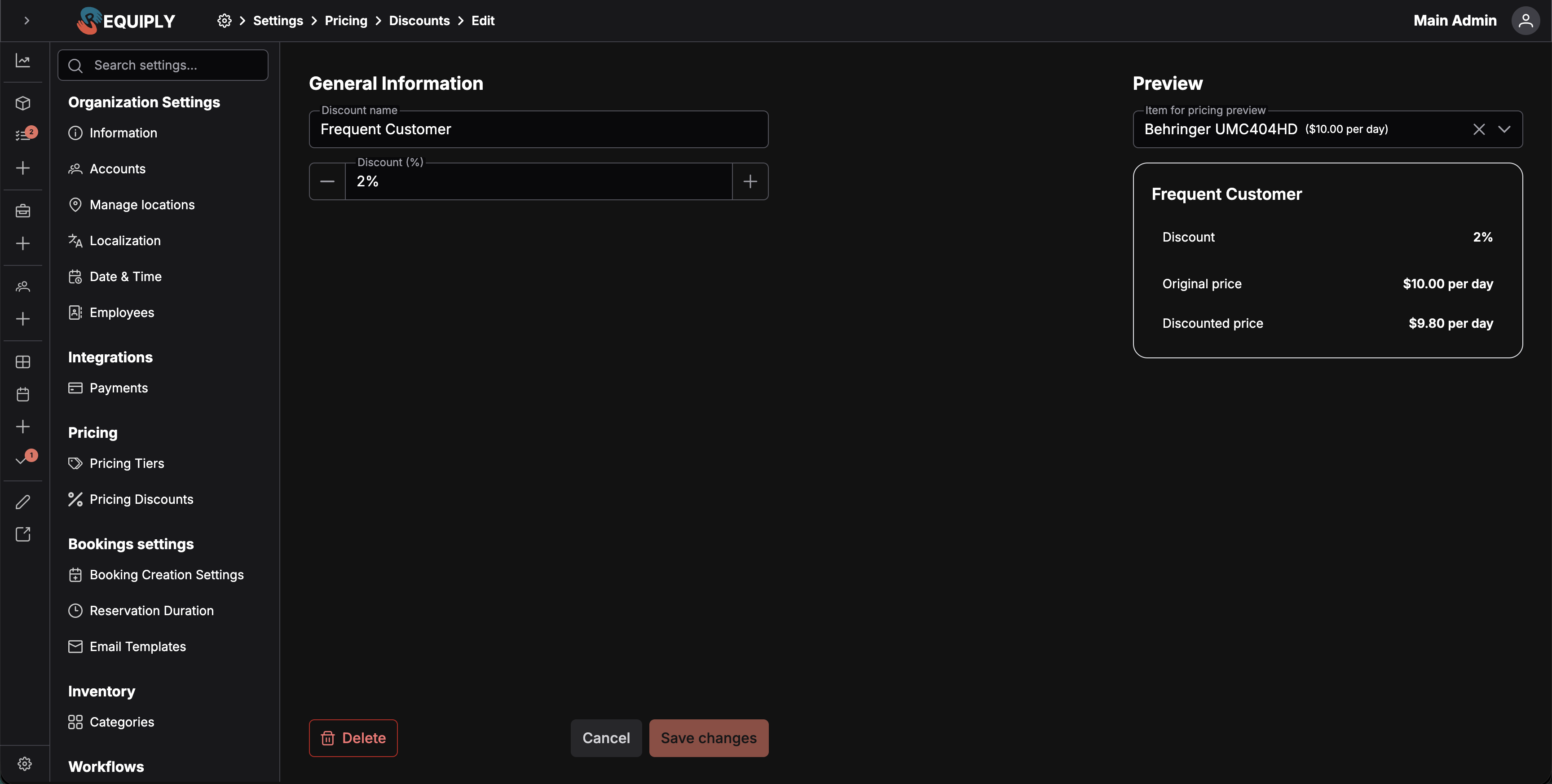
The form is split into editable fields on the left and a live Preview card on the right. The preview updates as you edit so you can check how the discount will appear on the Pricing discounts page and how it reads against a real item before saving.
Add vs. edit
The same page is used for adding and editing pricing discounts.
| Mode | What happens |
|---|---|
| Add pricing discount | Creates a new discount that can be assigned to clients. |
| Edit pricing discount | Updates the selected discount's saved name and percentage and shows the Delete action. |
When the page is saving, Requiply blocks the form with a loading overlay so the discount cannot be submitted twice or changed mid-save. On the edit page, the form is shown after the pricing discount record has loaded.
If the discount cannot be loaded, Requiply shows an error toast and returns you to the Pricing discounts page.
General Information
Discount name
The display name for the pricing discount.
- Required
- Used as the card title on the Pricing discounts page and inside the preview card
- Shows Name is required when missing
- Falls back to the field label as a placeholder in the preview when empty
Use a name that makes the rule easy to recognize on cards and during client assignment, such as Loyalty discount, VIP 15%, or Corporate Partner 20%.
Discount (%)
The percentage applied when the discount is used.
- Numeric input with horizontal increment and decrement buttons
- Minimum of
0 - Maximum of
100 - Step of
0.5 - Up to two decimal places allowed
- Displayed with a
%suffix
| Amount | Effect |
|---|---|
0% | No discount. |
10% | 10% reduction from the base price. |
25% | One quarter off the base price. |
Preview
The right side of the page shows a live Preview card. It mirrors the pricing discount card shown on the Pricing discounts page (without the edit button), including:
- The discount name, falling back to the name label when empty.
- The discount percentage.
- The selected preview item's original price and the resulting discounted price, when an item is chosen.
Item for pricing preview
The preview column includes an Item for pricing preview dropdown.
- Optional
- Lists item groups loaded for the organization
- Shows each option as the item name plus the item's price and price type
- Defaults to the first available item group when the page loads
- Can be cleared
Selecting an item lets the preview card render the discount against that item's price, so you can see the resulting numbers for a real item without saving.
Validation
The form validates before saving:
- Discount name is required.
- Discount (%) must stay between
0and100.
Validation errors appear under the affected field so you can fix them before saving.
Saving changes
Click Save or Save changes to store the pricing discount.
On the edit page, Save changes stays disabled until you change something compared to the loaded values.
On success:
- A success toast appears that includes the discount name.
- The discount is added or updated.
- If you arrived from another setup flow (using a
fromquery parameter), Requiply returns you to that flow. - Otherwise, you return to Settings → Pricing → Pricing discounts.
If saving fails, an error toast appears and the form stays open so you can try again.
Deleting a pricing discount
When editing an existing discount, the page includes a red Delete action in the bottom-left corner.
Clicking Delete opens a confirmation dialog with a warning icon and a message asking whether you are sure you want to delete the discount. The message includes the original discount name.
After a successful deletion, Requiply shows a success toast and returns to the Pricing discounts page. If deletion fails, Requiply shows an error toast and opens the error page.
Cancelling
Click Cancel to leave without saving. Requiply returns you to Settings → Pricing → Pricing discounts.
Common scenarios
Set up a first standard discount
- Open Add pricing discount.
- Enter a clear name such as
Loyalty discount. - Set the percentage amount.
- Pick an item in the Preview to sanity-check the resulting numbers.
- Save the discount.
Adjust a discount for a seasonal promotion
- Open the discount with the edit pencil icon.
- Update the percentage to match the promotion.
- Save changes.
The list page and any clients using this discount will reflect the new percentage.
Rename a discount for clarity
- Open the discount with the edit pencil icon.
- Update the name so it reads clearly on cards and in client assignments.
- Save changes.
Remove an unused discount
- Open the discount with the edit pencil icon.
- Click Delete.
- Confirm the deletion.
Because the current form does not show usage warnings, review which clients reference the discount before deleting it.
Tips and cautions
0% and 100%, with steps of 0.5 and up to two decimal places. Values outside that range cannot be entered.Overview
Create percentage discounts you assign to individual customers, so a regular or trade client automatically sees a lower price on every booking.
Overview
The rules every rental follows: statuses and their transitions, how bookings are created, minimum duration and buffers, deposits, subrentals, and message templates.