

Communications
The Communications page is where you connect Requiply with a messaging provider — SMS, Viber, or your own Telegram bot — and with a telephony provider, Binotel. A messaging provider gives your organization a direct mobile channel to clients, which workflows use to message clients automatically when something happens to a booking. A telephony provider brings your phone calls and call recordings into Requiply.
This is the page for connecting Telegram, Viber, SMS, and Binotel. Setting up a Telegram bot, entering TurboSMS, Kyivstar, or Twilio credentials, and connecting Binotel telephony all happen here, each from its own provider card. While the Conversations inbox is on, the page also has the OLX and Instagram cards, which connect those accounts as inbox channels.
You can find this page under Settings → Integrations → Communications, at https://app.requiply.com/settings/integrations/communications.
Why communications matter
Requiply already sends email and in-app push notifications. A Communications provider adds SMS, Viber, and Telegram so you can reach clients on their phones — especially useful for booking reminders and confirmations, where email is often missed.
Once a messaging provider is connected:
- Workflows can message a client when a booking is created, reaches a status, hits a payment status, or approaches its start/end time, through the Send message to client (SMS / Viber / Telegram) action.
- The wording comes from a message template, which reuses the same
{{variables}}system as the email and push templates — client name, booking details, a payment link, and more. - Telegram additionally carries formatting, PDF attachments (the invoice or a rendered export template), and link buttons.
Once Binotel is connected:
- The Calls page appears under Clients on the web and in the mobile app, with every call matched to a client by phone number, recordings, and a missed calls badge.
- Client pages can show a Binotel calls field with that client's call history, see Client details.
- Members with a Binotel line can call clients from Requiply: Binotel rings their phone first, then dials the client.
Each organization stores its own provider credentials. Connecting a provider for one organization does not affect another.
What you'll see
The page lists each supported provider as a card, grouped into Global providers and Ukrainian providers (the Ukrainian providers are marked with a flag icon). Each provider card includes:
- Provider name and logo.
- Channel tags describing what it can deliver (for example, SMS, Viber, Calls, Recordings).
- Setup status - whether this organization already has an active integration for that provider.
- Tutorial - opens Requiply's step-by-step setup guide for that provider in a new browser tab, in your interface language.
- Set up (not yet connected) or Manage (already connected).
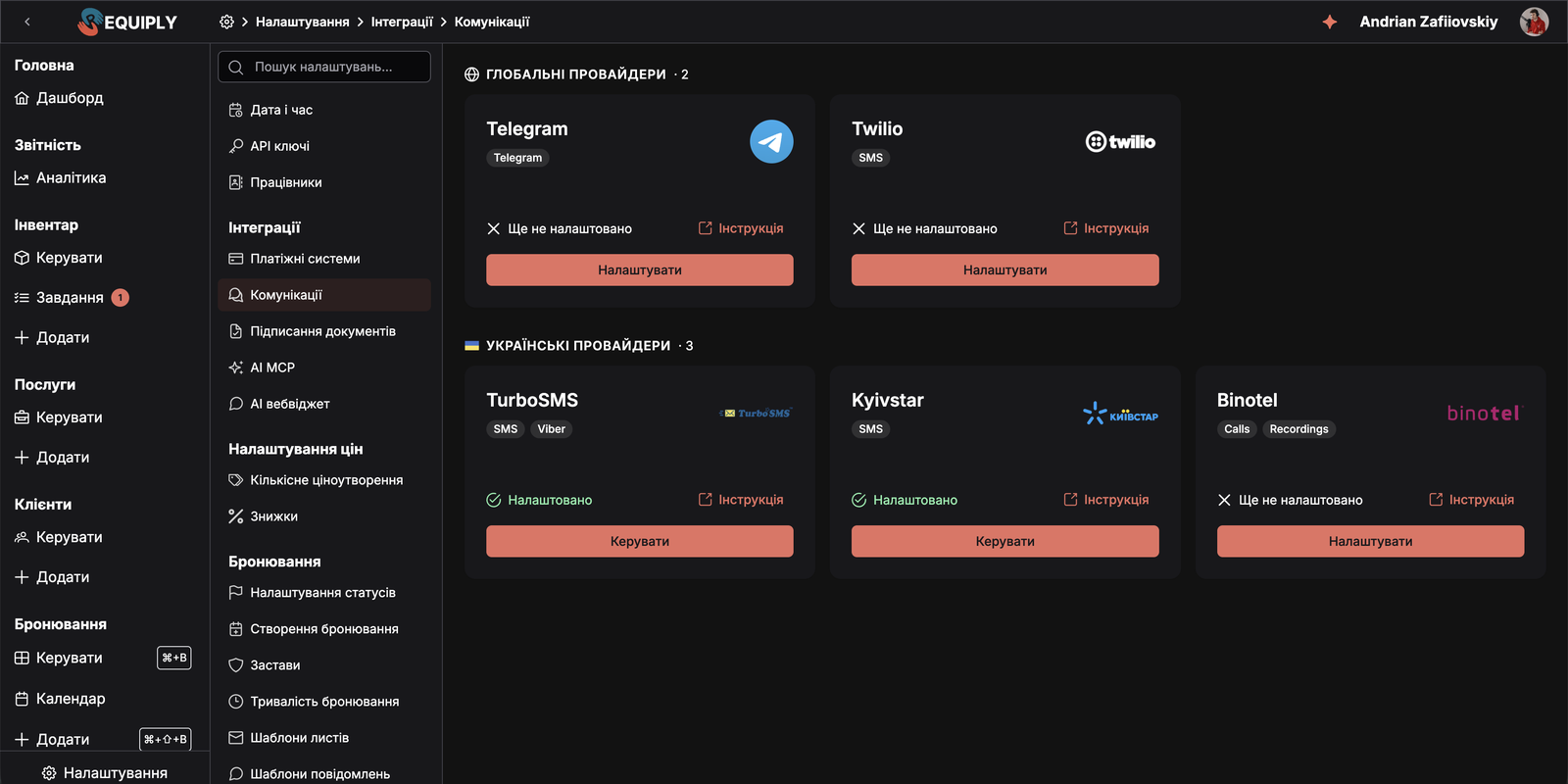
The provider cards. Binotel sits under Ukrainian providers with the Calls and Recordings tags.
The current provider catalog includes:
| Provider | Kind | Region | Channels | Secret credential | Other fields |
|---|---|---|---|---|---|
| TurboSMS | Messaging | Ukrainian | SMS, Viber (with SMS fallback) | API token | SMS sender name, Viber sender name |
| Kyivstar | Messaging | Ukrainian | SMS | Client Secret | Client ID, SMS sender name |
| Binotel | Telephony | Ukrainian | Calls, Recordings | API secret | API key |
| Telegram | Messaging | Global | Telegram | Bot token | None — the bot identity is derived from the token |
| Twilio | Messaging | Global | SMS | Auth token | Account SID, Messaging Service SID |
| OLX | Inbox channel (beta) | Ukrainian | OLX | None, you sign in with OLX | None |
| Inbox channel (beta on request) | Global | Instagram Direct | None, you sign in with Instagram | None |
Opening a tutorial
Click Tutorial on a provider card when you need help finding credentials in the provider account. Requiply opens its own step-by-step guide for that provider in a new tab — the English or Ukrainian version, matching your interface language. It does not change anything in Requiply.
| Provider | Tutorial |
|---|---|
| TurboSMS | TurboSMS integration |
| Kyivstar | Kyivstar integration |
| Binotel | Binotel integration |
| Telegram | Telegram integration |
| Twilio | Twilio integration |
Add /uk before /blog for the Ukrainian version, for example https://requiply.com/uk/blog/binotel-integration.
Setting up a provider
Click Set up on a provider card to open the setup dialog. The dialog shows the selected provider logo and one input per credential field. The dialog can also be opened directly with a link: add ?modal= and the provider to the page address, for example /settings/integrations/communications?modal=binotel or ?modal=telegram.
After you click Save, Requiply verifies the credentials with the provider before storing anything (for example, TurboSMS is checked against its account-balance endpoint, and Binotel against your company's employee list). If verification succeeds, the secret value is encrypted, the non-secret fields are stored alongside it, the integration becomes active for your organization, and the card moves to Manage. If verification fails, Requiply reports the provider's error message and nothing is saved.
Click Cancel to close the setup dialog without saving changes.
Provider fields
Across the catalog, the secret credential (API token / Auth token / Client Secret / API secret) is stored encrypted and masked after saving; sender names, service identifiers, and the Binotel API key are stored as plain, non-secret configuration.
TurboSMS
| Field | What it means | Input type |
|---|---|---|
| API token | Token used to connect Requiply with the TurboSMS account. Required to first connect. | Password |
| SMS sender name | The alpha-name shown to recipients on SMS. Usually must be approved by TurboSMS. | Text |
| Viber sender name | The approved Viber business name used for Viber delivery. | Text |
Kyivstar
| Field | What it means | Input type |
|---|---|---|
| Client ID | The public account identifier from Kyivstar. | Text |
| Client Secret | Secret credential used to authenticate with Kyivstar. Required to first connect. | Password |
| SMS sender name | The alpha-name shown to recipients on SMS. The production sender must be an alpha-name approved by Kyivstar. | Text |
Binotel
Binotel is a Ukrainian cloud PBX and call tracking service. Connecting it brings your company's calls into Requiply: the Calls page, the per-client Binotel calls field, recordings, and calling clients from Requiply. The full walkthrough is in the tutorial: Binotel integration in Requiply.
Before you connect:
- Your Requiply organization is on an active trial or a paid Core plan or higher.
- Your company has a Binotel account on a plan that includes the API. Only Binotel PRO plans and higher support it. Binotel onboards new companies by phone, so the fastest way is to call the Customer Service Center listed on Binotel contacts and ask for API integration at the start of the call. Registration takes about 30 minutes.
- Binotel sends an email with your API key and API secret.
- Each team member's Requiply account uses the same email as their employee in Binotel. Requiply finds a member's Binotel line by that email, and without a match the member can see calls but cannot call from Requiply.
| Field | What it means | Input type |
|---|---|---|
| API key | The REST API key from the Binotel email. Stored as a plain, non-secret value. | Text |
| API secret | The REST API secret from the Binotel email. Required to first connect. Stored encrypted and never shown again. | Password |
The dialog carries the setup note:
Request REST API access for your company from Binotel support (support@binotel.ua) and paste the key and secret here. Once connected, the client page gets a Binotel row with the call history and playable recordings matched by the client's phone number. Only members whose permission group allows client call history see it.
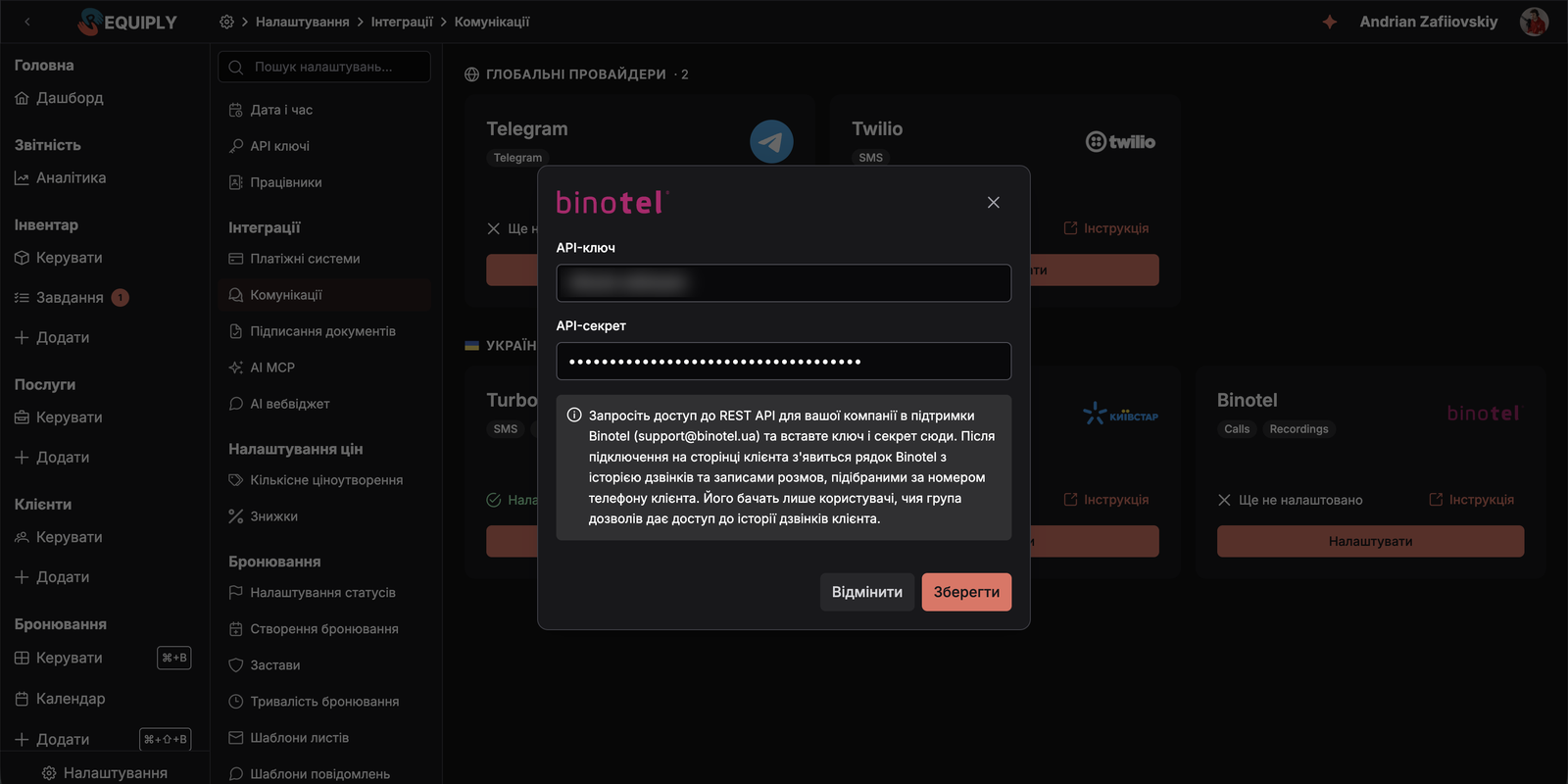
The Binotel setup dialog. The API key in this screenshot is hidden.
When the key and secret are correct, the card shows a green checkmark with Configured and the button changes to Manage.
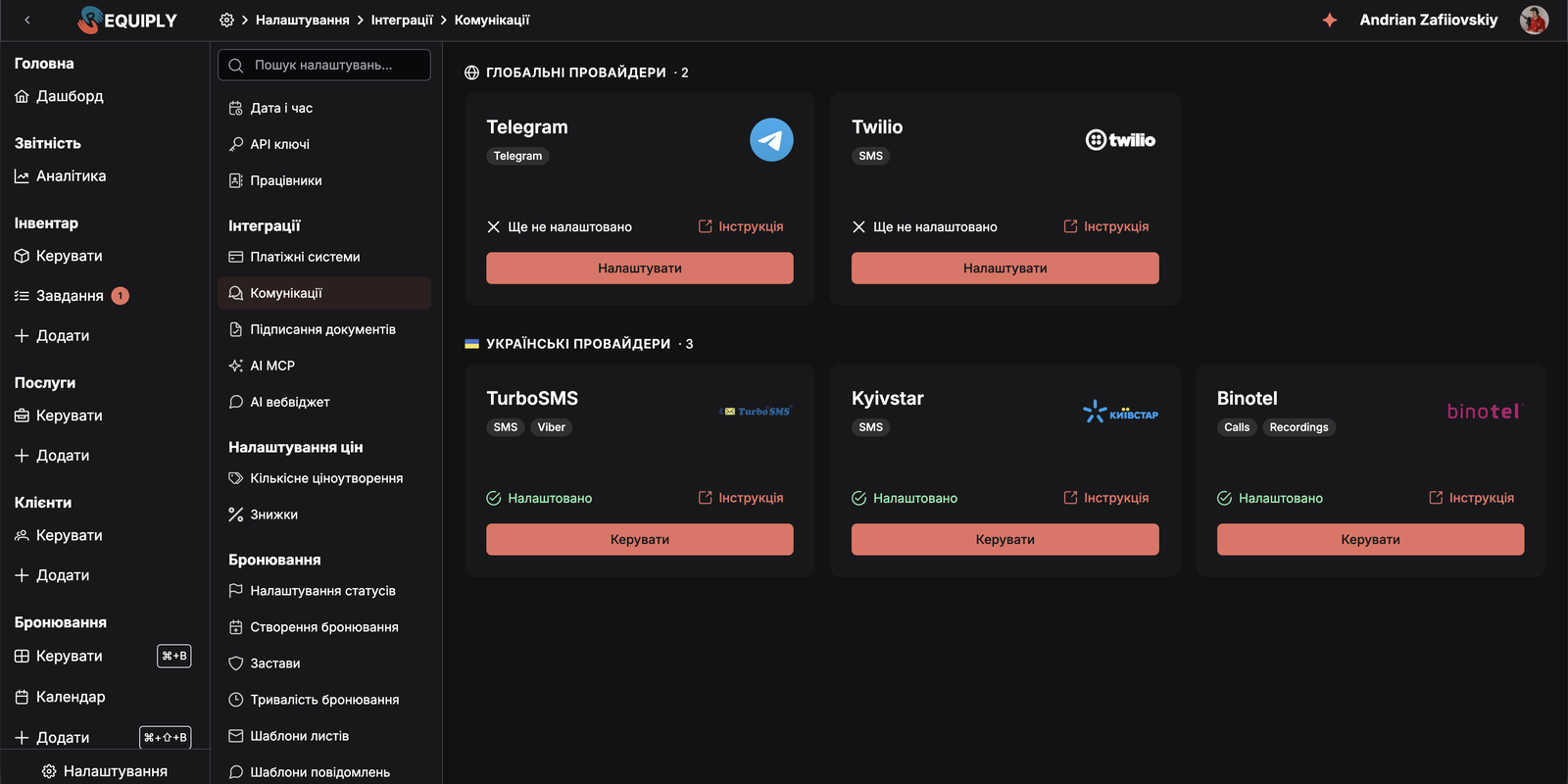
Binotel connected. The card now reads Configured.
After you connect:
- The Calls entry appears under Clients in the menu, and Calls becomes available on the mobile More screen, for members with Allow client management. See Calls.
- Requiply shows a Binotel connected dialog: For the best experience, add the Binotel calls field to the client page. Its Configure client page button opens the Client tab of Detail page fields. The Binotel calls field is not added to client pages automatically. An administrator adds it on Detail page fields (Client tab), at
/settings/fields/page-level-configurations?tab=client. - Only members whose permission group has Allow access to client call history see that field and the mobile Calls with Binotel row. The Administrators group has it by default.
When Binotel rejects the account. If Binotel reports that your company itself is disabled, Requiply turns the integration off and stops asking Binotel for calls. The Calls page then shows Telephony integration turned off, and the Binotel dialog here shows a warning above the fields: This integration was turned off because Binotel rejected the account: {reason}. Once the account is active again in Binotel, save to reconnect. Once Binotel has reactivated your account, open Manage on the Binotel card and press Save. Requiply checks the credentials again and turns the integration back on.
Telegram
| Field | What it means | Input type |
|---|---|---|
| Bot token | The token issued by @BotFather when you create your bot. Required to connect. | Password |
Telegram has no sender name to configure: the sender is your bot. When you save the token, Requiply asks Telegram who the bot is, stores its username, and registers the webhook that lets clients connect to it — no extra setup on your side.
The dialog carries the setup note:
Create your own bot with @BotFather in Telegram and paste its token here. Clients connect by opening your bot and pressing Start, after which workflows can message them.
With the Conversations inbox on, the same bot can also bring clients' messages into the inbox: connect it as a channel under Omnichannel inbox settings. Workflow notifications keep working either way.
Twilio
| Field | What it means | Input type |
|---|---|---|
| Account SID | The public Twilio account identifier. | Text |
| Auth token | Secret credential used to authenticate with Twilio. Required to first connect. | Password |
| Messaging Service SID | Identifies the Twilio messaging service used to send SMS. | Text |
OLX
The OLX card connects your OLX account to the Conversations inbox, so buyers' messages about your listings arrive in Requiply. It is shown only while the inbox is on.
There are no fields to fill in. Press Sign in with OLX, sign in on OLX's own page and allow access; the card then shows Configured. Manage shows the connected account, when it was last checked, and a link to Channel and AI assistant settings. More than one OLX account can be connected with Connect another account.
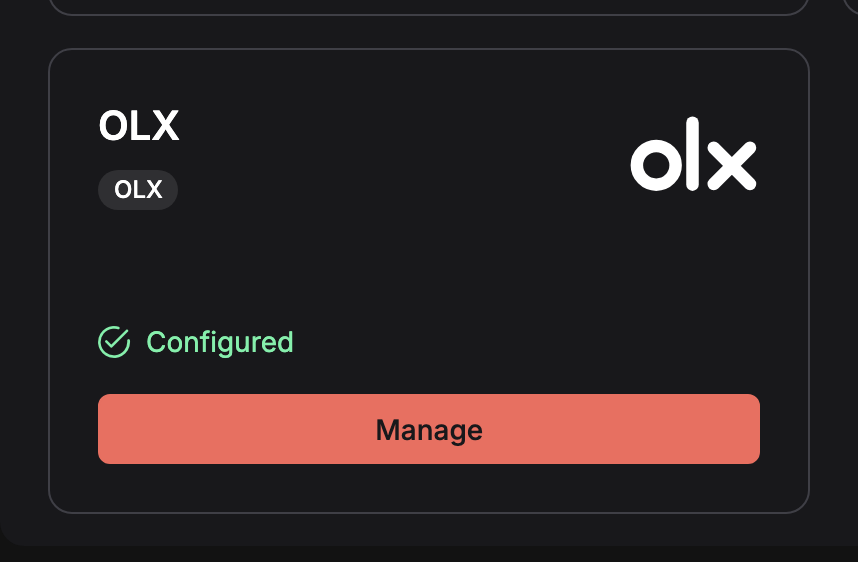
The OLX card once an account is connected.
Everything about OLX conversations is on the OLX page.
The Instagram card, under Global providers with the Instagram Direct tag, connects your Instagram Business or Creator account to the Conversations inbox, so Direct messages arrive in Requiply. It is shown only while the inbox is on.
Its logo carries a Beta pill. Instagram is a beta on request: hover the pill to read Beta on request. Email our team at info@requiply.com with your Instagram account tag and we will add you to the beta testers of this feature.
There are no fields to fill in. The dialog explains the requirements in its note: Works with Business and Creator accounts. In the Instagram app, turn on Settings › Messages and story replies › Message controls › Connected tools › Allow access to messages. Instagram accepts replies for 24 hours after the client's last message. Press Sign in with Instagram, pick the account on Instagram's own page and allow access. The dialog then lists the account with its @handle and status, a link to Channel and AI assistant settings, and Connect another account for more accounts. When Instagram stops accepting the sign-in, the account shows Sign in again.
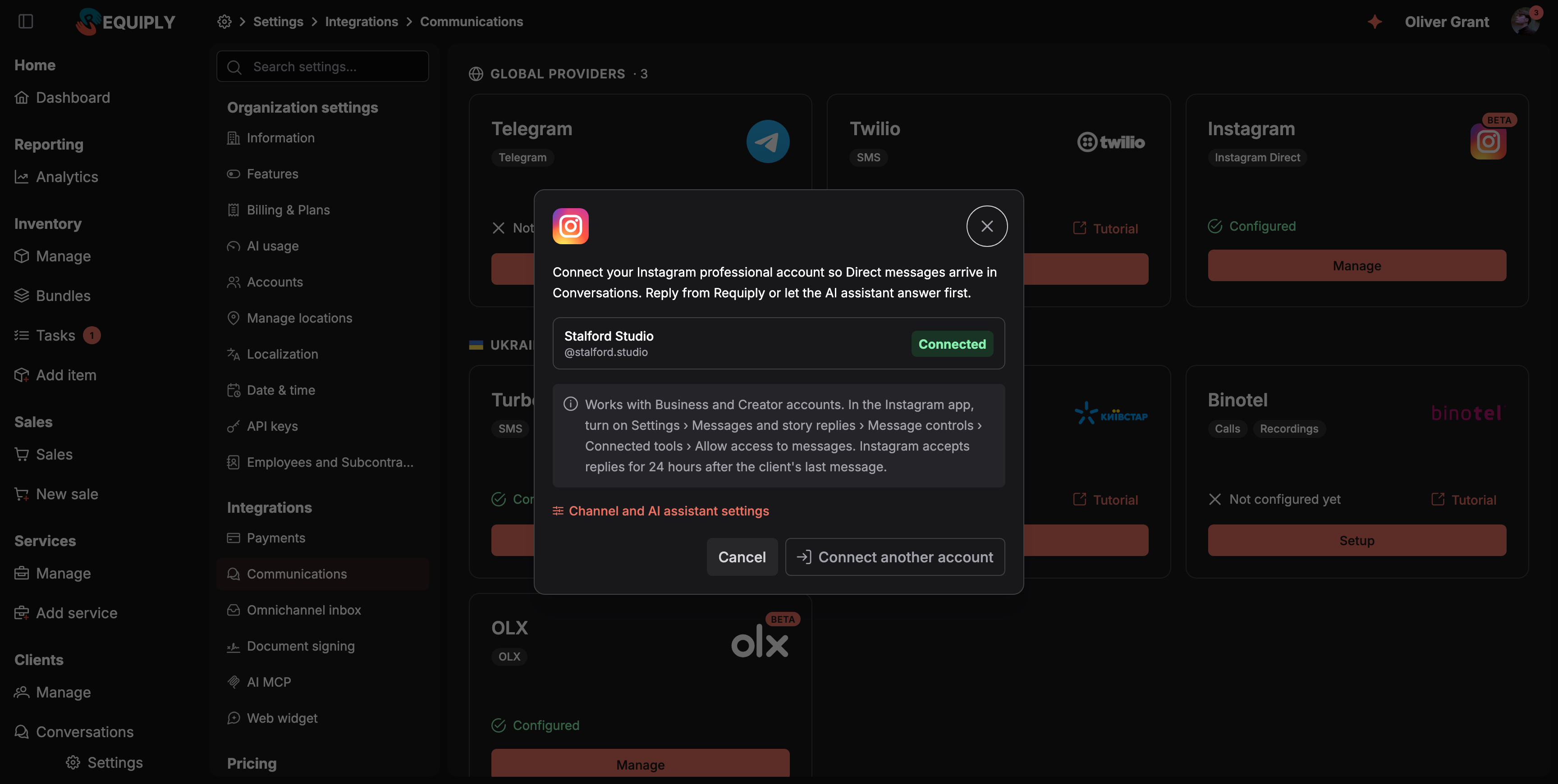
The Instagram dialog with one account connected. Connect another account adds a second one.
Everything about Instagram conversations is on the Instagram page.
Connecting clients to your Telegram bot
Telegram bots cannot message a phone number. A client must open your bot once, after which Requiply knows the chat to send to. There are two ways to get them there.
The personal invite link
Every client has a personal link to your bot in the form https://t.me/yourbot?start=….
- Copy it manually — open the client's Client details page and use Copy invite link on the Messaging card, then send it however you already talk to that client.
- Put it in a template — insert the
{{telegramConnectLink}}variable into an email template or a message template. Requiply generates that client's link when the message is sent.
Opening the link and pressing Start connects the client immediately.
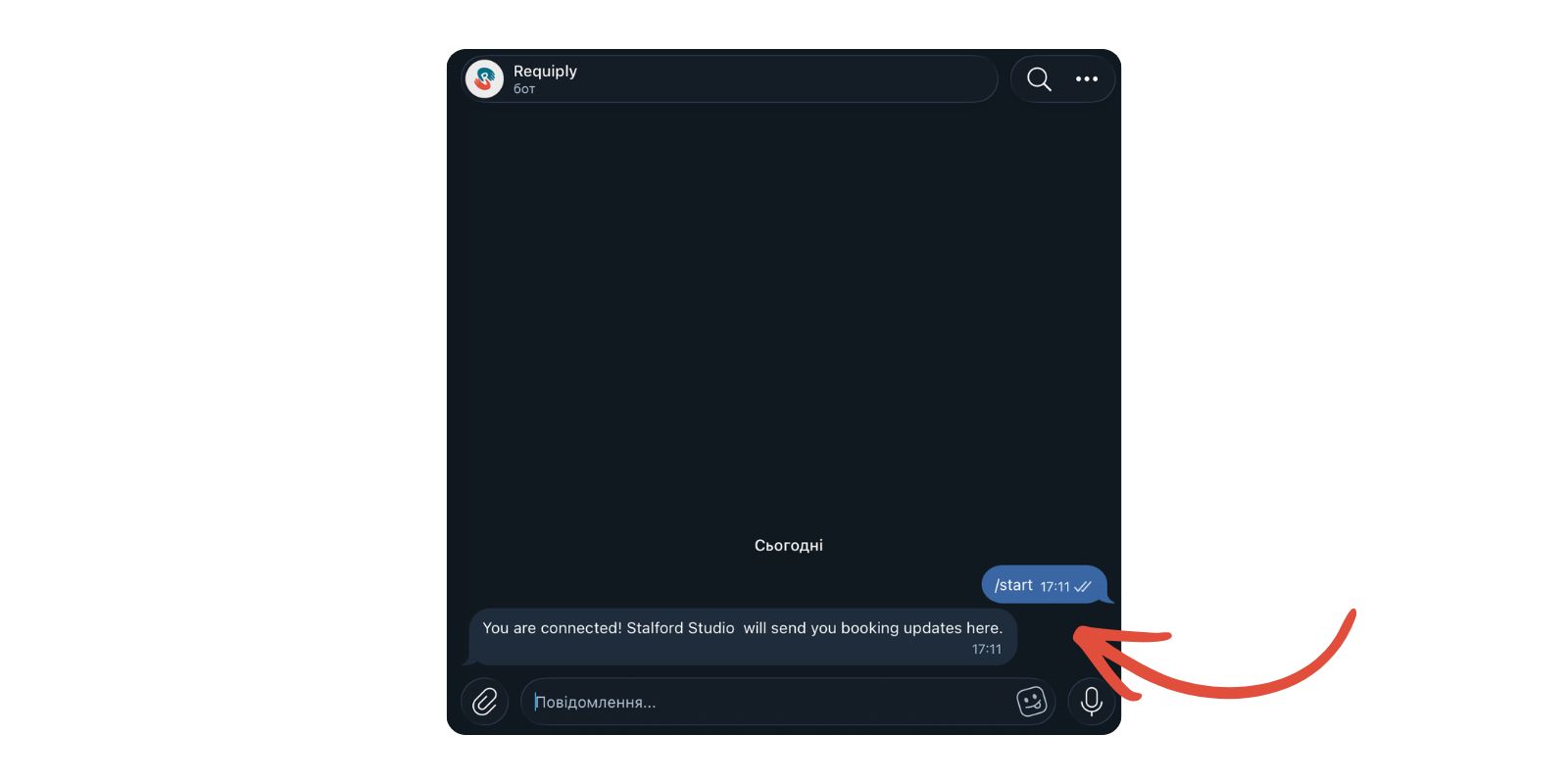
The bot confirms the connection in the client's own chat, and from that point workflows can reach them.
Sharing a phone number
A client who simply opens the bot without a link is asked to share their phone number with a Share phone number button. Requiply matches the shared number against your client records and connects the two when it finds exactly one match. When it finds none — or more than one — the bot replies that it could not find their profile, and nothing is connected.
Connection states
The Messaging card on Client details shows where each client stands:
| State | Meaning |
|---|---|
| Connected | The client has opened the bot; workflows can message them. |
| Invited | A link exists but the client has not opened the bot yet. |
| Blocked | The client blocked or removed the bot. Sends to them fail with "The client blocked the bot". |
| Not connected | No link has been created for this client yet. |
Updating credentials
For an already-connected provider, the button reads Manage. In that dialog:
- The configured secret is shown masked (
••••••••••••) with a Replace button — the real token is never returned to the browser. Choose Replace to type a new one, or Cancel to keep the existing token. - Non-secret fields (such as sender names, service identifiers, or the Binotel API key) are pre-filled and can be edited freely.
- If you change only a sender name and leave the secret untouched, the stored token is preserved — you do not have to re-enter it.
Disconnecting a provider
The Communications page does not include a visible disconnect or delete action. To change an active provider, open Manage and save new credentials for the same provider.
Where communications integrations are used
| Feature | How the integration is used |
|---|---|
| Workflows | The connected messaging provider is the delivery channel for the Send message to client (SMS / Viber / Telegram) action. Without a provider, that action is unavailable. |
| Message templates | The wording, attachments, and buttons of every automated client message live in a template; the workflow only picks which one to send. |
| Bookings | The workflow action operates on the booking that triggered the workflow and reads its details to fill message variables. |
| Clients | SMS and Viber go to the client's stored phone number — a client without one is skipped and the attempt is logged. Telegram goes to the chat the client connected, so a client who never opened the bot is skipped instead. Binotel calls are matched to clients by the same phone number. |
| Client details | The Messaging card shows each client's Telegram connection state and the last messages Requiply sent them, with the reason for any failure. The optional Binotel calls field shows that client's calls and recordings. |
| Calls | The organization-wide call log from Binotel, on the web and in the mobile app, with the missed calls badge, recordings, call back, and Create client for unknown numbers. |
| Permission groups | Allow access to client call history controls who sees the per-client Binotel call history. |
| Detail page fields | Where an administrator adds the Binotel calls field to the client page. |
| Email & push templates | The message body reuses the same {{variables}} engine, so the same merge fields work across email, push, and messenger channels. |
Common scenarios
Connect a provider for the first time
- Go to Settings → Integrations → Communications.
- Choose the provider your organization uses.
- Click Tutorial if you need help finding the required credentials.
- Click Set up.
- Enter the provider credentials (use the test sender name for TurboSMS or Kyivstar to start quickly).
- Click Save.
- Confirm the provider card changes to Manage.
- Create a message template for what you want to say.
- Build a workflow with the Send message to client (SMS / Viber / Telegram) action and point it at that template.
Connect Binotel and see the first calls
- Make sure every team member's Requiply account uses the same email as their Binotel employee.
- Get the API key and API secret from Binotel (Binotel PRO plan or higher).
- Open
/settings/integrations/communications?modal=binotel, paste both values, and click Save. - Confirm the Binotel card shows the green checkmark with Configured.
- Open Clients → Calls to see the call log. The first open loads the last 30 days of calls.
- Add the Binotel calls field to client pages on Detail page fields (Client tab), and save.
- Grant Allow access to client call history to the permission groups that should hear recordings on client pages.
Update or rotate credentials
- Go to Settings → Integrations → Communications.
- Click Manage on the provider you want to update.
- Click Replace next to the masked token and paste the new one (or edit a sender name without touching the token).
- Click Save.
Troubleshoot a failed setup
If setup fails:
- Confirm the token or secret was copied from the correct provider account.
- Check that the provider account is active and allowed to send messages.
- Make sure your sender name is approved by the provider — an unapproved sender name can cause sends to be rejected even when the integration looks connected.
- For TurboSMS Viber, confirm both a Viber sender name and an SMS sender name are configured.
- For Telegram, make sure the token belongs to a bot you created with @BotFather and has not been revoked there. A revoked token fails verification, and a token replaced with a different bot resets every client connection.
- For Binotel, confirm that API access is enabled for your company (Binotel PRO plan or higher) and that the key and secret come from the same Binotel email. Binotel rejects the check when API access is not active.
- For a Binotel integration that was turned off, get the account reactivated with Binotel first, then press Save in the Binotel dialog to reconnect.