

Employees and subcontractors
The Employees and Subcontractors page lists everyone who does paid work on your rentals: your own staff and the outside crews, agencies, or freelancers you hire in. Each profile has a payout rate, and Requiply uses it to work out what that person or company earns when you assign them to a service on a booking or to a maintenance task.
You can find this page under Settings → Organization → Employees and Subcontractors, or open it directly at https://app.requiply.com/settings/org/employees.
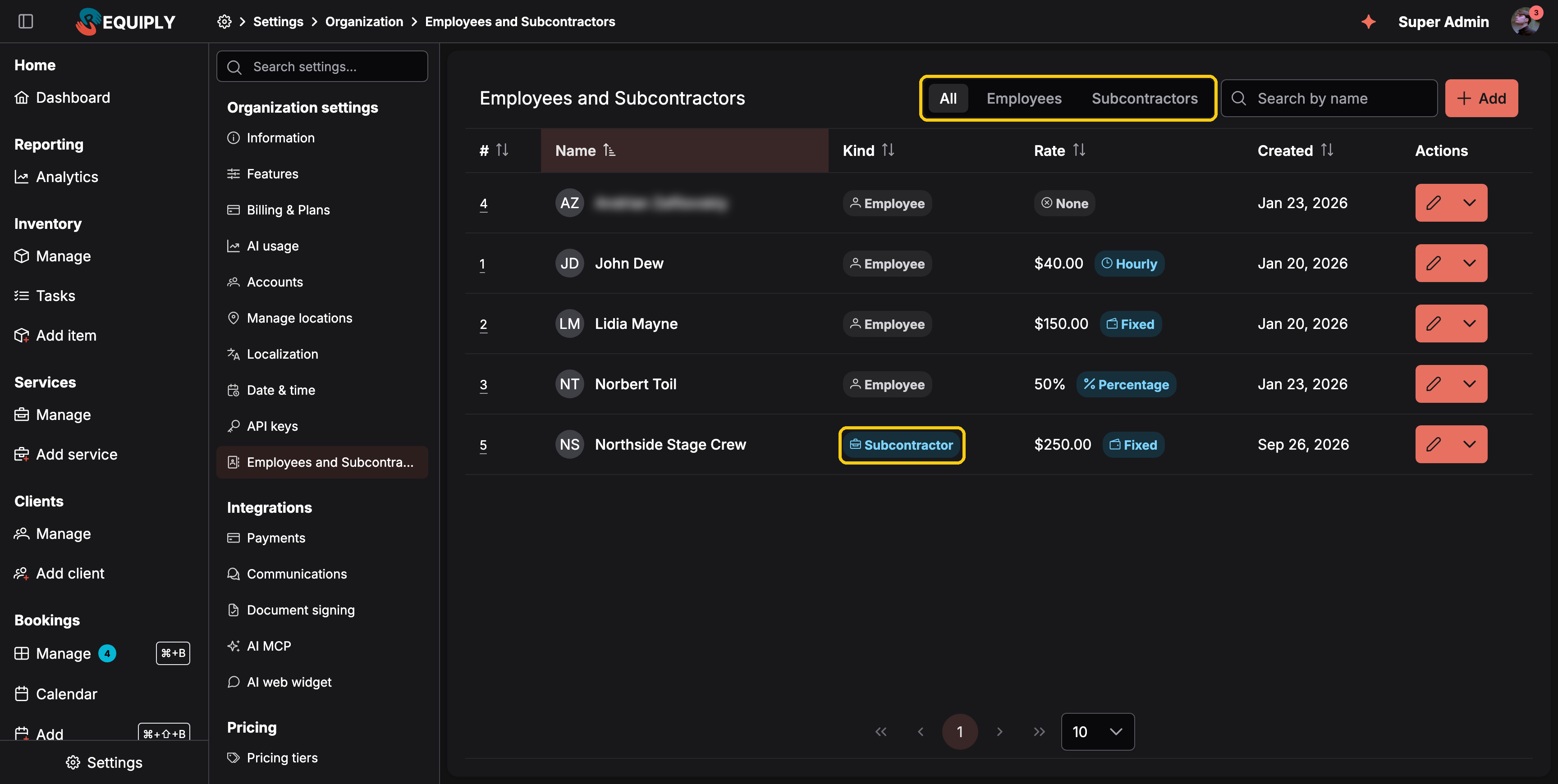
Employees and subcontractors share one list. Use the switch at the top to show only one kind.
- To invite a colleague so they can sign in, see Accounts.
- If a team member cannot see a page or button, that is set by their permission group, see Permission groups.
Employee or subcontractor
Every profile has a Kind:
| Kind | Use it for | Name fields |
|---|---|---|
| Employee | A person on your team. | First name and Last name |
| Subcontractor | An outside company, crew, agency, or freelancer you pay for work, for example a stage crew, a driver company, or a video editor. | One field: Company or subcontractor name |
Both kinds work the same way everywhere else: they can be assigned to services on bookings and to inventory tasks, they have the same rate types, and their earnings are tracked the same way. The kind only changes how the profile is named and labeled, and lets you filter the list.
What you'll see
A table with one row per profile:
| Column | What it shows |
|---|---|
| # | The profile number, unique in your organization (1, 2, 3...). |
| Name | Photo or logo (initials when there is none) and the name. A linked account is shown under the name. |
| Kind | An Employee or Subcontractor tag. |
| Rate | The payout rate and its type: Fixed, Hourly, Percentage, or None. |
| Created | When the profile was added. |
| Actions | A pencil to edit, and a menu with Delete. |
Above the table:
- All / Employees / Subcontractors narrows the list to one kind.
- Search by name finds a profile by name.
- Add opens the form for a new profile.
Every column except Actions can be sorted by clicking its header. Click a row to open the profile's detail page.
If you have no profiles yet, the page shows No employees or subcontractors yet with a Create the first one button.
Adding or editing a profile
Click Add, or the pencil on a row. The form is described in full on Add or edit employee. In short:
- Pick Employee or Subcontractor.
- Optionally link an existing Requiply account (employees usually, subcontractors rarely).
- Enter the name, or the company name for a subcontractor.
- Optionally upload a Photo or logo.
- Choose the Rate type and enter the Rate value.
Rates
The rate on the profile is the default used when you assign the person or company to work. It is copied onto each assignment, and you can change it per assignment without touching the profile.
| Rate type | On a booking service | On an inventory task |
|---|---|---|
| Fixed | A fixed amount per service. | A fixed amount per task. |
| Hourly | Rate × hours worked. | Rate × Worked hours entered on the task. |
| Percentage | A percentage of the service price. | Allowed, but pays 0: A task has no price yet, so a percentage rate pays 0. Switch the assignment to Fixed or Hourly to pay for the task. |
| None | No payout tracked in Requiply. | No payout tracked in Requiply. |
Because each assignment keeps its own copy of the rate, changing a profile's rate later does not change what was already earned on past bookings and tasks.
The detail page
Click a row to open the profile at https://app.requiply.com/settings/org/employees/<number>. It answers "how much do we owe them, and for what?".
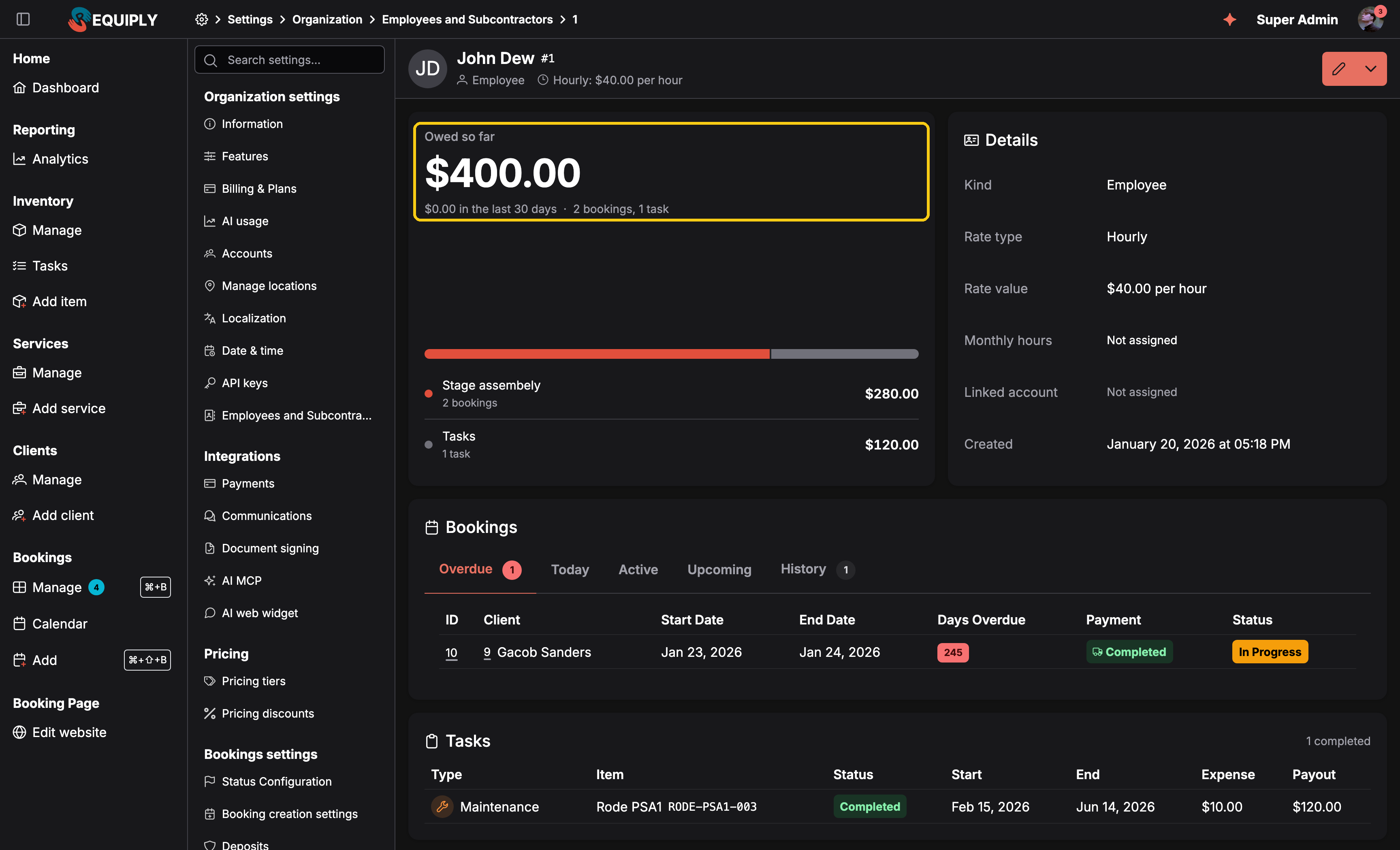
The detail page adds up everything the profile earned from booking services and tasks.
- Header: photo or initials, name, number, kind, and the rate. The buttons on the right edit or delete the profile.
- Owed so far: the total payout from every booking service and task the profile is assigned to, with the amount for the last 30 days and the number of bookings and tasks. A bar and a list split the total by source: one line per service (for example Stage assembly, 2 bookings) and one line for Tasks.
- Details: kind, rate type, rate value, monthly hours (for hourly rates, when set), linked account (a link to the account), and the creation date.
- Bookings: the bookings where the profile is assigned to a service, in the usual Overdue / Today / Active / Upcoming / History tabs, with a link to each booking.
- Tasks: the inventory tasks the profile is assigned to, with type, item, status, dates, the task's expense, and the profile's Payout on it. The counts per status (to do, in progress, completed) are shown in the card header.
The page shows only the cards that have data. A profile with no assignments shows No services or tasks assigned yet.
Deleting a profile
Open the row's menu (or the menu on the detail page) and click Delete. Requiply first checks whether the profile has any history:
- No assignments: a confirmation asks Are you sure you want to delete "Name"?
- Assigned to services or tasks: the profile cannot be deleted. The dialog says, for example, Northside Stage Crew cannot be deleted: assigned to services (2) and tasks (0). This history must be kept. The payouts on past bookings and tasks depend on the profile, so it stays.
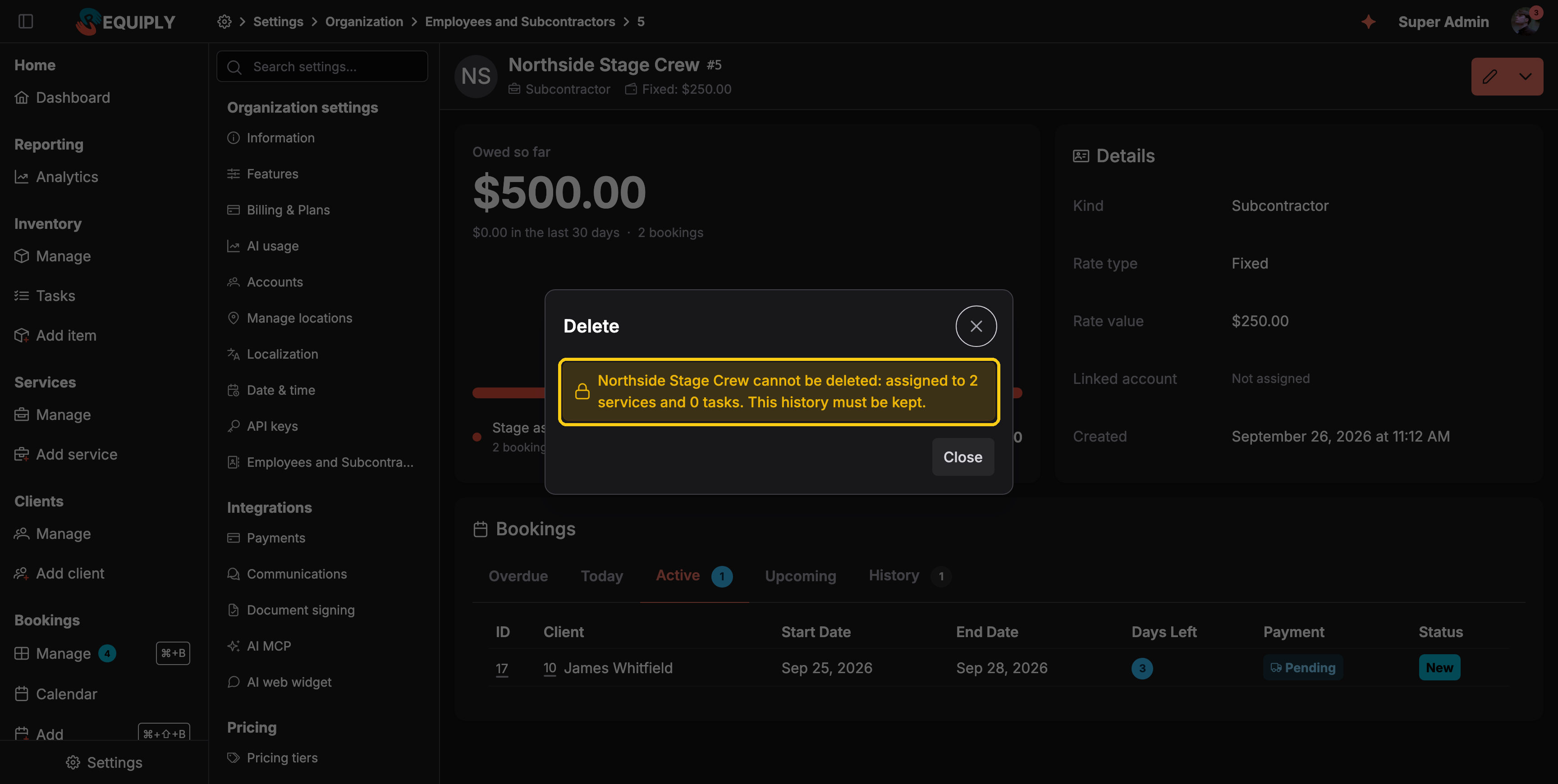
A profile with work history is kept, so past payouts stay correct.
To stop using someone who has history, leave the profile in place and simply stop assigning them. Their earnings stay visible on the detail page.
Where profiles are used
| Feature | How employees and subcontractors are used |
|---|---|
| Services on bookings | Assign one or more profiles to a service on a booking. Each assignment carries its own rate and payout. See Add or edit service. |
| Inventory tasks | Assign profiles to maintenance and other tasks, with a fixed or hourly rate per task. |
| Analytics | Service payouts and task payouts count as expenses. |
| Accounts | A profile can be linked to a login account; the link opens that account. |
| Mobile app | The same profiles can be assigned to services and tasks from the mobile app, with the same rates. On a booking, tap a service card to open Service employees: pick the people, set each one's rate with the %, Fixed, Hourly or No rate chips, and the card shows the total as Payouts {amount}. |
Common scenarios
Add a stage crew you hire for events
- Click Add and choose Subcontractor.
- Enter the company name, for example Northside Stage Crew, and upload their logo.
- Choose Fixed and enter what you pay them per job.
- Save, then assign them to the Stage assembly service on bookings. Their total shows up under Owed so far.
Pay a technician by the hour for repairs
Give the employee an Hourly rate. When you assign them to a maintenance task, open the pencil next to their name on the task, keep Hourly, and enter the Worked hours. The task payout is rate × hours. See Inventory tasks.
Check what a freelancer earned last month
Open their detail page. Owed so far shows the lifetime total and the last 30 days; the Bookings and Tasks tables list each job with its dates and payout.
Remove someone who left
If they were never assigned, delete the profile. If they have history, the delete is blocked on purpose: keep the profile and stop assigning them.
Date & time settings
Set your timezone, weekly opening hours, and public holidays or other closed days, so nobody books a pickup or return when you are closed, and control who may book outside those hours.
Add or edit employee or subcontractor
Create or update an employee or subcontractor profile: kind, name or company name, photo or logo, linked account, and the fixed, hourly, or percentage rate used to calculate their payout.