

Debt settlement
Debt settlement collects everything a client owes across all of their bookings in one payment. Instead of chasing five half-paid bookings individually, you produce a single pay-on-pickup balance or a single online payment link, and Requiply settles the underlying booking records for you when it is paid.
Internally — in the API and in payment descriptions — this is called a debt payoff.
How to open it
On the Client details page, the Finance card's Debt row shows a Settle debt button whenever both conditions hold:
- the client's debt is above zero, and
- at least one booking qualifies as payable (see below).
Clicking it opens the Debt settlement dialog.
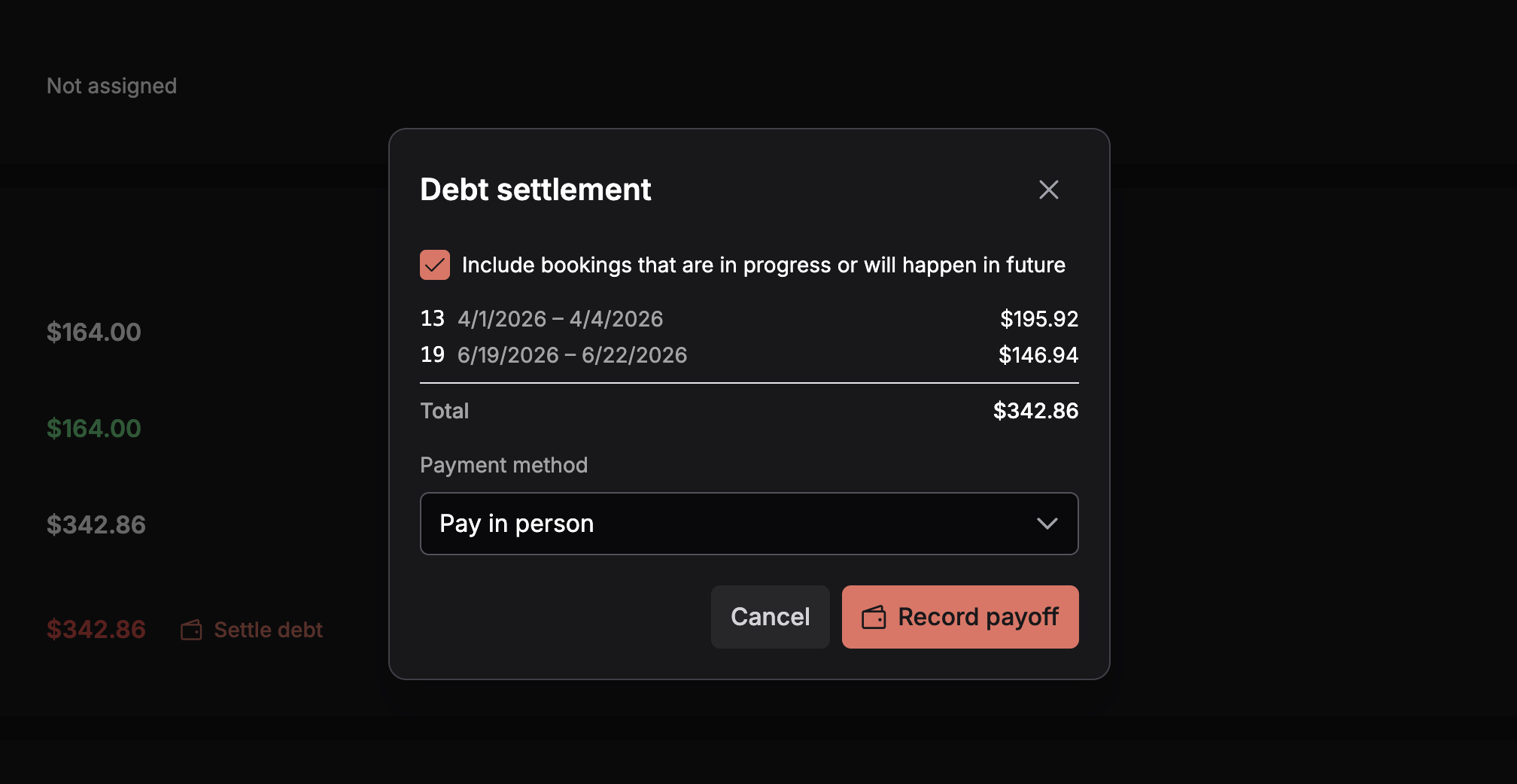
Each row is one payable booking: its ID, its rental dates, and the amount this settlement would collect from it. The Total is what the client will be asked to pay — $342.86 above, matching the Debt figure visible on the Finance card behind the dialog.
Which bookings qualify
A booking is payable when it still carries debt — its billed total exceeds what was actually collected on it. Requiply automatically leaves out:
- Requests and cancelled bookings — never billed.
- Fully refunded bookings — the money went back, so the booking is treated as called off.
- Bookings already settled — even if they still carry stale open payment records.
- Bookings that have not started yet and have no payment records at all — there is nothing to collect ahead of time.
- Standalone sales. Settlement collects bookings only. An unpaid sale still counts in the client's Debt row, so the dialog's Total can be lower than Debt; collect the sale from its own Payment button.
Everything else is offered in the dialog, with the amount Requiply would collect from it.
Include bookings that are in progress or will happen in future
A single checkbox, off by default. It controls whether bookings whose end date is still in the future — both in-progress rentals and future ones — are part of the settlement. With it off, you collect only what is genuinely overdue; with it on, you clear the client's whole balance in one go. Bookings in this group are marked with an Upcoming tag in the list.
Ticking and unticking the box updates the list and the Total live.
What each booking contributes
Requiply collects differently depending on whether the rental has already started. The dialog shows the resulting amount per booking; the difference matters because of security deposits.
| Booking | How it is collected | Deposit |
|---|---|---|
| Already started (in progress or ended) | The exact outstanding debt. Any stale open, failed, or cancelled payment records on the booking are superseded, and one fresh payment record for the residual amount is created on the booking. | A deposit that was never collected is dropped — the rental is already underway or over, so there is nothing left to secure. |
| Not started yet | The booking's existing open and dead charge records are collected exactly as they stand. | The security deposit is still due before pickup, so it is included. The row shows incl. deposit {amount}. |
The Total at the bottom of the list is what the client will be asked to pay.
Payment method
The Payment method dropdown offers the same methods as a normal booking payment:
- Pay in person — the button becomes Record payoff. No online transaction is created; you record the payment and mark it completed once the money arrives.
- An online provider (Stripe, Mono, LiqPay, WayForPay) — the button becomes Create payment link. Requiply creates a provider-hosted invoice for the whole settlement and stores the resulting link on the payment. The provider must have an active payment integration, otherwise the request is rejected with The requested payment method has no active integration.
If the provider invoice cannot be created, the payoff and every record it created are rolled back — you never end up with a half-configured payment that looks payable.
After the settlement is created
The Debt row on the Finance card changes: instead of the Settle debt button it now shows the payoff itself as a payment button (method, amount, status), with a Regenerate button beside it.
Clicking the payment button opens the payoff popover:
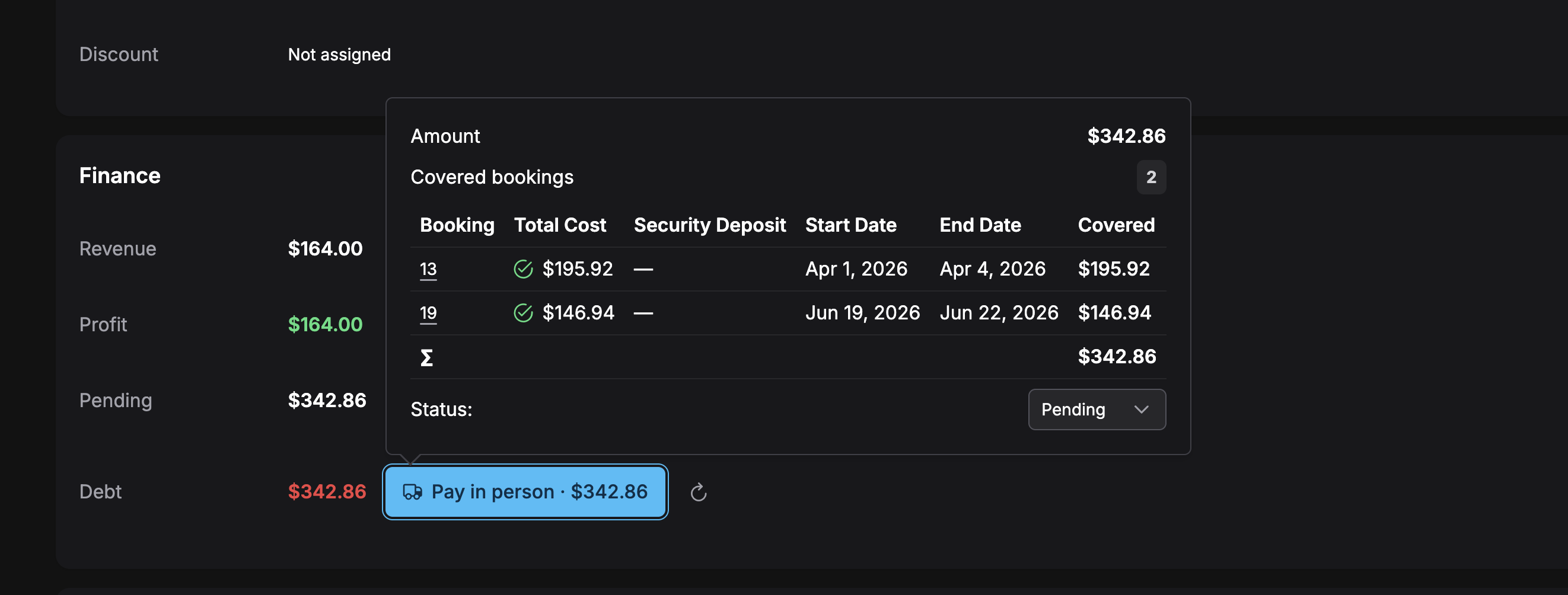
- The provider logo for online methods.
- Amount and Covered bookings count.
- A table of the covered bookings — booking ID (linking through), Total Cost, Security Deposit, start and end dates, and the Covered amount, summed under a ∑ row at the bottom. The Total Cost and Security Deposit figures each carry a green check or grey cross showing whether that part is included in this settlement; a booking with no deposit shows a dash instead.
- A Status dropdown.
- The payment link with copy and open buttons, for online methods.
In the example above the settlement covers two ended bookings whose rental totals are both included (green checks) and neither of which has a security deposit. Note that while the payoff sits at Pending, its amount also shows up in the Finance card's Pending figure.
Marking it paid
Set the Status dropdown to Completed when the money arrives. The payment records the settlement covers are settled along with it, so the client's Debt drops — to zero if the settlement covered everything, or to the remainder if you excluded upcoming bookings. For online methods the provider webhook does this automatically when the client pays.
Setting the status to Cancelled reopens the debt, and Settle debt comes back so you can start over.
Regenerating
Only one active settlement (pending or processing) can exist per client at a time — a second attempt is rejected with An unpaid debt payoff already exists for this client. Use Regenerate instead when the situation has changed: a new booking was added, a booking was paid separately, or you want to switch the payment method or flip the upcoming-bookings checkbox.
Regenerating opens the same dialog, pre-filled with the existing settlement's method. On submit it deletes the old payoff along with the still-unpaid records it created, recomputes everything from the client's current payment records, and creates a replacement — showing Debt payoff regenerated with up-to-date amounts.
If nothing is left to collect because the debt was settled some other way in the meantime, the old settlement is simply removed and no replacement is created: No debt left to cover, so the payoff was removed.
How this connects to the rest of Requiply
| Feature | Relationship |
|---|---|
| Client details | The only entry point; the Finance card's Debt figure is what drives it. |
| Booking payments | Settled payoffs settle the covered booking records, so the booking's payment ledger and payment status update too. |
| Payments | Online methods require an active integration; the provider webhook completes the payoff automatically. |
| Deposits | Deposits are collected for bookings that have not started, and dropped for started bookings that never collected one. |
| Edit booking dates | Changing dates changes a booking's total, and therefore its debt. Regenerate an active settlement afterwards. |
| Analytics | Settled payoffs feed the same revenue figures as ordinary booking payments. |
Common scenarios
A regular client with several unpaid past rentals
Open their page, click Settle debt, leave the checkbox off. The dialog lists only the finished bookings that were never paid, totals them, and — with Pay in person — records one balance. Mark it Completed when they pay at the counter and their debt goes to zero.
Clearing the whole account before a big new booking
Tick Include bookings that are in progress or will happen in future. Upcoming bookings are added at their full open amount, security deposits included, so a single payment link covers the client's entire balance including what is due before their next pickup.
The client paid one booking directly while the link was outstanding
Click Regenerate. The old link is discarded and a new one is issued for what is actually still owed — no manual arithmetic, and no risk of double-charging the booking they already settled.
Tips and cautions
Add or edit client
Create a customer record or update an existing one: name, phone, email, address, assigned discount, and your custom client fields, including the ones your organization made required.
Calls
The organization-wide call log from Binotel: filter missed, incoming, outgoing, and unknown numbers, play recordings, call back, and turn unknown callers into clients, on the web and in the mobile app.