

Notifications
Notifications are messages inside the app. Most come from the Requiply team — product updates, outage notices, events — and the rest are system notices. They land in the account drawer behind your name in the top-right corner, and a red badge on your avatar counts the ones you have not opened.
They are not alerts about your bookings. Those reach your phone as push notifications from the Requiply mobile app, or go out through workflows as emails, push notifications, and client messages.
Where notifications appear
The badge on your avatar
A red badge on your avatar shows how many notifications are unread, up to 9+. New notifications arrive without a page reload, and the badge pulses when one does.

Two unread notifications. Click the name or the avatar to open them.
The Notifications card
Click your name or avatar to open the account drawer. The Notifications card sits at the top, above Color mode, with a red {n} new tag while anything is unread.
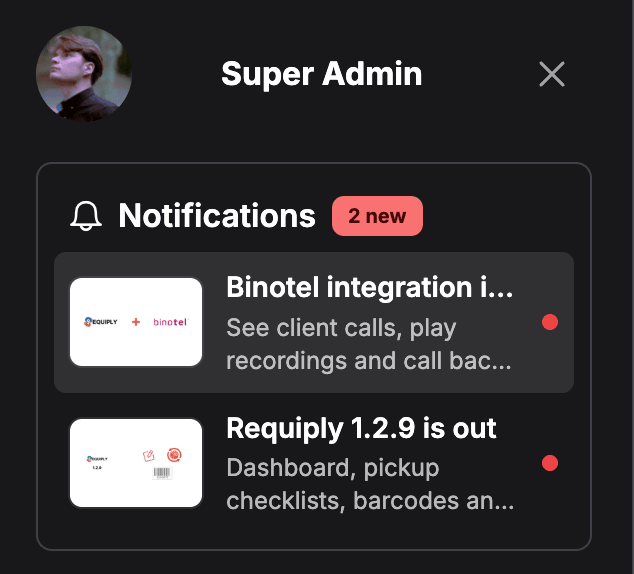
Both notifications are unread, so each carries a red dot. Long titles are cut to one line and subtitles to two.
- The two newest notifications are listed first. Show more reveals two more at a time, and the list scrolls inside the card. With nothing more to load, the button is not shown.
- Each row shows a cover image, or the category icon when there is none, followed by the title on one line and up to two lines of subtitle.
- An unread notification has a bold title and a red dot. A read one that leads to a website shows an external-link icon instead.
When you have no notifications, the card is not shown at all.
Categories
| Category | Icon | What it carries |
|---|---|---|
| Announcement | Megaphone | News from the Requiply team: new features, outages, events. |
| Release | Sparkles | What changed in a new version of Requiply. |
| Tip | Light bulb | A feature worth knowing about. |
| System | Info circle | System notices about the service. |
Opening a notification
Click a row. The notification is marked read straight away, on this device and on every other device where you are signed in. What happens next depends on what it contains:
| The notification has | Clicking it |
|---|---|
| A full text | Opens its own page in Requiply and closes the drawer. |
| No text, but a link to a Requiply page | Opens that page and closes the drawer. |
| No text, but a link to a website | Opens the website in a new tab. The drawer stays open. |
A notification with neither a text nor a link is simply marked read.
The notification page
A notification with a full text opens at /notifications/{id}. From top to bottom:
- Back, which returns to the page you came from, or to the Dashboard when you opened the link directly.
- The category tag and the publication date.
- The title, the subtitle, and the cover image.
- The text, with headings, lists, images, tables, and links. Links to Requiply pages open in the app; links to websites open in a new tab.
- Learn more, when the notification also carries a link.
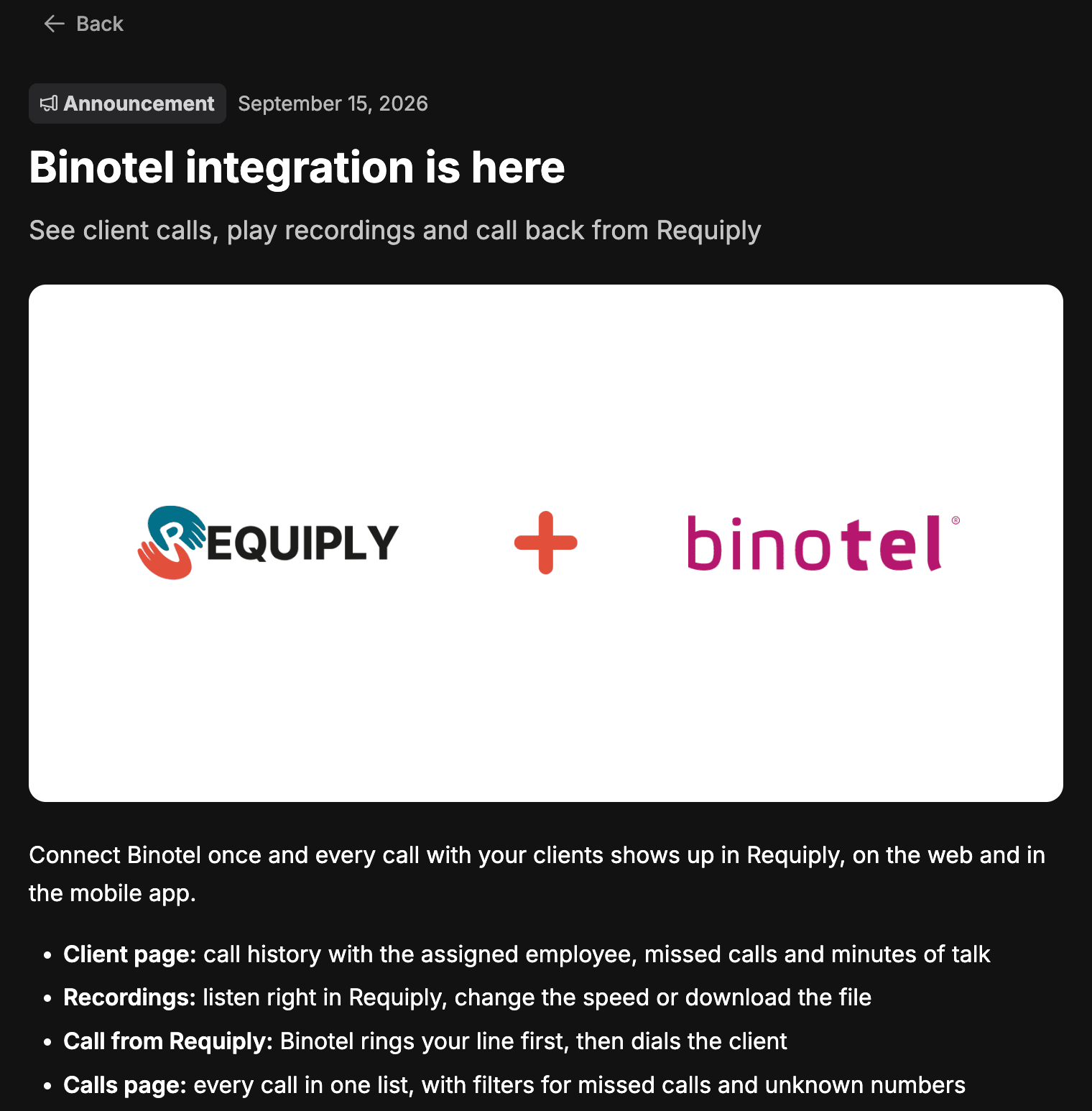
An announcement opened from the drawer. Opening the page marks it read.
If the notification was not sent to you, has expired, or was removed, the page reads This notification is not available.
Who receives a notification
Most notifications are written by the Requiply team, about updates, outages, events, and the like; the rest are system notices. Each one is addressed to one of three audiences: everyone who uses Requiply, the members of one organization, or a single user. A notification can be scheduled to appear later and can be given an end date, after which it disappears from the card and its page, read or not.
- New accounts start clean. Notifications published before your account was created are shown as read and do not count toward the badge.
- The language follows your interface. When a notification has a Ukrainian version, members using Requiply in Ukrainian see it. Everyone else sees the default text.
- Read status is personal. Opening a notification marks it read for you, not for your colleagues.
Automatic push notifications to your phone
Besides the notifications in the account drawer, the Requiply mobile app sends push notifications about your own work. They arrive on every phone where you are signed in to the app, whether the change was made on the web or in the app. To install the app and sign in, see Mobile app.
| You get a push when | Title | Tapping it opens |
|---|---|---|
| You are put on a task | New task assigned, with the task type, the item and its SKU, and the start time | The task |
| You are put on one or more services of a booking | New service assignment (or New service assignments), with the services, the booking number, the client, and the start time | The booking |
| Someone mentions you in a comment | {author} mentioned you | The comment thread, at that comment |
| Someone replies to your comment | {author} replied to you | The comment thread, at that comment |
| Something happens in a conversation you follow | The client's name | The conversation, see Conversation push notifications |
| A workflow sends a push to you or to your account group | The title the administrator wrote | The booking, its client, or the bookings list, as set in the workflow |
- Task and service pushes reach you only when your account is the Linked account of an employee profile under Employees and subcontractors. Assigning yourself never sends a push.
- Several changes at once make one push. Being put on three services of the same booking, or several new messages in one conversation, arrive as a single push. Workflow pushes are never combined.
- Language. Task, service, mention, and reply pushes are written in your phone's language: Ukrainian when the phone is set to Ukrainian, English otherwise. A workflow push shows the text the administrator wrote, the same for everyone.
Conversation push notifications
When the Conversations inbox is on, each team member with access to conversations chooses which conversation events reach their phone as push notifications. Open your account (your name in the top-right corner) and the Notifications tab, at https://app.requiply.com/account?tab=notifications.
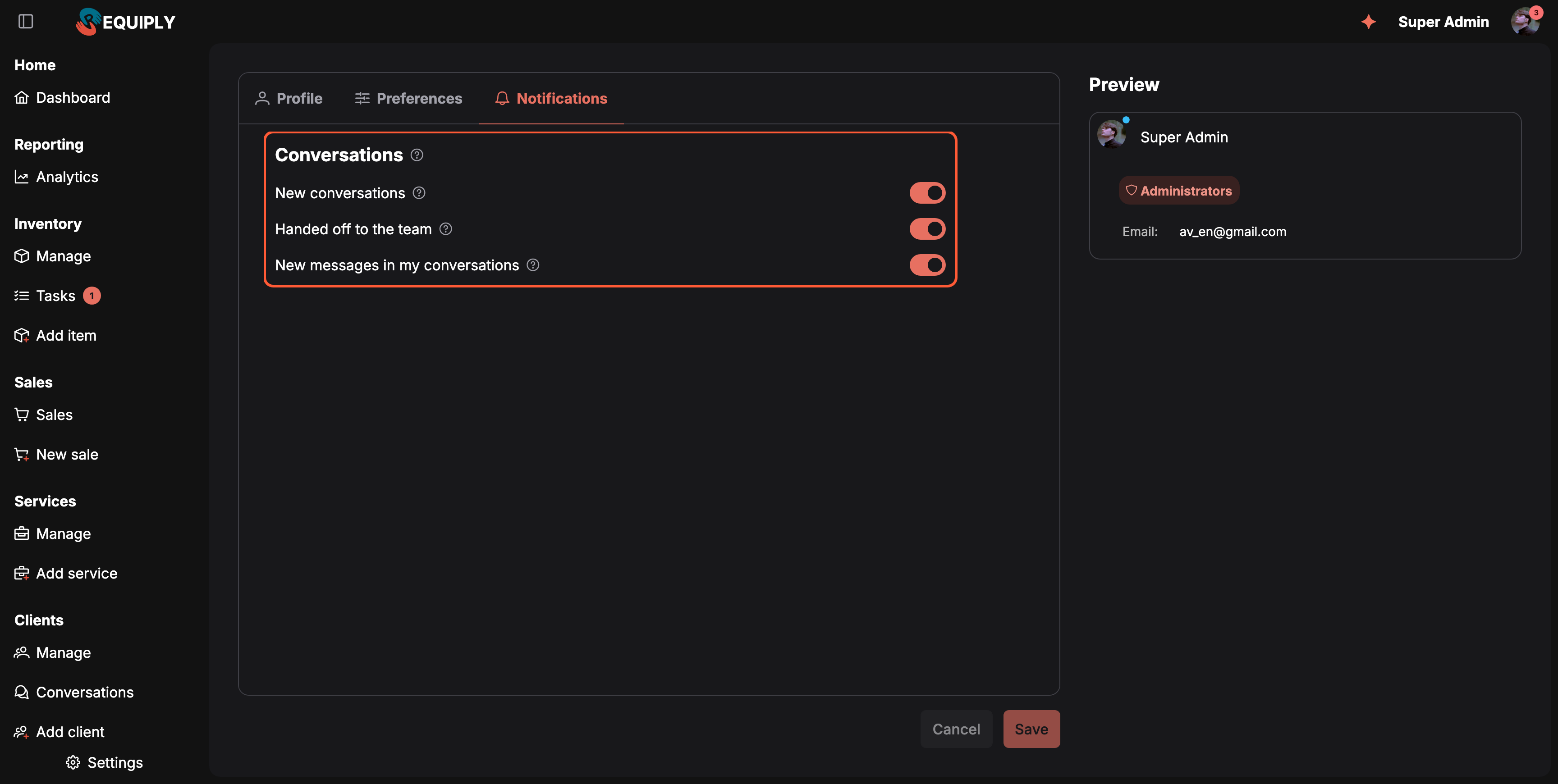
Three independent switches, chosen by each member for themselves.
| Switch | Default | You get a push when |
|---|---|---|
| New conversations | On | A client starts a new conversation or writes again after it was closed, even when the AI assistant answers it. |
| Handed off to the team | On | The AI assistant or a client asks for a team member. |
| New messages in my conversations | On | A client writes in a conversation you handle or that nobody has taken yet. |
Press Save to keep your choice. Pushes arrive in the Requiply mobile app on every phone you are signed in on.
Tips and cautions
Comments
The notes, photos, files, and expenses your team attaches to an item, a task, a booking, or a client, plus the automatic history Requiply records alongside them.
Overview
Sell consumables such as memory cards, batteries, and gaffer tape next to your rentals: switch on Sales, give your team the Sales permissions, keep stock counts, and record sales on their own or on a booking.